

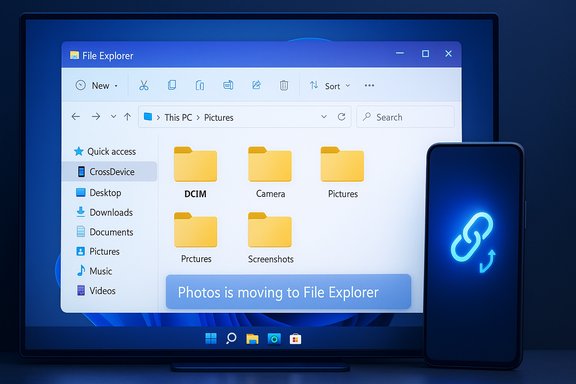
Microsoft is quietly redirecting the Phone Link app’s built‑in photo gallery to File Explorer, replacing the in‑app “Photos” surface with a File Explorer–based workflow that mounts your paired phone as a virtual device inside Windows 11.
Phone Link (formerly “Your Phone”) has been Microsoft’s bridge between Windows and mobile devices for several years, surfacing notifications, messaging, calls, app mirroring (Android) — and until now — a lightweight photo gallery that aggregated recent camera photos and screenshots in a single pane. That gallery provided a fast, visual surface for quick grabs, copy/paste into apps, and ad‑hoc sharing without navigating a phone’s folder hierarchy.
Over the past year Microsoft began testing a different approach: exposing an Android phone’s storage directly inside File Explorer so the device appears like removable storage and supports full file operations. This File Explorer mount is delivered by Windows’ Cross‑Device Experience host and the Link to Windows service on the phone. Microsoft’s public documentation spells out the flow — pair the phone in Settings → Bluetooth & devices → Mobile devices → Manage devices, then turn on Show mobile device in File Explorer to expose the phone in Explorer. The new, visible change for many users is a small banner in Phone Link that reads “Photos is moving to File Explorer” and guides them to enable the File Explorer mount if they want to continue browsing phone media from the PC. Independent hands‑on reporting and community tests have confirmed the banner and redirect behavior in recent Insider and production builds.
For most Windows 11 users the transition will be an improvement for serious file tasks, and easy to adopt once the Show mobile device in File Explorer toggle is enabled. For those who miss the gallery’s immediacy, cloud sync or a third‑party gallery remain the most reliable ways to restore an aggregated, recent‑photos view on the PC.
Expect Microsoft to continue consolidating overlapping Windows surfaces into core shell components, and treat this change as a prompt to review cross‑device workflows and backup strategies so photos remain accessible regardless of the surface Microsoft chooses to host them.
Microsoft’s guidance and the current experience are documented in the Windows support pages and have been validated by multiple independent outlets and community hands‑on coverage; where the product is still rolling out, exact timing and OEM behavior will vary, so plan and pilot accordingly.
Source: findarticles.com Microsoft Removes Photo Viewing in Windows 11 Phone Link
 Background
Phone Link (formerly “Your Phone”) has been Microsoft’s bridge between Windows and mobile devices for several years, surfacing notifications, messaging, calls, app mirroring (Android) — and until now — a lightweight photo gallery that aggregated recent camera photos and screenshots in a single pane. That gallery provided a fast, visual surface for quick grabs, copy/paste into apps, and ad‑hoc sharing without navigating a phone’s folder hierarchy.Over the past year Microsoft began testing a different approach: exposing an Android phone’s storage directly inside File Explorer so the device appears like removable storage and supports full file operations. This File Explorer mount is delivered by Windows’ Cross‑Device Experience host and the Link to Windows service on the phone. Microsoft’s public documentation spells out the flow — pair the phone in Settings → Bluetooth & devices → Mobile devices → Manage devices, then turn on Show mobile device in File Explorer to expose the phone in Explorer. The new, visible change for many users is a small banner in Phone Link that reads “Photos is moving to File Explorer” and guides them to enable the File Explorer mount if they want to continue browsing phone media from the PC. Independent hands‑on reporting and community tests have confirmed the banner and redirect behavior in recent Insider and production builds.
What changed — the practical details
- Phone Link’s Photos tab no longer reliably displays the curated, recency‑sorted gallery it once did. In affected builds the Photos pane now surfaces a message and a one‑tap redirect that opens File Explorer at the phone’s camera (or selected) folder.
- File Explorer shows the phone as a virtual device under a CrossDevice location and exposes the phone’s full folder tree (DCIM/Camera, Pictures/Screenshots, Downloads, app folders). That means you can browse videos, hidden app folders, and other locations Phone Link’s gallery didn’t surface.
- File operations in Explorer behave like normal file management: multi‑select, copy/paste, drag‑and‑drop, rename and delete. Those capabilities are the primary rationale Microsoft gives for the consolidation: reducing duplicated surfaces and placing file management where the system already handles it best.
Why Microsoft is doing this
There are three straightforward reasons behind the move:- Consolidation and engineering cost. Maintaining two separate surfaces that surface the same files (Phone Link’s gallery and File Explorer) creates duplicated engineering, testing and security overhead. Folding photo browsing into the shell simplifies product surface area and leverages mature Explorer features.
- Capability parity with wired workflows. File Explorer supports bulk operations and video playback out of the box. For users who move batches of photos or edit videos, the Explorer mount is functionally closer to attaching a phone by USB than the Phone Link gallery ever was.
- Policy and governance. For enterprises, exposing phones through the system file manager means device visibility, permissions and caching behavior can be governed where group policies and existing security controls reside, simplifying compliance and support.
How to enable and use the File Explorer phone mount
The documented setup is intentional and short; use this when migrating from Phone Link’s gallery:- Open Settings → Bluetooth & devices → Mobile devices → Manage devices.
- Pair your phone if it isn’t already (the pairing UI commonly uses a QR code and a small handshake that prompts on the phone).
- Toggle Show mobile device in File Explorer for the paired device to mount it in Explorer.
- On the phone approve the Link to Windows permissions prompt so the phone allows file access (Link to Windows must be installed and allowed to run in the background on Android).
- A CrossDevice or phone entry in the sidebar; click it to browse DCIM, Screenshots, Downloads, and app folders.
- Standard Windows file operations: multi‑select, drag‑and‑drop into apps, right‑click context menus, rename, and delete.
- If the toggle refuses to stay on, check that your phone and PC are signed in to the same Microsoft account, update Phone Link and Link to Windows, and disable aggressive battery optimizations on the phone. Microsoft Q&A threads and community posts show these are the usual fixes.
- If you see missing screenshots, remember File Explorer exposes the full folder tree rather than an aggregated “recent” gallery: screenshots may be under Pictures/Screenshots while camera photos live under DCIM/Camera.
Android vs iPhone: important differences
This change is materially better for Android users but has limited effect for iPhone owners.- Android: The CrossDevice/File Explorer mount was built around Android’s storage model and MediaStore APIs. Microsoft’s docs set Android 11 or later as the recommended baseline for the best experience; Link to Windows version requirements are also specified on Microsoft support pages. When properly paired, Android phones can appear in File Explorer and behave like wireless MTP devices.
- iPhone: Apple’s platform restrictions historically limit what Phone Link can do. While Microsoft has gradually added iPhone support for notifications, calling, limited messaging and, in Insider builds, share‑sheet file transfer, iOS does not expose the same filesystem semantics as Android. For iPhone, alternatives remain iCloud for Windows, the Photos import wizard, or a wired USB import. Phone Link on iPhone still provides connectivity for messaging and notifications but doesn’t offer the same folder‑level browsing experience in File Explorer.
Performance and reliability — how it works and how to optimize it
Technical behavior:- Pairing and initial handshakes often use Bluetooth/ BLE for discovery and session setup; actual file operations are routed over the local Wi‑Fi network when both devices are on the same network, which is faster and more reliable than Bluetooth. This hybrid approach gives the responsiveness of a local transfer without a cable.
- File Explorer uses a Cross‑Device broker that translates Explorer operations into remote calls to Link to Windows on the phone, meaning big transfers are still subject to per‑session limits, phone OEM implementation details, and device resource constraints.
- Put both devices on the same Wi‑Fi network — transfers over local Wi‑Fi are much faster than Bluetooth‑only fallbacks.
- Disable aggressive battery/foreground restrictions on Link to Windows on Android; background kills break browsing and transfers.
- Give large libraries time to generate thumbnails and for Explorer to cache previews — initial browsing of thousands of images will appear slower until the shell cache warms.
- For large, one‑time backups or archive operations, a wired MTP transfer or USB‑based import remains the fastest and most predictable approach.
Security, privacy and enterprise considerations
Exposing mobile storage in the system file manager carries security and governance implications:- Local cache and copies: File Explorer’s CrossDevice cache stores local copies under the user profile (commonly under C:\Users\<user>\CrossDevice). Organizations and users should be aware that local copies may persist and plan cache clearing policies for shared devices. Microsoft documents cleanup steps.
- Access control: Because File Explorer is integrated with Windows security stacks, administrators can more easily apply group policies, Defender controls, and endpoint detection across file operations. That reduces the complexity of governing file access compared with chasing a parallel in‑app surface. This is an operational win for enterprise management.
- Threat surface: Any feature that increases mounted surfaces raises a risk vector; organizations should ensure Link to Windows and Phone Link are approved, monitored and configured to minimize unnecessary exposures. Defender and endpoint monitoring should include CrossDevice behaviors if administrators are concerned about lateral data exfiltration.
User experience trade‑offs — what you gain and what you lose
Gains (clear, tangible):- Powerful file operations — Explorer’s multi‑select, drag‑and‑drop and straight context‑menus make bulk transfers and edits far faster and more predictable.
- Video and broad folder access — Explorer exposes videos and app folders that Phone Link’s gallery did not surface.
- Consistent system behavior — File operations behave as expected inside Windows, improving integration with editors, backup tools, and cloud providers.
- Loss of a curated “recent” gallery — Phone Link’s single‑pane gallery aggregated screenshots and app images for fast visual scanning. Explorer’s folder‑first model requires more navigation, which is slower for quick grabs and social sharing workflows. This is a visible usability regression for users who relied on instant visual access.
- Context switching — Phone Link allowed dragging a photo directly into a message or using it alongside calls/notifications inside the same app. The redirect to Explorer introduces a context switch that disrupts some micro‑workflows.
- OEM variability — Behavior can differ across Android vendors. Samsung phones historically have the most complete Link to Windows integration; other OEMs may have subtle limitations. Test on representative devices before committing to a change‑wide migration.
Alternatives and workarounds
If the File Explorer model doesn’t suit your workflow, consider these options:- Keep using Phone Link where the gallery still appears (older builds or devices may retain the view while rollouts continue). Be prepared: this is likely transitional.
- Use cloud sync (OneDrive, Google Photos) so your entire camera roll is available in the Photos app and searchable on Windows without needing the Phone Link gallery. OneDrive particularly integrates tightly with Windows 11 and the Photos app.
- Use a third‑party gallery or organizer on Windows that indexes the CrossDevice mount and reconstructs an aggregated “recent” gallery if you prefer that UX.
- For iPhone users, continue to use iCloud for Windows, the Photos import wizard, or USB/Lightning cable transfers to move full resolution photos and videos to PC. Microsoft’s recent iPhone file‑sharing work is promising but remains constrained by iOS.
Practical advice for IT and power users
- Inventory: Identify who in your org relies on Phone Link’s gallery workflows (marketing, social teams, journalists). Test those workflows against File Explorer’s mount now.
- Update & pilot: Ensure Phone Link, Link to Windows and the Cross‑Device Experience Host are up‑to‑date on pilot machines. Run a pilot across device classes (Samsung, Pixel, other OEMs) and with iPhone users to capture variance.
- Policy decisions: Decide whether to enable the File Explorer mount by default on corporate devices. If you disable it, document how to clear CrossDevice caches and unpair phones before handing devices to others.
- Training and helpdesk: Update knowledge‑base articles and train support staff on the new Settings path (Bluetooth & devices → Mobile devices → Manage devices) and common fixes for toggles that refuse to stay on.
Critical analysis — strengths, risks and unanswered questions
Strengths:- The move aligns with modern product hygiene: consolidating duplicate features reduces engineering debt, lowers surface area for bugs, and creates a single place to evolve file semantics (Explorer). For file‑centric users, this is an unambiguous win: better controls, video support and closer parity with wired workflows.
- The real UX cost is to users who valued Phone Link’s instant, curated gallery. For those users the Explorer replacement is slower, requires more folder navigation and breaks fast micro‑tasks. Microsoft’s decision trades convenience for capability — an acceptable trade from an engineering standpoint but a tangible regression for some workflows.
- Communication gaps: Microsoft’s rollout appears staged and the company has not published a strict deprecation timeline for the Phone Link gallery. That ambiguity complicates migration planning for teams and individuals who depend on the old UX. Treat any claim about an exact removal date as unverified until Microsoft publishes formal release notes.
- OEM fragmentation: Because Link to Windows behavior depends on the phone vendor’s implementation and Android power management, the experience will vary. That increases support complexity at scale.
- Any statement that the Phone Link gallery will be removed globally on a fixed date is not verifiable from the available documentation today. The evidence points to a staged redirect that will appear for many users, but Microsoft’s published documentation does not yet state a hard removal deadline. Plan for the removal but treat timelines as subject to change.
Bottom line
File Explorer is becoming the canonical place in Windows 11 for browsing and managing phone media. That shift brings real strengths — full file management, video access, and tighter system governance — but it also replaces a fast, single‑pane Phone Link gallery that some users relied on for rapid screenshot grabs and simple, visual workflows. Android users stand to gain the most; iPhone users will see comparatively little benefit because of platform restrictions.For most Windows 11 users the transition will be an improvement for serious file tasks, and easy to adopt once the Show mobile device in File Explorer toggle is enabled. For those who miss the gallery’s immediacy, cloud sync or a third‑party gallery remain the most reliable ways to restore an aggregated, recent‑photos view on the PC.
Expect Microsoft to continue consolidating overlapping Windows surfaces into core shell components, and treat this change as a prompt to review cross‑device workflows and backup strategies so photos remain accessible regardless of the surface Microsoft chooses to host them.
Microsoft’s guidance and the current experience are documented in the Windows support pages and have been validated by multiple independent outlets and community hands‑on coverage; where the product is still rolling out, exact timing and OEM behavior will vary, so plan and pilot accordingly.
Source: findarticles.com Microsoft Removes Photo Viewing in Windows 11 Phone Link
