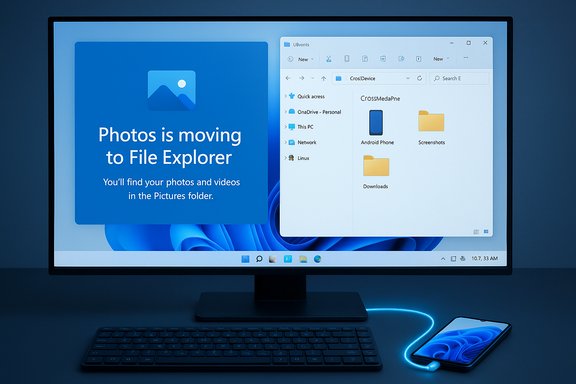
Microsoft has quietly begun removing the Phone Link app’s built‑in Photos viewer and redirecting users to File Explorer, telling Windows 11 owners to browse and manage mobile photos from a mounted mobile device entry instead of the app’s curated gallery view.
Phone Link (formerly Your Phone) has been one of Windows’ most visible continuity tools: notifications, messages, calls, app streaming and a simple gallery that displayed recent phone photos inside a single pane. That in‑app Photos view queried Android’s MediaStore to present a unified, recency‑sorted gallery of screenshots, camera photos and images from other apps — a deliberately lightweight surface designed for quick grabs and drag‑and‑drop workflows. Recent notifications inside Phone Link now display an alert reading “Photos is moving to File Explorer,” and tapping the Photos tile redirects users into File Explorer’s virtual mobile device view instead. Microsoft introduced the File Explorer integration last year as a way to mount a paired Android phone inside the shell so it appears like a removable device. That integration exposes full phone folders (Camera, Screenshots, Downloads, app folders) and supports full file operations — multi‑select, copy/paste, drag‑and‑drop, rename and video playback — capabilities Phone Link’s gallery intentionally avoided at scale. The File Explorer mount is provided by the Cross‑Device Experience Host on Windows and the Link to Windows service on the phone; turning it on requires a pairing flow in Settings → Bluetooth & devices → Mobile devices → Manage devices and enabling the “Show mobile device in File Explorer” toggle. Microsoft’s support pages list Android 11+ as the recommended baseline and call out specific Link to Windows minimum versions for full compatibility.
There are practical benefits:
But the change has trade‑offs that merit criticism:
The transition is already visible as an in‑app banner and a redirect in Phone Link, and Microsoft’s support documentation explains the File Explorer pairing and requirements; however, there is no firm, public end‑of‑life date for the Phone Link Photos viewer yet, so users should prepare but can still choose the best interim workflow for their needs.
Source: Windows Report Microsoft is Moving Photos Viewing Out of Phone Link App to File Explorer
 Background / Overview
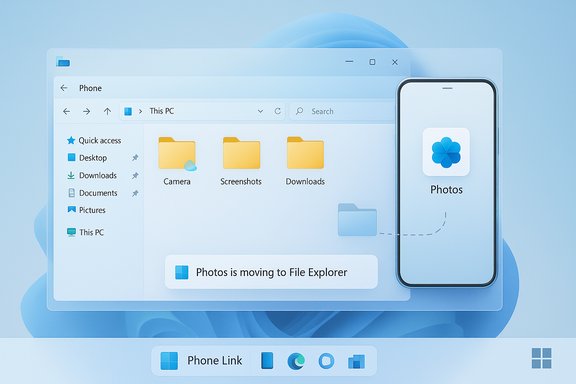
Phone Link (formerly Your Phone) has been one of Windows’ most visible continuity tools: notifications, messages, calls, app streaming and a simple gallery that displayed recent phone photos inside a single pane. That in‑app Photos view queried Android’s MediaStore to present a unified, recency‑sorted gallery of screenshots, camera photos and images from other apps — a deliberately lightweight surface designed for quick grabs and drag‑and‑drop workflows. Recent notifications inside Phone Link now display an alert reading “Photos is moving to File Explorer,” and tapping the Photos tile redirects users into File Explorer’s virtual mobile device view instead. Microsoft introduced the File Explorer integration last year as a way to mount a paired Android phone inside the shell so it appears like a removable device. That integration exposes full phone folders (Camera, Screenshots, Downloads, app folders) and supports full file operations — multi‑select, copy/paste, drag‑and‑drop, rename and video playback — capabilities Phone Link’s gallery intentionally avoided at scale. The File Explorer mount is provided by the Cross‑Device Experience Host on Windows and the Link to Windows service on the phone; turning it on requires a pairing flow in Settings → Bluetooth & devices → Mobile devices → Manage devices and enabling the “Show mobile device in File Explorer” toggle. Microsoft’s support pages list Android 11+ as the recommended baseline and call out specific Link to Windows minimum versions for full compatibility. What’s changing — the practical details
- The Phone Link app’s Photos tab now surfaces a banner telling users that “Photos is moving to File Explorer,” and the Photos tile redirects to File Explorer when the File Explorer mount is enabled. Early hands‑on reports and community testing show Phone Link opening the phone’s Camera folder inside a CrossDevice mount when users accept the redirect.
- File Explorer exposes the phone’s full folder tree — not a curated “recent” gallery — which means videos and other storage locations become available and standard Windows file operations work as if the phone were a removable drive. This enables robust bulk file management but eliminates Phone Link’s single‑pane aggregated gallery UX.
- Microsoft’s publicly documented setup requires a Windows 11 PC, an Android device (Android 11 or later for the best experience), a current Link to Windows app on the phone, and the Cross‑Device Experience Host package on Windows. The company recommends enabling the “Show mobile device in File Explorer” toggle from Settings → Bluetooth & devices → Mobile devices once the device is paired.
- There is no publicly announced deprecation timeline for the Phone Link gallery. Reporting describes a staged rollout of the redirect and recommends users prepare for the change, but Microsoft has not published a firm removal date for the in‑app Photos viewer; treat any claims about an exact removal date as unverified until Microsoft publishes formal release notes.
Why Microsoft is doing this: consolidation, capability and costs
Microsoft frames this move as a consolidation: presenting mobile files in two separate Windows surfaces (Phone Link’s gallery and File Explorer) is redundant, and File Explorer is a more capable place to perform the common file‑management tasks users perform when moving media between phone and PC. From an engineering and product‑management standpoint, centralizing file workflows in File Explorer reduces duplicated maintenance, simplifies security and consistency concerns, and leverages existing file APIs and tools that are already mature in Windows.There are practical benefits:
- File Explorer supports bulk operations (multi‑select, rename, move) that Phone Link’s gallery did not intend to handle.
- File Explorer exposes videos and any folder on the phone, removing artificial limits of a “recent” subset.
- A single Cross‑Device file broker (the Cross‑Device Experience Host + Link to Windows) is easier to secure, test and evolve than two different viewers that must remain consistent.
UX trade‑offs: what users will gain and lose
Gains (what File Explorer brings)
- Full file‑management primitives: multi‑select, drag‑and‑drop between apps, copy/paste, rename and delete operations that behave like any other external storage device.
- Video support: File Explorer exposes videos stored on the phone and integrates them into Windows player and editing workflows.
- Integration with existing Windows tools: search, file tagging, indexing and third‑party gallery apps can operate on the mounted folders.
- Closer parity with wired workflows: the wireless mount behaves like MTP/USB drives for many tasks, eliminating the need for a cable in many scenarios.
Losses (what Phone Link’s gallery offered)
- Aggregated “most recent” view: Phone Link presented screenshots, camera photos and app images in a single scrollable UI without forcing users to navigate folders — a convenience that File Explorer’s folder‑first model removes.
- Speed for quick grabs: the gallery was optimized for scanning recent content rapidly; File Explorer requires more navigation steps to find app‑specific or screenshot folders.
- Seamless Phone Link integration: past Phone Link workflows let users drag a photo from the gallery into a message or quick edit surface inside the same app; the redirect means some of those micro‑flows require an extra context switch.
How the File Explorer mount works (technical overview)
- The Cross‑Device Experience Host on Windows exposes the paired phone as a virtual shell location, often visible under a CrossDevice path in the user profile folder or as a sidebar item in Explorer.
- File Explorer communicates with a local broker process that translates standard Explorer operations (list, read, write, rename) into remote calls to the Link to Windows service on the phone.
- The Link to Windows app on the phone must be granted file access permissions (storage or “all files access” depending on Android OEM). The phone and PC must be on the same network for initial pairing and many operations.
How to switch today: step‑by‑step
- Open Windows Settings → Bluetooth & devices → Mobile devices.
- Click Manage devices and confirm your phone is paired. If not, choose Add device and use the QR code flow.
- Toggle Show mobile device in File Explorer for the device you want to mount. File Explorer should then show the phone as a device under CrossDevice or in the sidebar.
- If you tap Phone Link’s Photos tile and see the “Photos is moving to File Explorer” banner, accept it and Phone Link will open the corresponding folder in File Explorer.
- Confirm the phone uses Android 11 or later and that the Link to Windows app is up to date. Microsoft’s support documentation lists minimum Link to Windows versions and Android baselines.
- Make sure both PC and phone are signed into the same Microsoft account and are on the same Wi‑Fi network.
- Disable aggressive battery optimizations on the phone (Link to Windows can be suspended by OEM power managers).
- Toggle the feature off and on, or remove and re‑pair the device if problems persist. Microsoft Q&A threads and community reports have common troubleshooting recipes.
Security, privacy and data‑management implications
- Permissions: pairing asks for storage, notifications and other device permissions on the phone. Granting File Explorer access increases surface area: the PC can read and write to many phone folders. Audit permissions during pairing and only pair devices you trust.
- Local caching: File Explorer maintains a CrossDevice cache under your user profile for performance. If you enable the mount on a shared or managed PC, the CrossDevice cache can potentially leave local copies. Microsoft documents how to remove local copies by toggling the feature off and deleting the CrossDevice folder. Admins should include this in device‑handover procedures.
- Deletion semantics: deleting files from File Explorer may remove them from the phone. Microsoft notes a “Recycle bin – Connected device” on Android that can hold deleted items for up to 30 days in some configurations, but administrators and users should treat deletions as potentially permanent unless backups exist.
- Enterprise controls: for managed devices, administrators should determine whether to permit the File Explorer mount, document pairing/removal procedures, and update policies to avoid inadvertent data exposure on shared systems. The mount’s behavior (one phone visible at a time, cached files) has clear administrative implications.
Alternatives and workarounds if you prefer the old gallery experience
- Keep using Phone Link while the gallery still appears on your device — some Windows installations and older Phone Link builds continue to show the in‑app gallery for now. Microsoft has not yet announced a firm removal schedule.
- Use cloud sync (OneDrive, Google Photos) to maintain a single cross‑device gallery that’s readily available in the Windows Photos app and web. This restores the “one place for everything” mental model while adding the benefits of cloud backup and indexing.
- Install a third‑party Windows gallery app that indexes the CrossDevice path and presents an aggregated, gallery‑first interface. Several gallery utilities can watch mounted drives and present a river‑style view of recent photos.
- For large‑scale library management, perform routine wired MTP transfers or use dedicated backup tools instead of relying on the wireless mount for mass operations. Wireless mounts are convenient for quick grabs and moderate transfers but wired MTP remains faster for full backups.
Troubleshooting: common gotchas and fixes
- Toggle greyed out or not switching: confirm same Microsoft account on both devices, disable other paired phones or unpair extras, update Phone Link and Link to Windows, and re‑pair. Microsoft Q&A threads provide step‑by‑step checks for the most common failure modes.
- Missing screenshots or app images: look under DCIM/Camera, Pictures/Screenshots or app‑specific download folders. File Explorer exposes folder structure rather than the MediaStore‑based aggregated view Phone Link provided, so screenshots might live in separate directories.
- Local cache concerns on shared PCs: before returning a shared laptop, disable “Show mobile device in File Explorer” and delete the CrossDevice cache under C:\Users\<username>\CrossDevice to remove local copies. Microsoft documents these steps.
Product and community reaction — critical analysis
This is a textbook consolidation decision: consolidate overlapping features to reduce engineering cost and focus on a single, more capable surface. The rationale is defensible: File Explorer was always the right place for bulk file operations and videos, and exposing phones as a mount helps many workflows behave like USB transfers without cables. Microsoft’s broader product trend — embedding device and AI actions into core system surfaces rather than maintaining parallel mini‑apps — aligns with this move.But the change has trade‑offs that merit criticism:
- Phone Link’s gallery was not a niche convenience; for many users it was the fastest way to find recent screenshots and app images. Removing that single‑pane mental model forces folder navigation and can slow everyday workflows for social sharing, quick documentation, and other screenshot‑heavy tasks. This is a real usability regression for a specific but significant user cohort.
- Microsoft’s communication has so far been minimal: an in‑app banner and staged rollout messages but no public deprecation timetable. That leaves users and IT teams uncertain about how long they can rely on the old gallery or when to switch tools. Transparency on a hard removal date and enterprise controls would reduce friction.
- OEM variance and Android fragmentation mean the File Explorer mount will behave differently across phones. Microsoft’s documentation sets Android 11+ as the recommended baseline but implementation details depend on the phone’s OEM, Link to Windows version, and power‑management settings. That variability raises support complexity for help desks.
Practical recommendations (for everyday users and IT)
- Update Phone Link, Link to Windows and the Cross‑Device Experience Host before switching workflows. Confirm Android version and permissions.
- If you rely on Phone Link’s gallery, set up cloud sync (OneDrive or Google Photos) now to preserve a single aggregated gallery experience on the PC. This also gives you a backup if the in‑app gallery is removed.
- For shared or corporate devices, document the CrossDevice cache removal process and decide policy for enabling the File Explorer mount. Train help‑desk staff on the one‑device limitation and pairing/clear steps.
- Test the File Explorer workflow for the most common tasks you perform (screenshot grabs, bulk transfers, video editing) and adjust habits or tooling accordingly — a small pilot will reveal whether you prefer the folder‑first approach or must preserve gallery‑first tools.
Conclusion
Microsoft’s move to move photo viewing from Phone Link into File Explorer is a pragmatic engineering consolidation that prioritizes capability and maintainability over a curated convenience. For users who manage lots of media, File Explorer is the clear upgrade: more control, video access, and full file operations. For people who used Phone Link as an instant gallery and clipboard for recent captures, the change reduces immediacy and adds friction.The transition is already visible as an in‑app banner and a redirect in Phone Link, and Microsoft’s support documentation explains the File Explorer pairing and requirements; however, there is no firm, public end‑of‑life date for the Phone Link Photos viewer yet, so users should prepare but can still choose the best interim workflow for their needs.
Source: Windows Report Microsoft is Moving Photos Viewing Out of Phone Link App to File Explorer