

If you still own a shelf of old CD‑ROM game boxes, you can make those discs playable on a modern Windows PC — but it takes more than nostalgia: you’ll need a drive (or accurate image), the right imaging tools, and one of several compatibility approaches (Windows Compatibility Mode, wrappers, emulators, or virtual machines) to bridge decades of hardware and software change. This guide walks through everything from buying an external DVD‑RW to making BIN/CUE images for mixed‑mode discs, and from quick compatibility fixes to full vintage‑hardware emulation — with practical, preservation‑minded steps and safety warnings so your classics survive to the next PC generation.
Old CD‑ROM games were built for a very different PC ecosystem: optical media as the primary distribution, 16‑ or 32‑bit installers, copy‑protection of varying sophistication, and drivers and runtimes that modern x64 Windows does not natively support. Modern Windows 10/11 machines often lack optical drives and cannot run 16‑bit installers directly, so getting an old title running requires one or more of these actions: read the disc on a compatible drive, create a bit‑for‑bit image (ISO/BIN+CUE/IMG), and run the game inside an environment that matches its expectations — whether that’s compatibility mode, a DirectX/Glide wrapper, DOS emulation, or a full virtualized vintage Windows. The practical choices depend on the game’s era and protection method.
Practical DOSBox notes:
However, there are notable risks and limitations. Legal ambiguity around distributor rights persists — having a downloaded image is not the same as having legal permission to run or redistribute the game. DRM and copy protection can block execution or require heavy workaround. Some games rely on timing quirks or drivers that only true period hardware reproduces perfectly; emulation increases playability but is not always bit‑perfect. Lastly, community “free download” sites are convenient but often unsafe, bundling unwanted software or offering cracked binaries that are risky to run. These constraints mean that, while most titles can be revived, expect to do a little troubleshooting, accept occasional incompatibilities, and prefer official rereleases when available.
Source: How-To Geek How to play old CD-ROM games on your modern Windows PC
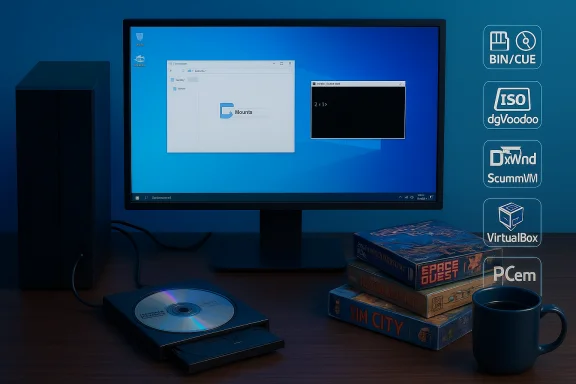 Background / Overview
Old CD‑ROM games were built for a very different PC ecosystem: optical media as the primary distribution, 16‑ or 32‑bit installers, copy‑protection of varying sophistication, and drivers and runtimes that modern x64 Windows does not natively support. Modern Windows 10/11 machines often lack optical drives and cannot run 16‑bit installers directly, so getting an old title running requires one or more of these actions: read the disc on a compatible drive, create a bit‑for‑bit image (ISO/BIN+CUE/IMG), and run the game inside an environment that matches its expectations — whether that’s compatibility mode, a DirectX/Glide wrapper, DOS emulation, or a full virtualized vintage Windows. The practical choices depend on the game’s era and protection method.1) Get a CD/DVD drive (or image your discs)
Buy an external USB optical drive
Most modern PCs ship without internal optical drives, so the easiest route is an inexpensive external USB DVD‑RW. These are widely available and broadly plug‑and‑play with Windows 10 and 11. Because DVD drives are backward compatible with CD‑ROMs, a standard external DVD‑RW will read your old game discs in most cases. When choosing a drive, confirm it reads standard CD‑ROMs and (if needed) CD‑Audio and mixed‑mode discs — some very old, proprietary formats are edge cases.Salvaging internal drives and adapters
If you have a spare vintage internal drive, it may use Parallel ATA (IDE) rather than SATA. You can connect such drives to a modern PC using a powered IDE‑to‑USB adapter, but this introduces complexity and power requirements; for most users, buying an external USB drive is faster and more reliable.When discs won’t read: inspect and accept the limits
Before spinning a disc, inspect it under a bright light. Look for scratches on the data side and disc rot — tiny pinholes where the reflective layer has oxidized. If the label side shows light poking through like stars, those sectors are lost and the disc may not be salvageable. Optical media degrades over time, and repeated reads can worsen both disc and drive wear, so make an image as soon as possible.2) Make an ISO (or BIN/CUE) — archive your disc
Creating a disc image is the single best preservation step: it protects the game from physical decay, speeds up installs, and makes it easy to mount in emulators and VMs.ISO vs BIN/CUE vs IMG — which format to choose
- ISO — the common choice for pure data CDs. Most retail PC games that are standard data discs can be saved as ISO files.
- BIN/CUE — necessary for mixed‑mode discs that include both data tracks and Redbook CD‑Audio (for in‑game music) or for titles that depend on accurate track timing. Use BIN/CUE when audio tracks must be preserved.
- IMG/IMA — often used for floppy images or raw disk copies (3.5" floppies). For older floppies, .img/.ima are common targets.
Tools and rip settings
Windows can mount ISO files natively, but creating bit‑for‑bit images requires third‑party tools. Popular, well‑tested tools include ImgBurn and WinImage for Windows imaging tasks; open‑source alternatives exist as well. When ripping CD‑ROMs, choose the lowest reliable read speed: slower reads reduce read errors and improve the accuracy of the resulting image. For mixed‑mode discs, select BIN/CUE output to keep track indexes and audio intact. After ripping, verify the image (if the tool supports checksum verification) and keep at least one backup copy.Special case: floppies and copy‑protected media
Standard USB floppy drives and consumer imaging tools can create images of common 3.5" floppies, but 5.25" media and many copy‑protected disks require flux‑level capture devices like KryoFlux or Greaseweazle. These tools capture raw magnetic flux transitions and are the preservationist’s solution for odd formats and copy protection schemes — they’re essential when plain sector images fail. These workflows are more complex and usually require a working legacy drive as the physical reader.3) Run the game: quick paths and full emulation
Choosing how to run a title depends on the game’s engine and era. The simplest options come first; more involved approaches follow.Option A — Try Windows Compatibility Mode first
Right‑click the game executable, open Properties → Compatibility, and select an older Windows version and needed privileges. Compatibility Mode can fix installer and launch issues for many late‑Windows‑9x era titles, and it’s the least intrusive step to try on a modern host. This often fixes simple directory and privilege mismatches but won’t always solve DirectX or driver‑level problems.Option B — Use DirectX/Glide wrappers and compatibility layers
When Compatibility Mode isn’t enough, a compatibility layer or wrapper can translate old graphics calls to modern APIs:- dgVoodoo 2 — converts Glide and legacy DirectDraw/Direct3D calls into modern DirectX 11/12, often resolving texture corruption and enabling high‑resolution scaling for late‑90s PC titles.
- DDrawCompat / DxWnd — drop‑in DLLs or wrappers that intercept legacy DirectDraw calls and make them behave on modern systems.
- ScummVM — replaces the original executable for many adventure games by using the game’s data files and running them on a modern interpreter; it’s ideal for point‑and‑click classics.
Option C — DOS emulation: DOSBox family
For MS‑DOS era titles, DOSBox and its modern forks (DOSBox Staging, DOSBox‑X, DOSBox Pure) are the standard solution. DOSBox gives you a virtual MS‑DOS environment with SoundBlaster and AdLib emulation, virtual floppy and CD mounts, MIDI routing, and configurable CPU speed. DOSBox Staging and DOSBox‑X add better defaults, GUI conveniences, and experimental Windows‑9x support. Use DOSBox to mount your image and install or run the game as if on a period PC. Common mount commands are well documented in DOSBox guides.Practical DOSBox notes:
- Mount a folder as C: with: mount C C:\Oldies\DOSSoft
- Mount a CD image as a CDROM: imgmount D C:\Images\game.iso -t iso
- Release the mouse capture (if needed) with Ctrl+F10; use Ctrl+F4 to swap images. These small controls solve many beginner frustrations.
Option D — Full virtual machine or hardware emulation
When a game depends on Windows 95/98 drivers, specific Sound Blaster variants, or SafeDisc/other DRM, a VM or full PC emulator is the reliable “nuclear” option:- Virtual machines (VirtualBox, VMware Workstation/Player) — install a legacy Windows edition (XP/98) inside a VM, attach the ISO you created, and install the game in the guest. VMs provide a genuine legacy OS with ease of snapshots and isolation. This is a practical option for titles that run in those OSes and for legal clarity when you own the media.
- PCem / 86Box — emulate period hardware including chipset, BIOS, specific Sound Blaster cards, and 3dfx Voodoo accelerators. This is the best choice for late‑’90s titles that require particular hardware characteristics or where driver timing matters; it is more resource‑intensive but more faithful.
4) Advanced preservation and copy‑protection traps
Copy protection and DRM
Many 1990s–2000s games used physical disc checks (SafeDisc, SecuROM) or proprietary copy protection. These schemes can block operation in a VM or on a modern drive. Community‑approved solutions include applying official patches from publishers or using lawful workarounds like mounting a verified ISO in a sandboxed VM where you own the disc. Avoid downloading “no‑CD cracks” from unknown sites — they are both legally dubious and a common source of malware.Flux‑level imaging for preservationists
For archival quality and to handle exceptional disks (old 5.25" floppies or heavily copy‑protected discs), flux‑level imaging with KryoFlux or Greaseweazle captures magnetic flux transitions instead of sectors, allowing reconstruction of formats and protections that sector‑based tools miss. This is the gold standard for preservationists but requires additional hardware and a working legacy drive. Use these only if you’re comfortable with longer, technical workflows.5) Legal, security and practical safety considerations
- Legal ownership matters. Downloading images for titles you don’t own is typically copyright infringement. Prefer official rereleases on DRM‑free storefronts (GOG, Humble, Steam) or rely only on images you created from media you own. Preservation communities stress lawful ownership for archival use.
- Sandbox new installers. Test unknown installers inside a VM or Windows Sandbox first. This prevents malware, adware, and bundled PUPs from reaching your main system.
- Avoid untrusted “free downloads.” Community threads show aggregator installers frequently wrap third‑party offers. Treat such packages as suspicious and scan with multiple engines if you must use them — but prefer official sources.
- Backup your images. Keep at least two copies of your ISOs/BINs on different physical media (external drives or cloud storage) and maintain read‑only archival copies to prevent accidental modification. This protects the archive and restores the game if the original disc continues to decay.
6) Troubleshooting and quick fixes
- If a game refuses to run on x64 Windows and emits a 16‑bit error, it’s because 64‑bit Windows lacks a 16‑bit subsystem — use DOSBox, a 32‑bit guest, or a VM to proceed.
- For audio problems in DOS titles, try changing DOSBox’s sbtype and oplemu settings, or load a SoundFont in modern builds for better MIDI playback. Many adventure games expect SoundBlaster 16 emulation.
- If mounted folders don’t reflect copied files, unmount/remount in DOSBox or use the swap‑image hotkey (Ctrl+F4). Mouse capture oddities typically resolve with Ctrl+F10. These small keyboard controls solve most beginner issues.
- If texture corruption or weird resolutions appear in a late‑90s game, try dgVoodoo 2 or DDrawCompat before moving to a VM — wrappers often fix rendering while letting the game run on the host OS.
7) Recommended workflow (concise, step‑by‑step)
- Gather your disc and an external USB DVD‑RW drive (or prepare to connect a legacy drive via adapter).
- Inspect the disc under a bright light for scratches or disc rot; photograph for your records if you’re preserving.
- Create a bit‑for‑bit image: use ImgBurn for ISO or BIN/CUE (BIN/CUE for mixed‑mode audio). Rip at low speed and verify the image if possible. Back up the image to at least one additional storage location.
- Try running the game from the mounted image on the host using Compatibility Mode. If that fails, test wrappers (dgVoodoo, DDrawCompat) or interpreter replacements (ScummVM).
- If wrappers don’t work, install a VM (Windows 98/XP) or use PCem/86Box for hardware‑faithful emulation and install the game inside that environment. Snapshot the VM before heavy modding.
- For floppies or badly damaged discs, evaluate flux imaging with KryoFlux/Greaseweazle if you need archival fidelity. Otherwise, consider buying an official rerelease or modern remaster where available.
Tools cheat‑sheet (short)
- Imaging: ImgBurn, WinImage — ISO, BIN/CUE, IMG.
- DOS emulation: DOSBox, DOSBox Staging, DOSBox‑X, DOSBox Pure.
- Wrappers / compatibility: dgVoodoo 2, DDrawCompat, DxWnd, ScummVM.
- VM / emulation: VirtualBox, VMware Workstation/Player, PCem, 86Box.
- Flux imaging: KryoFlux, Greaseweazle (for 5.25" / copy‑protected media).
Critical analysis: strengths, risks, and realistic expectations
Playing old CD‑ROM games today benefits from richer tooling and cheaper hardware than ever: cheap external drives, robust emulators, and active preservation communities make revival feasible for most users. Wrappers and interpreters can rescue many late‑90s graphical titles without a full VM, and DOSBox variants make floppy‑era games trivially playable. Preservation hardware like KryoFlux and Greaseweazle provide archival fidelity for specialists.However, there are notable risks and limitations. Legal ambiguity around distributor rights persists — having a downloaded image is not the same as having legal permission to run or redistribute the game. DRM and copy protection can block execution or require heavy workaround. Some games rely on timing quirks or drivers that only true period hardware reproduces perfectly; emulation increases playability but is not always bit‑perfect. Lastly, community “free download” sites are convenient but often unsafe, bundling unwanted software or offering cracked binaries that are risky to run. These constraints mean that, while most titles can be revived, expect to do a little troubleshooting, accept occasional incompatibilities, and prefer official rereleases when available.
Conclusion
The absence of optical drives in modern PCs does not doom your CD‑ROM library. With an external DVD‑RW or a verified disc image, the right imaging settings, and a sensible compatibility strategy — Compatibility Mode, wrappers, DOS emulation, or a virtual machine — you can play, preserve, and enjoy most old PC games. Approach copy protection and unknown downloads cautiously, back up your images, and choose the least invasive path that works: try compatibility mode and wrappers first, then emulation, and reserve flux‑level imaging for true archival needs. The effort pays off: classic PC games can be kept playable and accessible without consigning them to a dusty box.Source: How-To Geek How to play old CD-ROM games on your modern Windows PC
