

Turning a monitor from landscape to portrait is one of the cheapest, quickest productivity experiments a Windows user can run—and for many writers, coders, and power readers it yields immediate, measurable gains in visible context and scrolling reduction when set up correctly.
Vertical (portrait) monitor orientation isn't new, but it keeps resurfacing because it answers a real ergonomic and workflow problem: many knowledge tasks are tall, not wide. Long-form articles, source code files, document drafts, and vertical web pages all benefit when the display presents more lines or paragraphs in a single view. Windows 11 exposes orientation controls in Settings so anyone can try it without special tools, and where driver-level hotkeys are missing, small utilities restore quick keyboard toggles.
At the same time, the upside is task-specific and the human factors matter: a portrait display that’s too tall or poorly positioned can cause neck extension and shoulder strain. Experts and ergonomists warn that sightline, screen size, and mounting matter at least as much as the orientation itself. This feature-focused guide explains how to rotate a monitor on Windows 11, how and when keyboard shortcuts work (and why they sometimes don't), recommended tools for quick toggles, which screens are best suited to portrait use, and the ergonomics checklist to make a vertical display sustainable for full workdays.
Actionable recommendations:
Conclusion
Many people skip this simple monitor setting because it looks odd at first, but the potential gains for certain workflows are real and repeatable. Windows 11 makes it easy to try; Intel and other vendors still provide tools where supported; and a brief, measured trial will quickly reveal whether a vertical monitor belongs in your everyday setup. Prioritize mount adjustability and neutral sightlines, and the portrait monitor can shift from an overlooked setting into a durable productivity habit.
Source: ZDNET Most people ignore this productivity-enhancing monitor setting - here's why you shouldn't
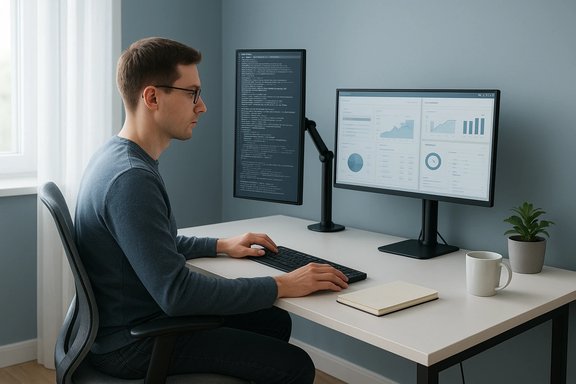 Background / Overview
Vertical (portrait) monitor orientation isn't new, but it keeps resurfacing because it answers a real ergonomic and workflow problem: many knowledge tasks are tall, not wide. Long-form articles, source code files, document drafts, and vertical web pages all benefit when the display presents more lines or paragraphs in a single view. Windows 11 exposes orientation controls in Settings so anyone can try it without special tools, and where driver-level hotkeys are missing, small utilities restore quick keyboard toggles.At the same time, the upside is task-specific and the human factors matter: a portrait display that’s too tall or poorly positioned can cause neck extension and shoulder strain. Experts and ergonomists warn that sightline, screen size, and mounting matter at least as much as the orientation itself. This feature-focused guide explains how to rotate a monitor on Windows 11, how and when keyboard shortcuts work (and why they sometimes don't), recommended tools for quick toggles, which screens are best suited to portrait use, and the ergonomics checklist to make a vertical display sustainable for full workdays.
How to rotate a monitor on Windows 11
1. The reliable, built‑in Settings method
Windows 11's Display Settings include a persistent orientation selector that works independently of GPU vendor utilities—this is the canonical route for most users. To change orientation using the Settings GUI:- Open Settings (Win + I) → System → Display.
- Choose the display you want to change (use Identify if unsure).
- Under Scale & layout, open Display orientation and select Portrait, Portrait (flipped), Landscape, or Landscape (flipped).
- Click Apply, then Keep changes when the confirmation appears; Windows will revert automatically if you don't confirm.
2. Keyboard shortcuts: when Ctrl + Alt + Arrow works (and when it doesn't)
A small number of Windows systems expose legacy hotkeys that rotate the display using Ctrl + Alt + arrow keys (Up = default landscape, Left/Right = portrait rotations, Down = upside down). Historically, these shortcuts were provided by integrated GPU drivers—particularly Intel’s—and some OEM images still enable them. However, the availability depends on driver and OEM configuration and is not guaranteed by Windows itself. Intel documentation explicitly notes this driver dependency and warns that the feature may be disabled by the system manufacturer. If the shortcuts do nothing:- Confirm you have integrated Intel graphics and that the Intel Graphics Command Center or other Intel utility is installed and configured to enable rotation hotkeys.
- Check your GPU control panel for a “Rotation” or “Orientation” option and a hotkey configuration area.
- If your device uses an NVIDIA or AMD GPU (or an OEM that removed the hotkeys), the system-level Ctrl + Alt + arrow shortcuts may be absent.
3. Third‑party helper apps and the Microsoft Store option
When driver hotkeys are missing, utilities such as Screen Rotate (available on the Microsoft Store) let you flip displays via on-screen buttons or keyboard shortcuts. These apps typically register one screen as the primary display for hotkey actions, and some restrict hotkey assignment to a predefined list of combinations rather than full custom binding. Lifewire and community how‑tos note Screen Rotate as a pragmatic workaround for users who want a fast toggle without re-entering Settings repeatedly. Third‑party tools have their own tradeoffs: they may require startup presence to respond to hotkeys and can be limited by multi‑monitor policy (many utilities only affect the primary display). If you rely on them, set them to launch at sign‑in or configure a small keyboard macro to bring them up quickly.4. Laptops, 2‑in‑1s and Rotation Lock
Convertible laptops and tablets have motion sensors that auto‑rotate the screen; Windows exposes Rotation lock (Settings → System → Display) to freeze orientation when you don’t want it changing. For traditional laptops without sensors, the methods above apply. If automatic rotation misbehaves, the Rotation lock toggle is the first place to check.Why a vertical monitor can help your workflow
Visible vertical context reduces micro‑latency
The productivity case for portrait orientation is straightforward: many work artifacts are vertically structured. When you increase the number of visible lines of code, paragraphs, or list items, you reduce the number of times you must scroll. Those avoided micro‑interactions compound over hours and days into meaningful time savings and reduced context switching, especially for tasks that emphasize continuous vertical scanning (editing, proofreading, code review, long web pages). Community reports and practical tests consistently report measurable reductions in scrolling and window juggling when a vertical screen is used as a reference pane.Better ergonomics for reading‑first tasks
For reading-focused tasks, portrait displays can mimic the feel of a printed page, improving visual flow and comprehension. Writers and editors often report that paragraphs feel more natural and require fewer page breaks, while coders value the ability to see more lines of context at once. The configuration works most cleanly when the portrait screen is a secondary reference display: keep primary editing and horizontal dashboard windows on a landscape panel and move long documents or chat streams to the vertical monitor.Desk real estate and multitasking patterns
A vertical monitor frees horizontal desk space and can be placed in a narrower footprint than a wide landscape screen. This allows better spatial stacking of windows (for example Slack or a long document on the portrait screen, a spreadsheet or dashboard on the landscape screen). For multi‑monitor layouts, the portrait monitor can act as a “vertical rail” for long content while the wide screen handles timeline or grid-based tasks.Ergonomics: the single most important constraint
Portrait monitors are powerful but also potentially hazardous when misapplied. The dominant ergonomic risk is neck extension—looking upward or tilting the head back to reach the top of a tall portrait display—which increases strain on the neck and shoulders over time. Steelcase’s ergonomist Kevin Butler warned that requiring an upward gaze puts the neck into extension and can lead to pain and stiffness if sustained. Independent ergonomic research and workplace guidelines recommend:- Place the top third of the monitor at or slightly below eye level; aim for a neutral head posture with a slight downward gaze (roughly 10–20° downward toward the main content).
- Use a pivot‑capable stand or VESA arm to set precise height and tilt; fixed stands can trap you at an unsafe viewing angle.
- Prefer a 22–28 inch vertical display for sustained portrait use; larger panels elevate the top edge uncomfortably high unless you mount them well below your eye line.
Which monitors work best in portrait mode
Not every display is equally well suited to vertical mounting. When shopping or repurposing a screen for portrait work, prioritize the following traits:- Pivot (±90°) on the stand or support for clean portrait rotation.
- Height adjustment or VESA compatibility so you can set the vertical sightline precisely.
- Panel size in the 22–28 inch sweet spot for a balance of readability and manageable top edge height.
- Good pixel density for text clarity (1080p at 24" is serviceable; 1440p or 4K at 27" gives sharper text but increases panel height).
- Dell UltraSharp 24 (U2424H and similar): 23.8" IPS displays that offer pivot, height, tilt and swivel adjustments—an ergonomic and color-capable choice for portrait use.
- HP OMEN 27k: a 27" 4K HDR gaming panel that supports pivot and provides very high resolution for dense text; note that the taller portrait profile requires careful height placement to avoid neck strain.
- Portable USB‑C displays (HP Series 5 Pro portable and similar): convenient for travelers—rotate the portable panel physically and use it as a vertical second screen on the go—but expect compromises on brightness and color compared with desktop monitors.
Practical setup checklist and a 7‑day experiment
This is a short, repeatable plan to validate whether a portrait monitor helps your workflow without creating long-term discomfort.- Baseline (Day 0): Record how often you scroll and switch windows during a typical heavy workday. Note any neck/shoulder discomfort.
- Setup (Day 1): Mount a pivot-capable 24–27" monitor vertically. Use Windows 11 Settings to rotate it to Portrait. Position the top third of the screen at or slightly below eye level. If you need quick toggles during the day, install Screen Rotate or configure GPU hotkeys if available.
- Use (Days 2–6): Route long-form reading, reference docs, Slack threads, and continuous logs to the portrait screen. Keep your main editing or horizontal dashboards on the landscape screen. Track scroll events, task completion time, and any neck/shoulder soreness.
- Review (Day 7): Compare metrics and comfort notes. If you see consistent time savings and no added discomfort, keep the tilt and height as-is; otherwise, adjust or revert.
Troubleshooting common problems
- Hotkeys don't work: verify driver support in Intel Graphics Command Center or NVIDIA/AMD control panels; if missing, install a Microsoft Store helper such as Screen Rotate for keyboard shortcuts. Intel’s support notes the rotation feature may be absent if the computer manufacturer disables it.
- Wrong monitor rotated in multi‑display setups: always select the intended monitor in Settings or click Identify to confirm which rectangle represents which physical screen before changing orientation.
- Games and apps misbehave in portrait: some full‑screen games and specialized apps assume landscape resolutions and can reset orientation. Launch them in windowed or borderless mode, or rotate back before launching.
- Persistent orientation reset after reboot: some docking stations or KVM setups may report EDID changes that reset orientation. Update graphics drivers and test with the monitor directly connected to rule out hub/dock interference.
Strengths, limits, and the hard numbers (what to believe)
- Strengths: Vertical monitors reduce vertical scrolling for long-form content and show more contiguous lines of code or paragraphs; they are low-cost, reversible, and require no major software changes when enabled via Windows Settings. Community experience and vendor documentation back this claim.
- Limits: Bold claims such as “tenfold productivity improvements” are anecdotal and not generalizable; measurable gains depend on task mix, how much of your work is vertical, and how carefully you set up the ergonomics. Treat such claims as subjective and validate with the short experiment above.
- Driver and vendor drift: rotation hotkeys and utility behaviors can change as GPU vendors update tools—Intel, NVIDIA, and OEMs have shifted how these features are exposed. If you depend on hotkeys for rapid toggles, expect to maintain a small utility or driver configuration over time.
- Ergonomic risk: a portrait monitor that’s too tall or fixed at the wrong height converts a productivity hack into a recurring musculoskeletal hazard. Prioritize adjustable arms or pivot stands and set the active content area within a slight downward gaze window.
Quick reference: the essential commands and tools
- Windows Settings: Start → Settings → System → Display → Scale & layout → Display orientation → Portrait.
- Intel rotation help: check Intel’s support article and the Intel Graphics Command Center for rotation options and hotkey enablement.
- Screen Rotate (Microsoft Store): small utility to add keyboard shortcuts if driver hotkeys are unavailable.
- Common hotkeys (may be driver-dependent): Ctrl + Alt + Left/Right/Up/Down (Left/Right = portrait rotations; Up = reset; Down = upside down). These are not guaranteed on every machine.
Final assessment and recommendations
Rotating a monitor to portrait is a high‑leverage, low‑cost productivity experiment for many knowledge workers—with caveats. The technical activation is straightforward in Windows 11 and documented by Microsoft, and Intel and other vendors still document rotation features where supported. For short reading and code-review tasks, the vertical orientation often reduces friction and improves focus; for prolonged use, ergonomics must be the priority.Actionable recommendations:
- Try portrait for one week using a 24–27" pivot-capable monitor. Track scrolls and comfort.
- Use Windows Settings as the canonical method and add a small store utility if you want keyboard toggles.
- Mount vertically only on an adjustable arm or stand; position the top third of the screen at or slightly below eye level to avoid neck extension.
- Treat bold time‑saving testimonials as subjective—measure before and after and prioritize sustained comfort above marginal speed gains.
Conclusion
Many people skip this simple monitor setting because it looks odd at first, but the potential gains for certain workflows are real and repeatable. Windows 11 makes it easy to try; Intel and other vendors still provide tools where supported; and a brief, measured trial will quickly reveal whether a vertical monitor belongs in your everyday setup. Prioritize mount adjustability and neutral sightlines, and the portrait monitor can shift from an overlooked setting into a durable productivity habit.
Source: ZDNET Most people ignore this productivity-enhancing monitor setting - here's why you shouldn't
