

PowerPoint’s newest Copilot-driven capabilities turn what used to be a time‑consuming, layout-first chore into an almost push‑button storytelling workflow—automatically building branded, image‑rich decks from short prompts or long reference files, handling much larger documents than before, and even generating bespoke visuals on demand.
Microsoft has steadily embedded Copilot into the Office ecosystem, and PowerPoint is now one of the marquee beneficiaries. What began as a set of helpers for design and phrasing has evolved into an integrated workflow that can accept a natural‑language brief, ingest source documents (including PDFs and Word files), generate a structured outline, populate slides with text and visuals, and produce speaker notes and translations — all from within PowerPoint. This generation flow is commonly exposed as “Create with Copilot” or via the Narrative Builder flow inside Copilot’s PowerPoint pane. The practical effect is dramatic: routine internal updates, long technical reports, and multi‑department decks that used to take hours of formatting can now be prototyped in minutes. Behind the scenes, Microsoft ties Copilot to its Designer pipeline and image models (including DALL·E 3), provides template and branding hooks, and expands the assistant’s document grounding so it can work from much larger inputs than earlier releases.
PowerPoint’s Copilot is no longer a novelty; it is evolving into a practical production tool for teams that must turn long, complex source material into clear, branded, and visual stories. Used judiciously, it turns the craft of slide creation from a grind into a creative rapid‑prototyping loop—accelerating work while shifting the human role toward judgment, narrative shaping, and final validation.
Source: Neowin https://www.neowin.net/amp/powerpoi...re-that-makes-complex-presentations-a-breeze/
 Background / Overview
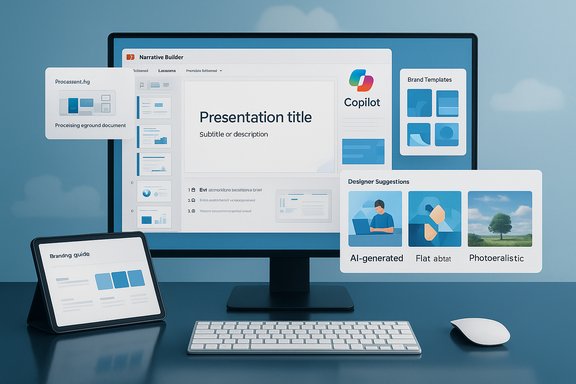
Microsoft has steadily embedded Copilot into the Office ecosystem, and PowerPoint is now one of the marquee beneficiaries. What began as a set of helpers for design and phrasing has evolved into an integrated workflow that can accept a natural‑language brief, ingest source documents (including PDFs and Word files), generate a structured outline, populate slides with text and visuals, and produce speaker notes and translations — all from within PowerPoint. This generation flow is commonly exposed as “Create with Copilot” or via the Narrative Builder flow inside Copilot’s PowerPoint pane. The practical effect is dramatic: routine internal updates, long technical reports, and multi‑department decks that used to take hours of formatting can now be prototyped in minutes. Behind the scenes, Microsoft ties Copilot to its Designer pipeline and image models (including DALL·E 3), provides template and branding hooks, and expands the assistant’s document grounding so it can work from much larger inputs than earlier releases. What changed: the feature set that makes “complex presentations a breeze”
Narrative Builder and higher capacity grounding
One of the most concrete technical upgrades is in Copilot’s ability to process far larger source files and decks. The Narrative Builder now supports summarization and slide creation for content up to roughly 40,000 words or about 150 slides — a meaningful jump from earlier limits (around 15,000 words / ~50 slides). That means quarterly financial reports, long research papers, or huge vendor documents can be fed into Copilot and converted into a structured presentation without manual re‑entry.“Create with Copilot” — prompt-to-deck flow
The “Create with Copilot” experience guides users from a short brief (topic, audience, tone, desired slide count) to a complete draft. Typical flow:- Provide a short natural‑language brief or attach a grounding file.
- Copilot returns an outline and draft slides.
- Use built‑in controls to refine tone, rearrange sections, request more or fewer slides, or produce speaker notes.
Integrated visual creation (Designer + DALL·E 3)
Rather than relying solely on stock photography or manual graphic design, Copilot integrates Designer and supported image models to create visuals on the fly: icons, slide backgrounds, stylized illustrations, or photorealistic images tailored to your narrative. You can request a visual style (flat, abstract, photorealistic) and receive multiple options to insert directly into slides. This significantly reduces the gap between conceptual ideas and presentable visuals.Brand templates and organizational grounding
For business users, Copilot can apply company templates and branding automatically when creating a deck. That ensures decks generated by the AI remain compliant with brand guidelines (fonts, colors, logo placement) and reduces last‑mile manual fixes. PowerPoint can pull templates from an organization’s template library when instructed.Language, accessibility and translations
Copilot can generate speaker notes and translate entire slides and notes into multiple languages while retaining original slide design. For global teams, this removes a major friction point in distributing consistent, localized training or sales materials. As with any automated translation, human review is recommended for nuance and technical correctness.Why this matters — productivity and creative impacts
- Time savings: Drafting a first pass of a deck, especially when based on long reports, now skips hours of copying, cleaning, and formatting. Early testers and guides report conversion times measured in minutes.
- Democratizes design: Non‑designers can produce visually consistent slides without deep PowerPoint expertise. Designer suggestions and automated layout choices bridge the gap between idea and polished slide.
- Improved consistency at scale: Teams that must produce many similar decks (quarterly updates, sales enablement, compliance training) gain better brand consistency and fewer manual adjustments.
- Better reuse of existing content: Copilot’s grounding on source documents (Word, PDF, Excel tables) lets organizations repurpose content rather than rewrite it for presentation format. This reduces redundancy and helps maintain accuracy when the deck summarizes complex inputs.
How to use it — a practical walkthrough
- Open PowerPoint and click the Copilot icon in the toolbar.
- Choose “Create a new presentation” or attach a file to ground the AI (Word, PDF, or other supported documents).
- Enter a concise brief: topic, intended audience, tone (formal/concise/creative), and approximate slide count. Example prompt: “Create a 12‑slide investor deck summarizing Q3 results, highlighting revenue growth, top three product wins, and a one‑page roadmap.”
- Review the outline Copilot proposes; accept or request edits (merge sections, expand a topic, convert paragraphs to bullets). Use the Magic Pencil or rewrite tools to refine tone and compress verbosity.
- Use the Design Suggestions pane to pick slide starters or swap to your branded template. Generate visuals where needed, selecting style variants before inserting.
- Generate speaker notes and ask Copilot to translate slides if you need localized versions. Do a final human pass for factual accuracy and compliance.
Technical specifics and limits (verified)
- Narrative Builder summarization and slide generation: up to ~40,000 words or ~150 slides. This increased capacity was documented in Microsoft’s Copilot release notes and product pages.
- Image generation: Copilot in PowerPoint uses integrated image models and Designer workflows (including DALL·E 3 support) to create custom visuals inside the app.
- File grounding: Copilot accepts Word documents and PDFs as grounding sources and can pull tables into charts and visuals when relevant. PDF grounding rolled out more broadly in recent months.
- Connectivity: Copilot’s heavier processing is cloud‑based and requires an active internet connection; offline creation workflows are limited. Expect latency and region‑dependent behavior under constrained networks. Known error patterns (generation timeouts, region issues) have been reported and discussed on Microsoft Q&A.
Practical examples: how teams will use it
Sales enablement teams
- Rapidly generate tailored pitch decks from a single sales brief and a product datasheet, with branded templates and speaker notes tuned for regional audiences. The process shortens ramp time for reps and keeps messaging consistent.
Product teams and technical presenters
- Convert long technical design docs or RFCs into digestible slide narratives. Copilot’s ability to convert tables and extract key bullets reduces manual cut‑and‑paste and minimizes transcription errors.
Training and global comms
- Produce a master deck in English, then generate localized translations with preserved layouts and notes for local trainers. This enables faster rollout of consistent training materials across geographies.
Strengths: what’s most compelling
- Speed and scale: Turning a long document into a first‑draft deck in minutes is a clear productivity multiplier, especially for recurring reporting workflows.
- End‑to‑end integration: The frictionless handoff between outline generation, automatic layout, and on‑demand visual creation is the real productivity win—no more bouncing between apps.
- Brand governance at speed: Template enforcement reduces manual rework and compliance risk for customer‑facing decks.
- Accessibility features: Automatic subtitles, speaker notes, and translation capabilities broaden the reach and inclusivity of presentations.
Risks and limits: what organizations must plan for
Data privacy and leakage
Copilot processes content in the cloud. Any sensitive or regulated information you feed into Copilot could be transmitted to Microsoft’s processing infrastructure depending on the configuration and licensing. Organizations must classify data before use and apply governance policies that restrict what can be used as grounding content. Administrators should use tenant controls and data protection settings to prevent inadvertent exfiltration.Hallucinations and factual accuracy
Generative outputs can introduce errors or embellishments. While Copilot is optimized to ground outputs on provided documents, users must validate numerical claims, legal phrasing, and technical assertions before sharing externally. Copilot is best treated as a drafting tool — not a final, authoritative publisher.Copyright and image sourcing
AI‑generated images and pulled stock assets raise copyright and usage questions for marketing content. Legal teams should confirm licensing and ensure appropriate disclaimers or sourcing when external imagery is used in customer or public presentations. When relying on AI imagery, organizations may want to standardize acceptable use policies.Cost and licensing
Copilot features are gated by Microsoft’s licensing. Some features (PDF‑to‑PowerPoint conversion, higher limits, advanced image generation) may require Copilot Pro or specific business plans rather than standard Microsoft 365 subscriptions. Budgeting for per‑user Copilot seats is a necessary part of any rollout plan. Widespread adoption can cause subscription cost creep if not managed.Operational failure modes
Because the service is regionally hosted and cloud‑dependent, network constraints, VPNs, or regional service limits can cause generation failures or timeouts. Teams should design fallback workflows and small pilot projects to identify such edge cases before scaling Copilot across critical operations.Governance, admin controls and rollout checklist
- Publish a clear AI use policy that defines permitted data types for Copilot grounding and retention rules for prompts and outputs.
- Run a pilot in one business unit to collect cost, latency, and quality metrics before enterprise rollout.
- Integrate Copilot usage monitoring into FinOps dashboards to track seat counts and consumption costs.
- Train content owners on verification workflows: fact checks, legal review, and creative approval before distribution.
- Configure tenant‑level controls to disable Copilot for specific data classes or to prevent upload of regulated documents during the pilot.
- Maintain human‑in‑the‑loop gates for customer‑facing decks and external communications.
Tips and best practices for power users
- Start with a clean brief: the better the prompt (audience, tone, length), the higher‑quality the initial draft.
- Use the “rewrite” tools to compress paragraphs into concise bullets for slide readability.
- Ground on a single authoritative file where possible—this reduces hallucination risk and keeps Copilot’s suggestions aligned with source facts.
- Keep a short “finalize checklist”: verify numbers, check branding, validate translations with a native reviewer, and confirm image licensing.
- Use Copilot‑generated speaker notes as a first pass, then personalize them for pacing, emphasis, and rhetorical impact.
The bottom line: a helpful but not infallible assistant
PowerPoint’s Copilot features represent a genuine step change for how presentations are created. They collapse hours of formatting and repetitive work into a few conversational steps and make visual storytelling accessible to more people. The expanded grounding limits (40,000 words / 150 slides), built‑in visual generation, and tighter template integration combine to make complex presentations far less painful to assemble. That said, the technology is not a substitute for domain expertise, editorial judgment, or governance. Organizations must treat Copilot as a force multiplier, not an automated decision‑maker. Plan governance, train users, and keep human review as the final gate for public or legal content. With those guardrails, Copilot can deliver meaningful efficiency gains and let professionals focus on strategy and storytelling rather than layout minutiae.PowerPoint’s Copilot is no longer a novelty; it is evolving into a practical production tool for teams that must turn long, complex source material into clear, branded, and visual stories. Used judiciously, it turns the craft of slide creation from a grind into a creative rapid‑prototyping loop—accelerating work while shifting the human role toward judgment, narrative shaping, and final validation.
Source: Neowin https://www.neowin.net/amp/powerpoi...re-that-makes-complex-presentations-a-breeze/
