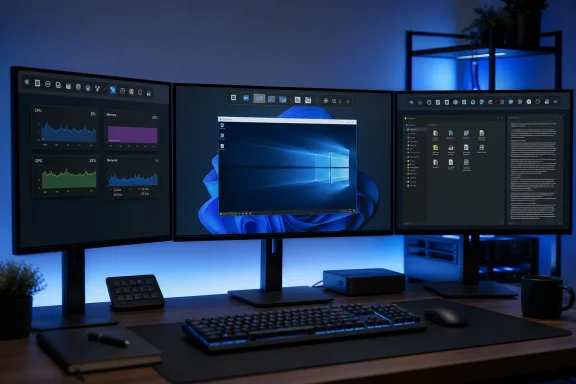
PowerToys Command Palette Dock is ready for single-monitor users and modest pinning, but multi-monitor power users and extension-heavy environments should stage it before making it part of their daily workflow. Microsoft has turned the Dock into a genuine per-display workspace since its PowerToys 0.98.0 preview, yet an open wrong-monitor defect and the feature’s recent crash fixes make broad adoption premature for configurations that depend on predictable display targeting.
The timing matters. The Dock debuted as a preview on March 17, 2026, and PowerToys v0.100.0 arrived on June 10, moving the conversation beyond launch-day experimentation. Microsoft’s current documentation now describes a substantially more capable feature: every display can have its own Dock instance, each with an independent collection of pinned bands, and bands can be moved between monitor Docks.
That makes the Dock more than a secondary launcher. It can become a persistent, monitor-specific control surface—but the more elaborate the layout, the more exposed it is to the defects that remain.
The clearest go/no-go test is not whether someone uses multiple monitors. It is whether the Dock will become operationally important to that multi-monitor workflow.
A single-monitor user who pins a small number of frequently used commands has relatively little state to manage. There is only one Dock target, one set of pinned bands, and no ambiguity about which display should receive a popup or context menu. For that user, the feature gains since PowerToys 0.98.0 justify adopting it now, provided the Dock is treated as a convenience rather than a dependency.
Light multi-monitor use can also be reasonable. If the secondary Dock contains only a few noncritical bands, a display-targeting mistake is annoying but unlikely to interrupt work materially. Users can evaluate the feature without rebuilding their desktop habits around it.
The case changes for three-display workstations, administrative consoles, development environments, and heavily customized Command Palette installations. Independent Docks increase the feature’s value precisely because they increase its configuration surface. Every monitor can carry different commands, and every installed extension may contribute more bands and interactions that need to behave correctly.
Adopt now if the Dock will save clicks but its occasional failure would not block a task. Stage first if monitor placement, extension behavior, or popup targeting must be consistently correct.
A practical rollout can follow four steps:
A Dock that stays visible throughout the workday occupies a different role from a utility invoked occasionally. Popup crashes can disrupt the immediate interaction. Incomplete DockWindow cleanup raises concerns about how reliably Dock instances are managed. Blinking after a settings change makes the feature feel unstable even when it remains functional.
Microsoft’s fixes show that the Dock is maturing, but they also identify the areas administrators should exercise during evaluation. Testing should not stop after confirming that a pinned command launches. It should include opening and dismissing popups repeatedly, changing Dock settings, moving bands, and checking whether old windows or visual remnants persist.
For individual enthusiasts, the 0.99.1 fixes lower the barrier to experimentation. For managed systems, they support a pilot rather than an automatic deployment. PowerToys v0.100.0 makes this a current adoption decision, but a higher version number does not by itself prove that every Dock workflow inherited the same level of stability.
The earlier WindowsForum coverage of the PowerToys 0.98.0 Command Palette Dock described its potential as a modular “second taskbar.” That comparison is increasingly accurate from a capability standpoint. It also establishes the reliability standard the Dock will eventually need to meet: users expect anything occupying taskbar-like space to appear on the correct display and respond consistently.
That changes how the feature should be evaluated. A single shared launcher duplicated across displays would mostly be a convenience. Independent layouts allow each monitor to reflect the work performed there, turning physical display arrangement into part of the command organization.
A sysadmin might reserve one display for monitoring-related bands while keeping general commands elsewhere. A developer could separate project-oriented tools from general navigation. An enthusiast could use a secondary screen for quick-access items without filling the primary display’s Dock.
The advantage is contextual access: commands can live near the windows and information associated with them. The disadvantage is that the Dock now has to preserve both the content and destination of each interaction.
An open PowerToys issue filed June 1, 2026, against version 0.99.1 reports that a Dock or quick-access context menu can appear on the wrong monitor in a multi-display configuration. One open report does not establish that every multi-monitor user will encounter the problem. It does establish that display targeting is not yet dependable in every reported configuration.
For light use, the defect may amount to a misplaced menu. For a carefully divided workspace, it breaks the central promise of per-monitor independence. A command surface associated with one screen should not send part of its interface to another.
That is why the recommendation is conditional rather than negative. The feature itself is not failing to support multiple monitors; Microsoft explicitly supports independent Dock instances and cross-monitor movement. The open defect sits at the interaction boundary where ambitious multi-monitor use becomes harder to trust.
An installation with light pinning has a limited test surface. An extension-heavy setup combines the Dock’s window management with multiple band implementations, popups, context menus, and configuration changes. Even without evidence that a particular extension is defective, the number of interactions that must be validated grows.
Power users should therefore avoid importing an elaborate conceptual layout all at once. Start with the bands that would deliver the most value, then add extensions one by one. After each addition, verify behavior on every monitor rather than checking only the primary display.
The relevant checks are straightforward:
Organizations should also separate PowerToys deployment from Dock adoption. Updating a test group to a newer PowerToys release does not require enabling or standardizing the Dock immediately. The utility can be available while the Dock remains an opt-in pilot for users whose workflows can tolerate preview-like behavior.
It is also a qualified “go” for multi-monitor users who are willing to keep the layout simple. Independent Docks can deliver immediate value even if only one or two bands differ between displays. Those users should verify menu placement before relying on the arrangement.
The answer is “stage” for users building monitor-specific command centers. The open wrong-monitor report touches the exact capability such setups depend upon, so testing should cover the real display topology, scaling arrangement, pinned bands, and extensions used on the target machine.
Extension-heavy environments should stage regardless of monitor count. The concern is not a verified universal extension failure; it is the larger combination of components and interactions that must remain stable. Additions should be incremental and reversible.
Managed fleets should wait before establishing a standard Dock layout. The available facts support targeted pilots, but they are too thin to justify claiming that complex layouts are broadly trouble-free. Microsoft has improved crash handling, cleanup, and visual behavior, while at least one multi-monitor targeting defect remained openly reported after those fixes.
The Command Palette Dock has crossed the line from single-screen novelty to credible per-monitor workspace tool. Its adoption line is equally clear: use it now when it remains a helpful shortcut, but stage it when it is expected to behave like infrastructure.
The timing matters. The Dock debuted as a preview on March 17, 2026, and PowerToys v0.100.0 arrived on June 10, moving the conversation beyond launch-day experimentation. Microsoft’s current documentation now describes a substantially more capable feature: every display can have its own Dock instance, each with an independent collection of pinned bands, and bands can be moved between monitor Docks.
That makes the Dock more than a secondary launcher. It can become a persistent, monitor-specific control surface—but the more elaborate the layout, the more exposed it is to the defects that remain.
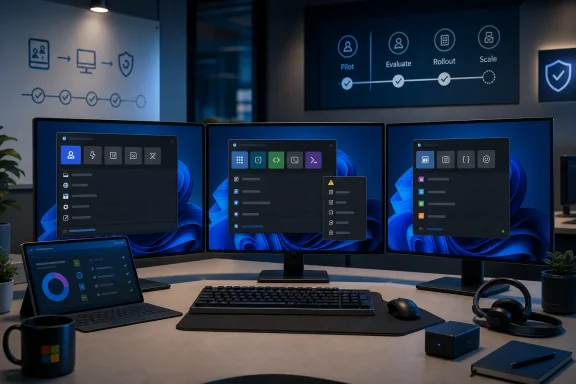 The Adoption Decision Depends on Workspace Complexity
The clearest go/no-go test is not whether someone uses multiple monitors. It is whether the Dock will become operationally important to that multi-monitor workflow.A single-monitor user who pins a small number of frequently used commands has relatively little state to manage. There is only one Dock target, one set of pinned bands, and no ambiguity about which display should receive a popup or context menu. For that user, the feature gains since PowerToys 0.98.0 justify adopting it now, provided the Dock is treated as a convenience rather than a dependency.
Light multi-monitor use can also be reasonable. If the secondary Dock contains only a few noncritical bands, a display-targeting mistake is annoying but unlikely to interrupt work materially. Users can evaluate the feature without rebuilding their desktop habits around it.
The case changes for three-display workstations, administrative consoles, development environments, and heavily customized Command Palette installations. Independent Docks increase the feature’s value precisely because they increase its configuration surface. Every monitor can carry different commands, and every installed extension may contribute more bands and interactions that need to behave correctly.
Adopt now if the Dock will save clicks but its occasional failure would not block a task. Stage first if monitor placement, extension behavior, or popup targeting must be consistently correct.
A practical rollout can follow four steps:
- Enable the Dock on one noncritical workstation rather than across every PowerToys installation.
- Pin only a small set of built-in or frequently used bands during the first test period.
- Add per-monitor specialization gradually, checking context menus and popups on every display.
- Introduce extension-provided bands individually so failures can be tied to a specific change.
PowerToys 0.99.1 Fixed the Failures That Matter Most
PowerToys 0.99.1 included fixes for Dock popup crashes, DockWindow cleanup, and visual blinking after settings changes. Those corrections are meaningful because they affect the basic trustworthiness of a persistent desktop component, not merely cosmetic details.A Dock that stays visible throughout the workday occupies a different role from a utility invoked occasionally. Popup crashes can disrupt the immediate interaction. Incomplete DockWindow cleanup raises concerns about how reliably Dock instances are managed. Blinking after a settings change makes the feature feel unstable even when it remains functional.
Microsoft’s fixes show that the Dock is maturing, but they also identify the areas administrators should exercise during evaluation. Testing should not stop after confirming that a pinned command launches. It should include opening and dismissing popups repeatedly, changing Dock settings, moving bands, and checking whether old windows or visual remnants persist.
For individual enthusiasts, the 0.99.1 fixes lower the barrier to experimentation. For managed systems, they support a pilot rather than an automatic deployment. PowerToys v0.100.0 makes this a current adoption decision, but a higher version number does not by itself prove that every Dock workflow inherited the same level of stability.
The earlier WindowsForum coverage of the PowerToys 0.98.0 Command Palette Dock described its potential as a modular “second taskbar.” That comparison is increasingly accurate from a capability standpoint. It also establishes the reliability standard the Dock will eventually need to meet: users expect anything occupying taskbar-like space to appear on the correct display and respond consistently.
Per-Monitor Independence Is the Upgrade—and the Risk
Microsoft’s Dock documentation now says every display receives its own Dock instance and independent set of pinned bands. A user can assign different bands to different monitors and move bands between those Docks.That changes how the feature should be evaluated. A single shared launcher duplicated across displays would mostly be a convenience. Independent layouts allow each monitor to reflect the work performed there, turning physical display arrangement into part of the command organization.
A sysadmin might reserve one display for monitoring-related bands while keeping general commands elsewhere. A developer could separate project-oriented tools from general navigation. An enthusiast could use a secondary screen for quick-access items without filling the primary display’s Dock.
The advantage is contextual access: commands can live near the windows and information associated with them. The disadvantage is that the Dock now has to preserve both the content and destination of each interaction.
An open PowerToys issue filed June 1, 2026, against version 0.99.1 reports that a Dock or quick-access context menu can appear on the wrong monitor in a multi-display configuration. One open report does not establish that every multi-monitor user will encounter the problem. It does establish that display targeting is not yet dependable in every reported configuration.
For light use, the defect may amount to a misplaced menu. For a carefully divided workspace, it breaks the central promise of per-monitor independence. A command surface associated with one screen should not send part of its interface to another.
That is why the recommendation is conditional rather than negative. The feature itself is not failing to support multiple monitors; Microsoft explicitly supports independent Dock instances and cross-monitor movement. The open defect sits at the interaction boundary where ambitious multi-monitor use becomes harder to trust.
Extensions Multiply the Test Matrix
Command Palette extensions are central to the Dock’s appeal because pinned bands can expose more than a fixed set of Microsoft-provided actions. They also make it difficult to treat one successful setup as proof that another will behave identically.An installation with light pinning has a limited test surface. An extension-heavy setup combines the Dock’s window management with multiple band implementations, popups, context menus, and configuration changes. Even without evidence that a particular extension is defective, the number of interactions that must be validated grows.
Power users should therefore avoid importing an elaborate conceptual layout all at once. Start with the bands that would deliver the most value, then add extensions one by one. After each addition, verify behavior on every monitor rather than checking only the primary display.
The relevant checks are straightforward:
- Context menus should open on the display where the interaction began.
- Popups should remain stable through repeated opening and closing.
- Settings changes should not cause persistent blinking.
- Moving a band between monitor Docks should leave it on the intended display.
- Removing or changing bands should not leave unwanted Dock windows behind.
Organizations should also separate PowerToys deployment from Dock adoption. Updating a test group to a newer PowerToys release does not require enabling or standardizing the Dock immediately. The utility can be available while the Dock remains an opt-in pilot for users whose workflows can tolerate preview-like behavior.
A Go/No-Go Framework for July 2026
The Dock is a “go” for single-monitor enthusiasts who want persistent access to a modest selection of commands. Its initial preview status should still shape expectations, but the fixes in PowerToys 0.99.1 and the subsequent v0.100.0 release make cautious everyday use reasonable.It is also a qualified “go” for multi-monitor users who are willing to keep the layout simple. Independent Docks can deliver immediate value even if only one or two bands differ between displays. Those users should verify menu placement before relying on the arrangement.
The answer is “stage” for users building monitor-specific command centers. The open wrong-monitor report touches the exact capability such setups depend upon, so testing should cover the real display topology, scaling arrangement, pinned bands, and extensions used on the target machine.
Extension-heavy environments should stage regardless of monitor count. The concern is not a verified universal extension failure; it is the larger combination of components and interactions that must remain stable. Additions should be incremental and reversible.
Managed fleets should wait before establishing a standard Dock layout. The available facts support targeted pilots, but they are too thin to justify claiming that complex layouts are broadly trouble-free. Microsoft has improved crash handling, cleanup, and visual behavior, while at least one multi-monitor targeting defect remained openly reported after those fixes.
The Command Palette Dock has crossed the line from single-screen novelty to credible per-monitor workspace tool. Its adoption line is equally clear: use it now when it remains a helpful shortcut, but stage it when it is expected to behave like infrastructure.
References
- Primary source: learn.microsoft.com
PowerToys Command Palette Dock | Microsoft Learn
Learn how to use the Command Palette Dock, a persistent toolbar that provides quick access to your most-used commands and extensions from any screen edge.learn.microsoft.com - Independent coverage: github.com
Command palette not working · Issue #39735 · microsoft/PowerToys · GitHub
Microsoft PowerToys version 0.91.1 Installation method PowerToys auto-update Area(s) with issue? Command Palette Steps to reproduce Cannot open its settings The Activation shortcut shortcut key is disabled. Clicking the Open command pale... github.com
- Primary source: WindowsForum
PowerToys Unveils Command Palette Personalization and Monitor Control | Windows Forum
Microsoft’s PowerToys is getting a fresh round of polish and personality work that goes beyond bug-fixes — the next feature update promises first-class...windowsforum.com