

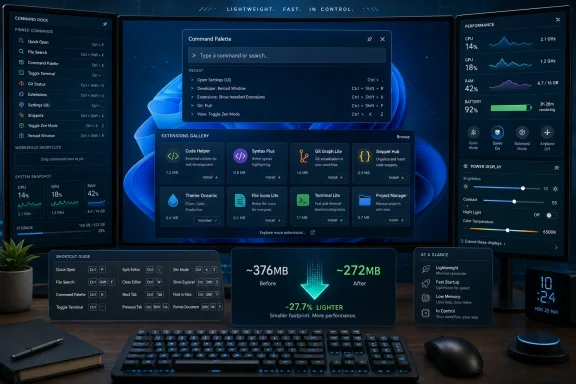
Microsoft released PowerToys 0.100.0 on June 10, 2026, for Windows 10 and Windows 11, cutting the x64 installer from roughly 376MB in version 0.99.1 to about 272MB while adding major Command Palette, Shortcut Guide, Dock, Power Display, and reliability improvements. The headline is not that PowerToys has reached a psychologically satisfying version number. It is that Microsoft’s most beloved Windows side project is starting to look less like a drawer of clever utilities and more like a lightweight control layer for the desktop. That shift matters because PowerToys has become the place where Microsoft can test productivity ideas faster than Windows itself can absorb them.
PowerToys releases usually arrive with a changelog long enough to qualify as bedtime reading for systems administrators. Version 0.100.0 is no exception, but the most interesting part is unusually simple: it is smaller. Microsoft says the move to .NET 10 helps reduce the application’s footprint and improve startup behavior, and the public installer sizes make the point in a way no benchmark chart needs to embellish.
The x64 user installer for PowerToys 0.99.1 was roughly 376MB. PowerToys 0.100.0 comes in at about 272MB. That is a drop of around 28 percent, which is meaningful for an application that many users install once and then forget is always resident in the background.
That background presence is the real issue. PowerToys is not a video editor or a game launcher that can afford to be bloated because users invoke it deliberately. It is a suite of resident desktop affordances — keyboard hooks, window managers, launchers, context-menu helpers, preview handlers, monitor controls, and tray tools — and the performance contract is different. If it makes Windows feel heavier, it has failed before the user even opens a settings page.
The .NET 10 migration is therefore more than a dependency bump. It is Microsoft acknowledging that PowerToys has grown large enough that engineering hygiene is now a feature. Faster startup, reduced package weight, and more responsive components are not glamorous, but they are exactly the kind of changes that determine whether PowerToys remains a power-user staple or becomes another well-intentioned helper app people uninstall after a week.
There is a small irony here. PowerToys began life, in its modern open-source incarnation, as a grab bag of utilities that felt too experimental or too niche for Windows proper. Now the pressure is reversed. Because Windows itself changes slowly, PowerToys has become the fast lane for desktop productivity experiments — and that means Microsoft has to keep it lean enough to justify its growing ambition.
The new Extension Gallery is the clearest sign of that direction. Users can now discover, browse, install, update, and uninstall community extensions from inside Command Palette itself, with WinGet integration and extension detail pages. That moves Command Palette closer to the model used by developer tools such as Visual Studio Code: the core experience matters, but the extension ecosystem is where the product becomes personal.
This is a practical improvement, not just a philosophical one. Before, extensions required a level of intentionality that limited them to the already-converted. You had to know they existed, know where to get them, and be comfortable installing them through channels that ordinary Windows users might find opaque. Bringing extension discovery into the launcher collapses that distance.
Microsoft is also adding parameter pages, inline placeholder collection for bookmarked commands, improved link handling, better accessibility, and more stable automation IDs. That sounds like plumbing because it is plumbing. But it is the plumbing required if Command Palette is going to support richer commands than “open this app” or “run this search.”
The important pattern is that Microsoft is making Command Palette less modal and less brittle. Commands can ask for lightweight input directly in the search experience. Bookmarked commands can be filled in without sending the user to a separate placeholder page. Extensions can express more intent without building a whole secondary UI. Those are the kinds of changes that make a launcher feel less like a shortcut box and more like a command environment.
For longtime PowerToys users, this may also explain why PowerToys Run feels increasingly quiet in the release notes. It still exists, and it still receives fixes, including calculator handling improvements in this release. But the center of development energy has clearly moved. Command Palette is the project’s bet on what Windows power use looks like next.
That may sound like a niche concern until you consider the audience. PowerToys users are disproportionately likely to have multiple displays, weird display layouts, remote sessions, ultrawide monitors, portrait side panels, or some combination of all four. A single global dock is fine for a laptop. It is much less fine on a workstation where the left monitor is for chat, the center display is for work, and the right monitor is for documentation, telemetry, or a remote desktop.
The Dock improvements also expose Microsoft’s broader direction. Pinned commands are no longer just launcher entries; they are persistent interface elements. Files and URLs can be drag-and-dropped into Dock bookmarks. Performance metrics can live in dock bands. Context-menu commands and confirmation dialogs can open the palette at the relevant dock item.
This is where Command Palette starts to blur into shell territory. Windows already has the taskbar, Start menu, system tray, widgets, and search. PowerToys is not replacing those pieces, but it is creating a parallel productivity layer for people who find the stock shell too rigid. That layer is faster to iterate, less politically burdened than Windows, and more willing to serve advanced workflows without pretending every feature must be universal.
The new Performance Monitor battery widget fits neatly into this story. CPU, memory, GPU, network, and battery metrics can be pinned directly to the Dock when available. Microsoft also fixed CPU reporting so boosted CPUs do not show values above 100 percent, added distinct network icons, and repaired settings collisions that could cause widgets to overwrite one another. These are small fixes, but they matter when a decorative widget becomes something a user glances at fifty times a day.
The Dock is still not the Windows taskbar, and that is probably for the best. The taskbar has to satisfy everyone from kiosk administrators to tablet users. The Dock can be unapologetically nerdy. In PowerToys 0.100.0, that nerdiness becomes more credible.
PowerToys 0.100.0 replaces that with Shortcut Guide V2 as the only shipping version, while presenting it simply as Shortcut Guide in settings. The redesigned guide includes built-in manifests for Windows, PowerToys, and common apps, along with taskbar and context-aware navigation. It is designed less as a static cheat sheet and more as a shortcut reference that understands where the user is.
That distinction is important. Keyboard shortcuts are only valuable when they are discoverable at the moment of need. A laminated list of Windows key combinations is not discovery; it is homework. A context-aware guide that shows the configured shortcut, includes PowerToys module shortcuts, and handles app manifests correctly is much closer to teaching by doing.
The release also fixes key visuals so readable key names appear instead of raw numeric key codes, while preserving arrow glyph behavior. It improves reliability, handles missing or unreadable manifest directories without crashing, and exits cleanly from Escape or the close button. These are not flashy changes, but they convert a feature from “nice demo” into “usable daily reference.”
Shortcut Guide also reflects a broader accessibility concern. Windows is powerful, but much of that power is hidden behind conventions that users are expected to absorb through osmosis. Power users often forget how much of their efficiency is muscle memory accumulated over years. A better Shortcut Guide lowers that barrier without dumbing down the operating system.
For IT departments, there is a quiet training angle here. Organizations often standardize on keyboard-heavy workflows for support desks, analysts, developers, and operations teams. A more reliable shortcut discovery tool is not a substitute for documentation, but it can reduce friction when rolling out PowerToys itself, Windows 11 behaviors, or app-specific workflows.
In 0.100.0, Microsoft is clearly hardening the feature after real-world exposure. The update improves monitor discovery, distinguishes internal panels from external monitors before applying brightness controls, rescans displays when the screen wakes, and carries forward per-monitor preferences from older monitor IDs to newer stable IDs. It also adds a “Max compatibility mode” for displays skipped by standard DDC discovery.
The more revealing changes are defensive. Power Display can automatically disable itself after a detected DDC/CI capability crash and show a settings warning before users re-enable it. Microsoft added a built-in monitor blacklist so known problematic displays are skipped during discovery rather than probed. It also fixed false-positive crash detection when the host process exits cleanly.
That tells us something about the messy reality of monitor control. DDC/CI is supposed to provide a standard way for software to communicate with displays, but the PC monitor ecosystem is famously uneven. Some monitors behave perfectly. Others implement just enough of the standard to pass a spec sheet and then go sideways under unusual probing. A utility that touches that layer has to be conservative.
Microsoft appears to understand this. The new warning dialogs, confirmation prompts, diagnostics, lockouts, compatibility mode, and slider scaling fixes are all signs of a feature being domesticated. Power Display is useful precisely because it reaches into a part of the desktop experience users hate. But reaching into that part means inheriting every quirk of monitor firmware, USB-C docks, KVMs, wake states, and multi-display arrangements.
That trade-off is classic PowerToys. The suite often succeeds by smoothing over areas where Windows is theoretically capable but practically awkward. FancyZones made window layouts sane before Windows caught up with better snap experiences. File Locksmith exposes process locks without making users reach for Sysinternals. Power Display is taking aim at monitor OSDs, which remain one of the least civilized parts of the modern desk.
Some of those are tiny but user-visible. Image Resizer now reloads settings live, so external changes to settings files take effect without relaunching the flow. Peek adds a setting to disable the hover metadata tooltip. Mouse Without Borders gets a refresh-connections entry in Quick Access and the Settings Dashboard. Quick Accent gains Greek Polytonic support and styling updates.
Other fixes are the sort of things that prevent a utility suite from feeling janky. File Locksmith improves handling of Unicode paths between normal and elevated runs. File Explorer’s Markdown preview avoids a crash on large UTF-8 files, especially with CJK content, by checking byte size and falling back to a temp-file rendering path when needed. Settings fixes a crash in the Quick Access flyout shortcut editor and improves auto-update behavior so PowerToys relaunches after install with a success toast.
Keyboard Manager’s redesigned editor is now enabled by default for new installations. Workspaces gets a visual refresh using WPF Fluent theming, with refined spacing, fonts, a Mica background, and repositioned action buttons. ZoomIt adds webcam capture overlay and multi-clip append-with-transitions support to its recording and trimming editor, while also fixing a hotkey bug that could hijack bare keypresses when Alt was the only modifier.
This is the paradox of PowerToys: the more useful it becomes, the harder it is to describe succinctly. One user may care only about FancyZones. Another may install it entirely for PowerRename. A developer may live in Command Palette. A presenter may care about ZoomIt. A laptop user may never touch Power Display, while a desktop user may consider it the headline feature.
Microsoft’s answer is not to simplify the suite into a single story. It is to keep improving the connective tissue: settings, updates, documentation, telemetry checks, accessibility, localization comments, extension SDKs, signing lists, and build automation. That work rarely generates headlines, but it is the difference between an enthusiast project and a maintained platform.
For end users, the practical effect is the smaller package and, according to Microsoft, better startup and responsiveness. For contributors, the effect is more complicated. A newer toolchain can improve maintainability, but it can also raise the barrier to entry. If building PowerToys now requires current preview or insider-grade tooling, casual contributors may have a slightly steeper hill to climb.
That is not necessarily a bad trade. PowerToys is no longer a small codebase where maximum approachability should override everything else. It ships native components, managed components, WinUI pieces, WPF surfaces, shell integrations, preview handlers, tray utilities, and extension systems. Keeping that stack coherent requires moving with the platform.
The automation work reinforces that point. The release adds telemetry pull-request checks, updates issue triage workflows, applies product and area labels, supports AI fallback and manual backfill modes, and reduces noisy spell-check comments. This is governance work, not product marketing. It is also what a large open-source Microsoft project needs if it wants community velocity without drowning maintainers.
There is a subtle editorial lesson here for anyone who still thinks of PowerToys as a toy box. The 0.100.0 release is as much about sustaining the project as expanding it. The smaller installer gets the headline, but the deeper story is modernization: runtime, SDK, CI, signing, telemetry review, issue management, and extension infrastructure all moving forward together.
That modernization also makes PowerToys a useful signal for where Microsoft’s desktop developer stack is going. WinUI 3, Windows App SDK, WebView2, .NET 10, WinGet, and extension-driven UX are not abstractions in this release. They are the practical ingredients Microsoft is using to build the most actively evolving productivity layer on Windows.
But PowerToys’ value increasingly depends on not being Windows. It can move faster. It can serve narrow audiences. It can add a monitor-control feature and then quickly add blacklists, warnings, compatibility modes, and diagnostics when the real world proves ugly. It can rebuild a launcher into an extensible command surface without negotiating every Start menu implication.
This separation gives Microsoft a release valve. Windows is a mass-market operating system with enterprise compatibility obligations, accessibility requirements, localization burdens, OEM politics, and regulatory scrutiny. PowerToys can be opinionated in ways Windows cannot. It can assume the user wants more knobs. It can expose experimental workflows. It can tolerate a little complexity in exchange for power.
The risk is fragmentation. If PowerToys becomes too central, Microsoft may end up with a two-tier Windows experience: the ordinary shell for everyone, and the real productivity shell for those who know to install a separate app. That is already partly true. Many Windows enthusiasts treat PowerToys as day-one setup software, while ordinary users may never hear of it.
There is also an administrative question. In managed environments, every resident utility is another thing to package, update, audit, and support. PowerToys is Microsoft-built and open source, which helps, but it still expands the desktop’s behavior. Keyboard remapping, clipboard transformation, AI-assisted paste operations, monitor control, and launcher extensions are all useful. They are also exactly the sort of features cautious IT teams want governed.
Microsoft’s best path is to keep PowerToys as a proving ground while selectively graduating the least controversial ideas into Windows. The suite should remain where advanced workflows are born, hardened, and measured. Windows itself should absorb the ones that become broadly necessary. Version 0.100.0 strengthens that model because it makes the proving ground faster, smaller, and more platform-like.
PowerToys 0.100.0 earns it not by adding one irresistible toy, but by making the whole toolbox lighter, faster, and more coherent. The next question is whether Microsoft can keep that balance as Command Palette grows into a platform of its own: powerful enough to reshape how enthusiasts use Windows, but restrained enough that PowerToys never becomes the bloat it was created to route around.
 PowerToys Hits 0.100.0 by Going on a Diet
PowerToys releases usually arrive with a changelog long enough to qualify as bedtime reading for systems administrators. Version 0.100.0 is no exception, but the most interesting part is unusually simple: it is smaller. Microsoft says the move to .NET 10 helps reduce the application’s footprint and improve startup behavior, and the public installer sizes make the point in a way no benchmark chart needs to embellish.The x64 user installer for PowerToys 0.99.1 was roughly 376MB. PowerToys 0.100.0 comes in at about 272MB. That is a drop of around 28 percent, which is meaningful for an application that many users install once and then forget is always resident in the background.
That background presence is the real issue. PowerToys is not a video editor or a game launcher that can afford to be bloated because users invoke it deliberately. It is a suite of resident desktop affordances — keyboard hooks, window managers, launchers, context-menu helpers, preview handlers, monitor controls, and tray tools — and the performance contract is different. If it makes Windows feel heavier, it has failed before the user even opens a settings page.
The .NET 10 migration is therefore more than a dependency bump. It is Microsoft acknowledging that PowerToys has grown large enough that engineering hygiene is now a feature. Faster startup, reduced package weight, and more responsive components are not glamorous, but they are exactly the kind of changes that determine whether PowerToys remains a power-user staple or becomes another well-intentioned helper app people uninstall after a week.
There is a small irony here. PowerToys began life, in its modern open-source incarnation, as a grab bag of utilities that felt too experimental or too niche for Windows proper. Now the pressure is reversed. Because Windows itself changes slowly, PowerToys has become the fast lane for desktop productivity experiments — and that means Microsoft has to keep it lean enough to justify its growing ambition.
Command Palette Is Becoming the Real Center of Gravity
The biggest strategic thread in PowerToys 0.100.0 is Command Palette. Microsoft describes it as the successor to PowerToys Run, but that undersells what is happening. PowerToys Run was a launcher. Command Palette is turning into a programmable desktop surface.The new Extension Gallery is the clearest sign of that direction. Users can now discover, browse, install, update, and uninstall community extensions from inside Command Palette itself, with WinGet integration and extension detail pages. That moves Command Palette closer to the model used by developer tools such as Visual Studio Code: the core experience matters, but the extension ecosystem is where the product becomes personal.
This is a practical improvement, not just a philosophical one. Before, extensions required a level of intentionality that limited them to the already-converted. You had to know they existed, know where to get them, and be comfortable installing them through channels that ordinary Windows users might find opaque. Bringing extension discovery into the launcher collapses that distance.
Microsoft is also adding parameter pages, inline placeholder collection for bookmarked commands, improved link handling, better accessibility, and more stable automation IDs. That sounds like plumbing because it is plumbing. But it is the plumbing required if Command Palette is going to support richer commands than “open this app” or “run this search.”
The important pattern is that Microsoft is making Command Palette less modal and less brittle. Commands can ask for lightweight input directly in the search experience. Bookmarked commands can be filled in without sending the user to a separate placeholder page. Extensions can express more intent without building a whole secondary UI. Those are the kinds of changes that make a launcher feel less like a shortcut box and more like a command environment.
For longtime PowerToys users, this may also explain why PowerToys Run feels increasingly quiet in the release notes. It still exists, and it still receives fixes, including calculator handling improvements in this release. But the center of development energy has clearly moved. Command Palette is the project’s bet on what Windows power use looks like next.
The Dock Turns Commands Into Desktop Furniture
The Command Palette Dock is also getting a significant upgrade in 0.100.0, especially for multi-monitor users. The Dock can now be customized separately per monitor, with independent dock bands and support for dragging dock bands between displays. Users can choose which monitors show a Dock and where pinned commands appear.That may sound like a niche concern until you consider the audience. PowerToys users are disproportionately likely to have multiple displays, weird display layouts, remote sessions, ultrawide monitors, portrait side panels, or some combination of all four. A single global dock is fine for a laptop. It is much less fine on a workstation where the left monitor is for chat, the center display is for work, and the right monitor is for documentation, telemetry, or a remote desktop.
The Dock improvements also expose Microsoft’s broader direction. Pinned commands are no longer just launcher entries; they are persistent interface elements. Files and URLs can be drag-and-dropped into Dock bookmarks. Performance metrics can live in dock bands. Context-menu commands and confirmation dialogs can open the palette at the relevant dock item.
This is where Command Palette starts to blur into shell territory. Windows already has the taskbar, Start menu, system tray, widgets, and search. PowerToys is not replacing those pieces, but it is creating a parallel productivity layer for people who find the stock shell too rigid. That layer is faster to iterate, less politically burdened than Windows, and more willing to serve advanced workflows without pretending every feature must be universal.
The new Performance Monitor battery widget fits neatly into this story. CPU, memory, GPU, network, and battery metrics can be pinned directly to the Dock when available. Microsoft also fixed CPU reporting so boosted CPUs do not show values above 100 percent, added distinct network icons, and repaired settings collisions that could cause widgets to overwrite one another. These are small fixes, but they matter when a decorative widget becomes something a user glances at fifty times a day.
The Dock is still not the Windows taskbar, and that is probably for the best. The taskbar has to satisfy everyone from kiosk administrators to tablet users. The Dock can be unapologetically nerdy. In PowerToys 0.100.0, that nerdiness becomes more credible.
Shortcut Guide Finally Grows Up
Shortcut Guide has always been one of PowerToys’ most obviously useful ideas. Hold a key, see what shortcuts are available, learn Windows faster. The problem was that the old implementation felt like a clever overlay from an earlier design era — helpful, but not especially alive to the complexity of modern app and system shortcuts.PowerToys 0.100.0 replaces that with Shortcut Guide V2 as the only shipping version, while presenting it simply as Shortcut Guide in settings. The redesigned guide includes built-in manifests for Windows, PowerToys, and common apps, along with taskbar and context-aware navigation. It is designed less as a static cheat sheet and more as a shortcut reference that understands where the user is.
That distinction is important. Keyboard shortcuts are only valuable when they are discoverable at the moment of need. A laminated list of Windows key combinations is not discovery; it is homework. A context-aware guide that shows the configured shortcut, includes PowerToys module shortcuts, and handles app manifests correctly is much closer to teaching by doing.
The release also fixes key visuals so readable key names appear instead of raw numeric key codes, while preserving arrow glyph behavior. It improves reliability, handles missing or unreadable manifest directories without crashing, and exits cleanly from Escape or the close button. These are not flashy changes, but they convert a feature from “nice demo” into “usable daily reference.”
Shortcut Guide also reflects a broader accessibility concern. Windows is powerful, but much of that power is hidden behind conventions that users are expected to absorb through osmosis. Power users often forget how much of their efficiency is muscle memory accumulated over years. A better Shortcut Guide lowers that barrier without dumbing down the operating system.
For IT departments, there is a quiet training angle here. Organizations often standardize on keyboard-heavy workflows for support desks, analysts, developers, and operations teams. A more reliable shortcut discovery tool is not a substitute for documentation, but it can reduce friction when rolling out PowerToys itself, Windows 11 behaviors, or app-specific workflows.
Power Display Shows the Risk of Touching Real Hardware
Power Display is one of the more interesting recent PowerToys additions because it moves beyond software convenience into hardware control. The utility allows users to adjust supported monitor settings such as brightness, contrast, volume, and color profiles from the tray, avoiding the horror show of physical monitor buttons and on-screen display menus.In 0.100.0, Microsoft is clearly hardening the feature after real-world exposure. The update improves monitor discovery, distinguishes internal panels from external monitors before applying brightness controls, rescans displays when the screen wakes, and carries forward per-monitor preferences from older monitor IDs to newer stable IDs. It also adds a “Max compatibility mode” for displays skipped by standard DDC discovery.
The more revealing changes are defensive. Power Display can automatically disable itself after a detected DDC/CI capability crash and show a settings warning before users re-enable it. Microsoft added a built-in monitor blacklist so known problematic displays are skipped during discovery rather than probed. It also fixed false-positive crash detection when the host process exits cleanly.
That tells us something about the messy reality of monitor control. DDC/CI is supposed to provide a standard way for software to communicate with displays, but the PC monitor ecosystem is famously uneven. Some monitors behave perfectly. Others implement just enough of the standard to pass a spec sheet and then go sideways under unusual probing. A utility that touches that layer has to be conservative.
Microsoft appears to understand this. The new warning dialogs, confirmation prompts, diagnostics, lockouts, compatibility mode, and slider scaling fixes are all signs of a feature being domesticated. Power Display is useful precisely because it reaches into a part of the desktop experience users hate. But reaching into that part means inheriting every quirk of monitor firmware, USB-C docks, KVMs, wake states, and multi-display arrangements.
That trade-off is classic PowerToys. The suite often succeeds by smoothing over areas where Windows is theoretically capable but practically awkward. FancyZones made window layouts sane before Windows caught up with better snap experiences. File Locksmith exposes process locks without making users reach for Sysinternals. Power Display is taking aim at monitor OSDs, which remain one of the least civilized parts of the modern desk.
The Changelog Is Long Because the Surface Area Is Huge
PowerToys 0.100.0 also includes the kind of sprawling maintenance work that only makes sense when you remember how broad the suite has become. Advanced Paste, FancyZones, File Explorer preview handlers, File Locksmith, Grab And Move, Image Resizer, Keyboard Manager, Mouse Without Borders, Peek, PowerToys Run, Quick Accent, Settings, Workspaces, and ZoomIt all receive changes.Some of those are tiny but user-visible. Image Resizer now reloads settings live, so external changes to settings files take effect without relaunching the flow. Peek adds a setting to disable the hover metadata tooltip. Mouse Without Borders gets a refresh-connections entry in Quick Access and the Settings Dashboard. Quick Accent gains Greek Polytonic support and styling updates.
Other fixes are the sort of things that prevent a utility suite from feeling janky. File Locksmith improves handling of Unicode paths between normal and elevated runs. File Explorer’s Markdown preview avoids a crash on large UTF-8 files, especially with CJK content, by checking byte size and falling back to a temp-file rendering path when needed. Settings fixes a crash in the Quick Access flyout shortcut editor and improves auto-update behavior so PowerToys relaunches after install with a success toast.
Keyboard Manager’s redesigned editor is now enabled by default for new installations. Workspaces gets a visual refresh using WPF Fluent theming, with refined spacing, fonts, a Mica background, and repositioned action buttons. ZoomIt adds webcam capture overlay and multi-clip append-with-transitions support to its recording and trimming editor, while also fixing a hotkey bug that could hijack bare keypresses when Alt was the only modifier.
This is the paradox of PowerToys: the more useful it becomes, the harder it is to describe succinctly. One user may care only about FancyZones. Another may install it entirely for PowerRename. A developer may live in Command Palette. A presenter may care about ZoomIt. A laptop user may never touch Power Display, while a desktop user may consider it the headline feature.
Microsoft’s answer is not to simplify the suite into a single story. It is to keep improving the connective tissue: settings, updates, documentation, telemetry checks, accessibility, localization comments, extension SDKs, signing lists, and build automation. That work rarely generates headlines, but it is the difference between an enthusiast project and a maintained platform.
The .NET 10 Move Raises the Floor for Contributors
The development changes in 0.100.0 are also worth watching. Microsoft updated PowerToys build and developer tooling to .NET 10, now requiring Visual Studio 2026 for building from source. It also updated Windows App SDK dependencies, WebView2, shared runtime packages, Command Palette SDK templates, and several AI-related dependencies used by Advanced Paste.For end users, the practical effect is the smaller package and, according to Microsoft, better startup and responsiveness. For contributors, the effect is more complicated. A newer toolchain can improve maintainability, but it can also raise the barrier to entry. If building PowerToys now requires current preview or insider-grade tooling, casual contributors may have a slightly steeper hill to climb.
That is not necessarily a bad trade. PowerToys is no longer a small codebase where maximum approachability should override everything else. It ships native components, managed components, WinUI pieces, WPF surfaces, shell integrations, preview handlers, tray utilities, and extension systems. Keeping that stack coherent requires moving with the platform.
The automation work reinforces that point. The release adds telemetry pull-request checks, updates issue triage workflows, applies product and area labels, supports AI fallback and manual backfill modes, and reduces noisy spell-check comments. This is governance work, not product marketing. It is also what a large open-source Microsoft project needs if it wants community velocity without drowning maintainers.
There is a subtle editorial lesson here for anyone who still thinks of PowerToys as a toy box. The 0.100.0 release is as much about sustaining the project as expanding it. The smaller installer gets the headline, but the deeper story is modernization: runtime, SDK, CI, signing, telemetry review, issue management, and extension infrastructure all moving forward together.
That modernization also makes PowerToys a useful signal for where Microsoft’s desktop developer stack is going. WinUI 3, Windows App SDK, WebView2, .NET 10, WinGet, and extension-driven UX are not abstractions in this release. They are the practical ingredients Microsoft is using to build the most actively evolving productivity layer on Windows.
PowerToys Is Becoming Windows’ Experimental Control Plane
The natural temptation is to ask which PowerToys features should be folded into Windows itself. That is an old conversation, and sometimes it is the right one. FancyZones influenced the way many users thought about window layouts before Windows 11’s Snap improvements matured. PowerRename feels like something File Explorer should have had years ago. Shortcut Guide is so conceptually obvious that its existence outside the core OS still feels odd.But PowerToys’ value increasingly depends on not being Windows. It can move faster. It can serve narrow audiences. It can add a monitor-control feature and then quickly add blacklists, warnings, compatibility modes, and diagnostics when the real world proves ugly. It can rebuild a launcher into an extensible command surface without negotiating every Start menu implication.
This separation gives Microsoft a release valve. Windows is a mass-market operating system with enterprise compatibility obligations, accessibility requirements, localization burdens, OEM politics, and regulatory scrutiny. PowerToys can be opinionated in ways Windows cannot. It can assume the user wants more knobs. It can expose experimental workflows. It can tolerate a little complexity in exchange for power.
The risk is fragmentation. If PowerToys becomes too central, Microsoft may end up with a two-tier Windows experience: the ordinary shell for everyone, and the real productivity shell for those who know to install a separate app. That is already partly true. Many Windows enthusiasts treat PowerToys as day-one setup software, while ordinary users may never hear of it.
There is also an administrative question. In managed environments, every resident utility is another thing to package, update, audit, and support. PowerToys is Microsoft-built and open source, which helps, but it still expands the desktop’s behavior. Keyboard remapping, clipboard transformation, AI-assisted paste operations, monitor control, and launcher extensions are all useful. They are also exactly the sort of features cautious IT teams want governed.
Microsoft’s best path is to keep PowerToys as a proving ground while selectively graduating the least controversial ideas into Windows. The suite should remain where advanced workflows are born, hardened, and measured. Windows itself should absorb the ones that become broadly necessary. Version 0.100.0 strengthens that model because it makes the proving ground faster, smaller, and more platform-like.
The 0.100.0 Release Rewards the Users Who Leave PowerToys Running
PowerToys 0.100.0 is not a single-feature release. It is a maintenance-and-platform release disguised as a productivity update, and that is why it is more important than the version number suggests.- PowerToys 0.100.0 reduces the x64 installer size by roughly 28 percent compared with 0.99.1, largely thanks to the move to .NET 10.
- Command Palette gains an Extension Gallery, richer parameter handling, better Dock behavior, and more signs that it is becoming PowerToys’ primary interface.
- Shortcut Guide V2 replaces the old Shortcut Guide with a more modern, context-aware shortcut reference for Windows, PowerToys, and common apps.
- Power Display gets the hardening it needed, including crash lockouts, monitor blacklisting, better discovery, compatibility mode, and more reliable per-monitor settings.
- The Dock becomes more useful on multi-monitor workstations by allowing separate layouts and pinned commands per display.
- The less glamorous fixes across File Locksmith, File Explorer previews, Image Resizer, Quick Accent, Settings, ZoomIt, and Workspaces are the stability work that keeps a utility suite from feeling like a science project.
PowerToys 0.100.0 earns it not by adding one irresistible toy, but by making the whole toolbox lighter, faster, and more coherent. The next question is whether Microsoft can keep that balance as Command Palette grows into a platform of its own: powerful enough to reshape how enthusiasts use Windows, but restrained enough that PowerToys never becomes the bloat it was created to route around.
References
- Primary source: Neowin
Published: Wed, 10 Jun 2026 07:28:00 GMT
Microsoft explains why PowerToys 0.100.0 is faster and slimmer, there are new features too - Neowin
Microsoft has explained how a recent optimization move has made PowerToys significantly faster and smaller. There are new features too with the latest update. www.neowin.net
- Official source: learn.microsoft.com
PowerToys Command Palette Utility for Windows | Microsoft Learn
Learn how to use PowerToys Command Palette, a quick launcher for Windows power users. Access apps, commands, and tools instantly with customizable shortcuts and extensions.learn.microsoft.com - Related coverage: gitclear.com
- Related coverage: windowscentral.com
What's new in PowerToys v0.98: Command Palette Dock and more | Windows Central
The new Command Palette Dock and an improved CursorWrap round out an impressive list of changes in the latest PowerToys update.www.windowscentral.com - Official source: github.com
Releases · microsoft/PowerToys · GitHub
Microsoft PowerToys is a collection of utilities that supercharge productivity and customization on Windows - Releases · microsoft/PowerToys github.com
- Related coverage: techspot.com
Microsoft PowerToys Download Free - 0.100.2 | TechSpot
Download Microsoft PowerToys - PowerToys is a set of utilities for power users to tune and streamline their Windows experience for greater productivity.www.techspot.com
- Related coverage: sourceforge.net
PowerToys - Browse /v0.99.0 at SourceForge.net
PowerToys /v0.99.0 files. Browse /v0.99.0 files for PowerToys, System utilities to maximize productivity sourceforge.net
- Related coverage: tweakers.net
PowerToys 0.99.0
Microsoft heeft versie 0.99.0 van PowerToys uitgebracht. De PowerToys zijn een verzameling kleine programma's voor powerusers. Er waren PowerToys voor Windows 95 en Windows XP, en sinds halverwege 2019 is Microsoft ook bezig met de ontwikkeling van een versie voor Windows 10 en hoger. De...tweakers.net
- Related coverage: betanews.com
Microsoft releases PowerToys v0.98.0 with new Command Palette Dock and updated Keyboard Manager - BetaNews
In a release that Microsoft says “brings your workflow front and center”, PowerToys v0.98.0 sees the arrival of a new Command Palette Dock and updates to manybetanews.com - Related coverage: appinn.com
PowerToys v0.99.0 发布,距离 v0.100 更近了 - 小众软件
微软的 PowerToys v0.99.0 今日发布,新增两个实用工具:不用点标题栏就能拖动窗口,另一个是直接在托盘里调显示器亮度、对比度。另外继续修复命令面板等功能,整体更稳定,为 v0.100发布做最后准备。@Appinn www.appinn.com
- Related coverage: doccompiler.ai
- Related coverage: nwsgenealogy.org
- Related coverage: gitee.com
Login - Gitee
Gitee.com(码云) 是 OSCHINA.NET 推出的代码托管平台,支持 Git 和 SVN,提供免费的私有仓库托管。目前已有超过 1400万的开发者选择 Gitee。gitee.com
