PowerToys v0.97: Personal Command Palette, CursorWrap, and CLI Boosts

  • Thread Author
Microsoft’s PowerToys just leveled up: version 0.97 delivers a focused, user‑facing rethink of the Command Palette, adds a clever new mouse utility called CursorWrap, expands command‑line control across several modules, and folds more UI personalization and extension power into an already versatile toolkit. The release mixes cosmetic freedom (background images, tinting, theme controls) with real productivity wins (fallback ranking, Peek previews, and a built‑in PowerToys extension for the Command Palette), while raising familiar governance and compatibility questions that IT pros and power users should evaluate before broad deployment.

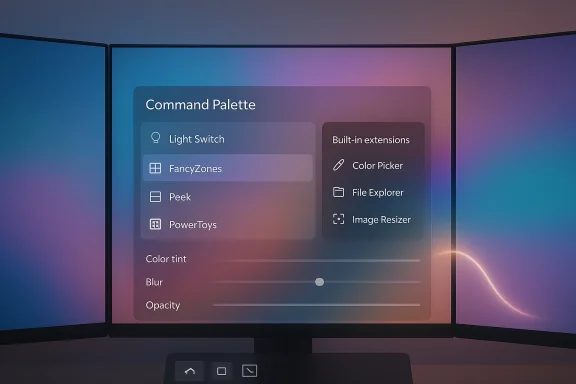
Command Palette UI floating over a curved multi-monitor setup with a colorful gradient backdrop.Background​

PowerToys has grown from a grab‑bag of experimental utilities into a de facto productivity platform for power users on Windows 10 and Windows 11. The project ships monthly to GitHub and the Microsoft Store, publishing detailed changelogs that make the engineering intent and feature set easy to verify. Recent cycles have emphasized Command Palette performance and extensibility, Advanced Paste AI integrations, and tighter CLI tooling — an evolution that positions PowerToys as both an everyday utility suitable for ideas that could influence Windows itself. This article examines the substantive changes in 0.97, explains how they affect workflows, verifies key technical claims against official release notes, and offers practical guidance and risk analysis for everyday and enterprise users.

What arrived in PowerToys v0.97 — the headlines​

  • Command Palette: personalization + deeper control. A new Personalization page allows background images, color tinting, blur/opacity adjustments, and theme behavior; the Command Palette now supports * results and adds an integrated PowerToys extension to toggle utilities (Light Switch, FancyZones layouts, etc. directly from the palette. Peek previews are now available inside the palette.
  • CursorWrap: a new mouse utility that wraps the cursor across monitor edges, reducing cross‑screen travel on multimonitor setups. The initial behavior wraps at top/bottom and left/right edges of the active monitor.
  • More CLI support: FancyZones, Image Resizer, and File Locksmith gained command‑line control; Peek had previous CLI additions expanded. This broadens automation and scripting capability across the suite.
  • Quick Access and system tray polish: Quick Access flyout was moved out of the main settings process for faster launch time, and the tray icon can now be monochrome.
  • Installer artifacts and hashes: the release includes per‑user and machine‑wide installers for x64 and ARM64, with published SHA‑256 hashes for verification. This supports secure distribution and scripted installs.
These items were clearly documented in the project’s v0.97 release notes and echoed by several independent outlets, confirming both the feature set and the expected impact.

Deep dive: Command Palette becomes personal, powerful, and more native​

What changed — feature breakdown​

  • Personalization page (UI customization): Users can pick a background (solid color, blurred/translucent layer, or full image), apply color tinting, and adjust blur/opacity to improve contrast or aesthetics. This shifts the palette from a generic overlay to a configurable component that can match system themes or corporate style.
  • Fallback ranking: A new fallback ranking control gives you influence over which commands are prioritized when the palette can't determine an obvious single match. Extension settings include a “Manage fallback order” UI so you can drag commands to reorder priority. This is a small feature with outsized impact for repeatable workflows and keyboard-driven users.
  • Control PowerToys from Command Palette: A built‑in PowerToys extension lets you toggle utilities (for example, turn Light Switch on/off, switch FancyZones layouts, choose colors) without leaving the palette. That reduces context switching from palette → settings → enable/modify → close. Make sure the utilities you want to control are enabled in PowerToys settings first.
  • Peek integration (preview in‑place): Peek, the file‑preview utility, can be invoked from Command Palette to preview files and folders inline — a productivity shortcut for fast inspections without launching heavier viewers.
  • Localization and input improvements: Pinyin support was added for Chinese input (dependent on OS language variant). There’s also a Remote Desktop extension and a custom search engine option for the Web Search extension, plus drag‑and‑drop support for file indexer and clipboard items.

Why it matters in practice​

  • Fewer context switches. Power users who rely on a quick launcher will feel immediate benefit: theme matching and background tweaks reduce visual friction while integrated PowerToys commands let you complete more tasks without leaving the keyboard.
  • Better discoverability and control for admins. Fallback ranking and extension controls make predictable behavior more attainable, which matters when you script or document workflows for others.
  • Extensibility and ecosystem growth. Drag‑and‑drop support and improved extension APIs make it easier for third‑party developers to add meaningful integrations (for example, drag an image from the palette into a chat app).

Practical caveats and verification​

  • The personalization settings are cosmetic but require careful defaults for accessibility (contrast, low‑motion preferences). The release notes and early reporting confirm the feature exists, but some UI labels and defaults could change in minor updates as the team refines accessibility behavior. This is an actively iterated area; expect small UX changes in follow‑up releases.

CursorWrap: near‑brilliant ergonomics with first‑release tradeoffs​

What CursorWrap does​

  • When enabled, CursorWrap makes the cursor appear on the opposite edge of the active monitor when you move it past any edge (top, bottom, left, right). For large displays or multi‑monitor setups, this lets you move the pointer between distant zones with a flick of the wrist instead of a long physical movement. to a real problem.

Practical benefits​

  • Reduces hand/wrist travel and mouse fatigue on ultrawide or multi‑monitor desks.
  • Faster navigational motion for power users who frequently move across wide canvas spaces (designers, traders, content creators).
  • Simple enable/disable toggle; like other PowerToys modules, CursorWrap runs only when enabled.

Limitations and reported issues​

  • Edge behaviors can interfere with some workflows. Users who rely on fine control at the top or bottom edge (e.g., grabbing browser tabs, clicking the taskbar or Start menu) may find wrapping introduces extra precision friction. That’s an expected tradeoff: wrap accelerates gross movement but can impede precise edge interactions. Community feedback and early reviews have requested the ability to limit wrapping to left/right edges only; that option is not present in the initial release. The request is reasonable and may appear in a future update.
  • Hardware detection edge cases. An anecdotal issue reported in early coverage describes CursorWrap incorrectly detecting monitors after closing a laptop lid while an external monitor is attached. That behavior appears to be a user‑reported bug rather than an official, broadly confirmed defect. There was no authoritative issue tracker entry at the time of writing to fully reproduce or confirm the scale of this problem; treat it as a cautionary, user‑reported edge case and test for it before mass deployment. Flagged as unverified / user observation.

Recommendation​

  • Try CursorWrap in a controlled session and confirm any hot corners, taskbar interactions, or game/creative app behaviors you rely on. If you use a mixed laptop+external monitor setup, test suspend/close/resume scenarios to detect any state misreads before rolling the feature into a managed imaging or baseline.

Expanded CLI coverage: automation and scripting gains​

PowerToys has steadily expanded command‑line control — and v0.97 raises the bar by adding or improving CLI options for several utilities:
  • FancyZones CLI: switch layouts or manage zoning via command line for scripted workspace changes.
  • **Image Reh image resizing from scripts without opening GUI dialogs.
  • File Locksmith CLI: query or free file locks programmatically. Useful for headless automation or deployment scripts.
  • Peek CLI: previously added; continued to be hardened for broader usage.
Why this matters: CLI integration transforms PowerToys from a manual toolkit into a scriptable layer that can be embedded in imaging, provisioning, and automation workflows. For IT teams, that means you can orchestrate workspace layout, image transforms, and lock clearing as part of onboarding or build scripts.

Security, privacy and enterprise considerations​

PowerToys is modular and powerful, but that surface area increases responsibility. The 0.97 release makes no exception.
  • Advanced Paste & AI models: recent releases (0.96 onward) expanded Advanced Paste to support multiple cloud and local AI providers (Azure OpenAI, Google Gemini, Mistral, Foundry Local, Ollama). This approach is flexible but requires admin oversight: cloud endpoints transmit clipboard data off‑device unless local providers are explicitly selected, and API keys must be managed securely. Enterprise teams should control which providers are permitted and prefer on‑device models for sensitive data.
  • Global hooks and EDR sensitivity: PowerToys uses system hooks (global hotkeys, shell integrations) that can be flagged by endpoint detection tools. Validate any EDR/AV interactions in a test environment prior to broad rollout and coordinate with security teams. This has been an ongoing concern for IT prrToys in managed estates.
  • Installer integrity: Always verify installer hashes (SHA‑256) before automated installs. The v0.97 artifacts include hashes in the release notes; use them to confirm binary integrity when deploying via scripts or package managers.
  • Extension trust model: Command Palette extensions can add significant capability but also risk. Only enabls from trusted sources in managed environments. The extension model is flexible, but admins should treat third‑party extensions as third‑party software: audit, sign, or whitelist as appropriate.

Performance, accessibility, and usability notes​

  • Performance: The project continues to prioritize performance — previous cycles introduced Ahead‑of‑Time (AOT) compilation for first‑party extensions, reduced startup memory use, and faster load times for Command Palette. v0.97 continues the optimization trend while expanding feature surface. For users on low‑spec or resource‑constrained devices, it’s still prudent to enable only the modules you use.
  • Accessibility: Personalization (background blur/tint) must be balanced against readability and low‑motion preferences. PowerToys has options to reduce motion and adjust contrast, but admins and users should manually verify that chosen thty requirements in their environments. The team has signaled attention to accessibility, but this remains an area where user testing matters.

How to get v0.97 safely — recommended steps for power users and IT admins​

  • Download from a trusted channel (GitHub releases, Microsoft Store, or winget).
  • Verify the installer SHA‑256 hash against the release notes before running any automated install.
  • Install to a test workstation firs you intend to use.
  • For managed deployment, use the machine‑wide installer and include settings export/import in your imaging process. Confirm there are no EDR flags in a lab environment.
  • If enabling Advanced Paste for teams, map approved AI providers and require secure API key storage; prefer local providers for sensitive data.
Example winget install command for scripted deployments:
  • Open elevated PowerShell or Command Prompt.
  • Run:
    1. winget install --id Microsoft.PowerToys --source winget
  • After install, optionally apply a settings file to preconfigure which modules are enabled and set company defaults.

Critical analysis — strengths, risks, and what to watch next​

Strengths​

  • Practical productivity gains. Command Palette improvements meaningfully reduce friction in keyboard‑centric workflows; fallback ranking and embedded PowerToys control are small changes that amplify daily speed.
  • Polish without bloat. Personalization is implemented as an optional layer rather than default visual noise, preserving the palette’s speed ethos while giving poontrol.
  • Scriptability and automation. Expanded CLI support makes PowerToys friendlier to automation engineers and IT ops teams.

ns​

  • Edge cases in CursorWrap and other new utilities. First releases tend to expose hardware/state edge cases (suspend/resume, lid close scenarios). Test thoroughly on representative hardware. Anecdotal laptop lid detection issues reported; unverified at release scale.
  • Governance for AI features. Advanced Paste’s multi‑provider model is powerful but requires governance to avoid unintended exfiltration of sensitive clipboard contents. Enterprises should predefine allowed providers and prefer local models where possible.
  • Security posture and EDR/AV interaction. PowerToys’ low‑level hooks can be noisy to endpoint protection products; validate in lab environments before enterprise rollout.

What to watch next​

  • Feature flags for CursorWrap granularity. The community has requested selective edge wrapping (left/right only) — this would solve many practical complaints without losing CursorWrap’s value. If the team adds this, CursorWrap will be broadly friendlier to mixed workflows.
  • Further Command Palette integration. The trend is toward making the palette a central control surface; expect more first‑party extension controls (for Windows features) and deeper telemetry to inform UX defaults.

Final verdict​

PowerToys v0.97 is a carefully balanced release: it blends visual personalization with real productivity improvements and sensible automation extensions. The Command Palette changes are the most visible and arguably the most consequential — they make the launcher feel more native, flexible, and integrated into daily workflows. CursorWrap is an inspired addition that will help many multi‑monitor users, though it should be treated as an experimental ergonomics tool until small edge‑case behaviors are ironed out.
For power users: install, test, and adopt the new palette features immediately — they are high value for keyboard workflows. For administrators: pilot the release in a controlled setting, verify installer hashes, assess Advanced Paste provider policies, and confirm there are no EDR flags before rolling wide. The release notes are explicit and complete; use them to verify artifacts and to script safe deployments. PowerToys has once again shown that Microsoft can iterate rapidly in public: v0.97 demonstrates thoughtful feature design that respects both aesthetics and utility, but it also underscores the perennial need for testing and governance when a desktop tool grows into a platform.

If you plan to roll out v0.97 across multiple endpoints, follow the checklist above and schedule a short pilot with representative hardware (especially laptop + external display combos). PowerToys remains a low‑friction, high‑return toolkit for Windows users — and v0.97 keeps the momentum going while delivering sensible controls for real daily productivity.
Source: Windows Central I’ve seen the future of Windows productivity, and it’s PowerToys v0.97.
 

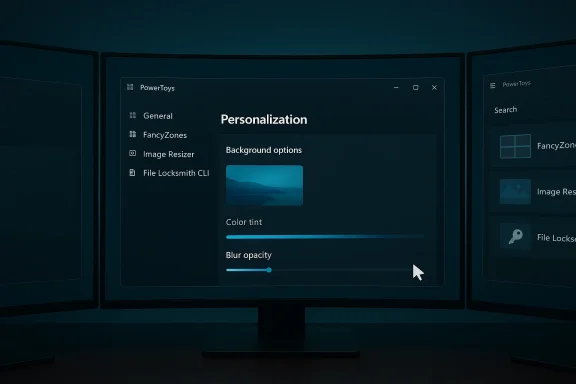
Triple-monitor setup showing a PowerToys Personalization window with background options, color tint, and blur sliders.
Microsoft’s PowerToys 0.97 lands with a major Command Palette overhaul, a clever new mouse utility called CursorWrap, expanded command-line control for several modules, and a host of polish items aimed at power users and IT professionals alike.

Background​

PowerToys began life as a grab-bag of experimental utilities for power users and has since evolved into a maintained, modular productivity platform for Windows. The project is hosted on Microsoft’s official GitHub repository and is updated on a roughly monthly cadence; recent cycles have focused on making the Command Palette a first-class, extensible launcher while expanding automation and accessibility across the suite. The 0.97 release continues that trajectory by blending UI personalization with features and a brand-new mouse tool meant for multi-monitor workflows.

Overview of what’s new in PowerToys 0.97​

  • Command Palette: Major personalization and usability updates — new Personalization page, fallback ranking management, built-in PowerToys control extension, Peek previews, Pinyin support, drag-and-drop, and custom search engine options.
  • CursorWrap: New mouse utility — wraps the cursor across the edges of the active monitor to reduce long pointer trips on multi-monitor setups.
  • Expanded CLI coverage — FancyZones, Image Resizer, and File Locksmith now support command-line operations in addition to recent CLI additions for Peek, broadening automation and scripting use cases.
  • Quick Access & tray improvements — Quick Access flyout moved out of the main settings process for faster launch, and the tray icon can now be set to a monochrome style.
  • Miscellaneous polish — Light Switch behavior improvements, Advanced Paste color previews, and general bug fixes and test coverage increases.
These highlights appear consistently across the official PowerToys release notes and independent coverage, indicating the feature set is accurately represented in the public changelog.

Deep dive: Command Palette becomes personal and more capable​

What changed, precisely​

The Command Palette — PowerToys’ keyboard-first launcher and the natural successor to PowerToys Run — received perhaps the deepest user-facing update in 0.97:
  • A Personalization settings page lets users choose a background (solid color, blurred desaturated layer, or full image), apply a color tint, and control blur/opacity to improve legibility or match system/corporate themes. This takes the launcher beyond a generic overlay into something visually integrated with the desktop.
  • Fallback ranking is now configurable. When multiple extensions or result types compete, users can drag to reorder the fallback preference, giving keyboard-centric workflows predictable behavior.
  • A built-in PowerToys extension allows you to toggle utilities or alter settings (for example, switch FancyZones layouts, pick a color, flip Light Switch on/off) from inside the palette. That reduces the cognitive cost of switching contexts between the launcher and the settings UI.
  • Peek integration adds inline file/folder previews directly in the palette results, enabling fast inspections without opening heavy viewers.
  • Additional quality-of-life updates: Pinyin input support, a Remote Desktop extension, drag-and-drop support for File Indexer and Clipboard History entries, and the ability to select a custom search engine for the Web Search extension.

Why it matters​

This is a classic PowerToys move: take an already useful productivity feature and make it personalizable and scriptable. For keyboard-first users and developers who rely on the palette for launching apps and running quick commands, the personalization controls reduce visual friction and make the launcher feel like an intentional part of the desktop experience rather than a generic overlay.
The fallback ranking is especially important for reliability: predictable ranking is a multiplier for speed in keyboard-driven workflows. The ability to control PowerToys utilities from the palette is a meaningful workflow compression — fewer context switches, lower friction for common tasks.

Caveats and verification​

The feature list for Command Palette 0.97 is documented in the official PowerToys release notes and the team blog post announcing v0.97; independent outlets that tested the build confirm the core items (personalization, built-in extension, Peek preview). Users who rely on specific keyboard bindings should still verify their defaults and the “Use low-level keyboard hook” setting if remapping proves inconsistent on their system, as prior update cycles exposed edge cases around Windows hotkey conflicts.

CursorWrap: how it works and when it helps​

The functionality​

CursorWrap is a new mouse utility that implements wrap-around behavior on the active monitor: moving the pointer past the right edge places it at the left edge (and similarly for top/bottom), effectively turning the monitor into a toroidal surface for cursor motion. It’s designed to reduce the physical distance the pointer travels on multi-monitor setups, particularly where monitors are arranged horizontally or vertically with wide gaps.

Practical benefits​

  • Reduces hand and wrist movement when switching focus between widely spaced areas of a single monitor or between adjacent monitors.
  • Lowers time-to-target for pointer-driven interactions in ultra-wide or multi-monitor desktops.
  • Can be combined with FancyZones and Keyboard Manager remaps to create efficient hybrid keyboard-plus-mouse workflows.

Usability and potential surprises​

  • Wrap behavior can be disorienting at first; users expect the screen edge to act as a hard boundary. There’s a relearning curve.
  • CursorWrap applies to the active monitor, and in mixed-DPI or virtualized display setups the perceived behavior can vary; test on the actual hardware configuration before broad adoption.
  • Some full-screen exclusive applications (notably certain GPU-accelerated games and apps using exclusive swap chains) may not play well with overlay or cursor-management utilities; users should test in their target apps and monitor for anti-cheat or anti-overlay interactions. This is a general overlay/utility consideration rather than a CursorWrap-specific fault.

Automation: CLI gains that matter to power users and IT​

PowerToys has been steadily expanding command-line control, and 0.97 continues that trend:
  • FancyZones, Image Resizer, and File Locksmith gained CLI endpoints. This lets admins and power users script layout switches, resize batches of images, or unlock files without manual UI interaction.
  • Peek’s CLI support, added in prior releases, and other CLI endpoints mean PowerToys can be integrated into task sequences, CI flows, desktop provisioning scripts, and help-desk automation.

Why CLI matters​

  • Enables reproducible workflows and automation across user fleets in enterprise environments.
  • Allows inclusion of PowerToys functionality in launch scripts, remote support scenarios, and image-building steps for standardized desktops.
  • Makes PowerToys more appealing to devs and IT teams that prefer scriptable, observable tools.

Verification and integration tips​

  • The release notes and docs list supported CLI commands; IT teams should test commands on representative hardware and record exit codes and logging behavior for monitoring.
  • For unattended deployments, the GitHub release artifacts include both per-user and machine-wide installers (x64 and ARM64). Confirm the installer filenames and published SHA-256 hashes in the release page before scripting downloads to ensure integrity.

Security, privacy, and compatibility: a realistic risk assessment​

PowerToys is officially distributed by Microsoft and open-source, but that doesn’t mean there are zero risks. The 0.97 release brings benefits and a few areas where administrators and cautionus users should pay attention.

Strengths​

  • First-party stewardship and an active community mean frequent updates, rapid bug fixes, and public issue tracking. The GitHub repo and release notes are transparent about changes and artifact hashes.
  • Modular design keeps runtime footprint small: only enabled modules run, so administrators can selectively enable only what they trust or need.
  • Increased test coverage and unit/UI automation improvements in recent cycles improve confidence in stable behavior for many modules.

Risks and considerations​

  • Hotkey conflicts: PowerToys’ expanding feature set increases the chance of shortcut collisions with the OS or other applications. The settings UI has conflict detection and now options to ignore or delete shortcuts, but admins should still inventory hotkeys before mass deployment. Users who remap hotkeys may need to enable the “Use low-level keyboard hook” option to ensure consistent activation across OS states.
  • Overlay and anti-cheat interactions: Cursor transformations, crosshair overlays, and other pointer utilities may be flagged by some anti-cheat systems in games or by applications that block overlays. Test in real use scenarios and consider allowing or blocking PowerToys in managed endpoint security policies as needed.
  • Privacy implications of AI features: Advanced Paste has expanded to support multiple AI model providers (Azure OpenAI, OpenAI, Gemini, Mistral, local models like Ollama/Foundry Local). Using cloud-based models introduces telemetry and data-in-flight considerations. Administrators should review configuration options and ensure data-handling policies meet organizational requirements before enabling cloud model usage. Recent releases improved provider choice and local-model support, lowering risk when properly configured.
  • Visual personalization vs. accessibility: The Command Palette personalization adds great visual flexibility but also creates the potential for reduced contrast if users pick low-contrast backgrounds or heavy effects. Administrators and users who depend on screen readers should confirm accessibility behavior; the project has worked on screen reader notifications for Command Palette, but any new visual layer needs verification in assistive setups.

Recommendations to mitigate risk​

  1. Test new features (CursorWrap, personalized Command Palette) on representative hardware/software configurations before broad rollout.
  2. Use machine-wide installers and verified SHA-256 hashes in scripted deployments; keep an internal changelog for updates and hotkey policy changes.
  3. If using Advanced Paste with cloud models, vet providers, audit data flows, and apply network controls or local-only models when required.
  4. Audit and standardize hotkey mappings; leverage PowerToys’ conflict UI to preempt collisions.

Deployment and update guidance​

PowerToys provides multiple distribution channels and installer types suitable for different environments:
  • Microsoft Store: easiest for single-user installs and automatic updates.
  • GitHub releases: contains per‑user and machine‑wide installers for x64 and ARM64, plus published SHA‑256 hashes for verification — useful for scripted deployments and offline packaging. Confirm artifact names and hashes on the release page before integration.
  • winget: preferred for scripted installs (winget install Microsoft.PowerToys -s winget) and image building; combine with release notes for version locking.
For enterprise or managed environments, prefer the machine-wide installer and document the version you install. Test each PowerToys module you plan to enable for interaction with endpoint security, anti-cheat exceptions (where relevant), and accessibility requirements. For scripted automation, capture CLI command exits and logs so you can observe success/failure over large fleets; 0.97 expands CLI support, making automation more practical.

Real-world testing: what reviewers and users noticed​

Independent hands-on coverage corroborates the release notes and highlights the same practical impacts:
  • Reviewers praised CursorWrap as a pragmatic win for multi-monitor users, while noting its potential to be disorienting until adjusted to personal workflows.
  • Coverage emphasized the tangible productivity improvements from fallback ranking and the built-in PowerToys control extension in the Command Palette — especially for keyboard-driven users who value repeatable behavior.
  • Community threads echoed both enthusiasm and a handful of edge-case issues — primarily around hotkey remapping and low-level keyboard hook settings — which the PowerToys team has historically addressed in subsequent micro-updates. Users and admins should be prepared to toggle settings if default bindings collide with existing system shortcuts.

Feature-by-feature checklist for readers and administrators​

  • Command Palette
    • Enable and test Personalization options for contrast and accessibility.
    • Configure fallback ranking to match your workflow.
    • Confirm PowerToys extension features and Peek preview permissions.
  • CursorWrap
    • Enable on test systems; validate behavior across monitor boundaries and in apps you use daily.
    • Adjust or disable if you find it disorienting.
  • CLI
    • Test FancyZones, Image Resizer, File Locksmith commands on a staging machine.
    • Capture logs and errors for automation reliability.
  • Deployment
    • Use machine-wide installer and confirm SHA-256 hashes when deploying at scale.
    • Document hotkey policy and educate users about new bindings or hooks.
  • Security/Privacy
    • For Advanced Paste, restrict network models if policy requires, or use on-device providers/local models where possible.
    • Review telemetry and network traffic if using cloud AI providers.

Strengths and notable engineering choices​

  • User-centric iteration: PowerToys continues to ship small-but-meaningful productivity features that respect keyboard-first workflows while adding visual polish; the personalization work in Command Palette is a good example of balancing form with function.
  • Extensibility and automation: Expanding CLI coverage and adding AOT/compilation improvements in prior cycles has made the Command Palette leaner and more extensible, which pays dividends for both extension authors and enterprise automation.
  • Modular, first-party open source: Microsoft stewardship plus community contribution creates a virtuous cycle of fixes, tests, and features that many third-party utilities cannot match.

Limitations and open questions​

  • Scope creep: PowerToys is increasingly touching areas like display control and video-call lighting in recent experimental branches; while useful, this expands the project’s surface area and increases the configuration and testing burden for admins. Keep releases scoped and verify new modules against organizational policies.
  • Long-term maintenance of UI features: Personalization options increase user expectation for consistent visuals. This narrows the margin for regressions and requires continued investment in regression testing, which Microsoft appears to be addressing via increased test coverage but is still an ongoing cost.
  • Interoperability with anti-cheat and exclusive modes: Overlays and cursor modifications are a perennial thorn in gaming and high-security environments; it’s reasonable to expect occasional compatibility issues that require per-application exceptions.

Final verdict and practical takeaway​

PowerToys 0.97 is a confident, practical update that doubles down on two of the project’s core strengths: making keyboard-first workflows faster and making small system-level utilities scriptable and deployable. The Command Palette personalization and fallback ranking are meaningful quality-of-life wins for daily users, while CursorWrap addresses a real ergonomics problem for multi-monitor setups.
From an IT perspective, the key takeaways are:
  1. The release is safe to pilot, but it should be validated in representative environments before broad deployment.
  2. Use machine-wide installers and verify hashes for scripted installs; capture CLI behavior and log outputs when automating.
  3. Review Advanced Paste model choices and data policies before enabling cloud AI providers; prefer local models where privacy is a priority.
PowerToys 0.97 demonstrates the project’s continued maturity: thoughtful UI polish, practical new utilities, and deeper automation options. Users who value speed, personalization, and scriptability will find this update worth installing — provided they perform the usual due diligence for hotkeys, overlays, and cloud model policies before wide rollout.

Conclusion
PowerToys v0.97 keeps the project moving in a clear direction: empower keyboard-first productivity, make utilities automatable, and let users tailor the experience without requiring third-party tools. The release is a solid mix of form and function, and while it broadens the project’s responsibilities, Microsoft’s public release notes and expanded test coverage make it easy to validate and adopt in both personal and managed environments. As always, pilot the features that touch accessibility, hotkeys, or overlays, verify installer artifacts and hashes for scripted deployments, and choose AI providers with organizational policy in mind before enabling cloud-enabled features.
Source: Neowin https://www.neowin.net/news/powerto...e-of-its-best-utilities-and-a-new-mouse-tool/
 

PowerToys 0.97 lands with a focused, user‑facing refresh of the Command Palette, a practical new mouse utility called CursorWrap, expanded command‑line controls for several modules, and a collection of polish and safety tweaks that make the suite more customizable and more scriptable for power users and IT pros alike.

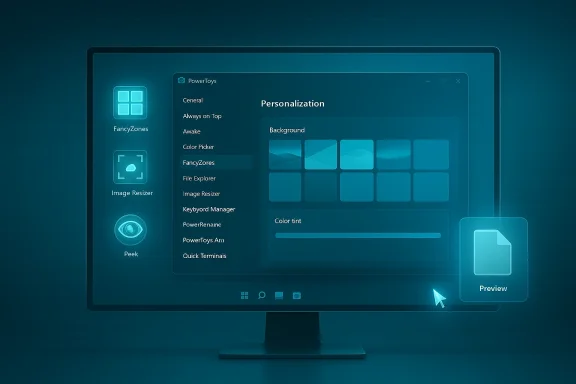
Blue, futuristic monitor displaying PowerToys settings with personalization options.Overview​

PowerToys has quietly become one of the most useful productivity toolkits for Windows power users. Version 0.97 continues that trend by turning the Command Palette — the keyboard‑first launcher that replaced PowerToys Run — into a more personal and controllable surface, while adding a small but thoughtful mouse utility for multi‑monitor workflows and extended CLI hooks that make automation easier for admins and scripters. These changes are available via PowerToys’ normal distribution channels: Microsoft Store, GitHub releases, and winget, with per‑user and machine installers for x64 and ARM64. This feature piece summarizes the technical changes, explains why they matter, verifies the core claims in the official release notes, and outlines practical steps to enable, test, and safely deploy the new features in both single‑user and managed environments. It also highlights key security and privacy tradeoffs administrators should evaluate before rolling out PowerToys widely.

Background: PowerToys as a productivity platform​

PowerToys started as a grab‑bag of utilities decades ago and was revived as an open‑source project for modern Windows, becoming a rapid iteration surface for productivity ideas. Over the last year PowerToys has moved beyond one‑off helpers toward a more cohesive platform: the Command Palette is now a central launcher and extension point, Advanced Paste adds AI‑assisted clipboard transformations, and various utilities like FancyZones, Peek, and Image Resizer have gained deeper automation hooks. The 0.97 release continues that trajectory by mixing visual customization with expanded automation capabilities.

What’s new in PowerToys 0.97 — Highlights​

  • Command Palette personalization: new Personalization page to set a background image, color tinting, blur and opacity controls, and theme behavior.
  • Fallback ranking: ability to reorder fallback ranking for search results so frequently used categories appear first.
  • Control PowerToys from the Command Palette: built‑in PowerToys extension that allows toggling utilities (Light Switch, FancyZones layouts, Color Picker, etc. directly from the palette.
  • Peek previews inside the palette: preview files and folders returned in search results without launching full viewers.
  • CursorWrap: a new mouse utility that wraps the cursor across monitor edges to the opposite side, easing long pointer drags on multi‑monitor setups.
  • Expanded CLI support: several modules — FancyZones, File Locksmith, Image Resizer — now offer command‑line controls for automation, complementing earlier CLI support for Peek.
  • Minor polish and behavior changes: Light Switch can follow Night Light, Advanced Paste previews HEX values, and some utilities gained image input support for AI transformations.
These are the structural improvements that will matter most to daily users: the palette becomes both a prettier and a more useful command surface, CursorWrap fixes a small but repetitive ergonomics problem for multi‑monitor users, and the CLI additions make PowerToys friendlier to automation and deployment scenarios.

Deep dive: Command Palette gets personal and more powerful​

Personalization: visuals without losing speed​

PowerToys 0.97 introduces a Personalization page inside Command Palette settings. Users can:
  • Choose a background: solid color, a blurred/translucent layer, or a full image.
  • Apply a color tint and control tint strength.
  • Adjust blur and opacity for legibility versus aesthetics.
  • Control whether the palette follows system theme or uses a custom look.
These UI choices let the palette feel less like a disposable overlay and more like a deliberate part of the desktop environment, which helps with accessibility and visual consistency for users who need low‑contrast or high‑contrast settings. The official release notes document the new settings path and UI controls.

Fallback ranking: predictable, repeatable results​

One persistent annoyance with keyboard launchers is unpredictability when multiple result types match a query. 0.97 adds fallback ranking, letting users reorder extensions and result categories so the palette returns the type of result they expect more consistently. The setting is exposed in extension settings as “Manage fallback order,” making the behavior tangible and tweakable. This reduces friction for users who rely on muscle memory.

Control PowerToys from the palette​

A built‑in PowerToys extension now exposes several control actions directly inside Command Palette. Example actions include:
  • Toggling Light Switch on/off.
  • Switching FancyZones layouts.
  • Launching Color Picker or Peek.
  • Running other small utility actions without opening the full Settings UI.
This compresses context switches: instead of opening Settings, navigating to a module, and clicking, you can type what you need and execute it immediately. It’s especially effective when combined with the fallback ranking and personalization features.

Peek integration: inline previews​

Peek — PowerToys’ file previewer — can now be invoked from search results in the Command Palette to show inline file or folder previews. For quick inspections (thumbnails, text snippets, or image previews) this saves time and reduces the need to launch heavier viewers. The addition is especially useful when combined with the palette’s improved metadata for clipboard and file results.

CursorWrap: a small idea with real ergonomic payoff​

CursorWrap is deceptively simple: when enabled, moving the mouse pointer beyond a monitor edge wraps it to the opposite side of the active monitor (or the logical monitor layout in multi‑monitor setups), effectively shortening long pointer trips. Practical notes:
  • Works with 1–9 monitors and respects the logical arrangement of displays.
  • For a single‑monitor laptop it wraps left/right and top/bottom edges.
  • It’s configurable and can be turned on or off per user via the PowerToys Settings UI.
This addresses a concrete pain point for people who frequently move between far‑flung windows on different screens. The implementation is non‑intrusive and can be disabled if it conflicts with other pointer behaviors or multi‑monitor tools. The feature and its intended interaction model are detailed in the release notes and in independent reporting.

CLI improvements: automation gets easier​

0.97 expands command‑line control across modules that were previously GUI‑only. Notable additions:
  • FancyZones: switching layouts and invoking zone behavior via CLI for scripted setups.
  • Image Resizer: batch resizing operations exposed via command line.
  • File Locksmith: query and release file locks from scripts.
  • Peek: earlier CLI work allowed launching Peek by CLI; 0.97 expands that ecosystem.
For administrators and power users who image machines or build automated workflows, the CLI hooks are a major usability win. They make it practical to configure PowerToys behavior during image builds, device provisioning, or automated testing without manual clicks. The release notes and GitHub release assets document the available commands and examples for scripting.

How to enable and test the new features (step‑by‑step)​

  • Install or update PowerToys:
  • Use Microsoft Store, GitHub releases, or winget (winget install Microsoft.PowerToys).
  • For managed environments, prefer the machine‑wide installer and verify SHA‑256 hashes from the release assets.
  • Open PowerToys Settings and go to Command Palette → Personalization:
  • Set background (image/blur/color) and tweak tint and opacity to match readability needs.
  • Configure fallback ranking:
  • Open an extension’s settings inside Command Palette settings and click Manage fallback order.
  • Drag items to reorder priority and test common queries to validate expected results.
  • Enable and test CursorWrap:
  • Settings → CursorWrap → toggle Enable.
  • Move the pointer to a monitor edge and confirm it appears on the opposite side as expected. If you use custom monitor arrangements, confirm behavior for each layout.
  • Try CLI automation:
  • Use the PowerToys CLI or call the module‑specific commands documented in the release notes to script FancyZones layout switches or batch Image Resizer tasks. Capture exit codes and logs for large‑scale deployment testing.

Security, privacy, and compatibility considerations​

PowerToys’ rapid feature growth brings both value and tradeoffs. Here’s what to evaluate before broad adoption.

Advanced Paste and AI backends — privacy tradeoffs​

Advanced Paste has gained multi‑provider support (Azure OpenAI, OpenAI, Google Gemini, Mistral) and local model options (Foundry Local, Ollama). That flexibility is powerful, but it changes the threat model:
  • Cloud providers require API keys and will transmit clipboard content to remote endpoints if used, which may expose sensitive text or PII.
  • Local model options keep data on device but may need additional hardware (NPU) or local model maintenance.
Administrators should treat AI endpoints like any external integration: require documented configuration, restrict cloud API keys, and consider policy guidance for what clipboard data can be processed externally.

Command Palette executing commands — surface area for mistakes​

The palette supports shell commands, registry navigation, and other powerful actions. That increases the attack surface and the risk of user error:
  • Running shell commands from the palette can execute scripts with the privileges of the logged‑in user.
  • If an endpoint or extension is misconfigured, unexpected commands might be surfaced.
For managed deployments, consider restricting certain extensions and educating users about command tokens (e.g., > for shell commands) and safe usage. Log usage in environments where auditability is required.

Stability and historic compatibility notes​

PowerToys integrates deeply with the Windows shell. Historically, some PowerToys features (notably early Command Palette builds) caused compatibility issues on specific Windows channels for a subset of users. While the project regularly fixes regressions and provides installers and SHA‑256 hashes, organizations should:
  • Test the release in a representative pilot group before wide deployment.
  • Keep rollback plans and imaging scripts ready.
  • Use machine‑wide installers for controlled installs and winget or managed deployment tooling for version locking.

System requirements and broad compatibility​

PowerToys continues to support recent Windows builds and ships installers for x64 and ARM64. For scripted deployments and compatibility checks, confirm the minimum supported Windows build in the release notes or the installer metadata; official channels list supported OS versions and provide per‑platform installers. For most users, PowerToys runs on Windows 10 version 2004 (build 19041) or newer — but enterprises should verify compatibility with their specific image and security baseline prior to mass rollouts.

Troubleshooting and defensive tips​

  • If Command Palette activation conflicts with system shortcuts (for example, Win+Space), change the hotkey in Settings or enable the low‑level keyboard hook option in Command Palette settings to work around system reservation of certain keystrokes. Community threads and issue reports have documented and resolved several hotkey edge cases.
  • If CursorWrap feels disorienting or interferes with games or capture software, disable it per‑user or on a per‑session basis.
  • For CLI automation, always capture and check exit codes. When running commands across many machines, use logging to detect and roll back unexpected state changes.
  • When integrating Advanced Paste with cloud endpoints, use service principals or managed identities where possible and centralize API key management rather than embedding keys in user profiles.

Recommendations for different user types​

For individual power users​

  • Try the Command Palette Personalization controls to improve legibility and reduce distraction.
  • Use fallback ranking to tune searches for your most common tasks.
  • Enable CursorWrap if you regularly jump between multiple monitors; it’s reversible and low cost to trial.
  • Use local Advanced Paste models (Ollama, Foundry Local) if you want AI transformations without sending clipboard data to the cloud.

For IT admins and endpoint teams​

  • Pilot 0.97 on a subset of devices and validate the interaction with endpoint protection/anti‑cheat software.
  • Use the machine‑wide installer and verify SHA‑256 hashes before creating an image or pushing via Intune/ConfigMgr.
  • Document which extensions are permitted and consider restricting those that execute arbitrary shell commands.
  • Integrate CLI commands into provisioning scripts to ensure consistent FancyZones layouts or other settings across machines.

For developers and extension authors​

  • The Command Palette’s improved extensibility and AOT compatibility for first‑party extensions make it a stronger host for third‑party plugins. Test for performance and memory use, and follow the updated extension guidance in the SDK. Pay careful attention to localization and input methods (Pinyin support was added) to ensure broad usability.

Final analysis: Why 0.97 matters​

PowerToys 0.97 is an incremental release with outsized practical value. It combines surface‑level personalization — which improves legibility and user comfort — with under‑the‑hood changes that make the suite more manageable in scripted and enterprise contexts. The built‑in PowerToys control in the Command Palette and the expanded CLI coverage are the clearest signals that Microsoft is positioning PowerToys not only as a power‑user playground but as a manageable productivity layer for power users and teams.
That said, the suite’s increasing power requires a correspondingly careful approach to security and governance. AI integrations, command execution, and shell interactions magnify the need for policy, testing, and user training. For most individual users the benefits will be immediate and positive; for organizations, a measured pilot and controlled rollout are the safest paths forward.
PowerToys 0.97 is available now through the usual channels — check for updates in PowerToys, use winget for scripted installs, or download the per‑platform installer from the project’s release page and verify the published hashes before deployment. Explore the Personalization and fallback ranking features in Command Palette, give CursorWrap a try if your mouse travels far between screens, and plan automation projects around the newly exposed CLI endpoints to make the most of this release. Conclusion: PowerToys keeps evolving in ways that respect both day‑to‑day ergonomics and the needs of automation. Version 0.97 is an example of pragmatic product maturation — cosmetic polish where it matters, and backend surface area where engineers and administrators can actually use it.
Source: How-To Geek PowerToys 0.97 has a better search bar for your Windows PC
 

Back
Top