

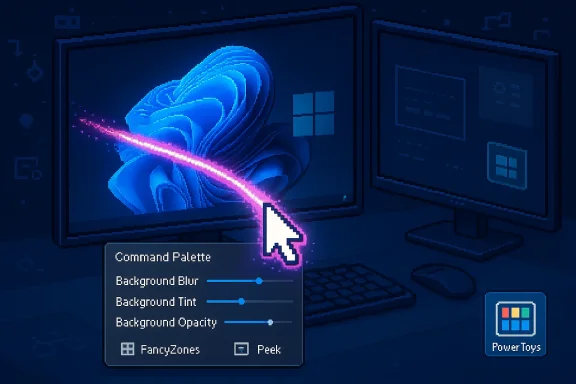
Windows 11’s PowerToys just got a refresh that mixes arcade nostalgia with serious productivity upgrades: a new CursorWrap utility that literally warps your mouse like an old-school arcade spaceship, and a deep rework of the Command Palette that pulls more of PowerToys’ functionality into a single, keyboard-first surface.
PowerToys has evolved from a grab-bag of desktop experiments into a modular productivity platform for power users on Windows 10 and Windows 11. Over the past year the project has focused on extensibility, performance, and tighter automation hooks—moves that make the toolkit increasingly relevant to both individual power users and IT pros. The latest feature set appears in the release identified as v0.97 and is distributed via the usual channels (GitHub releases, Microsoft Store, and winget).
PowerToys’ development cadence is rapid and public: monthly-ish releases with detailed changelogs. That transparency makes it straightforward to verify new features and to script installations for testing or managed deployment. The v0.97 cycle centers on two kinds of work: small, high-leverage ergonomics (CursorWrap) and a larger UX + extension push (Command Palette personalization, fallback ranking, and embedded PowerToys control).
Key privacy considerations remain:
For individual power users, the changes are immediately useful: a prettier, more predictable palette and a simple cursor-wrapping toggle that reduces repetitive pointer movement. For organizations, the additions are worth piloting because they reduce manual configuration time and enable automation, but they must be governed carefully—particularly Advanced Paste and any cloud-bound AI providers.
PowerToys’ role as a rapid experimentation surface for Windows continues to pay dividends: these are small, thoughtfully designed features that, when combined, meaningfully improve daily workflows. The arcade nostalgia of CursorWrap makes for a fun headline, but the real story is the steady maturation of PowerToys into a configurable, automatable productivity layer for Windows 11.
End of analysis and recommendations.
Source: PCWorld Windows 11's new PowerToys app is giving me Asteroids flashbacks from the '80s
 Background
PowerToys has evolved from a grab-bag of desktop experiments into a modular productivity platform for power users on Windows 10 and Windows 11. Over the past year the project has focused on extensibility, performance, and tighter automation hooks—moves that make the toolkit increasingly relevant to both individual power users and IT pros. The latest feature set appears in the release identified as v0.97 and is distributed via the usual channels (GitHub releases, Microsoft Store, and winget).PowerToys’ development cadence is rapid and public: monthly-ish releases with detailed changelogs. That transparency makes it straightforward to verify new features and to script installations for testing or managed deployment. The v0.97 cycle centers on two kinds of work: small, high-leverage ergonomics (CursorWrap) and a larger UX + extension push (Command Palette personalization, fallback ranking, and embedded PowerToys control).
What arrived in PowerToys 0.97 — headline features
- CursorWrap — a new mouse utility that wraps the cursor from one edge of the active monitor to the opposite edge, reducing long pointer trips on multi-monitor or ultra-wide displays.
- Command Palette overhaul — a personalization page (background images, tint, blur/opacity), fallback ranking control, Peek file previews inside the palette, and a built-in PowerToys extension that lets you toggle utilities like FancyZones or Light Switch from the palette itself.
- Expanded CLI controls — command-line interfaces for modules such as FancyZones, Image Resizer, and File Locksmith, broadening automation and scripted deployment options.
- Polish and organizational improvements — Quick Access flyout moved out of the main settings process for faster launch, monochrome tray icon option, installer artifacts and published hashes for secure installs.
CursorWrap: arcade nostalgia meets modern ergonomics
What CursorWrap does
CursorWrap implements a familiar mechanic from classic arcade games: when your cursor crosses a monitor edge, it reappears on the opposite side of the active screen (left → right, top → bottom). That behavior is identical in spirit to the “wraparound” movement seen in titles such as Asteroids, but applied to everyday mousing. The feature is intentionally simple and optional—toggle it on if your workflow involves frequent long-distance pointer motion across a wide or multi-monitor workspace.Why this matters today
Modern workstations commonly use multi-monitor arrays and ultra-wide displays. Dragging a small cursor from one edge to the other is a micro-inefficiency that adds cognitive and physical friction over the course of a day. CursorWrap can:- Reduce the number of long pointer travels;
- Help keyboard-centric users who occasionally need to reach far edges with the mouse;
- Improve productivity for creative workflows that span multiple full-screen canvases.
Practical considerations and caveats
- CursorWrap changes a fundamental pointer expectation. Users switching it on should test for conflicts with applications that rely on precise edge behavior (e.g., some full-screen games or specialized CAD tools).
- There are accessibility implications: wrapping may confuse some assistive technologies or users who rely on predictable pointer motion. Validate with accessibility settings before enabling in shared environments.
- In multi-monitor setups with mismatched DPI or unusual monitor layouts, wrapping to the wrong logical edge could be disorienting; PowerToys exposes options to constrain behavior but conservative testing is recommended.
Command Palette: personalization, control, and reduced context switching
What changed
The Command Palette—PowerToys’ keyboard-first launcher and implicit successor to PowerToys Run—received its deepest user-facing update in this cycle:- A new Personalization page lets users set a background (solid color, blur/translucent layer, or full image), apply a color tint, and adjust blur and opacity. This makes the palette feel intentionally part of the desktop rather than a generic overlay.
- Fallback ranking allows you to reorder result types and extensions so the palette returns the expected category first (apps, files, web results, clipboard entries). That predictability is crucial for keyboard-driven speed.
- Peek integration adds inline preview capability inside palette results, enabling quick inspections of files and folders without launching external viewers.
- A built-in PowerToys extension exposes a set of control actions (toggle Light Switch, switch FancyZones layouts, launch Color Picker or Peek) directly from the palette—compressing the workflow from “search → settings → toggle” into a single keystroke flow.
Why this matters for productivity
- Reduced friction: Personalization reduces visual friction—less cognitive load when a frequently used overlay integrates with desktop themes.
- Muscle-memory reliability: Fallback ranking removes surprises, so users can rely on consistent results and keep their hands on the keyboard.
- Context switching reduction: Executing PowerToys toggles from the palette eliminates menu hunting inside Settings, shaving seconds from repeated tasks.
Risks and implementation notes
- Personalization increases the UI surface area that needs testing for high-contrast or reduced-motion requirements. Administrators should validate theme behavior across corporate policies.
- The Command Palette’s extension model increases attack surface compared with a read-only launcher; extensions must be vetted for security and privacy when installed from third parties.
- While the built-in PowerToys extension is convenient, enabling a broad set of in-app controls via the palette means administrators should think about which actions to allow on managed desktops—particularly those that change system or privacy-affecting settings.
CLI and automation: PowerToys becomes more scriptable
What’s new
This release widens the suite’s automation footprint by adding or expanding command-line control to multiple utilities:- FancyZones, Image Resizer, and File Locksmith now expose CLI switches that allow scripted layout changes, bulk image processing, and file lock management in headless deployments.
- Peek’s previous CLI hooks were expanded, making preview invocation possible from scripts or automation agents.
Why admins should care
- Scriptable utilities reduce manual configuration time in enterprise imaging or VDI environments.
- CLI options let you include PowerToys functionality in PowerShell or batch scripts for repeatable configurations.
- Published installer hashes and per-machine installers make it feasible to automate secure deployments at scale.
Example deployment checklist
- Download the desired PowerToys release from a trusted channel (Microsoft Store, GitHub, or winget).
- Verify the installer’s SHA‑256 hash matches the release notes.
- Install to a test workstation and validate each PowerToys module’s CLI behavior.
- For managed rolls, use the machine-wide installer and include a preconfigured settings export for consistent defaults.
Advanced Paste, AI integrations and privacy considerations
PowerToys’ Advanced Paste has been moving toward multi-provider AI integration in recent cycles, supporting on-device and cloud providers to enable transformations, summaries, or reformatting of clipboard content. While this release cycle emphasized UI and ergonomics in other modules, the broader platform trend remains: AI is being embedded into everyday clipboard and paste scenarios.Key privacy considerations remain:
- Sending clipboard contents to cloud AI providers will transmit potentially sensitive data off-device unless local providers are used.
- Administrators should either restrict Advanced Paste to approved providers or prefer on-device providers where privacy policies demand no outbound data flow.
- API keys and credentials need secure storage and governance to prevent accidental exposure.
Strengths, limitations, and practical recommendations
Strengths
- High utility for power users: FancyZones, the reworked Command Palette, and improved automation make real-world daily tasks faster.
- Performance and extensibility focus: Command Palette’s architectural changes (faster matcher, AOT compilation for extensions) improve responsiveness and enable third-party integrations.
- Scriptability: New CLI options and published installer artifacts simplify managed deployment and automation.
Limitations and risks
- Data leakage risk: Cloud-based AI features require careful policy controls; on-device options mitigate but don’t eliminate governance complexity.
- Compatibility with security tooling: Because PowerToys hooks into global OS features, some EDR/antivirus products may flag its behavior; test in lab environments before broad rollout.
- Frequent updates: Rapid release cadence is good for features but can bring regressions; conservative environments should delay one cycle and pilot releases first.
Recommended rollout approach
- Stage 1: Pilot on 5–10 representative workstations with typical user profiles (developer, designer, admin). Verify EDR interactions and accessibility behavior.
- Stage 2: Harden group policy or configuration management to enable only the necessary modules (e.g., enable CursorWrap for designers, keep Advanced Paste disabled or restricted).
- Stage 3: Document and distribute a settings template (PowerToys settings export) and a scripted winget install to standardize environments.
How to test CursorWrap and Command Palette safely (step-by-step)
- Install PowerToys on a non-production test machine using winget or the GitHub installer. Verify SHA‑256 before running.
- Enable only the modules you intend to evaluate (CursorWrap, Command Palette, FancyZones) to isolate effects.
- For CursorWrap: toggle the behavior and work in a multi-monitor layout; check for edge cases like full-screen apps and high-DPI monitor transitions. Observe any interference with pinned taskbars or hot-corner gestures.
- For Command Palette: personalize the background and set fallback ranking. Run queries that previously returned ambiguous results to confirm the new ordering is applied. Use Peek previews to confirm inline file rendering without external viewers.
- If deploying widely, export settings and bake them into your deployment process. Validate CLI commands for FancyZones or Image Resizer as part of automation scripts.
Final assessment
PowerToys v0.97 is a pragmatic release: it blends a clever, low-friction ergonomics win (CursorWrap) with a more strategic rework of the Command Palette that elevates PowerToys from a toolbox into a lightweight desktop command layer. The suite’s growing scriptability and personalization options make it more deployable in corporate settings, provided IT teams treat AI-integration points and global OS hooks as potential policy concerns.For individual power users, the changes are immediately useful: a prettier, more predictable palette and a simple cursor-wrapping toggle that reduces repetitive pointer movement. For organizations, the additions are worth piloting because they reduce manual configuration time and enable automation, but they must be governed carefully—particularly Advanced Paste and any cloud-bound AI providers.
PowerToys’ role as a rapid experimentation surface for Windows continues to pay dividends: these are small, thoughtfully designed features that, when combined, meaningfully improve daily workflows. The arcade nostalgia of CursorWrap makes for a fun headline, but the real story is the steady maturation of PowerToys into a configurable, automatable productivity layer for Windows 11.
End of analysis and recommendations.
Source: PCWorld Windows 11's new PowerToys app is giving me Asteroids flashbacks from the '80s
