

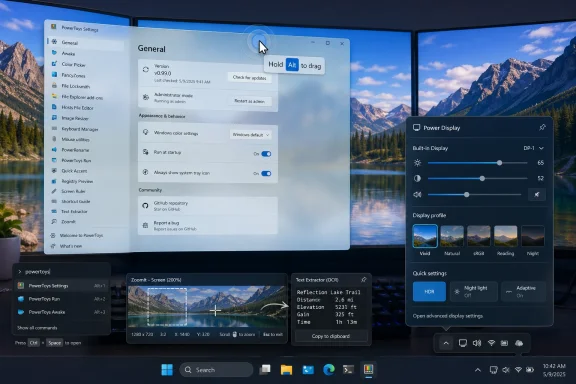
Microsoft’s PowerToys 0.99.0 lands as one of the most consequential updates to the Windows power-user toolkit in years, adding Grab And Move, a Linux-inspired window control feature that lets users drag or resize windows without hunting for title bars and borders. The release also introduces Power Display, a system tray utility for controlling monitor brightness, contrast, volume, and color profiles from Windows itself. Together, the new tools show Microsoft continuing to use PowerToys as a proving ground for features that are too specialized, too experimental, or too enthusiast-focused to ship directly inside Windows 11.
PowerToys has always occupied an unusual place in the Windows ecosystem. It is official Microsoft software, but it behaves like an enthusiast laboratory: fast-moving, open-source, modular, and willing to expose capabilities that mainstream Windows settings often hide behind layers of menus or omit entirely.
That role matters because Windows 11 is now serving an unusually broad audience. The same operating system has to support casual laptop users, enterprise fleets, developers, streamers, creators, gamers, and workstation owners running multiple displays. A feature that feels essential to one group may feel confusing or unnecessary to another.
PowerToys solves that tension by letting Microsoft ship opt-in utilities without forcing them into the default desktop experience. FancyZones, PowerRename, Keyboard Manager, PowerToys Run, Advanced Paste, and ZoomIt have already demonstrated how much demand exists for deeper Windows customization when the tools are polished and discoverable.
Version 0.99.0 continues that pattern but raises the stakes. Grab And Move brings a familiar Linux window-management gesture to Windows, while Power Display pushes monitor control into a place where many users have long expected it to be: the system tray, alongside audio, networking, battery, and quick settings.
The significance is not that Microsoft invented a new concept. It is that Windows has long made users aim at small title bars, thin borders, or edge handles, even as monitor sizes grew and app chrome became flatter, more custom, and sometimes harder to grab. On a 4K display, an ultrawide monitor, or a multi-monitor desk setup, that friction becomes more obvious.
Grab And Move also helps in a common support scenario: a window that is partly off-screen, hidden behind another region, or difficult to reach because an app remembers a bad position. The classic Windows keyboard shortcuts still exist, but they are not obvious to many users. A direct mouse gesture is often faster, more memorable, and easier to explain.
Grab And Move does not replace Snap Layouts or FancyZones. Instead, it fills the gap between rigid layout systems and freeform desktop manipulation. It is a small interaction, but it changes how quickly a user can correct a workspace that has become messy.
Key benefits include:
The utility can detect connected displays and expose supported controls such as brightness, contrast, volume, and color profiles. This will be especially useful for users with multiple monitors from different manufacturers, where each on-screen display behaves differently. It also gives desktop users a more laptop-like experience for brightness control.
Power Display’s profile support is the bigger strategic piece. Users can save display configurations and switch between them quickly, which makes sense for people who alternate between coding, gaming, photo editing, video calls, and late-night reading. The integration with Light Switch means monitor behavior can change alongside Windows theme changes, connecting display hardware to software context.
Power Display could become a lightweight automation layer for visual comfort. It is not a full professional color-management suite, but it gives PowerToys a practical bridge between Windows personalization and physical display hardware.
Possible workflow profiles include:
The new Compact Dock mode is particularly interesting because it makes the Dock less intrusive when placed at the top or bottom of the screen. A 28-pixel-tall strip with hidden subtitles is clearly designed for users who want persistent access without sacrificing too much screen real estate. That is a familiar tradeoff for anyone who has used desktop panels, menu bars, or launcher strips on Linux and macOS.
Pinning also gets more deliberate. Instead of a one-click behavior that could feel opaque, users now get a dialog that lets them decide where pinned commands appear and how they are labeled. That is a small interface change, but it makes the Dock feel more like an intentional workspace component than an accidental extension of search.
For Windows power users, this matters because a command surface is only as useful as its ecosystem. If extensions are fragile, slow, or inconsistent, users retreat to Start, Search, taskbar pins, scripts, and third-party launchers. If extensions are stable, portable, and easy to pin, Command Palette becomes a plausible center of gravity.
A practical Command Palette workflow now looks more coherent:
The new ability to disable specific keys or shortcuts is also important. Some users want to neutralize keys they frequently hit by accident, such as Caps Lock, Insert, or a manufacturer-specific shortcut. Others may want to disable a disruptive shortcut in a kiosk-like or focused workstation environment.
Keyboard customization has always been a balancing act. Too much power can create confusing states, but too little power leaves users dependent on firmware tools, registry edits, AutoHotkey scripts, or vendor utilities. PowerToys gives Microsoft a safer middle ground.
Common use cases include:
Scrolling screenshots are deceptively valuable. Standard screenshots capture what is visible, but modern work often lives in long pages: admin portals, documentation, chat histories, issue trackers, analytics dashboards, and configuration screens. Capturing those without stitching images manually saves time and reduces errors.
Text extraction during snipping is another example of PowerToys collapsing several small tasks into one workflow. Instead of screenshotting, opening an OCR tool, copying text, and pasting it elsewhere, users can extract text during capture. That is the kind of utility that feels modest until it becomes part of daily work.
This is especially relevant for developers, support engineers, educators, and creators who spend hours in screen-heavy workflows. A break timer inside a trusted Microsoft utility may not replace dedicated wellness software, but it is easier to adopt because it sits near tools those users already run.
The capture improvements also benefit WindowsForum-style community documentation. A user explaining a bug, a registry path, a display issue, or a driver problem can capture more complete evidence with fewer tools. That improves troubleshooting quality across forums, help desks, and internal IT channels.
The migration also came with fixes, including restored honoring of user-configured JPEG quality settings and proper handling of PNG encoder options. Those details matter because Image Resizer is often used in repetitive workflows where silent changes to output quality can cause real problems. A utility that saves time must also preserve user intent.
WinUI 3 adoption is part of a broader Windows modernization story. Microsoft wants apps to look and feel coherent on Windows 11, but many mature tools still depend on WPF, Win32, XAML Islands, or mixed frameworks. PowerToys is living through that transition in public.
This update touches several user-interface details across settings and modules:
The release addresses multiple crash scenarios, including typing-related crashes in the search box and failures tied to indexer fallback behavior. It also hardens list synchronization, improves cancellation cleanup, and refactors settings and app state toward immutability. That language may sound internal, but the outcome is simple: fewer race conditions, fewer unpredictable UI states, and fewer restarts.
The extension-loading improvements are particularly important. If PowerToys is going to support a richer extension ecosystem, it cannot allow one bad extension to destabilize the whole experience. Fault isolation is a basic requirement for any platform that wants third-party contributions.
Important reliability themes include:
Grab And Move, for example, could be a productivity win on engineering workstations but confusing in shared environments if users accidentally trigger window movement. Power Display could reduce monitor-related support calls, but only if hardware compatibility is predictable across the fleet. Keyboard Manager could help accessibility and ergonomics, but it could also create troubleshooting complexity if users disable keys or remap shortcuts without documentation.
This is where PowerToys’ modular design helps. Administrators do not have to treat the suite as an all-or-nothing proposition. The best enterprise deployments will likely enable specific modules for specific user groups instead of turning on everything globally.
A sensible enterprise checklist includes:
Creators may benefit even more. A YouTuber, teacher, streamer, or documentation writer can use ZoomIt for scrolling captures and text extraction, Power Display for profile switching, FancyZones for layout control, and Command Palette Dock for fast actions. PowerToys is increasingly becoming a creator utility belt.
The update also lands at a time when many users compare Windows not only with macOS but with Linux distributions that emphasize customization. Windows still wins on app compatibility and gaming breadth, but Linux often wins hearts with desktop flexibility. PowerToys lets Microsoft borrow some of that flexibility without changing Windows defaults.
A typical power-user setup might include:
This does not mean Windows is becoming Linux. It means Windows is absorbing the expectation that desktops should be more customizable, scriptable, and keyboard-friendly. That expectation is strongest among developers and technical users, but it often filters down into mainstream features over time.
PowerToys also competes with a mature ecosystem of third-party Windows utilities. AutoHotkey, DisplayFusion, Rectangle-like window tools, monitor-control apps, launcher tools, clipboard managers, and screenshot utilities all serve parts of the same audience. Microsoft’s advantage is trust and integration; its challenge is matching the depth and speed of specialist tools.
The broader market implications include:
The release includes accessibility refinements such as improved screen reader announcements, cleaner tab stops, better focus behavior, and clearer labels. These details matter because power-user software often assumes sighted, keyboard-confident, technically fluent users. Microsoft has a responsibility to make advanced tools accessible to a wider audience.
Security concerns are not theoretical. Clipboard tools, shell plugins, command launchers, and extensions all create potential attack surfaces if implemented carelessly. The fix for command escaping in the PowerToys Run shell plugin is a reminder that even small utilities require serious security review.
The most important trust factors are:
Microsoft should focus on making the suite easier to understand, easier to deploy, and easier to recover when settings go wrong. The more capable PowerToys becomes, the more it needs onboarding, profiles, policy controls, diagnostics, and exportable configurations. Enthusiasts enjoy tinkering, but professionals need repeatability.
What to watch next:
Source: Neowin Microsoft brings Linux-inspired feature to Windows 11 with major PowerToys update
 Overview
PowerToys has always occupied an unusual place in the Windows ecosystem. It is official Microsoft software, but it behaves like an enthusiast laboratory: fast-moving, open-source, modular, and willing to expose capabilities that mainstream Windows settings often hide behind layers of menus or omit entirely.That role matters because Windows 11 is now serving an unusually broad audience. The same operating system has to support casual laptop users, enterprise fleets, developers, streamers, creators, gamers, and workstation owners running multiple displays. A feature that feels essential to one group may feel confusing or unnecessary to another.
PowerToys solves that tension by letting Microsoft ship opt-in utilities without forcing them into the default desktop experience. FancyZones, PowerRename, Keyboard Manager, PowerToys Run, Advanced Paste, and ZoomIt have already demonstrated how much demand exists for deeper Windows customization when the tools are polished and discoverable.
Version 0.99.0 continues that pattern but raises the stakes. Grab And Move brings a familiar Linux window-management gesture to Windows, while Power Display pushes monitor control into a place where many users have long expected it to be: the system tray, alongside audio, networking, battery, and quick settings.
The Linux Habit Windows Users Have Been Missing
Alt-drag comes to the Windows desktop
The headline addition is Grab And Move, a new PowerToys module that lets users hold a modifier key and drag a window from anywhere inside its surface. By default, holding Alt and left-clicking allows the window to move, while Alt and right-clicking allows resizing without targeting a window edge. For Linux desktop users, especially those familiar with older X11-era window managers and customizable desktop environments, this interaction will feel immediately recognizable.The significance is not that Microsoft invented a new concept. It is that Windows has long made users aim at small title bars, thin borders, or edge handles, even as monitor sizes grew and app chrome became flatter, more custom, and sometimes harder to grab. On a 4K display, an ultrawide monitor, or a multi-monitor desk setup, that friction becomes more obvious.
Grab And Move also helps in a common support scenario: a window that is partly off-screen, hidden behind another region, or difficult to reach because an app remembers a bad position. The classic Windows keyboard shortcuts still exist, but they are not obvious to many users. A direct mouse gesture is often faster, more memorable, and easier to explain.
Why this matters for window management
This update is another reminder that window management remains one of the defining differences between operating systems. macOS emphasizes consistent gestures and Mission Control, Linux desktops often expose deep behavior toggles, and Windows historically depends on taskbar behavior, Snap, keyboard shortcuts, and title-bar conventions.Grab And Move does not replace Snap Layouts or FancyZones. Instead, it fills the gap between rigid layout systems and freeform desktop manipulation. It is a small interaction, but it changes how quickly a user can correct a workspace that has become messy.
Key benefits include:
- Dragging windows from anywhere, not just the title bar
- Resizing without edge hunting, especially useful on high-DPI displays
- Recovering awkwardly positioned windows more naturally
- Supporting large and ultrawide monitor workflows
- Offering a familiar behavior for users coming from Linux environments
Power Display Puts Monitor Controls Where They Belong
A system tray answer to hidden monitor buttons
The second major addition, Power Display, may end up being just as important as Grab And Move for everyday users. External monitors often bury brightness, contrast, input, and color controls behind awkward physical buttons or joystick menus. Power Display brings supported monitor adjustments into a Windows flyout, reducing dependence on hardware menus that were never designed for frequent use.The utility can detect connected displays and expose supported controls such as brightness, contrast, volume, and color profiles. This will be especially useful for users with multiple monitors from different manufacturers, where each on-screen display behaves differently. It also gives desktop users a more laptop-like experience for brightness control.
Power Display’s profile support is the bigger strategic piece. Users can save display configurations and switch between them quickly, which makes sense for people who alternate between coding, gaming, photo editing, video calls, and late-night reading. The integration with Light Switch means monitor behavior can change alongside Windows theme changes, connecting display hardware to software context.
Profiles as workflow automation
The value of display profiles is not just convenience. It is consistency. Creators, developers, and office workers frequently adjust brightness, color temperature, contrast, and theme depending on time of day, ambient light, and task type.Power Display could become a lightweight automation layer for visual comfort. It is not a full professional color-management suite, but it gives PowerToys a practical bridge between Windows personalization and physical display hardware.
Possible workflow profiles include:
- Daytime productivity, with higher brightness and neutral color
- Evening reading, with reduced brightness and warmer tone
- Presentation mode, with standardized contrast and volume
- Creative review, with a preferred calibrated color profile
- Gaming setup, with display settings tuned for responsiveness and visibility
Command Palette and Dock Keep Becoming a Windows Power Layer
From launcher to persistent workspace
PowerToys 0.99.0 also advances the Command Palette, which has become one of the suite’s most ambitious modules. What began as a fast launcher is increasingly turning into a keyboard-first command surface for Windows. The Dock improvements reinforce that direction by giving users a persistent place to pin commands, extensions, and frequently used actions.The new Compact Dock mode is particularly interesting because it makes the Dock less intrusive when placed at the top or bottom of the screen. A 28-pixel-tall strip with hidden subtitles is clearly designed for users who want persistent access without sacrificing too much screen real estate. That is a familiar tradeoff for anyone who has used desktop panels, menu bars, or launcher strips on Linux and macOS.
Pinning also gets more deliberate. Instead of a one-click behavior that could feel opaque, users now get a dialog that lets them decide where pinned commands appear and how they are labeled. That is a small interface change, but it makes the Dock feel more like an intentional workspace component than an accidental extension of search.
Search, extensions, and calculator history
Microsoft also improved Command Palette reliability, search behavior, and extension handling. The update adds persistent calculator history, better content types for plain text and image viewing, Windows Terminal profile pinning with per-profile icons, and hardened behavior so a faulty extension does not take down the entire loading loop. These changes suggest the team is preparing Command Palette for broader extension use.For Windows power users, this matters because a command surface is only as useful as its ecosystem. If extensions are fragile, slow, or inconsistent, users retreat to Start, Search, taskbar pins, scripts, and third-party launchers. If extensions are stable, portable, and easy to pin, Command Palette becomes a plausible center of gravity.
A practical Command Palette workflow now looks more coherent:
- Open Command Palette for search, calculation, commands, and system actions.
- Pin high-value commands or extensions to the Dock.
- Use Compact Dock to keep common actions visible without clutter.
- Rely on extension isolation and improved search to reduce friction.
- Build repeatable workflows around pinned layouts, terminal profiles, and utility commands.
Keyboard Manager Becomes More Practical
Manual remapping grows up
Keyboard Manager has been one of PowerToys’ most useful utilities for users with unusual keyboards, broken keys, custom layouts, or ergonomic preferences. In version 0.99.0, Microsoft refines the remapping editor by allowing recorded remappings to be manually adjusted through dropdown menus. That sounds minor, but it reduces the frustration of having to perfectly capture a key sequence in one attempt.The new ability to disable specific keys or shortcuts is also important. Some users want to neutralize keys they frequently hit by accident, such as Caps Lock, Insert, or a manufacturer-specific shortcut. Others may want to disable a disruptive shortcut in a kiosk-like or focused workstation environment.
Keyboard customization has always been a balancing act. Too much power can create confusing states, but too little power leaves users dependent on firmware tools, registry edits, AutoHotkey scripts, or vendor utilities. PowerToys gives Microsoft a safer middle ground.
Why disabling matters
The option to disable keys and shortcuts should not be dismissed as a niche feature. Modern keyboards vary dramatically, from compact mechanical boards with missing keys to laptop keyboards with dense function rows. Users increasingly expect software to adapt to hardware, not the other way around.Common use cases include:
- Disabling Caps Lock for users who never need it
- Blocking accidental shortcuts during gaming or presentations
- Working around broken keys on laptops or older keyboards
- Simplifying shared workstations for focused tasks
- Adapting compact keyboards for development and productivity
ZoomIt and Capture Tools Move Beyond Presentations
Scrolling screenshots and text extraction
ZoomIt has historically been associated with presentations, demos, and technical training. In PowerToys 0.99.0, it gains panoramic and scrolling screenshot capture, plus text extraction when snipping. That moves ZoomIt closer to a general-purpose capture tool for people who document long pages, app workflows, settings screens, and web-based dashboards.Scrolling screenshots are deceptively valuable. Standard screenshots capture what is visible, but modern work often lives in long pages: admin portals, documentation, chat histories, issue trackers, analytics dashboards, and configuration screens. Capturing those without stitching images manually saves time and reduces errors.
Text extraction during snipping is another example of PowerToys collapsing several small tasks into one workflow. Instead of screenshotting, opening an OCR tool, copying text, and pasting it elsewhere, users can extract text during capture. That is the kind of utility that feels modest until it becomes part of daily work.
Break timers and human-centered utility
ZoomIt’s break timer improvements, including screen saver mode and optional computer lock, point to a broader theme in PowerToys: utilities are no longer just about speed. They are also about sustainability. Workstation users need tools that help them manage attention, eye strain, context switching, and physical breaks.This is especially relevant for developers, support engineers, educators, and creators who spend hours in screen-heavy workflows. A break timer inside a trusted Microsoft utility may not replace dedicated wellness software, but it is easier to adopt because it sits near tools those users already run.
The capture improvements also benefit WindowsForum-style community documentation. A user explaining a bug, a registry path, a display issue, or a driver problem can capture more complete evidence with fewer tools. That improves troubleshooting quality across forums, help desks, and internal IT channels.
Image Resizer and the Slow March to WinUI 3
Modernizing without breaking muscle memory
PowerToys 0.99.0 migrates Image Resizer from WPF to WinUI 3, aligning it more closely with Windows 11’s design language and unblocking future technical work such as ahead-of-time compilation. This is not the flashiest change in the release, but it is important for the long-term health of the suite. PowerToys carries older UI technologies because Windows itself carries decades of application history.The migration also came with fixes, including restored honoring of user-configured JPEG quality settings and proper handling of PNG encoder options. Those details matter because Image Resizer is often used in repetitive workflows where silent changes to output quality can cause real problems. A utility that saves time must also preserve user intent.
WinUI 3 adoption is part of a broader Windows modernization story. Microsoft wants apps to look and feel coherent on Windows 11, but many mature tools still depend on WPF, Win32, XAML Islands, or mixed frameworks. PowerToys is living through that transition in public.
Why UI consistency matters
The Windows enthusiast community sometimes treats visual consistency as cosmetic. It is not. Consistent controls, spacing, theming, accessibility behavior, and scaling all affect whether a utility feels trustworthy.This update touches several user-interface details across settings and modules:
- Settings visuals now better render shortcut and arrow glyphs
- Dashboard layout receives spacing and responsiveness fixes
- Quick Accent grids reflow more cleanly at different widths
- Light-theme readability improves for inline code areas
- Dark-mode tags become more legible in Window Walker
Reliability Work Shows PowerToys Is Maturing
Crash fixes are features for power users
A major PowerToys release is not just measured by new modules. Version 0.99.0 includes a significant amount of reliability work, especially around Command Palette, Dock, extension loading, search, and state management. For a tool that runs constantly in the background, these fixes are as important as new capabilities.The release addresses multiple crash scenarios, including typing-related crashes in the search box and failures tied to indexer fallback behavior. It also hardens list synchronization, improves cancellation cleanup, and refactors settings and app state toward immutability. That language may sound internal, but the outcome is simple: fewer race conditions, fewer unpredictable UI states, and fewer restarts.
The extension-loading improvements are particularly important. If PowerToys is going to support a richer extension ecosystem, it cannot allow one bad extension to destabilize the whole experience. Fault isolation is a basic requirement for any platform that wants third-party contributions.
The quiet engineering beneath the surface
PowerToys is increasingly a platform, not just an app. That means its architecture has to support settings migration, telemetry events, accessibility, localization, packaged assets, developer templates, and multiple processor architectures. The 0.99.0 changelog shows a team paying down that complexity.Important reliability themes include:
- Extension crash isolation to prevent one failure from breaking all extensions
- Copy-on-write cache behavior for safer list updates
- Immutable settings and app state to reduce concurrency bugs
- Improved diagnostics for shortcut suppression and busy states
- Installer integration for newly re-enabled modules
Enterprise Impact: Useful, But Not Automatically Simple
PowerToys in managed environments
For businesses, PowerToys 0.99.0 is both attractive and complicated. The new features solve real productivity problems for developers, analysts, support technicians, trainers, designers, and power users. At the same time, enterprise IT teams must consider policy, supportability, update cadence, telemetry, accessibility, and user training.Grab And Move, for example, could be a productivity win on engineering workstations but confusing in shared environments if users accidentally trigger window movement. Power Display could reduce monitor-related support calls, but only if hardware compatibility is predictable across the fleet. Keyboard Manager could help accessibility and ergonomics, but it could also create troubleshooting complexity if users disable keys or remap shortcuts without documentation.
This is where PowerToys’ modular design helps. Administrators do not have to treat the suite as an all-or-nothing proposition. The best enterprise deployments will likely enable specific modules for specific user groups instead of turning on everything globally.
Deployment considerations
Enterprise adoption should start with a pilot. PowerToys is official Microsoft software, but it still changes faster than many built-in Windows components. A practical rollout should evaluate both user value and help-desk impact.A sensible enterprise checklist includes:
- Identify target personas, such as developers, trainers, designers, and IT staff
- Pilot selected modules before broad deployment
- Document approved shortcuts to avoid conflicts with business apps
- Review monitor compatibility before relying on Power Display
- Standardize update channels through approved deployment tools
- Create rollback guidance for remapping or display-profile issues
Consumer and Creator Impact: Less Friction, More Control
Everyday quality-of-life improvements
For consumers, the appeal of this release is straightforward: Windows becomes easier to bend around personal habits. Grab And Move makes window control more forgiving. Power Display makes external monitors less annoying. ZoomIt makes capture workflows more capable. Keyboard Manager makes imperfect keyboards easier to live with.Creators may benefit even more. A YouTuber, teacher, streamer, or documentation writer can use ZoomIt for scrolling captures and text extraction, Power Display for profile switching, FancyZones for layout control, and Command Palette Dock for fast actions. PowerToys is increasingly becoming a creator utility belt.
The update also lands at a time when many users compare Windows not only with macOS but with Linux distributions that emphasize customization. Windows still wins on app compatibility and gaming breadth, but Linux often wins hearts with desktop flexibility. PowerToys lets Microsoft borrow some of that flexibility without changing Windows defaults.
Small tools, cumulative effect
The real strength of PowerToys is cumulative. A single utility may seem minor, but several utilities chained together can reshape daily computing. That is why a PowerToys update can matter more than a routine Windows feature drop for certain users.A typical power-user setup might include:
- FancyZones for structured multi-window layouts
- Grab And Move for quick freeform corrections
- Power Display for monitor profiles and brightness control
- Command Palette Dock for pinned commands and glanceable tools
- Keyboard Manager for custom shortcuts and disabled keys
- ZoomIt for documentation, presentations, and capture
Competitive Context: Microsoft Learns From Everywhere
Borrowing the right ideas
The Linux comparison around Grab And Move is not merely cosmetic. It shows Microsoft continuing a pragmatic pattern: adopt useful interactions from other environments when they fit Windows users. Windows Terminal, winget, Dev Home, WSL, and PowerToys all reflect a Microsoft that is more comfortable acknowledging developer and enthusiast habits formed outside traditional Windows.This does not mean Windows is becoming Linux. It means Windows is absorbing the expectation that desktops should be more customizable, scriptable, and keyboard-friendly. That expectation is strongest among developers and technical users, but it often filters down into mainstream features over time.
PowerToys also competes with a mature ecosystem of third-party Windows utilities. AutoHotkey, DisplayFusion, Rectangle-like window tools, monitor-control apps, launcher tools, clipboard managers, and screenshot utilities all serve parts of the same audience. Microsoft’s advantage is trust and integration; its challenge is matching the depth and speed of specialist tools.
The PowerToys advantage
PowerToys’ open-source model gives it a different rhythm from Windows itself. Community contributions, issue discussions, previews, and rapid releases allow features to mature in the open. That makes it a valuable feedback channel for Microsoft.The broader market implications include:
- Pressure on third-party utilities to specialize more deeply
- More Windows credibility among developers and Linux-curious users
- A safer test bed for ideas that may later influence Windows
- Better official alternatives to unsupported scripts and hacks
- A stronger enthusiast story at a time when OS loyalty is less automatic
Security, Accessibility, and Trust
Powerful tools need guardrails
PowerToys 0.99.0 includes changes that touch input, display behavior, window movement, clipboard operations, OCR, and extensions. That makes trust essential. A tool that can remap keys, move windows, capture screens, and host extensions must be transparent, predictable, and easy to disable.The release includes accessibility refinements such as improved screen reader announcements, cleaner tab stops, better focus behavior, and clearer labels. These details matter because power-user software often assumes sighted, keyboard-confident, technically fluent users. Microsoft has a responsibility to make advanced tools accessible to a wider audience.
Security concerns are not theoretical. Clipboard tools, shell plugins, command launchers, and extensions all create potential attack surfaces if implemented carelessly. The fix for command escaping in the PowerToys Run shell plugin is a reminder that even small utilities require serious security review.
Trust as a product feature
PowerToys benefits from being Microsoft-maintained and open-source. Users can inspect development, report bugs, and download through official channels. But trust is maintained through behavior, not branding alone.The most important trust factors are:
- Clear module toggles so users can disable what they do not need
- Predictable shortcuts that avoid surprising behavior
- Reliable settings migration between releases
- Visible crash recovery instead of silent failure
- Responsible extension handling as the ecosystem grows
Strengths and Opportunities
PowerToys 0.99.0 succeeds because it delivers visible new capabilities while also strengthening the engineering beneath the suite. The update feels less like a grab bag and more like a deliberate expansion of Windows 11’s advanced productivity layer, with Grab And Move, Power Display, Command Palette Dock, Keyboard Manager, ZoomIt, and WinUI modernization all pointing in the same direction: more control without overwhelming the default OS.- Grab And Move gives Windows a faster, more forgiving window-manipulation model.
- Power Display reduces dependence on awkward monitor hardware menus.
- Command Palette Dock makes PowerToys feel more like a persistent productivity layer.
- Keyboard Manager becomes more useful for accessibility, ergonomics, and custom workflows.
- ZoomIt expands from presentation utility to documentation and capture tool.
- WinUI 3 migration improves consistency with Windows 11 and prepares modules for future work.
- Reliability fixes make the suite more credible for daily use and enterprise pilots.
Risks and Concerns
The update also reinforces the challenges that come with expanding a powerful utility suite. PowerToys now touches many sensitive parts of the user experience, from input handling and display control to extension loading and screenshot capture. That breadth increases the need for careful defaults, clear documentation, and conservative rollout in managed environments.- Shortcut conflicts may confuse users who rely on Alt-heavy workflows or specialized applications.
- Monitor compatibility will vary depending on hardware, cables, docks, and display firmware.
- Feature sprawl could make PowerToys intimidating for newcomers.
- Enterprise support may become harder if users heavily customize keyboard and display behavior.
- Extension growth could introduce reliability or security concerns if not tightly managed.
- UI modernization may create temporary regressions as modules migrate across frameworks.
- Power-user features may remain outside Windows proper even when they solve mainstream problems.
Looking Ahead
PowerToys 0.99.0 feels like a release preparing the ground for a larger milestone. The version number alone invites speculation about what a 1.0 release should mean, but the more important question is maturity. PowerToys already has enough modules to be considered a serious Windows productivity platform; the next challenge is coherence.Microsoft should focus on making the suite easier to understand, easier to deploy, and easier to recover when settings go wrong. The more capable PowerToys becomes, the more it needs onboarding, profiles, policy controls, diagnostics, and exportable configurations. Enthusiasts enjoy tinkering, but professionals need repeatability.
What to watch next:
- Whether Grab And Move remains a preview feature or quickly becomes a standard PowerToys utility
- How broadly Power Display works across real-world monitors and docking setups
- Whether Command Palette Dock evolves into a true Windows desktop command bar
- How Microsoft manages extension trust as Command Palette grows
- Which PowerToys ideas eventually influence Windows 11 itself
Source: Neowin Microsoft brings Linux-inspired feature to Windows 11 with major PowerToys update
