

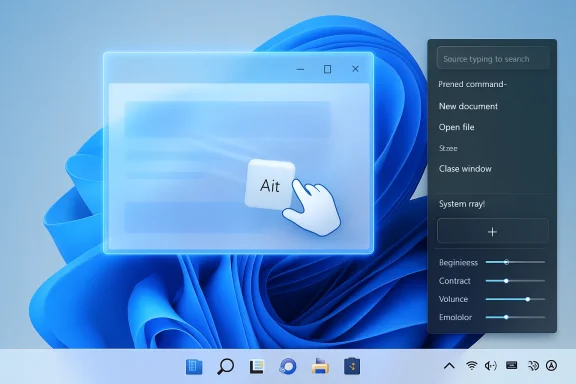
Microsoft released PowerToys 0.99 on April 28, 2026, adding Grab And Move for Alt-drag window control, Power Display for tray-based monitor settings, and a smaller Command Palette Dock for Windows 10 and Windows 11 users. The update is small in download terms but large in implication: Microsoft’s most interesting desktop ideas are still arriving through the side door. PowerToys has become the place where Windows admits what the shell should already know. This release makes that admission unusually hard to ignore.
The new PowerToys release is not trying to sell a new era of computing, which is exactly why it feels more important than many Windows announcements that do. Grab And Move does one humble thing: it lets you move a window by holding Alt and dragging from anywhere inside it, or resize it with Alt and right-drag. Linux desktop users will recognize the trick immediately, because variations of this behavior have lived for years in environments such as KDE Plasma, GNOME, and Xfce.
That familiarity is the point. Windows has spent decades teaching users to hunt for title bars, corners, and border pixels, even as displays became larger, laptops became denser, and application chrome became more inconsistent. A browser window, a classic Win32 utility, a modern WinUI app, and a borderless Electron slab may all claim to be “Windows apps,” but they do not always feel governed by the same physical rules.
Grab And Move cuts through that inconsistency by making the window itself the handle. It is a tiny ergonomic correction, but tiny corrections are often the ones that become irreversible. Once you stop steering your mouse toward a title bar every time you want to reposition a window, the old method starts to feel less like convention and more like ritual.
Power Display makes a similar argument from a different angle. It brings monitor controls into a system tray flyout, giving users access to hardware display settings such as brightness, contrast, volume, color profile, and profiles where supported. Anyone with two or three external monitors knows the indignity of reaching behind a panel, fumbling through a manufacturer’s on-screen display, and trying to remember which tiny plastic nub moves left.
Microsoft did not invent monitor control with Power Display, and it did not invent Alt-drag window management with Grab And Move. But the company has now put both ideas inside its own open-source utility suite, maintained under the PowerToys banner and aimed squarely at the users who feel friction first. That is a revealing place for these ideas to land.
On a 14-inch laptop running high scaling, a title bar may be a narrow strip crowded with tabs, search fields, buttons, and custom app controls. On an ultrawide display, the title bar may be physically distant from where your pointer already is. On a multi-monitor setup, a partially off-screen window can turn the title bar into a recovery mission. The UI still works, technically, but it asks the user to serve the window manager instead of the other way around.
Linux desktops solved this years ago by treating the modifier key as a spatial override. Hold a key, grab the window wherever the cursor happens to be, move on. It is one of those features that sounds like a niche preference until you watch someone use it for a week and then return to a desktop without it.
Microsoft’s implementation is sensible because it does not attempt to rewire the whole desktop. By default, Alt plus left-click moves a window and Alt plus right-click resizes it. Users who prefer the Windows key as the modifier can switch to that. PowerToys also allows app exclusions and disables the feature while Game Mode is active by default, which suggests the team knows this kind of input interception can become a disaster if treated carelessly.
That caution matters. A global input feature lives close to the nervous system of the OS. If it interferes with games, creative tools, remote desktops, CAD software, virtualization consoles, or accessibility workflows, users will not describe it as elegant; they will describe it as broken. PowerToys’ value is that it can test the feature in the wild without pretending every edge case has already been solved.
Still, the ergonomics are hard to argue with. When a window is a thing you can grab from anywhere, the desktop feels less brittle. Windows has spent years adding snap layouts, virtual desktops, and multitasking affordances, but Grab And Move attacks a more primitive problem: before you arrange windows, you have to be able to touch them naturally.
That conditional support is not a flaw so much as a reminder of how messy the PC ecosystem remains. Windows can know that a display exists, render to it, color-manage it, and move windows across it, yet still leave basic brightness changes to a button hidden under the bezel. On paper, monitor makers have solved this with their own utilities. In practice, those utilities are inconsistent, brand-specific, often bloated, and rarely something an IT department wants scattered across a fleet.
Power Display is useful because it centralizes the obvious. A tray flyout is where users already go for sound, network, battery, and brightness. Putting monitor controls there is not a radical redesign; it is a belated act of housekeeping.
The profile feature is where Power Display starts to look less like a convenience and more like a workflow tool. A user might want a daytime profile with higher brightness and neutral color temperature, an evening profile with warmer tones, or a presentation profile that standardizes multiple displays before a meeting. In a home office, that is pleasant. In a lab, studio, trading desk, or support center, it starts to look operationally meaningful.
The limitation, of course, is hardware support. A monitor that does not expose the right controls will not magically become manageable because PowerToys asks nicely. Some users will see a rich panel of options; others will see little or nothing beyond what Windows already provides. That unevenness is exactly why this belongs in PowerToys first, not immediately in the Windows Settings app as a finished promise.
But the direction is right. External monitors are no longer exotic accessories. They are normal equipment for developers, analysts, designers, admins, students, and anyone who survived the remote-work hardware scramble of the early 2020s. Windows should treat them as first-class devices, not as anonymous panels with secret buttons.
This matters because Windows has never fully resolved the tension between graphical discoverability and keyboard-driven speed. The Start menu wants to be search, launcher, recommendation feed, app list, and Microsoft account billboard. Settings wants to replace Control Panel while still sending users back to Control Panel often enough to undermine the premise. The taskbar wants to be simple, but the workflows of power users are not simple.
Command Palette attacks that mess from the other side. Instead of asking users to remember where Microsoft put a setting this year, it lets them summon actions. That model is not new; developers know it from editors such as Visual Studio Code, and macOS users have long had third-party launchers that behave similarly. But its presence in PowerToys gives Windows a sanctioned place to experiment with command-first interaction without forcing every user into it.
The Dock is especially interesting because it blurs the line between transient command palette and persistent desktop furniture. A compact Dock is not merely prettier; it acknowledges that screen space is a political issue. Power users want fast access, but they do not want another giant strip of UI colonizing the desktop.
Here again, PowerToys is doing something Windows proper struggles to do. It is moving quickly, accepting rough edges, and serving users who know what they want. The risk is that the best ideas remain permanently parked in the enthusiast garage, admired by the people who already install PowerToys and invisible to the users who would benefit from them most.
Because PowerToys is not the Windows shell itself, it can ship features Microsoft might otherwise spend years debating. FancyZones could rethink window layouts without replacing Snap. PowerToys Run could improve launching without fighting the Start menu. Text Extractor could bring OCR to the desktop before Windows had a cleaner story for it. Now Grab And Move and Power Display can challenge old assumptions about window and monitor management without triggering the compatibility panic that follows any change to core Windows behavior.
But optionality also creates a philosophical problem. If a feature is good enough that users immediately say they cannot go back, why is it still a utility? At what point does PowerToys stop being a playground and start becoming evidence that the base OS is under-serving its most engaged users?
Microsoft has been here before. Earlier PowerToys ideas from previous eras eventually influenced or became normal Windows behavior. The modern reboot, relaunched as an open-source project in the Windows 10 era, has revived that laboratory role with more transparency and faster iteration. The question is no longer whether PowerToys can generate useful ideas. It plainly can. The question is whether Windows can absorb them without sanding off the reasons people liked them in the first place.
There is a danger in over-integrating, too. Some PowerToys features are powerful precisely because they are opt-in. They assume a user willing to configure shortcuts, read warnings, understand conflicts, and make tradeoffs. If Microsoft shoved every PowerToys feature into Windows Settings by default, the result would not be a cleaner OS. It would be another layer of toggles in an already sprawling configuration maze.
The better path is selective promotion. Features that solve universal friction should graduate. Features that serve specialized workflows should remain modular. Grab And Move sits near the border. Power Display, because of hardware dependency, probably needs more time in the field. Command Palette may be the most strategically important of the three, but also the hardest to explain to users who do not already think in commands.
Grab And Move’s app exclusion list and Game Mode behavior are not just consumer niceties. They are the kind of controls that matter when a utility lands on machines running line-of-business applications, remote support tools, virtualization environments, and security software. A feature that feels magical on a personal desktop can become a ticket generator if it collides with an app that already uses Alt-drag or right-drag for its own purposes.
Power Display brings a different support question. If monitor controls work on one model but not another, users will blame Windows, PowerToys, the dock, the cable, the GPU driver, or the monitor vendor depending on mood and proximity. In reality, the answer may be DDC/CI support, firmware quirks, USB-C docking behavior, or a disabled monitor setting. That is not a reason to avoid the feature, but it is a reason to document it clearly before deployment.
The good news is that PowerToys has become more manageable over time. Policy support and modular settings make it more plausible in business environments than the old image of PowerToys as a tinkerer’s toy would suggest. But enterprise adoption will still depend on whether Microsoft treats these utilities as supported productivity infrastructure or as a semi-official enthusiast layer.
That distinction matters for WindowsForum readers because many of us live in the gap between “this works beautifully on my machine” and “I have to explain it to 600 users.” PowerToys often starts in the former category. Its best features eventually make a case for the latter.
For years, Windows carried the burden of being the default desktop for everyone. That made it conservative. Every change risked breaking someone’s workflow, angering an OEM, confusing a casual user, or disrupting enterprise deployment. Linux desktops, by contrast, could cultivate sharper opinions for smaller audiences. KDE could be endlessly configurable. GNOME could be aggressively curated. Xfce could remain light and traditional. Windows had to be all of those things and none of them.
PowerToys gives Microsoft a release valve. It can borrow the good ideas without turning Windows into a Linux desktop cosplay project. Alt-drag does not make Windows less Windows. It makes the window manager feel less trapped by 1990s assumptions.
There is also a cultural reversal here. For decades, Linux desktops borrowed from Windows to feel approachable. Now Windows is borrowing from Linux to feel efficient. That exchange is healthy. Desktop computing is old enough that the best ideas should no longer be treated as tribal property.
The challenge for Microsoft is deciding which ideas are niche and which are merely unfamiliar. Many power-user features look niche before users touch them. Snap Assist was once a power-user convenience; now it is mainstream. Clipboard history, window snapping, virtual desktops, quick launchers, and OCR all followed similar paths. Grab And Move could do the same if Microsoft finds a discoverable, conflict-safe way to expose it.
Power Display’s path is less straightforward, because hardware support is the gatekeeper. But its premise is even more mainstream. Ordinary users may never learn what DDC/CI means, and they should not have to. They just know that changing monitor brightness should not require crawling behind a display like a raccoon in a server closet.
That timing matters. Windows 11 is mature enough that its rough edges are no longer surprising; they are familiar. Users know where the Settings app still feels incomplete. They know where the shell still resists customization. They know which workflows require third-party utilities. A future Windows release does not need another centered taskbar controversy. It needs a more coherent answer to the way people actually use large screens, multiple monitors, and mixed input.
Grab And Move points toward a desktop where windows are manipulated directly rather than through fragile chrome. Power Display points toward a desktop where peripherals are managed from the OS instead of vendor utilities and hidden buttons. Command Palette points toward a desktop where actions are summoned consistently, not buried in whichever settings hierarchy survived the latest redesign.
None of these ideas requires a revolution. That is why they are compelling. Windows does not need to become unrecognizable to become better. It needs to make fewer users feel as though the fastest path to productivity is installing a dozen small utilities to patch over papercuts Microsoft already understands.
The old argument against integrating power-user features was that they would confuse ordinary users. That argument is weaker in an era when Windows already ships with layers of AI buttons, account prompts, widgets, notifications, search surfaces, and cloud nudges. A cleanly designed window-management shortcut is not what makes an OS feel complicated. Inconsistent behavior does.
Source: Windows Latest Microsoft brings a Linux-style window trick to Windows 11 via PowerToys, and I can't go back
 PowerToys Has Become Windows’ Unofficial Design Confessional
The new PowerToys release is not trying to sell a new era of computing, which is exactly why it feels more important than many Windows announcements that do. Grab And Move does one humble thing: it lets you move a window by holding Alt and dragging from anywhere inside it, or resize it with Alt and right-drag. Linux desktop users will recognize the trick immediately, because variations of this behavior have lived for years in environments such as KDE Plasma, GNOME, and Xfce.That familiarity is the point. Windows has spent decades teaching users to hunt for title bars, corners, and border pixels, even as displays became larger, laptops became denser, and application chrome became more inconsistent. A browser window, a classic Win32 utility, a modern WinUI app, and a borderless Electron slab may all claim to be “Windows apps,” but they do not always feel governed by the same physical rules.
Grab And Move cuts through that inconsistency by making the window itself the handle. It is a tiny ergonomic correction, but tiny corrections are often the ones that become irreversible. Once you stop steering your mouse toward a title bar every time you want to reposition a window, the old method starts to feel less like convention and more like ritual.
Power Display makes a similar argument from a different angle. It brings monitor controls into a system tray flyout, giving users access to hardware display settings such as brightness, contrast, volume, color profile, and profiles where supported. Anyone with two or three external monitors knows the indignity of reaching behind a panel, fumbling through a manufacturer’s on-screen display, and trying to remember which tiny plastic nub moves left.
Microsoft did not invent monitor control with Power Display, and it did not invent Alt-drag window management with Grab And Move. But the company has now put both ideas inside its own open-source utility suite, maintained under the PowerToys banner and aimed squarely at the users who feel friction first. That is a revealing place for these ideas to land.
The Linux Trick Works Because It Respects Muscle Memory
The case for Grab And Move is not that Windows users are unable to use title bars. It is that the title bar has become a bad abstraction for a modern desktop. It assumes window chrome is visible, spacious, consistently placed, and reachable. Increasingly, none of those assumptions are safe.On a 14-inch laptop running high scaling, a title bar may be a narrow strip crowded with tabs, search fields, buttons, and custom app controls. On an ultrawide display, the title bar may be physically distant from where your pointer already is. On a multi-monitor setup, a partially off-screen window can turn the title bar into a recovery mission. The UI still works, technically, but it asks the user to serve the window manager instead of the other way around.
Linux desktops solved this years ago by treating the modifier key as a spatial override. Hold a key, grab the window wherever the cursor happens to be, move on. It is one of those features that sounds like a niche preference until you watch someone use it for a week and then return to a desktop without it.
Microsoft’s implementation is sensible because it does not attempt to rewire the whole desktop. By default, Alt plus left-click moves a window and Alt plus right-click resizes it. Users who prefer the Windows key as the modifier can switch to that. PowerToys also allows app exclusions and disables the feature while Game Mode is active by default, which suggests the team knows this kind of input interception can become a disaster if treated carelessly.
That caution matters. A global input feature lives close to the nervous system of the OS. If it interferes with games, creative tools, remote desktops, CAD software, virtualization consoles, or accessibility workflows, users will not describe it as elegant; they will describe it as broken. PowerToys’ value is that it can test the feature in the wild without pretending every edge case has already been solved.
Still, the ergonomics are hard to argue with. When a window is a thing you can grab from anywhere, the desktop feels less brittle. Windows has spent years adding snap layouts, virtual desktops, and multitasking affordances, but Grab And Move attacks a more primitive problem: before you arrange windows, you have to be able to touch them naturally.
Power Display Fixes the Multi-Monitor Chore Microsoft Left to Monitor Makers
If Grab And Move is about windows, Power Display is about the hardware rectangles underneath them. The feature exposes monitor controls through a tray interface, with support depending on what the display makes available through standards such as DDC/CI. For laptop panels, brightness control generally travels through Windows’ own management plumbing; for external monitors, the monitor itself has to cooperate.That conditional support is not a flaw so much as a reminder of how messy the PC ecosystem remains. Windows can know that a display exists, render to it, color-manage it, and move windows across it, yet still leave basic brightness changes to a button hidden under the bezel. On paper, monitor makers have solved this with their own utilities. In practice, those utilities are inconsistent, brand-specific, often bloated, and rarely something an IT department wants scattered across a fleet.
Power Display is useful because it centralizes the obvious. A tray flyout is where users already go for sound, network, battery, and brightness. Putting monitor controls there is not a radical redesign; it is a belated act of housekeeping.
The profile feature is where Power Display starts to look less like a convenience and more like a workflow tool. A user might want a daytime profile with higher brightness and neutral color temperature, an evening profile with warmer tones, or a presentation profile that standardizes multiple displays before a meeting. In a home office, that is pleasant. In a lab, studio, trading desk, or support center, it starts to look operationally meaningful.
The limitation, of course, is hardware support. A monitor that does not expose the right controls will not magically become manageable because PowerToys asks nicely. Some users will see a rich panel of options; others will see little or nothing beyond what Windows already provides. That unevenness is exactly why this belongs in PowerToys first, not immediately in the Windows Settings app as a finished promise.
But the direction is right. External monitors are no longer exotic accessories. They are normal equipment for developers, analysts, designers, admins, students, and anyone who survived the remote-work hardware scramble of the early 2020s. Windows should treat them as first-class devices, not as anonymous panels with secret buttons.
Command Palette Is Becoming the Shell Microsoft Never Built
The quieter part of PowerToys 0.99 is the continued maturation of Command Palette and its Dock. The Dock can now be more compact, stay always on top, and offer better control over pinned commands, including placement and title visibility. Calculator history, extension improvements, content display support, and reliability fixes round out a release that makes Command Palette feel less like a launcher and more like a parallel control surface.This matters because Windows has never fully resolved the tension between graphical discoverability and keyboard-driven speed. The Start menu wants to be search, launcher, recommendation feed, app list, and Microsoft account billboard. Settings wants to replace Control Panel while still sending users back to Control Panel often enough to undermine the premise. The taskbar wants to be simple, but the workflows of power users are not simple.
Command Palette attacks that mess from the other side. Instead of asking users to remember where Microsoft put a setting this year, it lets them summon actions. That model is not new; developers know it from editors such as Visual Studio Code, and macOS users have long had third-party launchers that behave similarly. But its presence in PowerToys gives Windows a sanctioned place to experiment with command-first interaction without forcing every user into it.
The Dock is especially interesting because it blurs the line between transient command palette and persistent desktop furniture. A compact Dock is not merely prettier; it acknowledges that screen space is a political issue. Power users want fast access, but they do not want another giant strip of UI colonizing the desktop.
Here again, PowerToys is doing something Windows proper struggles to do. It is moving quickly, accepting rough edges, and serving users who know what they want. The risk is that the best ideas remain permanently parked in the enthusiast garage, admired by the people who already install PowerToys and invisible to the users who would benefit from them most.
The Best Windows Features Keep Arriving as Optional Apologies
PowerToys occupies a strange place in the Microsoft ecosystem. It is official but optional, powerful but not default, beloved by enthusiasts but still obscure to many ordinary Windows users. That ambiguity has become its superpower.Because PowerToys is not the Windows shell itself, it can ship features Microsoft might otherwise spend years debating. FancyZones could rethink window layouts without replacing Snap. PowerToys Run could improve launching without fighting the Start menu. Text Extractor could bring OCR to the desktop before Windows had a cleaner story for it. Now Grab And Move and Power Display can challenge old assumptions about window and monitor management without triggering the compatibility panic that follows any change to core Windows behavior.
But optionality also creates a philosophical problem. If a feature is good enough that users immediately say they cannot go back, why is it still a utility? At what point does PowerToys stop being a playground and start becoming evidence that the base OS is under-serving its most engaged users?
Microsoft has been here before. Earlier PowerToys ideas from previous eras eventually influenced or became normal Windows behavior. The modern reboot, relaunched as an open-source project in the Windows 10 era, has revived that laboratory role with more transparency and faster iteration. The question is no longer whether PowerToys can generate useful ideas. It plainly can. The question is whether Windows can absorb them without sanding off the reasons people liked them in the first place.
There is a danger in over-integrating, too. Some PowerToys features are powerful precisely because they are opt-in. They assume a user willing to configure shortcuts, read warnings, understand conflicts, and make tradeoffs. If Microsoft shoved every PowerToys feature into Windows Settings by default, the result would not be a cleaner OS. It would be another layer of toggles in an already sprawling configuration maze.
The better path is selective promotion. Features that solve universal friction should graduate. Features that serve specialized workflows should remain modular. Grab And Move sits near the border. Power Display, because of hardware dependency, probably needs more time in the field. Command Palette may be the most strategically important of the three, but also the hardest to explain to users who do not already think in commands.
Enterprise IT Will Like the Idea and Fear the Hook Points
For sysadmins, PowerToys 0.99 is both attractive and slightly unnerving. The attractive part is obvious: better window recovery, better multi-monitor controls, more efficient command access, and a single Microsoft-maintained utility suite instead of a drawer full of random third-party tools. The unnerving part is equally obvious: global input behavior, hardware control, tray utilities, and extension ecosystems all intersect with support boundaries.Grab And Move’s app exclusion list and Game Mode behavior are not just consumer niceties. They are the kind of controls that matter when a utility lands on machines running line-of-business applications, remote support tools, virtualization environments, and security software. A feature that feels magical on a personal desktop can become a ticket generator if it collides with an app that already uses Alt-drag or right-drag for its own purposes.
Power Display brings a different support question. If monitor controls work on one model but not another, users will blame Windows, PowerToys, the dock, the cable, the GPU driver, or the monitor vendor depending on mood and proximity. In reality, the answer may be DDC/CI support, firmware quirks, USB-C docking behavior, or a disabled monitor setting. That is not a reason to avoid the feature, but it is a reason to document it clearly before deployment.
The good news is that PowerToys has become more manageable over time. Policy support and modular settings make it more plausible in business environments than the old image of PowerToys as a tinkerer’s toy would suggest. But enterprise adoption will still depend on whether Microsoft treats these utilities as supported productivity infrastructure or as a semi-official enthusiast layer.
That distinction matters for WindowsForum readers because many of us live in the gap between “this works beautifully on my machine” and “I have to explain it to 600 users.” PowerToys often starts in the former category. Its best features eventually make a case for the latter.
Windows Is Learning From Linux Without Becoming Linux
The obvious headline is that Microsoft borrowed a Linux-style window trick. The more interesting story is that Windows is becoming more willing to learn from adjacent desktop cultures. That is not surrender. It is maturity.For years, Windows carried the burden of being the default desktop for everyone. That made it conservative. Every change risked breaking someone’s workflow, angering an OEM, confusing a casual user, or disrupting enterprise deployment. Linux desktops, by contrast, could cultivate sharper opinions for smaller audiences. KDE could be endlessly configurable. GNOME could be aggressively curated. Xfce could remain light and traditional. Windows had to be all of those things and none of them.
PowerToys gives Microsoft a release valve. It can borrow the good ideas without turning Windows into a Linux desktop cosplay project. Alt-drag does not make Windows less Windows. It makes the window manager feel less trapped by 1990s assumptions.
There is also a cultural reversal here. For decades, Linux desktops borrowed from Windows to feel approachable. Now Windows is borrowing from Linux to feel efficient. That exchange is healthy. Desktop computing is old enough that the best ideas should no longer be treated as tribal property.
The challenge for Microsoft is deciding which ideas are niche and which are merely unfamiliar. Many power-user features look niche before users touch them. Snap Assist was once a power-user convenience; now it is mainstream. Clipboard history, window snapping, virtual desktops, quick launchers, and OCR all followed similar paths. Grab And Move could do the same if Microsoft finds a discoverable, conflict-safe way to expose it.
Power Display’s path is less straightforward, because hardware support is the gatekeeper. But its premise is even more mainstream. Ordinary users may never learn what DDC/CI means, and they should not have to. They just know that changing monitor brightness should not require crawling behind a display like a raccoon in a server closet.
The 0.99 Release Draws a Map for Windows 12, Even If Microsoft Won’t Say So
PowerToys 0.99 arrives with an amusing version number. It is one step away from 1.0, at least symbolically, and it feels like a suite that has largely figured out its role. It is no longer just a nostalgia brand revived for GitHub applause. It is a working prototype channel for the Windows desktop.That timing matters. Windows 11 is mature enough that its rough edges are no longer surprising; they are familiar. Users know where the Settings app still feels incomplete. They know where the shell still resists customization. They know which workflows require third-party utilities. A future Windows release does not need another centered taskbar controversy. It needs a more coherent answer to the way people actually use large screens, multiple monitors, and mixed input.
Grab And Move points toward a desktop where windows are manipulated directly rather than through fragile chrome. Power Display points toward a desktop where peripherals are managed from the OS instead of vendor utilities and hidden buttons. Command Palette points toward a desktop where actions are summoned consistently, not buried in whichever settings hierarchy survived the latest redesign.
None of these ideas requires a revolution. That is why they are compelling. Windows does not need to become unrecognizable to become better. It needs to make fewer users feel as though the fastest path to productivity is installing a dozen small utilities to patch over papercuts Microsoft already understands.
The old argument against integrating power-user features was that they would confuse ordinary users. That argument is weaker in an era when Windows already ships with layers of AI buttons, account prompts, widgets, notifications, search surfaces, and cloud nudges. A cleanly designed window-management shortcut is not what makes an OS feel complicated. Inconsistent behavior does.
The Small Toggles That Tell the Whole Story
PowerToys 0.99 is worth installing not because every user needs every feature, but because it captures where Windows productivity is headed. The release is a reminder that the desktop still matters, and that refinement often beats reinvention.- Grab And Move lets users move and resize windows from anywhere in the window using modifier-key mouse gestures.
- Power Display brings supported external monitor controls into a tray flyout, reducing dependence on physical monitor buttons and vendor utilities.
- Display profiles could become especially useful for multi-monitor users who switch between work, evening, presentation, or color-sensitive setups.
- The Command Palette Dock’s compact mode makes Microsoft’s command-first workflow feel more plausible as a persistent desktop tool.
- The release strengthens PowerToys’ role as Microsoft’s public testing ground for features that may eventually deserve a home in Windows itself.
Source: Windows Latest Microsoft brings a Linux-style window trick to Windows 11 via PowerToys, and I can't go back
