

Microsoft’s PowerToys 0.99.1 update for Windows 10 and Windows 11 adds Power Display, a system-tray monitor-control utility, alongside Grab And Move window handling and improvements to Command Palette, Keyboard Manager, and ZoomIt in the late-April 2026 release. That sounds like a small convenience update, but it lands on a much larger Windows sore spot: Microsoft still has no truly modern, unified way to control external displays from the desktop itself. PowerToys is once again doing what PowerToys has always done best, turning long-standing Windows friction into something that feels obvious after five minutes. The awkward question is why so much of this still lives in an optional power-user bundle rather than in Windows proper.
For years, Windows users with external monitors have lived with a strange split-brain setup. The operating system can manage resolution, scaling, refresh rate, HDR, night light, and display arrangement, but the physical monitor still owns many of the controls people touch every day: brightness, contrast, input switching, speaker volume, color temperature, and sometimes rotation or power state.
That separation made more sense when a desktop monitor was basically a dumb endpoint. It makes less sense in 2026, when a home office may have two 4K panels, a USB-C dock, a laptop display, a KVM-adjacent workflow, and one monitor doubling as a speaker and power hub. The old answer — reach behind the bezel, find the right plastic nub, and navigate an on-screen display designed by someone with a grudge against joy — has aged badly.
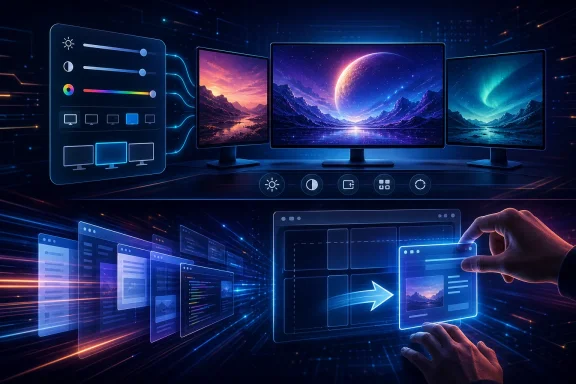
Power Display attacks that exact pain point. The new PowerToys utility puts supported monitor controls in a flyout accessible from the taskbar system tray, giving users sliders and toggles that depend on what each monitor exposes. At minimum, brightness is the headline. On better-behaved displays, the menu can reach into contrast, volume, input source, rotation, color temperature, and power state.
The important phrase is supported monitor controls. Power Display is not magic; it relies on the monitor reporting capabilities through DDC/CI, the long-standing channel that lets software communicate with displays. That means the feature will be brilliant on some setups, partial on others, and maddeningly absent on panels whose firmware reports little or behaves inconsistently. Even so, Microsoft has put the right abstraction in front of users: if the monitor can be controlled from software, Windows users should not need to crawl behind it.
That matters because monitor adjustment is not a deep settings task. Brightness is something users change between morning and night, between spreadsheet work and gaming, between a video call and a late-session code review. Input switching is something people do when moving between a work laptop and a personal desktop. Monitor volume, where supported, belongs closer to the taskbar than to a wobbly joystick on the underside of a display.
Power Display also acknowledges that modern display setups are not one-size-fits-one. It can show settings per monitor, hide controls users do not want, and save combinations as profiles. A profile for “day work” and another for “night gaming” is not a gimmick if you have multiple panels with different brightness curves and color behavior.
The ZDNET write-up frames the feature as a way to avoid digging into Windows settings or pressing monitor buttons. That is true, but it undersells the administrative significance. Once display state becomes software-addressable in a Microsoft-maintained tool, it becomes something that can be standardized, documented, and eventually expected. PowerToys has often served as Microsoft’s safe testing ground for features too niche, too risky, or too unfinished for Windows itself; Power Display fits that pattern perfectly.
That architecture is powerful because it avoids proprietary vendor control panels. It is fragile because monitors do not all describe themselves cleanly. One display may expose brightness and contrast. Another may expose volume but not input switching. A third may claim support for a color-temperature value and then produce unpredictable results when software changes it.
Microsoft’s own documentation reflects that caution, especially around color temperature. The point is not merely that some monitors lack features. The point is that display firmware is part of the reliability chain now, and Windows users will experience any weirdness as a PowerToys problem even when the monitor is the culprit.
That is the risk of making hidden hardware controls visible. A bad monitor menu is annoying but expected. A bad system-tray control feels like the operating system is failing. If Microsoft wants Power Display to graduate from enthusiast utility to mainstream Windows feature, it will need robust detection, clear warnings, good defaults, and a graceful way to say, “Your monitor does not support this.”
Linux desktop users will recognize the pattern immediately. It is one of those small interaction tricks that makes a large screen feel less like a target-practice exercise. On ultrawide displays, high-DPI panels, remote sessions, and multi-monitor desktops, the distance between “I want this window over there” and “I must find its exact draggable region” becomes surprisingly irritating.
Windows has made great strides in window management through Snap Layouts, FancyZones, virtual desktops, and better multi-monitor behavior. Yet the basic act of grabbing a window remains tied to interface chrome designed for an earlier era. Grab And Move does not replace snapping or tiling; it fills the tactile gap between precise layout systems and the messy reality of dragging windows around all day.
The feature is also a reminder that not every productivity improvement needs artificial intelligence, cloud state, or a Copilot pane. Sometimes the most valuable desktop enhancement is a shorter route from intention to action. In a release cycle where Microsoft’s public Windows narrative often leans toward AI, PowerToys keeps shipping the kind of mechanical improvements that make daily work feel less sticky.
That gives Microsoft room to move quickly. A utility can appear in PowerToys, gather feedback, break in narrow ways, receive a patch, and mature outside the slower machinery of Windows feature updates. The 0.99.1 release itself is a good example: it follows the 0.99 feature drop with fixes and refinements, suggesting Microsoft is watching the first wave of real-world usage closely.
The downside is fragmentation. Windows users increasingly need to know which quality-of-life features are built into the OS, which live in PowerToys, which require Store apps, and which still depend on vendor utilities. For enthusiasts, that is part of the fun. For enterprise IT, it becomes another policy decision.
PowerToys is no longer a bag of harmless toys. It can remap keys, alter window behavior, modify paste workflows, extract text from the screen, manage workspaces, and now talk to monitors. Those are valuable capabilities, but they also touch accessibility expectations, support boundaries, user training, and in some organizations, change-control policy.
In a developer-heavy shop, a design studio, an engineering department, or any organization with multi-monitor workstations, these utilities can remove small daily irritants at scale. Fewer monitor-button rituals, easier window movement, better keyboard customization, and faster command access all translate into a more pleasant desktop. That is not a soft benefit when the desktop is where employees spend eight hours a day.
But deployment should not be casual. PowerToys is modular, and that means admins should decide which utilities make sense for which users. Grab And Move might conflict with specialized apps, games, accessibility tools, or existing mouse workflows. Power Display may behave differently across monitor fleets, especially where older displays or cheap office panels are involved.
The right enterprise posture is not to treat PowerToys as dangerous. It is to treat it as configurable software with operational consequences. Pilot it with representative hardware, document enabled modules, and make sure help-desk staff know what a user means when they say a window moves whenever they hold Alt and click.
Keyboard Manager Editor improvements are similarly practical. Key remapping is one of those features that sounds niche until you have a broken laptop key, a compact keyboard with an awkward layout, or a workflow built around shortcuts that fight the hardware in front of you. Making recorded keys easier to edit lowers the friction for users who want customization but do not want to think like firmware modders.
ZoomIt’s scrolling screenshot support is another example of PowerToys eating the edges of third-party utility territory. Technical presenters, documentation writers, support engineers, and forum regulars all know the pain of capturing something longer than the visible screen. Windows has screen capture tools, but PowerToys continues to collect the specialist features that power users actually miss when they are gone.
Together, these updates make the suite feel less like a nostalgia project and more like Microsoft’s parallel desktop R&D channel. The old PowerToys brand came from an era when Windows extras were playful add-ons. The modern version is becoming a proving ground for Windows ergonomics.
A 1.0 release would imply a level of confidence: stable enough for broad recommendation, mature enough for documentation and support expectations, and coherent enough that users understand what the suite is for. PowerToys is close to that in spirit, if not always in polish. The number of utilities has grown, the interface has become more professional, and the project’s role in the Windows ecosystem is clearer than it was when the reboot began.
Yet Power Display also demonstrates why Microsoft may be cautious. The closer PowerToys gets to hardware behavior and core desktop interaction, the less it can rely on the forgiving expectations of enthusiasts. A launcher can be quirky. A monitor-control tool that unexpectedly changes color temperature during a presentation is a different matter.
The road to 1.0 should not be measured by how many utilities Microsoft can add. It should be measured by how well PowerToys handles defaults, discoverability, conflicts, rollback, documentation, and enterprise manageability. Power users tolerate configuration. Broader audiences need guardrails.
The desktop is no longer a single monitor, a single keyboard, and a predictable set of local apps. It is a shifting control surface for laptops, docks, virtual meetings, cloud workspaces, remote machines, ultrawide displays, HDR panels, gaming monitors, and personal productivity rituals. The operating system can either pretend that this complexity belongs to hardware vendors and third-party utilities, or it can absorb more of it into a coherent experience.
PowerToys is Microsoft’s compromise. It lets the company serve demanding users without making every experiment a default Windows behavior. That compromise has worked well, but each successful PowerToys feature increases pressure on Windows itself. If a taskbar monitor-control flyout becomes indispensable, users will eventually ask why it is not simply part of the display stack.
The same is true of Grab And Move. Once a user spends a week moving windows by clicking anywhere inside them, the old title-bar hunt feels unnecessarily fussy. PowerToys has a habit of making Windows feel better and then making stock Windows feel slightly unfinished.
The most concrete takeaways are refreshingly practical:
Source: ZDNET Microsoft PowerToys now lets you control your monitor from the taskbar - here's how
 PowerToys Turns the Monitor Button Into a Software Problem
For years, Windows users with external monitors have lived with a strange split-brain setup. The operating system can manage resolution, scaling, refresh rate, HDR, night light, and display arrangement, but the physical monitor still owns many of the controls people touch every day: brightness, contrast, input switching, speaker volume, color temperature, and sometimes rotation or power state.That separation made more sense when a desktop monitor was basically a dumb endpoint. It makes less sense in 2026, when a home office may have two 4K panels, a USB-C dock, a laptop display, a KVM-adjacent workflow, and one monitor doubling as a speaker and power hub. The old answer — reach behind the bezel, find the right plastic nub, and navigate an on-screen display designed by someone with a grudge against joy — has aged badly.
Power Display attacks that exact pain point. The new PowerToys utility puts supported monitor controls in a flyout accessible from the taskbar system tray, giving users sliders and toggles that depend on what each monitor exposes. At minimum, brightness is the headline. On better-behaved displays, the menu can reach into contrast, volume, input source, rotation, color temperature, and power state.
The important phrase is supported monitor controls. Power Display is not magic; it relies on the monitor reporting capabilities through DDC/CI, the long-standing channel that lets software communicate with displays. That means the feature will be brilliant on some setups, partial on others, and maddeningly absent on panels whose firmware reports little or behaves inconsistently. Even so, Microsoft has put the right abstraction in front of users: if the monitor can be controlled from software, Windows users should not need to crawl behind it.
The Taskbar Becomes the Missing Display Remote
The cleverness of Power Display is not that it invents monitor control. Third-party Windows utilities have offered DDC/CI brightness control for years, and some monitor vendors ship their own apps with varying levels of polish. The cleverness is that Microsoft is putting the idea where Windows users already expect quick hardware state to live: the system tray.That matters because monitor adjustment is not a deep settings task. Brightness is something users change between morning and night, between spreadsheet work and gaming, between a video call and a late-session code review. Input switching is something people do when moving between a work laptop and a personal desktop. Monitor volume, where supported, belongs closer to the taskbar than to a wobbly joystick on the underside of a display.
Power Display also acknowledges that modern display setups are not one-size-fits-one. It can show settings per monitor, hide controls users do not want, and save combinations as profiles. A profile for “day work” and another for “night gaming” is not a gimmick if you have multiple panels with different brightness curves and color behavior.
The ZDNET write-up frames the feature as a way to avoid digging into Windows settings or pressing monitor buttons. That is true, but it undersells the administrative significance. Once display state becomes software-addressable in a Microsoft-maintained tool, it becomes something that can be standardized, documented, and eventually expected. PowerToys has often served as Microsoft’s safe testing ground for features too niche, too risky, or too unfinished for Windows itself; Power Display fits that pattern perfectly.
DDC/CI Is the Quiet Hero and the Fragile Foundation
Power Display’s usefulness depends on a protocol most users have never heard of and many monitor vendors have implemented unevenly. DDC/CI lets a computer query and control display parameters over the same connection used for video, exposing values through what are broadly known as VCP codes. In practice, that means software can ask a monitor what it supports and then send commands to change values.That architecture is powerful because it avoids proprietary vendor control panels. It is fragile because monitors do not all describe themselves cleanly. One display may expose brightness and contrast. Another may expose volume but not input switching. A third may claim support for a color-temperature value and then produce unpredictable results when software changes it.
Microsoft’s own documentation reflects that caution, especially around color temperature. The point is not merely that some monitors lack features. The point is that display firmware is part of the reliability chain now, and Windows users will experience any weirdness as a PowerToys problem even when the monitor is the culprit.
That is the risk of making hidden hardware controls visible. A bad monitor menu is annoying but expected. A bad system-tray control feels like the operating system is failing. If Microsoft wants Power Display to graduate from enthusiast utility to mainstream Windows feature, it will need robust detection, clear warnings, good defaults, and a graceful way to say, “Your monitor does not support this.”
Grab And Move Borrows an Old Idea Windows Should Have Had Already
Power Display is the flashier feature, but Grab And Move may be the more revealing one. The new utility lets users move and resize windows by holding a modifier key and clicking anywhere inside a window, rather than aiming for the title bar or a thin resize border. By default, Alt plus left click moves a window, while Alt plus right click resizes it.Linux desktop users will recognize the pattern immediately. It is one of those small interaction tricks that makes a large screen feel less like a target-practice exercise. On ultrawide displays, high-DPI panels, remote sessions, and multi-monitor desktops, the distance between “I want this window over there” and “I must find its exact draggable region” becomes surprisingly irritating.
Windows has made great strides in window management through Snap Layouts, FancyZones, virtual desktops, and better multi-monitor behavior. Yet the basic act of grabbing a window remains tied to interface chrome designed for an earlier era. Grab And Move does not replace snapping or tiling; it fills the tactile gap between precise layout systems and the messy reality of dragging windows around all day.
The feature is also a reminder that not every productivity improvement needs artificial intelligence, cloud state, or a Copilot pane. Sometimes the most valuable desktop enhancement is a shorter route from intention to action. In a release cycle where Microsoft’s public Windows narrative often leans toward AI, PowerToys keeps shipping the kind of mechanical improvements that make daily work feel less sticky.
Microsoft’s Experimental Desktop Has Become the Real Desktop Lab
PowerToys occupies a strange but increasingly important place in the Windows ecosystem. It is official Microsoft software, open source, widely trusted by enthusiasts, and distributed through mainstream channels. But it is still optional, modular, and unapologetically aimed at users willing to tune their environment.That gives Microsoft room to move quickly. A utility can appear in PowerToys, gather feedback, break in narrow ways, receive a patch, and mature outside the slower machinery of Windows feature updates. The 0.99.1 release itself is a good example: it follows the 0.99 feature drop with fixes and refinements, suggesting Microsoft is watching the first wave of real-world usage closely.
The downside is fragmentation. Windows users increasingly need to know which quality-of-life features are built into the OS, which live in PowerToys, which require Store apps, and which still depend on vendor utilities. For enthusiasts, that is part of the fun. For enterprise IT, it becomes another policy decision.
PowerToys is no longer a bag of harmless toys. It can remap keys, alter window behavior, modify paste workflows, extract text from the screen, manage workspaces, and now talk to monitors. Those are valuable capabilities, but they also touch accessibility expectations, support boundaries, user training, and in some organizations, change-control policy.
The Enterprise Case Is Useful but Not Automatic
For sysadmins, Power Display and Grab And Move invite a practical question: should PowerToys be part of the standard Windows image? The answer is increasingly “maybe,” which is more interesting than “no.”In a developer-heavy shop, a design studio, an engineering department, or any organization with multi-monitor workstations, these utilities can remove small daily irritants at scale. Fewer monitor-button rituals, easier window movement, better keyboard customization, and faster command access all translate into a more pleasant desktop. That is not a soft benefit when the desktop is where employees spend eight hours a day.
But deployment should not be casual. PowerToys is modular, and that means admins should decide which utilities make sense for which users. Grab And Move might conflict with specialized apps, games, accessibility tools, or existing mouse workflows. Power Display may behave differently across monitor fleets, especially where older displays or cheap office panels are involved.
The right enterprise posture is not to treat PowerToys as dangerous. It is to treat it as configurable software with operational consequences. Pilot it with representative hardware, document enabled modules, and make sure help-desk staff know what a user means when they say a window moves whenever they hold Alt and click.
The Smaller Improvements Show a Suite Growing Up
The rest of PowerToys 0.99.1 matters because it shows Microsoft polishing the suite around daily usage, not merely adding novelty. Command Palette gains the ability to pin favorites, which nudges it closer to being a persistent command surface rather than a transient launcher. That is useful in a Windows world where settings, apps, shell actions, and utilities are scattered across many entry points.Keyboard Manager Editor improvements are similarly practical. Key remapping is one of those features that sounds niche until you have a broken laptop key, a compact keyboard with an awkward layout, or a workflow built around shortcuts that fight the hardware in front of you. Making recorded keys easier to edit lowers the friction for users who want customization but do not want to think like firmware modders.
ZoomIt’s scrolling screenshot support is another example of PowerToys eating the edges of third-party utility territory. Technical presenters, documentation writers, support engineers, and forum regulars all know the pain of capturing something longer than the visible screen. Windows has screen capture tools, but PowerToys continues to collect the specialist features that power users actually miss when they are gone.
Together, these updates make the suite feel less like a nostalgia project and more like Microsoft’s parallel desktop R&D channel. The old PowerToys brand came from an era when Windows extras were playful add-ons. The modern version is becoming a proving ground for Windows ergonomics.
The 1.0 Question Is Getting Harder to Ignore
PowerToys is now at version 0.99.1, which naturally invites speculation about a 1.0 milestone. Version numbers are not destiny, and Microsoft has never needed semantic theater to validate useful software. Still, the symbolism matters.A 1.0 release would imply a level of confidence: stable enough for broad recommendation, mature enough for documentation and support expectations, and coherent enough that users understand what the suite is for. PowerToys is close to that in spirit, if not always in polish. The number of utilities has grown, the interface has become more professional, and the project’s role in the Windows ecosystem is clearer than it was when the reboot began.
Yet Power Display also demonstrates why Microsoft may be cautious. The closer PowerToys gets to hardware behavior and core desktop interaction, the less it can rely on the forgiving expectations of enthusiasts. A launcher can be quirky. A monitor-control tool that unexpectedly changes color temperature during a presentation is a different matter.
The road to 1.0 should not be measured by how many utilities Microsoft can add. It should be measured by how well PowerToys handles defaults, discoverability, conflicts, rollback, documentation, and enterprise manageability. Power users tolerate configuration. Broader audiences need guardrails.
The Real Story Is Windows Catching Up With Its Own Users
The ZDNET angle is rightly practical: install PowerToys, enable Power Display, and your monitor controls may now live in the taskbar. That is the immediate value. But the broader story is about Windows catching up with how people actually use PCs in 2026.The desktop is no longer a single monitor, a single keyboard, and a predictable set of local apps. It is a shifting control surface for laptops, docks, virtual meetings, cloud workspaces, remote machines, ultrawide displays, HDR panels, gaming monitors, and personal productivity rituals. The operating system can either pretend that this complexity belongs to hardware vendors and third-party utilities, or it can absorb more of it into a coherent experience.
PowerToys is Microsoft’s compromise. It lets the company serve demanding users without making every experiment a default Windows behavior. That compromise has worked well, but each successful PowerToys feature increases pressure on Windows itself. If a taskbar monitor-control flyout becomes indispensable, users will eventually ask why it is not simply part of the display stack.
The same is true of Grab And Move. Once a user spends a week moving windows by clicking anywhere inside them, the old title-bar hunt feels unnecessarily fussy. PowerToys has a habit of making Windows feel better and then making stock Windows feel slightly unfinished.
The Monitor Menu Finally Meets the Power-User Desktop
PowerToys 0.99.1 is not a blockbuster release in the old Windows sense. It does not redesign the Start menu, rewrite File Explorer, or introduce a new security model. It does something more modest and, for many users, more valuable: it sands down the moments where the desktop still feels trapped between modern hardware and legacy interaction rules.The most concrete takeaways are refreshingly practical:
- Power Display gives Windows users a system-tray path to supported monitor controls, including brightness and potentially contrast, volume, input source, rotation, color temperature, and power state.
- The feature depends on what each monitor exposes through DDC/CI, so results will vary across brands, models, firmware, and connection types.
- Grab And Move makes window movement and resizing less dependent on title bars and thin borders, especially on large, high-DPI, or multi-monitor desktops.
- PowerToys 0.99.1 also improves Command Palette, Keyboard Manager Editor, and ZoomIt, reinforcing the suite’s role as Microsoft’s desktop productivity incubator.
- IT teams should pilot PowerToys deliberately rather than dismiss it as a toy, because its utilities increasingly affect real user workflows and support expectations.
Source: ZDNET Microsoft PowerToys now lets you control your monitor from the taskbar - here's how
Last edited:
