

Microsoft released PowerToys 0.99.1 for Windows 10 and Windows 11 on April 29, 2026, as a quick follow-up to PowerToys 0.99, fixing early bugs in the new Grab and Move and Power Display utilities while tightening Command Palette dock behavior. It is not the kind of update that wins a keynote slot. But it is the kind that tells you whether a power-user feature is becoming a dependable part of the Windows desktop or merely another clever experiment. The interesting story is not that Microsoft shipped two new utilities; it is that the company had to sand down their rough edges almost immediately.
PowerToys has always lived in a peculiar space: close enough to Microsoft to feel blessed, but separate enough from Windows itself to move fast, break small things, and fix them before the next monthly train. That arrangement has made it one of the most revealing Windows projects of the last several years. If Windows is the platform Microsoft must keep stable for everyone, PowerToys is the laboratory where it admits what power users still need.
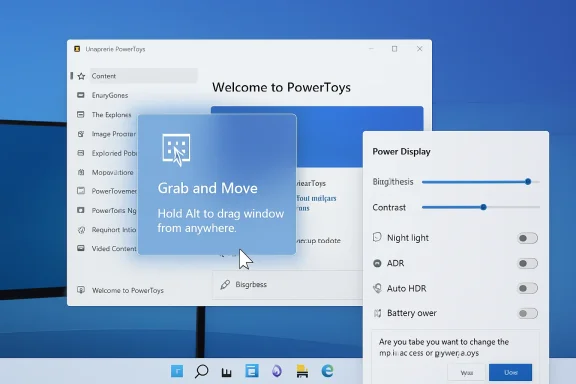
Version 0.99 made that admission loudly. Grab and Move gives Windows a desktop behavior that Linux users have enjoyed for decades: hold a modifier key, click anywhere inside a window, and move or resize it without hunting for the title bar or edge. Power Display, meanwhile, tries to solve a different daily annoyance by putting monitor controls in a tray flyout instead of forcing users through clumsy on-screen display buttons or vendor utilities.
The 0.99.1 patch is small, but its timing matters. When a release lands days after a feature drop, it usually means Microsoft found the first wave of real-world feedback instructive. The fixes here are not cosmetic. They deal with crashes, misdirected keyboard input, unwanted dragging of system surfaces, and potentially disruptive monitor controls.
That is the bargain PowerToys now offers. Microsoft can give enthusiasts tools that feel too sharp for the default Windows experience, then quickly blunt the dangerous edges without waiting for the next annual Windows feature release.
Grab and Move attacks that problem directly. Instead of aiming for a narrow strip of window furniture, the user can hold Alt and drag from almost anywhere inside the window. Right-click resizing follows the same logic: stop treating the edge of the window as the only permissible handle and let the user manipulate the object where the pointer already is.
That sounds minor until you use a multi-monitor workstation, a 4K display at high scaling, or a window whose title bar has wandered off-screen. Then it stops being an enhancement and starts feeling like a missing piece of the window manager. It is one of those features that makes the default Windows behavior feel suddenly conservative.
The risk is that “click anywhere” is an extremely powerful promise. Windows is not just rectangles containing documents; it is also Start menus, flyouts, system surfaces, game overlays, security prompts, and input hooks from every app that thinks it deserves priority. A utility that changes how clicks and modifier keys are interpreted has to be extremely careful about where it asserts itself.
PowerToys 0.99.1 shows exactly where the first tripwires were. Microsoft fixed a bug where the Start menu and other operating system surfaces could become draggable, which is the sort of behavior that turns a clever utility into a support-ticket generator. It also fixed an issue where releasing an absorbed Alt key while pressing another key prevented that input from propagating correctly to other apps.
That second fix is the more subtle one. Power-user utilities live or die by whether they stay out of the way when the user is doing something else. A tool that steals or mishandles modifier state can break application shortcuts, accessibility workflows, games, terminals, and remote-desktop sessions in ways that are hard to diagnose. The user may not think “PowerToys input hook”; they may think “Windows is acting weird.”
Win+G is the Xbox Game Bar shortcut. Win combinations are also deeply integrated into the shell, window snapping, virtual desktops, clipboard history, search, settings, and accessibility features. When a utility starts watching the Win key closely enough to reinterpret pointer actions, it has to avoid colliding with the operating system’s own shortcut grammar.
The 0.99.1 fix for the G key being blocked, or Game Bar being activated unexpectedly, is a reminder that Windows input is not a blank canvas. It is an archaeological site. Every shortcut has a history, every modifier has side effects, and every app that installs a global hook adds another layer.
That does not mean Microsoft should avoid features like Grab and Move. Quite the opposite. The fact that this utility exists under the PowerToys umbrella is an argument for PowerToys as the right proving ground. Windows itself cannot suddenly change the global window-dragging model for hundreds of millions of users. PowerToys can offer the model to people who understand what they are enabling.
But the first patch had to arrive quickly because input utilities fail loudly. A monitor slider that does not work is annoying. A keyboard modifier that vanishes into the wrong process can make the whole desktop feel haunted.
This is overdue. External monitors remain one of the least elegant parts of the PC experience. A laptop’s built-in panel may expose brightness neatly through Windows, while the expensive external display beside it requires a joystick, a vendor app, or a third-party DDC/CI utility. Multi-monitor users often live with mismatched brightness not because they prefer it, but because changing it is just irritating enough to avoid.
Power Display therefore fits the modern PowerToys pattern: take a problem that is too niche for the Windows Settings home page but too common to ignore, and package a solution for people who know they want it. That is the sweet spot PowerToys increasingly occupies. It is not merely a bundle of toys anymore; it is a parallel user-experience layer for people who manage real desktops.
But display control is not harmless. Changing brightness or contrast is one thing; changing input source or power state is another. A careless click could make a display appear to vanish, switch away from an active machine, or disrupt a meeting-room setup. In an enterprise environment, that matters.
That is why the 0.99.1 changes to Power Display are more consequential than they appear. Microsoft defaulted Input Source, Color Temperature, and Power State controls to off and added a confirmation dialog before applying these potentially disruptive changes. That is the correct instinct. Power-user tools should be powerful, but the most dangerous controls should not be one accidental click away.
The added diagnostic logging also tells its own story. Display detection and control are messy because monitors vary wildly in how faithfully they expose capabilities. A utility like Power Display has to deal not only with Windows APIs, but with hardware that may respond inconsistently, partially, or not at all. Logging is not glamorous, but it is how a promising utility becomes something supportable.
This is where PowerToys has become quietly important. FancyZones gave Windows users tiling-like control without asking them to adopt a tiling window manager. PowerToys Run, and now Command Palette, pushed launcher behavior beyond the Start menu. Mouse utilities, Keyboard Manager, Text Extractor, Awake, File Locksmith, and the rest have filled gaps that Windows proper either ignored or handled too cautiously.
The pattern is not that Microsoft is copying Linux wholesale. It is that mature desktop environments eventually converge on the same complaints. People want faster launchers, better monitor handling, keyboard remapping, window placement, file previews, text capture, and ways to keep the machine awake without changing a power plan. These are not exotic demands; they are the sediment of daily work.
The difference is packaging. Linux desktops often expose these capabilities as part of the environment, extension ecosystem, or window manager culture. Windows historically pushed many of them into third-party utilities. PowerToys is Microsoft’s way of reclaiming that territory without bloating Windows Settings for everyone.
That strategy has a political advantage inside Windows as well. A PowerToys feature can be opinionated without becoming a default. It can delight the ten percent of users who care while sparing the ninety percent who would only be confused by another toggle. In a platform as broad as Windows, that separation is not a compromise; it is the only way some features can exist at all.
Command Palette is Microsoft’s attempt to modernize and broaden the launcher concept that PowerToys Run popularized. The ambition is clear: not just launching apps, but invoking commands, surfacing extensions, docking common actions, and making Windows feel more keyboard-driven. In theory, it is the bridge between a launcher, a command bar, and a productivity dashboard.
But launchers are judged brutally. They must open instantly, search predictably, and remember user choices. They cannot crash at startup, forget layout settings, or feel heavier than the thing they replace. Users who build muscle memory around a launcher are not forgiving, because the launcher sits at the front of every workflow.
The Dock adds another layer of complexity. It turns Command Palette from an ephemeral overlay into a persistent screen element. That raises the bar. If a docked UI forgets label preferences between sessions, it violates the basic expectation that the workspace will be where the user left it.
The null settings crash is similarly instructive. PowerToys users often tinker, migrate machines, sync profiles, edit JSON, and carry configurations across versions. Settings deserialization bugs are therefore not edge cases in the abstract; they are failures in the exact population PowerToys serves. A tool aimed at experts must assume its users will have messy, long-lived configurations.
PowerToys users are accustomed to experimentation, but the project’s success has raised expectations. Once a utility appears in the official PowerToys app, many users treat it as Microsoft-sanctioned desktop behavior. Preview or not, it runs on production machines, personal workstations, developer rigs, creator setups, and sometimes managed fleets.
That is why the 0.99.1 release is encouraging rather than embarrassing. New utilities that touch input hooks and monitor firmware-adjacent controls are almost guaranteed to find edge cases. The real test is whether Microsoft responds quickly and conservatively when those edge cases involve core usability.
The Power Display changes are a good example of conservative iteration. Rather than removing capabilities, Microsoft made the riskiest controls opt-in and added confirmation. That preserves the utility’s upside for users who need it while reducing the chance that a casual exploration of the flyout blanks a display or changes a monitor’s behavior unexpectedly.
Grab and Move’s fixes follow the same logic. The feature remains ambitious, but system surfaces should not drag, and modifier keys should not get lost. That is the difference between “preview” and “reckless.” PowerToys can be experimental without treating users as beta-test crash dummies.
PowerToys succeeds where Windows often struggles because it can assume a motivated user. Windows Settings has to be legible to a person who bought a laptop at retail and never changed a keyboard shortcut in their life. PowerToys can assume the user understands modifiers, profiles, docks, remapping, and the idea that a utility may change how the desktop behaves.
That assumption unlocks better tools. It also creates a feedback loop Microsoft badly needs. When a PowerToys feature becomes indispensable, it tells the Windows team that the underlying workflow deserves attention. When a feature causes confusion or collisions, it reveals where Windows’ extensibility model is too fragile.
Grab and Move is a perfect example. If users embrace it, Microsoft will have fresh evidence that Windows’ default window manipulation model is too constrained for modern screens. If it repeatedly collides with shortcuts and shell surfaces, that is evidence too: perhaps Windows needs a more formal, supported way for utilities to participate in window movement rather than relying on delicate input interception.
Power Display raises similar questions. If an official Microsoft utility can meaningfully improve external monitor control, why is so much of that experience still outside Windows’ main display settings? The answer involves hardware standards, monitor support, driver behavior, and the usual PC ecosystem mess. But from the user’s chair, the problem is simpler: the expensive screen on the desk should not require a secret handshake to dim.
PowerToys can paper over that gap, but it also exposes it. The best PowerToys utilities are not random conveniences. They are evidence of where Windows has left productivity on the table.
Version 0.99.1 reinforces both sides of that equation. On one hand, the fixes suggest active maintenance and fast response. On the other, the bugs themselves are reminders that power-user enhancements can create confusing symptoms in managed environments.
The sensible enterprise posture is not to ban PowerToys reflexively. It is to treat it like any other productivity tool with policy implications. Some utilities may be appropriate for developers, accessibility-focused users, help desk staff, and power users. Others may be unnecessary or risky on shared machines, kiosks, classrooms, or heavily standardized desktops.
Grab and Move, for example, could be a quality-of-life win for users with large monitors or motor-control needs, but it may complicate troubleshooting if staff are unaware that a modifier key changes window behavior. Power Display could help users manage multi-monitor workstations, but input-source and power-state controls should be considered carefully in environments where displays are shared or remotely supported.
Microsoft’s inclusion of settings integration and policy support is therefore important. PowerToys cannot become a serious pro layer if it behaves like a bag of unmanaged hacks. The more it touches shell behavior, the more administrators will expect predictable deployment, configuration, and rollback paths.
Source: Neowin PowerToys 0.99.1 arrives with improvements for the new utilities
 PowerToys Is Becoming Windows’ Unofficial Pro Layer
PowerToys has always lived in a peculiar space: close enough to Microsoft to feel blessed, but separate enough from Windows itself to move fast, break small things, and fix them before the next monthly train. That arrangement has made it one of the most revealing Windows projects of the last several years. If Windows is the platform Microsoft must keep stable for everyone, PowerToys is the laboratory where it admits what power users still need.Version 0.99 made that admission loudly. Grab and Move gives Windows a desktop behavior that Linux users have enjoyed for decades: hold a modifier key, click anywhere inside a window, and move or resize it without hunting for the title bar or edge. Power Display, meanwhile, tries to solve a different daily annoyance by putting monitor controls in a tray flyout instead of forcing users through clumsy on-screen display buttons or vendor utilities.
The 0.99.1 patch is small, but its timing matters. When a release lands days after a feature drop, it usually means Microsoft found the first wave of real-world feedback instructive. The fixes here are not cosmetic. They deal with crashes, misdirected keyboard input, unwanted dragging of system surfaces, and potentially disruptive monitor controls.
That is the bargain PowerToys now offers. Microsoft can give enthusiasts tools that feel too sharp for the default Windows experience, then quickly blunt the dangerous edges without waiting for the next annual Windows feature release.
Grab and Move Fixes a Problem Windows Pretended Wasn’t There
The title bar is one of those interface conventions that survived because it was obvious in 1995 and sufficiently familiar afterward. On today’s desktops, it is less obvious and often less useful. Browser tabs crowd the top edge, modern apps hide chrome, remote sessions get nested inside windows, and ultrawide monitors turn small pointer movements into little ergonomic chores repeated all day.Grab and Move attacks that problem directly. Instead of aiming for a narrow strip of window furniture, the user can hold Alt and drag from almost anywhere inside the window. Right-click resizing follows the same logic: stop treating the edge of the window as the only permissible handle and let the user manipulate the object where the pointer already is.
That sounds minor until you use a multi-monitor workstation, a 4K display at high scaling, or a window whose title bar has wandered off-screen. Then it stops being an enhancement and starts feeling like a missing piece of the window manager. It is one of those features that makes the default Windows behavior feel suddenly conservative.
The risk is that “click anywhere” is an extremely powerful promise. Windows is not just rectangles containing documents; it is also Start menus, flyouts, system surfaces, game overlays, security prompts, and input hooks from every app that thinks it deserves priority. A utility that changes how clicks and modifier keys are interpreted has to be extremely careful about where it asserts itself.
PowerToys 0.99.1 shows exactly where the first tripwires were. Microsoft fixed a bug where the Start menu and other operating system surfaces could become draggable, which is the sort of behavior that turns a clever utility into a support-ticket generator. It also fixed an issue where releasing an absorbed Alt key while pressing another key prevented that input from propagating correctly to other apps.
That second fix is the more subtle one. Power-user utilities live or die by whether they stay out of the way when the user is doing something else. A tool that steals or mishandles modifier state can break application shortcuts, accessibility workflows, games, terminals, and remote-desktop sessions in ways that are hard to diagnose. The user may not think “PowerToys input hook”; they may think “Windows is acting weird.”
The Win Key Bug Shows Why Input Utilities Are Dangerous
The changelog item about the G key and Game Bar is almost comically specific, but it reveals the deeper challenge. Grab and Move can be configured to use the Windows key as a modifier instead of Alt. That makes sense for users whose workflows already depend heavily on Alt, but the Win key is crowded real estate.Win+G is the Xbox Game Bar shortcut. Win combinations are also deeply integrated into the shell, window snapping, virtual desktops, clipboard history, search, settings, and accessibility features. When a utility starts watching the Win key closely enough to reinterpret pointer actions, it has to avoid colliding with the operating system’s own shortcut grammar.
The 0.99.1 fix for the G key being blocked, or Game Bar being activated unexpectedly, is a reminder that Windows input is not a blank canvas. It is an archaeological site. Every shortcut has a history, every modifier has side effects, and every app that installs a global hook adds another layer.
That does not mean Microsoft should avoid features like Grab and Move. Quite the opposite. The fact that this utility exists under the PowerToys umbrella is an argument for PowerToys as the right proving ground. Windows itself cannot suddenly change the global window-dragging model for hundreds of millions of users. PowerToys can offer the model to people who understand what they are enabling.
But the first patch had to arrive quickly because input utilities fail loudly. A monitor slider that does not work is annoying. A keyboard modifier that vanishes into the wrong process can make the whole desktop feel haunted.
Power Display Is a Tray Utility With Sysadmin Implications
Power Display sounds like the friendlier of the two new tools. It surfaces monitor controls from the system tray, potentially including brightness, contrast, volume, color profile, input source, color temperature, and power state depending on display support. In plain English, it tries to replace the fiddly buttons on the back or bottom of a monitor with software controls that are where Windows users already look.This is overdue. External monitors remain one of the least elegant parts of the PC experience. A laptop’s built-in panel may expose brightness neatly through Windows, while the expensive external display beside it requires a joystick, a vendor app, or a third-party DDC/CI utility. Multi-monitor users often live with mismatched brightness not because they prefer it, but because changing it is just irritating enough to avoid.
Power Display therefore fits the modern PowerToys pattern: take a problem that is too niche for the Windows Settings home page but too common to ignore, and package a solution for people who know they want it. That is the sweet spot PowerToys increasingly occupies. It is not merely a bundle of toys anymore; it is a parallel user-experience layer for people who manage real desktops.
But display control is not harmless. Changing brightness or contrast is one thing; changing input source or power state is another. A careless click could make a display appear to vanish, switch away from an active machine, or disrupt a meeting-room setup. In an enterprise environment, that matters.
That is why the 0.99.1 changes to Power Display are more consequential than they appear. Microsoft defaulted Input Source, Color Temperature, and Power State controls to off and added a confirmation dialog before applying these potentially disruptive changes. That is the correct instinct. Power-user tools should be powerful, but the most dangerous controls should not be one accidental click away.
The added diagnostic logging also tells its own story. Display detection and control are messy because monitors vary wildly in how faithfully they expose capabilities. A utility like Power Display has to deal not only with Windows APIs, but with hardware that may respond inconsistently, partially, or not at all. Logging is not glamorous, but it is how a promising utility becomes something supportable.
The Best PowerToys Features Feel Like Windows Borrowed From Somewhere Else
Grab and Move will feel familiar to many Linux desktop users, and that is part of its charm. Windows has never lacked window management features, especially after Snap Assist, FancyZones, virtual desktops, and other improvements. But it has often lacked the small composable gestures that make an environment feel responsive to experts.This is where PowerToys has become quietly important. FancyZones gave Windows users tiling-like control without asking them to adopt a tiling window manager. PowerToys Run, and now Command Palette, pushed launcher behavior beyond the Start menu. Mouse utilities, Keyboard Manager, Text Extractor, Awake, File Locksmith, and the rest have filled gaps that Windows proper either ignored or handled too cautiously.
The pattern is not that Microsoft is copying Linux wholesale. It is that mature desktop environments eventually converge on the same complaints. People want faster launchers, better monitor handling, keyboard remapping, window placement, file previews, text capture, and ways to keep the machine awake without changing a power plan. These are not exotic demands; they are the sediment of daily work.
The difference is packaging. Linux desktops often expose these capabilities as part of the environment, extension ecosystem, or window manager culture. Windows historically pushed many of them into third-party utilities. PowerToys is Microsoft’s way of reclaiming that territory without bloating Windows Settings for everyone.
That strategy has a political advantage inside Windows as well. A PowerToys feature can be opinionated without becoming a default. It can delight the ten percent of users who care while sparing the ninety percent who would only be confused by another toggle. In a platform as broad as Windows, that separation is not a compromise; it is the only way some features can exist at all.
Command Palette Is Still Fighting for Trust
The 0.99.1 release also fixes two Command Palette issues: a startup crash caused by null DockSettings deserialized from settings.json, and dock label settings not persisting across sessions. Those are not headline features, but for Command Palette they matter because the tool is still trying to earn its place.Command Palette is Microsoft’s attempt to modernize and broaden the launcher concept that PowerToys Run popularized. The ambition is clear: not just launching apps, but invoking commands, surfacing extensions, docking common actions, and making Windows feel more keyboard-driven. In theory, it is the bridge between a launcher, a command bar, and a productivity dashboard.
But launchers are judged brutally. They must open instantly, search predictably, and remember user choices. They cannot crash at startup, forget layout settings, or feel heavier than the thing they replace. Users who build muscle memory around a launcher are not forgiving, because the launcher sits at the front of every workflow.
The Dock adds another layer of complexity. It turns Command Palette from an ephemeral overlay into a persistent screen element. That raises the bar. If a docked UI forgets label preferences between sessions, it violates the basic expectation that the workspace will be where the user left it.
The null settings crash is similarly instructive. PowerToys users often tinker, migrate machines, sync profiles, edit JSON, and carry configurations across versions. Settings deserialization bugs are therefore not edge cases in the abstract; they are failures in the exact population PowerToys serves. A tool aimed at experts must assume its users will have messy, long-lived configurations.
Preview Labels Are Not a Shield Against Expectations
Both Grab and Move and Power Display are preview utilities, which is Microsoft’s way of saying they are useful enough to ship and risky enough to caveat. That label is fair. It also has limits.PowerToys users are accustomed to experimentation, but the project’s success has raised expectations. Once a utility appears in the official PowerToys app, many users treat it as Microsoft-sanctioned desktop behavior. Preview or not, it runs on production machines, personal workstations, developer rigs, creator setups, and sometimes managed fleets.
That is why the 0.99.1 release is encouraging rather than embarrassing. New utilities that touch input hooks and monitor firmware-adjacent controls are almost guaranteed to find edge cases. The real test is whether Microsoft responds quickly and conservatively when those edge cases involve core usability.
The Power Display changes are a good example of conservative iteration. Rather than removing capabilities, Microsoft made the riskiest controls opt-in and added confirmation. That preserves the utility’s upside for users who need it while reducing the chance that a casual exploration of the flyout blanks a display or changes a monitor’s behavior unexpectedly.
Grab and Move’s fixes follow the same logic. The feature remains ambitious, but system surfaces should not drag, and modifier keys should not get lost. That is the difference between “preview” and “reckless.” PowerToys can be experimental without treating users as beta-test crash dummies.
Microsoft’s Small Utilities Are Doing Big Platform Work
There is a temptation to dismiss PowerToys releases as enthusiast housekeeping. A crash fix here, a tray flyout there, another keyboard tweak, another shell helper. But taken together, these utilities are a running commentary on the Windows experience.PowerToys succeeds where Windows often struggles because it can assume a motivated user. Windows Settings has to be legible to a person who bought a laptop at retail and never changed a keyboard shortcut in their life. PowerToys can assume the user understands modifiers, profiles, docks, remapping, and the idea that a utility may change how the desktop behaves.
That assumption unlocks better tools. It also creates a feedback loop Microsoft badly needs. When a PowerToys feature becomes indispensable, it tells the Windows team that the underlying workflow deserves attention. When a feature causes confusion or collisions, it reveals where Windows’ extensibility model is too fragile.
Grab and Move is a perfect example. If users embrace it, Microsoft will have fresh evidence that Windows’ default window manipulation model is too constrained for modern screens. If it repeatedly collides with shortcuts and shell surfaces, that is evidence too: perhaps Windows needs a more formal, supported way for utilities to participate in window movement rather than relying on delicate input interception.
Power Display raises similar questions. If an official Microsoft utility can meaningfully improve external monitor control, why is so much of that experience still outside Windows’ main display settings? The answer involves hardware standards, monitor support, driver behavior, and the usual PC ecosystem mess. But from the user’s chair, the problem is simpler: the expensive screen on the desk should not require a secret handshake to dim.
PowerToys can paper over that gap, but it also exposes it. The best PowerToys utilities are not random conveniences. They are evidence of where Windows has left productivity on the table.
The Enterprise Angle Is Caution, Not Rejection
For IT administrators, PowerToys occupies an awkward category. It is Microsoft-made, broadly useful, and often beloved by technical staff. It is also a collection of utilities that can change input behavior, keep systems awake, alter window management, perform file operations, and expose features that support desks may not expect.Version 0.99.1 reinforces both sides of that equation. On one hand, the fixes suggest active maintenance and fast response. On the other, the bugs themselves are reminders that power-user enhancements can create confusing symptoms in managed environments.
The sensible enterprise posture is not to ban PowerToys reflexively. It is to treat it like any other productivity tool with policy implications. Some utilities may be appropriate for developers, accessibility-focused users, help desk staff, and power users. Others may be unnecessary or risky on shared machines, kiosks, classrooms, or heavily standardized desktops.
Grab and Move, for example, could be a quality-of-life win for users with large monitors or motor-control needs, but it may complicate troubleshooting if staff are unaware that a modifier key changes window behavior. Power Display could help users manage multi-monitor workstations, but input-source and power-state controls should be considered carefully in environments where displays are shared or remotely supported.
Microsoft’s inclusion of settings integration and policy support is therefore important. PowerToys cannot become a serious pro layer if it behaves like a bag of unmanaged hacks. The more it touches shell behavior, the more administrators will expect predictable deployment, configuration, and rollback paths.
The bottom line
PowerToys 0.99.1 is a small patch with an oversized message: Microsoft is using PowerToys to move faster than Windows can, but the closer these utilities get to core desktop behavior, the more disciplined the project has to become.- PowerToys 0.99.1 mainly fixes early issues in Grab and Move, Power Display, and Command Palette rather than adding major new features.
- Grab and Move brings a long-requested, Linux-style window manipulation gesture to Windows, but its input handling must be precise to avoid breaking shortcuts and system surfaces.
- Power Display is promising because it makes external monitor controls easier to reach, but Microsoft was right to disable potentially disruptive controls by default.
- Command Palette still needs reliability and persistence work because launchers and docks are judged by speed, memory, and trust.
- The update strengthens the case for PowerToys as Windows’ unofficial pro layer, especially for enthusiasts, developers, and IT pros.
- Administrators should view PowerToys as a configurable productivity suite, not a harmless toy or an automatic risk.
Source: Neowin PowerToys 0.99.1 arrives with improvements for the new utilities
