

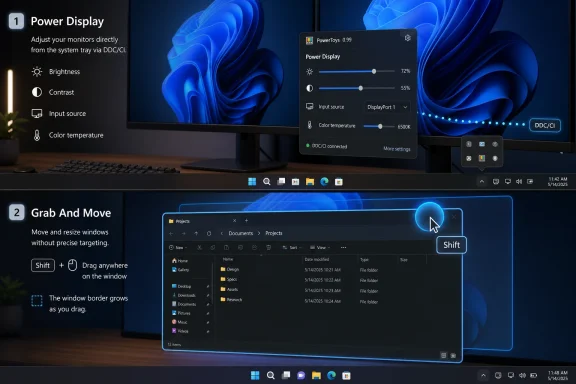
Microsoft released PowerToys 0.99 on April 28, 2026, adding Power Display for system-tray monitor control and Grab And Move for easier window dragging and resizing on Windows 10 and Windows 11. The update is small in download size but large in symbolism: some of the most obvious desktop improvements for Windows are still arriving as optional sidecar utilities rather than as native operating-system features. That is the tension at the heart of PowerToys in 2026. Microsoft’s best Windows ideas increasingly live just outside Windows.
PowerToys began life as a playground for enthusiasts, but the modern version has become something more consequential: a parallel Windows design lab. It is where Microsoft can ship fast, make mistakes quietly, and give demanding users the sort of knobs and switches that mainstream Windows has often avoided.
That arrangement has worked better than anyone might have expected. FancyZones, PowerRename, Mouse Without Borders, Command Palette, Text Extractor, Awake, Keyboard Manager, Hosts File Editor, and now Power Display all solve real problems that Windows users have had for years. Some are niche. Some are not. The boundary between “power user feature” and “basic desktop competence” has become harder to defend.
The arrival of Power Display sharpens that argument because it does not feel like an exotic add-on. It feels like a missing piece of Windows. If the operating system can discover multiple monitors, arrange them, scale them, assign refresh rates, and remember which one is primary, it is not unreasonable to ask why it cannot also expose brightness, contrast, input, volume, and color-temperature controls without sending users back to the monitor’s creaky on-screen menu.
Microsoft’s answer, at least in practice, has been to put the feature in PowerToys first. That is better than nothing. But it also leaves Windows in the awkward position of depending on an enthusiast utility to complete everyday desktop tasks.
Power Display attacks that indignity directly. It uses DDC/CI, the display-control protocol that allows software to communicate with external monitors, to surface controls inside Windows. In practical terms, that means brightness and other hardware-level settings can be adjusted from the system tray instead of through the monitor’s own menu.
That distinction matters. A software overlay that darkens the image is a workaround. A DDC/CI adjustment changes the display setting itself. For users with multiple external displays, the difference is not cosmetic; it is the difference between a reliable system-level workflow and another layer of visual fakery.
The catch is that DDC/CI support depends on the monitor, and some displays require the feature to be enabled in their own settings before Windows software can talk to them properly. Laptop panels are also a different class of hardware, so integrated displays do not get the full set of external-monitor controls. Power Display is therefore not magic, and Microsoft is right to keep it labeled as preview while the rough edges are worked out.
But the existence of edge cases does not weaken the case for integration. Windows is already full of hardware-dependent features. HDR, variable refresh rate, presence sensing, dynamic refresh rate, fingerprint login, Windows Hello cameras, Thunderbolt controls, and advanced touchpad gestures all depend on the right hardware and drivers. Microsoft has never treated that as a reason to hide them in a separate utility forever.
Yet monitor control remains split across Windows Settings, GPU vendor panels, monitor firmware menus, and third-party utilities. That fragmentation makes the Windows desktop feel less integrated than it should. It also creates an unnecessary support burden, because users reasonably assume that “display settings” should include the display’s most commonly changed settings.
Power Display is compelling precisely because it collapses that mess into a small, understandable menu. Brightness should not require a scavenger hunt. Switching an input should not mean reaching behind a monitor arm. Applying a profile across multiple displays should not require a mix of vendor software and muscle memory.
The more polished Power Display becomes, the more it will resemble something that belongs in Quick Settings or the Settings app itself. Microsoft could still keep advanced monitor behavior optional. It could still expose troubleshooting only when needed. But the basic control surface belongs in Windows, not in the enthusiast annex.
Anyone who has used Linux desktop environments with Alt-drag behavior will recognize the idea immediately. It is one of those features that feels minor until it becomes muscle memory. Once it does, the traditional Windows method of hunting for a thin resize border or exposed title bar feels needlessly fussy.
Windows 11 already made major investments in window management. Snap Layouts, Snap Groups, virtual desktops, improved multi-monitor behavior, and taskbar refinements have all moved the platform forward. But those features mostly help users organize windows into predefined arrangements. Grab And Move improves the raw physical act of dealing with windows, especially when an app is partly off-screen, packed into a dense workspace, or visually inconsistent with standard Windows chrome.
That inconsistency is the broader issue. Modern Windows apps, legacy Win32 applications, Electron shells, game launchers, creative tools, and custom-skinned utilities do not always behave like ideal citizens. Some have odd title bars. Some hide controls. Some make resize targets too small. A universal grab-and-move gesture is a pragmatic answer to the messy reality of the Windows ecosystem.
PowerToys understands that better than Windows marketing does. FancyZones is beloved because it gives users repeatable window layouts. PowerRename saves time when cleaning up files. Text Extractor turns an image into selectable text. Awake prevents a PC from sleeping at the wrong time. Mouse Without Borders reduces the pain of working across multiple machines.
Power Display fits that lineage. It is not visionary. It is not a platform strategy. It is simply useful. That is why the reaction from Windows enthusiasts has been so pointed: people are not asking why this exists; they are asking why it took so long and why it is not native.
That response should worry Microsoft a little. When the most admired parts of the Windows experience are optional downloads, the default Windows experience starts to look artificially constrained. PowerToys becomes both a showcase and an indictment.
But “do not add bloat” is not the same as “do not improve the shell.” The distinction matters. A feature that runs constantly, advertises a service, consumes resources, and cannot be removed is one thing. A dormant control surface that appears only when supported hardware is present is another.
Power Display, in particular, could be implemented in a way that respects minimalism. If no compatible external monitor is detected, the feature does not need to show much of anything. If a monitor exposes DDC/CI controls, Windows can surface them. If the user wants profiles or automation, those could remain off by default.
The same is true for Grab And Move. It could live behind an accessibility or window-management toggle. It could be disabled by default. It could be documented for users who want it and invisible to those who do not. Windows already handles hundreds of optional behaviors this way.
The bloat complaint becomes weaker when the feature addresses a gap in the core desktop interaction model. Monitor control and window movement are not lifestyle apps. They are part of using the PC.
It is also a pipeline Microsoft should make more explicit. If PowerToys is an incubator, then some PowerToys should graduate. The company does not need to promise that every utility will enter Windows, but it should be clearer about which categories are candidates for integration and which are intentionally enthusiast-only.
History shows that graduation is possible. Ideas that begin as optional or experimental utilities can become mainstream OS expectations. Window snapping itself was once a power-user behavior before becoming a standard part of modern desktop computing. Clipboard history, virtual desktops, and screenshot tools all migrated from “nice extra” territory into baseline expectations.
The awkward part is that PowerToys often feels more coherent than the Windows feature pipeline around it. It has a clear audience, frequent release notes, and a modular design. Windows itself can feel more conflicted, pulled between consumer services, enterprise policy, AI surfaces, cloud accounts, legacy compatibility, and hardware showcase features.
That is why PowerToys has become a trust object for enthusiasts. It feels like a place where Microsoft still ships utilities because users asked for them, not because a corporate strategy deck needed another engagement funnel.
PowerToys moves in the opposite direction. It identifies pain, ships a tool, and lets the user decide whether to enable it. That opt-in model is one reason the suite gets a warmer reception than many native Windows changes. The user remains in control.
This is not just a philosophical distinction. It has practical consequences for administrators and support teams. Optional utilities can be tested, deployed, blocked, or ignored. Native OS features require policy decisions, documentation, help-desk awareness, and sometimes user training. Microsoft has to be careful when it moves from PowerToys into Windows itself.
But careful does not mean inert. The Windows desktop is mature enough that many improvements will be incremental. That makes the small improvements more important, not less. A mature operating system wins by reducing daily irritation.
Power Display and Grab And Move are exactly that kind of improvement. They are not reasons to upgrade a PC. They are reasons to stop resenting one.
A monitor-control tool that uses DDC/CI sounds harmless, but enterprise environments are full of exceptions. KVMs, docks, USB-C monitors, conference-room displays, remote desktops, GPU drivers, vendor firmware, and locked-down device policies can create unpredictable combinations. If the control exists in Windows, users may expect IT to support it.
Grab And Move raises fewer hardware concerns but still intersects with user training and accessibility. Modifier-key behavior can collide with existing workflows. Remote access tools may handle input differently. Some users may accidentally move windows and blame the system. Those are solvable problems, but they are not imaginary.
This is where policy matters. If Microsoft graduates PowerToys features into Windows, it should do so with enterprise controls from day one. Group Policy, Intune settings, clear documentation, and predictable defaults would make the difference between a welcome feature and another help-desk surprise.
PowerToys already gives IT a preview of demand. If admins see employees installing the suite for one or two utilities, that is a signal. If the same utilities repeatedly appear in deployment requests, the case for native integration grows stronger.
This openness gives PowerToys a different development rhythm. Features can arrive in preview. Bugs can be acknowledged in release notes. Experimental utilities can be refined without implying that Microsoft has changed the Windows contract for a billion machines.
The result is a release cadence that feels unusually alive for a Microsoft desktop tool. PowerToys updates are not always headline-grabbing, but they accumulate. A new utility here, a refinement there, a Command Palette improvement, a Keyboard Manager adjustment, a bug fix for an edge case — the suite keeps moving.
Windows cannot move that way, and it probably should not. The operating system has a vastly larger compatibility surface. But Microsoft can still learn from the PowerToys model. Users respond well when improvements are concrete, optional, and explained plainly.
The irony is that PowerToys may now be doing too good a job. It is showing that many Windows frustrations are not unsolvable. They are merely unprioritized.
A 1.0 release could simply mean stability. It could mean the suite is mature enough for broader recommendation. It could mean Microsoft is ready to draw a clearer line between experimental utilities and supported everyday tools. Or it could mean very little, with the project continuing as before.
The better move would be to use the milestone to create a graduation framework. Microsoft should say, in effect, that PowerToys has three lanes: experimental utilities that may change quickly, advanced utilities that will remain optional, and broadly useful utilities that are candidates for Windows integration.
Power Display belongs in that third conversation. Grab And Move probably does too. FancyZones has belonged there for years, though its full complexity may be better suited to PowerToys than to default Windows. Command Palette is another obvious candidate, especially as Microsoft tries to modernize search, launch, and command surfaces across Windows.
The question is not whether Windows should swallow PowerToys whole. It should not. The question is whether Microsoft can recognize when an optional utility has become an argument against the default OS.
Source: TechRadar https://www.techradar.com/computing...-monitor-trick-isnt-in-windows-11-by-default/
 PowerToys Has Become the Windows Incubator Microsoft Pretends It Does Not Need
PowerToys began life as a playground for enthusiasts, but the modern version has become something more consequential: a parallel Windows design lab. It is where Microsoft can ship fast, make mistakes quietly, and give demanding users the sort of knobs and switches that mainstream Windows has often avoided.That arrangement has worked better than anyone might have expected. FancyZones, PowerRename, Mouse Without Borders, Command Palette, Text Extractor, Awake, Keyboard Manager, Hosts File Editor, and now Power Display all solve real problems that Windows users have had for years. Some are niche. Some are not. The boundary between “power user feature” and “basic desktop competence” has become harder to defend.
The arrival of Power Display sharpens that argument because it does not feel like an exotic add-on. It feels like a missing piece of Windows. If the operating system can discover multiple monitors, arrange them, scale them, assign refresh rates, and remember which one is primary, it is not unreasonable to ask why it cannot also expose brightness, contrast, input, volume, and color-temperature controls without sending users back to the monitor’s creaky on-screen menu.
Microsoft’s answer, at least in practice, has been to put the feature in PowerToys first. That is better than nothing. But it also leaves Windows in the awkward position of depending on an enthusiast utility to complete everyday desktop tasks.
The Monitor Button Era Should Have Ended Years Ago
External monitor controls are a museum of bad interface design. The hardware is often excellent; the control experience is often absurd. Users who spend hundreds of dollars on high-refresh panels, color-accurate displays, or multi-monitor setups are still expected to jab at unlabeled buttons under a bezel, navigate nested on-screen display menus, and remember which side-arrow means “back” this time.Power Display attacks that indignity directly. It uses DDC/CI, the display-control protocol that allows software to communicate with external monitors, to surface controls inside Windows. In practical terms, that means brightness and other hardware-level settings can be adjusted from the system tray instead of through the monitor’s own menu.
That distinction matters. A software overlay that darkens the image is a workaround. A DDC/CI adjustment changes the display setting itself. For users with multiple external displays, the difference is not cosmetic; it is the difference between a reliable system-level workflow and another layer of visual fakery.
The catch is that DDC/CI support depends on the monitor, and some displays require the feature to be enabled in their own settings before Windows software can talk to them properly. Laptop panels are also a different class of hardware, so integrated displays do not get the full set of external-monitor controls. Power Display is therefore not magic, and Microsoft is right to keep it labeled as preview while the rough edges are worked out.
But the existence of edge cases does not weaken the case for integration. Windows is already full of hardware-dependent features. HDR, variable refresh rate, presence sensing, dynamic refresh rate, fingerprint login, Windows Hello cameras, Thunderbolt controls, and advanced touchpad gestures all depend on the right hardware and drivers. Microsoft has never treated that as a reason to hide them in a separate utility forever.
Power Display Exposes a Strange Gap in Windows Settings
Windows 11’s Settings app is supposed to be the modern control surface for the PC. It handles personalization, display arrangement, sound output, Bluetooth devices, power modes, privacy permissions, Windows Update, storage, accounts, accessibility, and security. It is clearly where Microsoft wants users to go when they need to understand or change the system.Yet monitor control remains split across Windows Settings, GPU vendor panels, monitor firmware menus, and third-party utilities. That fragmentation makes the Windows desktop feel less integrated than it should. It also creates an unnecessary support burden, because users reasonably assume that “display settings” should include the display’s most commonly changed settings.
Power Display is compelling precisely because it collapses that mess into a small, understandable menu. Brightness should not require a scavenger hunt. Switching an input should not mean reaching behind a monitor arm. Applying a profile across multiple displays should not require a mix of vendor software and muscle memory.
The more polished Power Display becomes, the more it will resemble something that belongs in Quick Settings or the Settings app itself. Microsoft could still keep advanced monitor behavior optional. It could still expose troubleshooting only when needed. But the basic control surface belongs in Windows, not in the enthusiast annex.
Grab And Move Brings a Linux Habit to the Windows Mainstream
The other headline utility in PowerToys 0.99, Grab And Move, is less flashy but just as revealing. It allows users to move or resize a window without precisely targeting the title bar or border. Hold a modifier key, click into a window, and the window becomes easier to manipulate.Anyone who has used Linux desktop environments with Alt-drag behavior will recognize the idea immediately. It is one of those features that feels minor until it becomes muscle memory. Once it does, the traditional Windows method of hunting for a thin resize border or exposed title bar feels needlessly fussy.
Windows 11 already made major investments in window management. Snap Layouts, Snap Groups, virtual desktops, improved multi-monitor behavior, and taskbar refinements have all moved the platform forward. But those features mostly help users organize windows into predefined arrangements. Grab And Move improves the raw physical act of dealing with windows, especially when an app is partly off-screen, packed into a dense workspace, or visually inconsistent with standard Windows chrome.
That inconsistency is the broader issue. Modern Windows apps, legacy Win32 applications, Electron shells, game launchers, creative tools, and custom-skinned utilities do not always behave like ideal citizens. Some have odd title bars. Some hide controls. Some make resize targets too small. A universal grab-and-move gesture is a pragmatic answer to the messy reality of the Windows ecosystem.
The Best PowerToys Solve Boring Problems, Not Futuristic Ones
Microsoft often talks about Windows in the language of transformation: AI PCs, Copilot experiences, cloud integration, hybrid work, developer velocity, security baselines. Those themes matter, but they are not the things that make users fall in love with a desktop operating system. Affection is built out of small frictions removed.PowerToys understands that better than Windows marketing does. FancyZones is beloved because it gives users repeatable window layouts. PowerRename saves time when cleaning up files. Text Extractor turns an image into selectable text. Awake prevents a PC from sleeping at the wrong time. Mouse Without Borders reduces the pain of working across multiple machines.
Power Display fits that lineage. It is not visionary. It is not a platform strategy. It is simply useful. That is why the reaction from Windows enthusiasts has been so pointed: people are not asking why this exists; they are asking why it took so long and why it is not native.
That response should worry Microsoft a little. When the most admired parts of the Windows experience are optional downloads, the default Windows experience starts to look artificially constrained. PowerToys becomes both a showcase and an indictment.
The Bloat Argument Is Real, but It Is Not a Veto
The obvious counterargument is that Windows should not absorb every successful PowerToy. That argument deserves respect. Windows already carries decades of compatibility baggage, multiple configuration surfaces, legacy subsystems, inbox apps, service hooks, and background tasks. Many users would prefer a leaner operating system, not one with yet another panel of features they never asked for.But “do not add bloat” is not the same as “do not improve the shell.” The distinction matters. A feature that runs constantly, advertises a service, consumes resources, and cannot be removed is one thing. A dormant control surface that appears only when supported hardware is present is another.
Power Display, in particular, could be implemented in a way that respects minimalism. If no compatible external monitor is detected, the feature does not need to show much of anything. If a monitor exposes DDC/CI controls, Windows can surface them. If the user wants profiles or automation, those could remain off by default.
The same is true for Grab And Move. It could live behind an accessibility or window-management toggle. It could be disabled by default. It could be documented for users who want it and invisible to those who do not. Windows already handles hundreds of optional behaviors this way.
The bloat complaint becomes weaker when the feature addresses a gap in the core desktop interaction model. Monitor control and window movement are not lifestyle apps. They are part of using the PC.
PowerToys Lets Microsoft Test Without Committing
There is a generous interpretation of Microsoft’s strategy: PowerToys is a proving ground. Ship a feature to engaged users, measure adoption, gather GitHub issues, watch community reaction, harden the code, and eventually decide whether it belongs in Windows proper. That is a sensible pipeline.It is also a pipeline Microsoft should make more explicit. If PowerToys is an incubator, then some PowerToys should graduate. The company does not need to promise that every utility will enter Windows, but it should be clearer about which categories are candidates for integration and which are intentionally enthusiast-only.
History shows that graduation is possible. Ideas that begin as optional or experimental utilities can become mainstream OS expectations. Window snapping itself was once a power-user behavior before becoming a standard part of modern desktop computing. Clipboard history, virtual desktops, and screenshot tools all migrated from “nice extra” territory into baseline expectations.
The awkward part is that PowerToys often feels more coherent than the Windows feature pipeline around it. It has a clear audience, frequent release notes, and a modular design. Windows itself can feel more conflicted, pulled between consumer services, enterprise policy, AI surfaces, cloud accounts, legacy compatibility, and hardware showcase features.
That is why PowerToys has become a trust object for enthusiasts. It feels like a place where Microsoft still ships utilities because users asked for them, not because a corporate strategy deck needed another engagement funnel.
Windows 11 Needs Fewer Grand Gestures and More Earned Trust
Windows 11 has spent much of its life trying to justify change. The centered taskbar, stricter hardware requirements, redesigned Start menu, TPM mandates, account pressure, evolving update behavior, and Copilot-era interface experiments have all produced a sense that Microsoft sometimes changes Windows from above rather than improving it from below.PowerToys moves in the opposite direction. It identifies pain, ships a tool, and lets the user decide whether to enable it. That opt-in model is one reason the suite gets a warmer reception than many native Windows changes. The user remains in control.
This is not just a philosophical distinction. It has practical consequences for administrators and support teams. Optional utilities can be tested, deployed, blocked, or ignored. Native OS features require policy decisions, documentation, help-desk awareness, and sometimes user training. Microsoft has to be careful when it moves from PowerToys into Windows itself.
But careful does not mean inert. The Windows desktop is mature enough that many improvements will be incremental. That makes the small improvements more important, not less. A mature operating system wins by reducing daily irritation.
Power Display and Grab And Move are exactly that kind of improvement. They are not reasons to upgrade a PC. They are reasons to stop resenting one.
The Enterprise Case Is More Complicated Than the Enthusiast Case
For home users, the argument is simple: useful features should be easier to find. For enterprise IT, the answer is more complicated. Every native feature adds another behavior to standardize, secure, document, and support across fleets of machines.A monitor-control tool that uses DDC/CI sounds harmless, but enterprise environments are full of exceptions. KVMs, docks, USB-C monitors, conference-room displays, remote desktops, GPU drivers, vendor firmware, and locked-down device policies can create unpredictable combinations. If the control exists in Windows, users may expect IT to support it.
Grab And Move raises fewer hardware concerns but still intersects with user training and accessibility. Modifier-key behavior can collide with existing workflows. Remote access tools may handle input differently. Some users may accidentally move windows and blame the system. Those are solvable problems, but they are not imaginary.
This is where policy matters. If Microsoft graduates PowerToys features into Windows, it should do so with enterprise controls from day one. Group Policy, Intune settings, clear documentation, and predictable defaults would make the difference between a welcome feature and another help-desk surprise.
PowerToys already gives IT a preview of demand. If admins see employees installing the suite for one or two utilities, that is a signal. If the same utilities repeatedly appear in deployment requests, the case for native integration grows stronger.
Open Source Has Made PowerToys Faster Than Windows
The modern PowerToys project benefits from being open source. Users can file issues, inspect changes, contribute code, and watch the roadmap evolve in public. That process is not perfect, but it is more legible than the opaque machinery behind many Windows decisions.This openness gives PowerToys a different development rhythm. Features can arrive in preview. Bugs can be acknowledged in release notes. Experimental utilities can be refined without implying that Microsoft has changed the Windows contract for a billion machines.
The result is a release cadence that feels unusually alive for a Microsoft desktop tool. PowerToys updates are not always headline-grabbing, but they accumulate. A new utility here, a refinement there, a Command Palette improvement, a Keyboard Manager adjustment, a bug fix for an edge case — the suite keeps moving.
Windows cannot move that way, and it probably should not. The operating system has a vastly larger compatibility surface. But Microsoft can still learn from the PowerToys model. Users respond well when improvements are concrete, optional, and explained plainly.
The irony is that PowerToys may now be doing too good a job. It is showing that many Windows frustrations are not unsolvable. They are merely unprioritized.
The 1.0 Question Now Hangs Over the Whole Project
PowerToys 0.99 naturally invites speculation about a 1.0 release. Version numbers are not destiny, but they carry meaning. After years of steady expansion, the project is approaching a psychological milestone that Microsoft can use to define what PowerToys is supposed to be.A 1.0 release could simply mean stability. It could mean the suite is mature enough for broader recommendation. It could mean Microsoft is ready to draw a clearer line between experimental utilities and supported everyday tools. Or it could mean very little, with the project continuing as before.
The better move would be to use the milestone to create a graduation framework. Microsoft should say, in effect, that PowerToys has three lanes: experimental utilities that may change quickly, advanced utilities that will remain optional, and broadly useful utilities that are candidates for Windows integration.
Power Display belongs in that third conversation. Grab And Move probably does too. FancyZones has belonged there for years, though its full complexity may be better suited to PowerToys than to default Windows. Command Palette is another obvious candidate, especially as Microsoft tries to modernize search, launch, and command surfaces across Windows.
The question is not whether Windows should swallow PowerToys whole. It should not. The question is whether Microsoft can recognize when an optional utility has become an argument against the default OS.
The New Monitor Menu Makes an Old Windows Lesson Hard to Ignore
The most concrete lesson from PowerToys 0.99 is that Windows users still want practical control more than spectacle. Power Display and Grab And Move are not glamorous, but they clarify where Microsoft should focus if it wants Windows 11 to feel better in daily use.- Power Display gives Windows users a cleaner way to control compatible external monitors from the system tray instead of relying on physical monitor menus.
- Grab And Move reduces the precision tax of window management by letting users move or resize windows without targeting the title bar or edge.
- Both features are currently better understood as preview-quality PowerToys utilities than as finished native Windows components.
- Microsoft should treat PowerToys as a public incubation channel and create a clearer path for the most broadly useful utilities to graduate into Windows.
- Enterprise adoption will depend on sensible defaults, policy controls, and documentation rather than enthusiasm alone.
- The strongest case for native integration is not novelty; it is the removal of daily friction that Windows users have tolerated for too long.
Source: TechRadar https://www.techradar.com/computing...-monitor-trick-isnt-in-windows-11-by-default/
