

Microsoft’s PowerToys Awake is useful, simple, and uncontroversial on paper — but the recent Neowin “Closer Look” column arguing that Awake is not its author’s favorite tool touches on wider, real usability and reliability questions that matter for anyone who needs predictable keep‑awake behavior on Windows. This feature piece dissects the argument, verifies Awake’s documented behavior and capabilities, and weighs the practical trade‑offs for home users, power users, and IT administrators who might consider PowerToys part of their toolkit.
Background
PowerToys has shifted in recent years from a nostalgic Microsoft laboratory of small utilities into a regularly updated, officially supported suite that addresses dozens of daily friction points in Windows. The Awake module — a small tray utility that can keep a machine or its display awake without rewriting power plans — became a focal point because it treads the line between convenience and system behavior that many organizations treat as policy. The Neowin column (the piece the reader provided) frames Awake as functional yet not especially elegant or dependable in some scenarios, and uses that verdict as a lens to look at PowerToys’ broader design choices. While the original column’s particular phrasing and examples could not be fetched for direct quotation (site protections blocked a live fetch during verification), the core concerns it raises mirror community reports and changelog notes: confusing tray interactions, subtle limitations (lock‑screen and Teams/online presence edge cases), and intermittent bugs that have prompted fast follow‑up fixes in PowerToys’ release cycle. Those community and release notes are independently verifiable.What Awake actually does — verified
At its core Awake is intentionally simple: it tells Windows that the user needs the machine or the display to remain active without permanently changing the configured power plan. The official documentation describes four operational modes:- Passive (no power request) — PowerToys runs but does not change power state.
- Indefinite — keep system awake until explicitly stopped.
- Timed (interval) — keep the system awake for a set number of hours/minutes.
- Expirable — keep the system awake until a specified date/time.
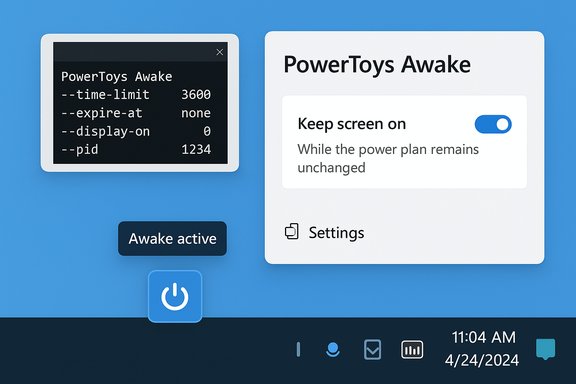
PowerToys.Awake.exe) with arguments such as --time-limit, --expire-at, --display-on, and --pid for automation. These technical details are spelled out in Microsoft’s official PowerToys Awake documentation. Why this matters: Awake’s design avoids touching persistent system policy settings, which preserves administrators’ configurations and reduces the risk of leaving a machine in an unintended power state after a session ends. That architectural choice is deliberate and documented. The Neowin critique: summary and verification
The Neowin column’s thesis — that Awake is not a favorite — hinges on a few recurring points:- Tray UI limitations and discoverability (for example, grayed‑out expiration controls from the tray).
- Edge cases where Awake doesn’t affect presence indicators or behaves unexpectedly with apps like Microsoft Teams.
- Past incidents of high CPU usage, icon spamming, and timed‑mode bugs that were subsequently patched.
- Users have reported that the tray menu lacks a calendar selector for the “expire at” action and that the expiration option can appear grayed out in the tray UI; the workaround is to set expiration in the full PowerToys settings UI or use the CLI. That behavior is reflected in community threads and an open GitHub issue discussing the missing tray calendar behavior.
- Multiple users have reported Teams presence not switching to “Online” even when Awake was active; that appears to be a combination of Teams updating its presence logic and Awake’s approach to signaling activity — threads on Reddit and GitHub issues document this regression and user troubleshooting.
- The PowerToys changelog includes explicit fixes for Awake: high CPU usage in timed mode, tray icon notification spam, and menu right‑click behavior were addressed in updates (for example, the 0.43 and later 0.83/0.45 series contained Awake fixes). These release notes confirm that some of the rough edges Neowin cites were real and were addressed by the project.
Strengths: why Awake is valuable
Awake succeeds at its primary goals in ways that are clear and measurable:- Non‑invasive behavior. Awake does not rewrite power policies; it asserts temporary requests and relinquishes them when stopped. That design minimizes long-term surprises for managed machines and is the primary reason many users prefer it to toggling system power plans.
- Automation and scripting support. The CLI and PID‑attachment modes make Awake suitable for scripted workflows — for example, tying a long build process to keep the system awake while the build runs, then automatically releasing when the process exits. This makes it useful to developers and CI scenarios where temporary, session‑scoped behavior is preferred to permanent policy changes.
- Granular display control. The separate “Keep screen on” option helps avoid screen blanking where displays are required for monitoring, demos, or appliance use cases. This reduces the need to combine multiple tools to get the expected behavior.
- Rapid iteration and fixes. The PowerToys project is active on GitHub and has released targeted fixes to known Awake issues (CPU usage, tray spam, etc., demonstrating responsive maintenance and community collaboration.
Weaknesses and practical risks
The Neowin critique touches on genuine practical weaknesses that matter in day‑to‑day use:- Tray discoverability and inconsistent UX. The absence of a compact calendar selector in the system tray for an “expire at” action makes the tray experience less discoverable; users must open the full settings dialog or rely on CLI parameters for some workflows. This is a usability gap for users who prefer quick tray interactions. Community threads confirm confusion and feature requests.
- Edge case interactions with other apps. Because Awake doesn’t simulate human input (it merely requests the system remain awake), certain app presence indicators or activity‑based signals (like Teams’ “active/away” logic) may not be affected. Users expecting Awake to keep presence artifacts “online” can be disappointed. That expectation is a mismatch with Awake’s documented design.
- Lock‑screen limitation. Awake explicitly does not operate on the lock screen because the lock screen executes in a secure context separated from the user session. For use cases that require a machine to stay awake while locked, the documentation instructs administrators to use power plan configuration instead. This constraint matters for unattended lab machines or kiosks.
- Past reliability regressions. Although several issues have been patched, historical problems like timed‑mode not expiring correctly or excessive CPU use erode trust for users who need absolute predictability overnight or during long unattended runs. The fact that these were fixed is positive, but the existence of past regressions is precisely the reason some reviewers remain cautious.
- Enterprise governance & telemetry questions. PowerToys collects diagnostics via opt‑in telemetry and releases policy IDs for disabling modules via Group Policy or Intune. Organizations must verify whether the use of PowerToys aligns with their endpoint policies and whether they want this functionality available to end users. Awake can be disabled via policy if required.
Practical verification: how to test Awake in your environment
If you want to validate Awake before relying on it for critical unattended tasks, here’s a short, reproducible test plan:- Install PowerToys from an official channel (Microsoft Store, GitHub releases, or winget). Confirm the version string in Settings → About.
- Enable Awake in PowerToys, choose “Timed (interval)” and set a short time (e.g., 5 or 10 minutes). Confirm via the tray icon that Awake reports the timed state.
- Start a heavyweight CPU or IO job (file transfer, video render, or build) and leave the account signed in. Observe whether the system remains awake for the configured interval.
- Lock the screen and verify whether the machine remains awake; expect that Awake will not persist while the machine is locked. This confirms the documented limitation.
- If you require presence retention (e.g., Microsoft Teams “online” state), test whether Awake satisfies that use case. If not, consider alternatives (automated input simulators — with caution — or an explicit power plan change).
- Review PowerToys logs if behavior deviates: the Diagnostics area in PowerToys includes logging that helps triage problems.
Alternatives and when to prefer them
Awake is one of several approaches to keeping a machine active. Choose according to your needs:- Use Awake when you want temporary, session-scoped keep‑awake behavior without altering persistent power plans.
- Use a customized Windows power plan (or Local/Group Policy) when machines must remain awake while locked or when policy must enforce behavior across restarts and sessions.
- Use specialized third‑party utilities (e.g., classic “Caffeine”‑style apps or automation scripts) if you need unconventional behaviors — but review security implications and trustworthiness.
Security and compliance considerations
PowerToys is an official Microsoft project but runs with user privileges and installs per user by default. A few governance points to keep in mind:- Policy control: Administrators can disable individual PowerToys modules via Group Policy/Intune if the organization does not want end users changing machine behavior. Awake has a documented policy ID for this purpose.
- Telemetry: PowerToys can collect diagnostics; administrators should review telemetry settings and ensure they align with corporate privacy rules before enabling modules that integrate with cloud features (Advanced Paste, for example). Awake itself does not send clipboard data or file contents, but the telemetry settings and overall PowerToys diagnostics are relevant for enterprise risk assessments.
- Unattended use: Because Awake is not a replacement for device‑level, policy‑enforced behavior, relying on it for business‑critical unattended workloads (servers, kiosks, regulatory enclaves) is not recommended. Use OS-level power plan changes for those scenarios.
Verdict and practical recommendations
Awake is a narrowly focused utility that mostly does exactly what it promises: keep your machine awake temporarily without rewriting power plans. That simplicity is its main virtue and should be the reason most users enable it. However, the Neowin column’s reservations reflect legitimate UX and expectation gaps that matter in specific workflows. Here’s a concise recommendation set:- For personal use and short unattended tasks: install PowerToys and use Awake. Prefer timed mode and verify behavior with a short test run first.
- For development and automation: use the CLI (
--time-limit,--pid) and tie Awake to the parent process so it exits automatically when jobs finish. This avoids human error. - For presence or lock‑screen requirements: do not rely on Awake. Use power plan configuration or another governance mechanism. Test Microsoft Teams or other presence signals separately — Awake does not guarantee application‑level “active” states.
- For managed enterprise fleets: treat PowerToys as optional, not default. Control module availability via policy and test in a pilot group before wider deployment.
Final analysis — why the debate matters
The debate over whether Awake is “favourite‑worthy” is more than a reviewer’s personal taste. It exposes a tension that runs through PowerToys’ evolution: the project moves fast, ships helpful little tools directly into user workflows, and sometimes exposes trade‑offs where convenience bumps up against predictable, policy‑centric enterprise behavior. The Awake case shows both sides of that coin: a lightweight, scriptable tool that solves a real pain, and a set of edge‑case expectation failures that can frustrate users who need absolute reliability or who expect tool behavior to extend to lock screens and presence signals. PowerToys’ responsiveness — documented bug fixes and active GitHub maintenance — reduces the long‑term risk, but it doesn’t erase the need for careful testing and configuration when adopting utilities that influence system behavior. For most power users, Awake is a safe and useful tool; for mission‑critical unattended systems or tightly governed enterprise endpoints, Awake should be a considered choice rather than a default.Conclusion
Awake is conceptually simple and pragmatically useful: it lets you keep a machine awake temporarily without rewriting the OS power plan, and it offers CLI and PID attachment options for automation. The Neowin criticism that it’s not a favorite is understandable when viewed through UX frustrations, edge‑case behaviors, and past regressions — all of which are documented in community threads and PowerToys release notes. Verify Awake’s behavior in your own environment, use timed or process‑tied modes for safety, and don’t expect it to serve as a policy tool for locked or unattended systems. With informed use and a short pilot test, Awake remains a legitimate, low‑friction utility in the PowerToys toolkit — powerful for many tasks, but not a universal replacement for OS‑level power management.
Source: Neowin https://www.neowin.net/news/closer-look-awake-is-not-my-favorite-tool-in-powertoys-on-windows/
