Microsoft’s PowerToys now delivers the one missing convenience many Windows 11 users have been asking for: an easy, officially supported way to automatically switch between Light Mode and Dark Mode based on schedule or local sunrise and sunset times.
Windows 11 has offered Light and Dark themes for years, but inexplicably it lacked a native, built‑in scheduler to flip between them automatically. That gap spawned a raft of third‑party utilities and user scripts to fill the need. Microsoft’s PowerToys—its free collection of advanced utilities aimed at power users—has stepped in with Light Switch, a new module that brings time‑based and location‑aware theme switching into an official Microsoft package.
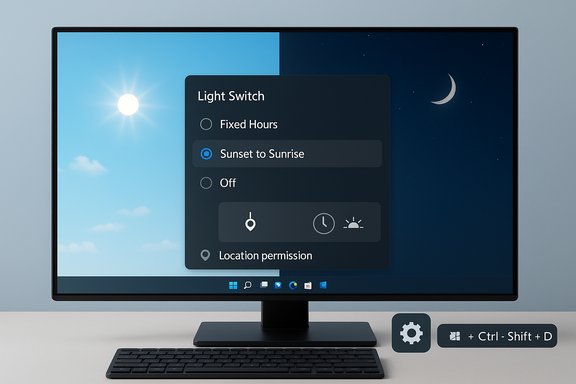
Light Switch debuted as part of a recent PowerToys release and exposes simple controls for when and how your machine flips themes. It supports fixed schedules, a sunset-to-sunrise mode that uses your location, and an on‑demand keyboard shortcut for instant toggles. While this does not change the fact that Windows itself still lacks a native scheduled theme toggle, Light Switch gives users a polished, supported option in the PowerToys ecosystem.
Why this matters: a reliable toggle avoids digging through Settings when you need immediate theme changes (for example, when moving between lighting conditions or recording screencasts). If you deploy PowerToys broadly, be aware that shortcut conflict detection is now part of PowerToys—there’s a built‑in system to flag overlaps so users can reassign keys.
Light Switch turns a long‑standing friction point for Windows users into a manageable, supported feature set. It also demonstrates Microsoft’s approach of using PowerToys as a fast path to ship small but impactful utilities that the core OS team may not prioritize for immediate inclusion.
Light Switch makes a meaningful improvement to day‑to‑day Windows usability by automating theme changes in a safe, manageable package. With careful deployment and a watchful eye for updates, it can remove one more small annoyance from the Windows experience while giving users finer control over how their desktop adapts to light, time, and workflow.
Source: Windows Central PowerToys makes light/dark mode switching effortless on Windows 11
 Background
Windows 11 has offered Light and Dark themes for years, but inexplicably it lacked a native, built‑in scheduler to flip between them automatically. That gap spawned a raft of third‑party utilities and user scripts to fill the need. Microsoft’s PowerToys—its free collection of advanced utilities aimed at power users—has stepped in with Light Switch, a new module that brings time‑based and location‑aware theme switching into an official Microsoft package.Light Switch debuted as part of a recent PowerToys release and exposes simple controls for when and how your machine flips themes. It supports fixed schedules, a sunset-to-sunrise mode that uses your location, and an on‑demand keyboard shortcut for instant toggles. While this does not change the fact that Windows itself still lacks a native scheduled theme toggle, Light Switch gives users a polished, supported option in the PowerToys ecosystem.
What Light Switch actually does
Light Switch is straightforward in purpose but flexible in behavior. At its core it changes the values Windows uses for theme appearance so the system and compatible apps can move between Light and Dark modes automatically. Key capabilities include:- Schedule by fixed hours (set exact times for light and dark).
- Schedule by local sunrise and sunset (requires location permission).
- Choose scope of the change: System, Apps, or Both.
- Keyboard shortcut to toggle themes instantly (default: Windows + Ctrl + Shift + D).
- Offset control to trigger the switch before or after sunrise/sunset by a specified number of minutes.
How to install PowerToys and enable Light Switch
Installing and enabling Light Switch is quick. The PowerToys package is available through multiple channels: GitHub releases, Microsoft Store, and package managers such as WinGet.- Open an elevated Command Prompt or PowerShell if you prefer (Run as Administrator is not required for a per‑user install, but it’s a common first step for administrators).
- Install PowerToys with the Windows Package Manager if you want the fastest command-line approach:
winget install --id Microsoft.PowerToys --source winget - Launch PowerToys from Start, then navigate to System Tools → Light Switch.
- Turn on Enable Light Switch.
- Choose your scheduling mode:
- Fixed hours — set exact times to turn dark mode on and off.
- Sunset to sunrise — allow Light Switch to use your location to calculate sunrise and sunset.
- Off — disables scheduling but keeps the keyboard shortcut available.
- If using Sunset to sunrise, click Location and permit the app to use your approximate location; then, optionally, use Offset to shift the switch earlier or later by minutes.
- Under Behavior, select how Light Switch applies dark mode: to System, Apps, or System and Apps.
- Optionally change the Theme toggle shortcut from the default Windows + Ctrl + Shift + D to a combination of your choice.
On the default shortcut and quick toggles
PowerToys provides an on‑demand keyboard shortcut to toggle themes instantly. The default combination set by PowerToys for Light Switch is Windows + Ctrl + Shift + D, but it’s fully configurable from the Light Switch page under Shortcuts. Users can replace it with any permitted combination that begins with Windows, Ctrl, Alt, or Shift.Why this matters: a reliable toggle avoids digging through Settings when you need immediate theme changes (for example, when moving between lighting conditions or recording screencasts). If you deploy PowerToys broadly, be aware that shortcut conflict detection is now part of PowerToys—there’s a built‑in system to flag overlaps so users can reassign keys.
Privacy and permissions: what Light Switch uses and why
Light Switch can work entirely with user‑set fixed hours, which requires no location access. If you opt for sunset-to-sunrise switching, Light Switch requests permission to use your approximate location so it can compute local sunrise and sunset times. A few practical privacy notes:- Location use is limited to computing sunrise/sunset (the module does not need full GPS precision).
- The module runs in the interactive user session and makes theme changes by updating per‑user registry keys (no SYSTEM‑level changes required).
- Users who are privacy conscious or in highly regulated environments can choose the Fixed hours option to avoid granting location permission.
- Administrators can manage PowerToys deployment and capabilities centrally via Group Policy ADMX templates or Desired State Configuration (DSC), treating Light Switch like any other optional utility.
Enterprise deployment and management
PowerToys isn’t just a home‑user toy—Microsoft has added management controls to make organizational deployment feasible:- PowerToys now ships with ADMX templates to control the suite via Group Policy, and Intune/MDM OMA‑URI settings are supported for many options.
- Administrators can force global enable/disable of PowerToys or individual modules, including Light Switch.
- PowerToys also includes a Desired State Configuration (DSC) extension and WinGet configuration support to automate installation and consistent configuration across fleets.
- Test Light Switch in a pilot group to check interactions with company themes or enforced registry values.
- Use ADMX / Intune to lock the module off for managed machines if corporate themes must remain static.
- If you allow Light Switch, document expected behavior for helpdesk staff so users who experience unexpected changes get quick support.
Troubleshooting and known pitfalls
Light Switch is generally simple, but the combination of a new feature and wide‑ranging Windows customizations means you may run into issues. Common reports and practical fixes include:- Unexpected theme flips: If Light Switch is toggling erratically, first check the schedule mode and whether Off or Fixed hours is set. If using location, confirm the correct location was set and that offsets aren’t producing rapid changes.
- Shortcut conflicts: PowerToys flags hotkey conflicts. If your toggle shortcut does not work, open Shortcuts in PowerToys and reassign a different combination.
- Apps not following theme: Not all apps respect the same OS theme keys. Some third‑party apps maintain their own theme settings or require restarts to adopt changes.
- Log or disk bloat reports: A small number of users have reported excessive logging for the Light Switch service in certain versions—if you see large log files, update PowerToys to the latest patch and inspect %LocalAppData%\Microsoft\PowerToys\LightSwitch\Service\Logs for abnormal growth.
- Persistent behavior after update: If you experienced issues prior to installing a PowerToys hotfix, try toggling Light Switch off and on again—this can reset internal state and clear inconsistent schedules.
The rollout snafu: what went wrong and how Microsoft fixed it
Like any high‑visibility release, Light Switch’s introduction has seen growing pains. In one recent release cycle the module was unintentionally enabled by default in an update, causing unexpected theme switches for users who had not opted in. Microsoft acknowledged the issue and issued a hotfix in a follow‑up release that:- Fixed the bug that caused Light Switch to be enabled by default.
- Renamed and clarified schedule mode names for clarity (for example, the manual schedule label was renamed to Fixed Hours).
- Added a new Off mode that disables scheduling while preserving the on‑demand shortcut.
- Addressed several race conditions and timing issues that could make system and app theme changes appear out of sync.
Alternatives and when to choose them
PowerToys Light Switch is convenient and maintained by Microsoft, but it’s not the only option. Alternatives that have existed for years provide similar functionality with different tradeoffs:- Auto Dark Mode: A popular third‑party utility that offers advanced options such as switching themes when the machine is plugged/unplugged, additional app‑level rules, and more granular control.
- Registry scripts / small PowerShell utilities: For users or admins who prefer scripted automation, simple registry changes can toggle themes. These are fast and predictable but require scripting knowledge.
- Built‑in app-level themes: Many apps (Office, Edge, Slack, etc. provide independent theme settings — sometimes you may prefer to set those manually instead of changing the system theme.
Security, reliability and performance considerations
Light Switch is a relatively low‑risk module, but you should be aware of operational and security details before enabling it widely:- Privileges: Light Switch operates using per‑user permissions and modifies HKCU keys; it does not require persistent elevated privileges to flip themes.
- Telemetry and data handling: The module requests approximate location for sunrise/sunset computations. If your organization restricts location use, prefer fixed hours or block the module.
- Resource use: Light Switch is lightweight. However, poorly implemented scheduling (bugs in early releases) can cause excessive activity or logging; keep PowerToys patched.
- Interactions: If your environment enforces a corporate theme via Group Policy or registry enforcement, Light Switch may be unable to change theme values. This can lead to user confusion and support tickets if Light Switch appears to ‘fail’ silently.
- Regressions: When deploying new versions, test changes that affect global behavior (scheduling, hotkeys) because these can unintentionally impact users beyond the intended audience.
Practical tips and advanced usage
- Use Fixed Hours if you need absolute control and want to avoid granting location access. It’s useful for shared or public terminals.
- If you want a small buffer around sunset/sunrise, use the Offset option to trigger the switch earlier or later by minutes.
- Combine the toggle shortcut with a system automation tool or macro to include theme switching as part of context changes (for example, before a presentation set Light Mode, when finishing revert to Dark Mode).
- If your apps don’t reflect the theme immediately, a logoff/logon or a quick app restart usually forces the change.
- Administrators can set PowerToys policies via ADMX or use the PowerToys DSC module to deploy consistent settings across devices.
Why this matters for Windows users
Having a reliable, simple way to schedule theme changes is more than cosmetic convenience. For many people, reducing blue light exposure and adopting dark themes in low‑light conditions reduces eye strain and improves comfort. On devices with OLED screens, dark themes can also reduce power usage and extend battery life. Importantly, an official Microsoft solution—embedded in PowerToys—means a maintained, vetted codebase and clearer management paths for IT teams compared with random third‑party utilities.Light Switch turns a long‑standing friction point for Windows users into a manageable, supported feature set. It also demonstrates Microsoft’s approach of using PowerToys as a fast path to ship small but impactful utilities that the core OS team may not prioritize for immediate inclusion.
Final verdict: strengths, limitations, and risk summary
Strengths- Official: Light Switch comes from Microsoft and ships inside PowerToys, reducing trust friction versus unknown third‑party apps.
- Flexible: Supports fixed schedules and location‑aware switching, with offsets and scope configuration (System, Apps, or both).
- Managed: Administrators can govern PowerToys with ADMX templates, Intune, and DSC for enterprise deployment.
- Convenient: Includes a configurable hotkey for immediate toggles.
- Not native to Windows Settings: It remains a PowerToys module; there’s still no native scheduled theme option built into Windows 11 Settings.
- Early bugs: Initial rollout included a bug that enabled the feature by default; although patched, the incident highlights the need to update and monitor.
- App compatibility: Some apps won’t switch immediately or at all because they manage themes independently.
- Privacy considerations: Sunset/sunrise mode requires location permission; privacy‑sensitive users should prefer Fixed Hours.
- Potential operational surprises: Unexpected changes can create helpdesk tickets — rollouts should be communicated to users.
Quick reference: essential commands and paths
- Install PowerToys via WinGet:
winget install --id Microsoft.PowerToys --source winget - PowerToys settings path for the logged user:
%LocalAppData%\Microsoft\PowerToys - Light Switch logs (if troubleshooting):
%LocalAppData%\Microsoft\PowerToys\LightSwitch\Service\Logs - Key management notes:
- Theme keys modified are per‑user (HKCU), so machine policies can prevent changes.
Light Switch makes a meaningful improvement to day‑to‑day Windows usability by automating theme changes in a safe, manageable package. With careful deployment and a watchful eye for updates, it can remove one more small annoyance from the Windows experience while giving users finer control over how their desktop adapts to light, time, and workflow.
Source: Windows Central PowerToys makes light/dark mode switching effortless on Windows 11