

Microsoft PowerToys Text Extractor is a free Windows utility that copies visible text from images, videos, PDFs, dialogs, and apps using OCR, with the default shortcut Win + Shift + T on Windows 10 and Windows 11. Its importance is not that OCR is new, but that Microsoft has made it feel like a native reflex instead of a separate document-processing chore. For Windows users who routinely fight screenshots, frozen installers, training videos, image-only PDFs, and uncooperative apps, Text Extractor turns a small irritation into a solved problem.
PowerToys has always occupied a strange place in the Windows ecosystem. It is official Microsoft software, but it often feels like it lives just outside the operating system’s front door: powerful, experimental, beloved by enthusiasts, and invisible to most normal users.
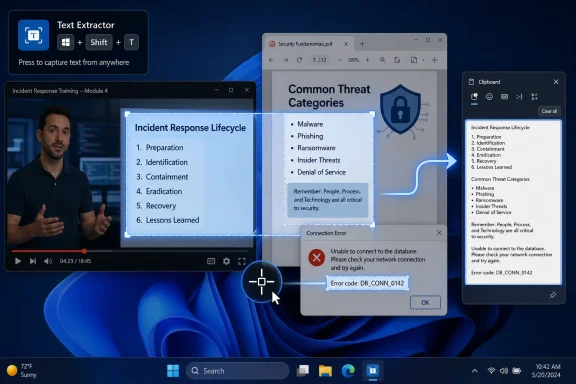
Text Extractor is different because it does not ask the user to learn a new workflow. It maps a very old frustration — “I can see the words, why can’t I copy them?” — to a single keyboard shortcut. Press Win + Shift + T, drag a rectangle over the text, release, and the result goes to the clipboard.
That sounds almost too small to matter. But desktop computing is full of micro-frictions that survive for years because they are too ordinary to become product priorities. Retyping an error code from a dialog box is not a grand failure of Windows; it is just one of those petty indignities users learn to tolerate.
Text Extractor is a reminder that the best utility software does not always add a new capability. Sometimes it gives a decades-old capability a place in muscle memory.
The Windows desktop, oddly, lagged behind the user’s expectation. A modern PC could recognize speech, index files, sync clipboards, and run local AI features, yet copying text from an image on screen often still required a workaround. That gap is exactly where PowerToys Text Extractor fits.
The tool uses Windows’ built-in OCR engine rather than reading the underlying application structure. In plain terms, it is not asking the app for text, and it is not inspecting the PDF layer, HTML, terminal buffer, or UI control. It is looking at pixels in the selected region and attempting to convert the visible shapes into characters.
That distinction is the whole point. If the text is visible, Text Extractor does not much care whether the originating app wants to cooperate. A screenshot in Teams, a paused YouTube tutorial, an image-only PDF, a locked-down training portal, a remote desktop session, or a cranky installer dialog all become fair game.
This also explains the tool’s limitations. OCR is not magic; it is inference. Clean, high-contrast fonts tend to work well, while blurred, compressed, tiny, stylized, or low-contrast text can produce mistakes. The user still has to proofread, especially when copying commands, serial numbers, registry paths, or anything that could break if a single character is wrong.
There is no save dialog. There is no screenshot library to manage. There is no editor window unless the workflow changes. That directness is why Text Extractor feels faster than more feature-rich OCR paths.
Snipping Tool on Windows 11 now has its own OCR-powered Text Actions, and Microsoft itself points users toward Snipping Tool for many screen-capture tasks. That recommendation makes sense if the user wants a captured image, markup, redaction, or a visible review step. Snipping Tool is becoming a broader capture hub.
Text Extractor is narrower and better because of that narrowness. It does one thing: copy visible text. When the job is repeated dozens of times across a day, one fewer window is not a luxury; it is the difference between a feature you admire and a feature you actually use.
The manual “Copy All Text” button in the overlay may seem redundant when automatic copying works, but it is not a bad fallback. Windows users know the value of a second way to do the same thing. The best utilities are fast when everything works and forgiving when it does not.
Text Extractor speaks a more universal language. Everyone has encountered text they could see but not select. The problem cuts across students, support technicians, developers, office workers, journalists, admins, and anyone who spends time inside badly designed enterprise software.
For sysadmins, the obvious use case is error capture. Windows and third-party installers still produce dialogs that are hostile to copying, especially when the user most needs precision. An error message that once had to be retyped into a ticket or search engine can now be grabbed before the dialog disappears.
For developers and IT pros, the value is in technical text that appears outside normal copyable contexts. Terminal commands in tutorial videos, configuration snippets in recorded webinars, build errors in screenshots, license keys inside screenshots, and stack traces in images all become easier to capture. That does not remove the need to validate the output, but it removes the dumbest part of the task.
For ordinary Windows users, the win is just as real. Text in images, receipts, memes, slides, PDFs, course materials, app screenshots, and locked websites becomes portable. It is not a glamorous feature, but it is the sort of thing that makes a computer feel less stubborn.
Table mode is the most ambitious because it tries to preserve rows and columns. Anyone who has copied a table from a screenshot knows the pain: the content may be legible, but the structure collapses into a mess when pasted into a spreadsheet or editor. A good table mode can save several minutes of cleanup.
But table extraction is also where the limits become obvious. OCR has to recognize the characters and infer layout. A grid with crisp lines and clear spacing is easier; a compressed screenshot of a spreadsheet inside a webinar recording is much harder. If the text is skewed, tiny, or visually noisy, the output may be useful but not clean.
The reported annoyance that table mode does not retain its state between captures is exactly the kind of small workflow paper cut that matters to heavy users. If someone is extracting a dozen tables from a PDF, forgetting to re-enable the mode once can cost more time than the feature saved. It is not fatal, but it is the difference between a clever utility and a polished one.
That is the broader PowerToys bargain. Microsoft gives users potent functionality quickly, but some edges feel more like a lab tool than a finished shell feature. Text Extractor is good enough to become a habit; it is not yet so polished that it disappears into Windows completely.
That expansion creates an obvious question: why use PowerToys Text Extractor at all if Snipping Tool can also recognize text? The answer is workflow.
Snipping Tool is an application experience. You capture something, open or interact with the Snipping Tool interface, wait for recognition, and then choose what to copy or redact. That is exactly right when the capture itself is an artifact you intend to keep or edit.
Text Extractor is a clipboard experience. It assumes the screenshot is disposable and the text is the prize. The overlay vanishes after recognition, and the user pastes the result wherever it needs to go.
This is why the two tools can coexist without being redundant. Snipping Tool is better when context matters. Text Extractor is better when speed matters. Windows should probably have both instincts built in.
There is also an interesting platform story here. Microsoft is slowly moving OCR from “special feature” to ambient operating-system behavior. PowerToys exposed it for enthusiasts; Snipping Tool packages it for general users. The likely endpoint is that Windows treats visible text as selectable more often, regardless of whether the originating app cooperates.
That design choice is especially important in business environments. Many workers do not want an OCR database, screenshot history, or AI analysis of their screen. They want to copy an error message from one place and paste it into another. The clipboard is mundane, but it is also legible and controllable.
There are privacy implications worth noting. Text Extractor performs recognition on what the user selects, using Windows OCR capabilities, rather than presenting itself as a cloud document-analysis service. Users and administrators should still evaluate PowerToys according to their organization’s software policies, but the interaction model is reassuringly local and user-initiated.
The feature also avoids another modern trap: over-assistance. It does not summarize the text, rewrite it, classify it, or send it to a chat interface. It just copies what it thinks it sees. In 2026, that restraint feels almost radical.
A good Windows utility should not always try to be intelligent. Sometimes the right move is to be fast, predictable, and easy to abandon if the output looks wrong.
That matters most in technical contexts. Copying a paragraph from a slide is forgiving. Copying a PowerShell command, registry path, YAML block, API key, or build flag is not. Text Extractor saves time, but it should not be treated as a trust boundary.
The practical rule is simple: use it to avoid retyping, not to avoid reading. Paste into a scratch buffer when the stakes are high. Compare against the source before running anything. Zoom in before capture if the text is small or compressed.
The tool performs best with modern UI fonts, strong contrast, and stable screenshots. It struggles when the source material was already bad: blurry video, low-resolution screen shares, washed-out slides, decorative fonts, and text over patterned backgrounds. That is not a PowerToys scandal; it is how OCR behaves.
Still, “close enough to fix” is a significant upgrade over “type the whole thing manually.” Most users are not asking OCR to be perfect. They are asking it to remove the repetitive labor so their attention can move to verification.
For users who work only in their system language, this may never surface. For multilingual users, support teams, researchers, and admins dealing with localized screenshots, it matters. If the expected language does not appear in the Text Extractor language dropdown, the fix is usually to install the relevant language pack through Windows settings.
This is the sort of dependency that makes sense technically but can feel confusing in practice. Users expect an app setting to contain the app’s capabilities. Instead, PowerToys exposes a Windows capability that may or may not be installed.
The good news is that this is a one-time setup issue. Once the language pack is installed, Text Extractor becomes invisible again. The bad news is that the failure mode can make the tool look broken to the very users who need it most.
Microsoft could improve the experience with clearer prompts, direct links into the relevant Windows settings page, or better first-run diagnostics. PowerToys has grown popular precisely because it hides complexity well; language support is one place where the complexity still peeks through.
Part of the answer is Microsoft’s cautious relationship with Windows power features. The company often tests advanced workflows in PowerToys before deciding whether they belong in the mainstream OS. That is sensible from an engineering standpoint, but it means some of Windows’ best ideas arrive as optional utilities long before they become obvious defaults.
The other part is that Windows has too many overlapping surfaces. Keyboard shortcuts, inbox apps, Store-delivered app updates, PowerToys modules, shell features, accessibility tools, and AI additions all compete to solve adjacent problems. Users do not experience this as richness; they experience it as “which Microsoft thing am I supposed to use?”
Text Extractor wins because it avoids that confusion once installed. There is a shortcut. There is a rectangle. There is the clipboard. That is the whole mental model.
If Microsoft wants Windows to feel more modern, this is the template. Not every feature needs a Copilot button, a sidebar, a feed, or a subscription tie-in. Some features just need to be present at the moment a user reaches for them.
That is when the feature graduates from novelty to utility. You stop thinking, “I should use OCR here,” and start thinking, “this text is copyable.” The distinction matters because the second mindset expands where the tool gets used.
The user starts grabbing error messages before dismissing them. Paused videos become searchable. Screenshots become temporary documents. Image-only PDFs become less annoying. Software that blocks selection loses some of its power to waste time.
This is also why Microsoft should resist turning every capture into a heavier experience. The value is not merely in recognition accuracy. It is in the low ceremony around the recognition. Text Extractor works because it makes the impossible feel ordinary.
Windows has spent years accumulating features that are technically impressive but behaviorally distant. Text Extractor goes the other way. It is modest, but it lands exactly where the user’s frustration lives.
 Microsoft’s Most Useful Windows Trick Is Hiding in the PowerToys Drawer
PowerToys has always occupied a strange place in the Windows ecosystem. It is official Microsoft software, but it often feels like it lives just outside the operating system’s front door: powerful, experimental, beloved by enthusiasts, and invisible to most normal users.Text Extractor is different because it does not ask the user to learn a new workflow. It maps a very old frustration — “I can see the words, why can’t I copy them?” — to a single keyboard shortcut. Press Win + Shift + T, drag a rectangle over the text, release, and the result goes to the clipboard.
That sounds almost too small to matter. But desktop computing is full of micro-frictions that survive for years because they are too ordinary to become product priorities. Retyping an error code from a dialog box is not a grand failure of Windows; it is just one of those petty indignities users learn to tolerate.
Text Extractor is a reminder that the best utility software does not always add a new capability. Sometimes it gives a decades-old capability a place in muscle memory.
OCR Finally Escapes the Document Scanner
Optical character recognition has been around long enough to feel boring. Office workers used it on scanned documents. OneNote had it. PDF tools had it. Phones made it feel magical by recognizing text inside camera images.The Windows desktop, oddly, lagged behind the user’s expectation. A modern PC could recognize speech, index files, sync clipboards, and run local AI features, yet copying text from an image on screen often still required a workaround. That gap is exactly where PowerToys Text Extractor fits.
The tool uses Windows’ built-in OCR engine rather than reading the underlying application structure. In plain terms, it is not asking the app for text, and it is not inspecting the PDF layer, HTML, terminal buffer, or UI control. It is looking at pixels in the selected region and attempting to convert the visible shapes into characters.
That distinction is the whole point. If the text is visible, Text Extractor does not much care whether the originating app wants to cooperate. A screenshot in Teams, a paused YouTube tutorial, an image-only PDF, a locked-down training portal, a remote desktop session, or a cranky installer dialog all become fair game.
This also explains the tool’s limitations. OCR is not magic; it is inference. Clean, high-contrast fonts tend to work well, while blurred, compressed, tiny, stylized, or low-contrast text can produce mistakes. The user still has to proofread, especially when copying commands, serial numbers, registry paths, or anything that could break if a single character is wrong.
The Shortcut Matters More Than the Engine
The default shortcut, Win + Shift + T, is the feature’s real interface. Once triggered, the screen dims and the cursor becomes a capture tool. The user drags around the desired text, releases the mouse, and PowerToys copies the recognized text to the clipboard.There is no save dialog. There is no screenshot library to manage. There is no editor window unless the workflow changes. That directness is why Text Extractor feels faster than more feature-rich OCR paths.
Snipping Tool on Windows 11 now has its own OCR-powered Text Actions, and Microsoft itself points users toward Snipping Tool for many screen-capture tasks. That recommendation makes sense if the user wants a captured image, markup, redaction, or a visible review step. Snipping Tool is becoming a broader capture hub.
Text Extractor is narrower and better because of that narrowness. It does one thing: copy visible text. When the job is repeated dozens of times across a day, one fewer window is not a luxury; it is the difference between a feature you admire and a feature you actually use.
The manual “Copy All Text” button in the overlay may seem redundant when automatic copying works, but it is not a bad fallback. Windows users know the value of a second way to do the same thing. The best utilities are fast when everything works and forgiving when it does not.
The Real Audience Is Bigger Than Power Users
PowerToys is usually framed as a toolkit for enthusiasts: FancyZones for window management, PowerRename for bulk file renaming, Keyboard Manager for remapping, Hosts File Editor for network tinkering, and so on. Those are useful tools, but they speak a language that sounds like IT.Text Extractor speaks a more universal language. Everyone has encountered text they could see but not select. The problem cuts across students, support technicians, developers, office workers, journalists, admins, and anyone who spends time inside badly designed enterprise software.
For sysadmins, the obvious use case is error capture. Windows and third-party installers still produce dialogs that are hostile to copying, especially when the user most needs precision. An error message that once had to be retyped into a ticket or search engine can now be grabbed before the dialog disappears.
For developers and IT pros, the value is in technical text that appears outside normal copyable contexts. Terminal commands in tutorial videos, configuration snippets in recorded webinars, build errors in screenshots, license keys inside screenshots, and stack traces in images all become easier to capture. That does not remove the need to validate the output, but it removes the dumbest part of the task.
For ordinary Windows users, the win is just as real. Text in images, receipts, memes, slides, PDFs, course materials, app screenshots, and locked websites becomes portable. It is not a glamorous feature, but it is the sort of thing that makes a computer feel less stubborn.
The Table Problem Shows Where OCR Still Gets Messy
Text Extractor includes modes that make the tool more than a rectangle-and-copy trick. A language selector lets users choose installed OCR languages. Single-line mode joins recognized text into a continuous line, which is useful for command strings, identifiers, codes, and other text where unwanted line breaks can be irritating.Table mode is the most ambitious because it tries to preserve rows and columns. Anyone who has copied a table from a screenshot knows the pain: the content may be legible, but the structure collapses into a mess when pasted into a spreadsheet or editor. A good table mode can save several minutes of cleanup.
But table extraction is also where the limits become obvious. OCR has to recognize the characters and infer layout. A grid with crisp lines and clear spacing is easier; a compressed screenshot of a spreadsheet inside a webinar recording is much harder. If the text is skewed, tiny, or visually noisy, the output may be useful but not clean.
The reported annoyance that table mode does not retain its state between captures is exactly the kind of small workflow paper cut that matters to heavy users. If someone is extracting a dozen tables from a PDF, forgetting to re-enable the mode once can cost more time than the feature saved. It is not fatal, but it is the difference between a clever utility and a polished one.
That is the broader PowerToys bargain. Microsoft gives users potent functionality quickly, but some edges feel more like a lab tool than a finished shell feature. Text Extractor is good enough to become a habit; it is not yet so polished that it disappears into Windows completely.
Snipping Tool Is the Future, but Text Extractor Is the Better Reflex
Microsoft’s Snipping Tool has quietly become one of Windows 11’s more important inbox apps. It handles screenshots, screen recording, annotation, OCR-based Text Actions, and other capture tasks. In recent Windows builds, it is no longer just the little utility people launch when they forget the Print Screen behavior.That expansion creates an obvious question: why use PowerToys Text Extractor at all if Snipping Tool can also recognize text? The answer is workflow.
Snipping Tool is an application experience. You capture something, open or interact with the Snipping Tool interface, wait for recognition, and then choose what to copy or redact. That is exactly right when the capture itself is an artifact you intend to keep or edit.
Text Extractor is a clipboard experience. It assumes the screenshot is disposable and the text is the prize. The overlay vanishes after recognition, and the user pastes the result wherever it needs to go.
This is why the two tools can coexist without being redundant. Snipping Tool is better when context matters. Text Extractor is better when speed matters. Windows should probably have both instincts built in.
There is also an interesting platform story here. Microsoft is slowly moving OCR from “special feature” to ambient operating-system behavior. PowerToys exposed it for enthusiasts; Snipping Tool packages it for general users. The likely endpoint is that Windows treats visible text as selectable more often, regardless of whether the originating app cooperates.
The Clipboard Is Still the Most Important Integration Layer in Windows
For all the talk of AI assistants, cloud sync, and app ecosystems, the clipboard remains the most important bridge between Windows programs. Text Extractor works because it respects that. It does not ask users to save, export, import, upload, or open a companion panel.That design choice is especially important in business environments. Many workers do not want an OCR database, screenshot history, or AI analysis of their screen. They want to copy an error message from one place and paste it into another. The clipboard is mundane, but it is also legible and controllable.
There are privacy implications worth noting. Text Extractor performs recognition on what the user selects, using Windows OCR capabilities, rather than presenting itself as a cloud document-analysis service. Users and administrators should still evaluate PowerToys according to their organization’s software policies, but the interaction model is reassuringly local and user-initiated.
The feature also avoids another modern trap: over-assistance. It does not summarize the text, rewrite it, classify it, or send it to a chat interface. It just copies what it thinks it sees. In 2026, that restraint feels almost radical.
A good Windows utility should not always try to be intelligent. Sometimes the right move is to be fast, predictable, and easy to abandon if the output looks wrong.
Accuracy Is Good Enough Until It Suddenly Isn’t
The central risk with Text Extractor is not that OCR fails loudly. It is that OCR fails subtly. A mistaken “0” for “O,” “1” for “l,” dash for underscore, or missing punctuation mark can be invisible until a command fails or a configuration breaks.That matters most in technical contexts. Copying a paragraph from a slide is forgiving. Copying a PowerShell command, registry path, YAML block, API key, or build flag is not. Text Extractor saves time, but it should not be treated as a trust boundary.
The practical rule is simple: use it to avoid retyping, not to avoid reading. Paste into a scratch buffer when the stakes are high. Compare against the source before running anything. Zoom in before capture if the text is small or compressed.
The tool performs best with modern UI fonts, strong contrast, and stable screenshots. It struggles when the source material was already bad: blurry video, low-resolution screen shares, washed-out slides, decorative fonts, and text over patterned backgrounds. That is not a PowerToys scandal; it is how OCR behaves.
Still, “close enough to fix” is a significant upgrade over “type the whole thing manually.” Most users are not asking OCR to be perfect. They are asking it to remove the repetitive labor so their attention can move to verification.
Language Packs Are the Setup Detail Users Will Miss
Text Extractor depends on installed Windows OCR language packs. That means the tool’s ability to recognize text in a given language is not just a PowerToys setting; it is tied to Windows’ language components.For users who work only in their system language, this may never surface. For multilingual users, support teams, researchers, and admins dealing with localized screenshots, it matters. If the expected language does not appear in the Text Extractor language dropdown, the fix is usually to install the relevant language pack through Windows settings.
This is the sort of dependency that makes sense technically but can feel confusing in practice. Users expect an app setting to contain the app’s capabilities. Instead, PowerToys exposes a Windows capability that may or may not be installed.
The good news is that this is a one-time setup issue. Once the language pack is installed, Text Extractor becomes invisible again. The bad news is that the failure mode can make the tool look broken to the very users who need it most.
Microsoft could improve the experience with clearer prompts, direct links into the relevant Windows settings page, or better first-run diagnostics. PowerToys has grown popular precisely because it hides complexity well; language support is one place where the complexity still peeks through.
The Best Windows Features Are Often the Ones Microsoft Has Not Fully Promoted
Text Extractor’s existence raises an uncomfortable product question. If Windows already has OCR good enough to make this feature useful, why is the experience still split between PowerToys, Snipping Tool, and whatever other app happens to expose it?Part of the answer is Microsoft’s cautious relationship with Windows power features. The company often tests advanced workflows in PowerToys before deciding whether they belong in the mainstream OS. That is sensible from an engineering standpoint, but it means some of Windows’ best ideas arrive as optional utilities long before they become obvious defaults.
The other part is that Windows has too many overlapping surfaces. Keyboard shortcuts, inbox apps, Store-delivered app updates, PowerToys modules, shell features, accessibility tools, and AI additions all compete to solve adjacent problems. Users do not experience this as richness; they experience it as “which Microsoft thing am I supposed to use?”
Text Extractor wins because it avoids that confusion once installed. There is a shortcut. There is a rectangle. There is the clipboard. That is the whole mental model.
If Microsoft wants Windows to feel more modern, this is the template. Not every feature needs a Copilot button, a sidebar, a feed, or a subscription tie-in. Some features just need to be present at the moment a user reaches for them.
The Week-One Effect Is Muscle Memory
The most telling thing about Text Extractor is how quickly it changes behavior. At first, users may still press Ctrl+C after selecting text, as if the OCR capture needs confirmation. Then the habit fades. The shortcut becomes the action.That is when the feature graduates from novelty to utility. You stop thinking, “I should use OCR here,” and start thinking, “this text is copyable.” The distinction matters because the second mindset expands where the tool gets used.
The user starts grabbing error messages before dismissing them. Paused videos become searchable. Screenshots become temporary documents. Image-only PDFs become less annoying. Software that blocks selection loses some of its power to waste time.
This is also why Microsoft should resist turning every capture into a heavier experience. The value is not merely in recognition accuracy. It is in the low ceremony around the recognition. Text Extractor works because it makes the impossible feel ordinary.
Windows has spent years accumulating features that are technically impressive but behaviorally distant. Text Extractor goes the other way. It is modest, but it lands exactly where the user’s frustration lives.
The Shortcut That Turns Screenshots Back Into Text
Text Extractor is not a replacement for careful OCR software, PDF remediation tools, or structured data extraction. It is a fast bridge between visible text and the clipboard, and that narrower ambition is why it succeeds.- PowerToys Text Extractor copies text from the screen with Win + Shift + T and places the result directly on the clipboard.
- The tool works by using Windows OCR on visible pixels, so it can capture text from images, videos, PDFs, dialogs, and apps that do not allow normal selection.
- Snipping Tool’s Text Actions offer a more visual OCR workflow on Windows 11, but Text Extractor remains faster when the screenshot itself does not matter.
- OCR language support depends on installed Windows language packs, so multilingual users should verify the available languages in PowerToys settings.
- Accuracy is strongest with clear, high-contrast text and weakest with blurry video, compressed screenshots, tiny fonts, and visually noisy backgrounds.
- Technical users should always proofread extracted commands, paths, codes, and configuration text before running or saving them.
References
- Primary source: DigitBin
Published: 2026-07-02T14:10:19.234074
PowerToys Text Extractor: Copy Text from Anywhere on Screen
PowerToys Text Extractor uses OCR to copy text from images, videos, and locked apps on Windows. Here is what a week of real use actually looks like.www.digitbin.com - Official source: learn.microsoft.com
PowerToys Text Extractor Utility for Windows | Microsoft Learn
Learn how to use PowerToys Text Extractor to copy text from anywhere on your Windows screen, including images and videos. Extract text with OCR technology using simple keyboard shortcuts.learn.microsoft.com - Related coverage: guidingtech.com
How to Use Snipping Tool Text Actions in Windows 11 - Guiding Tech
The Snipping Tool Text Actions feature lets you copy and redact text, straight from the captured screenshot. Keep reading to know how.www.guidingtech.com
- Related coverage: allthings.how
Extract Text Using Snipping Tool in Windows 11
Streamline copying text from images or screen regions with Windows 11’s built-in Snipping Tool text extraction feature.allthings.how - Related coverage: windowslatest.com
Windows 11 now lets you extract texts (OCR) from your screen without screenshots
Windows 11 now lets you extract texts (OCR) from your screen without capturing or saving screenshots and images. www.windowslatest.com
- Related coverage: howtogeek.com
How to Extract Text From Images on Windows 11
There is no need to type out the text from an image anymore. www.howtogeek.com
- Related coverage: windowsreport.com
How to Use Snipping Tool to Extract Text in Windows 11
Learn how to use Snipping Tool in Windows to capture screenshots and extract text with OCR technology. Follow our easy, step-by-step guide. windowsreport.com
- Related coverage: techradar.com
I'm transforming Windows 11 in 2026 using PowerToys – here's how you can too | TechRadar
PowerToys isn't just for power-userswww.techradar.com - Related coverage: nwsgenealogy.org
