

Windows still lets users give Ethernet priority over Wi-Fi by lowering the wired adapter’s interface metric, with the most reliable modern method on Windows 10 and Windows 11 being a manual metric change through adapter properties or PowerShell. The old adapter-order trick survives mostly as a fossil from earlier Windows networking eras. The practical lesson is simple: if you want Windows to prefer the cable, stop dragging adapters around and tell the routing table what you actually mean.
There is a pleasingly old-fashioned quality to the problem. A laptop sits on a desk, plugged into Ethernet for speed and latency, while Wi-Fi remains enabled for mobility. The user wants the machine to behave like a grown-up: use the reliable wired link while docked, then fall back to wireless when the cable disappears.
That expectation is reasonable. Ethernet is usually the better choice for large downloads, low-latency gaming, remote desktop sessions, video calls, NAS transfers, and anything else where packet loss and radio interference are enemies. Wi-Fi is indispensable, but it is also shared air, and shared air is not the same thing as a copper line to the switch.
The catch is that Windows networking has changed shape over the years. Older guides often point users to the Control Panel’s Adapters and Bindings order, where Ethernet could be moved above Wi-Fi. That advice is not entirely imaginary, but on current Windows builds it is incomplete at best and misleading at worst.
Modern Windows routing decisions are driven by metrics. A lower metric is preferred over a higher one, and the effective route choice depends on the relationship between route metrics and interface metrics. In plain English: Windows does not merely ask which adapter appears first in a list; it calculates which path looks cheaper.
That ritual made more sense in older Windows versions, particularly in the Windows 7 and early Windows 10 era when Control Panel still felt like the real cockpit and Settings was still growing into the job. The interface exposed binding order because Windows had more visible need to decide how network services and protocols attached themselves to adapters. It was a world where the operating system still wore much of its plumbing on the outside.
But Windows 11, and many current Windows 10 installations, do not make that workflow central. Some systems hide it. Some expose pieces of it. Some users can still find the menu, but changing the order does not necessarily produce the result they expect for internet traffic.
That distinction matters because the user’s actual goal is not aesthetic adapter hierarchy. The user wants packets to leave through Ethernet when both Ethernet and Wi-Fi are connected. For that, route selection is the real mechanism, and interface metrics are the user-facing lever.
When automatic metric is enabled, Windows tries to assign values based on characteristics such as link speed. That sounds convenient, and in many cases it works. A gigabit Ethernet adapter may naturally receive a better metric than a Wi-Fi adapter, so Windows will do what most users expect without manual configuration.
But automatic decisions are not promises. A fast Wi-Fi 6 or Wi-Fi 7 connection may appear competitive. A USB Ethernet adapter may report odd link characteristics. A dock, VPN client, virtual switch, Hyper-V adapter, corporate security agent, or vendor utility may complicate the routing table. Suddenly the machine that “should” prefer Ethernet starts sending traffic over Wi-Fi, or appears to do so inconsistently.
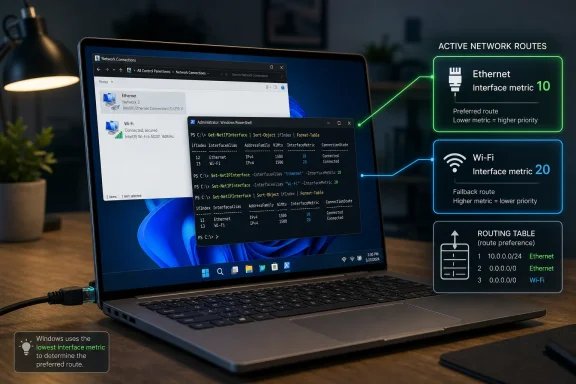
This is why the manual metric method is the right modern answer. Set Ethernet to a lower number, set Wi-Fi to a higher number, and Windows has a direct instruction. Ethernet at 10 and Wi-Fi at 20 is not magic, but it is clear.
Then repeat the process for Wi-Fi, but assign a higher number such as 20. If the network uses IPv6, repeat the same logic under Internet Protocol Version 6 as well. That last part is easy to overlook, and it is one of the reasons users sometimes swear the setting “didn’t work.”
This is the point where Windows’ layered networking model becomes visible. IPv4 and IPv6 can have separate interface settings, and modern networks increasingly use IPv6 for real traffic rather than treating it as ornamental plumbing. If only IPv4 is adjusted while IPv6 remains automatic, some connections may still behave in ways the user does not expect.
There is also a psychological trap in the numbers. Users often assume “higher priority” means typing a higher value. Windows metrics work the other way around. Lower number, higher preference. Ethernet 10 beats Wi-Fi 20.
The concept is the same as the GUI method, but the command line removes ambiguity. It also makes verification easier. After setting the values, running
PowerShell is also the more honest interface for what Windows is doing. The Control Panel path suggests that the user is editing adapter personality. PowerShell makes clear that the user is editing IP interface behavior. That distinction is not cosmetic; it is the difference between rearranging furniture and changing the route map.
For IT pros, PowerShell also scales. A helpdesk note that says “set Ethernet to metric 10 and Wi-Fi to metric 20” can become a script, a remediation step, or a baseline check. In managed environments, that is more useful than asking users to press Alt in an aging Control Panel window and hope the right menu appears.
This is especially important on machines with VPN clients. VPN adapters often insert routes with aggressive metrics because their job is to capture traffic. Corporate endpoint tools may do the same. Virtualization products can also add adapters that make the list look more complicated than “Ethernet versus Wi-Fi.”
There is no shame in that complexity. Modern Windows PCs are rarely single-purpose network nodes. A typical power user might have Wi-Fi, Ethernet, Bluetooth PAN, Hyper-V virtual switches, WSL networking, VPN adapters, mobile hotspot remnants, and vendor diagnostics interfaces all present at once.
That is why “Windows should just know” is a weaker argument than it first appears. Windows often does know, but it is balancing more inputs than the user sees. Manual metrics are useful because they turn an assumption into a policy.
The only reliable way to know is to inspect routes or test traffic. A file copy to a local NAS, a speed test against a local server, adapter performance counters, or routing output can reveal what the machine is actually doing. The icon is a convenience, not an audit trail.
This distinction becomes important when troubleshooting user complaints. “It shows Wi-Fi” and “it is using Wi-Fi” are not always the same statement. Administrators should resist diagnosing from the tray icon alone.
Windows networking has accumulated decades of UI layers, and those layers do not always tell the same story with equal precision. Settings is designed for ordinary users, Control Panel preserves older workflows, PowerShell exposes the system’s current management model, and the routing table tells the truth. When in doubt, believe the routing table.
That means a user can set IPv4 metrics perfectly and still observe traffic patterns that seem wrong. The machine may be using IPv6 paths whose metrics were never changed. The fix is not to disable IPv6 reflexively, despite the internet’s long tradition of recommending exactly that.
Disabling IPv6 can create other problems, particularly in Microsoft-heavy environments where parts of Windows assume IPv6 exists even if the network does not rely on it externally. The better move is symmetry: apply the same priority logic to both IPv4 and IPv6. Ethernet gets the lower metric in both stacks, Wi-Fi gets the higher one in both stacks.
This is a small example of a larger Windows administration truth. Modern fixes must match modern protocol behavior. A tweak that made sense in an IPv4-only mental model can become half a fix on a dual-stack network.
The problem begins when “good enough” becomes invisible policy. A user who leaves Wi-Fi on while docked may assume Ethernet is always preferred. An administrator may assume docked laptops are using wired LAN for updates, backups, inventory scans, or internal app traffic. Those assumptions can be wrong.
The operational consequences are not dramatic in every case, but they are real. A backup job over Wi-Fi may run slower and interfere with video calls. A device expected to stay on a wired management VLAN may instead use a wireless network with different firewall rules. A remote desktop session may feel unstable for reasons that are not obvious from the application layer.
Manual metrics do not solve every one of those problems, but they remove one variable. They tell Windows that when both paths exist, the wired one should win. That is precisely the kind of small deterministic setting that sysadmins tend to appreciate.
For IT departments, the appeal is less about vibes and more about predictability. Wired networks are easier to segment, monitor, and troubleshoot. They may sit behind different access policies than wireless networks. They may be the intended path for imaging, patching, compliance scans, and local resource access.
That does not mean Wi-Fi is second-class. In many offices, Wi-Fi is the primary network and may be engineered with great care. But if the organization expects docked laptops to prefer Ethernet, that expectation should be implemented rather than hoped for.
The rise of USB-C docks has made this more important, not less. Laptops now move between desk, conference room, couch, and home office with fewer physical ports and more intermediary hardware. A dock’s Ethernet adapter is still Ethernet, but Windows sees an interface with its own identity, driver, link speed, and metric. If the policy matters, check it.
Hardware vendors and enterprise management tools sometimes provide this behavior. BIOS or firmware settings on business laptops may include LAN/WLAN switching. Endpoint management products may enforce it. Scripts can also approximate it by detecting Ethernet state and disabling or enabling the Wi-Fi adapter.
But this approach is not the same as setting priority. Disabling Wi-Fi removes the second path entirely, which may be desirable for security, battery life, or simplicity. Setting metrics keeps both connections available but tells Windows which one to prefer.
The difference matters. A user walking away from a desk may prefer seamless fallback to Wi-Fi without waiting for an adapter to re-enable. An enterprise may prefer the stricter guarantee that a machine cannot bridge or straddle networks. There is no universal winner; there is only the policy that matches the risk.
Windows 11 has improved many parts of the Settings app, but advanced networking remains uneven. Basic tasks are discoverable. Serious tasks still route users back into old property sheets that look like they escaped from another decade. The result is a split-brain experience where the modern UI gestures toward simplicity while the real controls remain buried.
That matters because network priority is not an exotic server feature. It is a common laptop behavior. Millions of users move between wired desks and wireless rooms. The OS should make “prefer Ethernet when available” a plain-language toggle.
Instead, the reliable answer requires knowing that lower metrics win, that IPv4 and IPv6 may need separate handling, that PowerShell exposes the clearest view, and that adapter binding order may not do what older articles imply. This is not impossible, but it is unnecessarily obscure.
That framing also prevents overclaiming. Metrics influence route selection; they do not magically repair a broken cable, override every VPN route, or guarantee every application behaves identically in every network environment. If Ethernet lacks internet access, DNS fails, a VPN captures traffic, or a more specific route exists elsewhere, the outcome may differ.
Still, for the ordinary case, the method works because it aligns with how Windows chooses paths. The wired adapter becomes the cheaper route. Wi-Fi remains connected and ready, but it is no longer the preferred way out.
That is the difference between a tweak and a superstition. Moving Ethernet above Wi-Fi in an old dialog may feel like priority. Setting the interface metric actually communicates priority to the networking stack.
 The Cable Still Wins, but Windows Needs a Clearer Instruction
There is a pleasingly old-fashioned quality to the problem. A laptop sits on a desk, plugged into Ethernet for speed and latency, while Wi-Fi remains enabled for mobility. The user wants the machine to behave like a grown-up: use the reliable wired link while docked, then fall back to wireless when the cable disappears.That expectation is reasonable. Ethernet is usually the better choice for large downloads, low-latency gaming, remote desktop sessions, video calls, NAS transfers, and anything else where packet loss and radio interference are enemies. Wi-Fi is indispensable, but it is also shared air, and shared air is not the same thing as a copper line to the switch.
The catch is that Windows networking has changed shape over the years. Older guides often point users to the Control Panel’s Adapters and Bindings order, where Ethernet could be moved above Wi-Fi. That advice is not entirely imaginary, but on current Windows builds it is incomplete at best and misleading at worst.
Modern Windows routing decisions are driven by metrics. A lower metric is preferred over a higher one, and the effective route choice depends on the relationship between route metrics and interface metrics. In plain English: Windows does not merely ask which adapter appears first in a list; it calculates which path looks cheaper.
The Old Control Panel Ritual Is Mostly a Museum Exhibit
The classic workflow is familiar to anyone who has spent time in the deeper corners of Windows. Open Control Panel, go to Network and Sharing Center, choose Change adapter settings, press Alt to reveal the old menu bar, open Advanced Settings, and rearrange the order of connections. Ethernet goes to the top, Wi-Fi moves below it, and the user clicks OK with a sense of administrative accomplishment.That ritual made more sense in older Windows versions, particularly in the Windows 7 and early Windows 10 era when Control Panel still felt like the real cockpit and Settings was still growing into the job. The interface exposed binding order because Windows had more visible need to decide how network services and protocols attached themselves to adapters. It was a world where the operating system still wore much of its plumbing on the outside.
But Windows 11, and many current Windows 10 installations, do not make that workflow central. Some systems hide it. Some expose pieces of it. Some users can still find the menu, but changing the order does not necessarily produce the result they expect for internet traffic.
That distinction matters because the user’s actual goal is not aesthetic adapter hierarchy. The user wants packets to leave through Ethernet when both Ethernet and Wi-Fi are connected. For that, route selection is the real mechanism, and interface metrics are the user-facing lever.
Metrics Are Windows’ Real Language of Preference
The metric system is not new, but it is often poorly explained. Windows assigns costs to routes and interfaces, and when more than one path can reach a destination, the lower-cost path is normally preferred. Interface metric is one part of that decision.When automatic metric is enabled, Windows tries to assign values based on characteristics such as link speed. That sounds convenient, and in many cases it works. A gigabit Ethernet adapter may naturally receive a better metric than a Wi-Fi adapter, so Windows will do what most users expect without manual configuration.
But automatic decisions are not promises. A fast Wi-Fi 6 or Wi-Fi 7 connection may appear competitive. A USB Ethernet adapter may report odd link characteristics. A dock, VPN client, virtual switch, Hyper-V adapter, corporate security agent, or vendor utility may complicate the routing table. Suddenly the machine that “should” prefer Ethernet starts sending traffic over Wi-Fi, or appears to do so inconsistently.
This is why the manual metric method is the right modern answer. Set Ethernet to a lower number, set Wi-Fi to a higher number, and Windows has a direct instruction. Ethernet at 10 and Wi-Fi at 20 is not magic, but it is clear.
The Three-Step Fix Is Really About Taking Auto Out of the Loop
The simplest GUI version still begins in familiar territory. Open the network adapter options, right-click the Ethernet adapter, open Properties, select Internet Protocol Version 4, choose Properties, then Advanced. There, uncheck Automatic metric and enter a low number such as 10.Then repeat the process for Wi-Fi, but assign a higher number such as 20. If the network uses IPv6, repeat the same logic under Internet Protocol Version 6 as well. That last part is easy to overlook, and it is one of the reasons users sometimes swear the setting “didn’t work.”
This is the point where Windows’ layered networking model becomes visible. IPv4 and IPv6 can have separate interface settings, and modern networks increasingly use IPv6 for real traffic rather than treating it as ornamental plumbing. If only IPv4 is adjusted while IPv6 remains automatic, some connections may still behave in ways the user does not expect.
There is also a psychological trap in the numbers. Users often assume “higher priority” means typing a higher value. Windows metrics work the other way around. Lower number, higher preference. Ethernet 10 beats Wi-Fi 20.
PowerShell Gives the Same Answer Without the Dialog Box Maze
The PowerShell method is cleaner, especially for administrators or anyone configuring more than one machine. RunningGet-NetIPInterface shows the relevant interfaces and their indexes. From there, Set-NetIPInterface can assign a metric directly to Ethernet and Wi-Fi.The concept is the same as the GUI method, but the command line removes ambiguity. It also makes verification easier. After setting the values, running
Get-NetIPInterface again should show whether the intended metrics are active.PowerShell is also the more honest interface for what Windows is doing. The Control Panel path suggests that the user is editing adapter personality. PowerShell makes clear that the user is editing IP interface behavior. That distinction is not cosmetic; it is the difference between rearranging furniture and changing the route map.
For IT pros, PowerShell also scales. A helpdesk note that says “set Ethernet to metric 10 and Wi-Fi to metric 20” can become a script, a remediation step, or a baseline check. In managed environments, that is more useful than asking users to press Alt in an aging Control Panel window and hope the right menu appears.
Verification Is Not Optional When Windows Has Multiple Paths
After changing metrics, users should verify the result rather than assume the dialog box did what it promised.Get-NetIPInterface, route print, and netstat -rn all provide ways to inspect the routing state. The important thing is to confirm that Ethernet has the lower metric for the relevant address family.This is especially important on machines with VPN clients. VPN adapters often insert routes with aggressive metrics because their job is to capture traffic. Corporate endpoint tools may do the same. Virtualization products can also add adapters that make the list look more complicated than “Ethernet versus Wi-Fi.”
There is no shame in that complexity. Modern Windows PCs are rarely single-purpose network nodes. A typical power user might have Wi-Fi, Ethernet, Bluetooth PAN, Hyper-V virtual switches, WSL networking, VPN adapters, mobile hotspot remnants, and vendor diagnostics interfaces all present at once.
That is why “Windows should just know” is a weaker argument than it first appears. Windows often does know, but it is balancing more inputs than the user sees. Manual metrics are useful because they turn an assumption into a policy.
The Taskbar Icon Can Lie by Omission
One source of confusion is the Windows network icon. A user may see the Wi-Fi symbol and assume Windows is routing traffic over Wi-Fi, even while Ethernet is connected. Sometimes that is true. Sometimes the icon is merely reflecting connection state or the interface Windows considers most visible for shell purposes.The only reliable way to know is to inspect routes or test traffic. A file copy to a local NAS, a speed test against a local server, adapter performance counters, or routing output can reveal what the machine is actually doing. The icon is a convenience, not an audit trail.
This distinction becomes important when troubleshooting user complaints. “It shows Wi-Fi” and “it is using Wi-Fi” are not always the same statement. Administrators should resist diagnosing from the tray icon alone.
Windows networking has accumulated decades of UI layers, and those layers do not always tell the same story with equal precision. Settings is designed for ordinary users, Control Panel preserves older workflows, PowerShell exposes the system’s current management model, and the routing table tells the truth. When in doubt, believe the routing table.
IPv6 Turns a Simple Tip Into a Modern Networking Lesson
Many how-to articles still treat IPv6 as an optional sequel to IPv4. That is increasingly poor advice. If a home router, ISP, or enterprise network provides IPv6 connectivity, Windows may use it without fanfare, and browsers and applications may prefer it when available.That means a user can set IPv4 metrics perfectly and still observe traffic patterns that seem wrong. The machine may be using IPv6 paths whose metrics were never changed. The fix is not to disable IPv6 reflexively, despite the internet’s long tradition of recommending exactly that.
Disabling IPv6 can create other problems, particularly in Microsoft-heavy environments where parts of Windows assume IPv6 exists even if the network does not rely on it externally. The better move is symmetry: apply the same priority logic to both IPv4 and IPv6. Ethernet gets the lower metric in both stacks, Wi-Fi gets the higher one in both stacks.
This is a small example of a larger Windows administration truth. Modern fixes must match modern protocol behavior. A tweak that made sense in an IPv4-only mental model can become half a fix on a dual-stack network.
Automatic Metric Is Convenient Until It Becomes Policy by Accident
Automatic metric exists for a reason. Most users should not have to understand route costs to browse the web from a kitchen table. Windows can usually infer that a faster, wired link is preferable, and for ordinary scenarios that is good enough.The problem begins when “good enough” becomes invisible policy. A user who leaves Wi-Fi on while docked may assume Ethernet is always preferred. An administrator may assume docked laptops are using wired LAN for updates, backups, inventory scans, or internal app traffic. Those assumptions can be wrong.
The operational consequences are not dramatic in every case, but they are real. A backup job over Wi-Fi may run slower and interfere with video calls. A device expected to stay on a wired management VLAN may instead use a wireless network with different firewall rules. A remote desktop session may feel unstable for reasons that are not obvious from the application layer.
Manual metrics do not solve every one of those problems, but they remove one variable. They tell Windows that when both paths exist, the wired one should win. That is precisely the kind of small deterministic setting that sysadmins tend to appreciate.
Home Users Want Stability; Admins Want Predictability
For home users, the case for Ethernet priority is mostly experiential. Games stutter less. Downloads complete faster. Video calls are less vulnerable to microwave ovens, walls, neighboring routers, and whatever else is happening in the 5 GHz or 6 GHz bands. The cable is boring, and boring is often excellent.For IT departments, the appeal is less about vibes and more about predictability. Wired networks are easier to segment, monitor, and troubleshoot. They may sit behind different access policies than wireless networks. They may be the intended path for imaging, patching, compliance scans, and local resource access.
That does not mean Wi-Fi is second-class. In many offices, Wi-Fi is the primary network and may be engineered with great care. But if the organization expects docked laptops to prefer Ethernet, that expectation should be implemented rather than hoped for.
The rise of USB-C docks has made this more important, not less. Laptops now move between desk, conference room, couch, and home office with fewer physical ports and more intermediary hardware. A dock’s Ethernet adapter is still Ethernet, but Windows sees an interface with its own identity, driver, link speed, and metric. If the policy matters, check it.
The Better Automation May Be Turning Wi-Fi Off at the Right Moment
Some users do not want both adapters active. They want Wi-Fi to shut off automatically when Ethernet is connected and return when Ethernet is disconnected. That can be a cleaner operational model, particularly in environments where simultaneous wired and wireless connectivity is discouraged.Hardware vendors and enterprise management tools sometimes provide this behavior. BIOS or firmware settings on business laptops may include LAN/WLAN switching. Endpoint management products may enforce it. Scripts can also approximate it by detecting Ethernet state and disabling or enabling the Wi-Fi adapter.
But this approach is not the same as setting priority. Disabling Wi-Fi removes the second path entirely, which may be desirable for security, battery life, or simplicity. Setting metrics keeps both connections available but tells Windows which one to prefer.
The difference matters. A user walking away from a desk may prefer seamless fallback to Wi-Fi without waiting for an adapter to re-enable. An enterprise may prefer the stricter guarantee that a machine cannot bridge or straddle networks. There is no universal winner; there is only the policy that matches the risk.
Microsoft’s Split Networking UI Still Makes Simple Things Feel Arcane
The frustrating part is not that Windows uses metrics. Metrics are a sensible mechanism. The frustrating part is that Windows still makes a common preference feel like an archaeological dig through Settings, Control Panel, legacy dialogs, and PowerShell.Windows 11 has improved many parts of the Settings app, but advanced networking remains uneven. Basic tasks are discoverable. Serious tasks still route users back into old property sheets that look like they escaped from another decade. The result is a split-brain experience where the modern UI gestures toward simplicity while the real controls remain buried.
That matters because network priority is not an exotic server feature. It is a common laptop behavior. Millions of users move between wired desks and wireless rooms. The OS should make “prefer Ethernet when available” a plain-language toggle.
Instead, the reliable answer requires knowing that lower metrics win, that IPv4 and IPv6 may need separate handling, that PowerShell exposes the clearest view, and that adapter binding order may not do what older articles imply. This is not impossible, but it is unnecessarily obscure.
The Real Three Steps Are Policy, Metric, Verification
The cleanest way to explain this fix is not as a nostalgia tour through Control Panel but as a small policy decision. First, decide that Ethernet should be preferred when present. Second, express that decision by assigning Ethernet a lower metric than Wi-Fi. Third, verify that Windows accepted the setting.That framing also prevents overclaiming. Metrics influence route selection; they do not magically repair a broken cable, override every VPN route, or guarantee every application behaves identically in every network environment. If Ethernet lacks internet access, DNS fails, a VPN captures traffic, or a more specific route exists elsewhere, the outcome may differ.
Still, for the ordinary case, the method works because it aligns with how Windows chooses paths. The wired adapter becomes the cheaper route. Wi-Fi remains connected and ready, but it is no longer the preferred way out.
That is the difference between a tweak and a superstition. Moving Ethernet above Wi-Fi in an old dialog may feel like priority. Setting the interface metric actually communicates priority to the networking stack.
The Desk-Docked Laptop Deserves a Rule, Not a Guess
The useful version of this advice is narrower than the old how-to, but stronger. Do not promise that an adapter-order list will govern modern traffic. Do not tell users to disable Wi-Fi unless that is truly the desired policy. Give Windows a route preference it understands, then check the result.- Ethernet should have a lower interface metric than Wi-Fi if you want Windows to prefer the wired connection.
- The old Adapters and Bindings order may exist on some systems, but it is not the dependable control for internet traffic on current Windows builds.
- IPv4 and IPv6 should both be checked if the network uses both protocols.
- PowerShell is often the fastest and clearest way to view and change interface metrics.
- Verification with
Get-NetIPInterfaceorroute printis the difference between applying a setting and knowing it worked.
References
- Primary source: AddictiveTips
Published: 2026-06-19T09:10:10.586464
Give Ethernet Higher Priority Over WiFi: 3 Easy Steps
Learn how to give Ethernet higher priority over WiFi in Windows 10 with this simple guide. Discover the steps and switch automatically.www.addictivetips.com - Official source: learn.microsoft.com
Configure the Order of Network Interfaces | Microsoft Learn
Learn how to use the interface metric to configure the order of network interfaces.learn.microsoft.com - Related coverage: mundowin.com
Change Wi-Fi and Ethernet priority in Windows 11
Learn how to prioritize Wi-Fi or Ethernet in Windows 11 using metrics, PowerShell, and a GUI. Clear guidance, tips, and step-by-step verification.mundowin.com - Related coverage: digitbin.com
How to Set Internet Priority on Windows 11
Looking to Change Network Priority in Windows for Ethernet and WiFi. Here is the Simple Guide to How to Change Network Priority in Windows (Ethernet + Wifi Networks)www.digitbin.com - Related coverage: elevenforum.com
Change Network Adapter Interface Connection Priority Order in Windows 11 | Windows 11 Forum
This tutorial will show you how to change the network adapter interface connection priority order in Windows 10 and Windows 11. A network adapter (aka...www.elevenforum.com - Related coverage: inab818.site
Windows11 PC: Procedure for changing the priority of wired LAN and wireless LAN | Shima System Academy
The NIC (Network Interface Card) has a number called a metric. If there are multiple NICs, you can specify the priority by GUI (visual operation) which NIC should be used preferentially according to the metric value. This article explains how to change the metric value and how to check using the...inab818.site
- Related coverage: naderb.org
Prioritize Ethernet Over Wi-Fi in Windows | naderb.org
Guide to change adapter metrics and prioritize Ethernet over Wi-Fi on Windows endpoints. www.naderb.org
- Related coverage: itechtics.com
How To Change Network Priority In Windows (Ethernet + Wifi Networks)
Windows assigns metrics that determine the priority of the network adapter and the networks. However, you can change this using the adapter properties, through the command line, and by using third-party software.www.itechtics.com - Related coverage: bitsavers.org
Lee Windows 2000 TCP IP Protocols and Services Technical Reference 2000
PDF documentwww.bitsavers.org
