

Strange “Private Network” Issue in Windows 11: One PC Has Two IPs, Visibility Goes One Way
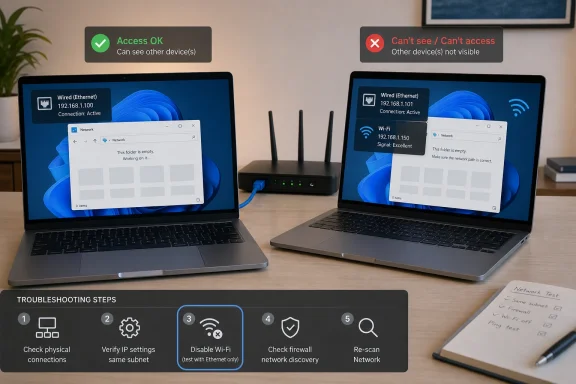 The WindowsForum case turns on a concrete oddity, not on a generic “Windows networking is hard” lesson: the user reported two Windows 11 PCs that were supposed to be wired to the router, yet his wife’s PC showed both a wired IP address and a wireless IP address. At the same time, visibility was asymmetric. In the user’s words, the problem was not simply that “network discovery” failed everywhere; his wife’s computer could see his PC, but he could not see hers. Later, the direction of the failure appeared to shift, with her computer unable to see his.
That combination is the spine of the diagnosis. If one machine has two active network identities while both users believe the PCs are simply cabled to the same router, the first question is not whether Windows says the network is Private. The first question is which adapter Windows is actually using when it advertises the PC, resolves the other PC’s name, applies firewall rules, and accepts file-sharing connections.
The most useful answer for this thread is therefore narrow: temporarily remove the wireless path from the wife’s PC, prove both machines are on the same wired subnet, test access by IP address both ways, and only then test name resolution and Network view discovery. The working wireless printer and the presence of a Halo 4G failover device are important context, but they do not override the dual-address clue.
What the Forum Report Actually Shows
The user described two Windows 11 PCs: his own AMD-based machine and his wife’s Intel-based machine. Both were said to be connected to the router by Ethernet cable. The home network also includes a wireless printer that continues to work, a hidden Wi‑Fi network, and a Halo device that uses a 4G connection when the BT cable broadband signal fails.Those details matter because they describe a network with more than one possible path. A PC can look “wired” from the user’s point of view while still keeping Wi‑Fi connected in the background. If the wife’s PC has both Ethernet and Wi‑Fi addresses, it may be reachable through one interface, advertising through another, or resolving names differently depending on which path Windows prefers at that moment.
The reported visibility problem was also not a clean, symmetric failure. One direction worked while the other did not: the wife’s PC could see the user’s PC, but the user’s PC could not see the wife’s. Later, the report suggested the opposite direction was failing. That is exactly the kind of symptom that can appear when discovery, name resolution, firewall profile, credentials, or adapter selection are not aligned.
The working printer should not be treated as proof that PC-to-PC sharing is fine. It proves only that the printer path works. A printer can remain usable through a saved port, vendor software, router-assisted discovery, or its own wireless behavior while Windows file sharing between two PCs still fails.
Start With the Wife’s Dual Connection
The wife’s PC showing both wired and wireless IP addresses is the strongest clue in the thread. It is stronger than the AMD-versus-Intel distinction, stronger than the word Private, and stronger than the fact that the printer still prints.A dual-connected PC can confuse a home-sharing setup in several practical ways:
- File Explorer may display a machine discovered through one adapter while the connection attempt goes through another.
- The PC name may resolve to the wireless address when the user expects the wired address.
- Windows Firewall may apply rules differently depending on the active interface and profile.
- Network discovery may publish the machine on Wi‑Fi while the user tests from the wired side.
- A hidden SSID may reconnect automatically, so the user does not notice that Wi‑Fi is still involved.
- A failover event may change gateway or DNS behavior without anyone unplugging the Ethernet cable.
On the wife’s PC, turn off Wi‑Fi temporarily. Do not just prefer Ethernet. Do not leave Wi‑Fi connected and assume Windows will do the obvious thing. Disable Wi‑Fi for the test, leave the Ethernet cable connected, and confirm that the wife’s PC still has normal network access over Ethernet. Then check the user’s PC as well and make sure it is also using the intended wired connection.
If the two PCs can see and access each other reliably with Wi‑Fi disabled on the wife’s PC, the thread has its answer: the issue was not the label on the network. It was the mixed adapter state.
Compare the Actual Addresses, Not the Assumption
After reducing the test to Ethernet, compare the network details on both PCs. The important values are:- IPv4 address
- Subnet mask
- Default gateway
- DNS server
- Active adapter name
- Network profile for that adapter
ipconfig /all is the usual quick way to see the details.The key question is whether the two PCs are actually in the same local range. If one machine is on
192.168.1.x and the other is on 192.168.0.x, or if one is on a guest-style wireless segment while the other is on the wired LAN, both may still have internet access while local Windows sharing fails. The user’s belief that both PCs are “connected to the router via cables” is useful background, but the IP configuration is the evidence.This is also where the Halo 4G failover path should be handled carefully. The thread says there is a Halo device that operates over 4G when the BT cable broadband signal fails. That makes failover a real network event in this home, but the article should not accuse it without a test. The useful check is simple: compare the PCs’ IP address, gateway, DNS, and profile before and after a failover or recovery event. If those values change, the failover path may be part of the timing. If they do not, move on.
Test Direct IP Access Before File Explorer’s Network View
File Explorer’s Network view is not the ground truth. It is a browsing layer that depends on discovery, naming, timing, cached results, firewall rules, and services. In this thread, where visibility is one-way or inconsistent, relying on that view alone can mislead the user.Once both PCs are on Ethernet only and their addresses are known, test direct access by IP address.
From the user’s PC, open File Explorer and enter the wife’s PC address in this form:
\\192.168.x.x\sharenameThen reverse the test from the wife’s PC to the user’s PC:
\\192.168.x.x\sharenameUse the actual IPv4 address of the target PC and a real shared folder name. If there is no known share, create one deliberately for the test rather than guessing from Network view.
This one test separates several problems that users often describe with the same phrase, “can’t see the other computer.”
If
\\IP\share works both ways, the basic path is alive. The issue is likely in name resolution, discovery display, saved credentials, or how Windows is publishing the machines.If
\\IP\share works one way only, compare the inbound rules, sharing settings, and credentials on the machine that cannot be entered.If
\\IP\share fails both ways, do not spend time polishing Network Discovery first. The lower layer is still wrong: subnet, route, firewall, SMB sharing, or the wrong adapter is still in play.The important point is that the forum’s one-way visibility must be translated into one-way tests. “She can see mine, but I can’t see hers” should become: can his PC open her shared folder by IP, and can her PC open his shared folder by IP?
Then Test the Computer Names
Only after IP access is tested should the PC names be tested.Use the same pattern, but replace the address with the target computer name:
\\ComputerName\sharenameIf the IP form works but the name form fails, the problem has narrowed. The machines can reach each other, but the name being typed or clicked is not resolving to the right place. That is where DNS settings, local name resolution, cached names, and router behavior become relevant.
This is the only place where the forum’s DNS over HTTPS material is worth mentioning in this article, and only cautiously. WindowsForum has separate guides about setting up DNS over HTTPS in Windows 11/10 for private, encrypted browsing. Those guides are about browsing privacy, not about this home-LAN failure. Still, if one PC uses router-provided DNS and another has been configured to use a public encrypted resolver, local informal PC names may behave differently from normal internet names. That would not stop direct
\\IP\share access, but it could explain why \\ComputerName\share fails.So the test is precise: if IP works and name fails, compare DNS settings and local name behavior. If IP fails too, DNS over HTTPS is not the first suspect.
Check Discovery Only After Reachability Is Known
Network Discovery matters, but in this thread it should not be the first lever pulled. It should come after the wired-only and IP-access tests.If both PCs can open each other’s shares by IP address but do not appear reliably in File Explorer’s Network view, then check discovery. On both PCs, confirm that Network Discovery and File and Printer Sharing are enabled for the active private home connection. Also check the discovery-related services, especially the ones Windows uses to publish and find local resources, such as Function Discovery Provider Host and Function Discovery Resource Publication.
The target is not to make every possible discovery service a ritual checklist. The target is to explain the specific symptom:
- A PC can be reachable by IP but absent from Network view.
- A PC can appear in Network view but fail when opened.
- A PC can publish itself on one adapter while the user expects another adapter.
- A PC can have discovery enabled for one profile while the active connection uses another.
Verify the Firewall Profile on the Active Adapter
Do not simply turn off Windows Firewall as a “fix.” It may be useful for a short test, but it should not become the solution.Instead, verify the firewall profile for the adapter being used. On the wired test, the Ethernet adapter should be the active path, and the sharing/discovery rules should be allowed for that profile. If the wife’s PC was previously advertising or accepting traffic through Wi‑Fi, the firewall result can change when Wi‑Fi is disabled and Ethernet becomes the only path.
For this thread, the test should be tied to direction. If the user’s PC can open the wife’s share by IP, but the wife’s PC cannot open his, inspect the user’s inbound sharing rules and sharing permissions. If the wife’s PC is the one that cannot be entered, inspect hers. Direction matters; do not apply random changes to both machines and lose the evidence.
Separate “Cannot See” From “Cannot Access”
The forum wording uses visibility language, which is normal. Users say one computer “can see” or “cannot see” another. For troubleshooting, that phrase needs to be split into specific results.There are at least four different failures hiding inside “cannot see”:
- The other PC does not appear in File Explorer’s Network view.
- The other PC appears but will not open.
- The other PC opens by IP but not by name.
- The other PC opens but rejects credentials or denies access to the share.
In the WindowsForum case, this distinction is especially important because the visibility was asymmetric. If one PC can open the other by IP, write that down. If the reverse direction fails, write down the exact error. If name access fails but IP access works, write that down separately. The fix depends on which of those tests fails.
Credentials Come After the Network Path
If the other PC is reachable but Windows asks repeatedly for a username and password, rejects the login, or opens the machine but denies access to a folder, the problem has moved above discovery.At that point, check the share permissions, NTFS permissions, and saved Windows credentials. Remove stale credentials for the other PC from Credential Manager and reconnect using the correct account for the target machine. Be explicit about the account format, especially if one PC uses a Microsoft account and the other uses a local account.
This may sound separate from the wife’s dual-IP clue, but it belongs in the same narrowed workflow. The goal is to avoid treating every failure as discovery. Once
\\IP\share reaches the target and asks for credentials, the network path is no longer the main question.What the Working Printer Does and Does Not Prove
The wireless printer is useful evidence, but it is limited evidence.It proves the household network is not completely dead. It may also prove that at least one wireless path is functioning. But it does not prove the two PCs are on the same subnet, using the same adapter path, publishing discovery correctly, or accepting SMB file-sharing traffic.
A printer can keep working even when Windows PC browsing fails because the printer path may be cached, direct, vendor-managed, or discovered by a different mechanism. In this thread, the printer should be treated as context, not as a reason to skip IP and subnet checks.
The same restraint applies to the hidden Wi‑Fi network. A hidden SSID is not automatically the cause. But because the wife’s PC showed both wired and wireless IPs, the hidden Wi‑Fi network is a plausible source of unnoticed reconnection. That is why disabling Wi‑Fi temporarily is the cleanest first test.
How to Test the Halo Failover Without Blaming It
The Halo 4G device belongs in the article because the user put it in the network description. It should not be turned into an unsupported conclusion.A failover device can be relevant if the problem appears after the broadband link drops, after it returns, or after the router renews leases. In those moments, clients may receive different DNS, gateway, or addressing information, or Windows may reassess the active network. But the thread details do not prove that happened here.
The practical test is modest:
- With the broadband connection in its normal state, record each PC’s IPv4 address, subnet mask, gateway, DNS server, active adapter, and network profile.
- Test
\\IP\shareboth ways. - If a failover or recovery event occurs, record the same values again.
- Compare the before-and-after results.
The Short Checklist for This Thread
For the reported setup, the fix path should stay short:- Disable Wi‑Fi on the wife’s PC.
The thread reports that her PC has both wired and wireless IP addresses. Remove the wireless path temporarily and test Ethernet only. - Confirm both PCs are actually wired.
Make sure neither PC is using Wi‑Fi, a guest network, a VPN adapter, or another unexpected interface for the test. - Compare IPv4 details.
Check IP address, subnet mask, default gateway, DNS server, and active adapter on both PCs. They should be on the same local subnet for simple home sharing. - Test direct access by IP both ways.
Use\\IP-address\sharenamefrom each PC to the other. Record whether each direction works. - If IP works, test by computer name.
Use\\ComputerName\sharename. If name fails while IP works, focus on name resolution and DNS behavior. - If IP works but Network view is wrong, check discovery.
Confirm Network Discovery, File and Printer Sharing, and the discovery publication services on both PCs. - If one direction fails, check the target machine.
The blocked machine is usually the one receiving the connection. Check its firewall profile, sharing rules, share permissions, and credentials. - If credentials fail, clear saved entries.
Remove old stored credentials for the other PC and reconnect with the correct account for the target. - Only then reintroduce Wi‑Fi.
After wired sharing works, turn Wi‑Fi back on and see whether the problem returns. If it does, the wife’s dual connection is not incidental. - Watch failover as a state change.
If the Halo 4G path activates or recovers, compare the same IP, gateway, DNS, and profile details again.
Likely Reading of the Case
The best reading of the WindowsForum thread is that the user was not facing a mysterious failure caused by the word Private. He was looking at a home network where one PC appeared to have two active local identities, the visibility symptom changed direction, and the surrounding setup included hidden Wi‑Fi plus a 4G failover path.That does not require a dramatic explanation. It requires a disciplined one.
If disabling Wi‑Fi on the wife’s PC makes the two cabled PCs behave, the practical fix is to keep that desktop Ethernet-only or adjust the wireless profile so it does not reconnect unnecessarily. If IP access works but names do not, the next fix is name resolution, not the cable. If IP access fails in one direction, inspect the receiving PC’s firewall and sharing configuration. If access reaches the machine but fails at login, clean up credentials and permissions.
The important shift is to stop treating “can’t see the other PC” as one problem. In this thread it is a sequence of testable questions: which adapter is active, are both PCs on the same subnet, does
\\IP\share work, does \\Name\share work, does Network view merely lag behind, and does authentication succeed?The wife’s wired-plus-wireless IPs are the clue that makes the case specific. Start there, prove the wired path, and only then rebuild discovery and naming around the path that actually works.
References
- Primary source: learn.microsoft.com
DNS Encryption using DNS over HTTPS in Windows and Windows Server | Microsoft Learn
Discover how DNS over HTTPS (DoH) in Windows enhances privacy and security by encrypting DNS queries and responses using HTTPS and TLS.learn.microsoft.com - Primary source: WindowsForum
Windows 11 - Strange Private network issue. | Windows Forum
The thread is about troubleshooting why one Windows 11 PC can’t be discovered or accessed by the other over the home “private” network for file sharing ...windowsforum.com
