

Printer paper‑jam errors are one of the most common causes of an abrupt printing stop in Windows, and they’re almost always fixable with a few mechanical checks and a short sequence of Windows‑side troubleshooting steps that get you back to printing quickly.
Paper jams are fundamentally a hardware issue — a physical sheet that didn’t feed correctly, a torn corner left behind, or a misaligned tray — but the way Windows interacts with your printer can magnify the problem. A single jammed sheet can cause a queued job to hang, the print spooler to stall, or the device to appear offline in Settings. The practical result is the same: printing stops until both the printer hardware and Windows’ print pipeline are cleared and synchronized again.
Manufacturers build safety sensors to prevent damage when paper is stuck, and Windows manages the jobs via the Print Spooler service. Resolving a jam therefore usually requires two parallel actions: fix the physical jam and then reset the Windows print subsystem so it can continue processing jobs. Microsoft’s guidance — and community‑tested playbooks — follow this two‑track approach.
For routine maintenance, adopt a simple checklist: use the right paper, power‑cycle monthly, keep firmware current, and run a test page after any Windows update that mentions device or driver improvements. These habits prevent jams from becoming productivity problems.
Source: Microsoft Support Fix printer stopped due to paper jam errors in Windows - Microsoft Support
 Background
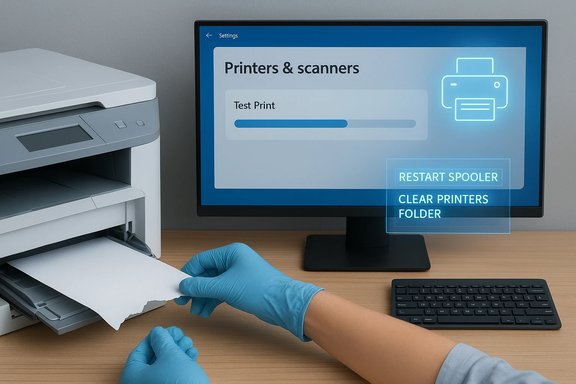
Paper jams are fundamentally a hardware issue — a physical sheet that didn’t feed correctly, a torn corner left behind, or a misaligned tray — but the way Windows interacts with your printer can magnify the problem. A single jammed sheet can cause a queued job to hang, the print spooler to stall, or the device to appear offline in Settings. The practical result is the same: printing stops until both the printer hardware and Windows’ print pipeline are cleared and synchronized again.Manufacturers build safety sensors to prevent damage when paper is stuck, and Windows manages the jobs via the Print Spooler service. Resolving a jam therefore usually requires two parallel actions: fix the physical jam and then reset the Windows print subsystem so it can continue processing jobs. Microsoft’s guidance — and community‑tested playbooks — follow this two‑track approach.
Immediate, low‑effort checks (first 2–5 minutes)
These are the fastest fixes and should be attempted before you dive into deeper Windows diagnostics.- Power‑cycle the printer: turn it off, unplug for 30–60 seconds, plug in and power on. This clears transient hardware states.
- Look for obvious jams: open the main paper tray, duplexer/duplex unit, rear access panel, toner/ink carriage area and any removable paper path covers. Remove whole sheets and any scraps or torn corners you find. Avoid using tools that might damage sensors.
- Run a hardware self‑test from the printer control panel (Print Test Page / Reports). If the printer prints its self‑test, the hardware is likely OK and the issue is in the Windows stack; if it fails, the printer needs further service.
Windows side: clear the spooler and stuck jobs
If the printer is physically clear but Windows still refuses to print, the print spooler or queued jobs are usually the culprit.Restart the Print Spooler service (fast, safe)
- Press Win + R, type services.msc and press Enter.
- Find Print Spooler, right‑click and choose Restart (or Stop then Start).
- Recheck the printer status and try a test print from Settings → Printers & scanners.
Clear the spool folder (when jobs are stuck)
If restarting doesn’t help because jobs remain stuck, you can safely remove queued files:- Stop the Print Spooler (services.msc).
- Open File Explorer and go to C:\Windows\System32\spool\PRINTERS and delete the files inside.
- Start the Print Spooler again and test printing.
Cancel or reissue the print job
After clearing the spooler, open the printer queue (Settings → Printers & scanners → Open queue) and cancel any phantom jobs. Then print a simple test page from Notepad or the printer properties to confirm the path is functional.Drivers, firmware and Windows updates
Paper jam errors are physical, but persistent or recurring post‑jam failures are often driver or firmware related.- Update the printer driver from the manufacturer’s site — prefer the full‑feature installer rather than a generic in‑box driver when you need scanning, duplex, or advanced features. Windows Update provides many drivers, but vendor installers often resolve subtle compatibility problems.
- Check for printer firmware updates on the vendor site. Firmware fixes can resolve paper‑path logic, sensor calibration, and network connectivity issues that cause repeated jams. Apply firmware updates only from the official vendor and follow their instructions.
- Keep Windows updated; some print issues have been resolved in platform patches. Use Settings → Windows Update and check Optional updates for driver packages.
Networked and shared printers — special considerations
Networked printers introduce more variables: IP address changes, firewall rules, and host sleep states can all make a cleared printer still appear jammed to other machines.- Confirm the printer’s network connectivity: ping the printer’s IP or check the device’s network page (often accessible from the printer’s web admin UI). Use a static IP or DHCP reservation where possible to avoid discovery issues.
- If the printer is shared from another Windows PC, ensure that host PC is awake and the sharing host’s Print Spooler is running. If the host sleeps, clients can’t make new print connections even after the jam is resolved.
- Confirm the port mapping (USB001 for USB, Standard TCP/IP port for network printers). A misbound port often causes Windows to send jobs to the wrong destination, making it look like a jam. Recreate the port if necessary.
Advanced Windows diagnostics (for persistent or intermittent failures)
If basic fixes don’t restore reliable printing, escalate to these diagnostics.Event Viewer and error codes
Open Event Viewer → Windows Logs → System and filter for sources like PrintService, Spooler, or RPC. Error entries often include codes and driver filenames that point to the root cause. Use those details when searching vendor knowledge bases or contacting support.System File Checker and DISM
If the spooler crashes repeatedly or you suspect OS corruption:- Open an elevated Command Prompt (Run as administrator).
- Run sfc /scannow and, if needed, DISM /Online /Cleanup-Image /RestoreHealth.
- Reboot and retest printing.
Print Management and PowerShell (Admins)
In enterprise or server scenarios use Print Management (printmanagement.msc) and PowerShell:- Use Get‑Printer and Remove‑Printer to find and purge ghost or duplicate printer objects.
- Export/import printer configurations with PrintBRM when migrating or repairing a print server.
Quick recovery checklist — a technician’s flow (3–30 minutes)
- Confirm power and remove obvious paper scraps (0–2 min).
- Run printer self‑test (1–2 min).
- Restart Print Spooler (2–5 min).
- If stuck, stop spooler and clear C:\Windows\System32\spool\PRINTERS (5–10 min).
- Update drivers, reinstall vendor full‑feature package if needed (15–30 min).
- If recurring, check firmware and apply updates following vendor instructions (15–45 min).
- For networked printers, verify IP, ports, and sharing host status (5–15 min).
Preventive maintenance to reduce future jams
Repeated paper jams often point to consumables, environmental or configuration issues rather than a single mechanical failure.- Use recommended paper weight and avoid overfilling trays. Check the tray guides and set the correct paper size in both printer and Windows settings.
- Keep the printer interior clean of dust and debris. Use manufacturer‑approved cleaning kits and follow head‑cleaning routines for inkjets.
- Avoid humid storage of paper. Humidity makes sheets stick and feed irregularly. Store paper in a dry place and fan new reams before loading if they’re slightly humid.
- Apply firmware updates periodically and schedule occasional driver checks in your maintenance routine.
Risks, caveats and security considerations
- Deleting spool files permanently removes pending print jobs. Back up important documents before clearing the spooler if preservation is essential.
- Installing unsigned drivers or third‑party driver bundles carries security and stability risks. Always prefer vendor‑signed installers from the manufacturer website or Microsoft Update.
- Temporarily disabling antivirus or firewall rules to diagnose networked prints can help isolate issues, but re‑enable protections immediately after testing. Only open firewall ports on trusted, private networks.
- On ARM‑based Windows devices, driver availability can be limited. If you’re on an ARM device, verify driver compatibility with the vendor before updating or rolling back drivers; some troubleshooting paths that work on x86/x64 may not on ARM. Treat such cases as model‑specific and check vendor documentation.
When to escalate to manufacturer service or IT
- The printer’s self‑test fails or shows mechanical error codes after cleaning and head servicing.
- The same model repeatedly jams despite correct paper, updated firmware, and serviceable mechanical components. This suggests a hardware fault (rollers, feed motor, sensors) requiring warranty service or a technician.
- In multi‑user or server environments, if spooler issues affect many clients and restart/repair steps fail, escalate to server admins; a print server reconfiguration or deeper spooler corruption may be present.
Practical examples and pro tips
- If a small strip of torn paper is visible in the feed but not removable, open the rear access panel and gently pull the strip in the direction of normal paper flow — pulling against feed direction can damage rollers. Use gloved hands and good lighting.
- For label printers and POS devices that use vendor virtual COM ports, ensure the vendor utility is installed and the correct VCOM binding is present — many printing errors masquerade as “paper jam” but are port mapping issues.
- When reinstalling drivers, use the vendor’s uninstall utility when provided. Some vendor packages include driver cleanup tools that remove leftover filters and print processors that plain uninstall won’t remove.
Conclusion
Resolving “printer stopped due to paper jam” errors is almost always a two‑part job: clear the physical jam and restore Windows’ printing pipeline. Begin with the printer’s self‑test and a careful physical inspection, then move to restarting or purging the Print Spooler if the OS still shows the device as blocked. Keep drivers and firmware up to date, check network and port settings for shared printers, and escalate to manufacturer service when the hardware fails its own self‑test repeatedly. The combination of quick mechanical checks and the targeted Windows steps described here gets the majority of users printing again with minimal downtime.For routine maintenance, adopt a simple checklist: use the right paper, power‑cycle monthly, keep firmware current, and run a test page after any Windows update that mentions device or driver improvements. These habits prevent jams from becoming productivity problems.
Source: Microsoft Support Fix printer stopped due to paper jam errors in Windows - Microsoft Support
