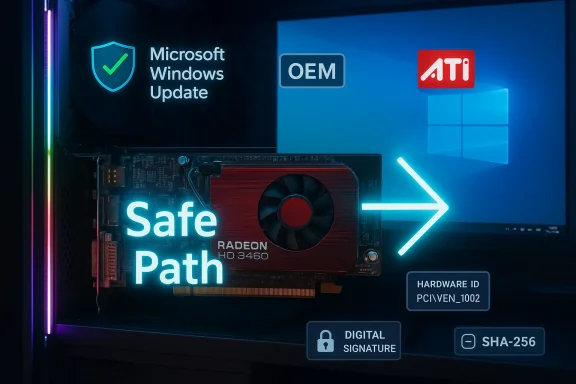
The HD 3450 is a tiny, stubborn piece of graphics history—and the frantic search for a “cheap” Windows 10 driver that suddenly promises full modern features is exactly the kind of security and stability trap every Windows user should avoid. Community investigations and vendor guidance converge on a simple reality: the ATI/AMD Radeon HD 3450 and its Mobility sibling are legacy-era GPUs whose officially supported driver story ends before the Windows 10 era, and the safest path on modern systems is to accept the limited Microsoft-supplied fallback driver or upgrade the hardware. ww.amd.com/en/resources/support-articles/release-notes/rn-rad-win-legacy.html)
The ATI Mobility Radeon HD 3450 arrived in the late 2000s as an entry-level mobile GPU aimed at thin-and-light laptops that needed basic 2D/3D acceleration and HD-era video playback. Built on a 55 nm process with a small die (M82), the chip shipped with roughly 40 unified shaders, a narrow 64-bit memory bus, and low clock speeds by modern standards—specs that are still visible in NotebookCheck and TechPowerUp device listings. Its capabilities were appropriate for the era: desktop acceleration, H.264/VC-1/MPEG-2 video decode via Avivo HD, and very modest gaming at reduced settings.
By 2013 AMD formally moved the HD 2000/3000/4000 families—including the HD 3450—into a legacy support model. The last full-featured Catalyst releases for those product lines were published around the Catalyst 13.x family, with Catalyst 13.1 often cited as the final validated branch for legacy drivers. From that point onward, AMD’s public guidance for Windows 8.1 and Windows 10 users was to rely on Microsoft’s driver distribution (Windows Update) for a signed fallback driver rather than expecting new Catalyst/Adrenalin feature parity.
This historic context matters because many modern driver features—secure signing, WDDM parity, hardware decode for modern codecs, and active quality assurance against newer kernels—were not part of the HD 3450’s original validation matrix. Trying to retro-fit those capabilities by installing repackaged installers or one-click “driver updaters” is a high-risk gamble.
te a driver download page (quick checklist)
Before running any driver installer from a third-party site, verify:
From a security and systems-administration perspective the HD 3450 is no longer a suitable foundation for a modern Windows 10 workstation that is exposed to the internet or used for sensitive tasks. AMD’s official legacy guidance points you to Microsoft’s signed fallback driver via Windows Update as the safe option, and community practice supports this conservative posture. Attempting to install repackaged “cheap” drivers to restore modern features is a high-risk path that often creates more work and more danger than simply upgrading the GPU or buying a modern low-end system.
If your goal is a stable, secure machine: accept the Microsoft-supplied driver or upgrade. If your goal is to tinker in a controlled lab with vintage hardware, follow the conservative workflow above—inventory, backup, DDU, INF inspection, manual Have Disk installs—and be prepared to restore from image if anything goes wrong.
The practical takeaway for WindowsForum readers: the cheapest driver listing is rarely a bargain. Use trusted sources, verify cryptographic provenance, and prefer the safest path—Windows Update or OEM drivers—before you consider anything more adventurous.
Conclusion
The HD 3450 will continue to work for limited, legacy tasks, but it does not belong in a modern, security-sensitive Windows environment. When dealing with legacy drivers, the technical truisms are simple and unromantic: verify, back up, prefer signed binaries, and spend a little more on supported hardware if you need modern features or long-term reliability. The urge to click a “cheap” driver link is understandable—everyone loves a quick fix—but in this case the safest, most pragmatic advice remains the same: let Windows Update do the basic job, trust OEM packages when available, and treat third‑party driver bargains as experiments only for disposable systems.
Source: Born2Invest https://born2invest.com/?b=style-231953512/
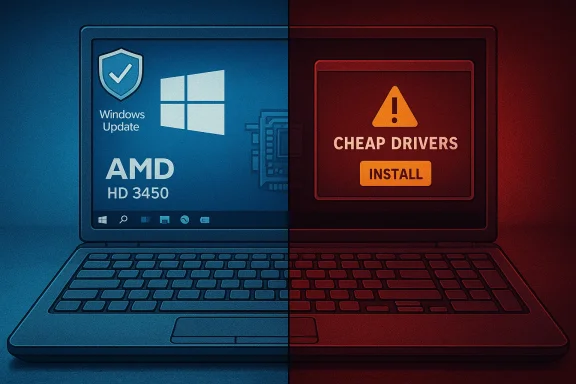 Background / Overview
The ATI Mobility Radeon HD 3450 arrived in the late 2000s as an entry-level mobile GPU aimed at thin-and-light laptops that needed basic 2D/3D acceleration and HD-era video playback. Built on a 55 nm process with a small die (M82), the chip shipped with roughly 40 unified shaders, a narrow 64-bit memory bus, and low clock speeds by modern standards—specs that are still visible in NotebookCheck and TechPowerUp device listings. Its capabilities were appropriate for the era: desktop acceleration, H.264/VC-1/MPEG-2 video decode via Avivo HD, and very modest gaming at reduced settings. By 2013 AMD formally moved the HD 2000/3000/4000 families—including the HD 3450—into a legacy support model. The last full-featured Catalyst releases for those product lines were published around the Catalyst 13.x family, with Catalyst 13.1 often cited as the final validated branch for legacy drivers. From that point onward, AMD’s public guidance for Windows 8.1 and Windows 10 users was to rely on Microsoft’s driver distribution (Windows Update) for a signed fallback driver rather than expecting new Catalyst/Adrenalin feature parity.
This historic context matters because many modern driver features—secure signing, WDDM parity, hardware decode for modern codecs, and active quality assurance against newer kernels—were not part of the HD 3450’s original validation matrix. Trying to retro-fit those capabilities by installing repackaged installers or one-click “driver updaters” is a high-risk gamble.
What the vendor record actually says
- AMD’s official legacy guidance states that the HD 4000/3000/2000 series reached “peak performance optimization” in October 2013 and that no additional driver releases are planned for those products. For Windows 8.1 and Windows 10, AMD directs users to Windows Update to receive the Microsoft-signed fallback driver (commonly observed in the community as the 8.970.x family, e.g., 8.970.100.9001).
- Microsoft has ended mainstream support for Windows 10: the operating system reached end of support on October 14, 2025, which changes the risk calculus for running legacy drivers on that platform. Extended Security Updates (ESU) may be available for eligible machines for a limited period, but using an unsupported OS plus legacy kernel drivers increases security exposure.
The driver landscape: four tiers, ranked by safety
When you look for a driver for legacy hardware like the Radeon HD 3450 on a modern Windows machine you’ll typically find packages from four broad sources. Rank them by trust and long-term safety:- Microsoft / Windows Update (recommended first)
- Why: Microsoft distributes a signed driver via Windows Update that provides correct resolution, multi‑monitor support, and basic desktop/video acceleration without exposing you to unsigned kernel code. This is the vendor-endgacy Radeon families.
- OEM / system-vendor downloads (branded desktops and laptops)
- Why: OEM packages are tuned to the specific platform’s firmware, hybrid-graphics behavior, and power-management quirks. If your laptop or prebuilt PC originally shipped with an HD 3450 variant, the vendor’s support page is often the safest place to look. Community experience repeatedly shows OEM drivers beating generic archives for stability.
- AMD archived Catalyst packages (advanced users only)
- Why: AMD keeps legacy Catalyst archives (Catalyst 13.1 and related releases). Those installers were designed for Windows 7/8-era kernels and may be coaxed into working on Windows 10 only by extracting the packageNF lists your exact hardware ID. This is a manual, advanced workflow best pursued only by experienced users who can take full rollback precautions.
- Third‑party repackagers and “cheap driver” bundles (avoid)
- Why: These often modify INFs, strip or fake signatures, or bundle unwanted extras. Marketplaces advertising “one‑click Windows 10 drivers” for legacy hardware are a frequent source of stability and security incidents. Treat them as last-resort experiments on nly.
Why “cheap” driver downloads are a real danger
There are three concrete, recurring risks when you download and install repackaged drivers:- Kernel-level provenance and malware risk: Drivers run with kernel privileges. Repackaged installers may contain altered binaries or additional executables that evade basic checks. If a distributor does not publish a SHA-256 checksum or a trusted digital signature, you cannot confidently verify the package’s integrity. Commuerators have repeatedly flagged third‑party archives and aggregator pages as untrustworthy.
- System instability and incompatibility: Legacy Catalyst installers were written for older Windows driver models and kernels. Forcing them onto modern Windows 10 kernels can result in partial installs (Control Center present while the GPU remains on the Microspter), display black screens, or boot regressions. Reverting from a broken display driver often requires Safe Mode, DDU (Display Driver Uninstaller), and a full system image if something goes wrong.
- Update conflicts and rollback surprises: Windows Update can—and will—replace manual installs with its own signed driver. That behavior protects users but can also break a manually installed legacy package mid-test. Temporarily pausing device updates during a manual install test can help, but leaving updates paused indefinitely is a security hazard.
Technical snapshot: what the HD 3450 actually is
For readers who want the concise technical picture, here are the essential device specs drawn from independent hardware databases:- GPU family: Mobility Radeon HD 3000 series (M82 architecture)
- Unified shader count: 40
- Core clock (Mobility 3450 typical): ~500 MHz
- Memory size/type: typically 256 MB DDR2 / some GDDR3 variants
- Memory bus: 64-bit
- DirectX support: DirectX 10.1
- Hardware decode: Avivo HD (MPEG-2, H.264, VC-1) — no modern HEVC/AV1 hardware decode
- Typical use case: basic desktop acceleration, legacy-era gaming at low settings, light HD video playback (software decode still needed for modern codecs)
A conservative, safe workflow to bring an HD 3450 up on Windows 10
If you accept the device’s limitWindows 10, follow this conservative step-by-step sequence to minimize risk. This workflow consolidates vendor guidance and community best practices.- Inventory and backup (don’t skip this)
- Record the exact GPU Hardware Id: open Device Manager → Display adapters → right‑click → Properties → Details → Hardware Ids; copy the PCI\VEN_1002&DEV_xxxx string.
- Create a System Restore point and, if possible, a full disk image. Driver changes to the display stack can render a system unbootable; a disk image is the fastest recovery.
- Keep a second display output or be prepared to boot to Safe Mode.
- Try Windommended)
- Settings → Update & Security → Windows Update → View optional updates → Driver updates. If Windows Update offers a driver, install it and validate basic functionality (resolution, multi-monitor, video playback). This is the vendor-approved fallback for legacy HD families.
- Check for OEM/vendor drivers (if the system is branded)
- For laptops or OEM desktops, check Dell/HP/Lenovo/ASUS support pages for driver packages tailored to your model. Those packages often handle hybrid graphics and power management better than generic archt try a legacy Catalyst package, treat it as advanced and manual-only
- Obtain the archive only from AMD’s official legacy pages or your OEM. Extract the package (many official installers unpack to C:\AMD).
- Inspect Display.Driver*.inf for your PCI\VEN_1002&DEV_xxxx entry. If the INF does not list your device, stop. Editing INFs and re-signing should be avoided on production machines.
- Clean the driver state before attempting manual installs
- Boot to Safe Mode and run Display Driver Uninstaller (DDU) to remove remnants of previous dconflicts and partial installs.
- Manual “Have Disk” install (if INF contains your device)
- Use Device Manager → Update driver → Browse my computer → Let me pick → Have Disk → point to the extracted INF. Reboot and validate.
- If Windows Update later reverts the driver, temporarily hide the device update during testing; re-enable updates afterward for long-term security.
- Rollback and recovery plan
- If a manual install leave or booting to black, boot to Safe Mode and use your disk image or System Restore point to return to the previous state. Keep DDU handy and never leave signature enforcement or Secure Boot permanently disabled on a production machine.
Common failure modes and concrete fixes
- Symptom: Installer reports “This device is not supported.”
- Cause: The Display.Driver*.inf in the package does not list your hardware ID.
- Fix: Extract the package and inspect the INF. If your PCI\VEN_1002&DEV_xxxx is not present, do not INF is an advanced, risky move.
- Symptom: Catalyst Control Center appears but Device Manager still shows “Microsoft Basic Display Adapter.”
- Cause: A partial install or leftover driver remnants.
- Fix: Boot to Safe Mode, run D then retry the manual or Microsoft driver install.
- Symptom: Windows Update keeps replacing your manual driver with Microsoft’s driver.
- Cause: Windows Update considers its signed driver the canonical device driver.
- Fix: Temporarily pause or hide the device update while you validate a manual install; re‑enable updates afterward. Never leave updates paused indefinitely.
- Symptom: Black screen or system fails to boot after experimental install.
- Fix: Boot to Safe Mode and roll back using System Restore or restore your disk image. If needed, use DDU in Safe Mode to remove the problematic package.
Buying advice: when a clearance “HD 3450 laptop” is actually a false economlearance or “hot” listing for a laptop with an ATI Mobility Radeon HD 3450, ask yourself three questions before clicking Buy:
- What will you actually use it for?
- The HD 3450 is fine for light web browsing (with lightweight browsers), office work, or retro gaming. It is not suitable for modern multimedia workloads or recent gaming titles. If your needs incback, remote work that requires video conferencing with high-quality decoding, or any security-sensitive tasks, a modern low-end GPU or newer integrated graphics will be far more cost-effective in the long run.
- What’s the seller’s return policy and proof of working condition?
- Ask for evidence the card boots on a working system (a short video of Device Manager or a GPU-Z readout is ideal). Insist on a DOA window and a clear refund process. Prefer sellers who point to OEM downloads or official AMD archives for drivers rather than supplying an unknown installer.
- Are you prepared to accept driver limitations and an unsupported OS?
- With Windows 10 out of mainstream support (October 14, 2025), running old hardware on an unsupported OS is an added risk. If you cannot upgrade the OS or hardware and you plan to expose the device to the internet or store sensitive data on it, the modest savings of a legacy laptop often aren’t worth the security exposure.
te a driver download page (quick checklist)
Before running any driver installer from a third-party site, verify:
- Does the package come from AMD or your OEM? If not, treat it with caution.
- Is there a published SHA‑256 checksum or a cryptographic signature you can verify? If not, do not run the installer.
- Does the Display.Driver*.inf list your exact PCI\VEN_1002&DEV_xxxx hardware ID? If not, the installer will likely refuse or produce a partial install.
- Are independent community posts corroborating the specific download? One forum endorsement is not enough; prefer OEM or AMD-archived resources.
Cross-checks and verification: what we confirmed
- AMD’s legacy policy and the recommendation to rely on Windows Update for HD 2000/3000/4000 families is confirmed by AMD’s own legacy support article and independent reporting of the Catalyst legacy transition.
- The Microsoft Windows 10 end-of-suppo2025) is official Microsoft guidance; Extended Security Updates may be available for eligible devices for a limited term. This materially affects the advisability of running legacy drivers on Windows 10.
- Community playbooks—clean installs with DDU, manual INF inspection, OEM preference, and Windows Update as the first stop—are consistent across multiple community threads and technice practices reduce risk and are broadly adopted by experienced users.
Practical recommendation for WindowsForum readers
- If you need a stable desktop and simple multimedia on a modern Windows build, let Windows Update install the Microsoft-signed legacy driver and stop there. That gives you the best combination of stability and security for a legacy GP/www.amd.com/en/resources/support-articles/release-notes/rn-rad-win-legacy.html)
- If you run a branded laptop that originally shipped with an HD 3450, check the OEM support page for model-specific drivers before attempting anything manual. OEM packages are often better tuned for laptop power and switchable graphics.
- If you require modern codecs, better gaming, or long-term security, treat the HD 3450 as end-of-life hardware and consider a modest hardware upgrade. In most real-world cases the time and risk of coaxing an old driver into a modern kernel don’t justify saving a small purchase price.
- Never download driver packages from aggregator “cheap download” pages without a published cryptographic checksum and an obvious OEM or AMD provenance. If you encounter a Born2Invest-style or marketplace listing promising miraculous Windows 10 compatibility, treat it as unverified and potentially dangerous.
Final assessment — strengths, trade-offs, and closing verdict
The Radeon HD 3450 is a compact, historically interesting GPU that still has value for specific narrow tasks: legacy gaming, lightweight desktop use, or refurbishing old office boxes. Its strengths are low cost and low power draw in appropriate legacy contexts. However, its limitations are equally decisive: no modern codec acceleration, tiny VRAM, narrow memory bus, and no ongoing Catalyst/Adrenalin updates.From a security and systems-administration perspective the HD 3450 is no longer a suitable foundation for a modern Windows 10 workstation that is exposed to the internet or used for sensitive tasks. AMD’s official legacy guidance points you to Microsoft’s signed fallback driver via Windows Update as the safe option, and community practice supports this conservative posture. Attempting to install repackaged “cheap” drivers to restore modern features is a high-risk path that often creates more work and more danger than simply upgrading the GPU or buying a modern low-end system.
If your goal is a stable, secure machine: accept the Microsoft-supplied driver or upgrade. If your goal is to tinker in a controlled lab with vintage hardware, follow the conservative workflow above—inventory, backup, DDU, INF inspection, manual Have Disk installs—and be prepared to restore from image if anything goes wrong.
The practical takeaway for WindowsForum readers: the cheapest driver listing is rarely a bargain. Use trusted sources, verify cryptographic provenance, and prefer the safest path—Windows Update or OEM drivers—before you consider anything more adventurous.
Conclusion
The HD 3450 will continue to work for limited, legacy tasks, but it does not belong in a modern, security-sensitive Windows environment. When dealing with legacy drivers, the technical truisms are simple and unromantic: verify, back up, prefer signed binaries, and spend a little more on supported hardware if you need modern features or long-term reliability. The urge to click a “cheap” driver link is understandable—everyone loves a quick fix—but in this case the safest, most pragmatic advice remains the same: let Windows Update do the basic job, trust OEM packages when available, and treat third‑party driver bargains as experiments only for disposable systems.
Source: Born2Invest https://born2invest.com/?b=style-231953512/