

Realtek HD Audio Manager usually goes missing on modern Windows 11 PCs because the old desktop control panel has been replaced by an OEM-supplied Realtek driver stack and a Microsoft Store companion app called Realtek Audio Control. That is the practical answer behind a problem that still looks, to many users, like a broken Start menu shortcut or a vanished Control Panel item. The fix is not to hunt for RtkNGUI64.exe in a forum archive; it is to repair the driver-and-app pairing that Windows, Realtek, Microsoft, and the PC maker now expect to exist together.
As Technobezz’s troubleshooting guide lays out, the first move is no longer “find Realtek HD Audio Manager,” but “open or reinstall Realtek Audio Control.” Microsoft’s own driver documentation and support pages point in the same direction: current Windows systems increasingly rely on Windows Update, optional driver updates, and hardware-vendor packages to deliver the right driver for the right device. The missing app is a symptom, not the disease.
For years, Realtek HD Audio Manager was one of those utilities users barely noticed until it vanished. It lived in Control Panel, sometimes appeared in the notification area, and handled things Windows sound settings either did not expose or made awkward: jack detection, speaker configuration, microphone effects, and the ever-mysterious pop-up asking what you just plugged into the green port.
That older utility belonged to the classic Realtek HD Audio driver era. It was a desktop application attached to a hardware driver, and it was often installed as part of a bulky OEM package from Dell, HP, ASUS, Lenovo, MSI, Gigabyte, or the motherboard vendor of the week. If it broke, users often reinstalled a Realtek codec package, rebooted, and hoped the orange speaker icon returned.
Windows 11 changed the expectations around that workflow. So did Windows 10’s later driver model. Many current PCs use Realtek UAD or DCH-style driver packages, which split the driver, software components, and user-facing control app into a more modular arrangement. In that world, Realtek Audio Control, sometimes shown as Realtek Audio Console, is the front-end users are supposed to see.
This is why old advice has become actively misleading. A missing Realtek HD Audio Manager icon does not necessarily mean the Realtek driver is absent. It may mean the machine is using a newer driver model where that application was never meant to be present in the first place.
But modern Windows driver packaging often separates the hardware driver from the hardware support app. The app can arrive through the Microsoft Store, while the driver itself comes from Windows Update or the OEM’s support site. The result is cleaner in theory and maddening in practice: the app may not install, may not show up in Start, or may refuse to launch if the matching Realtek driver components are missing.
That is why the first step is deceptively simple. Open Microsoft Store, search for Realtek Audio Control, install it if available, and then check Start’s All apps list. If it is already installed but absent from Start, the Store Library page may still offer an Open or Install button. This is the least invasive fix and the one most aligned with the way current OEM Realtek packages are supposed to work.
The catch is compatibility. The Store app is not a universal magic switch for every Realtek chip ever shipped. It expects a compatible driver stack underneath it. If the PC still uses an older legacy Realtek HDA package, or if Windows has fallen back to a generic audio device driver, the app may be unavailable, nonfunctional, or useless.
That dependency explains the most common user complaint: “The Store says I have it, but it does nothing.” In modern Windows audio troubleshooting, an installed app is not proof of a healthy driver layer. It is only half the arrangement.
On Windows 11, the path is Settings, Windows Update, Check for updates. Install available audio or Realtek updates, then restart. The restart is not ceremonial; audio drivers sit low enough in the stack that Windows often needs a clean boot cycle before services, extensions, and companion apps line up properly.
The optional update area is easy to miss. On Windows 11, it sits under Windows Update, Advanced options, Optional updates, Driver updates. If a Realtek or audio driver appears there, install it, restart, and then check Realtek Audio Control again.
Windows 10 uses a similar idea with slightly different surfaces. Settings, Update & Security, Windows Update, Check for updates remains the starting point. If “View optional updates” appears, driver updates may be listed there.
The Windows 10 wrinkle is support status. Microsoft ended mainstream Windows 10 support on October 14, 2025, though some devices may still receive updates through extended programs or enterprise arrangements. The menus still exist, and the driver workflow still applies, but anyone maintaining Windows 10 in 2026 needs to remember that the operating system itself has crossed into a support edge case.
That tedium is the point. Realtek audio on consumer PCs is rarely just “a Realtek chip.” OEMs add amplifier tuning, jack behavior, microphone arrays, noise suppression, speaker profiles, DTS or Dolby components, Waves MaxxAudio integration, and laptop-specific routing. A generic driver may produce sound, but it may not expose the features the machine was sold with.
The OEM package can also install the pieces that make Realtek Audio Control appear correctly in the Store. In many cases, the Store app is not something users should install first in isolation; it is the visible front-end that lights up after the vendor’s driver and extension components are present.
Manufacturer utilities can help. ASUS users may find audio updates in MyASUS. HP points users through HP Support Assistant. Dell uses SupportAssist. Lenovo uses Vantage. These apps are not beloved by power users, but for audio drivers they can be useful because they know the hardware model better than Windows Update sometimes does.
The important distinction is between “Realtek made the codec” and “Realtek knows how this exact laptop routes audio.” The second question belongs to the OEM.
Start with Microsoft Store, Library, Get updates. Store app updates can fix launch failures, dependency problems, and stale app packages. It is an unglamorous step, but it avoids making a driver problem out of an app problem.
On Windows 11, the repair path is Settings, Apps, Installed apps, then the three-dot menu beside Realtek Audio Control or Realtek Audio Console, followed by Advanced options. Repair is the conservative choice. Reset is the next step if Repair fails, because it clears app data and puts the app back closer to a first-run state.
Windows 10 places the same idea under Settings, Apps, Apps & features. Select the Realtek app, open Advanced options, and try Repair or Reset. If neither works, uninstalling the app and reinstalling it from the Store Library or Store listing is reasonable.
This is one of the few places where Windows’ app platform actually makes troubleshooting cleaner. A broken desktop utility often required registry spelunking or a full driver reinstall. A broken Store app can sometimes be repaired like any other packaged application.
The safer sequence is to open Device Manager, expand Sound, video and game controllers, right-click the Realtek audio device or sound card listing, and choose Uninstall device. If Windows offers “Attempt to remove the driver for this device,” selecting it makes the uninstall more complete. After that, restart and let Windows attempt to rebuild the audio stack.
This is not the same as fixing the companion app. A reinstall may restore the Realtek device and working sound without restoring Realtek Audio Control. If that happens, the next step is still the OEM audio package, not another random Realtek download.
Rollback has an even narrower use case. If the Realtek controls vanished immediately after a Windows update or driver update, Device Manager’s Properties, Driver, Roll Back Driver option may restore the previous working state. But Roll Back Driver only appears when Windows has an older driver available, and it requires administrator permission.
This distinction matters for IT pros. A rollback is a tactical reversal of a known bad update. A reinstall is a broader attempt to rebuild a broken device stack. Neither should be treated as a cure-all.
The classic Control Panel sound dialog still exists for old-school default playback device management. Control Panel, Hardware and Sound, Sound, Playback remains useful for setting a default device or checking which endpoints Windows sees. It is not pretty, but it is still one of Windows’ more reliable diagnostic surfaces.
Where Realtek’s app still matters is in hardware-specific behavior. Jack retasking, front-panel detection, impedance sensing, microphone effects, noise suppression, speaker virtualization, and vendor-tuned enhancements may live outside Windows’ generic sound controls. If those features matter, the OEM driver and Realtek companion app matter too.
That is the correct hierarchy. Windows settings are enough for basic audio routing. Realtek Audio Control is for Realtek-specific features. The missing legacy manager is mostly a clue about which driver generation your system is running.
Realtek’s own generic packages have historically served broad chip support, not every vendor’s custom implementation. That distinction mattered in the old HDA era and matters more now. A modern laptop audio subsystem is not just a codec; it is a chain of drivers, extensions, services, firmware expectations, and sometimes third-party audio processing.
The internet’s obsession with RtkNGUI64.exe and RAVCpl64.exe is similarly misplaced. Those executables belong to older Realtek desktop control paths. On a current Windows 11 PC using a UAD or DCH package, their absence is not automatically a failure.
This is the driver equivalent of trying to reinstall Windows Media Player to fix Spotify. The missing thing is familiar, but it may not be the thing the system uses anymore.
For admins, Realtek audio issues can become a packaging and policy question rather than a help-desk oddity. Do you allow driver updates from Windows Update? Do you block Microsoft Store access? Do OEM utilities exist on the corporate image? Are audio console apps provisioned, user-installed, or prohibited?
Those answers determine whether the fix is a user-level reinstall or a fleet-level driver deployment. A locked-down laptop that cannot install Realtek Audio Control from the Store is not “still broken” in the ordinary consumer sense. It is obeying policy.
The practical remedy is to push the correct OEM Realtek driver package and companion app through the organization’s standard software and driver process. That may be slower than clicking Install in the Store, but it is the only fix that survives device compliance rules.
That layered approach has benefits. Drivers can be serviced through Windows Update. Apps can be updated through the Store. OEMs can ship model-specific tuning without forcing every user to install the same ancient desktop utility.
But the cost is discoverability. A user sees “Realtek HD Audio Manager missing” and Windows offers no plain-English explanation that the old app may have been replaced. The Store app may not appear until the driver is correct. The driver may not appear unless optional updates are checked. The OEM package may be buried behind a serial-number lookup.
This is the Windows support experience in miniature: modular, more secure, and more maintainable on paper; opaque and brittle when one layer goes missing.
As Technobezz’s troubleshooting guide lays out, the first move is no longer “find Realtek HD Audio Manager,” but “open or reinstall Realtek Audio Control.” Microsoft’s own driver documentation and support pages point in the same direction: current Windows systems increasingly rely on Windows Update, optional driver updates, and hardware-vendor packages to deliver the right driver for the right device. The missing app is a symptom, not the disease.
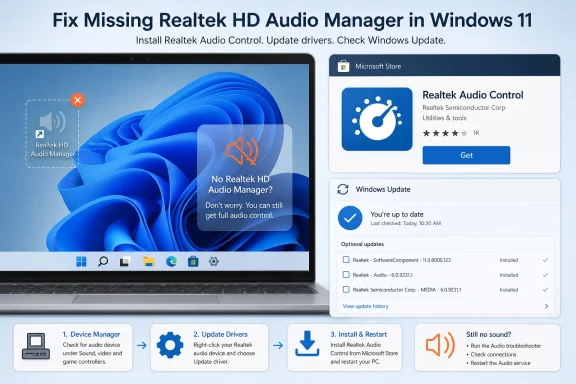 The Old Realtek Manager Did Not Disappear by Accident
For years, Realtek HD Audio Manager was one of those utilities users barely noticed until it vanished. It lived in Control Panel, sometimes appeared in the notification area, and handled things Windows sound settings either did not expose or made awkward: jack detection, speaker configuration, microphone effects, and the ever-mysterious pop-up asking what you just plugged into the green port.That older utility belonged to the classic Realtek HD Audio driver era. It was a desktop application attached to a hardware driver, and it was often installed as part of a bulky OEM package from Dell, HP, ASUS, Lenovo, MSI, Gigabyte, or the motherboard vendor of the week. If it broke, users often reinstalled a Realtek codec package, rebooted, and hoped the orange speaker icon returned.
Windows 11 changed the expectations around that workflow. So did Windows 10’s later driver model. Many current PCs use Realtek UAD or DCH-style driver packages, which split the driver, software components, and user-facing control app into a more modular arrangement. In that world, Realtek Audio Control, sometimes shown as Realtek Audio Console, is the front-end users are supposed to see.
This is why old advice has become actively misleading. A missing Realtek HD Audio Manager icon does not necessarily mean the Realtek driver is absent. It may mean the machine is using a newer driver model where that application was never meant to be present in the first place.
Microsoft Store Became Part of the Driver Story
The strange part for many Windows users is that an audio control panel now depends on the Microsoft Store. That feels wrong if your mental model of drivers was formed in the Windows 7 or early Windows 10 years, when support pages served monolithic EXE installers and utilities installed themselves alongside the INF files.But modern Windows driver packaging often separates the hardware driver from the hardware support app. The app can arrive through the Microsoft Store, while the driver itself comes from Windows Update or the OEM’s support site. The result is cleaner in theory and maddening in practice: the app may not install, may not show up in Start, or may refuse to launch if the matching Realtek driver components are missing.
That is why the first step is deceptively simple. Open Microsoft Store, search for Realtek Audio Control, install it if available, and then check Start’s All apps list. If it is already installed but absent from Start, the Store Library page may still offer an Open or Install button. This is the least invasive fix and the one most aligned with the way current OEM Realtek packages are supposed to work.
The catch is compatibility. The Store app is not a universal magic switch for every Realtek chip ever shipped. It expects a compatible driver stack underneath it. If the PC still uses an older legacy Realtek HDA package, or if Windows has fallen back to a generic audio device driver, the app may be unavailable, nonfunctional, or useless.
That dependency explains the most common user complaint: “The Store says I have it, but it does nothing.” In modern Windows audio troubleshooting, an installed app is not proof of a healthy driver layer. It is only half the arrangement.
Windows Update Is Now the First Repair Shop
The second stop is Windows Update, not a random download mirror. Microsoft’s support guidance says Windows 11 can automatically install recommended hardware drivers and can expose optional driver updates separately when they are available. For Realtek audio, those optional updates matter because they may contain exactly the OEM-approved driver needed to make the Store control app work.On Windows 11, the path is Settings, Windows Update, Check for updates. Install available audio or Realtek updates, then restart. The restart is not ceremonial; audio drivers sit low enough in the stack that Windows often needs a clean boot cycle before services, extensions, and companion apps line up properly.
The optional update area is easy to miss. On Windows 11, it sits under Windows Update, Advanced options, Optional updates, Driver updates. If a Realtek or audio driver appears there, install it, restart, and then check Realtek Audio Control again.
Windows 10 uses a similar idea with slightly different surfaces. Settings, Update & Security, Windows Update, Check for updates remains the starting point. If “View optional updates” appears, driver updates may be listed there.
The Windows 10 wrinkle is support status. Microsoft ended mainstream Windows 10 support on October 14, 2025, though some devices may still receive updates through extended programs or enterprise arrangements. The menus still exist, and the driver workflow still applies, but anyone maintaining Windows 10 in 2026 needs to remember that the operating system itself has crossed into a support edge case.
The OEM Package Is the Real Source of Truth
If the Store app and Windows Update do not fix it, the PC maker’s support site becomes the authoritative source. This is the part users resist because it feels old-fashioned and tedious: identify the exact model, service tag, serial number, or motherboard revision; choose the supported Windows version; open the Audio category; download the Realtek package; run it; reboot.That tedium is the point. Realtek audio on consumer PCs is rarely just “a Realtek chip.” OEMs add amplifier tuning, jack behavior, microphone arrays, noise suppression, speaker profiles, DTS or Dolby components, Waves MaxxAudio integration, and laptop-specific routing. A generic driver may produce sound, but it may not expose the features the machine was sold with.
The OEM package can also install the pieces that make Realtek Audio Control appear correctly in the Store. In many cases, the Store app is not something users should install first in isolation; it is the visible front-end that lights up after the vendor’s driver and extension components are present.
Manufacturer utilities can help. ASUS users may find audio updates in MyASUS. HP points users through HP Support Assistant. Dell uses SupportAssist. Lenovo uses Vantage. These apps are not beloved by power users, but for audio drivers they can be useful because they know the hardware model better than Windows Update sometimes does.
The important distinction is between “Realtek made the codec” and “Realtek knows how this exact laptop routes audio.” The second question belongs to the OEM.
The Store App Can Break Even When the Driver Is Fine
There is another failure mode: the driver is present, sound works, but Realtek Audio Control will not open. That is when Windows app repair tools are worth using before ripping out the driver.Start with Microsoft Store, Library, Get updates. Store app updates can fix launch failures, dependency problems, and stale app packages. It is an unglamorous step, but it avoids making a driver problem out of an app problem.
On Windows 11, the repair path is Settings, Apps, Installed apps, then the three-dot menu beside Realtek Audio Control or Realtek Audio Console, followed by Advanced options. Repair is the conservative choice. Reset is the next step if Repair fails, because it clears app data and puts the app back closer to a first-run state.
Windows 10 places the same idea under Settings, Apps, Apps & features. Select the Realtek app, open Advanced options, and try Repair or Reset. If neither works, uninstalling the app and reinstalling it from the Store Library or Store listing is reasonable.
This is one of the few places where Windows’ app platform actually makes troubleshooting cleaner. A broken desktop utility often required registry spelunking or a full driver reinstall. A broken Store app can sometimes be repaired like any other packaged application.
Device Manager Is a Scalpel, Not a Hammer
Device Manager remains useful, but it should not be the first button users mash. Uninstalling the Realtek audio device can fix a corrupted driver install, but it can also leave the system on a generic driver until the OEM package is reinstalled.The safer sequence is to open Device Manager, expand Sound, video and game controllers, right-click the Realtek audio device or sound card listing, and choose Uninstall device. If Windows offers “Attempt to remove the driver for this device,” selecting it makes the uninstall more complete. After that, restart and let Windows attempt to rebuild the audio stack.
This is not the same as fixing the companion app. A reinstall may restore the Realtek device and working sound without restoring Realtek Audio Control. If that happens, the next step is still the OEM audio package, not another random Realtek download.
Rollback has an even narrower use case. If the Realtek controls vanished immediately after a Windows update or driver update, Device Manager’s Properties, Driver, Roll Back Driver option may restore the previous working state. But Roll Back Driver only appears when Windows has an older driver available, and it requires administrator permission.
This distinction matters for IT pros. A rollback is a tactical reversal of a known bad update. A reinstall is a broader attempt to rebuild a broken device stack. Neither should be treated as a cure-all.
Windows Sound Settings Are Good Enough Until They Are Not
Most users do not actually need Realtek HD Audio Manager for daily work. Windows 11’s sound settings can change volume, choose output and input devices, set defaults, adjust microphone access, and expose per-app volume controls. The Quick Settings panel, opened with Windows key + A or by selecting the taskbar status area, handles the most common output switching.The classic Control Panel sound dialog still exists for old-school default playback device management. Control Panel, Hardware and Sound, Sound, Playback remains useful for setting a default device or checking which endpoints Windows sees. It is not pretty, but it is still one of Windows’ more reliable diagnostic surfaces.
Where Realtek’s app still matters is in hardware-specific behavior. Jack retasking, front-panel detection, impedance sensing, microphone effects, noise suppression, speaker virtualization, and vendor-tuned enhancements may live outside Windows’ generic sound controls. If those features matter, the OEM driver and Realtek companion app matter too.
That is the correct hierarchy. Windows settings are enough for basic audio routing. Realtek Audio Control is for Realtek-specific features. The missing legacy manager is mostly a clue about which driver generation your system is running.
Generic Realtek Downloads Are the Trap That Keeps Working Just Enough
One reason this problem refuses to die is that generic Realtek downloads sometimes appear to work. Users install a codec package, sound returns, and the immediate crisis ends. But the machine may lose OEM tuning, Store app integration, jack detection, or enhancement controls.Realtek’s own generic packages have historically served broad chip support, not every vendor’s custom implementation. That distinction mattered in the old HDA era and matters more now. A modern laptop audio subsystem is not just a codec; it is a chain of drivers, extensions, services, firmware expectations, and sometimes third-party audio processing.
The internet’s obsession with RtkNGUI64.exe and RAVCpl64.exe is similarly misplaced. Those executables belong to older Realtek desktop control paths. On a current Windows 11 PC using a UAD or DCH package, their absence is not automatically a failure.
This is the driver equivalent of trying to reinstall Windows Media Player to fix Spotify. The missing thing is familiar, but it may not be the thing the system uses anymore.
Managed PCs Add a Policy Layer Users Cannot Click Through
There is one more scenario that home troubleshooting guides tend to underplay: managed devices. If Windows says some settings are managed by your organization, driver delivery may be governed by Intune, Group Policy, Windows Update for Business, or another enterprise update tool. In that case, the user may not be allowed to install optional drivers, Store apps, or OEM packages.For admins, Realtek audio issues can become a packaging and policy question rather than a help-desk oddity. Do you allow driver updates from Windows Update? Do you block Microsoft Store access? Do OEM utilities exist on the corporate image? Are audio console apps provisioned, user-installed, or prohibited?
Those answers determine whether the fix is a user-level reinstall or a fleet-level driver deployment. A locked-down laptop that cannot install Realtek Audio Control from the Store is not “still broken” in the ordinary consumer sense. It is obeying policy.
The practical remedy is to push the correct OEM Realtek driver package and companion app through the organization’s standard software and driver process. That may be slower than clicking Install in the Store, but it is the only fix that survives device compliance rules.
The Missing Icon Is Really a Packaging Problem
The best way to understand the Realtek HD Audio Manager mystery is to stop treating it as an icon problem. The icon disappeared because Windows audio packaging changed. The right control app now depends on the right driver model, the right OEM extensions, and sometimes the right Store entitlement.That layered approach has benefits. Drivers can be serviced through Windows Update. Apps can be updated through the Store. OEMs can ship model-specific tuning without forcing every user to install the same ancient desktop utility.
But the cost is discoverability. A user sees “Realtek HD Audio Manager missing” and Windows offers no plain-English explanation that the old app may have been replaced. The Store app may not appear until the driver is correct. The driver may not appear unless optional updates are checked. The OEM package may be buried behind a serial-number lookup.
This is the Windows support experience in miniature: modular, more secure, and more maintainable on paper; opaque and brittle when one layer goes missing.
The Fix Order That Avoids Making Things Worse
The repair path is simple only if you resist the urge to start with the most destructive option. The right approach is to move from least invasive to most invasive, while keeping the OEM driver package as the anchor.- Install or open Realtek Audio Control from Microsoft Store before assuming the old Realtek HD Audio Manager should still exist.
- Run Windows Update and check Optional updates for Realtek or audio driver updates, then restart before judging the result.
- Install the latest audio driver from the PC or motherboard maker when the Store app does not appear or does not connect to the device.
- Repair, reset, or reinstall the Realtek Store app if the app is present but fails to launch.
- Use Device Manager uninstall or driver rollback only when there is evidence of a broken driver install or a recent bad update.
- Avoid generic Realtek codec packages and old Realtek Manager executable fixes on modern Windows 11 systems unless the OEM specifically directs you there.
References
- Primary source: Technobezz
Published: 2026-07-04T08:10:13.171165
Realtek HD Audio Manager Missing on Windows? How to Fix It | Technobezz
Realtek HD Audio Manager missing on Windows? Restore Realtek Audio Control, update drivers, or reinstall the OEM audio package.www.technobezz.com - Related coverage: windowscentral.com
Windows 10 support has ended: Discover how to keep your device secure beyond October 2025 | Windows Central
Mainstream support for Windows 10 ended in October 2025. That means the OS no longer receives security updates automatically, and you must take action to ensure your devices remain secure when connected to the internet.www.windowscentral.com - Official source: support.microsoft.com
Windows 10 support has ended on October 14, 2025 | Microsoft Support
Windows 10 support ends on October 14, 2025. Upgrade to Windows 11 now to ensure continued security and feature updates. Learn more about the transition.support.microsoft.com - Official source: learn.microsoft.com
Windows 10 reaching end of support - Microsoft Lifecycle | Microsoft Learn
Announcing Windows 10 reaching end of support.learn.microsoft.com - Related coverage: techyorker.com
Realtek Audio Console missing from the Microsoft Store - TechYorker
×AIDiscover the way to a Faster PC - Chipps AI AssistantNew Update: Boost Your Device Performance Today with Chipps.Fix My PC with… techyorker.com
- Related coverage: isc.upenn.edu
- Official source: answers.microsoft.com
Realtek Audio Console Missing From Windows Store/Unable to Install - Microsoft Q&A
Dear, I wish to feedback as well as seek any advice as recently I tried to do a clean install of Windows for several PCs. Usually when I configure and install Windows, I will also install drivers from manufacturer website. In the past after I…answers.microsoft.com - Related coverage: windowsreport.com
Solved: Realtek Audio Console Missing From the Microsoft Store
If the Realtek Audio Console is mossing from the Microsoft Store, ensure you've installed the DCH drivers and reinstall the MS Store. windowsreport.com
- Related coverage: geekchamp.com
6 Ways to Fix Realtek HD Audio Manager Missing in Windows 11/10 - GeekChamp
×AIDiscover the way to a Faster PC - Chipps AI AssistantNew Update: Boost Your Device Performance Today with Chipps.Fix My PC with AI →⚙️Optimize… geekchamp.com
- Official source: news.microsoft.com
Alles auf einen Blick: Support für Windows 10 endet im Oktober - Source EMEA
 news.microsoft.com
- Related coverage: tomshardware.com
Windows 10 support ends today — here's who's affected and what you need to do | Tom's Hardware
Update if you can, upgrade if you can't, or at least get the extended support license.www.tomshardware.com - Official source: microsoft.com
