

The first hour with a brand‑new Windows PC used to feel like unboxing potential; now it often feels like walking into a retail floor with autoplay displays, persistent upsells, and an invisible hand nudging you toward services and hardware upgrades.
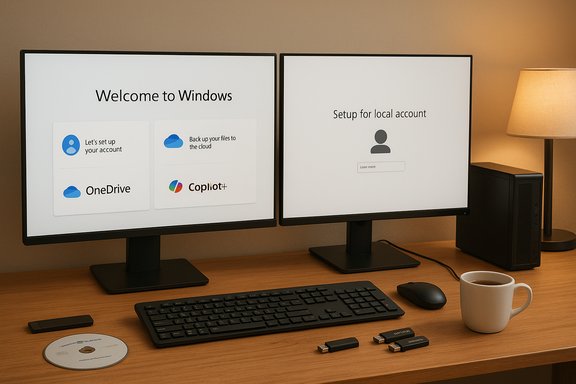
The modern Windows Out‑of‑Box Experience (OOBE) is the product of three intersecting trends: Microsoft’s push to move the installed base to Windows 11 ahead of Windows 10’s end of support, OEMs shipping machines with pre‑installed vendor software and promotional apps, and the platform’s growing integration of paid services and AI features branded under names like Copilot+. Microsoft’s official lifecycle calendar confirms that Windows 10 reached end‑of‑support on October 14, 2025, which explains Microsoft’s urgent upgrade nudges to consumers and enterprises. Those nudges are not purely theoretical: users and community boards have documented full‑screen upgrade prompts, persistent “suggestions” in the Start menu and Settings, and promotional banners for OneDrive, Microsoft 365, and Edge during the setup flow. Multiple independent guides now exist showing how to disable these suggestions because many users consider them promotional rather than useful. This feature piece synthesizes the first‑hand experiences crowd‑sourced from enthusiast communities and the technical record of how large updates and platform changes have altered the new‑PC workflow. Community threads and archived setup write‑ups make two broad patterns clear: the convenience path (complete OOBE, then prune) and the control path (clean install from Microsoft media). Both work, but the former can leave users inheriting ads, trialware, and OEM extras, while the latter demands more time upfront.
Yet this reaction cuts both ways. Microsoft and OEMs can claim that their onboarding surfaces help mainstream users discover features like OneDrive backup, Windows Hello, and built‑in security defaults (TPM, Secure Boot). For less technical buyers, these nudges may surface features they would otherwise miss. The tension is between value for novices and annoyance for experienced users.
There’s a pragmatic middle ground. Follow the community‑tested checklist to reclaim your machine quickly: update, purge the extras you don’t need, secure backups, and snapshot a golden image. For the longer term, stronger platform options—permanent opt‑outs from promotional content, smaller cumulative update models for first‑boot flows, and more robust recovery testing—would go much further to restore trust and make the first hour with a new PC feel like the fun moment it used to be.
Source: Neowin https://www.neowin.net/editorials/setting-up-a-new-pc-used-to-be-fun-now-it-is-ad-ridden-nightmare/
 Background / Overview
The modern Windows Out‑of‑Box Experience (OOBE) is the product of three intersecting trends: Microsoft’s push to move the installed base to Windows 11 ahead of Windows 10’s end of support, OEMs shipping machines with pre‑installed vendor software and promotional apps, and the platform’s growing integration of paid services and AI features branded under names like Copilot+. Microsoft’s official lifecycle calendar confirms that Windows 10 reached end‑of‑support on October 14, 2025, which explains Microsoft’s urgent upgrade nudges to consumers and enterprises. Those nudges are not purely theoretical: users and community boards have documented full‑screen upgrade prompts, persistent “suggestions” in the Start menu and Settings, and promotional banners for OneDrive, Microsoft 365, and Edge during the setup flow. Multiple independent guides now exist showing how to disable these suggestions because many users consider them promotional rather than useful. This feature piece synthesizes the first‑hand experiences crowd‑sourced from enthusiast communities and the technical record of how large updates and platform changes have altered the new‑PC workflow. Community threads and archived setup write‑ups make two broad patterns clear: the convenience path (complete OOBE, then prune) and the control path (clean install from Microsoft media). Both work, but the former can leave users inheriting ads, trialware, and OEM extras, while the latter demands more time upfront.What’s changed: from welcome tour to push marketing
The nudges are built into the setup
Where the OOBE once meant "region, account, Wi‑Fi, done," it increasingly includes multiple prompts to enable cloud backup, link a Microsoft account, try OneDrive PC folder backup, or accept Microsoft 365 trials. Those items are often useful for many customers, but they are also merchantable: they funnel users toward subscription revenue and hardware upgrades, and they appear as persistent notifications that can be difficult to silence permanently. Community reports describe the same recurring prompts and a regrettable absence of a permanent “don’t show this again” option in some contexts.OEMs and bloatware haven’t gone away
Many OEM images are still built weeks or months before sale, which means the device frequently arrives with an older patch baseline plus a set of manufacturer utilities, trial apps, and sometimes commission‑driven third‑party software. That trialware can include multi‑gigabyte driver packs, vendor update tools, and promotional utilities that interrupt large Windows updates. Users often report long update cycles that are further prolonged by OEM downloads and mandatory reboots.The Copilot+ pivot makes the stakes bigger
Microsoft’s Copilot+ marketing reframes some hardware as “AI‑ready,” bundling on‑device AI features with specific processor and security expectations. Copilot+ PCs ship with different defaults and sometimes require larger download sets for AI models and supporting components. Microsoft’s Copilot+ announcement explicitly positions select hardware configurations as premium experiences, which helps explain why upgrade prompts now sometimes nudge users not just toward Windows 11, but toward Copilot+ certified machines.Update size and time: the new realities of first‑boot maintenance
The days of a quick cumulative patch are fading. Feature updates and some monthly cumulative packages now measure in the gigabytes, and offline installers can reach several gigabytes for 24H2/25H2 builds and some cumulative updates. Microsoft has announced update platform improvements that can shrink some downloads by selectively skipping already‑updated inbox apps, but real‑world reporting and user experience show many updates still download hundreds of megabytes to multiple gigabytes depending on the media, whether AI models are included, and whether the device is upgraded over multiple intermediate builds.- Feature updates and cumulative updates can differ in size dramatically between Windows Update (which may deliver optimized, delta packages) and the full offline installers available from update catalogs (which can measure several GB).
- Some 24H2/25H2 cumulative packages reported in community testing are near 4GB when downloaded as full offline packages, with smaller on‑device downloads via Windows Update in favorable cases. Multiple outlets and community reports document that monthly patch sizes have spiked in 2024–2025 as AI components and larger binaries were folded into servicing.
When the update train derails: reliability and emergency fixes
Large scale servicing and frequent feature drops raise the odds that a monthly update will cause regressions. In October 2025, Microsoft issued an out‑of‑band emergency patch (KB5070773) after a prior cumulative update disabled USB keyboard and mouse input inside the Windows Recovery Environment (WinRE). The issue rendered WinRE effectively unusable for affected systems and required a rapid fix because WinRE is often the last resort for system repair. Community logs and major outlets covered the incident as a concrete example of the operational risk that aggressive servicing introduces. That episode underscores two points for people configuring new systems today:- Keep a recovery USB and offline copies of vendor drivers handy before applying big updates.
- Expect Microsoft to occasionally deliver urgent fixes outside the normal Patch Tuesday cadence, and be prepared for post‑update troubleshooting if recovery tools or firmware interactions misbehave.
The human cost: user frustration and migration signals
Across enthusiast forums and comments, the emotional reaction is consistent: what should be a moment of delight—the first run of a new machine—has become a slog. Users report deadlines missed, frustration at repeated mandatory reboots, and a perception that they are being sold to rather than served. That frustration is encouraging some to consider alternatives: clean installs of Windows, minimalist distributions such as Tiny‑11 variants, or even switching to Linux distros that default toward privacy and fewer commercial nudges. Community posts synthesize checklists to restore control quickly: update early, remove what you don’t need, and create a golden image that can be reused.Yet this reaction cuts both ways. Microsoft and OEMs can claim that their onboarding surfaces help mainstream users discover features like OneDrive backup, Windows Hello, and built‑in security defaults (TPM, Secure Boot). For less technical buyers, these nudges may surface features they would otherwise miss. The tension is between value for novices and annoyance for experienced users.
Practical, sane steps to reclaim the first hour (short checklist)
The community consensus is straightforward and replicable. These steps prioritize security, time, and control.- Before first boot
- If you can, download vendor drivers and Windows install media (Media Creation Tool or official ISO) onto USB. This saves time for device‑specific driver installs later.
- During first boot (OOBE)
- Accept network and basic account setup if you want convenience; choose “Set up as a new PC” rather than restore if you want a cleaner profile. If privacy is a priority, skip linking a Microsoft account for now.
- Immediately after desktop appears
- Windows Update → Check for updates → Repeat until current.
- Install vendor chipset, Wi‑Fi, GPU drivers if Windows Update does not provide them. Keep them on a USB.
- Disable nuisance prompts
- Settings → System → Notifications: turn off “Suggest ways to get the most out of Windows” and “Get tips, tricks, and suggestions.” Settings → Personalization → Start: turn off “Show recommendations.” File Explorer options: turn off “Show sync provider notifications.” These steps silence most common promotional prompts.
- Remove OEM bloat (carefully)
- Settings → Apps → Installed apps: remove trialware and promotional utilities. Keep vendor utilities that control hardware (battery managers, fan control) unless you deliberately plan to replace them. If you want a thorough purge, use a reputable uninstaller that removes leftover registry entries.
- Create backups and a golden image
- Create a restore point, enable File History or OneDrive backup if you use it, and consider imaging the setup with a backup tool. This preserves your clean state for the next machine.
- If total control and privacy are your objective, perform a clean install using official media, then provision drivers and apps manually. This takes longer but avoids OEM and Microsoft onboarding defaults.
The tradeoffs: convenience vs control
There’s no single “right” approach. Choose based on your priorities.- Convenience path: Accept OOBE defaults, finish setup quickly, then prune. Pros: fastest to a working system. Cons: you inherit whatever the OEM and Microsoft promote.
- Control path: Clean install from official media. Pros: a pristine environment, no trialware. Cons: takes longer—drivers and personalization must be reinstalled manually.
Why Microsoft and OEMs are doing this (and where they risk losing trust)
There are clear incentives at work:- Microsoft needs to move the ecosystem to Windows 11 to maintain a modern, securable platform and to seed demand for Copilot+ workstreams.
- OEMs reduce SKU complexity and ship higher‑margin premium devices by steering buyers to Copilot+ configurations and bundled services.
- Third‑party software and trial vendors still pay OEMs for preinstalls or trial placements.
Critical analysis: the strengths and the risks
Strengths
- Security modernization: Windows 11’s hardware baseline (Secure Boot, TPM, modern CPU features) raises the bar against many threats, and ensuring users move to supported builds reduces long‑term exposure. Microsoft’s formal end‑of‑support dates are a responsible signal for lifecycle planning.
- Integrated services can help novices: Features like OneDrive PC folder backup and Windows Hello can materially improve data safety and convenience for users who would otherwise miss them.
- On‑device AI potential: Copilot+ and local AI features promise powerful new workflows and reduced cloud dependency for sensitive tasks—if deployed responsibly and with clear controls.
Risks and downsides
- Advertising and upsell fatigue: Built‑in promotional prompts and Start menu “recommended” app promotions blur the line between product guidance and advertising. This risks normalizing commercial content inside the OS interface. Evidence of full‑screen upgrade prompts and persistent suggestions is plentiful in user reports and technical forums.
- Update bloat and bandwidth pain: Larger feature and cumulative updates increase the time and data cost of first‑use configuration, penalizing users on limited connections and adding friction to refurbish or image devices. Real‑world update sizes and offline installer weights show significant variability and in many cases reach multi‑gigabyte scale.
- Operational risk from regressions: Rapid servicing can introduce high‑impact regressions (WinRE failures and other critical issues) that require out‑of‑band patches and complicate recovery strategies for both consumers and IT.
- Erosion of trust: For power users and privacy‑conscious buyers, being nudged toward subscriptions, services, and hardware upgrades during the setup phase can feel like a bait‑and‑switch, pushing some toward competitor platforms or clean‑room installs. Community discussions highlight this migration impulse.
Recommendations for users and for the platform
For users (practical)
- Allocate time: assume several hours for a first boot and initial updates.
- Prepare offline media: vendor drivers and the official Windows installer save time and headaches.
- Use the short checklist above: update → drivers → bloat removal → backups → create image.
- If you dislike the OOBE nudges, consider a clean install or use the Settings toggles to hide suggestions; keep a recovery USB in case of update‑related regressions.
For Microsoft and OEMs (policy and UX)
- Offer a “no‑nudge” OEM SKU or a true consumer preference that permanently disables promotional prompts across major updates. Users should be able to opt out once and have that preference respected in future feature updates.
- Improve update packaging and communication for first‑boot scenarios: cumulative, integrated “first‑boot” bundles or “offline service packs” could cut repeated downloads and time.
- Strengthen pre‑release testing for recovery scenarios. Regressions affecting WinRE and other recovery tooling are high‑impact; they demand extra testing coverage or staged rollouts.
- Be clearer about what Copilot+ features require and how they affect on‑disk updates to set correct expectations before purchase.
Conclusion
Setting up a new Windows PC should feel like a clean slate—fast, secure, and free of friction. Instead, for many users in 2024–2025 the process has become a negotiation: how much convenience are you willing to trade for control? Microsoft and OEMs have legitimate business motives for steering customers toward certain services and premium hardware. But the current balance leans toward promotion over permission, and at the worst moments that tilt becomes a real operational risk.There’s a pragmatic middle ground. Follow the community‑tested checklist to reclaim your machine quickly: update, purge the extras you don’t need, secure backups, and snapshot a golden image. For the longer term, stronger platform options—permanent opt‑outs from promotional content, smaller cumulative update models for first‑boot flows, and more robust recovery testing—would go much further to restore trust and make the first hour with a new PC feel like the fun moment it used to be.
Source: Neowin https://www.neowin.net/editorials/setting-up-a-new-pc-used-to-be-fun-now-it-is-ad-ridden-nightmare/
