

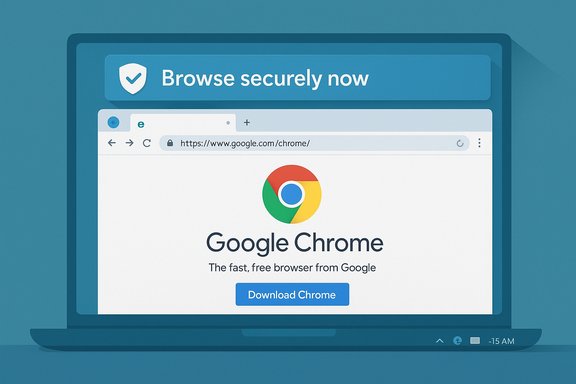
Microsoft has quietly turned up the pressure on Windows users who try to install a competing browser: when you open Google Chrome’s download page in Microsoft Edge, some Windows installations now display a native banner that reframes the decision as an online-safety choice rather than a simple preference. The message pitches Edge as a safer, more integrated option and offers a “Browse securely now” path that points users to Microsoft’s Online Safety materials — a small technical change with outsized implications for competition, user choice, and security hygiene on Windows machines.
Background
Microsoft has long nudged Windows users toward Microsoft Edge, using prompts, in‑product messaging, and tight integration with Windows services to make its browser the path of least resistance. Those nudges have included surveys in the Sidebar, banner messages when users visit competitor download pages, prompts to import bookmarks and passwords, and security warnings that sometimes appear when a user tries to run a rival installer.The latest iteration changes not the mechanics of blocking downloads, but the framing: instead of marketing parity (Chromium compatibility + Microsoft polish), the new banner centers protection, privacy, and threat prevention — effectively converting a marketing nudge into a safety appeal. This is not a universal rollout; reports show it appears in tests or staged deployments across Windows 10 and Windows 11 and is part of Microsoft’s iterative attempt to see what keeps users on Edge.
Overview: What’s changing, and how it works
The banner and user flow
- If you visit the official Chrome download page using Microsoft Edge on Windows, a new inline banner may appear at the top of the page.
- The messaging emphasizes private browsing, password monitoring, scam and scareware protection, and Microsoft’s own network‑level protections.
- The banner includes a “Browse securely now” button. Clicking it does not prevent installation but redirects users to Microsoft’s Online Safety content and a focused walkthrough of Edge’s security features.
Where this sits in Microsoft’s toolbox
Microsoft has used many tactics to promote Edge: UI placement, integration with Office and Windows services, rewards, and previously, more direct messaging about performance and compatibility. This new focus on safety messaging is a pivot toward fear‑of‑risk as a retention lever. In practical terms, the company is swapping arguments about memory or features for the harder sell of security — a domain where users are more likely to accept vendor guidance.Why Microsoft is doing this: motives and incentives
Marketplace reality
- Chrome dominates desktop browsing. Windows ships with Edge as the preinstalled and default option; converting a Chrome prospect into an Edge user helps Microsoft keep more of the browser-to-services funnel — search, sync, rewards, and other monetizable touchpoints.
- Retaining users also helps Microsoft promote Bing, Microsoft 365, and other integrated experiences that benefit from a browser deeply tied to the operating system.
Product differentiation that resonates
Positioning Edge on the basis of security and integrated protections plays to a legitimate advantage: Edge bundles features such as Microsoft Defender SmartScreen, InPrivate browsing, password-monitoring capabilities, and a built-in privacy/secure network feature. Those capabilities are real and meaningful for many users — packaging them as a reason to stay is a defensible product message when presented transparently.Behavioral economics
Moments of friction (like installing a different browser) are powerful opportunities for vendors. A carefully worded safety banner turns a friction event into a nudge, leveraging human aversion to risk and loss. The shift toward safety messaging is a classic choice architecture tactic: change the default context to bias the decision.What Microsoft claims — and what’s actually true
Security differences: nuance over absolutes
Microsoft’s banner highlights password monitoring, phishing/malware protections, and an optional privacy proxy (Edge Secure Network). These features exist and are built into modern Edge builds; some are unique in packaging or naming, and others are conceptually similar to features available in Chrome, Brave, or third‑party extensions.- Fact: Edge ships with SmartScreen (phishing/malware protection), a built‑in password manager with password‑health checks, and an integrated secure‑network feature in some builds.
- Reality check: Chrome and other Chromium-based browsers also offer sophisticated security features, frequent updates, and a large ecosystem of extensions for additional protections. Many technical security differences are marginal and often hinge on default settings, telemetry, and vendor policy rather than fundamental architecture.
Performance and resource usage
Microsoft and independent testers publish benchmarks showing Edge often uses less RAM or presents efficiency features (sleeping tabs, efficiency mode) that mitigate memory usage. Real‑world results vary with workload, extensions, and user profile, but multiple independent tests show Edge performs at least as well as Chrome on many Windows configurations.- Caveat: Resource usage is workload dependent. In some narrow tests, Chrome may be more efficient; in others, Edge wins. Measuring performance requires context: number of tabs, types of content, and enabled browser features change outcomes.
Competition, choice, and legal risk
Why browser makers are upset
Third‑party browser vendors — from Chrome’s team to smaller independents like Opera, Vivaldi, and others — see repeated nudge tactics and policy quirks as a structural barrier. Complaints center on:- Popups and banners that appear while users seek to download another browser
- Links or file types that open in Edge despite a different default being set
- Repeated prompts that make the alternative browser experience feel like an uphill task
Regulatory posture and precedent
Competition authorities have historically scrutinized browser behavior where it intersects with operating system defaults — Microsoft’s own past antitrust experience is a reminder of how political and regulatory scrutiny can build. Today’s context includes:- Regional regulatory frameworks (e.g., the EU’s Digital Markets Act) that impose obligations on platform gatekeepers
- Active complaints in multiple jurisdictions arguing Microsoft’s Windows integration grants Edge an unfair advantage
- Calls from browser coalitions for consistent, platform‑level protections for choice
Security consequences and second‑order risks
Real security benefits — and unintended harms
A native banner that redirects users to a vendor’s security page is a double‑edged sword:- Pro: Educated users may benefit. If the banner drives adoption of features like SmartScreen or better password hygiene, that’s improved security for those users.
- Con: It normalizes the appearance of manufacturer-originated warnings at the moment of software choice. That normalization risks blurring the line between legitimate vendor guidance and malicious scareware popups.
Fake updates and social engineering
Threat actors exploit the public’s readiness to trust security prompts. When vendors embed persuasive notices into the OS/browser, attackers can design fake web popups and fraudulent update dialogs that mimic vendor UI. That increases the risk that users will click malicious prompts that look “official.”Security teams and individual users should therefore be cautious: any browser or OS prompt asking for downloads, credentials, or remote access demands scrutiny.
UX ethics: are these dark patterns?
Designers and consumer advocates use the term dark patterns to describe UI choices that manipulate users into unwanted behavior. Whether a protective safety prompt crosses that line depends on transparency and intent.- If the banner presents factual, verifiable information about features and gives an easy, frictionless way to continue a choice, it sits in the realm of aggressive marketing.
- If it uses fear, omits comparable facts, or makes the alternative appear unsafe without evidence, it leans toward dark patterns.
What users need to know — practical guidance
If you want to install a different browser or simply reduce friction, follow these steps and safety checks.How to download a browser safely (recommended steps)
- Open a trusted browser and navigate to the competitor’s official site (e.g., google.com/chrome).
- Verify the connection is HTTPS and look for the site certificate in the address bar.
- Download the installer and do not run it from a temporary download dialog if you have doubts. Save it first.
- Check the file’s digital signature:
- Right‑click the installer, choose Properties → Digital Signatures, and verify the signer (e.g., Google LLC for Chrome).
- Scan the file with your AV product before running it.
- Run the installer and follow the vendor’s installation prompts.
- After installation, set your default browser in Windows Settings → Apps → Default apps or by launching the newly installed browser and accepting its request to be the default.
How to set a default browser in Windows 11 (practical steps)
- Open Settings → Apps → Default apps.
- Find your installed browser in the list.
- Click it and assign the relevant protocols and file types — at minimum, set HTTP and HTTPS to your preferred browser.
- Optionally, go to “Choose default apps by file type” and confirm .htm, .html and other web formats point to your chosen browser.
How to avoid misleading prompts and fake updates
- Never click an update or download prompt that appears inside a website unless you initiated an update from the application’s own menu.
- To update browsers, use the built‑in About page (Edge: Settings → About Microsoft Edge; Chrome: Settings → About Chrome) so updates are fetched from the vendor directly.
- When in doubt, pause: close the browser, restart, and check for updates through the official app menus.
Balanced assessment: strengths and risks of Microsoft’s approach
Strengths
- Legitimate security messaging: Microsoft can point to real, integrated features that provide measurable protections for many users.
- Coherent product narrative: Positioning Edge as the safer default aligns with Microsoft’s broader security branding across Windows and Defender services.
- Potential public‑good effect: If the banner nudges users toward stronger defaults (e.g., enabling SmartScreen), there is a net security gain for non‑technical users.
Risks
- Perception of coercion: Repeated nudges at moments of software choice can be perceived as anti‑competitive or manipulative.
- Regulatory exposure: Complaints from browser vendors and industry coalitions increase the likelihood of formal scrutiny in multiple jurisdictions.
- Security paradox: Normalizing vendor-originated warnings may make it easier for attackers to mimic official UI and succeed at social‑engineering attacks.
- User trust erosion: Heavy‑handed messaging risks frustrating users who expect a neutral OS experience and who value freedom of choice.
Where this might go next
- Microsoft is likely to continue rotating message copy and experimentation to measure what reduces switch rates. Expect A/B tests that emphasize different angles: speed, privacy, security, or rewards.
- Browser competitors will continue organizing and lodging regulatory complaints where they can. We may see focused inquiries in regions with active competition authorities or strong digital‑market rules.
- Security researchers and consumer advocates will push for clearer distinctions between legitimate vendor guidance and manipulative UI.
Final recommendations for Windows users
- Treat any in‑product prompt with scrutiny and verify the facts independently.
- Download software only from official vendor websites and validate digital signatures if you have concerns.
- If you prefer a different browser, make the switch confidently: the OS does not technically stop you, and the installer process is straightforward when followed carefully.
- For enterprises: document default app policies centrally and educate end users about legitimate update paths vs. web scareware.
- For regulators and consumer advocates: maintain pressure for transparent, non‑deceptive UI and clear rules that preserve user choice while allowing vendors to explain valid security tradeoffs.
Microsoft’s new banner strategy is an important inflection point in a long-running market story. It’s an attempt to shift the debate away from similarity and parity toward trust and protection. For users who value convenience and tight Windows integration, that pitch may now be more persuasive. For competitors and regulators, it’s another example of how platform incumbency can subtly influence user behavior. The technical reality is simple: you can still download and install Chrome or any other browser on Windows — but the choice now comes bundled with a safety narrative, and that narrative will keep shaping how millions of Windows users think about what it means to browse securely.
Source: SlashGear Microsoft Has A New Strategy To Stop Windows Users From Downloading Chrome - SlashGear
