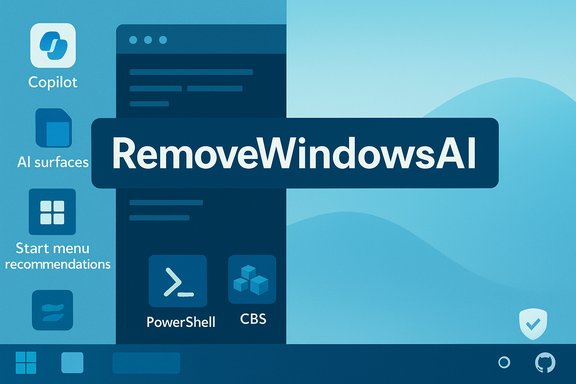
A compact, community-built PowerShell project called RemoveWindowsAI has rapidly become the easiest one‑click way for Windows 11 users to strip most of Microsoft’s on‑device AI surfaces — including Copilot, Recall, Paint’s Image Creator, voice‑access hooks and a raft of AI‑labelled Appx packages — but the convenience comes with measurable risks to update stability, data preservation and supportability.
Windows 11’s recent releases have pushed a broad set of branded on‑device AI features into the operating system: Copilot (the integrated assistant), Recall (a local timeline and indexed screen snapshot feature), contextual AI Actions surfaced in Explorer and apps, and generative tools added to built‑in apps such as Paint, Notepad and Edge. Microsoft publishes administrative controls for many of these surfaces — Group Policy, CSP/MDM, and AppLocker guidance exist — but those controls do not always cover every surface or make removals durable across provisioning and feature updates. The RemoveWindowsAI project, authored under the GitHub handle zoicware (and quickly forked and mirrored in several community hosts), packages a variety of removal techniques into a single, user‑facing PowerShell script and GUI. The repository explicitly targets stable Windows 11 channel builds (25H2 and later according to the author) and documents both automated and manual steps for features the script cannot safely remove. Independent tech outlets and community testers have validated that the script removes or hides many visible Copilot and Recall surfaces in tested configurations.
The arrival of tools such as RemoveWindowsAI crystallizes a broader governance debate: as platforms integrate more agentic and on‑device AI features, who should set defaults and opt‑outs — vendors via tightly coupled provisioning, or end users via auditable opt‑out workflows? The script provides a clear answer for users who want the latter, but it also exposes the maintenance costs of choosing that path. For anyone considering it, the practical rule is simple: backup first, test in a safe environment, and treat servicing‑store edits as a last resort.
Source: Inbox.lv A Way to Disable Useless Features in Windows Has Been Named
 Background
Windows 11’s recent releases have pushed a broad set of branded on‑device AI features into the operating system: Copilot (the integrated assistant), Recall (a local timeline and indexed screen snapshot feature), contextual AI Actions surfaced in Explorer and apps, and generative tools added to built‑in apps such as Paint, Notepad and Edge. Microsoft publishes administrative controls for many of these surfaces — Group Policy, CSP/MDM, and AppLocker guidance exist — but those controls do not always cover every surface or make removals durable across provisioning and feature updates. The RemoveWindowsAI project, authored under the GitHub handle zoicware (and quickly forked and mirrored in several community hosts), packages a variety of removal techniques into a single, user‑facing PowerShell script and GUI. The repository explicitly targets stable Windows 11 channel builds (25H2 and later according to the author) and documents both automated and manual steps for features the script cannot safely remove. Independent tech outlets and community testers have validated that the script removes or hides many visible Copilot and Recall surfaces in tested configurations. Overview: What RemoveWindowsAI claims to do
RemoveWindowsAI is an orchestration wrapper that combines multiple proven (and some risky) community debloating techniques into one workflow. The README and hands‑on reporting list a broad checklist of targets and tactics:- Disable registry keys and Group Policy/CSP equivalents to hide or block Copilot, Recall, Input Insights (typing telemetry), Voice Access and other UI surfaces.
- Uninstall Appx/MSIX packages for first‑party AI components (user and provisioned packages).
- Remove or neutralize hidden packages inside the Component‑Based Servicing (CBS) store that normally survive user‑level uninstalls.
- Delete Recall scheduled tasks and local snapshot indices so the timeline and stored content disappear.
- Install an optional “blocker” package into the servicing inventory to prevent Windows Update or provisioning routes from restoring removed AI packages.
- Provide GUI and non‑interactive modes, plus backup and revert options to help recovery.
How the script works: a technical breakdown
Understanding the layers RemoveWindowsAI manipulates is crucial before running it.1. Registry and policy edits (least invasive)
The script first flips documented keys and policies that hide UI elements and block activation paths for Copilot, Recall and related features. These changes are comparable to supported toggles Microsoft publishes (Group Policy and CSP options) and are usually reversible if you back up the keys first.2. Appx / MSIX removal (user and provisioned)
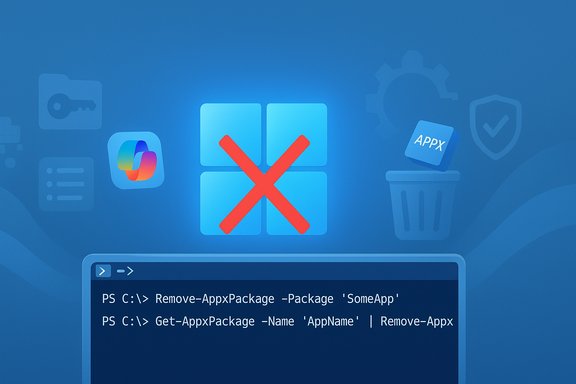
RemoveWindowsAI issues Remove‑AppxPackage for installed Appx packages and Remove‑AppxProvisionedPackage for provisioned manifests. Uninstalling a user Appx package is usually straightforward; removing a provisioned manifest is more invasive because it changes how new user accounts are provisioned and may affect OEM customizations.3. Scheduled tasks and local data cleanup
Recall uses scheduled tasks and local snapshot indices to capture and index screen history. The script removes those scheduled tasks and deletes the local indices to make the timeline disappear — effective, but destructive. Once local snapshot files are deleted, the history is generally unrecoverable unless the user took a prior backup.4. Component‑Based Servicing (CBS) manipulation and blocker package (most invasive)
The script attempts to remove hidden packages from the CBS store and can install a custom package that makes Windows Update treat the targeted AI components as intentionally blocked. This is a widely used community technique to make removals durable, but it intentionally diverges a machine’s servicing inventory from Microsoft’s expected state — and that divergence is the primary source of upgrade and update fragility.5. Revert and backup options
RemoveWindowsAI offers a built‑in backup and a revert mode intended to restore disabled components where feasible. Those mechanisms reduce overall risk, but they cannot always reconstruct deleted local data (for example, Recall’s snapshot indices) or fix servicing metadata that has been altered. The repository and independent reviewers are explicit about this limitation.What independent testing and coverage shows
Multiple reputable outlets and community reports corroborate the repository’s claims:- Hands‑on tests and screenshots from independent outlets show Copilot UI elements and Recall entries disappearing after the script runs, and many Appx/MSIX AI packages unprovisioned. The project’s GUI mode and the revert/backup flags were tested and found usable by non‑expert users in those tests.
- Community technical analyses and Windows‑focused forums have reproduced the script’s main effects, but have repeatedly flagged the CBS/blocker step as the largest single operational risk: it can create servicing and upgrade fragility and may cause feature‑update failures or complicated repair scenarios.
- The project’s README and mirrored archives explicitly warn about false positives from third‑party antivirus solutions and recommend running the script in Windows PowerShell 5.1 (not PowerShell 7) and testing in a VM if uncertain.
The benefits: why power users are adopting it
RemoveWindowsAI’s appeal is straightforward:- Speed and scope: instead of chasing dozens of scattered settings and hidden provisioning blobs, users can run one script and get a consolidated result.
- Transparency: the project is open source and auditable on GitHub; technically competent users can read precisely what will run.
- Revert and backup modes: built‑in safeguards are better than many older “debloat” binaries that provided no easy reversal.
The risks and downsides — what to watch out for
RemoveWindowsAI’s power comes with several distinct and documented hazards. These are not theoretical: multiple community analyses and tech outlets highlight them.- Servicing and update fragility (biggest risk)
Manipulating the CBS store and installing blocker packages intentionally diverges the servicing inventory Windows Update expects, increasing the probability of feature‑update failures, update rollbacks, or partial application of cumulative updates. Repairing a machine in that state can require offline servicing, a recovery image or a full reimage. Enterprises and anyone who relies on predictable update behavior should treat this as a showstopper. - Destructive data removal
RemoveWindowsAI deletes Recall snapshot indices and scheduled tasks. That local history is removed permanently unless a prior snapshot or backup was taken; the revert mode cannot recover deleted snapshot files. Users who rely on Recall‑style history for recovery must export or back up their data before any deletion. - Supportability and warranty concerns
Heavy servicing‑store edits and package removal may place a device outside normal OEM or Microsoft support boundaries. Vendors may require reprovisioning or reimaging to restore expected servicing metadata before providing advanced support. - Security and supply‑chain risk
Running any elevated script that fetches external code expands attack surface. Although RemoveWindowsAI is open source, forks and mirrors exist and antivirus scanners often flag deep servicing manipulations as suspicious. If a forked copy were maliciously altered, the consequences could be severe. Always verify checksums and prefer direct, auditable clones from the canonical repository. - Partial coverage and maintenance
Not all AI surfaces can be reliably disabled across all builds or channels; Microsoft’s rapid rollouts and Insider previews introduce new surfaces that the script may not immediately cover. Microsoft’s supported policies (Group Policy, AppLocker, MDM) remain the recommended enterprise mechanisms for durable control.
Practical guidance: how to approach RemoveWindowsAI safely
For readers considering the script, treat the operation as non‑trivial system surgery. The following sequence is a pragmatic, conservative approach that balances control with safety.- Test in a virtual machine first. Create a VM with the same Windows build and run the tool there to observe effects and rehearse recovery. Community testers emphasize VM testing to avoid surprises.
- Create full system backups on the real machine. Use an image‑level backup (Macrium Reflect, Acronis, or Windows’ built‑in system image) and confirm recovery media works. Also create a System Restore point as an additional safeguard.
- Export or copy any Recall data or other local indices you might want to preserve. Recall snapshot indices are not recoverable after deletion unless exported separately.
- Prefer supported toggles before destructive steps. Try Settings UI, Group Policy, or AppLocker to block Copilot and App launches first. Microsoft’s guidance suggests AppLocker for blocking the Copilot package for durable enterprise control.
- Run the script with backup mode enabled and review the generated backup artifacts before confirming destructive steps. The project provides a revert path for many operations; verify revert restores expected UI elements in your test VM.
- Be cautious with the CBS/blocker option. Avoid installing the blocker package on production or managed devices unless you understand how to troubleshoot servicing failures and are prepared to reimage if necessary. If you must prevent re‑provisioning on a lab or personal machine, accept the upgrade fragility risk.
- After running, monitor Windows Update and feature updates closely for errors. Keep original media and recovery solutions available if an update fails.
When to avoid using such a script
- Managed devices in corporate, education or government fleets where standard MDM, GPO and AppLocker policies should be the governance mechanisms. Ad‑hoc servicing edits can break compliance and support agreements.
- Systems that must remain reliably updatable without intervention (for example, production workstations where failed feature updates would be disruptive). The servicing edit risk makes RemoveWindowsAI inappropriate for those scenarios.
- Non‑technical users who cannot create and validate a full backup or do not have the skills to recover from a servicing/upgrade failure. In those cases, prefer supported controls in Settings or GPO.
Alternatives and safer controls
If the goal is to disable AI features in Windows 11 without invasive servicing edits, consider these Microsoft‑endorsed and lower‑risk options first:- Use Settings toggles (Taskbar Copilot toggle, Personalization > Taskbar) and the per‑app settings to hide or disable visible interfaces.
- Apply Group Policy (User Configuration > Administrative Templates > Windows Components > Windows Copilot) or the WindowsAI CSP to turn off Copilot where supported. Note: Microsoft is updating these controls and the older TurnOffWindowsCopilot policy may be deprecated for some new Copilot experiences; consult the current Microsoft docs for your build.
- Use AppLocker to block the Copilot app package or to prevent targeted package families from being installed or launched — Microsoft recommends this for durable enterprise control.
- For first‑party app AI features (Paint Image Creator, Notepad rewrite hooks), check each app’s settings and Intune policies; some features may require manual toggles or may eventually be controlled via enterprise policy. Community reports show inconsistencies across builds, so validate on your devices.
Final analysis: strengths, trade‑offs and a clear recommendation
RemoveWindowsAI fills a genuine community need: Microsoft has embedded a growing set of AI surfaces deep into Windows 11, and ad‑hoc UI toggles and single‑policy flips do not always produce durable opt‑outs. The project’s consolidation of registry flips, Appx removals, local data cleanup and optional servicing‑store blocking gives privacy‑minded users and lab administrators a fast, auditable way to remove or hide these features. Independent hands‑on coverage confirms the script’s efficacy on tested builds. At the same time, the method that makes this permanence possible — installing a blocker and editing CBS — is the same mechanism that creates long‑term maintenance risk. Modify servicing metadata at your peril: feature upgrades, cumulative updates, OEM provisioning and vendor support can all break or become more complex to recover. The script is powerful, and with power comes responsibility. Community analyses and Microsoft guidance collectively recommend conservative, enterprise‑grade controls (AppLocker, MDM, GPO) over ad‑hoc servicing surgery for production fleets. Recommendation (concise):- For privacy hobbyists and lab users: test in a VM, take a full image backup, run with backup/revert enabled, avoid the blocker option unless you accept update fragility.
- For enterprise, managed or production systems: use supported policies (MDM, Group Policy, AppLocker) and avoid servicing‑store edits; coordinate with IT and OEM support if persistent opt‑out is required.
The arrival of tools such as RemoveWindowsAI crystallizes a broader governance debate: as platforms integrate more agentic and on‑device AI features, who should set defaults and opt‑outs — vendors via tightly coupled provisioning, or end users via auditable opt‑out workflows? The script provides a clear answer for users who want the latter, but it also exposes the maintenance costs of choosing that path. For anyone considering it, the practical rule is simple: backup first, test in a safe environment, and treat servicing‑store edits as a last resort.
Source: Inbox.lv A Way to Disable Useless Features in Windows Has Been Named