RemoveWindowsAI: Safely Opt Out of Windows 11 AI Features

  • Thread Author
A compact, community-built PowerShell toolkit called RemoveWindowsAI has rapidly become the go-to shortcut for Windows 11 users who want to strip Copilot, Recall, and a broad sweep of built‑in AI surfaces from their PCs — but its convenience comes with real, measurable risks for update stability, data preservation, and enterprise supportability.

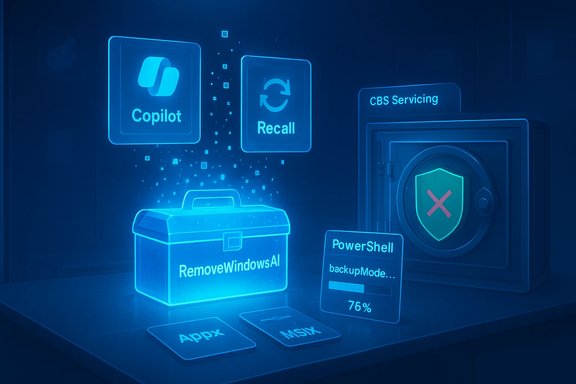
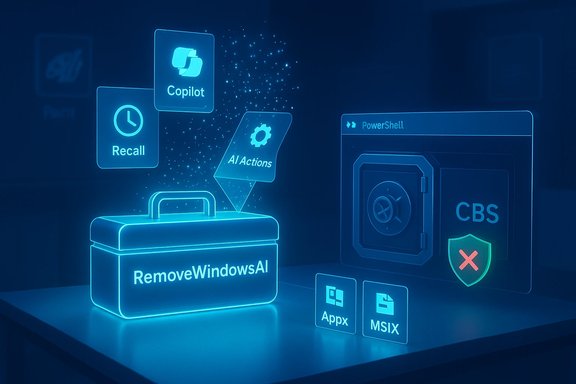
Neon holographic scene of a toolbox labeled RemoveWindowsAI with Copilot and AI Actions.Background​

Microsoft has repositioned Windows 11 as an “AI PC” platform, embedding branded features such as Copilot, Recall, and a range of AI Actions into core UI surfaces and first-party apps like Paint, Notepad, File Explorer, and Edge. These features are presented as productivity and accessibility enhancements, and in many configurations they operate with on-device processing and protections such as Windows Hello. Still, the breadth of these integrations — including provisioning through Windows Update and the Component‑Based Servicing (CBS) store — has left a vocal segment of users wanting stronger, more durable opt‑outs.
RemoveWindowsAI is a community response to that demand: an open-source PowerShell project (published under the GitHub handle reported in community coverage) that automates a layered, multi‑step recipe for disabling and removing many of those AI surfaces and, optionally, making the removals persist across future updates by manipulating servicing metadata. The repository provides both a graphical interface and a scripted non‑interactive mode, plus backup and revert options intended to reduce the risk of irreversible damage.

Overview: what RemoveWindowsAI claims to do​

RemoveWindowsAI packages a set of operations that together aim to:
  • Flip registry keys and Group Policy / CSP equivalents to hide or disable UI affordances for Copilot, Recall, Input Insights, AI Actions and related gates.
  • Remove Appx/MSIX user packages and provisioned manifests for first‑party AI components (Copilot UI, Recall UI, Image Creator in Paint, Notepad rewrite hooks, etc..
  • Attempt to purge or neutralize hidden packages from the Component‑Based Servicing (CBS) store so features won’t be silently re‑provisioned by Windows Update or provisioning steps.
  • Delete scheduled tasks and local data used by Recall (snapshots, indices), effectively erasing local timeline artifacts.
  • Optionally install a custom “blocker” package into the servicing inventory, intended to prevent Windows Update from re‑installing the targeted AI packages.
  • Offer a backupMode and revertMode to capture state and attempt restoration later, while exposing granular toggles so users can choose only registry changes or more aggressive removal steps.
The project explicitly targets stable Windows 11 channels (reported coverage indicates primary focus on 25H2 builds and later), and the author’s documentation warns that Insider preview features and OEM customizations may escape full automation.

Technical breakdown — how the tool works​

Understanding the specific layers RemoveWindowsAI manipulates is essential to appreciate both its utility and its hazards.

1. Registry and policy edits (least invasive)​

At the lowest risk layer the script writes or flips documented registry keys and policy flags that hide UI elements (for example, removing the Copilot button from the taskbar) or block activation paths for features like Recall or Input Insights. These edits are typically reversible by restoring saved values, and they mirror settings Microsoft exposes through Group Policy or MDM CSPs in many cases. That said, toggling keys can sometimes gate deeper behaviors that other components expect to exist.

2. Appx / MSIX package removal (user + provisioned)​

RemoveWindowsAI uses standard PowerShell package management commands — Remove‑AppxPackage for per‑user installations and Remove‑AppxProvisionedPackage to strip provisioned manifests — to uninstall visible UI packages and prevent them from being re‑provisioned for new accounts. Removing visible packages is usually straightforward, but removing provisioned packages changes future account provisioning and can affect OEM customizations or other packages that share family names.

3. Component‑Based Servicing (CBS) operations (most invasive)​

The script’s defining — and most controversial — capability manipulates the CBS servicing store. By purging or neutralizing hidden servicing packages and optionally inserting a blocker package, RemoveWindowsAI tries to make removals durable against Windows Update and provisioning flows. The servicing store is Windows’ authoritative record of modular packages; altering it intentionally diverges the machine’s servicing inventory from Microsoft’s expected state, which can introduce upgrade fragility, servicing errors, or unexpected repair scenarios. This is the principal long‑term risk vector.

4. Scheduled tasks and local data cleanup​

Features like Recall maintain scheduled tasks and local snapshot indices to build a searchable timeline. The tool deletes those tasks and wipes indices and local snapshot files, which removes local traces (a boon for privacy‑minded users) but is destructive: any previously captured Recall history is lost unless backed up separately.

5. Blocker package installation​

To discourage re‑provisioning, RemoveWindowsAI can install a custom MSU‑style or servicing package that appears to satisfy certain package dependencies so Windows Update skips reinstallation. When effective this yields durability, but because it intentionally injects non‑Microsoft servicing artifacts, it increases the chance of update reconciliation problems and future servicing conflicts.

6. UI modes, backup and revert​

The project provides a user‑friendly GUI as well as a scripted non‑interactive mode for automation. It also includes a backupMode and a revertMode designed to capture and attempt to restore removed components. These safeguards are meaningful, but they are not a guarantee — full restoration is sometimes impossible, especially after CBS surgery or if dependent components were removed.

Independent verification and community reports​

Multiple hands‑on reviews and community tests reproduce the script’s core behavior: on the specific stable builds tested, Copilot UI, Recall interfaces, and many labelled AI Appx packages were hidden or unprovisioned after the script ran. However, reviewers consistently emphasize variability: outcomes depend on exact Windows build, OEM customizations, presence of preview features, and the machine’s existing servicing state. In short, the script works in many configurations, but not universally or atomically.
Coverage and forum reporting also spotlight the rapid social spread of the project: forks, mirrors and social amplification followed closely behind early writeups, driving quick adoption among enthusiasts. That viral dynamic further increases the risk that altered or poorly audited forks will circulate; each fork should be treated as a distinct artifact requiring new review.

Strengths — why RemoveWindowsAI appeals to advanced users​

RemoveWindowsAI is compelling for several concrete reasons:
  • Consolidation of community techniques: it automates a set of removal actions that previously required piecing together many manual commands. That lowers the chance of user error when an experienced user’s intent is to remove these surfaces.
  • Granular controls: users can elect registry-only changes, full package removal, or selective CBS surgery, making the tool useful for staged experiments.
  • Backup and revert features: the project attempts to provide a path back to a pre‑removal state, which is a meaningful safety mechanism for testers and hobbyists.
  • Local, offline control: for privacy‑conscious individuals or admins who lack tenant/MDM control over devices, the script offers a client-side option to suppress or remove AI surfaces without waiting for vendor policy changes.
These strengths make RemoveWindowsAI a useful tool for hobbyists, power users, and lab testing where the benefits of aggressive opt‑out outweigh maintenance costs.

Risks, limitations, and what to watch for​

While effective in many cases, RemoveWindowsAI introduces several high‑impact risks that must be weighed carefully.

Upgrade and servicing fragility​

The single biggest danger is upgrade fragility. Manipulating the CBS store and installing a blocking package intentionally diverges a machine’s servicing inventory from Microsoft’s expectations. That divergence can produce feature update failures, servicing errors, or difficult repair scenarios that may require advanced recovery techniques or even a clean OS reinstallation to correct. Enterprises should treat this as a showstopper without controlled validation.

Data loss and destructive cleanup​

The tool deletes Recall’s scheduled tasks and snapshot indices. For users who rely on Recall (or related snapshot services) for productivity or recovery, running the cleanup without a verified backup will permanently eliminate those local artifacts. That destruction is intentional for privacy reasons, but it is irreversible if backups are absent.

Broken dependencies and collateral damage​

Some Appx packages are shared across multiple front‑end features. Removing a package that appears AI‑specific may also remove or break functionality in other apps or shell components that depend on the same package family. The result can be missing UI elements, failed handoffs in first‑party apps, or unexpected behavior.

Unsupported and unvetted for production​

RemoveWindowsAI is community software. It is not supported by Microsoft, and it has not been validated at enterprise scale. Running it on production fleets without staged testing, rollback plans, and image‑level backups risks significant support costs.

Supply‑chain and integrity concerns​

Running arbitrary PowerShell code — even open source — involves supply‑chain and code‑integrity considerations. Forks and mirrors proliferate quickly; each variant may introduce different logic or regressions. Independent code audits are prudent before running any removal script at scale.

Partial coverage and manual steps​

Not every AI surface can be fully removed by automation. Gaming Copilot, certain OneDrive AI integrations, and features in Insider channels often require manual steps that the script will not automate; the README and community guides supply additional manual instructions. Claims that the tool “removes every AI feature” should be treated as aspirational rather than absolute.

Best practices: safe usage checklist for power users and admins​

If the threat model and priorities justify aggressive removal, follow a controlled process to minimize risk.
  • Test in a disposable environment first.
  • Create a virtual machine or use an isolated physical test system that mirrors representative hardware and OEM drivers before touching production machines.
  • Back up everything.
  • Create an image backup (WIM/IMG), a full system image, and export all relevant user data. Also create a System Restore point and verify its integrity.
  • Use the tool’s backupMode first.
  • Run the script in backupMode to capture registry and package state before executing destructive steps. Retain that backup in a separate, reliable store.
  • Stage removals progressively.
  • Start with the registry-only mode, validate system behavior, then remove Appx packages, and only consider CBS operations after confirming no collateral breakage.
  • Audit the script.
  • Inspect the PowerShell code line by line or have a trusted admin review it. Treat each fork as a separate artifact.
  • Avoid fleet-wide blind deployment.
  • For managed environments, pilot the changes across a small ring of devices representing the hardware, drivers, and imaging state used by your organization. Maintain rollback images for immediate restoration.
  • Document and retain removal artifacts.
  • Keep copies of anything the script removes (where feasible), plus logs and the script’s own output, to support troubleshooting if updates fail.
  • Reserve CBS surgery for last resort.
  • If you do choose CBS-level operations, understand that full restore may require advanced servicing or a clean OS image. Treat it as effectively irreversible for many practical purposes.

Enterprise guidance — when not to run this tool​

  • Do not run RemoveWindowsAI on production or corporate endpoints without formal validation, vendor support, and rollback paths. The servicing and update fragility is incompatible with many corporate update and compliance regimes.
  • Avoid running CBS blocker packages on devices that receive automated update rings or on hardware with vendor OEM custom images unless you can fully validate recovery procedures.
  • Consider alternative, vendor‑supported controls first: Group Policy, CSP/MDM, AppLocker, and Microsoft endpoints’ official telemetry/configuration settings may offer safer opt‑outs for many organizations.

Practical example: conservative deployment flow​

  • Step 1: Spin up a VM cloned from a current corporate image.
  • Step 2: Snapshot the VM (hypervisor snapshot) and capture a full image backup.
  • Step 3: Run RemoveWindowsAI in registry-only mode; verify user workflows and critical apps for 48–72 hours.
  • Step 4: If acceptable, run Appx removal for non-essential packages and re‑verify.
  • Step 5: Reserve CBS and blocker package operations for an extended pilot where rollback images are known to work.
  • Step 6: If update reconciliation errors appear, restore from backups and escalate to vendor support; consider using the revertMode only as a last attempt.

Conclusion​

RemoveWindowsAI crystallizes a modern platform tension: many users want stronger, durable opt‑outs from an operating system increasingly designed around on‑device AI, while platform vendors ship features through tightly integrated servicing and provisioning channels. The tool is an effective, transparent, and community‑driven expression of that demand: it automates many proven, low‑level removal techniques and packages them into an accessible GUI and scriptable workflow. For privacy‑minded power users and lab testers who accept the maintenance and recovery tradeoffs, RemoveWindowsAI can simplify a tedious process.
At the same time, the tool’s most powerful features — CBS surgery and blocker package installation — intentionally diverge a machine’s servicing inventory from Microsoft’s expected state, increasing the likelihood of update failures, repair complexity, and long‑term support headaches. Those are not hypothetical risks: multiple community writeups and hands‑on tests flag upgrade fragility and data destruction as realistic outcomes. For administrators and users whose machines must remain supported and updatable, official controls and staged policy changes remain the safer path. If RemoveWindowsAI is used, follow a conservative, well‑documented, and backup‑first process: test in VMs, stage pilots, audit the code, and retain recovery images.
RemoveWindowsAI is a blunt, community‑driven instrument of control — powerful, transparent, and useful in the right hands, but capable of producing long‑lasting maintenance and support costs when used without appropriate safeguards.

Source: Red Hot Cyber Disable Windows 11 AI Features Easily with RemoveWindowsAI Tool
 

Attachments

  • windowsforum-removewindowsai-safely-opt-out-of-windows-11-ai-features.webp
    windowsforum-removewindowsai-safely-opt-out-of-windows-11-ai-features.webp
    90.9 KB · Views: 0
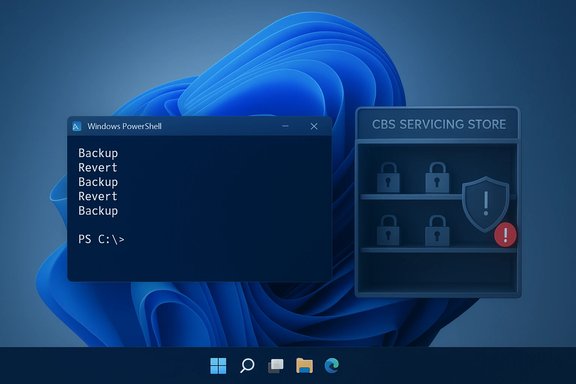
PowerShell window shows repeated “Backup” and “Revert” commands on a Windows 11 desktop.
A community-built PowerShell package called RemoveWindowsAI has emerged as a one‑click way to strip Windows 11 of most on‑device AI surfaces — including Copilot, Recall, and a broad set of first‑party AI components — but its durability techniques (manipulating Windows’ servicing store and installing a blocker package) create real upgrade and support risks that every Windows enthusiast and administrator should understand before running it.

Background / Overview​

Microsoft has progressively repositioned Windows 11 as an “AI PC,” weaving features such as Copilot, Recall, AI‑assisted actions in Explorer and built‑in apps, and other inference services into the shell and inbox applications. These additions are delivered both as visible UI elements and as modular packages recorded in Windows’ Component‑Based Servicing (CBS) inventory. Many of the controls exposed in Settings are straightforward, but a growing number of users want stronger, persistent opt‑outs that survive updates and new user provisioning. In response, an open‑source project published on GitHub under the handle zoicware — RemoveWindowsAI — packages a community recipe for disabling or removing those AI surfaces into an interactive GUI and a command‑line workflow. The repository and companion site explain that the project targets stable Windows 11 releases (not Insider preview builds) and offers both Backup and Revert modes to mitigate risk. Independent press coverage and community hands‑on reports confirm the core claim: run as Administrator and the script hides or removes visible Copilot and Recall UI elements and unprovisions many AI‑labelled Appx/MSIX packages.

What the script claims to do — quick checklist​

RemoveWindowsAI advertises a layered approach that combines reversible settings flips with more aggressive package and servicing modifications. The repository and documentation list the following capabilities:
  • Flip registry keys and Group Policy/CSP equivalents to hide or disable Copilot, Recall, Input Insights and other AI gating flags.
  • Remove Appx / MSIX packages from the current user and remove provisioned manifests so new accounts do not receive those packages.
  • Purge or neutralize CBS store packages that normally survive user‑level uninstalls and may be re‑provisioned by Windows Update.
  • Delete scheduled tasks and local data used by Recall (snapshot indices and search artifacts).
  • Optionally install a blocker package into the CBS servicing inventory to attempt to prevent Windows Update from reinstalling removed AI components.
  • Expose GUI and non‑interactive modes, plus backup/revert tooling to assist recovery.
These actions are the reason the tool spreads quickly: it automates many manual, error‑prone steps that admins and power users had previously executed by hand. Several outlets reproduced the main effects on tested machines, reporting Copilot and Recall UI disappearance and the unprovisioning of AI Appx packages.

How RemoveWindowsAI works — a technical breakdown​

Understanding the script’s layers is essential to evaluate both its benefits and the risks it introduces. The operations fall into five technical buckets:

1. Registry and policy edits (least invasive)​

The script first applies documented registry keys and policy flips that hide UI elements and block activation paths for Copilot, Recall, Input Insights and similar gates. These edits often mirror supported administrative toggles and are generally reversible when backed up. That said, some keys gate deeper component behavior, so flipping them without coordination can produce inconsistent states across dependent features.

2. Appx / MSIX package removal​

RemoveWindowsAI calls Remove‑AppxPackage for per‑user installs and Remove‑AppxProvisionedPackage for provisioned manifests. Removing visible packages is straightforward; removing provisioned packages changes future account provisioning and can affect OEM customizations or features that share package families. This layer is more invasive because it alters what new and temporary accounts receive when created.

3. Component‑Based Servicing (CBS) surgery (most invasive)​

The script attempts to remove or neutralize hidden servicing packages from the CBS inventory and can install a custom blocker update so Windows Update will skip re‑provisioning those components. The servicing store is Windows’ authoritative record of modular packages and updates; modifying it intentionally diverges a machine’s servicing inventory from Microsoft’s expected state. That divergence is the single clearest source of long‑term fragility and the primary operational risk.

4. Scheduled tasks and local data cleanup​

Recall relies on scheduled tasks and local snapshot indices to build a searchable timeline. The script deletes Recall scheduled tasks and wipes local snapshot indices to remove local traces — an effective privacy action, but destructive if the user later wants to restore Recall data.

5. Blocker package and update hardening​

To make removals persistent, the tool can install a blocker MSU‑style package into CBS so Windows Update will skip re‑provisioning those components. When it works, this provides the durable opt‑out many users want — but it is precisely that durability which increases the chance of servicing conflicts during future feature upgrades.

What it removes reliably, and what it does not​

RemoveWindowsAI is effective across a broad surface, but “every AI feature” is an aspirational claim rather than a literal guarantee. Independent reporting and the repository README agree on this nuance.
  • The script reliably hides or removes many first‑party Appx packages tied to Copilot, Recall, Image Creator components in Paint, Notepad rewrite hooks, and UI gates exposed by the Settings app. Multiple hands‑on tests confirm visible Copilot and Recall UI elements disappear after running the main workflows.
  • It can wipe Recall’s local indices and scheduled tasks, permanently removing timeline data unless backed up first. This is destructive but effective for privacy‑minded users who want no trace of that feature.
  • It attempts to prevent automatic re‑provisioning by Windows Update using a blocker package installed into CBS; this is effective in many real‑world tests but not guaranteed across all hardware/OEM/servicing states.
What the script cannot or does not reliably remove:
  • Gaming Copilot, certain OneDrive AI integrations, and some Insider‑only features are handled via different delivery or provisioning paths and may require manual steps or separate tools to fully disable.
  • Some deeply embedded services that share package families with other supported functionality cannot be removed without side effects. The repo documents manual hardening guidance for those cases.
  • The script cannot guarantee the complete removal of all telemetry or backend model pipelines; removing surface packages does not automatically remove all possible diagnostic or telemetry pathways that may remain in Windows. Treat the “every AI feature” phrasing as marketing shorthand rather than a precise engineering guarantee.

Independent testing and press coverage — what reviewers found​

Major outlets and community testers reproduced central outcomes: running RemoveWindowsAI with Administrator rights removes Copilot and Recall UI elements and unprovisions many AI Appx packages on tested Windows 11 25H2 systems. Reporters praised the tool’s transparency (the project is open‑source), the accessibility of the GUI, and the helpful backup/revert features. They also flagged the same central concerns: CBS manipulation and blocker packages increase the risk of future update or upgrade failures, and some AI surfaces require manual steps. Hands‑on reporting underscored variability: OEM customizations, the machine’s servicing state, and whether the device is on the Insider channel all influence success and side effects. In multiple test cases, the script’s weaker‑scope operations (registry flips, per‑user Appx removals) worked predictably; the blocker/CBS steps produced the most divergence between test systems.

Strengths — why users are adopting it​

  • Consolidation of community knowledge: The script automates many manual, error‑prone steps and collects them in a GUI, making opt‑out accessible to less technical users.
  • Transparency: Published code and a detailed README let reviewers audit behavior, increasing trust versus opaque binary tools.
  • Revert and backup modes: The project includes recovery tooling that, when used correctly, reduces the blast radius of mistakes compared with ad‑hoc deletions.
  • Addresses durability complaints: By neutralizing provisioning artifacts and offering blocker packages, the tool addresses the common pain point where removed features reappear after updates. For many users, that persistence is the primary value proposition.

Risks and potential downsides — be explicit​

RemoveWindowsAI’s most serious risks stem from intentionally diverging the servicing inventory and forcibly removing packages that Windows/other features may assume exist. Key danger vectors:
  • Update and upgrade fragility: Modifying CBS or installing a blocker package can lead to cumulative update failures, broken feature upgrades, or automatic repair attempts that confuse the system. Recovering from these states may require repair installs or full system resets.
  • Dependency breakage: Some inbox or OEM components share package families; removing one package can break another feature that expects it to exist. This is particularly risky on OEM images with vendor drivers and custom utilities.
  • Permanent data loss: Wiping Recall snapshot indices and scheduled tasks permanently deletes timeline data unless users back it up beforehand. This is irreversible without external backups.
  • Supportability and warranty concerns: Aggressive servicing modifications could complicate vendor support calls or warranty troubleshooting for OEM devices; some vendors may insist on a stock servicing inventory before providing warranty support.
  • Supply‑chain and trust risks: Running elevated, network‑fetched PowerShell scripts requires trust. Even open‑source projects need independent audits to confirm there are no accidental destructive logic paths or supply‑chain compromise avenues. The README warns that some anti‑malware may falsely detect the script as malicious and suggests temporary exclusions — which itself raises security flags.
Where a claim cannot be independently verified, the project and reviewers flag it. For example, claims that the blocker will forever prevent re‑provisioning on every possible future update are unverifiable in principle; the effectiveness of blockade techniques depends on Microsoft’s servicing changes and future package naming/paths. Those claims should be treated with caution.

Safer alternatives and mitigations​

For many users and administrators, there are lower‑risk ways to reduce AI surface area without resorting to CBS surgery. Consider these options first:
  • Use built‑in Settings, Group Policy, or MDM (CSP) controls where Microsoft exposes them for Copilot, Recall, and privacy telemetry. These are supported and far less likely to break servicing.
  • For enterprises, employ MDM policies and feature update servicing rings to control when and how AI features are provisioned. Test changes in a pilot ring before broad rollout.
  • Use well‑known debloat utilities that limit themselves to reversible registry and Appx removals and avoid CBS edits. Some tools have integrated limited RemoveWindowsAI modules but retain conservative defaults; these can be safer for typical users.
  • If you want absolute control on a personal device, consider using a clean installation or a Linux distribution for workloads where Windows’ AI features are unacceptable; this is extreme but eliminates servicing complications. Several community posts recommend this as a last‑resort option.

Practical precautions if you intend to run RemoveWindowsAI​

If, after weighing risks, you still want to proceed, follow this defensive checklist to reduce the chance of catastrophic outcomes:
  1. Create a full image backup (system image) and test the restore process before making changes. Relying only on System Restore may not be sufficient for servicing or CBS surgery rollbacks.
  2. Test in a virtual machine or spare device first. Validate the script’s behavior and your recovery steps in an environment you can wipe and rebuild.
  3. Use the script’s Backup Mode before applying destructive steps; only enable the blocker / CBS steps after verifying non‑destructive removals.
  4. Inspect the script code yourself or have a trusted admin review it. The project is open‑source; read the PowerShell before running network‑fetched commands.
  5. Keep offline installers for drivers and vendor utilities handy. If an upgrade or repair becomes necessary, you may need to rebuild the system from scratch.
  6. If anti‑virus flags the script, do not blindly whitelist it; instead, review the flagged lines and confirm why the detection triggers. False positives are common for debloat tools, but automatic exclusions are a security risk.

Reverting and recovery​

RemoveWindowsAI provides a Revert Mode and backup artifacts intended to assist recovery. However, real‑world experience shows reversion is not always flawless — especially if Windows Update attempts repairs or if provisioning changes occurred after the removal. Best‑practice recovery steps include restoring from a full image backup or using Microsoft’s repair install (in‑place upgrade) if the servicing state is inconsistent. Documented recovery scenarios in community threads emphasize that full system reimage can be the most reliable fallback if CBS surgery leaves the servicing inventory damaged.

What IT administrators should do​

Enterprises and IT pros should treat RemoveWindowsAI as an experimental, community tool — not a supported remediation path for production fleets. Recommended actions for administrators:
  • Block the use of third‑party CBS‑modifying tools on production endpoints.
  • If end users demand opt‑outs, create vetted Group Policy or MDM profiles that implement supported toggles and test them in staged rings.
  • Maintain image and recovery playbooks for devices that have been modified by third‑party tools, and include guidance for when to require reimaging versus supported repair.

Conclusion​

RemoveWindowsAI fills a real demand: many Windows 11 users want a durable, easy way to opt out of the OS’s growing AI surface. The tool’s transparency, GUI, and backup options make it a powerful option for technically capable users who accept the trade‑offs. But that power comes with concrete operational risks — particularly when the script manipulates the Component‑Based Servicing store and installs blocker packages to force persistence. Those operations can diverge a device from Microsoft’s expected servicing inventory, increasing the chance of update failures, dependency breakage, and support complications. For hobbyists and privacy‑minded power users, the script is a defensible choice if used cautiously: test in a VM, create a full image backup, use backup/revert modes, and avoid CBS blocker steps until you understand the consequences. For enterprises and critical endpoints, prefer supported administrative controls and staged testing. Wherever you land, treat the claim “disables every AI feature” as aspirational: RemoveWindowsAI removes a very large surface, but some features and telemetry pathways require manual or supported administrative actions to disable fully.
Source: Lifehacker https://lifehacker.com/tech/this-script-disables-all-the-ai-features-in-windows-11?utm_medium=RSS/
 

A compact, community-built PowerShell project now gives Windows 11 users an all-in-one way to excise Copilot, Recall and a broad swath of Microsoft’s on-device AI surfaces — and its existence crystallizes a deeper trade-off between user control, update reliability, and platform design that every Windows enthusiast and administrator should understand.

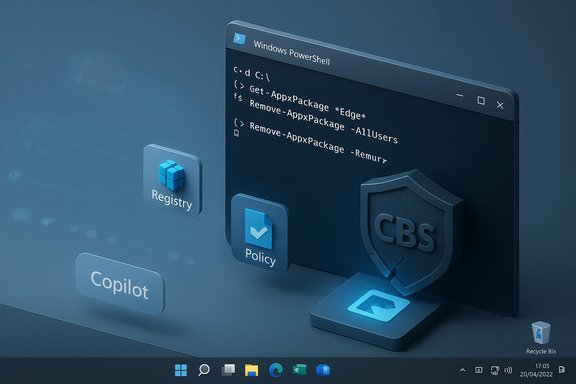
Blue 3D Windows PowerShell window with CBS, Policy, Registry icons and Copilot on a digital desktop.Background / Overview​

Microsoft has steadily repositioned Windows 11 as an “AI PC” platform. Branded subsystems and features such as Copilot (the conversational assistant), Recall (a local timeline of indexed screen snapshots), AI Actions in context menus, and multiple inference-driven experiences inside Paint, Notepad and File Explorer are now woven into both the shell and first‑party apps. Microsoft documents some protections for these features (local processing, Windows Hello safeguards in certain cases), yet the integrations are deep and, for a vocal subset of users, unwelcome.
That gap between feature rollout and user opt‑out options is the practical impetus for RemoveWindowsAI — an open‑source project on GitHub that packages a layered, repeatable recipe for disabling and (optionally) removing many AI surfaces from a running Windows 11 system. The project bundles a PowerShell script, an optional GUI wrapper, documentation and a companion site, and it explicitly targets stable Windows 11 builds (25H2 and later) while offering backup and revert modes. The repository and project site document the tool’s goals and usage patterns.
  • The project’s author publishes both the PowerShell script and a standalone site describing features and options.
  • Independent press coverage and hands‑on community tests have reproduced many of the script’s visible effects on tested machines: Copilot and Recall UI elements disappear and many AI Appx/MSIX packages are unprovisioned.

What RemoveWindowsAI says it does (high level)​

The project describes itself as an orchestration wrapper for multiple low‑level operations. Its documented capabilities include:
  • Flip registry keys and Group Policy/CSP equivalents to hide or disable Copilot, Recall, Input Insights, AI Actions and related UI gates.
  • Remove Appx/MSIX packages for Copilot UI, Recall UI, Image Creator / Paint AI components, Notepad rewrite hooks and other first‑party AI packages (per‑user and provisioned copies).
  • Attempt to purge or neutralize Component‑Based Servicing (CBS) packages that normally survive user‑level removals.
  • Delete scheduled tasks, erase Recall snapshot indices and hide the AI Components settings page.
  • Optionally install a custom “blocker” package into the servicing inventory intended to prevent Windows Update or provisioning from re‑adding those components.
This layered approach is why the project spread quickly: it automates many manual, error‑prone steps that power users and IT pros had previously run by hand. Several independent outlets reproduced the main effects on tested machines, reporting visible UI disappearance and unprovisioned Appx packages.

Technical breakdown — what the tool touches (and why it matters)​

Understanding the subsystems RemoveWindowsAI changes clarifies both its benefits and the hazards.

1. Registry / Group Policy / CSP edits (least invasive)​

The script first applies documented registry keys and policy flips that hide UI elements and block activation paths for Copilot, Recall, Input Insights and similar gates. These edits often mirror supported administrative toggles and are generally reversible when backed up, but they can also gate deeper component behavior that other features expect. Misapplied keys may lead to inconsistent states.

2. Appx / MSIX package removal​

RemoveWindowsAI uses PowerShell app package management to uninstall visible Appx/MSIX applications (Remove‑AppxPackage) and to remove provisioned app manifests (Remove‑AppxProvisionedPackage) so new accounts don’t automatically receive the packages. Microsoft’s Appx cmdlets are the documented tools for these tasks, but they behave differently depending on whether a package is per‑user, provisioned, bundled, or installed system‑wide. Removing provisioned packages is more invasive because it modifies what new user profiles receive and can affect OEM customizations or packages sharing families.

3. Component‑Based Servicing (CBS) surgery — the most invasive layer​

CBS (the servicing store, WinSxS manifests and the TrustedInstaller infrastructure) is how Windows manages modular packages and updates. RemoveWindowsAI attempts to purge or neutralize hidden servicing packages and can install a custom blocker update into CBS to try to prevent re‑provisioning. Altering the servicing inventory intentionally diverges a machine’s state from Microsoft’s expectations and is the clearest source of upgrade fragility and support risk. Microsoft’s documentation and community experience show CBS is sensitive: changes there can lead to servicing errors, failed feature updates or repair issues.

4. Scheduled tasks, snapshot indices and local data​

Recall stores snapshot indices and scheduled tasks for timeline capture. The script deletes those tasks and wipes local indices, which removes any local trace of Recall but is destructive for users who rely on Recall for recovery or timeline access. This is an explicit privacy trade‑off: it eliminates stored data at the cost of losing that functionality.

5. Blocking package installation​

To make removals durable against Windows Update or provisioning, the tool can install a custom Windows Update package that marks the target packages as intentionally blocked in the servicing inventory. That technique is common in community debloat circles, but it also introduces a persistent divergence between the system and upstream servicing expectations. Whether a community blocker will resist every future re‑provisioning attempt is not guaranteed and depends on Microsoft’s future servicing rules — treat that durability claim with caution.

Independent verification: coverage and hands‑on reports​

The RemoveWindowsAI project is both documented in its repository and widely covered by technology press and community testers:
  • The GitHub repository and the project site detail the exact options, command line switches and the author’s warnings about AV false positives and PowerShell version issues; the README explicitly lists options like DisableRegKeys, RemoveAppxPackages, RemoveCBSPackages and the backup/revert modes.
  • Tom’s Hardware, PC Gamer and multiple tech outlets reproduced the tool’s advertised effects in short‑form hands‑on tests: Copilot and Recall UI disappears and many Appx packages are unprovisioned after the script runs in tested configurations. Those outlets also highlight the servicing risk around CBS edits.
  • Community writeups and forum threads report consistent patterns: the script automates a set of manual techniques that previously required hours of command‑line work, but results vary by exact Windows build, OEM image customizations and a machine’s servicing state at the time of execution. Many community posts praise the project’s documentation and revert/backup modes while calling out CBS edits as the principal long‑term risk.
Taken together, the independent sources corroborate the core functional claims — the script does what it advertises on many tested systems — but they uniformly recommend caution because of the servicing/upgrade implications.

Strengths — why this appeals to advanced users​

RemoveWindowsAI answers a clear demand: durable control over AI surfaces without rebuilding images or running dozens of commands.
  • Scope and automation: It consolidates registry edits, Appx and provisioning removals, scheduled task cleanup and optional CBS surgery into a single, repeatable workflow. That saves time and reduces human error for experienced operators.
  • Granular controls: The script exposes toggles so users can run only the lightweight registry changes or choose the full, aggressive cleanup. Backup and revert options are provided to reduce blast radius when possible.
  • Open source and actively maintained: The repository is public and accepts issue submissions and feature suggestions, making it auditable and updateable as new AI components ship.
  • Local control without enterprise MDM: For users without MDM or corporate policies, this tool provides an offline way to reclaim a machine’s surface area from features they view as intrusive.

Risks and real costs — why this is not a casual operation​

The same capabilities that make RemoveWindowsAI effective also create considerable danger.
  • Servicing and upgrade fragility: Modifying the CBS inventory or injecting blocker packages intentionally diverges the local servicing inventory from Microsoft’s expected state. That can produce failed feature updates, repair loops, or unexpected re‑installations that aren’t handled cleanly. Microsoft documents CBS as the authoritative servicing layer; community experience shows this is where upgrades often break when altered.
  • Shared‑component breakage: Some Appx/MSIX packages or CBS components are shared across feature boundaries. Removing a package labelled “AI” can inadvertently remove or cripple functionality that other apps rely on.
  • Incomplete reversion: The tool provides a revert mode and a backup mode, but full restoration is not guaranteed in all servicing states. If CBS has been altered or files deleted, restoring to a pristine state may require complex servicing operations or a clean OS reinstallation.
  • False positives and antivirus flags: Because the tool performs aggressive file and registry edits, some third‑party antivirus engines may flag it as suspicious. The project warns about false positives; users may need to temporarily exclude the script in their AV rules, which itself is an operational risk.
  • Unsupported modifications for managed fleets: Running this on corporate devices can void support agreements or break compliance. Enterprises should evaluate this only after proper testing, and prefer managed policies and approved MDM controls where possible.

Alternatives and mitigations​

For most users — especially administrators and managed fleets — supported toggles and enterprise controls remain the safer first choice.
  • Use Microsoft’s built‑in Settings pages, Group Policy objects or MDM/Intune CSPs to disable the specific features the organization objects to. These are supported paths and are less likely to break servicing.
  • Apply staged testing: evaluate removals in virtual machines and a dedicated test lab before touching production machines.
  • For those who want easier discovery of AI surfaces without destructive changes, tools like FlyOOBE/BloatyNosy and their newer AI plugins can identify AI‑labeled packages and present options without doing CBS surgery; FlyOOBE exposes a “Slopilot” detection surface and can invoke deep cleanup tools only when explicitly chosen.
  • Consider targeted removals (registry + per‑user Appx removals) rather than wholesale CBS edits. This reduces fragility while still reclaiming visible surface area.

How to evaluate and run RemoveWindowsAI safely — a practical checklist​

If, after considering the risks, a user or admin decides to proceed, follow disciplined steps to protect data and recoverability.
  • Create a full system backup (image) or snapshot of the machine. Ensure backups are tested for recovery.
  • Test in an isolated virtual machine or a non‑critical device that matches your target hardware and OEM image. Reproduce the exact Windows build and update level.
  • Read the project README and documentation in full; enable Backup Mode before any destructive actions. The script’s command‑line options include explicit backup and revert switches; rely on them.
  • Start with low‑risk options: disable registry keys and hide UI elements first. Verify user experience and app behavior for several days before proceeding to package removals.
  • If you must remove provisioned Appx packages, document every package name and manifest you remove so you can re‑provision later from known sources. Use Get‑AppxProvisionedPackage and related DISM queries to inventory changes.
  • Avoid CBS surgery on production devices unless you have a tested recovery plan (full image + media to reinstall Windows if needed). If you do use the blocker package option, accept that this is a long‑term divergence that may complicate feature updates.
  • Keep a log of exact script invocations and timestamps; this helps with post‑mortem repair if an update fails.
  • Do not run the script in a managed or domain‑joined environment without explicit consent from IT and an approved rollback plan.

Enterprise and support considerations​

For fleets, the recommended path is conservative: exhaust supported policy and MDM controls first. RemoveWindowsAI’s servicing‑level changes are not enterprise‑grade support paths and can create audit, compliance and update management headaches. If an organization’s threat model or compliance posture truly requires aggressive removal, document the exception with change control, and limit use to tightly controlled images with full recovery processes.
Enterprises that cannot accept the risk should lobby vendors for clearer, supported opt‑out controls. The emergence of community tools like RemoveWindowsAI is itself a signal: many users want durable, administrable choices about an OS increasingly oriented toward AI features.

What the tool does not guarantee (and cautionary flags)​

  • The blocker package will not always prevent every future re‑provisioning route. Microsoft’s servicing rules and update mechanics can change; durability claims depend on future behavior outside the tool author’s control. Treat durability as probabilistic, not absolute.
  • Not every AI surface can be removed by script: some features in Insider builds, vendor OEM customizations, or third‑party integrations (e.g., OneDrive AI features, Gaming Copilot) may require manual steps or are out of scope. The project documents these gaps.
  • Revert is not guaranteed if servicing metadata or core component files are deleted; in worst cases a clean OS reinstall may be required to restore a fully supported state.

Final analysis — balancing agency and platform stewardship​

RemoveWindowsAI is a practical, well‑documented and auditable community response to a real user need: more durable control over Windows 11’s expanding AI surface. For experienced power users and lab administrators willing to accept servicing fragility, it offers significant convenience and granular control. The project’s openness, backup/revert tooling and active maintenance are notable strengths.
Yet the tool’s most powerful techniques cross into servicing territory that historically has been the source of upgrade problems and support headaches. Deliberately diverging a system’s servicing inventory to block vendor‑shipped components trades away platform stability for immediate control. That trade is defensible in some operational threat models — but it should be chosen deliberately, with tested recovery plans and clear documentation.
For most readers, the safe approach is sequential: exhaust supported controls (Settings, Group Policy, MDM), use non‑destructive discovery tools to catalog AI surfaces, and reserve servicing edits for isolated testbeds or devices where full recovery plans are in place. When executed with discipline, RemoveWindowsAI gives power users a pragmatic option. Used carelessly, it can turn a minor annoyance into a major maintenance incident. The tension the project exposes — between user agency and platform stewardship — is the story the Windows community will have to negotiate in the years ahead.
Conclusion: RemoveWindowsAI is a capable, community‑driven toolkit that makes an increasingly common demand actionable — durable removal of AI features — but it is not a blanket recommendation. Treat it as a surgical instrument: powerful in trained hands, risky in unprepared ones.
Source: Neowin https://www.neowin.net/news/new-too...-11-and-gives-users-more-control-over-system/
 

Back
Top