

If you’ve got an old Windows 10 PC that can’t meet Windows 11’s TPM, Secure Boot, or CPU requirements, turning it into a Home Assistant server is one of the most useful and long‑lived repurposing moves you can make. Home Assistant (often abbreviated HA or HAOS for Home Assistant Operating System) turns disparate smart devices into a single, local, automatable system—no mandatory cloud subscription required—and an old desktop or tower can make a far more capable, expandable hub than a cheap off‑the‑shelf hub or a tiny single‑board computer. The how‑to I used as a starting point walks through the exact Proxmox + HAOS workflow many enthusiasts follow, and I’ll reproduce, verify, and expand that guidance with practical advice, risks, and alternatives so you can make an informed decision. review
Home Assistant is an open‑source smart‑home automation platform that centralizes control of lights, locks, sensors, cameras, and DIY devices via integrations and add‑ons. Instead of running multiple manufacturer apps, Home Assistant lets you:
If you’re converting a desktop into a dedicated hub, you have two basic deployment choices:
Repurposing that old Windows 10 machine into a Home Assistant server is low‑cost, high‑utility, and aligns with both environmental and privacy goals. The Proxmox VM route keeps your options open, gives you enterprise‑grade snapshot and backup tooling, and lets the old PC run multiple useful services alongside Home Assistant. Follow the import‑disk workflow, verify the correct HAOS artifact before you download, and keep a tested backup strategy—do those things and the old machine will reliably serve your smart home for years to come.
Source: How-To Geek My old PC can't run Windows 11, so I'm using it for this instead
Home Assistant is an open‑source smart‑home automation platform that centralizes control of lights, locks, sensors, cameras, and DIY devices via integrations and add‑ons. Instead of running multiple manufacturer apps, Home Assistant lets you:
- See and control devices from many manufacturers in one dashboard.
- Create automations and presence/occupancy logic.
- Run everything locally on your LAN (or behind a secure VPN) for privacy and offline resilience.
- Extend functionality with add‑ons (e.g., MQTT brokers, Zigbee/Z‑Wave proxies, NVRs).
- More CPU cores and RAM for add‑ons (e.g., Zigbee2MQTT, InfluxDB, Node‑RED).
- Multiple USB ports for radio sticks (Zigbee, Z‑Wave) and serial devices.
- Bigger, faster storage for long‑term logging and video storage.
- The flexibility to run HAOS inside a virtual machine or as the sole OS.
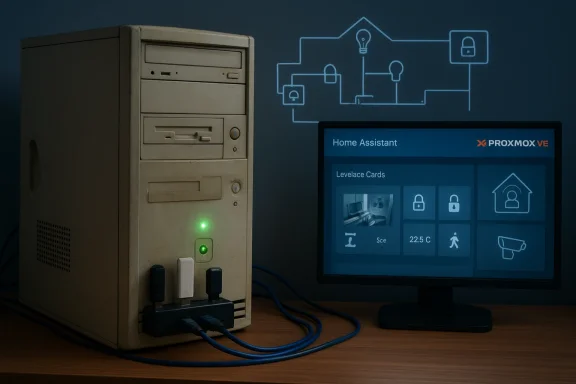 Why Proxmox + Home Assistant is the best balance for many enthusiasts
If you’re converting a desktop into a dedicated hub, you have two basic deployment choices:- Install Home Assistant OS directly as the only OS (bare‑metal), or
- Install a hypervisor (I recommend Proxmox VE) and run HAOS as a virtual machine.
- Run other services (VPN, Pi‑hole, file servers, test VMs) on the same host.
- Use snapshots and off‑node backups (Proxmox Backup Server) for safe experimentation.
- Move or clone VMs more easily if you upgrade hardware later.
What you’ll need (hardware and basic software)
- Any desktop or laptop with 64‑bit UEFI capable of running Linux virtualized (x86‑64).
- At least 2 CPU cores to start; I recommend 2–4 cores and 4 GB RAM minimum, 8 GB preferred if you’ll run multiple add‑ons. Community guides typically suggest 2 cores / 4 GB as a minimum for HAOS in Proxmox.
- A storage device with space for the VM image and logs—SSD preferred for responsiveness.
- Ethernet connectivity (Wi‑Fi works but wired is strongly recommended for reliability).
- Optional: Zigbee USB stick, Z‑Wave controller, Bluetooth adapter, or a PCI card if you plan to run local radios.
- Proxmox VE installed on the host. Use the latest stable Proxmox release supported by your hardware.
- The HAOS VM image appropriate to your architecture (qcow2 or .img variants available). Always download the current image from Home Assistant’s official releases or installation pages. I’ll show how to fetch and verify the right artifact below.
Step‑by‑step: Preparing the HAOS image (verified, current approach)
Important note: Home Assistant OS release filenames change between releases (qcow2, .img, OVA, VDI, VMDK variants are published). The example command in the original how‑to downloads a specific asset file; that file name was valid at the time of writing but may be replaced by a newer release. Always confirm the latest image filename on the Home Assistant OS releases page before running wget. The GitHub releases page is the authoritative list of HAOS artifacts.- On your Proxmox host (shell/SSH), download the HAOS image appropriate for KVM/Proxmox. Example (this was valid for a 16.3 artifact variant in community guides):
wget https://github.com/home-assistant/operating-system/releases/download/16.3/haos_ova-16.3.qcow2.xz
If that exact URL fails, go to the Home Assistant Operating System releases page and choose the KVM/Proxmox (.qcow2) asset for the current stable release, then copy that URL. - Decompress the archive:
unxz haos_ova-16.3.qcow2.xz
After this step you should have haos_ova-16.3.qcow2 (or a similarly named file matching the release you downloaded). - Create a new VM in Proxmox using the GUI:
- OS tab: choose Do not use any media.
- System tab: set Machine to q35, BIOS to OVMF (UEFI), set EFI Storage to your storage (often local‑lvm), and uncheck Pre‑Enroll keys.
- Disks tab: delete any auto‑created disk.
- CPU: assign at least 2 cores.
- Memory: assign at least 4 GB (4096 MB).
- Finish but do not start the VM.
- Import the decompressed qcow2 into the empty VM:
qm importdisk <VMID> /root/haos_ova-16.3.qcow2 local-lvm
Replace <VMID> with the numeric ID you created for the VM and local-lvm with your storage name if different. The command copies the image into your Proxmox storage and registers it as an Unused Disk for the VM. This is the canonical method documented in multiple community guides and Proxmox forum posts. - In the Proxmox GUI → VM → Hardware, double‑click the Unused Disk and Add it to the VM. If the disk is on an SSD/NVMe, check Discard to allow TRIM.
- Options → Boot Order: enable only the newly attached disk (scsi0 or virtio0 depending on how you attached it), clear others.
- Start the VM. The VM will run the HAOS installer / first‑boot sequence and eventually present an IP address or URL for the Home Assistant UI (http://<vm_ip>:8123). If it drops to a UEFI shell or fails to boot, see the Troubleshooting section below (some Proxmox/HAOS combinations need alternate bus settings or an EFI vars fix).
Practical Proxmox tips and variants
- If the release you downloaded is an .img.xz rather than .qcow2, you can still use it—either convert it via qemu-img to qcow2 or import as raw if your storage supports it. Community tutorials show a range of workflows; pick one consistent with your storage type and Proxmox version. The Home Assistant “Alternative installation” docs explicitly list KVM/Proxmox (.qcow2) as one of the supported download formats, so selecting the qcow2 artifact when available keeps the process simple.
- If you plan to pass through USB dongles (Zigbee or Z‑Wave sticks), Proxmox supports USB device passthrough. Plug your stick into the host, find it in the Proxmox node USB list and add it to the VM before bootingg, or configure hot‑add later. Many HA setups use a single USB stick or a small PCIe USB card for multiple radios.
- Snapshots are your friend. Before making major changes (Core or Supervisor upgrades, complex automation changes, or plugin installs), take a snapshot of the VM in Proxmox. Combine snapshots with Proxmox Backup Server if you want off‑node backups with deduplication.
What Home Assistant can do once running (realistic examples)
- Local presence/occupancy: track phones, Bluetooth, or DIY occupancy sensors to toggle lights automatically at night.
- Integrations: support for Philips Hue, Govee, Nest/Google (via cloud), MQTT devices, Zigbee (via ZHA or Zigbee2MQTT), many smart locks, thermostats, and cameras.
- Dashboard and voice control: create Lovelace dashboards and integrate with local voice assistants or the cloud voice providers you choose.
- Advanced automations: conditionals, scenes, scripts, and Node‑RED flow automation for complex logic.
- Add‑ons: run InfluxDB + Grafana for long‑term metrics, MotionEye or Frigate for camera analysis, Tailscale for secure remote access, and more.
Security, privacy, and operational hygiene
Turning an old PC into a network‑exposed hub means taking responsibility for security:- Keep Home Assistant and add‑ons up to date. Security fixes are released routinely.
- Prefer local control where possible; if you need remote access, use a secure VPN or a zero‑trust overlay like Tailscale rather than exposing HA directly to the internet.
- If you attach cameras or record video, secure storage and retention policies are essential—video storage grows fast and can expose sensitive data.
- Back up your configuration regularly (Home Assistant has snapshot/restore features, and Proxmox backups are an extra layer).
- If you pass through USB devices like Zigbee sticks, treat the host and VM as trusted zones; a compromised add‑on could be a vector for escalation if backups and snapshots are not managed.
Common pitfalls and how to avoid them
- Booting into UEFI interactive shell or “no FS0”:
- Symptom: HAOS image boots to UEFI shell or the VM won’t find a bootloader.
- Causes: mismatched VM firmware/boot disk type, missing EFI vars disk, or a Proxmox/HAOS artifact mismatch for your PVE version.
- Fixes: Confirm VM machine type q35 + BIOS OVMF, ensure an EFI storage entry is present and “Pre‑Enroll keys” is unchecked, attach the imported disk to a virtio‑scsi controller, or try SATA if SCSI fails. Community reports show these steps often resolve the issue; if not, consult the HA community threads for PVE 9 compatibility notes.
- Using an image with the wrong format:
- If you downloaded an .img but the guide expects qcow2, either download the qcow2 artifact or use qemu-img convert to create a qcow2 from the .img before import.
- Storage naming in qm importdisk:
- If
qm importdiskreports the storage does not exist, check/etc/pve/storage.cfgfor the correct storage pool name (local-lvm, local-zfs, etc.. This error appears often in community troubleshooting threads and is usually a mismatch in storage identifiers. - USB passthrough not visible in the VM:
- If your device isn’t showing in Home Assistant, confirm you added the USB device to the VM in the Proxmox Hardware → USB section and that the VM has been rebooted to re-enumerate devices.
Performance tuning and best practices
- Allocate memory with headroom: 4 GB min, 8 GB if you intend to run heavier add‑ons (video analysis, many simultaneous integrations).
- Prefer virtio‑scsi and paravirtualized drivers—these give better I/O performance than emulated devices. For Windows VMs the virtio driver story is critical; for HAOS the imported image is already optimized for KVM.
- Use SSD storage if you keep logs or recorder databases locally—rotating log files and pruning retention settings in Home Assistant helps limit disk growth.
- Offload long‑term telemetry to InfluxDB or external storage if you plan to keep months of history.
- Automate starts/stops: Proxmox can automatically start the HA VM on host boot; but for energy savings, consider scripting or using Home Assistant automations to control non‑critical VMs.
Alternatives and when they make sense
- Bare‑metal HAOS: If you want the simplest, most dedicated setup and are comfortable wiping the PC, install HAOS directly as the host OS. This eliminates hypervisor overhead but sacrifices the ability to run other services on the same machine.
- Containerized Home Assistant (Docker): If you already have an existing Linux server and run containers, Home Assistant Container or Home Assistant Supervised provides more control across containers without a dedicated HAOS layer.
- Home Assistant Yellow / commercial hubs: If you prefer a supported turnkey hardware solution, Home Assistant Yellow (or similar devices) provide convenient local hub hardware with Zigbee built‑in.
- Raspberry Pi / NUC: For lower power consumption and a smaller footprint, Raspberry Pi 4/5 or Intel NUC remains a popular choice—easier setup but less headroom for heavy add‑ons than a desktop.
Final evaluation: strengths, risks, and my practical verdict
Strengths- Reuses existing hardware and extends its life, avoiding e‑waste.
- Local control and privacy: Home Assistant lets you reduce cloud dependencies.
- Flexibility: Proxmox + HAOS gives you snapshots, backups, and multi‑role use.
- Scale: An old desktop has far more CPU, RAM, and USB capacity than tiny hub devices—perfect for advanced automations, local ML, or camera analysis.
- Power consumption: Desktops use far more power than a Pi or NUC; factor this into long‑term costs.
- Complexity: Proxmox + passthrough and EFI quirks add complexity; be prepared to read community threads for edge cases.
- Maintenance: A self‑hosted stack requires patching and backup discipline—don’t treat it as “install and forget.”
- For tinkerers, homelabbers, and privacy‑conscious users who want a capable, extensible smart home hub, installing Home Assistant OS in a Proxmox VM on an old Windows 10 PC is an excellent use of that hardware. For those who want the lowest power, simplest solution, a Raspberry Pi or bare‑metal HAOS install may be better. The community workflow—download the HAOS qcow2, create an empty Proxmox VM with q35/OVMF, use qm importdisk, attach the disk, set boot order, and start—works consistently and is well documented in both Home Assistant and Proxmox communitm])
Quick reference checklist (practical, copyable)
- Confirm current HAOS release and download the KVM/Proxmox (.qcow2) asset from the Home Assistant releases page.
- SCP/wget the .qcow2.xz to the Proxmox host and run unxz to decompress.
- Create a new VM in Proxmox: OS → No media; System → q35 + OVMF; delete default disk; CPU ≥2 cores; RAM ≥4 GB.
- Import decompressed image: qm importdisk <vmid> /path/to/haos.qcow2 local-lvm
- Attach imported disk as scsi0/virtio, enable Discard if SSD, set boot order.
- Start VM and visit http://<vm_ip>:8123 to finish setup.
- Add USB Zigbee/Z‑Wave stick via Proxmox USB passthrough if needed.
- Take a Proxmox snapshot after first successful boot and configure a backup plan.
Repurposing that old Windows 10 machine into a Home Assistant server is low‑cost, high‑utility, and aligns with both environmental and privacy goals. The Proxmox VM route keeps your options open, gives you enterprise‑grade snapshot and backup tooling, and lets the old PC run multiple useful services alongside Home Assistant. Follow the import‑disk workflow, verify the correct HAOS artifact before you download, and keep a tested backup strategy—do those things and the old machine will reliably serve your smart home for years to come.
Source: How-To Geek My old PC can't run Windows 11, so I'm using it for this instead
