

The Hosts file is a tiny plain‑text system file that punches well above its weight: by mapping human‑readable hostnames to IP addresses, it can short‑circuit DNS lookups and control which servers your PC talks to. When the Hosts file is altered—intentionally for testing, by security software, or maliciously by malware—it can silently block websites, redirect traffic, or break Windows services. Resetting the Hosts file to its default state is one of the fastest, safest first steps you can take when troubleshooting network problems, failed updates, or unexpected redirects.
The Hosts file lives at C:\Windows\System32\drivers\etc\hosts on every modern Windows installation. It is a plain text file where each non‑comment line typically contains an IP address followed by one or more hostnames separated by whitespace. Lines starting with a hash (#) are comments and ignored by the resolver. Because entries in Hosts take precedence over DNS, a single misconfigured or malicious entry can effectively “blackhole” a domain or redirect traffic to an attacker‑controlled address.
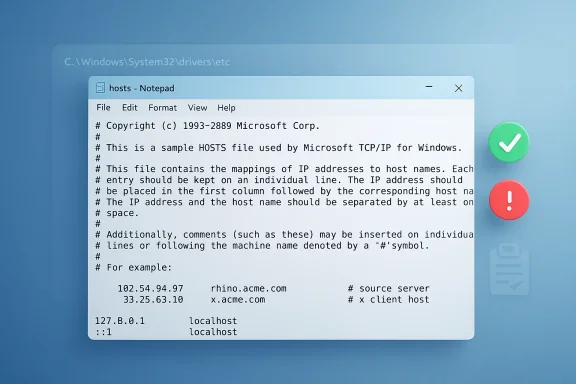
The default Windows Hosts file is intentionally minimal. Most installations include only the loopback entries for IPv4 and IPv6 (127.0.0.1 and ::1) mapped to localhost, plus a header of commented metadata on some versions. Restoring that minimal content removes overrides while keeping local name resolution for the loopback interface intact.
Why this matters: a modified Hosts file is a common cause of connectivity oddities — from individual websites failing to load to Windows Update or the Microsoft Store being blocked from reaching Microsoft’s servers. Community troubleshooting guides and Microsoft‑centric support threads repeatedly list inspection and restoration of Hosts as a recommended step.
A safe, minimal default you can use immediately in almost any modern Windows setup is:
127.0.0.1 localhost
1 localhost
Adding these two lines (IPv4 and IPv6 loopbacks) ensures local applications that rely on localhost continue to work while removing any domain overrides that could be causing problems.
C:\Windows\System32\drivers\etc\hosts
If you see lines that map known domains (for example, microsoft.com, windowsupdate.microsoft.com, or popular websites) to 127.0.0.1 or to an unexpected IP, the Hosts file is overriding DNS for those domains. Community troubleshooting steps list checking this exact path and removing suspicious entries as a standard step.
Multiple community instructions and repair scripts use this exact workflow as the first‑line fix for DNS‑related problems.
Explanation:
PowerShell gives you more control over encoding and appending and is preferred when you need scripting accuracy across different locales.
Safe steps to recover control:
Note: takeown and icacls alter ownership and ACLs. Only use them if you understand the commands and have administrative rights. In many cases, removing attributes (attrib -h -s -r) and editing as administrator is sufficient. Forum examples also advise copying the hosts file to the desktop, editing there, then moving it back while running File Explorer as Administrator if direct edits fail.
If Windows Update, Microsoft Store, or specific sites were failing due to Hosts entries, they will often start working immediately after the reset and a reboot. Community troubleshooting guides and Microsoft‑oriented threads list Hosts fixes alongside Winsock/IP resets (netsh winsock reset / netsh int ip reset) as a core remediation set for networking problems.
Resetting the Hosts file is a small, low‑risk operation that removes a common and often overlooked cause of connectivity and update failures. With a few administrator steps—inspect, back up, replace with the minimal loopback entries, flush DNS—you can eliminate locally enforced overrides and restore normal DNS resolution. If the file can’t be saved, use attribute and ownership remedies cautiously, and if the Hosts file keeps changing, treat that as a possible sign of persistent malware and escalate appropriately.
In short: when a website won’t load or Windows services appear blocked, check the Hosts file first; restoring the minimal default is fast, effective, and often removes the root cause.
Source: Microsoft Support How to reset the Hosts file back to the default - Microsoft Support
 Background / Overview
The Hosts file lives at C:\Windows\System32\drivers\etc\hosts on every modern Windows installation. It is a plain text file where each non‑comment line typically contains an IP address followed by one or more hostnames separated by whitespace. Lines starting with a hash (#) are comments and ignored by the resolver. Because entries in Hosts take precedence over DNS, a single misconfigured or malicious entry can effectively “blackhole” a domain or redirect traffic to an attacker‑controlled address.The default Windows Hosts file is intentionally minimal. Most installations include only the loopback entries for IPv4 and IPv6 (127.0.0.1 and ::1) mapped to localhost, plus a header of commented metadata on some versions. Restoring that minimal content removes overrides while keeping local name resolution for the loopback interface intact.
Why this matters: a modified Hosts file is a common cause of connectivity oddities — from individual websites failing to load to Windows Update or the Microsoft Store being blocked from reaching Microsoft’s servers. Community troubleshooting guides and Microsoft‑centric support threads repeatedly list inspection and restoration of Hosts as a recommended step.
What “resetting to default” actually means
There are two practical ways to interpret “reset to default”:- Restore the complete Microsoft default header and loopback lines if you want the file to match a fresh Windows image.
- Replace the Hosts file with a minimal, safe configuration that removes all overrides (the pragmatic and recommended option for troubleshooting).
A safe, minimal default you can use immediately in almost any modern Windows setup is:
127.0.0.1 localhost
1 localhost
Adding these two lines (IPv4 and IPv6 loopbacks) ensures local applications that rely on localhost continue to work while removing any domain overrides that could be causing problems.
Before you start: precautions and preparatory checks
- Administrator privileges required. You must edit or replace the Hosts file as an administrator. Ordinary user access will not allow saving changes to C:\Windows\System32\drivers\etc\hosts.
- Back up first. Always make a copy of the existing Hosts file before changing it. Name it hosts.backup with a timestamp and store it outside the drivers\etc folder.
- Scan for malware. If the Hosts file was changed without your knowledge, run a full anti‑malware scan before restoring defaults; persistent malware may rewrite the file after you reset it. Security forums and incident responses often highlight Hosts tampering alongside other IOCs.
- Note Windows version variations. The header comments in the Microsoft default Hosts file can differ by Windows release, but the loopback entries are consistent across recent versions.
How to inspect the Hosts file safely
Open Notepad (or your preferred text editor) as Administrator, then open the file at:C:\Windows\System32\drivers\etc\hosts
If you see lines that map known domains (for example, microsoft.com, windowsupdate.microsoft.com, or popular websites) to 127.0.0.1 or to an unexpected IP, the Hosts file is overriding DNS for those domains. Community troubleshooting steps list checking this exact path and removing suspicious entries as a standard step.
Method 1 — Manual edit using Notepad (recommended for most users)
- Right‑click Notepad and choose Run as administrator.
- In Notepad, choose File → Open and navigate to C:\Windows\System32\drivers\etc. Set the file type to All Files so you can see “hosts”.
- Open hosts, then:
- Remove any lines that are not comments or the expected loopback entries.
- Replace the file contents with the minimal default:
Code:
127.0.0.1 localhost
::1 localhost- Save the file. If saving fails, see the “Permissions and attributes” section below.
- Flush the DNS resolver cache so the change takes immediate effect:
- Open an elevated Command Prompt and run:
ipconfig /flushdnsMultiple community instructions and repair scripts use this exact workflow as the first‑line fix for DNS‑related problems.
Method 2 — Reset via elevated Command Prompt (copy‑paste safe steps)
If you prefer command line or cannot open a GUI editor, these commands recreate a safe Hosts file from an elevated Command Prompt. Copy and run them line by line while running the shell as Administrator:- Open Command Prompt as Administrator.
- Run:
Code:
cd /d %windir%\system32\drivers\etc
attrib -h -s -r hosts
echo 127.0.0.1 localhost > hosts
echo ::1 localhost >> hosts
attrib +r +h +s hosts
ipconfig /flushdns- attrib removes hidden/system/read‑only attributes so you can overwrite the file, then restores them afterward.
- The echo lines create a new Hosts file containing only the loopback entries.
- ipconfig /flushdns clears the cached lookups.
Method 3 — PowerShell one‑liners (for administrators who prefer PowerShell)
Open PowerShell as Administrator and run:
Code:
Set‑Location "$env:Windir\System32\drivers\etc"
attrib -h -s -r hosts
"127.0.0.1 localhost" | Out‑File -FilePath .\hosts -Encoding ASCII
"::1 localhost" | Out‑File -FilePath .\hosts -Encoding ASCII -Append
attrib +r +h +s hosts
ipconfig /flushdnsPermissions, attributes, and “I can’t save the file”
If Notepad or the command line refuses to overwrite hosts, two common causes exist: file attributes (Hidden, System, Read‑Only) and file ownership/ACE permissions. Community threads and longstanding Windows support discussions repeatedly show that toggling attributes and taking ownership resolves save failures.Safe steps to recover control:
- Remove attributes first:
attrib -h -s -r C:\Windows\System32\drivers\etc\hosts- Take ownership and grant administrators full control (use with caution and only on your own machine):
Code:
takeown /f C:\Windows\System32\drivers\etc\hosts
icacls C:\Windows\System32\drivers\etc\hosts /grant Administrators:F- Edit or recreate the file using Notepad or the command methods above.
- Optionally restore stricter permissions afterward:
Code:
attrib +r +h +s C:\Windows\System32\drivers\etc\hosts
icacls C:\Windows\System32\drivers\etc\hosts /remove:g AdministratorsAfter you reset: verification and follow‑up
- Run ipconfig /flushdns to clear cached host entries.
- Test access to previously blocked sites and services.
- Use nslookup or ping to confirm DNS resolution is now controlled by your DNS server rather than the Hosts file:
Code:
nslookup example.com
ping example.comWhen Hosts keeps reverting or you suspect reinfection
If the Hosts file is restored but later reverts, it indicates a persistent process is rewriting it. Steps to handle persistent modification:- Boot to Safe Mode and inspect scheduled tasks, startup items, and installed services for suspicious entries.
- Run full scans with an up‑to‑date endpoint scanner and a second‑opinion scanner from a known‑good environment.
- Check for and remove browser extensions or utilities that claim to “block ads” or “speed up browsing” without reputable provenance; these are common causes of Hosts modifications. Security advisories have repeatedly flagged certain TLD patterns and suspicious sites as red flags alongside unexpected Hosts changes.
How Hosts file issues show up in the wild — real symptoms and examples
- Specific websites load as if they don’t exist while others are fine.
- Antivirus or VPN clients start behaving oddly after Hosts changes.
- Windows Update or Microsoft Store fails with generic network errors because endpoints are blocked by Hosts overrides. Troubleshooters and community threads often recommend checking Hosts as one of the initial steps when Store or update services fail.
Risks, tradeoffs, and caveats
- Do not blindly run scripts from untrusted sources. Repair scripts that modify system files and network stack settings should only be used when you understand each command. Community archives include many helpful scripts, but blindly copying code without comprehension risks system harm.
- Restoring a minimal Hosts file may remove intentional entries. If you or your organization rely on Hosts overrides for local testing or internal name resolution, back up and re‑apply those entries as needed after troubleshooting.
- Permissions modifications can be abused. Using takeown/icacls is powerful and should be used conservatively. If you’ve taken ownership, consider restoring secure ACLs after repairs.
- Persistent malware can rewrite Hosts. If the file keeps reverting, assume the device may still be compromised and escalate to full malware remediation procedures.
Best practices to prevent future problems
- Keep anti‑malware software current and enable real‑time protection.
- Avoid copy‑pasting repair commands from dubious forums — use official guidance when possible and inspect scripts before running them.
- For development/test environments, use environment‑specific DNS or Docker/VM hosts rather than populating the system Hosts file across machines.
- Maintain a simple backup routine for critical system configurations (including the Hosts file) so intentional overrides can be restored quickly if needed.
- Monitor system changes with a lightweight file integrity monitor or EDR that alerts when the Hosts file is modified.
Quick troubleshooting checklist (copy‑ready)
- Open Notepad as Administrator and inspect C:\Windows\System32\drivers\etc\hosts.
- Back up the existing hosts file to hosts.backup.
- Replace contents with:
Code:127.0.0.1 localhost ::1 localhost - Run:
ipconfig /flushdns - If you cannot save, remove attributes:
attrib -h -s -r C:\Windows\System32\drivers\etc\hosts
then retry save or use the command approach. - If Hosts reappears or reverts, run full malware scans and inspect startup tasks and scheduled tasks.
Resetting the Hosts file is a small, low‑risk operation that removes a common and often overlooked cause of connectivity and update failures. With a few administrator steps—inspect, back up, replace with the minimal loopback entries, flush DNS—you can eliminate locally enforced overrides and restore normal DNS resolution. If the file can’t be saved, use attribute and ownership remedies cautiously, and if the Hosts file keeps changing, treat that as a possible sign of persistent malware and escalate appropriately.
In short: when a website won’t load or Windows services appear blocked, check the Hosts file first; restoring the minimal default is fast, effective, and often removes the root cause.
Source: Microsoft Support How to reset the Hosts file back to the default - Microsoft Support
