

If you found a VisionTek Radeon HD 5570 (model 900901) advertised as a “cheap” Windows 10 64‑bit solution and your immediate question is “what driver do I use and is it safe?” — the blunt, practical answer is: yes, you can get the card working under Windows 10 x64, but take the conservative route. Start with Microsoft’s signed driver via Windows Update or your OEM’s support package; only use archived AMD installers after careful verification, and never trust “cheap driver” bundles from third‑party marketplaces without checksums and signatures. This article explains why, verifies the HD 5570’s hardware reality, lays out a safe installation workflow, and evaluates the costs, benefits, and risks of resurrecting one of AMD’s legacy DirectX 11 cards on a modern Windows 10 system.
The Radeon HD 5570 is a DirectX‑era, low‑power discrete GPU from AMD’s HD 5000 family. VisionTek’s common retail variant (part number 900901) ships as a single‑slot, low‑profile card with 1 GB of memory on a 128‑bit bus and was designed for basic desktop tasks, multi‑monitor setups, and light gaming from its 2010 release window. The card is not natively a modern media or gaming powerhouse: it lacks up‑to‑date hardware decoding for today’s AV1/HEVC workloads and it sits well behind even inexpensive contemporary integrated GPUs for performance per watt.
Windows 10’s official free support ended on October 14, 2025. That timing matters: vendors have shifted many older families into a legacy archive state and release notes may stop explicitly naming Windows 10, even when binaries still work. That increases the friction and risk of running legacy driver stacks on Windows 10 systems, and it changes how vendors present compatibility in their documentation.
This article walks through the hardware facts you need to know, the driver landscape (Microsoft, OEM, AMD archive, and the risky “cheap driver” route), a recommended step‑by‑step safe installation workflow for Windows 10 x64, common failure modes and fixes, and the practical buying and upgrade recommendations for anyone considering a cheap HD 5570 today.
Source: Born2Invest https://born2invest.com/?b=style-231693512/
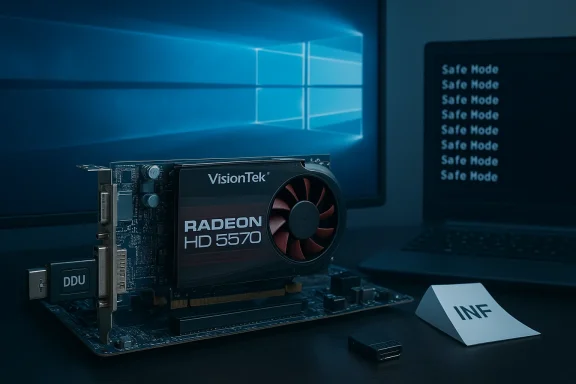 Background / Overview
The Radeon HD 5570 is a DirectX‑era, low‑power discrete GPU from AMD’s HD 5000 family. VisionTek’s common retail variant (part number 900901) ships as a single‑slot, low‑profile card with 1 GB of memory on a 128‑bit bus and was designed for basic desktop tasks, multi‑monitor setups, and light gaming from its 2010 release window. The card is not natively a modern media or gaming powerhouse: it lacks up‑to‑date hardware decoding for today’s AV1/HEVC workloads and it sits well behind even inexpensive contemporary integrated GPUs for performance per watt.Windows 10’s official free support ended on October 14, 2025. That timing matters: vendors have shifted many older families into a legacy archive state and release notes may stop explicitly naming Windows 10, even when binaries still work. That increases the friction and risk of running legacy driver stacks on Windows 10 systems, and it changes how vendors present compatibility in their documentation.
This article walks through the hardware facts you need to know, the driver landscape (Microsoft, OEM, AMD archive, and the risky “cheap driver” route), a recommended step‑by‑step safe installation workflow for Windows 10 x64, common failure modes and fixes, and the practical buying and upgrade recommendations for anyone considering a cheap HD 5570 today.
What the Radeon HD 5570 (VisionTek 900901) actually is
Key hardware facts (what to expect)
- Memory: Typically 1 GB (VisionTek 900901 commonly ships with 1 GB GDDR3). Board variants exist with GDDR5 in other retail SKUs, so check the sticker or listing.
- Memory bus: 128‑bit.
- Core: Retail VisionTek cards list a 650 MHz GPU clock on many SKUs.
- Form factor: Single‑slot, low‑profile / half‑height options exist; the VisionTek 900901 is sold as a half‑height plus adapter kit to fit tall‑case systems.
- Power: Very low power draw (around ~39 W TDP on typical boards); no external PCIe power connector required on standard variants.
- APIs: Built for the DirectX 11 era (DirectX 11 feature set).
- Outputs: VisionTek’s 900901 variant is notable for bundling a VHDCI to 4× HDMI adapter, enabling up to 4 monitors via Eyefinity in supported setups.
Variant confusion: GDDR3 vs GDDR5
Multiple retail and OEM board designs exist. Some HD 5570 cards shipped with GDDR5, some with GDDR3. The VisionTek 900901 retail pack predominantly lists 1 GB GDDR3 with a memory clock in the 1.33 GHz range (effective 2.66–3.2 Gbps depending on how the seller reports it). Always confirm the exact memory type from the seller or the sticker on the PCB before assuming performance or power characteristics.The driver landscape: safe choices vs risky shortcuts
When you need a working driver on Windows 10 x64, drivers fall into four practical classes — ordered by trust and safety:- 1) Microsoft‑signed driver via Windows Update (preferred first step).
This is the lowest‑risk option. Microsoft’s driver catalog frequently contains a signed, tested fallback driver that provides correct resolutions, multi‑monitor support, and basic hardware acceleration. Let Windows Update find the driver first. - 2) OEM / system vendor driver.
If your PC or a branded assembly (Dell/HP/Lenovo/ASUS) shipped with the card, the OEM’s driver page is often safest, especially for prebuilt systems or laptops with hybrid graphics. OEM packages are tuned to platform firmware and power behavior. - 3) AMD archived Catalyst / “legacy” drivers.
AMD maintains legacy archives (older Catalyst and Adrenalin legacy bundles). These can expose more features (control panels, power profiles, Radeon utilities) but were originally built for Windows 7/8 kernel versions. They can work on Windows 10 only when the installer’s INF explicitly lists your device’s hardware ID. These are for technically confident users. - 4) Third‑party repackagers or “cheap driver” bundles (avoid).
Marketplace listings advertising “cheap Windows 10 drivers” are often repackaged installers that modify INFs or ship unsigned binaries — sometimes bundled with PUPs or adware. They’re a measurable security risk. Avoid them unless you can verify cryptographic checksums and digital signatures.
- Let Windows Update try first. Stop there if it’s adequate.
- If you must use an AMD archive, extract and inspect the Display.Driver*.inf to confirm that your card’s PCI\VEN_xxxx&DEV_xxxx entry is present; if not, do not install the package.
A safe, step‑by‑step installation workflow (Windows 10 x64)
Follow these steps in order. This workflow is conservative but minimizes risk and gives you a rollback path.- Prepare and inventory:
- Record your GPU hardware ID. Open Device Manager → Display adapters → right‑click the device → Properties → Details → Hardware Ids. Copy the PCI\VEN_1002&DEV_xxxx string.
- Create a System Restore point and — if possible — a full system image. Driver changes to the display stack can render a system temporarily unusable.
- Try Windows Update first:
- Settings → Update & Security → Windows Update → Check for updates → View optional updates → Driver updates.
- If Windows Update offers a Microsoft‑signed Radeon driver, install it and validate: resolution, multi‑monitor behavior, and basic video playback.
- If Windows Update doesn’t meet your needs, check the OEM/vendor:
- Search the PC or card OEM support pages for model 900901 or matching part numbers. Use the OEM package if it exists.
- Prepare for an advanced/manual install:
- Download Display Driver Uninstaller (DDU) and place its installer on a USB or a non‑system partition.
- Download AMD’s official archived package only from AMD’s site (or OEM package). Do not use unknown third‑party driver shops.
- Clean the driver state (Safe Mode):
- Boot into Safe Mode and run DDU to remove prior AMD/ATI driver traces. DDU logs and a clean uninstall are the most common fix for partial installs.
- Extract and inspect the archive:
- Let the AMD installer self‑extract into a folder. Inspect the extracted Display.Driver*.inf files for your recorded hardware ID. If your device ID is present, you have a path forward.
- Manual “Have Disk” install (advanced):
- In Device Manager: right‑click the display adapter → Update driver → Browse my computer → Let me pick from a list → Have Disk… → point to the extracted INF.
- Install the display driver only (avoid optional extra components if you don’t need them).
- Post‑install validation:
- Reboot into normal mode. Validate multi‑monitor, resolution, hardware acceleration, and system stability. If Windows Update tries to replace the driver automatically, temporarily pause updates while you validate.
- Rollback plan:
- Keep DDU and the working installer. If the system misbehaves, boot to Safe Mode, run DDU, and either let Windows Update restore the Microsoft driver or reapply an OEM driver.
- Older Catalyst installers may include unsigned components or drivers built before modern signing rules. If Windows blocks installation, you may be faced with either abandoning the package or temporarily disabling driver signing enforcement to test on a non‑critical machine. That trade‑off has real security implications — avoid disabling security features on machines with sensitive data.
Troubleshooting common failure modes
- “This device is not supported” at install
- Cause: the INF in the package does not list your hardware ID.
- Fix: abort. Do not edit the INF unless you understand driver signing and re‑signing. Use Windows Update or OEM drivers.
- Device Manager still shows “Microsoft Basic Display Adapter”
- Cause: partial install or remnants of a prior driver footprint.
- Fix: boot to Safe Mode, run DDU, and retry a clean install.
- Windows Update keeps replacing your manual driver
- Fix: use the “Pause updates” control or the Show/Hide updates tool while you validate the manual driver; re‑enable updates after stability is confirmed.
- Black screen or unbootable after a driver change
- Fix: boot to Safe Mode and recover using System Restore, DDU, or a saved system image. Keep a recovery USB handy.
- UWP control panel mismatch (“Radeon software and driver versions do not match”)
- Fix: uninstall related UWP apps, run DDU, and reinstall the exact Adrenalin/Catalyst build that shipped with the package.
Security and lifecycle considerations — why “cheap drivers” are a false economy
Two linked realities make the cheap driver route risky:- Supply‑chain risk. Repackaged installers can — intentionally or accidentally — include telemetry, adware, or unsigned kernel modules. Digital signatures and published cryptographic checksums exist to avoid this; packages without them are untrusted.
- OS lifecycle risk. Windows 10 reached end of free support on October 14, 2025. Running legacy drivers on an OS that no longer receives free security updates increases attack surface and long‑term risk. Vendors may remove explicit Windows 10 mentions from release notes, making it harder to tell which archived packages were tested for recent kernel updates.
- Verify a SHA‑256 checksum or digital signature.
- Confirm the file name and vendor string match AMD’s official naming conventions.
- Inspect the extracted INF for your hardware ID.
- Run the installer on an isolated or disposable test machine first.
Buying advice: when the HD 5570 is a reasonable purchase — and when it isn’t
When the HD 5570 makes sense:- You are restoring a vintage PC where authenticity matters (specific legacy features or compatibility).
- You need a cheap, low‑power secondary card for additional display outputs — VisionTek’s 900901 with VHDCI adapter is useful for multi‑display signage or office setups.
- You accept limited media codec performance and do not need modern video acceleration.
- If you want modern gaming, current codec support (HEVC/AV1), or future driver updates, the HD 5570 is a poor long‑term choice.
- For light gaming and modern media, inexpensive contemporary cards (or modern APUs) provide dramatically better value and maintainability.
- For production or security‑sensitive systems, investing in a supported GPU and a supported OS is the safest path.
- Ask the seller for photos of the actual card (PCB, sticker, connectors).
- Confirm whether the card is GDDR3 or GDDR5 and whether it includes the VHDCI adapter.
- Prefer sellers who offer a short DOA (dead on arrival) guarantee or a photographed test with Device Manager open.
- If a listing includes a driver CD or driver link, prefer official AMD or OEM links over generic attachments.
Alternatives and upgrade suggestions (cost vs. value)
If your goal is a functional, secure Windows 10 (or Windows 11) desktop, consider these alternatives which often cost only modestly more than a used HD 5570 and deliver a much better experience:- A modern integrated CPU/GPU (Intel or AMD APUs) — no extra PCIe card required and drivers remain actively supported.
- Low‑end modern discrete cards (current or recent generation): these provide better video decode, Vulkan support, and driver updates.
- For legacy or multi‑monitor signage solutions, a small modern low‑power card with active vendor support is a better long‑term investment than an older HD 5000 series card.
- A backup image and recovery media.
- A test environment for driver experiments (not your daily driver).
- A plan to move to a supported OS or hardware within a reasonable timeframe.
Final analysis: strengths, risks, and a pragmatic recommendation
Strengths of the VisionTek Radeon HD 5570 (900901):- Low cost and low power draw.
- Useful for legacy multi‑monitor setups (VisionTek’s VHDCI to 4× HDMI adapter is a practical multi‑display solution).
- Good enough for basic desktop tasks and older DirectX 11 games at modest settings.
- Legacy driver complexity: AMD moved many older families into archive/legacy status. Official Adrenalin/Catalyst archives were originally built for older kernels and may not be fully tested against later Windows 10 updates.
- Security and supply‑chain risk from third‑party driver bundles. Repackaged installers may include unsigned or modified binaries.
- Functional limits for modern media: no AV1 or modern hardware decoding support, poor performance on modern game titles, and limited future driver support.
- Windows 10’s support ended on October 14, 2025, increasing long‑term maintenance risk for systems that remain on that OS.
- Let Windows Update deliver the Microsoft‑signed driver first — it’s the safest and often fully functional for desktop use.
- If you need extra features, check your PC/motherboard vendor for an OEM package tuned for your system.
- If neither helps and you’re technically confident, download AMD’s archived package, extract it, confirm your hardware ID is listed in the INF, use DDU in Safe Mode, and perform a manual “Have Disk” install.
- Avoid third‑party “cheap driver” bundles. If a seller points you at a random download or charges a fee for “Windows 10 drivers,” insist on official signed binaries and published checksums.
Source: Born2Invest https://born2invest.com/?b=style-231693512/
