

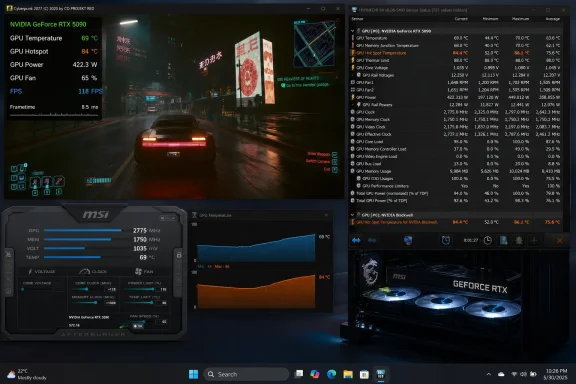
MSI Afterburner cannot natively show a GeForce RTX 5000-series GPU hotspot temperature because NVIDIA’s public monitoring interface does not expose that telemetry on Blackwell cards. On Windows 10 and Windows 11, the practical solution is to use HWiNFO’s Blackwell hotspot sensor and display it through RivaTuner Statistics Server (RTSS), which is normally installed alongside MSI Afterburner. This gives you an in-game hotspot readout without changing GPU clocks, voltage, firmware, or driver settings.
Use the same workload when comparing results. A hotspot reading at the Windows desktop cannot be meaningfully compared with one collected during a demanding game, shader compilation, rendering task, or stress test.
For example, if the GPU temperature is 70 C and the hotspot is 84 C, the hotspot delta is 14 C.
Do not use one fixed delta as a pass-or-fail rule. GPU model, cooler design, ambient temperature, workload, power limit, fan curve, and mounting pressure all affect the difference. The new Blackwell readings are also still being validated across utilities, so readings from HWiNFO, HWMonitor, AIDA64, and experimental tools may not match exactly.
A more useful warning sign is a repeatable change: a hotspot temperature or delta that becomes substantially worse at the same power setting, room temperature, and workload.
That is why you may see ordinary GPU Temperature, GPU Power, and GPU Usage in MSI Afterburner but no GPU Hotspot Temperature entry. It is not an Afterburner installation fault, and reinstalling the graphics driver usually does not add the missing sensor.
HWiNFO’s newer Blackwell implementation provides an alternate path to the sensor, while RTSS supplies the in-game overlay.
Treat this as an experimental method, not a standard MSI Afterburner feature.
Warning: Do not download DLL files from repost sites, video descriptions, file-hosting mirrors, or “driver update” pages. A DLL loaded by MSI Afterburner runs with the permissions of the application and can compromise Windows, your account, or GPU tuning profiles.
If you choose to test a community plugin:
This is an advanced diagnostic workaround, not a normal configuration step. It can expose direct GPU-register access that MSI Afterburner intentionally limits on newer NVIDIA cards.
Avoid this route unless you have all of the following:
 What you need
- An NVIDIA GeForce RTX 5000-series desktop or laptop GPU.
- MSI Afterburner with RivaTuner Statistics Server installed.
- A current HWiNFO build that includes GPU Hot Spot Temperature for NVIDIA Blackwell. HWiNFO added this sensor in its July 2026 pre-release updates; earlier builds may not show it.
- A game, benchmark, or GPU workload to create meaningful temperature readings.
Use HWiNFO and RTSS for the safest in-game hotspot overlay
This is the recommended method. It leaves MSI Afterburner in place for its normal monitoring, fan, clock, and frame-rate features, while HWiNFO supplies the missing hotspot sensor to RTSS.1. Update HWiNFO first
- Close MSI Afterburner, RTSS, games, and benchmarks.
- Install or extract the current HWiNFO release or pre-release build from HWiNFO.
- Start HWiNFO64.
- At the startup screen, select Sensors-only, then select Start.
- Find your NVIDIA GPU section in the Sensors window.
- Look for a reading named GPU Hot Spot Temperature, GPU Hotspot Temperature, or a closely similar Blackwell hotspot entry.
- Confirm that you are using a build released after HWiNFO added Blackwell hotspot monitoring in July 2026.
- Check that you are looking under the discrete NVIDIA GPU, not an Intel or AMD integrated GPU.
- Apply a short GPU load, then look again. Some sensors remain inactive or uninteresting at idle.
- Close other hardware-monitoring utilities temporarily. Multiple tools polling the same low-level sensors can cause incomplete or unreliable readings.
2. Enable HWiNFO shared memory
HWiNFO needs shared-memory access when passing sensor data to compatible overlays and monitoring tools.- In the HWiNFO Sensors window, select the Settings button.
- Open the User Interface area.
- Enable Shared Memory Support.
- Select OK or Apply.
- Leave the HWiNFO Sensors window running.
3. Start MSI Afterburner and RTSS
- Start MSI Afterburner.
- Confirm that RivaTuner Statistics Server is running. Its icon should appear in the Windows notification area.
- In MSI Afterburner, select the Settings gear.
- Open the Monitoring tab.
- Keep your usual GPU temperature, GPU usage, power, clock, and frame-rate entries enabled as desired.
- For native Afterburner sensors, select an item and enable Show in On-Screen Display.
4. Add the hotspot sensor to the RTSS overlay
The exact HWiNFO menu wording can vary slightly by build, but the workflow is the same:- Return to the HWiNFO Sensors window.
- Right-click the GPU Hot Spot Temperature sensor.
- Choose the available OSD-related option, such as adding the sensor to the RTSS OSD.
- If HWiNFO opens an OSD configuration dialog, enable the sensor for display and set a short label such as
GPU Hotspot. - Start a game or benchmark in borderless or full-screen mode.
- Check the upper-left corner of the screen for the RTSS overlay.
Make the overlay readable
After confirming that the hotspot value works, simplify the display before troubleshooting temperatures.- Right-click the RTSS notification-area icon and select Show.
- Adjust the Zoom control if the overlay is too small or too large.
- Move the overlay location away from game HUD elements.
- If game text makes the overlay hard to read, enable a background or display fill in RTSS.
- Keep these readings together:
- GPU Temperature
- GPU Hot Spot Temperature
- GPU Power
- GPU Usage
- Fan speed or fan percentage
- Frame rate
Code:
GPU: 68 C
Hotspot: 82 C
Power: 310 W
Fan: 62%
FPS: 144Verify that the hotspot data is useful
- Start a repeatable GPU workload.
- Let it run long enough for temperatures and fan speed to stabilize.
- Watch both GPU Temperature and GPU Hot Spot Temperature.
- Note the difference between them:
Hotspot delta = GPU Hot Spot Temperature − GPU TemperatureFor example, if the GPU temperature is 70 C and the hotspot is 84 C, the hotspot delta is 14 C.
Do not use one fixed delta as a pass-or-fail rule. GPU model, cooler design, ambient temperature, workload, power limit, fan curve, and mounting pressure all affect the difference. The new Blackwell readings are also still being validated across utilities, so readings from HWiNFO, HWMonitor, AIDA64, and experimental tools may not match exactly.
A more useful warning sign is a repeatable change: a hotspot temperature or delta that becomes substantially worse at the same power setting, room temperature, and workload.
Why MSI Afterburner does not show the sensor by itself
MSI Afterburner normally gets NVIDIA monitoring data through NVIDIA’s documented interfaces. NVIDIA does not expose RTX 5000-series hotspot or memory-junction telemetry through the public NVAPI route used by standard monitoring applications.That is why you may see ordinary GPU Temperature, GPU Power, and GPU Usage in MSI Afterburner but no GPU Hotspot Temperature entry. It is not an Afterburner installation fault, and reinstalling the graphics driver usually does not add the missing sensor.
HWiNFO’s newer Blackwell implementation provides an alternate path to the sensor, while RTSS supplies the in-game overlay.
About the experimental MSI Afterburner plugin
A community plugin named BlackwellHotspot.dll, published by a community developer using the name Talon2016, can add RTX 5000 hotspot-related readings directly to MSI Afterburner. Reports indicate that it exposes multiple temperature values and a hotspot delta.Treat this as an experimental method, not a standard MSI Afterburner feature.
Warning: Do not download DLL files from repost sites, video descriptions, file-hosting mirrors, or “driver update” pages. A DLL loaded by MSI Afterburner runs with the permissions of the application and can compromise Windows, your account, or GPU tuning profiles.
If you choose to test a community plugin:
- Create a restore point: search Windows for Create a restore point, select your system drive, then select Create.
- Back up your MSI Afterburner installation folder and saved profiles.
- Obtain the file only from the original developer’s published forum post.
- Scan the downloaded archive and DLL with Microsoft Defender before extracting it.
- Read the developer’s installation instructions exactly; do not guess DLL folder locations or modify unrelated Afterburner files.
- Restart MSI Afterburner after installation.
- Open Settings > Monitoring and look for the added hotspot entries.
- Select the desired entry, enable Show in On-Screen Display, then select Apply.
Do not edit RTCore.cfg unless you are following a verified, card-specific procedure
Some advanced RTX 5000 hotspot methods enable low-level NVIDIA access by editing MSI Afterburner’sRTCore.cfg file and adding a PCI device ID under the [GPU_10DE] section. For example, an RTX 5090 has been documented with device ID 2B85h.This is an advanced diagnostic workaround, not a normal configuration step. It can expose direct GPU-register access that MSI Afterburner intentionally limits on newer NVIDIA cards.
Avoid this route unless you have all of the following:
- A verified device ID for your exact GPU.
- A complete, current instruction set from a trusted developer.
- A backup of the original
RTCore.cfg. - A reason to use direct register access instead of HWiNFO plus RTSS.
RTCore.cfg, then start MSI Afterburner again.If the overlay still does not appear
Use these checks in order:- RTSS is not running: Start RivaTuner Statistics Server from the Start menu or reinstall it from the MSI Afterburner installer.
- Overlay works in one game but not another: Update RTSS. Some anti-cheat systems and newer games require a newer RTSS build for on-screen display support.
- HWiNFO shows the sensor but RTSS does not: Confirm HWiNFO is still running and Shared Memory Support remains enabled.
- Only core temperature appears: Ensure you added the HWiNFO hotspot sensor to the RTSS OSD, rather than only enabling MSI Afterburner’s built-in GPU Temperature item.
- The value remains blank or zero: Apply GPU load for several minutes and verify that HWiNFO identifies the RTX 5000 GPU correctly.
- The system becomes unstable: Stop the test, remove experimental plugins or low-level configuration changes, return MSI Afterburner settings to default, and use the HWiNFO-plus-RTSS method only.
References
- Primary source: www.guru3d.com
Published: 2026-07-16T08:25:00+00:00
How to Display GeForce RTX 5000 Hotspot Temperature in MSI Afterburner
MSI Afterburner is among the most widely used GPU tuning and monitoring utility for GeForce graphics cards, but GeForce RTX 5000 owners may have noticed one notable omission: hotspot temperature monitoring, which, over the past few days, has grabbed some attention.www.guru3d.com - Related coverage: msi.com
- Related coverage: latam.msi.com
- Related coverage: videocardz.com
- Related coverage: adrenaline.com.br
AIDA64 e MSI Afterburner passam a exibir temperatura hotspot das GeForce RTX 50 - Adrenaline
Porém, NVIDIA ainda não se manifestou sobre os acessos e alguns desenvolvedores irão esperar para habilitar o monitoramento em suas ferramentaswww.adrenaline.com.br - Related coverage: playground.ru
AIDA64 получает поддержку датчика температуры hotspot RTX 50, MSI Afterburner получает модификацию от сообщества
Отчёты о температуре в горячей точке GeForce RTX 50 теперь доступны в нескольких приложениях мониторинга. После того, как HWMonitor и HWiNFO добавили эту функцию, AIDA64 представила официальную поддержку, а пользователи MSI Afterburner получили неофициальный плагин...www.playground.ru