

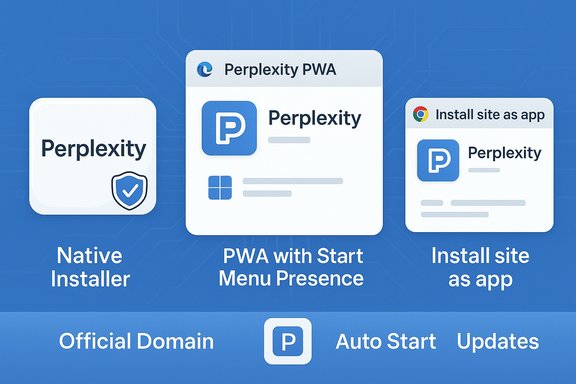
Perplexity AI is now something you can run like a native app on Windows — but there are distinct ways to get there, each with trade‑offs. The Vietnamese guide posted on Báo Nghệ An summarizes three practical routes for Windows 10 and 11 users: installing the official Perplexity desktop installer, or creating a Progressive Web App (PWA) wrapper using Microsoft Edge or Google Chrome. Those three methods give you the same Perplexity experience in different packaging: a signed native installer (when officially provided), or a lightweight browser‑managed PWA that behaves like an app but is updated and sandboxed by your browser. The difference matters for startup behavior, background access, updates, and trust — and a careful approach to where you download any installer is essential.
Perplexity is an LLM‑powered search and answer engine that delivers conversational answers with source citations. While it’s primarily accessible in the browser, recent product moves have introduced packaged experiences: an official desktop client (reported by several outlets), and Perplexity’s own AI browser, Comet, which bundles Perplexity capabilities into a Chromium‑based browser. The desktop experience and PWA options aim to give Windows users a faster, more integrated workflow than keeping Perplexity open in a tab. However, the ecosystem is mixed: some community posts question whether a fully official, signed Windows installer is universally available today, so verification before installing any binary is recommended. This article walks through each installation method, verifies the technical details and system requirements where possible, highlights the practical pros and cons, and explains security and privacy implications so you can pick the right path for your device.
Microsoft’s Edge explicitly supports installing PWAs; when a site is installable Edge shows an “App available” icon in the address bar and exposes Settings → Apps → Install this site as an app. Installed PWAs appear in the Start menu and can be managed like regular apps (uninstallable through Settings → Apps → Installed apps). These behaviors are documented in Microsoft’s developer and support documentation.
Chrome’s “Install pages as app” (More tools → Create shortcut / Install) is the common route. After installation the app is managed through Windows Settings → Apps, and Chrome remains the host for updates and service worker lifecycle. Microsoft’s docs on PWAs and Chrome’s user guidance align here: PWAs are browser‑managed web apps that appear like native programs.
If you prioritize security and minimal system change, use the PWA through Edge or Chrome. If you need native features and are comfortable validating executables, verify the EXE’s publisher signature and scan it before running. Finally, if your use case requires deeper on‑device capabilities, watch Perplexity’s roadmap (including Comet) and vendor announcements to decide whether a browser, PWA, or native client best matches your needs.
Perplexity’s packaging options show how modern services can be consumed as web apps, standalone apps, or even entire browsers with built‑in AI; the right choice depends on your appetite for convenience versus control. Use the PWA for minimal risk, insist on publisher verification for native installers, and treat third‑party mirrors as untrusted until proven otherwise.
Source: baonghean.vn https://baonghean.vn/en/3-cach-cai-dat-perplexity-ai-tren-may-tinh-windows-10-va-11-10310553.html
 Background / Overview
Perplexity is an LLM‑powered search and answer engine that delivers conversational answers with source citations. While it’s primarily accessible in the browser, recent product moves have introduced packaged experiences: an official desktop client (reported by several outlets), and Perplexity’s own AI browser, Comet, which bundles Perplexity capabilities into a Chromium‑based browser. The desktop experience and PWA options aim to give Windows users a faster, more integrated workflow than keeping Perplexity open in a tab. However, the ecosystem is mixed: some community posts question whether a fully official, signed Windows installer is universally available today, so verification before installing any binary is recommended. This article walks through each installation method, verifies the technical details and system requirements where possible, highlights the practical pros and cons, and explains security and privacy implications so you can pick the right path for your device.1) Native desktop installer — what the “official app” path looks like
What users see and how it installs
Several Windows‑focused how‑tos and news outlets describe a downloadable Perplexity installer for Windows. The typical flow reported is:- Visit Perplexity’s official site and click a “Download on Windows” button.
- Save a file usually named in the pattern Perplexity Setup x.x.x‑x64.exe.
- Run the EXE and follow the standard installer prompts (allow changes when UAC asks).
- After install the Perplexity app appears in Start, registers for auto‑start by default (optional to disable), and exposes the same UI as the web experience.
Strengths of the native route
- Integration: A native installer can register itself for autostart, provide system shortcuts, and integrate with Windows features such as system tray and keyboard shortcuts.
- Offline or local features: If Perplexity ever expands the desktop client with local file indexing or other OS‑integrated capabilities, a native client allows richer access patterns than a PWA.
- Single‑click launch: Convenient when you want a dedicated, always‑available assistant without a browser tab.
Risks and verification steps
- Source trust: Not all downloads on third‑party mirrors are safe. Use only the Perplexity website or well‑known app stores. Third‑party aggregators like Uptodown list Perplexity packages but represent unsigned mirrors; these should be treated with caution. Verify downloads against an official hash/signature when possible.
- Conflicting reports: Community threads include conflicting statements about whether Perplexity directly distributes an official, signed Windows EXE everywhere. That makes verifying the installer’s publisher signature and scanning it before running critical. If Perplexity’s own support indicates they do not distribute an official Windows app in a given region, treat that as a red flag and prefer the PWA/browser route until official confirmation is found.
- Permissions and startup: The installer may opt into autostart and other conveniences; review Settings > Apps > Startup to disable auto‑launch if you don’t want a background process. PureInfotech and other guides show how to disable startup entries after installation.
Practical checklist before running a downloaded installer
- Download from the official Perplexity domain (confirm the URL in the browser address bar and HTTPS lock).
- Right‑click → Properties → Digital Signatures (or use sigcheck) and confirm the publisher name and certificate chain.
- Scan the installer with a local AV and consider a VirusTotal upload for a second opinion.
- Back up critical data before allowing persistent autostart or system‑level installs.
- If uncertain, prefer the PWA approach described next (no executable required).
2) Install Perplexity as a Progressive Web App (PWA) using Microsoft Edge
Why the PWA option matters
A PWA gives you an app‑like window, Start menu and taskbar presence, and optional auto‑start — but the code runs under your browser’s service worker model. PWAs are often the simplest and safest way to “install” a web service without trusting a platform EXE.Microsoft’s Edge explicitly supports installing PWAs; when a site is installable Edge shows an “App available” icon in the address bar and exposes Settings → Apps → Install this site as an app. Installed PWAs appear in the Start menu and can be managed like regular apps (uninstallable through Settings → Apps → Installed apps). These behaviors are documented in Microsoft’s developer and support documentation.
Step‑by‑step (Edge)
- Open Microsoft Edge and go to perplexity.ai (or the Perplexity page).
- Sign in to get full functionality (file upload, history, etc..
- Click the three‑dot menu → Apps → Install this site as an app (or click the App available icon in the URL bar).
- Confirm “Install.” The PWA opens in its own window and appears in Start and taskbar pin options.
- Optional: Manage auto‑start via edge://apps → More options → Auto‑start on device login, or disable startup from Settings → Apps → Startup.
Pros and cons of the Edge PWA route
- Pros:
- Low risk: No EXE to run; updates are delivered via the site and browser.
- System integration: Start menu, taskbar pinning, notifications, and autostart are supported.
- Easy uninstall: Remove via Start menu right‑click or Settings → Apps.
- Cons:
- Limited OS integration: PWAs cannot access arbitrary local files or install background services the way a native app can (unless the web developer explicitly implements file APIs).
- Feature parity depends on the website: Offline support, system notifications, and other PWA capabilities depend on Perplexity’s web implementation.
3) Install Perplexity as a PWA using Google Chrome
How Chrome’s PWA flow works
Chrome also supports installing a website as an app‑style window. The menu options differ slightly in Chrome, but the end result is the same: a separate windowed app, Start menu entry, and an icon to pin to the taskbar.Chrome’s “Install pages as app” (More tools → Create shortcut / Install) is the common route. After installation the app is managed through Windows Settings → Apps, and Chrome remains the host for updates and service worker lifecycle. Microsoft’s docs on PWAs and Chrome’s user guidance align here: PWAs are browser‑managed web apps that appear like native programs.
Step‑by‑step (Chrome)
- Open Chrome and navigate to perplexity.ai.
- Click the three‑dot Customize and control menu → More tools → Create shortcut or choose Install [site] if Chrome shows that option.
- Check “Open as window” (if present) and click Install.
- Use the created Start menu entry or desktop shortcut; uninstall through Settings → Apps or by right‑clicking the Start menu icon and selecting Uninstall.
Comparison: Native installer vs Edge PWA vs Chrome PWA
- Installation friction:
- Native installer: Requires running an EXE; higher trust burden.
- Edge PWA: One click from Edge; safe and sandboxed.
- Chrome PWA: One or two clicks from Chrome; safe and sandboxed.
- Updates:
- Native installer: Typical app update model (auto‑updater or manual update).
- PWA: Updated when the website updates; browser controls service worker refresh cadence.
- Permissions & integration:
- Native: Can include deeper OS hooks, global hotkeys, and background services (if implemented).
- PWA: Limited to browser‑exposed APIs (notifications, push, some file APIs).
- Uninstall:
- Native: Settings → Apps → Installed apps (or Control Panel).
- PWA: Start menu right‑click → Uninstall or Settings → Apps.
- Security:
- Native: Must verify signature and origin; greater potential for privilege escalation if malicious.
- PWA: Safer by default — runs inside browser sandbox and is updated by the site’s HTTPS origin. Microsoft documentation explains PWAs’ sandboxed model and how Edge exposes app permissions and management to users.
Security, privacy, and trust considerations — how to choose safely
- Download source and digital signature
- Always prefer the official Perplexity domain. For native installers, check the file’s digital signature and publisher name, and compare file hashes when provided by Perplexity. If you find a copy on a mirror (Uptodown, etc., treat it as unverified unless you can match its hash to an official release.
- Use the PWA when in doubt
- The PWA route offers an app‑like experience with minimal trust surface. It’s the best default for users who want convenience without running executables. Microsoft’s Edge documentation describes how PWAs behave on Windows and how to manage permissions and autostart.
- Mind the auto‑start and background behavior
- Both native apps and PWAs can register for auto‑start. Check Settings → Apps → Startup after installation to control what runs on login. Microsoft’s Edge PWA settings allow toggling auto‑start on a per‑app basis.
- Scan and sandbox
- For executables, use VirusTotal and your endpoint protection before running. Consider installing new clients in a disposable VM or test machine if you need to be extremely cautious.
- File, local index, and privacy
- If Perplexity’s desktop client ever adds local file indexing or document upload features, review privacy settings carefully. Local indexing increases functionality but may change where user data is stored and how it is processed. For now, PWAs keep everything in the browser context unless you explicitly upload files to Perplexity’s site.
Practical tips and tweaks for Windows users
- Disable autostart if you don’t want it:
- Settings → Apps → Startup → toggle Perplexity or the PWA off (or use edge://apps for Edge PWAs).
- Guides to both installation types show how the app registers for autostart and how to remove it afterwards.
- Pin to taskbar or Start:
- After installing either the native client or a PWA, right‑click the Start menu entry and choose Pin to taskbar for one‑click access.
- Uninstall cleanly:
- Native: Settings → Apps → Installed apps → Uninstall.
- PWA: Start menu right‑click → Uninstall, or Settings → Apps. Microsoft’s support documentation describes managing and uninstalling PWAs in Edge.
- Check network and privacy options:
- If you rely on Perplexity for sensitive research, consider network segmentation (a separate browser profile) to compartmentalize cookies, extensions, and logins.
What to watch next: Comet browser, product roadmap, and verifying claims
Perplexity’s Comet browser is a separate product that integrates Perplexity AI into a Chromium‑based browsing experience. It represents a more ambitious move: not just a helper app, but a browser with built‑in agentic features. News coverage and Perplexity’s own documentation about Comet confirm availability for Windows and macOS and list a distinct install flow and system requirements. If you’re evaluating Perplexity for heavy use, Comet may be a compelling long‑term option — but it’s a different install and purchase/subscription story from the Perplexity web client or desktop app. Because product packaging changes rapidly, two practical verification steps are essential:- Check Perplexity’s official domain and product pages for the most recent announcements before installing an EXE.
- When coverage conflicts (user reports, mirrors, or third‑party download pages), default to the PWA or the Comet browser official page; do not run an EXE unless the publisher signature and site provenance are clear.
Strengths and limitations — editorial analysis
Notable strengths
- Choice and flexibility: Windows users can pick the integration level they want — PWA for safety and convenience; native installer for deeper local integration. This flexibility aligns with modern cross‑platform product strategies and keeps Perplexity approachable for both casual and power users.
- Browser parity: PWAs let Perplexity deliver the same UX across Windows 10 and 11 without building multiple OS binaries, reducing fragmentation for the vendor and providing faster updates via the web. Microsoft’s PWA support makes this a pragmatic engineering choice.
- Rapid innovation: The Comet browser indicates Perplexity is investing in platform play (native browser), which may eventually bring even more integrated features to Windows users.
Potential risks and caveats
- Installer provenance and supply‑chain risk: Third‑party download sites and community ambiguity about official distribution increase supply‑chain risk. Users should verify signatures and prefer the PWA if unsure. Uptodown and other mirrors may be useful for testing but should not be used as the primary install source without validation.
- Feature divergence: PWAs are limited to browser APIs; if Perplexity rolls out exclusive desktop features (local indexing, full offline models, native background tasks), the PWA will lag. Choose the native client only after verifying vendor claims and publisher signatures.
- Privacy & data handling: As with any AI tool that gathers query content and possibly uploads files to cloud models, confirm how uploaded content is stored and processed. Perplexity discloses citations and sources in the UI, but storage, retention, and model‑training policies should be reviewed for sensitive workflows. Vendor privacy pages and terms of service should be consulted before bulk or sensitive uploads.
Step‑by‑step quick reference — pick one fast
- Want the safest, easiest route? Install the PWA via Microsoft Edge.
- Edge → navigate to perplexity.ai → Menu → Apps → Install this site as an app → Install. Manage via edge://apps or Settings → Apps → Startup.
- Prefer Chrome? Use Chrome’s Install/Create shortcut flow.
- Chrome → perplexity.ai → Menu → More tools → Create shortcut / Install page → Open as window → Install. Manage via Settings → Apps.
- Want a native Windows client? Confirm Perplexity is publishing an official EXE for your region, verify the digital signature, scan the file, and then run Perplexity Setup x.x.x‑x64.exe. If you can’t verify the signature, use the PWA instead.
Final verdict and recommendation
The three routes — native installer, Edge PWA, and Chrome PWA — all give Windows 10 and 11 users a practical Perplexity experience. For most readers, the PWA route is the best blend of convenience, safety, and parity; it’s the recommended default for everyday use. The native installer can provide tighter OS integration and may be attractive for power users, but only when the download is clearly authenticated from Perplexity’s official channels and the file’s signature and hash are confirmed.If you prioritize security and minimal system change, use the PWA through Edge or Chrome. If you need native features and are comfortable validating executables, verify the EXE’s publisher signature and scan it before running. Finally, if your use case requires deeper on‑device capabilities, watch Perplexity’s roadmap (including Comet) and vendor announcements to decide whether a browser, PWA, or native client best matches your needs.
Perplexity’s packaging options show how modern services can be consumed as web apps, standalone apps, or even entire browsers with built‑in AI; the right choice depends on your appetite for convenience versus control. Use the PWA for minimal risk, insist on publisher verification for native installers, and treat third‑party mirrors as untrusted until proven otherwise.
Source: baonghean.vn https://baonghean.vn/en/3-cach-cai-dat-perplexity-ai-tren-may-tinh-windows-10-va-11-10310553.html
