

The Radeon RX 570 remains one of the most common budget gaming GPUs in circulation, and installing or troubleshooting its driver stack on Windows 10 still generates more questions than answers—especially when bargain prebuilt systems, used boards, or older OEM images are involved. This feature walks through the verified facts, a conservative, step‑by‑step driver installation and rollback plan, practical troubleshooting for an RX 570 that “runs hot,” and the security and lifecycle choices every Windows 10 user should make before touching the display driver.
The Radeon RX 570 (4 GB) is a Polaris‑based midrange graphics card that was positioned for 1080p gaming and mainstream workloads. Typical reference figures you’ll see across vendor pages and independent hardware databases are 2,048 stream processors, 4 GB GDDR5 on a 256‑bit bus, and a board power that commonly sits near the 150 W range for many designs—but partner cards can tune clocks and power up or down depending on cooling and PCB design. This hardware context matters because driver features, power/thermal behavior, and stability are a function of both silicon and board implementation.
From a software perspective, AMD delivers the driver stack as AMD Software: Adrenalin Edition (the modern driver ecosystem) and—historically—Catalyst (legacy). Even after Windows 10’s mainstream lifecycle changes, AMD’s Adrenalin installers continued to provide compatibility for RX 570 on Windows 10 builds in the 2024–2025 timeframe. Recent vendor communication and independent reporting show the vendor continues to publish Windows 10‑compatible installers for applicable RX 500 series parts, though older families are increasingly placed into maintenance mode for feature development.
The practical takeaway: you can still install and run Radeon RX 570 drivers on Windows 10, but do so with a cautious, verifiable workflow—prefer Microsoft‑signed or OEM drivers for stability, and use AMD Adrenalin only when you need the full feature set or game fixes.
Source: Born2Invest https://born2invest.com/?b=style-232535812/
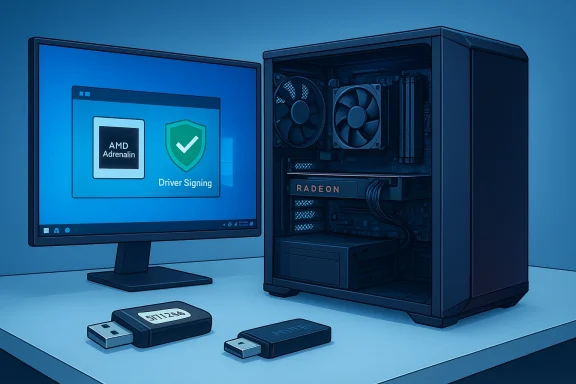 Background / Overview
The Radeon RX 570 (4 GB) is a Polaris‑based midrange graphics card that was positioned for 1080p gaming and mainstream workloads. Typical reference figures you’ll see across vendor pages and independent hardware databases are 2,048 stream processors, 4 GB GDDR5 on a 256‑bit bus, and a board power that commonly sits near the 150 W range for many designs—but partner cards can tune clocks and power up or down depending on cooling and PCB design. This hardware context matters because driver features, power/thermal behavior, and stability are a function of both silicon and board implementation.From a software perspective, AMD delivers the driver stack as AMD Software: Adrenalin Edition (the modern driver ecosystem) and—historically—Catalyst (legacy). Even after Windows 10’s mainstream lifecycle changes, AMD’s Adrenalin installers continued to provide compatibility for RX 570 on Windows 10 builds in the 2024–2025 timeframe. Recent vendor communication and independent reporting show the vendor continues to publish Windows 10‑compatible installers for applicable RX 500 series parts, though older families are increasingly placed into maintenance mode for feature development.
The practical takeaway: you can still install and run Radeon RX 570 drivers on Windows 10, but do so with a cautious, verifiable workflow—prefer Microsoft‑signed or OEM drivers for stability, and use AMD Adrenalin only when you need the full feature set or game fixes.
What the files and vendor guidance confirm (quick summary)
- Windows 10 remains a supported target for many RX 570 Adrenalin packages as of the latest vendor pages and community captures; documentation wording changed around Microsoft’s end‑of‑support signals, which caused confusion—but AMD clarified compatibility for applicable builds.
- Use Windows Update or OEM drivers first if stability matters; Microsoft‑signed drivers are the lowest‑risk option.
- If you install Adrenalin, pick the WHQL‑recommended build that explicitly lists your GPU and Windows 10 64‑bit compatibility. Verify digital signatures and checksums where provided.
- Clean installs reduce problems. AMD’s Cleanup Utility or Display Driver Uninstaller (DDU) in Safe Mode are community‑endorsed methods to remove leftovers before switching driver stacks.
- If a cheap third‑party driver or repackaged package is suggested by a marketplace listing, treat it as suspect—lack of digital signatures and checksums are red flags. The Born2Invest claim included with the original prompt could not be independently verified in the archived threads and should be treated cautiously.
Why an RX 570 might be “running hot” on Windows 10
Thermal complaints about RX 570s are common and can come from multiple sources. Diagnose methodically—don’t assume the driver is the only factor.Hardware causes
- Many RX 570 board variants are power‑hungry compared with more modern designs; inadequate case airflow, low‑wattage or poor‑quality PSUs, and dusted or failing fans are frequent culprits. Board partner designs (SAPPHIRE NITRO+, PULSE, etc.) often differ markedly in cooling performance; check the exact SKU before buying used.
Software and driver causes
- Aggressive power‑state behavior enforced by a driver profile or a wrong power plan can push the card to higher clocks and temperatures.
- Older or mismatched drivers may leave the card stuck in a high‑performance power state, or fail to apply correct fan curves and RPM profiles.
- Windows power settings and OEM utilities (hybrid‑graphics drivers on laptops or branded desktops) can interact poorly with the generic Adrenalin installer, causing elevated thermal behavior until the right vendor stack and power management components are installed.
Mining history and used cards
- Used units bought cheaply on clearance or marketplaces may carry mining wear: higher solder stress, fan bearing wear, and thermal pad/paste degradation. Expect a modest refurbishment budget (replacing thermal paste, re‑pads, or fans) if you don’t get a seller warranty.
A conservative, verified installation and rollback plan (step‑by‑step)
Follow this numbered plan to install a driver safely and keep a clear rollback path. These steps reflect vendor notes and community best practice collated in the available files.- Inventory and backup
- Create a System Restore point and, if possible, a full disk image before changing display drivers.
- Record your GPU hardware ID: Device Manager → Display adapters → Right‑click → Properties → Details → Hardware Ids. Save the PCI\VEN_1002&DEV_xxxx string for INF checks.
- Try Windows Update first (lowest risk)
- Open Settings → Update & Security → Windows Update → View optional updates → Driver updates. If Microsoft supplies a Radeon driver, test it for multi‑monitor, video playback, and everyday tasks. Use this if you prioritize stability.
- Check OEM support pages (for branded desktops/laptops)
- For laptops and vendor desktops, OEM packages often provide the necessary hybrid‑graphics management, hotkeys, and power profiles. Install OEM drivers in the order the vendor recommends (e.g., Intel first, then AMD) before trying a generic Adrenalin package.
- Download the official Adrenalin package (if you need the full feature set)
- Use AMD’s official product selector, Auto‑Detect, or the archived “previous drivers” page to find a WHQL‑recommended build that explicitly lists Radeon RX 570 and Windows 10 (64‑bit) compatibility. Read the release notes before proceeding.
- Verify the installer before running it
- Right‑click the downloaded file → Properties → Digital Signatures to confirm it’s signed by AMD. If the vendor publishes SHA‑256 checksums, verify them. If any of these checks fail, do not run the installer.
- Clean the driver state
- If you previously installed preview drivers or suspect leftovers, run AMD Cleanup Utility or Display Driver Uninstaller (DDU) from Safe Mode to remove artifacts. This significantly reduces partial‑install failures.
- Install the Adrenalin package in a clean state
- Run the AMD installer as Administrator, choose the components you need (minimal install is okay), and reboot when prompted. After install, check Device Manager to confirm the AMD driver is active and launch Radeon Overlay for a quick function check.
- Validate and archive
- Validate resolution, multi‑monitor behavior, video hardware acceleration, and gaming workloads you use. Keep the working installer on removable media so you can rollback without the web. If Windows Update attempts to revert the driver while you test, pause Windows Update temporarily.
- Rollback plan
- If a new driver causes regressions, boot to Safe Mode, run DDU, and reinstall the archived working installer or the OEM/Microsoft driver. Always keep DDU and a known good installer accessible.
Advanced options and cautions
Manual INF installation (advanced users only)
- If the Adrenalin GUI refuses to install on some mobility or legacy subsystem IDs, extract the package (AMD installers self‑extract to C:\AMD) and inspect *Display.Driver.inf for your hardware ID. If present, use Device Manager → Update driver → Have Disk → point to the INF and install only the display driver**. Do not edit or re‑sign INFs unless you understand Windows driver signing implications. Expect to lose some Radeon Software UI features if you install manually.
What to avoid
- Do not download repackaged driver bundles from unknown marketplaces without published checksums and signature provenance; these packages sometimes remove vendor signatures or bundle unwanted software. Avoid one‑click driver updaters that do not give you explicit checksums and vendor signatures. Do not permanently disable driver signature enforcement or Secure Boot on production machines.
Security and lifecycle considerations
- With Windows 10’s mainstream support end signals (October 14, 2025 in vendor communications), there is an elevated long‑term maintenance and security risk for running older kernel‑level drivers on an unsupported OS. Prefer Microsoft‑signed drivers and vendor‑supported packages for production systems. AMD has placed older GPU families into maintenance mode—expect future updates to focus on critical fixes rather than new features for Polaris silicon. Plan a hardware refresh if you rely on new codec support (AV1), advanced encoder improvements, or long‑term security patches.
Troubleshooting checklist: common symptoms and fixes
- Symptom: Installer says “This device is not supported”
- Cause: The packaged INF lacks your device VID/PID.
- Fix: Extract the installer and inspect the INF; if not listed, use Windows Update or OEM drivers instead.
- Symptom: After install, Device Manager shows Microsoft Basic Display Adapter
- Cause: Partial install or driver remnants.
- Fix: Boot to Safe Mode → run DDU → reinstall the verified AMD/OEM driver.
- Symptom: Radeon software complains “versions do not match”
- Cause: Mixing a store UWP Radeon Settings app with a different Adrenalin runtime.
- Fix: Uninstall the UWP app, run DDU in Safe Mode, and reinstall the correct Adrenalin build. Keep a rollback installer available.
- Symptom: RX 570 still runs hot after driver reinstall
- Step 1: Confirm case airflow, PSU wattage and connectors, and fans. If the card was used/mined, consider repasting and replacing worn fans.
- Step 2: Check driver power profiles and use Radeon WattMan (or an alternate tool) to reduce maximum power/clock targets temporarily to test if temperatures fall.
- Step 3: Verify BIOS/UEFI settings that may influence PCIe power states, and ensure system fans are on correct headers.
Buyer’s checklist for used or discount RX 570 systems
- Verify the exact card SKU (SAPPHIRE NITRO+, PULSE, or reference) and ask the seller for the PSU model and wattage; many prebuilt bargains omit these details but they matter for thermal and upgrade safety.
- Ask about the card’s history—mining usage carries increased risk; prefer sellers offering returns or short warranties. Budget for modest refurbishment (paste, pads, fans).
- If buying a branded laptop/desktop, prefer OEM‑supplied driver images for initial setup; only move to Adrenalin if you need clear features missing from OEM builds.
- If price is a major factor and you need modern codec support or future feature investment, factor in the likely need to upgrade to a newer GPU or plan an OS migration to Windows 11 for longer vendor feature support.
Critical analysis — strengths, risks, and practical verdict
Strengths
- The RX 570 remains an excellent value card for 1080p and esports‑class gaming when priced right; its hardware is widely supported and mature driver stacks (Adrenalin WHQL) still provide compatibility on Windows 10 when the correct packages are used. Vendor and community records make straightforward, conservative installation paths clear and repeatable.
Risks and limitations
- Driver and OS lifecycle: Windows 10’s lifecycle changes mean RDNA and newer silicon will attract primary development effort. Polaris families may enter maintenance mode and receive fewer new features. For mission‑critical or security‑sensitive environments, this is a sign to plan an upgrade cycle.
- Third‑party packages: Cheap driver bundles and repackaged installers pose real security and stability risks. Lack of signatures or altered INFs is common in these packages; the community strongly recommends vendor or Microsoft sources only.
- Hardware wear: Used cards can hide wear that drivers won’t fix—fans, VRMs, thermal paste, and pads degrade and need physical service. Budget accordingly.
Practical verdict
- For individual gamers and hobbyists on Windows 10: continue using the RX 570 if it meets your performance needs, but use the conservative installation steps above—prefer Microsoft or OEM drivers for stability, use AMD Adrenalin when you need features, verify signatures, and keep an easy rollback plan.
- For production or security‑sensitive machines: prefer Microsoft‑signed drivers and plan a hardware or OS migration within your maintenance window. Kernel drivers are an attack surface; older OSes and legacy drivers increase long‑term risk.
Practical quick reference (printable checklist)
- Record GPU hardware ID (Device Manager → Details → Hardware Ids).
- Create a System Restore point and a full disk image.
- Try Windows Update for a Microsoft‑signed Radeon driver.
- If you need Adrenalin features, download the WHQL‑recommended AMD package and verify its digital signature.
- Use DDU in Safe Mode or AMD Cleanup Utility before switching driver families.
- Archive the working installer and DDU on removable media for rollback.
Conclusion
The steps to safely install and manage Radeon RX 570 drivers on Windows 10 are mature and well‑documented: try Microsoft or OEM drivers first for stability, use a verified AMD Adrenalin WHQL package when you need features, clean driver state with DDU if you’re switching stacks, and always keep a rollback image. Thermal complaints often have hardware roots—case airflow, PSU capacity, and board cooling matter—and cheap bargain drivers rarely fix those issues. Windows 10 users who follow the conservative workflow outlined here will minimize risk and maintain a stable, working system while they plan longer‑term hardware or OS upgrades as vendor lifecycle investment shifts to newer architectures.Source: Born2Invest https://born2invest.com/?b=style-232535812/
