

If you’re hunting for a cheap download of GeForce GTX 1050 drivers for Windows 7 64‑bit — or trying to get the NVIDIA Control Panel working on Windows 11, 10, 8.1 or 7 — this guide explains exactly what you need, why “discount” driver pages are risky, and how to safely download, verify, install, and troubleshoot NVIDIA drivers for legacy and modern Windows releases.
The GeForce GTX 1050 is a member of NVIDIA’s Pascal‑era GeForce 10 Series and remains widely used in budget gaming and upgrade builds. Drivers for these cards are distributed in clearly labeled branches (Game Ready Driver, Studio Driver, and legacy/archive packages) and are tied to specific Windows target platforms and packaging types (DCH vs Standard). Always match the driver branch, package type, and OS architecture to your hardware and Windows build before you install.
“Cheap” or mirrored driver pages frequently advertise a one‑click fix for any GPU — but graphics drivers are kernel‑mode software and a tampered installer can break a system, introduce persistence mechanisms, or deliver malware. Community and vendor guidance therefore point to official NVIDIA pages or your OEM’s support site as the only trustworthy download sources. Treat non‑vendor “clearance” or advertorial pages as red flags.
Why this matters: OEM laptop vendors often ship customized, signed INF files and power/tuning changes. Installing a generic desktop package on some notebooks can lead to missing features or installer rejection. For notebooks, prefer the OEM‑certified driver when available.
If you have already clicked a non‑vendor link (for example a Born2Invest advertorial or similar), treat the download as untrusted until you verify its digital signature and checksums. Community guidance instructs that if you’ve run an unverified installer, you should disconnect from sensitive networks and perform offline malware scans and a clean reinstallation from vendor media if necessary.
If you suspect you have run a repackaged installer from an untrusted site, take these steps immediately:
This article provided a practical, verifiable workflow for downloading and installing GeForce GTX 1050 drivers on Windows 7 64‑bit and explained how the NVIDIA Control Panel behaves across Windows versions. The technical steps and safety checks above are derived from vendor‑aligned community guidance and driver‑installation best practices; follow them precisely to minimize the risk of instability or compromise.
Source: Born2Invest https://born2invest.com/?b=style-230999612/
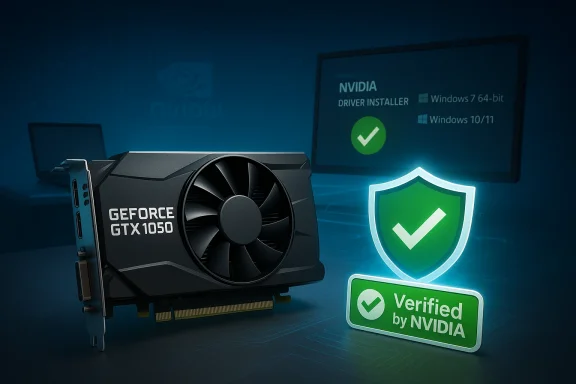 Background / Overview
The GeForce GTX 1050 is a member of NVIDIA’s Pascal‑era GeForce 10 Series and remains widely used in budget gaming and upgrade builds. Drivers for these cards are distributed in clearly labeled branches (Game Ready Driver, Studio Driver, and legacy/archive packages) and are tied to specific Windows target platforms and packaging types (DCH vs Standard). Always match the driver branch, package type, and OS architecture to your hardware and Windows build before you install.“Cheap” or mirrored driver pages frequently advertise a one‑click fix for any GPU — but graphics drivers are kernel‑mode software and a tampered installer can break a system, introduce persistence mechanisms, or deliver malware. Community and vendor guidance therefore point to official NVIDIA pages or your OEM’s support site as the only trustworthy download sources. Treat non‑vendor “clearance” or advertorial pages as red flags.
Which driver do you really need? Identifying GPU and OS
Before you download anything, identify your exact GPU and Windows build. The correct package depends on:- Whether the GPU is a desktop card or a laptop (notebook) variant.
- The exact model string (e.g., GeForce GTX 1050 vs GTX 1050 Ti).
- Windows version and architecture (Windows 7 64‑bit vs Windows 10/11 64‑bit).
- Whether your system expects a DCH or Standard driver package.
Why this matters: OEM laptop vendors often ship customized, signed INF files and power/tuning changes. Installing a generic desktop package on some notebooks can lead to missing features or installer rejection. For notebooks, prefer the OEM‑certified driver when available.
Where to download (and what “cheap” offers really mean)
The only safe download sources are:- NVIDIA’s official driver pages and the official NVIDIA driver search/app.
- Your system OEM’s support/download page (Dell, HP, Lenovo, etc.) — essential for laptops.
- Official NVIDIA driver archives when you need an older legacy build.
If you have already clicked a non‑vendor link (for example a Born2Invest advertorial or similar), treat the download as untrusted until you verify its digital signature and checksums. Community guidance instructs that if you’ve run an unverified installer, you should disconnect from sensitive networks and perform offline malware scans and a clean reinstallation from vendor media if necessary.
Supported Windows versions for GTX 1050: legacy vs modern
The GTX 1050 launched during the Pascal era, and NVIDIA published drivers for multiple Windows versions around that time. However:- Driver branches explicitly list their supported OSes. Some older releases include Windows 7 64‑bit support; later branches may target only Windows 10/11 (64‑bit).
- Windows 7 is a legacy OS and vendor attention (security updates, driver updates) is significantly reduced compared with Windows 10/11. That changes the risk calculus when choosing to remain on Windows 7.
The step‑by‑step safe download and install workflow
This is a tested workflow widely recommended by technicians and community audits.- Prepare backup and documentation
- Create a System Restore point or a full system image if the machine is important.
- Record the current driver version from Device Manager → Display adapters → Driver tab.
- Save the current working driver installer in case you need to roll back.
- Use vendor selector and choose the exact package
- On NVIDIA’s official driver page, select Product Type → Product Series → Product → OS → Language and confirm the listed target OS matches your system. For notebooks, check your OEM’s page first.
- Verify the file before running it
- Save the installer locally (don’t run from the browser temp folder).
- Confirm file size metadata and check the file’s Digital Signatures tab — it should be signed by NVIDIA Corporation. When available, compare the SHA‑256 hash with the vendor’s published checksum.
- Optional — perform a clean uninstall when appropriate
- If you’re switching driver branches (DCH ↔ Standard) or the system has persistent issues, boot to Safe Mode and run Display Driver Uninstaller (DDU) to remove remnants and registry entries before reinstalling. DDU should be used cautiously and only in Safe Mode with a known‑good copy.
- Run the installer as Administrator and pick Custom (Advanced)
- Choose “Perform a clean installation” to reset driver settings and remove prior artifacts.
- Uncheck GeForce Experience if you only want the driver and NVIDIA Control Panel to avoid optional telemetry.
- Reboot and verify
- After reboot, open Device Manager and NVIDIA Control Panel → System Information to confirm the driver version/date.
- Run a brief workload (game, decode, or a benchmark) to validate stability. Check Event Viewer for TDR or driver‑related errors in the next 24–48 hours.
NVIDIA Control Panel: what to expect on Windows 11/10/8.1/7
The NVIDIA Control Panel is bundled with NVIDIA driver installers. In typical desktop driver installs it appears as an entry in the Windows Control Panel and via right‑click on the desktop. In recent packaging changes (DCH vs Standard), the Control Panel can be installed or delivered as a separate Microsoft Store app on newer systems; behavior varies by driver package and Windows version.- If the Control Panel does not appear after installing the driver, verify in Device Manager that the NVIDIA driver is installed correctly, and check Programs & Features for the NVIDIA Control Panel package.
- On laptops, the OEM driver package may include a vendor‑custom Control Panel or remove the standard one in favor of OEM utilities; in those cases, use the OEM’s support resources.
Troubleshooting common errors and fixes
“No compatible hardware found” or installer rejects GPU
- Cause: wrong package (notebook vs desktop), package type mismatch (DCH vs Standard), or OEM requires a vendor‑signed INF.
- Fixes:
- Use the OEM driver for notebooks or extract the NVIDIA package and verify your Hardware Id is in the INF.
- If you need to install via Device Manager, use Update driver → Browse my computer → Let me pick → Have Disk… (for experienced users only).
- As a last resort, run DDU in Safe Mode and try reinstalling.
Black screen / boot failure after install
- Immediately boot to Safe Mode, run DDU to remove all NVIDIA remnants, then reinstall a different candidate driver or roll back to the last working package. Always keep a recovery image or USB on hand.
Windows Update keeps reverting the driver
- Use Microsoft’s “Show or hide updates” troubleshooter (wushowhide.diagcab) to block driver updates during testing. This prevents automatic reversion to older drivers while you test a new package.
File signature or checksum mismatch
- If the downloaded installer’s digital signature is missing or the signature is not NVIDIA Corporation, do not run the file. Redownload from NVIDIA or OEM and compare metadata. If you cannot verify, treat the installer as suspect.
Security and privacy considerations
Graphics drivers run in kernel mode and have high system privilege. A tampered driver installer can introduce persistent malware or cause severe system instability. Red flags for risky download pages include:- No digital signature or missing signature details.
- No release notes, missing supported‑products table, or absent file size metadata.
- A download page packed with unrelated ads, “clearance” language, or multiple randomized downloads.
- Claims that a modern WHQL release was published for legacy OS/architectures that the vendor never targeted (for example, advertising a Windows 7 32‑bit variant for a driver NVIDIA published only for Windows 10/11).
If you suspect you have run a repackaged installer from an untrusted site, take these steps immediately:
- Disconnect the machine from sensitive networks.
- Verify the installer’s digital signature in File Properties → Digital Signatures.
- Run an offline malware/rescue scan from known‑good rescue media.
- If instability persists, boot to Safe Mode, run DDU, and reinstall from the NVIDIA archive or OEM source. For fleet or enterprise environments, consider forensic analysis.
Laptop vs Desktop: special considerations
- Laptop drivers: prefer OEM driver pages (Dell/HP/Lenovo) because vendor installers can include model‑specific INFs, power profiles, and thermal tuning. Installing a generic desktop driver on some laptops can lead to disabled features or installation failure.
- Desktop cards: use NVIDIA’s official desktop package; be mindful of DCH vs Standard packaging and cleanly uninstall if switching families.
When you can safely rely on archived drivers
Sometimes you need an older driver (for compatibility or stability). NVIDIA maintains archives with release notes and supported‑products tables. Use archived packages only when:- The archive driver explicitly lists your GPU and Windows edition in its supported table.
- You download from NVIDIA’s official archive or your OEM.
Quick checklist: safest path to a working GTX 1050 driver on Windows 7 64‑bit
- Confirm Windows is 64‑bit and copy your GPU hardware IDs.
- Check NVIDIA’s archive or your OEM support page for a driver that explicitly lists Windows 7 64‑bit and your GPU.
- Back up the system (Restore point/full image) and save the current driver.
- Download the driver EXE and verify the digital signature (NVIDIA Corporation) and file size.
- If switching packaging types or resolving persistent issues, use DDU in Safe Mode before reinstalling.
- Perform a Custom install → Perform a clean installation; uncheck GeForce Experience if you do not want telemetry.
- Reboot and validate driver version in Device Manager and NVIDIA Control Panel → System Information. Run a short workload to confirm stability.
Final analysis: strengths, risks, and recommendation
Strengths- NVIDIA’s official driver distribution is well‑documented; release notes include a supported‑products table and file metadata that let you verify compatibility before installing. Using NVIDIA or OEM sources gives the best chance for a stable, signed installer.
- Community tools and workflows (DDU, release‑note checks, digital signature verification) provide practical guardrails that reduce risk when changing driver branches or troubleshooting.
- Third‑party “cheap driver” portals and mirrored installers are a real hazard; they can deliver repackaged INFs, adware, or persistent malware. Never trust an installer unless you can confirm the digital signature and metadata match the vendor’s published values.
- Windows 7 is a legacy OS with dwindling vendor attention. If security and stability matter, consider upgrading to Windows 10/11 or isolating legacy systems from sensitive networks while you maintain them.
- For Windows 7 64‑bit + GTX 1050: use NVIDIA’s archive or your OEM site and confirm the release notes explicitly list Windows 7 64‑bit support for your exact GPU SKU before installing. Verify the installer’s digital signature and file size before running it.
- For Windows 10/11: prefer the latest Game Ready or Studio drivers that explicitly list your GPU and OS. For DCH packaging on Windows 10/11, be prepared to obtain the NVIDIA Control Panel from the Microsoft Store if your driver requires it.
- Avoid any non‑vendor “discount” driver offer unless you can prove the executable exactly matches the vendor signature and metadata. When in doubt, rebuild from a known good backup and reinstall from vendor media.
This article provided a practical, verifiable workflow for downloading and installing GeForce GTX 1050 drivers on Windows 7 64‑bit and explained how the NVIDIA Control Panel behaves across Windows versions. The technical steps and safety checks above are derived from vendor‑aligned community guidance and driver‑installation best practices; follow them precisely to minimize the risk of instability or compromise.
Source: Born2Invest https://born2invest.com/?b=style-230999612/
