

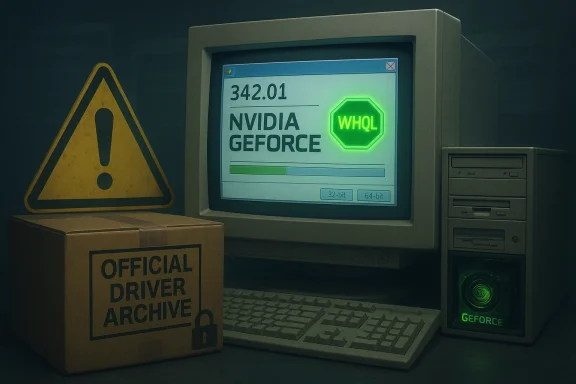
NVIDIA’s GeForce driver labelled 342.01 is a genuine, WHQL‑signed legacy release from late 2016—but it’s not the “cheap, universal 32‑bit download” many bargain sites advertise, and installing a kernel driver you found on a low‑trust page can put your Windows 7 or Windows 8.1 machine at real risk. Official vendor pages and community archives show 342.01 as a legacy‑family driver issued on December 14, 2016 (WHQL), published for legacy GPUs and notebook variants; however, the safe, authoritative source for the binary is NVIDIA’s archive or your OEM’s support site, not random “cheap driver” mirrors.
GeForce driver 342.01 sits inside NVIDIA’s legacy 340/342 family and was released with an emphasis on providing continued compatibility and targeted security updates for older GPU architectures (including some Tesla components used in workstations and notebooks). The vendor metadata and community verification logs identify the package as WHQL and place the release date in mid‑December 2016; package sizes and language variants differ by platform. If you’re running an older GeForce card or a legacy notebook that explicitly lists 342.01 in its supported driver table, this build may be the correct vendor‑approved package to use.
That said, the modern reality for Windows users is straightforward: NVIDIA shifted most development and feature delivery to 64‑bit Windows and contemporary driver branches in the years since, and 32‑bit Windows support was formally wound down after Release 390. If you’re on Windows 7 32‑bit or Windows 8.1 32‑bit, expect an archival support model: drivers exist for some legacy cards, but they no longer receive ongoing feature updates or routine security maintenance like current branches do. Treat legacy drivers as archival software that must be handled cautiously.
NVIDIA GeForce driver 342.01 is real and has legitimate uses for older hardware, but the shortcut of downloading a “cheap” copy from an untrusted page is false economy: the cost of a corrupted or malicious kernel driver is system failure or persistent compromise. Follow the verification steps above, prefer OEM or vendor archives, and treat any single‑page download claimed to be a universal 32‑bit fix as suspect until you can confirm the binary’s provenance and digital signature.
Source: Born2Invest https://born2invest.com/?b=style-229970912/
 Background / Overview
GeForce driver 342.01 sits inside NVIDIA’s legacy 340/342 family and was released with an emphasis on providing continued compatibility and targeted security updates for older GPU architectures (including some Tesla components used in workstations and notebooks). The vendor metadata and community verification logs identify the package as WHQL and place the release date in mid‑December 2016; package sizes and language variants differ by platform. If you’re running an older GeForce card or a legacy notebook that explicitly lists 342.01 in its supported driver table, this build may be the correct vendor‑approved package to use.That said, the modern reality for Windows users is straightforward: NVIDIA shifted most development and feature delivery to 64‑bit Windows and contemporary driver branches in the years since, and 32‑bit Windows support was formally wound down after Release 390. If you’re on Windows 7 32‑bit or Windows 8.1 32‑bit, expect an archival support model: drivers exist for some legacy cards, but they no longer receive ongoing feature updates or routine security maintenance like current branches do. Treat legacy drivers as archival software that must be handled cautiously.
Why the “cheap driver” problem matters
Graphics drivers operate at kernel level and have deep system privileges. That makes them both powerful and dangerous when tampered with.- Kernel‑level trust: A graphics driver runs with elevated privileges; an altered or malicious driver can hide, persist, or escalate privileges.
- Repackaging risk: Low‑trust “cheap driver” sites often repackage official EXEs, bundle adware, strip or alter digital signatures, or swap INFs—changes that can break boot integrity or introduce persistent malware.
- OEM mismatch hazards: Notebook vendors frequently ship drivers with custom INF entries and tuning. Replacing those with a generic NVIDIA package can degrade battery life, change thermal behavior, or even disable vendor‑specific features.
What the official and archival records say about 342.01
- Version and signing: 342.01 is recorded as a WHQL‑signed release (legacy 340/342 family). Several vendor pages and archived release notes corroborate this classification.
- Release date: Multiple archive entries identify December 14, 2016 as the published date for 342.01.
- Target platforms: The package metadata lists Windows 10 (64‑bit) prominently, with localized variants and separate entries referencing earlier Windows 7/8.x and Vista builds in the same family. Do not assume a single installer covers all Windows 7 32‑bit scenarios—verify the exact package for x86 if you must remain on that platform.
- Package size: The Windows 10 64‑bit desktop package for 342.01 appears in archival notes with a size in the ~290–300 MB range, but size varies by language and platform variant—another verification point to check before running an installer.
Who should consider installing 342.01?
- Users with legacy desktop GPUs or notebook GPUs explicitly listed in the 340/342 family release notes.
- Administrators maintaining air‑gapped or single‑purpose legacy systems that require a specific driver version for application compatibility.
- Owners of OEM systems where the vendor’s support pages reference 342.01 as the recommended baseline.
- Users on modern hardware (Maxwell, Pascal, Turing, Ampere, Ada Lovelace and later) who should use contemporary Game Ready or Studio driver branches.
- Any user who cannot verify the installer’s provenance or cannot restore their system if a kernel change causes a boot failure.
The safe verification and install workflow (recommended)
Follow this step‑by‑step process to obtain and install an NVIDIA legacy driver like 342.01 with minimal risk.- Preparation
- Identify your GPU exactly: Device Manager → Display adapters → Right‑click → Properties → Details → Hardware Ids. Copy VEN and DEV strings.
- Confirm OS architecture: Settings → System → About (32‑bit vs 64‑bit).
- Backup: create a System Restore point or, better, a full disk image. Kernel driver changes can break boot; backups make rollback reliable.
- Source selection
- Primary source: NVIDIA’s official driver archive or your laptop/desktop OEM support page for model‑specific packages.
- Secondary source (only if vendor pages are unavailable): an established archival site that publishes checksums and retains unchanged EXEs. Be cautious.
- Download and verify
- Compare the downloaded file’s name and file size with the vendor metadata.
- Verify the digital signature: Right‑click EXE → Properties → Digital Signatures. The signer should be “NVIDIA Corporation.”
- Compute the checksum: PowerShell Get‑FileHash or certutil -hashfile path SHA256 and compare to an authoritative hash, if one is published.
- If signature or checksum mismatches, stop and obtain the file from another trusted source.
- Clean uninstall (if switching packaging types or if you suspect corruption)
- Optionally boot into Safe Mode and run Display Driver Uninstaller (DDU). DDU is a community standard for surgical cleanups but must be used with care and only when needed. Read DDU instructions and keep your intended installer offline and ready.
- Install
- Run the installer as Administrator. Choose Custom (Advanced) and tick Perform a clean installation if you want settings reset.
- Uncheck GeForce Experience if you want a driver‑only install and wish to reduce telemetry.
- Reboot when prompted and verify via NVIDIA Control Panel → System Information or Device Manager → Driver tab. Confirm the driver version and device detection.
- Test and validate
- Run representative workloads (video playback, simple gaming, 2D/3D app) to detect black screens, artifacts, or stability problems.
- If you encounter problems, use DDU and reinstall the previous working driver (from your archive) or restore your disk image.
Notebook owners: special caveats
Laptop drivers are not the same as desktop drivers. OEMs often include vendor‑specific INF files, power/thermal tuning, and integration with platform firmware.- Installing NVIDIA’s generic notebook driver can remove OEM power optimizations and change fan/thermal profiles, sometimes causing worse battery life or thermal jams.
- Some OEMs ship drivers with vendor‑signed INFs that block generic installers; the NVIDIA installer may refuse to proceed or Windows may revert to a Microsoft default driver.
- If your laptop OEM lists a compatible driver for your model, use it instead of a generic 342.01 package. If the OEM is EOL and you must use NVIDIA’s archive, verify the INF contains your hardware ID and proceed with caution.
How to spot unsafe or tampered driver downloads
- File size is wildly different from vendor metadata for the same version.
- The EXE’s digital signature is missing, invalid, or the signer is not NVIDIA Corporation.
- The download includes an extra installer or “package manager” that bundles other software or demands payment.
- A cheap download page insists you must pay or enter personal details to obtain a driver (drivers from NVIDIA and OEM sites are free).
- The page is a content farm or mirror with identical copy across many domains and no authoritative provenance.
Alternatives if 342.01 isn’t appropriate
- Use the OEM driver: for notebooks and prebuilt desktops, the OEM driver is often the most compatible and stable option.
- Move to 64‑bit Windows (if hardware supports it): modern NVIDIA branches and security coverage favor 64‑bit OSes.
- If you need continued driver updates and security maintenance, consider a hardware refresh to a GPU architecture still within the vendor’s active support window.
- For single‑purpose offline legacy machines (retro gaming, appliance roles), keep the system offline, use the archival driver only after verifying it, and isolate the machine from untrusted files or networks.
Common troubleshooting scenarios and fixes
- “Installer cannot find compatible hardware”
- Confirm Device Manager → Details → Hardware Ids and verify the INF in the driver package contains your device’s VEN/DEV strings. OEM signed INFs may prevent generic installs.
- Black screen or boot hang after install
- Boot to Safe Mode, run DDU, and reinstall a previously working installer. If recovery fails, restore from your disk image.
- Windows Update keeps replacing your driver
- Use Microsoft’s “Show or hide updates” tool to block automatic driver updates while you validate your chosen package. Alternatively, ensure your chosen driver is signed, correctly installed, and present in the driver store.
Critical analysis — strengths, limits, and risks
Strengths- Official vendor archives provide WHQL‑signed legacy installers that preserve compatibility for older cards and some notebook variants, and 342.01 is one such archival release. When obtained from the vendor and installed correctly, these drivers restore expected GPU functionality for legacy hardware.
- Legacy drivers are frozen in time: they don’t receive ongoing feature improvements and their security maintenance is limited. 32‑bit Windows users face an archival support model after NVIDIA’s Release 390 policy changes. Relying on old drivers long‑term is a security and compatibility tradeoff.
- Kernel‑level tampering is the primary hazard when downloading from untrusted sites. Repackaged installers can persist and evade detection, causing severe system compromise or irreparable driver corruption. The community’s guidance is explicit: verify signatures, checksums, and provenance; don’t run unknown EXEs.
- If a third‑party page asserts a special 342.01 build for Windows 7 32‑bit that does not appear on NVIDIA’s archive or on OEM sites, treat that claim as unverifiable until you can match it to an official WHQL release note and a signed binary. Forum audits flagged several content‑farm pages and the Born2Invest link pattern in user prompts as not authoritative or not retrievable during verification—use vendor archives instead.
Plain‑English final recommendations
- If you need 342.01 for a legacy GPU, download it only from NVIDIA’s official driver archive or from your OEM’s support site and verify the file signature and checksum before installation.
- If you’re on Windows 7 or Windows 8.1 32‑bit, accept that driver options are archival and that continued security maintenance is limited; prefer OEM drivers where available.
- Never trust “cheap driver” download pages or SEO‑driven mirrors offering a single convenient 32‑bit EXE unless you can cryptographically verify the binary. Kernel drivers are too sensitive to risk on a whim.
- Back up, verify, optionally run DDU if you’re switching driver families, and perform a clean install. Keep an archived copy of any working driver you used in case you need to roll back without internet access.
NVIDIA GeForce driver 342.01 is real and has legitimate uses for older hardware, but the shortcut of downloading a “cheap” copy from an untrusted page is false economy: the cost of a corrupted or malicious kernel driver is system failure or persistent compromise. Follow the verification steps above, prefer OEM or vendor archives, and treat any single‑page download claimed to be a universal 32‑bit fix as suspect until you can confirm the binary’s provenance and digital signature.
Source: Born2Invest https://born2invest.com/?b=style-229970912/
