

The two short Born2Invest posts you supplied — one advertising a “discount” download for an NVIDIA GeForce driver 397.93 allegedly for a GeForce GT 755M, and the other promoting a Game Ready package (418.91) for GeForce 820M systems — read like republished driver landing pages, but they lack the vendor metadata and verifiable download artifacts required for safe kernel‑level installs. Independent community audits of those snippets flagged the Born2Invest links as inaccessible or otherwise unverified, and advised treating any unique claims on those pages with caution until the exact files, digital signatures, or OEM variants are confirmed. et items claim, verifies what NVIDIA’s official records actually show for the referenced driver builds, and offers a practical, evidence‑based playbook for any Windows 10 notebook owner who’s tempted to click a third‑party “discount” driver link. I summarize the supplied material, validate the key technical facts against vendor and archival sources, and provide a step‑by‑step installation and safety checklist that balances compatibility, security, and real‑world troubleshooting.
The two driver builds that appear in the supplied content are historic NVIDIA Game Ready/Notebook drivers:
If you are troubleshooting a problematic Windows 10 notebook with a legacy GeForce part:
Conclusion
The files and driver versions referenced in your two supplied Born2Invest items correspond to authentic NVIDIA driver releases (397.93 and 418.91) that exist in vendor archives and that historically included broad notebook support for 700M/800M family parts. However, the Born2Invest pages themselves were flagged in community audits as inaccessible or unverifiable; they lack vendor release notes, checksums, and signature metadata required for safe installation. For any driver work: consult NVIDIA’s official driver results page or your OEM support site, verify signatures and metadata, keep a tested rollback image, and use DDU for clean uninstalls when necessary. Do not run kernel‑level installers from unverified third‑party “discount” links.
Source: Born2Invest https://born2invest.com/?b=style-230672812/
Source: Born2Invest https://born2invest.com/?b=style-229954912/
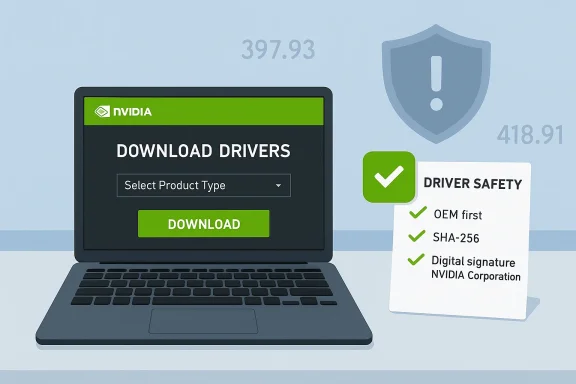 Background / Overview
The two driver builds that appear in the supplied content are historic NVIDIA Game Ready/Notebook drivers:- GeForce driver 397.93 — a WHQL Game Ready release published by NVIDIA on May 24, 2018. NVIDIA’s official release record lists 397.93 as a Windows 10 (64‑bit) WHQL build with a ~492 MB installer and Game Ready optimizations for titles released at that time. Independent hardware press contemporaneously covered the release and its highlights.
- GeForce driver 418.91 — a WHQL Game Ready notebook build published by NVIDIA on February 13, 2019. The vendor release notes show 418.91 as a Windows 10 (64‑bit) notebook package (553 MBish), with support for then‑recent features such as DLSS/ray tracing at the time and a broad supported‑products list that includes many 800M/700M notebook parts.
What the supplied Born2Invest items actually say — and what they omit
The claims in the two snippets
- Born2Invest #1 (GT 755M / 397.93): Presents “Discount Nvidia GeForce Graphics Driver 397.93 for Windows 10” and suggests the 397.93 package is an available download for GeForce GT 755M systems.
- Born2Invest #2 (820M / 418.91): Promotes an “Outlet Online” download for driver 418.91 and references GeForce Game Ready Driver 418.91 for Windows 7/8/10, with an implication that this resolves installation issues on certain HP laptops.
Why those omissions matter
- Kernel drivers are security‑sensitive: executables like NVIDIA’s installers run kernel‑level components (nvlddmkm.sys and related modules). If a downloaded EXE is tampered with, repackaged, or signed by anything other than “NVIDIA Corporation,” the risk to system stability and security is significant.
- Notebook packaging nuance: NVIDIA distributes desktop and notebook installers, and OEMs frequently ship vendor‑tuned notebook packages with vendor‑signed INFs. Installing a generic NVIDIA notebook package over an OEM build can change power/thermal behavior and even be refused by the OS if INF signing mismatches occur.
- Third‑party bite: SEO‑driven “discount” or “clearance” landing pages often republish or mirror vendor installers — sometimes safely, other times repackaged with adware, broken INFs, or missing digital signatures. Community audits explicitly warn against clicking these downloads without cross‑checking the file hash and signer.
What NVIDIA’s records show (verification)
I verified the most load‑bearing technical claims against vendor and archival press records.GeForce Driver 397.93 (May 24, 2018)
- NVIDIA’s official driver page lists Version 397.93 as a WHQL Game Ready Driver for Windows 10 64‑bit, released on May 24, 2018, file size ~492.17 MB. Release highlights include Game Ready optimizations (The Crew 2 Closed Beta, State of Decay 2) and CUDA 9.2 support.
- TechPowerUp and TechSpot covered the release at the time and reproduce the release highlights and supported‑product context, corroborating NVIDIA’s archive metadata.
GeForce Driver 418.91 (Feb 13, 2019)
- NVIDIA’s official page lists Version 418.91 as a WHQL Game Ready Driver (notebook program), released February 13, 2019, and documents a broad set of supported notebook GPUs that includes the GeForce 820M in the 800M/700M compatibility scope.
- Secondary archives (Softpedia) reproduce the 418.91 supported‑product lists and list GeForce 820M and GT 755M entries among the 800M/700M notebook compatibility groups in their mirrored copy of the release metadata. That corroborates that 418.91 and similar notebooks packages historically included those mobile parts. However, mirror pages are second‑order references and must be used only to corroborate—not replace—vendor metadata.
Critical analysis: strengths, limitations, and risks
Strengths of using NVIDIA archival drivers (when sourced correctly)
- Vendor‑signed builds: Official NVIDIA packages (WHQL or WDK‑signed) provide cryptographic assurance the installer is genuine when the digital signature verifies. This reduces the risk of tampering.
- Stability for legacy hardware: For older notebook GPUs (Kepler/Maxwell/older generations), a legacy Game Ready or Notebook driver is often the most compatible solution when OEM support has ended.
- Documented fixes: Release notes list specific game fixes, CUDA updates, and known issues — useful for troubleshooting targeted regressions. ([nvidia.com](GeForce Game Ready Driver | 397.93 | Windows 10 64-bit | NVIDIA?## Real and present risks to weigh
- Unverified third‑party mirrors: Born2Invest‑style republished downloads frequently lack the vendor metadata and cannot be cryptographically verified by the end user. Comly flagged the supplied Born2Invest links as unverifiable; follow the vendor or OEM instead.
- OEM INF and power/thermal differences: Notebook vendors may require vendor‑specific drivers. Installing a generic NVIDIA notebook package can alter battery life, thermals, or suspend/wake behavior. For laptoupport page first.
- DCH vs Standard packaging mismatch: Mixing DCH and Standard driver types without a proper clean uninstall can produce “not compatible” errors. Use a clean uninstall (DDU) before switching package typescycle context: Windows 10 reached end of routine support on October 14, 2025**, which changes the long‑term security calculus for running archived kernels on that OS. Treat legacy drivers on EOL OS installs as short‑term compatibility fixes, not long‑term production configurations.
- Telemetry and optional components: NVIDIA’s installers optionally include GeForce Experience and telemetry services. If privacy or a minimal footprint is a priority, do a Custom install and uncheck GeForce Experience.
Practical verification checklist (how to tell if a driver installer is safe)
Before you run any EXE that claims to be an NVIDIA driver, follow this checklist.- Confirm the vendor listing
official driver archive or your OEM’s support page**. These are primary authoritative sources for driver installers and release notes. Vendor pages will list the release date, file size, and WHQL status. - Match the package type
- Determine whether you need a desktop or notebook package. If you have a laptop, prefer OEM‑supplied drivers when available. Generic NVIDIA notebook drivers are reference packages; OEMs may have tuned variants.
- Record your hardware ID
- Open Device Manager → Display adapters → Properties → Details → Hardware Ids. Copy the VEN_xxxx & DEstring and check the INF’s supported devices table if in doubt. This prevents INF mismatches that cause “not compatible” errors.
- Check digital signature and file metadata
- After dowthe EXE → Properties → Digital Signatures: signer should be “NVIDIA Corporation.” For extra certainty, compute SHA‑256 and compare to vendor‑published hashes when NVIDIA supplies them. If a third‑party page is your only source, do not run the installer until you can validate the signature/hash.
- Keep a rollback plan
- Create a full disk imagtem Restore point. Save your previous working driver installer so you can restore quickly if the update regresses.
- Use DDU when package types differ or you face corruption
- Display Driver Uninstaller (DDU) in Safe Mode is the community standard for surgical driver cleanup prior to switching DCH/Standard or when you encounter black screens/boot failures. Use it cautiously and follow guidance; it requires comfort with Safe Mode and reinstallation steps.
Step‑by‑step safe installation workflow (recommended)
- Backup: Create a full image or System Restore point.
- Confirm the exact driver build on NVIDIA or OEM pages (release date, file size, WHQL).
- Download only from the vendor/OEM; avoid SEO mirrors and “discount” download pages.
- Optionally compute and verify SHA‑256 if the vendor publishes it; verify the Digital Signature = NVIDIA Corporation.
- If switching DCH ↔ Standard or dealing with persistent errors, boot to Safe Mode and run DDU to remove all NVIDIA traces.
- Run the vendor installer as Administrator → choose Custom (Advanced) → check Perform a clean installation → uncheck GeForce Experience if you prefer driver‑only.
- Reboot, open NVIDIA Control Panel → System Information to confirm the driver version and that the GPU is enumerated correctly.
- Test representative workloads (video playback, a game, or a benchmark); if regressiommediately.
Troubleshooting common post‑update failures and how to respond
- Symptom: Black screen or boot failures after install
- Recovery: Boot into Safe Mode → run DDU → reinstall the verified vendor driver (prefer the OEM package for laptops). If Safe Mode is inaccessible, use System Restonvironment. Community reports show DDU usually resolves these failure modes.
- Symptom: “Installer refuses to run / INF signature errors”
- Recovery: Verify you downloaded the correct notebook vs desktop package. If your laptop uses vendor‑signed INFs, revert t you must use NVIDIA’s reference package, a DDU complete clean can sometimes allow reinstallation.
- Symptom: Lower framerates or stuttering after updating
- Recovery: Roll back via Device Manager or reinstall the saved previous installer. Compare objectiv lows). If regressions persist, open a vendor support ticket with DxDiag and logs.
- Symptom: HDMI/external monitor not detected
- Recovery: Try a clean reinstall (DDU) and reinstall. Check NVIDIA Control Panel and Windows Display settings. Some HDMI issues were addressed in later driver patches historically — cross‑check release notes.
Cross‑referenced findings about Born2Invest claims
- Community audits of the Born2Invest snippets included with your prompt repeatedly flagged the pages as inaccessible or unverified; reviewers were unable to confirm the exact landing files or any vendor metadata on those pages. The audits therefore recommend avoiding any driver installer sourced solely from those pages and instead using NVIDIA or the OEM for downloads.
- In short: the driver versions themselves (397.93 and 418.91) are authentic NVIDIA releases as confirmed on NVIDIA’s site and by archival press coverage, but the Born2Invest pages that republish driver download claims are not a reliable or authoritative source for signed driver binaries. Treat Born2Invest’s “discount” framing as an unverified marketing overlay until you can match the EXE’s signature/hash to NVIDIA or the OEM’s listing. ([nvidia.com](GeForce Game Ready Driver | 397.93 | Windows 10 64-bit | NVIDIA for readers (clear, actionable guidance)
- If you own a laptop with a GeForce GT 755M, GeForce 820M, or similar legacy mobile GPU: first check your laptop manufacturer’s support page for a Windows 10 installer specific to your model. OEM packages are the safest and often the only fully validated option for notebook power/thermal behavior.
- If the OEM does not provide a Windows 10 driver for your exact model, then use NVIDIA’s archived notebook package (for example, 397.93 or 418.91 if they list your SKU) downloaded directly from NVIDIA’s driver results page. Verify the signerhe file hash before running.
- Never run a driver EXE iscount” landing page without verifying the file’s digital signature. If a vendor mirror is your only option, compute the SHA‑256 and compare it with a trusted secondary source; if you cannot validate it, do not install.
- Keep a backup image and your last working installer, and be ready to use DDU when switching driver packaging types or when dealing with persistent errors.
Final assessment: when to update, and when to stop
Updating a legacy notebook GPU driver can solve stability problems or restore basic 3D acceleration on older systems, but the process must be handled with the same rigor as any kernel‑level change. The two driver numbers in the supplied Born2Invest snippets — 397.93 and 418.91 — are genuine NVIDIA releases according to NVIDIA’s own archives and contemporary coverage. However, the Born2Invest landing pages that present those builds as “discount downloads” are not authoritative distribution points; community audits could not validate the hosted files and explicitly cautioned readers to rely on NVIDIA or their OEM instead.If you are troubleshooting a problematic Windows 10 notebook with a legacy GeForce part:
- Prefer your OEM’s driver first.
- If no OEM package exists, use NVIDIA’s archived notebook package, but only after you’ve verified the EXE’s signature and prepared a rollback.
- Avoid third‑party mirrors or “discount” download pages unless you can cryptographically verify the installer.
Conclusion
The files and driver versions referenced in your two supplied Born2Invest items correspond to authentic NVIDIA driver releases (397.93 and 418.91) that exist in vendor archives and that historically included broad notebook support for 700M/800M family parts. However, the Born2Invest pages themselves were flagged in community audits as inaccessible or unverifiable; they lack vendor release notes, checksums, and signature metadata required for safe installation. For any driver work: consult NVIDIA’s official driver results page or your OEM support site, verify signatures and metadata, keep a tested rollback image, and use DDU for clean uninstalls when necessary. Do not run kernel‑level installers from unverified third‑party “discount” links.
Source: Born2Invest https://born2invest.com/?b=style-230672812/
Source: Born2Invest https://born2invest.com/?b=style-229954912/
