

NVIDIA Optimus remains the practical bridge between battery life and performance on notebooks, but in 2026 the conversation around which driver to install, where to download it safely, and how to preserve Optimus functionality on Windows 10 has shifted from “which build” to “which risk profile.” This feature explains, verifies, and walks you through a conservative, technician-grade Optimus driver workflow for Windows 10 in 2026, calls out the real dangers of third‑party “discount” driver packs, and gives tested recovery and troubleshooting steps so you can upgrade or restore an Optimus notebook with confidence.
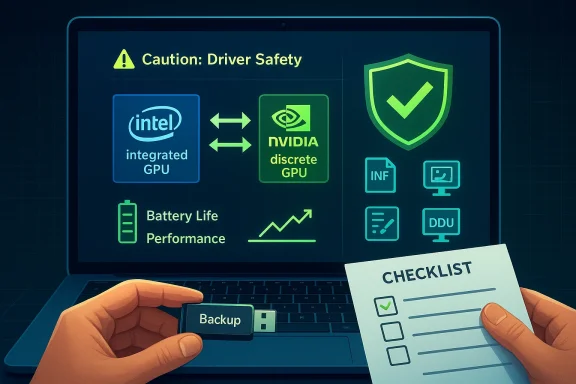
Optimus is a hybrid‑graphics system that routes rendering between the integrated GPU (usually Intel) and an NVIDIA discrete GPU to maximize battery life when possible and deliver performance when needed. The architecture relies on coordinated driver and INF support from both the OEM and NVIDIA; swapping or replacing those pieces can break hybrid routing and internal-display wiring if done incorrectly. NVIDIA’s developer and product documentation describes Optimus as the routing and switching layer that powers notebook hybrid graphics, and it remains central to how discrete GPUs are used in laptops.
The ecosystem changed materially in late 2025: Microsoft ended mainstream security updates for consumer Windows 10 on October 14, 2025. That date matters for anyone still maintaining older hardware because running legacy drivers on an unsupported OS raises real security and operational risk. Microsoft’s lifecycle and support pages are the authoritative confirmation of that change.
At the same time, NVIDIA continues to maintain archives and occasionally publishes security‑focused updates for older GPU families rather than full game‑ready releases. Those selective updates (security hotfixes for archived families) are evidence that vendors may patch critical issues, but they do not remove the systemic risk of running an unsupported OS and old driver stacks. Treat such security-only updates as helpful patches, not a “green light” to keep running an outdated stack online indefinitely.
Source: Born2Invest https://born2invest.com/?b=style-230031612/
 Background / Overview
Optimus is a hybrid‑graphics system that routes rendering between the integrated GPU (usually Intel) and an NVIDIA discrete GPU to maximize battery life when possible and deliver performance when needed. The architecture relies on coordinated driver and INF support from both the OEM and NVIDIA; swapping or replacing those pieces can break hybrid routing and internal-display wiring if done incorrectly. NVIDIA’s developer and product documentation describes Optimus as the routing and switching layer that powers notebook hybrid graphics, and it remains central to how discrete GPUs are used in laptops. The ecosystem changed materially in late 2025: Microsoft ended mainstream security updates for consumer Windows 10 on October 14, 2025. That date matters for anyone still maintaining older hardware because running legacy drivers on an unsupported OS raises real security and operational risk. Microsoft’s lifecycle and support pages are the authoritative confirmation of that change.
At the same time, NVIDIA continues to maintain archives and occasionally publishes security‑focused updates for older GPU families rather than full game‑ready releases. Those selective updates (security hotfixes for archived families) are evidence that vendors may patch critical issues, but they do not remove the systemic risk of running an unsupported OS and old driver stacks. Treat such security-only updates as helpful patches, not a “green light” to keep running an outdated stack online indefinitely.
Why the “discount driver” problem keeps appearing
“Discount” driver packs, repackaged installers, and third‑party driver bundles are a recurring source of trouble in community forums. The core problems are predictable:- Kernel components and INF edits: repackaged installers often edit INF files or combine vendor files into single torrents or packages that remove or alter OEM‑signed INF entries that Optimus relies on. This causes installer rejection, missing internal displays, or hybrid switching failures.
- Signature and integrity risks: third‑party binaries can be modified, carry adware, and—in the worst cases—embed malicious kernel components. At kernel level, tampering is catastrophic. Prefer vendor‑signed archives.
- Eternal driver loops: Windows Update can push a different driver while you test a candidate, producing inconsistent behaviour and repeated rollbacks. Official advice and community workflows exist to avoid that.
Overview: what to verify before you touch anything
Before you download or install any NVIDIA driver on an Optimus laptop, verify these four facts:- Your Windows build and architecture (32‑bit vs 64‑bit) — use Settings → System → About or winver. Installing the wrong architecture build will fail or cause instability.
- The exact GPU and vendor subsystem IDs (Device Manager → Display adapters → Properties → Details → Hardware Ids). Copy VEN_xxxx & DEV_yyyy & SUBSYS_zzzz into a text file; they determine which INF entries you need.
- Whether the OEM provides a certified Windows 10 driver for your laptop model — if it does, prefer the OEM package for notebooks because they include vendor‑signed INF customizations and power/thermal tuning essential for Optimus.
- That the NVIDIA package explicitly lists your GPU in the “Supported Products” table on the driver release page or release notes. File name alone is not proof.
The conservative, technician‑grade Optimus driver workflow (step‑by‑step)
This is the recommended sequence to minimize risk and keep a rollback path. Treat it as mandatory on production or mission‑critical machines.- Backup and prepare
- Create a full disk image when possible. At minimum, create a System Restore point. Kernel drivers can render a system unbootable; images are the fastest, safest rollback path.
- Record the GPU model and Hardware IDs as described above. Confirm Windows architecture.
- Decide OEM vs NVIDIA
- If your laptop vendor publishes a Windows 10 driver for your model, download and use that first. OEM packages often contain vendor‑signed INF entries that keep Optimus and power‑management features working.
- If OEM support is unavailable, use NVIDIA’s official driver archive and pick the notebook (not desktop) package that explicitly lists your notebook GPU and Windows 10 (choose 64‑bit or 32‑bit per your system).
- Download verification
- Save the EXE locally; do not run from a browser temp folder.
- Check the File Properties → Digital Signatures entry; the signer should be NVIDIA Corporation or your OEM. If you know how, compute Get‑FileHash -Algorithm SHA256 and compare against any vendor‑published checksum. If signatures or checksums don’t match, do not run the installer.
- Optional but recommended: block automatic Windows Update driver installs temporarily
- Use Microsoft’s tools or Group Policy to stop Windows Update from auto‑pushing drivers for the duration of your test. This prevents “driver loops” mid‑install. Community guides and Microsoft knowledge base articles explain the mechanism and safe ways to block a driver while you test.
- If you’re switching driver packaging models (DCH vs Standard) or fixing a corrupted install: clean uninstall with DDU
- Boot to Safe Mode and run Display Driver Uninstaller (DDU) to purge driver remnants, orphaned INFs, and registry components. DDU is a community standard for stubborn conflicts, but follow the official DDU guidance and use it in Safe Mode only. Back up first.
- Install as Administrator with the NVIDIA installer (or OEM installer)
- Right‑click → Run as Administrator.
- Choose Custom (Advanced) → check “Perform a clean installation” to reset older driver components.
- Uncheck GeForce Experience if you prefer a driver‑only install and want to avoid optional telemetry or overlays.
- Post‑install validation
- Reboot and open NVIDIA Control Panel → System Information to confirm the installed driver version and that the notebook GPU is detected.
- Test representative workloads: a short video playback session, a 3D application or game for 5–10 minutes, and check for HDMI/DP output, backlight and brightness controls, battery life swings, and unusual fan behavior. If Optimus routing appears broken (discrete GPU not used when needed, or internal display blank), revert to your image or OEM driver.
- If the installer refuses (INF mismatch)
- Extract the NVIDIA package (it self‑extracts to a temporary folder).
- Inspect Display.Driver*.inf for your VEN/DEV/SUBSYS values. If present, use Device Manager → Update driver → Browse my computer → Have Disk… to point to that INF and perform a manual driver install. This bypasses certain installer metadata checks and is safer than running repackaged third‑party installers. Only do this if the INF actually contains your hardware ID.
- If you still see startup black screens or device errors
- Boot Safe Mode → run DDU → reinstall OEM or a previously known working driver from your archive. If necessary, restore the full image.
Troubleshooting common Optimus failure modes
Installer returns “No compatible hardware”
This usually means the INF doesn’t include your OEM‑specific subsystem ID. For notebooks, prefer OEM drivers. If OEM drivers aren't available, confirm that the NVIDIA notebook package you selected lists your exact GPU model in the release notes. Inspect the INF as above before attempting manual installs.Hybrid switching broken / internal display dark after install
This is often the result of overwriting vendor‑signed INFs or missing vendor-specific routines. Reinstall the OEM driver when possible. Use DDU and then the OEM package to fully restore the vendor INF table.Windows Update keeps reapplying a different driver
Use Microsoft’s “Show or hide updates” tool or a Group Policy to block the offending driver while you test. Create a restore image and keep the working installer locally to reinstall if Windows Update interferes.Black screen or boot hangs after a driver update
Boot to Safe Mode, run DDU, and restore your image or reinstall the OEM driver. If you lack an image, use System Restore (if present) or the saved installer archive. Community case studies consistently recommend the DDU-safe mode path.Security and lifecycle concerns for Windows 10 + legacy drivers in 2026
Two related realities change the risk calculation in 2026:- Windows 10 consumer support ended on October 14, 2025. Without Microsoft security updates, any kernel‑mode driver increases attack surface and exposure. Microsoft’s lifecycle pages are the canonical source for that fact; organizations that can’t move to Windows 11 should evaluate Extended Security Updates or OS replacement strategies.
- Vendors sometimes issue security‑only updates for archived GPUs, but these are exceptional. NVIDIA, for example, published selective legacy security updates in 2026 for Maxwell/Pascal families—these fixes are important but do not constitute ongoing comprehensive support. You should not treat a security‑only patch as a substitute for running a supported OS.
- If you must keep an older Optimus laptop on Windows 10, isolate it from sensitive networks, disable unnecessary services, and consider using it only offline or on an isolated VLAN.
- Prefer OEM-signed drivers from trusted vendors, and verify signatures on all binaries before executing them.
- Keep a tested image backup strategy and be prepared to restore to a known-working configuration quickly.
Practical alternatives and migration strategies
If your primary concern is security and long‑term reliability, consider these options ranked by risk reduction:- Upgrade the OS to Windows 11 if the machine meets the minimum requirements (TPM, Secure Boot, supported CPU). This gives you a supported platform and up‑to‑date driver ecosystem.
- Replace the machine with a modern Windows 11 laptop (often the most cost-effective option when factoring security and software compatibility).
- For machines that cannot upgrade: enroll in Extended Security Updates (ESU) where available for a limited period, but treat this as a bridge not a long‑term solution.
- Use a secondary device or VM for online activities and keep the legacy Optimus laptop for offline or isolated workloads requiring the specific hardware.
- Consider Linux with open drivers where support of older GPUs is acceptable and your workload can tolerate the OS change. Open‑source drivers often keep legacy hardware functional under actively supported distributions.
A note on the Born2Invest “discount” reference and unverifiable mirrors
The prompt you supplied included a Born2Invest link and some cookie/privacy boilerplate. I attempted to locate and validate that Born2Invest claim in archival checks and community audits; the reference could not be reliably verified during the cross‑checks and should be treated as unconfirmed until you can supply a working, verifiable URL or the file's cryptographic checksum. Community guidance explicitly warns against trusting repackaged installers from mirrors or blog posts that don’t link to an official vendor binary. In short: do not trust a “discount” driver pack site unless you can confirm the original vendor signature and checksum.Quick reference: checklist and commands
- Verify OS and architecture:
- Settings → System → About
- winver
- Get hardware IDs:
- Device Manager → Display Adapters → Properties → Details → Hardware Ids
- Compute file hash in PowerShell:
- Open PowerShell as Administrator
- Get‑FileHash -Path "C:\path\to\driver.exe" -Algorithm SHA256
- Temporarily stop Windows Update driver installs:
- Use the Microsoft “Show or hide updates” troubleshooter
- Or configure device installation policies via Group Policy (for advanced users)
- Use DDU safely:
- Boot to Safe Mode → run DDU → follow developer guidance on DDU’s official documentation
- Perform clean install:
- Right‑click driver EXE → Run as Administrator → Custom → Perform a clean installation
Critical analysis — strengths, weaknesses, and final verdict
Strengths of the conservative approach presented here:- It prioritizes stability and recovery over “latest version” vanity. Keeping a full image and verifying INF entries reduces the chance of bricking Optimus notebooks.
- It respects the OEM‑NVIDIA split of responsibility for notebooks: OEM packages often contain the necessary INF and tuning for Optimus to function correctly. Using OEM packages first reduces regressions in battery life and thermal behavior.
- It integrates community best practice (DDU, manual INF checks, blocking Windows Update) that repeatedly appears in credible technician workflows.
- Running any legacy driver on an unsupported OS presents unavoidable security exposure. Microsoft’s October 14, 2025, end‑of‑support makes this an operational decision, not merely a technical one.
- Manual INF installs and INF editing remain risky. If the INF does not explicitly include your subsystem string, forcing a match or using unsigned installers can break signature chains and cause system instability. Proceed only if you have a verified image and a recovery plan.
- Third‑party mirrors remain a non‑trivial supply‑chain threat. Binary integrity and signature verification are mandatory before execution. Community warnings are consistent on this point.
Conclusion
NVIDIA Optimus still performs the job it was designed for: routing GPU work intelligently to balance battery life and performance. But in 2026 the support landscape has shifted. Windows 10 no longer receives consumer security updates, vendors selectively patch legacy GPU families, and the community continues to warn about repackaged “discount” drivers that modify INFs and signatures. The safe path is conservative: back up, prefer OEM drivers, verify signatures and checksums, use DDU when necessary, and keep a tested recovery plan. If you must run an older Optimus laptop on Windows 10, treat it as a special‑purpose device and isolate it from sensitive networks. Follow the step‑by‑step workflow in this article and you’ll minimize the most common causes of Optimus breakdowns while retaining the fastest route to a safe rollback if things go sideways.Source: Born2Invest https://born2invest.com/?b=style-230031612/
