

If you’re trying to find the best AMD Radeon R2 (or similar low‑end Radeon integrated) driver for Windows 10 — especially on older laptops with switchable graphics originally sold for Windows 8 — the safe, pragmatic answer is simple: start with the lowest‑risk driver (Microsoft’s signed driver via Windows Update), prefer your OEM’s Windows 10 package for branded laptops, and escalate to AMD’s Adrenalin or archived Catalyst packages only when you need specific features and are prepared to follow careful, advanced installation steps.
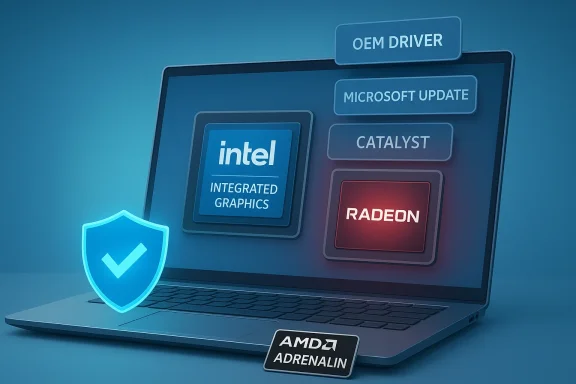
Windows driver delivery for AMD graphics has two distinct eras that matter when you pick a driver: the legacy Catalyst family (older Catalyst Control Center era) and the modern AMD Software: Adrenalin Edition ecosystem. Catalyst packages remain archived for many older GPUs; Adrenalin is AMD’s current stack and is the preferred choice where it explicitly lists your GPU and Windows 10 as supported. For most users wanting a stable, secure system on Windows 10, the pragmatic hierarchy of driver sources is: Microsoft Update → OEM/vendor package → AMD Adrenalin → archived Catalyst (advanced/manual).
Two platform realities change how you should approach this:
Source: Born2Invest https://born2invest.com/?b=style-231397112/
 Background / Overview
Windows driver delivery for AMD graphics has two distinct eras that matter when you pick a driver: the legacy Catalyst family (older Catalyst Control Center era) and the modern AMD Software: Adrenalin Edition ecosystem. Catalyst packages remain archived for many older GPUs; Adrenalin is AMD’s current stack and is the preferred choice where it explicitly lists your GPU and Windows 10 as supported. For most users wanting a stable, secure system on Windows 10, the pragmatic hierarchy of driver sources is: Microsoft Update → OEM/vendor package → AMD Adrenalin → archived Catalyst (advanced/manual).Two platform realities change how you should approach this:
- Many Radeon R2 / low‑end integrated GPUs were introduced during the Catalyst era and are functionally limited today; driver updates will not make them into modern gaming cards, but the right driver can restore video decode, multi‑display, and power‑management behavior.
- Windows 10 reached its official end of support on October 14, 2025. That affects the driver landscape: Microsoft no longer provides routine OS updates for Windows 10, and vendors may stop explicitly listing Windows 10 in new release notes. This does not mean Windows 10 is instantly unsupported by every driver, but it raises long‑term security and compatibility considerations and changes the risk calculus for relying on legacy stacks.
What “best driver” actually means
“Best” depends on your objective. Here are the typical definitions and what they imply:- Best for stability and security (most users): The Microsoft‑signed driver offered through Windows Update or the OEM’s tested Windows 10 package. These drivers are catalog‑signed, less likely to break the display stack, and are the recommended first choice.
- Best for feature completeness (advanced users): An AMD Adrenalin build that explicitly lists your GPU and Windows 10 compatibility. This delivers Radeon Software features, overlays, and additional utilities but can be more aggressive and sometimes requires manual cleanup before install.
- Best for legacy Catalyst features (expert mode only): Archived Catalyst packages (Catalyst 13.x–15.x era) that may restore older control center features and certain UVD/OpenGL behaviors. These are last‑resort options and generally require INF checks and manual install steps.
Understanding Radeon R2/R‑series integrated GPUs
Radeon R2 and related low‑end integrated GPUs are simple, power‑efficient graphics engines designed for basic desktop rendering, video decode, and lightweight games. They share these characteristics:- Limited shader counts and bandwidth compared with modern discrete GPUs. Expect acceptable performance for web, video playback, and legacy/indie titles at modest resolutions.
- Driver support is frequently archived rather than actively optimized. For many older APUs and Mullins/Kabini era designs, AMD’s last functional packages are found in legacy Adrenalin/Catalyst archives. Use those only when necessary and only after verifying the installer explicitly lists your hardware.
- On branded laptops, the OEM may be the only source of a tested hybrid driver stack that preserves switching behavior, battery profiles, and vendor hotkeys. Rely on the vendor downloads for these systems unless you have a clear reason to override them.
Where to get drivers — a safety‑ranked list
Use this ranked sourcing checklist before running any installer:- Windows Update / Microsoft Update Catalog — first, lowest risk. These drivers are Microsoft‑signed and validated for broad stability.
- Your OEM / laptop vendor support page — best for branded systems and hybrid graphics stacks. OEM packages often include vendor‑specific components not present in generic AMD installers.
- AMD official downloads — use Adrenalin Edition installers that explicitly list your GPU and Windows 10 support. Prefer WHQL builds where offered.
- AMD archived Catalyst packages — advanced, manual use only. Confirm the INF contains a direct match for your hardware ID. Use DDU (Display Driver Uninstaller) first when changing between families.
- Reputable third‑party archives (secondary) — use these only as references to track down version numbers; verify signatures and checksums on any binary you find. Avoid repackagers and one‑click driver updaters. Community moderation logs show repackaged installers sometimes include unwanted or altered files.
A step‑by‑step safe installation workflow for Windows 10
Follow this workflow and stop when you reach acceptable functionality. Each step is intentionally conservative to reduce the chance of breaking the display stack:- Inventory and record your hardware ID. Device Manager → Display adapters → right‑click → Properties → Details → Hardware Ids. Save the PCI\VEN_1002&DEV_xxxx string.
- Create a restore point and, if possible, a full disk image. Driver changes touching the kernel/display stack can leave systems unbootable; have a rollback.
- Try Windows Update (lowest risk). Settings → Update & Security → Windows Update → Check for updates → View optional updates → Driver updates. If Microsoft offers a driver and it restores display behavior, stop here.
- If your system is branded (HP, Dell, Lenovo, ASUS, etc.), check your OEM support page for a Windows 10 driver package and follow vendor install order (Intel integrated driver first, then AMD discrete/hybrid package). Reboot and verify switching and hotkeys. Stop if satisfactory.
- If you need AMD features not provided by OEM/Microsoft drivers, prepare for an Adrenalin install: download the explicit Adrenalin build AMD lists for your GPU; confirm the installer’s digital signature; disconnect the internet or hide Windows Update during testing. Clean with DDU if necessary, then install the Adrenalin package as Administrator. Reboot and test.
- Advanced/manual (Catalyst legacy) only: extract the archived Catalyst package, inspect Display.Driver*.inf for your hardware ID. If present, install via Device Manager → Update driver → Have Disk. Use DDU beforehand and keep a tested rollback driver ready. Never edit INFs or circumvent signature checks on production machines.
Cleanups, DDU and signature checks — practical details
- Use Display Driver Uninstaller (DDU) in Safe Mode when switching between major driver families or after failed installs. DDU is widely recommended by veteran communities to remove leftover artifacts that cause partial installs.
- Always check the downloaded installer’s digital signature (Right‑click → Properties → Digital Signatures). If AMD or the OEM isn’t the signer, treat the package as untrusted. Verify any published SHA‑256 checksums if available.
- If Windows Update tries to replace your driver during testing, temporarily hide the update or disconnect from the internet until you finish validation. The Microsoft "wushowhide" tool or a similar hide mechanism can prevent automatic reversion while you test.
Switchable graphics and Windows 8 / Windows 10 edge cases
Hybrid stacks (Intel + AMD) were commonly shipped in Windows 8 era laptops. Problems often arise when updating drivers because the hybrid stack requires the correct Intel driver, AMD vendor package, and sometimes vendor‑specific utilities to function. Practical guidance:- On laptops with switchable graphics, start with the OEM driver package for your exact service tag/model; the vendor package usually contains necessary hotkeys, thermal/power modules, and the correct order of driver installs.
- If your laptop shipped with Windows 8 and you upgraded to Windows 10, the OEM may not provide a Windows 10 driver. In that case, try Windows Update, then AMD official Adrenalin builds that explicitly list your APU/GPU, but expect greater risk and keep backups.
- When a device shows up as Microsoft Basic Display Adapter or a disabled Radeon after an attempted update, don’t rush to edit INFs or use third‑party unsigned drivers. Record the hardware ID, run DDU, and attempt a clean install from OEM or Microsoft first. Only advanced manual INF installs should be tried on non‑critical machines.
Troubleshooting quick fixes
- Symptom: Windows shows Microsoft Basic Display Adapter. Action: Check Device Manager hardware ID; try Windows Update; if no driver appears, install OEM package if available. If you install Adrenalin, use DDU first.
- Symptom: Switchable graphics won’t switch or discrete GPU stays idle. Action: Install Intel integrated driver first, then the AMD/OEM hybrid package; verify vendor utilities for hotkeys.
- Symptom: Black screen after driver install. Action: Boot to Safe Mode, run DDU, revert to Microsoft/OEM driver; avoid unverified legacy installers until you can test on a non‑critical machine.
Security and long‑term recommendations
The Windows 10 end of support (October 14, 2025) changes the calculus. Using legacy drivers on an unsupported OS increases exposure:- For systems that handle sensitive data or are on corporate networks, upgrade to a supported OS (Windows 11 where hardware permits) or use formal Extended Security Updates (ESU) if available. Do not rely on bypassed signature enforcement or unsigned drivers as long‑term fixes.
- Avoid third‑party “driver updaters” and repackagers. Community archives and security analyses repeatedly show repackaged drivers sometimes include unwanted software or unsigned kernel‑level changes. Stick to AMD, Microsoft, or your OEM downloads.
- Never permanently disable Secure Boot or driver signature checks on machines that store sensitive data. If you must temporarily lower signing enforcement for a test, do so on an isolated, non‑production system and re‑enable protections immediately after.
Practical recommendations (short list)
- If your goal is stability and security: install the Microsoft‑supplied driver from Windows Update and leave it.
- If you have a branded laptop with hybrid graphics: use the OEM’s Windows 10 driver package for your exact model/service tag. It’s usually the safest option to restore switching, hotkeys, and power profiles.
- If you need Radeon features (Radeon Overlay, settings): use an AMD Adrenalin build that explicitly lists your GPU and Windows 10 — verify the digital signature and perform a clean install after DDU.
- If none of the above restore required behavior and you’re an experienced user: inspect Catalyst archives only if the INF contains your hardware ID, run DDU first, and accept the increased risk. Never run repackaged installers from unverified sites.
Critical analysis — strengths, risks and tradeoffs
Strengths:- The conservative, vendor‑first approach (Windows Update → OEM → AMD) minimizes the chance of kernel‑level instability or hybrid stack breakage. It’s practical and backed by vendor documentation and long‑running community practice.
- AMD’s Adrenalin ecosystem still provides modern features for supported APUs and discrete cards; when a specific Adrenalin build lists your GPU, it’s typically the best path to regain feature parity.
- Relying on archived Catalyst or legacy Adrenalin packages carries significant compatibility and signature risks. These packages were designed for older kernels and may require manual steps that can compromise system security if done carelessly.
- Windows 10’s end of support increases long‑term risk for systems that continue to run older drivers and OS builds. For business and security‑sensitive users, the only resilient path is to migrate to a supported platform or use managed ESU programs.
- Choosing the Microsoft driver sacrifices some AMD utilities and advanced features but gains maximum stability and minimal maintenance overhead. Choosing Adrenalin gains features at the cost of a more complex install and potential Windows Update contention. Using Catalyst trades both supportability and convenience for access to legacy behaviors that might be necessary for very old APUs. Carefully match the choice to need and risk tolerance.
Final words — a practical decision guide
If you own an older laptop that shipped with Windows 8 and includes an AMD Radeon R2 (or similar low‑end APU):- Try Windows Update first and test all display and video scenarios. If it works, stop.
- If you need hybrid graphics buttons, hotkeys, or vendor power profiles, install the OEM’s Windows 10 package next.
- If you expressly need Radeon features and AMD lists a compatible Adrenalin build for your GPU, proceed carefully: verify signatures, run DDU, and keep a tested rollback plan.
- Use archived Catalyst packages only as a last resort on non‑critical systems and never accept repackaged binaries without signature and checksum verification.
Source: Born2Invest https://born2invest.com/?b=style-231397112/
