

Windows 11 can be safely debloated in 2026 by creating a restore point, removing ordinary preinstalled apps through Settings, disabling taskbar and recommendation clutter, and using reputable tools such as WinUtil or Win11Debloat only after avoiding core components like Edge, Microsoft Store, Windows Security, drivers, and runtimes. The hard part is not finding things to remove. The hard part is knowing when to stop. Windows 11’s problem is that Microsoft has made “optional” software feel mandatory, while the debloating scene has often responded by treating the operating system like an enemy combatant.
A clean Windows install used to mean an operating system, a browser, a media player, and a handful of utilities. A clean Windows 11 install now feels more like a negotiated settlement among Microsoft 365, Xbox, Bing, Copilot, OEM support tools, trialware, notifications, recommendations, and the Start menu’s quiet ambition to become an advertising surface. Some of those pieces are useful. Many are not. The annoyance is that the machine does not know the difference.
That distinction matters because “bloatware” has become a lazy word. It gets used for everything from Solitaire to security services, from Clipchamp to Edge WebView components, from OEM update agents to the Microsoft Store itself. The result is predictable: users follow aggressive scripts, delete something Windows expects to find, and then blame Microsoft when Search, Store apps, widgets, updates, or sign-in flows behave strangely.
The safer view is more boring but much more durable. Windows 11 debloating should be treated as housekeeping, not surgery. You are not trying to carve Microsoft out of Windows. You are trying to remove consumer clutter, reduce background noise, and stop apps from inserting themselves into startup and notifications without a strong reason.
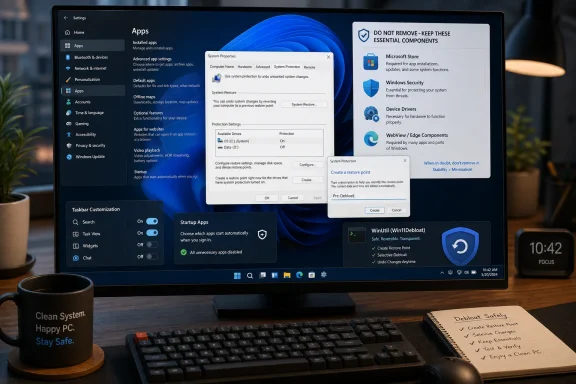
That means the first rule is not “run a script.” The first rule is make the machine recoverable. Before removing apps, changing policies, or pasting anything into PowerShell, create a System Restore point and give it a name you will recognize later. “Pre-Debloat” is not poetic, but it is useful when a tweak goes sideways.
System Restore is not a full backup, and nobody should pretend otherwise. It will not preserve every personal file state or rescue you from every failed experiment. But for registry changes, driver state, app removals, and many configuration mistakes, it is the fastest path back to the morning before you got ambitious.
The restore point also changes the psychology of debloating. Instead of making one giant irreversible leap, you can work in layers: remove obvious apps, reboot, test core functions, then continue. If Windows Update, Start, Search, Microsoft Store, and Windows Security still open after each round, you are probably still in safe territory.
This is the rhythm most debloat guides miss. They optimize for speed and drama: one command, one script, one glorious purge. The safer method optimizes for observability. Change a few things, check the system, and then decide whether the next step is worth it.
The second kind is OEM software. HP, Dell, Lenovo, Acer, Asus, and other manufacturers often ship update assistants, warranty tools, telemetry utilities, trial antivirus packages, audio control panels, and branded “experience” apps. Some are needless nags. Some are ugly but useful. A vendor update tool may be the easiest way to get firmware, BIOS, touchpad, or thermal-management updates on a laptop, even if its interface looks like it was assembled during a lunch break.
The third kind is what impatient users wrongly call bloat: Windows Security, Microsoft Store, Edge, WebView runtimes, Visual C++ runtimes, device drivers, chipset utilities, and system services whose names do not explain themselves clearly. This is where debloating becomes self-harm. Removing the Store because you dislike Microsoft’s app strategy can make it harder to reinstall inbox apps. Removing Edge because you prefer Firefox may break workflows that assume Edge or WebView exists. Removing security components because they consume memory is not optimization; it is risk laundering.
The key is to distinguish unwanted software from platform plumbing. Windows 11 includes both. A safe debloat removes the former and leaves the latter alone unless you have a specific, tested reason to intervene.
For most home and small-office users, the first pass is obvious. Remove Clipchamp if you do not edit videos. Remove Solitaire and bundled games if you do not play them. Remove Xbox apps and Game Bar if the PC is not used for gaming, recording, or Xbox services. Remove Tips, Feedback Hub, Get Help, Weather, News, Maps, Movies & TV, Microsoft To Do, and Microsoft Family if they are irrelevant to your workflow.
OneDrive deserves a more careful decision. If you use it, leave it alone. If you do not, sign out and confirm your files are actually local before uninstalling or disabling it. A surprising number of users discover too late that Desktop, Documents, and Pictures were being redirected into OneDrive, and the “bloatware” was also their accidental backup strategy.
Microsoft Teams is similarly context-dependent. The personal Teams app is disposable for many home users. Work or school Teams is not, and managed devices may reinstall or enforce it anyway. The same goes for Microsoft 365 Copilot and Copilot-related apps in enterprise environments, where tenant policy and device management can matter more than local preference.
The rule is simple: if you cannot explain what an app does, do not remove it in the first pass. Search it, open it, or leave it for later. Debloating is not a scavenger hunt where the winner is the person with the shortest app list.
But resentment is not a deployment plan. On Windows 11, Edge is more than a browser icon. Edge WebView2 and related components are part of how modern Windows apps render web content. Some Microsoft experiences assume Edge’s presence even if you never use it as your daily browser. Forcibly ripping it out with unofficial methods can save little and break more than expected.
The safe compromise is practical. Install and test your preferred browser first. Set it as default. Confirm it handles web links, PDFs if desired, mail links, and sign-in flows. Then hide Edge, remove it from the taskbar, stop it from launching at startup, and ignore it. If Microsoft provides a supported uninstall route in your region or build, use that rather than a blunt-force script.
The same logic applies to the Microsoft Store. You may dislike it. You may rarely open it. But it remains the supported source for reinstalling many apps and updating Store-delivered components. Deleting it to prove a point is the Windows equivalent of throwing away the ladder while you are still on the roof.
This is why the second debloat layer should be personalization, not PowerShell. Open Settings, then Personalization, then Taskbar. Disable Widgets if you do not use the news-and-weather panel. Remove the Copilot button if it is present and unwanted. Trim taskbar items until the bar reflects your workflow rather than Microsoft’s current product priorities.
Then move to Start settings and disable recommendations for tips, shortcuts, app promotions, and recently added items if they annoy you. These changes will not transform a slow CPU into a fast one, but they will make Windows feel less like a feed. That matters because perceived performance is partly about interruption. A quiet desktop feels faster than a needy one.
Privacy and recommendation settings deserve the same treatment. Windows 11 has scattered “suggestion” and “offer” toggles across Settings, notifications, Start, and app experiences. Turning them off is not a radical privacy hardening exercise. It is basic hygiene.
That is progress, but it does not eliminate the confusion. There may be a consumer Copilot app, Microsoft 365 Copilot experiences, Copilot entry points inside Microsoft apps, and AI features that are local to Copilot+ PCs. Removing one does not necessarily remove all the others. Users who expect a single switch to erase every AI-labeled surface from Windows are likely to be disappointed.
For home users, the safe move is straightforward: uninstall the standalone Copilot app if Windows allows it, remove the taskbar entry, and disable related suggestions where exposed. For administrators, the better answer is policy. Fleet-wide removal should not depend on each user discovering the right three-dot menu in Settings.
The broader lesson is that Copilot should be treated like any other preinstalled app unless it is part of a managed Microsoft 365 workflow. If you use it, keep it. If you do not, remove the app and hide the hooks. But do not start deleting mysterious packages because the word “Copilot” appears somewhere in a directory or registry path.
This is where many users will see more benefit than from removing inbox apps. A machine with 16GB of RAM and an NVMe SSD may not care whether Weather is installed. It may care if ten third-party updaters, three launchers, two sync clients, and a vendor assistant all start together.
Task Manager provides another useful angle. The Startup apps page shows impact ratings, but the Processes tab tells the lived story after login. If the system is busy for two minutes after reaching the desktop, look at what is waking up. Debloating should be evidence-led, not superstition-led.
The important habit is repetition. Windows feature updates can bring back apps. New software can add itself to startup. OEM tools can reinstall companions. Check startup every couple of months, especially after major updates or driver-suite installations. Maintenance beats one-time purification.
The best thing about WinUtil is not that it removes apps quickly. It is that it separates safer recommended tweaks from more advanced options, and it includes rollback mechanisms such as undoing selected tweaks and creating a restore point. That structure reflects a truth many tools avoid: not every tweak belongs on every PC.
The safe way to use WinUtil is conservative. Run it from an elevated Terminal only after you have created your own restore point. Review the selected tweaks rather than blindly trusting a preset. Apply standard or recommended choices first. Reboot. Test Windows Update, Store, Search, Start, Defender, default apps, printing if relevant, and whatever software you actually rely on.
PowerShell one-liners are psychologically dangerous because they compress consequence into a paste operation. The command may be legitimate. The tool may be reputable. But the user still has to understand that changing services, scheduled tasks, privacy settings, app packages, and UI behavior in bulk is a bigger act than uninstalling Solitaire.
WinUtil’s current Windows 11 focus also matters. Windows 10’s mainstream consumer support ended on October 14, 2025, and tools increasingly treat Windows 11 as the active target. If you are maintaining older systems under extended support, specialized enterprise tooling and a more cautious patch strategy matter more than consumer debloat utilities.
The conservative approach is to run it interactively rather than in a blind automatic mode. Choose options that remove unwanted apps and leave services alone. Avoid anything that promises dramatic performance gains through broad service disabling unless you understand exactly what is being changed.
This is the sensible middle ground between manual removal and full system tuning. If you are refreshing several personal machines, setting up a test VM, or cleaning a new laptop, a lightweight script can save time. If you are touching a work PC, a production workstation, or a machine someone else depends on, the threshold for automation should be higher.
The question is not whether open-source scripts can be useful. They can. The question is whether your cleanup process remains understandable after the script runs. If you cannot describe what changed, troubleshooting becomes folklore.
Vendor update utilities require more judgment. Lenovo Vantage, Dell Command Update, HP Support Assistant, MyASUS, Acer Care Center, and similar tools vary in quality, but they may deliver BIOS updates, firmware fixes, power profiles, hotkey support, dock firmware, and device-specific drivers. Removing them without a replacement plan can leave you dependent on Windows Update for components it may not prioritize quickly.
The right answer depends on the user. Enthusiasts may prefer to download drivers manually. Sysadmins may manage firmware through enterprise tools. Home users may be better served by keeping a vendor utility but disabling it from startup, then launching it manually once a month.
The enemy is not the existence of OEM software. The enemy is persistent background behavior without enough benefit. If an OEM tool nags more than it helps, remove it. If it quietly handles firmware on a laptop you do not want to babysit, keep it but stop it from acting like it owns the machine.
On older hardware, the story changes. A laptop with 4GB or 8GB of RAM, a low-end CPU, and a mechanical hard drive can feel meaningfully better after startup apps are reduced and background software is removed. Not because Clipchamp was secretly ruining the system, but because constrained machines suffer from cumulative drag. Every updater, tray app, sync tool, and helper process competes for resources that are already scarce.
Still, the biggest upgrade for many old PCs is not debloating. It is replacing a hard drive with an SSD. After that, adding memory if the hardware allows it. Software cleanup can help, but storage latency and insufficient RAM are often the real villains.
This is where honest diagnostics matter. If Disk usage sits at 100 percent after login, look at the drive and startup workload. If memory is constantly full, look at RAM and browser behavior. If the CPU is pegged by antivirus scans, indexing, or vendor agents, investigate those processes. “Windows bloat” is sometimes the culprit, but it is also a convenient mask for aging hardware.
Microsoft has been moving in that direction with policy-based removal for certain preinstalled Store apps and more administrative control over Copilot-related components. That is the right model. Administrators should not have to reverse-engineer consumer defaults. They should be able to define what belongs on a corporate Windows device before the user signs in.
The same principle applies to OEM images. Many organizations already wipe vendor installs and deploy a clean corporate image. Smaller shops may not have that luxury, but they can still standardize removal steps and startup policies. The worst outcome is a fleet where every machine is “debloated” differently.
Supportability is the hidden cost. If the help desk does not know what was removed, every incident becomes harder. If a Windows update reinstalls an app, users wonder whether something broke. If a script disables a service that later becomes necessary, the original optimization becomes tomorrow’s outage.
This does not mean debloating is pointless. It means debloating is maintenance. Treat it like browser extension hygiene or startup app review. After a major Windows feature update, check Installed apps, Startup, taskbar settings, Start recommendations, and notification permissions. Remove what came back.
The more aggressive alternative is policy enforcement. On managed PCs, administrators can prevent or remove certain packages more reliably than individual users can. On personal machines, the practical answer is less elegant: keep notes, use reputable tools, and do a quick cleanup after big updates.
Microsoft’s incentive is not the same as yours. You want a quiet PC. Microsoft wants Windows to surface Microsoft services, subscriptions, AI features, search flows, and engagement points. The operating system is the battleground between those goals.
Debloating Windows 11 safely is ultimately an argument for restraint on both sides: Microsoft should stop treating every install as a distribution channel for whatever service needs attention this quarter, and users should stop treating every visible Microsoft component as malware to be purged. The best Windows 11 cleanup in 2026 is not a rebellion; it is a disciplined narrowing of the operating system back to the parts you actually use. If Microsoft keeps adding switches and policies that make that narrowing official, Windows may yet become less of a showroom floor and more of a workstation again.
 Windows 11 Is Not Dirty Because It Has Apps — It Is Dirty Because It Has Intentions
A clean Windows install used to mean an operating system, a browser, a media player, and a handful of utilities. A clean Windows 11 install now feels more like a negotiated settlement among Microsoft 365, Xbox, Bing, Copilot, OEM support tools, trialware, notifications, recommendations, and the Start menu’s quiet ambition to become an advertising surface. Some of those pieces are useful. Many are not. The annoyance is that the machine does not know the difference.That distinction matters because “bloatware” has become a lazy word. It gets used for everything from Solitaire to security services, from Clipchamp to Edge WebView components, from OEM update agents to the Microsoft Store itself. The result is predictable: users follow aggressive scripts, delete something Windows expects to find, and then blame Microsoft when Search, Store apps, widgets, updates, or sign-in flows behave strangely.
The safer view is more boring but much more durable. Windows 11 debloating should be treated as housekeeping, not surgery. You are not trying to carve Microsoft out of Windows. You are trying to remove consumer clutter, reduce background noise, and stop apps from inserting themselves into startup and notifications without a strong reason.
That means the first rule is not “run a script.” The first rule is make the machine recoverable. Before removing apps, changing policies, or pasting anything into PowerShell, create a System Restore point and give it a name you will recognize later. “Pre-Debloat” is not poetic, but it is useful when a tweak goes sideways.
The Restore Point Is the Real Power Tool
The safest debloat starts before the first uninstall button is pressed. Open Start, type “restore point,” launch “Create a restore point,” select the system drive, and create a manual restore point. If system protection is disabled, turn it on first. That step is dull, which is why people skip it, and it is precisely the step that separates a reversible cleanup from an evening spent rebuilding a working desktop.System Restore is not a full backup, and nobody should pretend otherwise. It will not preserve every personal file state or rescue you from every failed experiment. But for registry changes, driver state, app removals, and many configuration mistakes, it is the fastest path back to the morning before you got ambitious.
The restore point also changes the psychology of debloating. Instead of making one giant irreversible leap, you can work in layers: remove obvious apps, reboot, test core functions, then continue. If Windows Update, Start, Search, Microsoft Store, and Windows Security still open after each round, you are probably still in safe territory.
This is the rhythm most debloat guides miss. They optimize for speed and drama: one command, one script, one glorious purge. The safer method optimizes for observability. Change a few things, check the system, and then decide whether the next step is worth it.
There Are Three Kinds of Bloat, and Only Two Deserve the Knife
The first kind of bloat is the easiest to understand: consumer apps Microsoft includes because someone inside Redmond believes they complete the Windows experience. Clipchamp, Solitaire Collection, Tips, Weather, News, Maps, Feedback Hub, Get Help, Xbox components on non-gaming PCs, and similar apps fall into this category. For many users, these are removable with little practical risk.The second kind is OEM software. HP, Dell, Lenovo, Acer, Asus, and other manufacturers often ship update assistants, warranty tools, telemetry utilities, trial antivirus packages, audio control panels, and branded “experience” apps. Some are needless nags. Some are ugly but useful. A vendor update tool may be the easiest way to get firmware, BIOS, touchpad, or thermal-management updates on a laptop, even if its interface looks like it was assembled during a lunch break.
The third kind is what impatient users wrongly call bloat: Windows Security, Microsoft Store, Edge, WebView runtimes, Visual C++ runtimes, device drivers, chipset utilities, and system services whose names do not explain themselves clearly. This is where debloating becomes self-harm. Removing the Store because you dislike Microsoft’s app strategy can make it harder to reinstall inbox apps. Removing Edge because you prefer Firefox may break workflows that assume Edge or WebView exists. Removing security components because they consume memory is not optimization; it is risk laundering.
The key is to distinguish unwanted software from platform plumbing. Windows 11 includes both. A safe debloat removes the former and leaves the latter alone unless you have a specific, tested reason to intervene.
Settings Is Boring, Which Is Why It Should Come First
The safest removal path is still Settings. Go to Settings, then Apps, then Installed apps. Sort through the list and use the three-dot menu to uninstall ordinary applications you know you do not use. This method is slower than a script, but it has two advantages: Windows exposes only supported removal paths, and you can see what you are doing.For most home and small-office users, the first pass is obvious. Remove Clipchamp if you do not edit videos. Remove Solitaire and bundled games if you do not play them. Remove Xbox apps and Game Bar if the PC is not used for gaming, recording, or Xbox services. Remove Tips, Feedback Hub, Get Help, Weather, News, Maps, Movies & TV, Microsoft To Do, and Microsoft Family if they are irrelevant to your workflow.
OneDrive deserves a more careful decision. If you use it, leave it alone. If you do not, sign out and confirm your files are actually local before uninstalling or disabling it. A surprising number of users discover too late that Desktop, Documents, and Pictures were being redirected into OneDrive, and the “bloatware” was also their accidental backup strategy.
Microsoft Teams is similarly context-dependent. The personal Teams app is disposable for many home users. Work or school Teams is not, and managed devices may reinstall or enforce it anyway. The same goes for Microsoft 365 Copilot and Copilot-related apps in enterprise environments, where tenant policy and device management can matter more than local preference.
The rule is simple: if you cannot explain what an app does, do not remove it in the first pass. Search it, open it, or leave it for later. Debloating is not a scavenger hunt where the winner is the person with the shortest app list.
Edge Is Not Just a Browser in Microsoft’s World
Microsoft Edge is the app that most often turns a tidy debloat into an ideological fight. Many users do not want it. Microsoft has pushed it aggressively. Windows has repeatedly used Edge as the preferred endpoint for search, widgets, help flows, and web-backed shell experiences. The resentment is understandable.But resentment is not a deployment plan. On Windows 11, Edge is more than a browser icon. Edge WebView2 and related components are part of how modern Windows apps render web content. Some Microsoft experiences assume Edge’s presence even if you never use it as your daily browser. Forcibly ripping it out with unofficial methods can save little and break more than expected.
The safe compromise is practical. Install and test your preferred browser first. Set it as default. Confirm it handles web links, PDFs if desired, mail links, and sign-in flows. Then hide Edge, remove it from the taskbar, stop it from launching at startup, and ignore it. If Microsoft provides a supported uninstall route in your region or build, use that rather than a blunt-force script.
The same logic applies to the Microsoft Store. You may dislike it. You may rarely open it. But it remains the supported source for reinstalling many apps and updating Store-delivered components. Deleting it to prove a point is the Windows equivalent of throwing away the ladder while you are still on the roof.
The Taskbar Is Where Microsoft Turns Clutter Into Muscle Memory
Some of Windows 11’s bloat is not installed software in the traditional sense. It is surface area. Widgets, search highlights, Copilot buttons, recommendations, suggested content, notification prompts, and Start menu promotions all contribute to the feeling that the operating system is constantly auditioning features.This is why the second debloat layer should be personalization, not PowerShell. Open Settings, then Personalization, then Taskbar. Disable Widgets if you do not use the news-and-weather panel. Remove the Copilot button if it is present and unwanted. Trim taskbar items until the bar reflects your workflow rather than Microsoft’s current product priorities.
Then move to Start settings and disable recommendations for tips, shortcuts, app promotions, and recently added items if they annoy you. These changes will not transform a slow CPU into a fast one, but they will make Windows feel less like a feed. That matters because perceived performance is partly about interruption. A quiet desktop feels faster than a needy one.
Privacy and recommendation settings deserve the same treatment. Windows 11 has scattered “suggestion” and “offer” toggles across Settings, notifications, Start, and app experiences. Turning them off is not a radical privacy hardening exercise. It is basic hygiene.
Copilot Has Become the New Test of Windows Restraint
Copilot is now the symbolic center of the debloat argument because it captures Microsoft’s current Windows strategy: AI features presented as helpful, preinstalled broadly, integrated in multiple places, and then slowly made more removable after users and administrators complain. In newer Windows 11 builds, the standalone Copilot app can often be uninstalled like a normal app. In managed environments, Microsoft has also been moving toward policy-based removal options for administrators.That is progress, but it does not eliminate the confusion. There may be a consumer Copilot app, Microsoft 365 Copilot experiences, Copilot entry points inside Microsoft apps, and AI features that are local to Copilot+ PCs. Removing one does not necessarily remove all the others. Users who expect a single switch to erase every AI-labeled surface from Windows are likely to be disappointed.
For home users, the safe move is straightforward: uninstall the standalone Copilot app if Windows allows it, remove the taskbar entry, and disable related suggestions where exposed. For administrators, the better answer is policy. Fleet-wide removal should not depend on each user discovering the right three-dot menu in Settings.
The broader lesson is that Copilot should be treated like any other preinstalled app unless it is part of a managed Microsoft 365 workflow. If you use it, keep it. If you do not, remove the app and hide the hooks. But do not start deleting mysterious packages because the word “Copilot” appears somewhere in a directory or registry path.
Startup Apps Are the Debloat That Actually Changes Boot Behavior
If the goal is a faster PC, startup apps deserve more attention than bundled games. Open Settings, then Apps, then Startup. Disable anything that does not need to run the moment you sign in. Chat clients, launchers, updaters, peripheral suites, game stores, cloud tools, note apps, meeting apps, and printer utilities all love to claim a chair at boot.This is where many users will see more benefit than from removing inbox apps. A machine with 16GB of RAM and an NVMe SSD may not care whether Weather is installed. It may care if ten third-party updaters, three launchers, two sync clients, and a vendor assistant all start together.
Task Manager provides another useful angle. The Startup apps page shows impact ratings, but the Processes tab tells the lived story after login. If the system is busy for two minutes after reaching the desktop, look at what is waking up. Debloating should be evidence-led, not superstition-led.
The important habit is repetition. Windows feature updates can bring back apps. New software can add itself to startup. OEM tools can reinstall companions. Check startup every couple of months, especially after major updates or driver-suite installations. Maintenance beats one-time purification.
WinUtil Is Powerful Because It Acknowledges Risk
Chris Titus Tech’s WinUtil has become one of the better-known Windows tuning utilities because it packages common cleanup, install, and optimization tasks into a single PowerShell-launched interface. Its popularity does not make it magic, but its openness and community scrutiny make it different from the random “ultimate debloat” scripts that circulate through forums and video descriptions.The best thing about WinUtil is not that it removes apps quickly. It is that it separates safer recommended tweaks from more advanced options, and it includes rollback mechanisms such as undoing selected tweaks and creating a restore point. That structure reflects a truth many tools avoid: not every tweak belongs on every PC.
The safe way to use WinUtil is conservative. Run it from an elevated Terminal only after you have created your own restore point. Review the selected tweaks rather than blindly trusting a preset. Apply standard or recommended choices first. Reboot. Test Windows Update, Store, Search, Start, Defender, default apps, printing if relevant, and whatever software you actually rely on.
PowerShell one-liners are psychologically dangerous because they compress consequence into a paste operation. The command may be legitimate. The tool may be reputable. But the user still has to understand that changing services, scheduled tasks, privacy settings, app packages, and UI behavior in bulk is a bigger act than uninstalling Solitaire.
WinUtil’s current Windows 11 focus also matters. Windows 10’s mainstream consumer support ended on October 14, 2025, and tools increasingly treat Windows 11 as the active target. If you are maintaining older systems under extended support, specialized enterprise tooling and a more cautious patch strategy matter more than consumer debloat utilities.
Win11Debloat Is the Smaller Hammer for the Smaller Job
Win11Debloat occupies a different niche. It is lighter, more app-focused, and better suited to users who want to remove preinstalled software and tame Start/taskbar clutter without a broad optimization suite. That makes it appealing for people who do not want a multi-tab utility with dozens of tempting switches.The conservative approach is to run it interactively rather than in a blind automatic mode. Choose options that remove unwanted apps and leave services alone. Avoid anything that promises dramatic performance gains through broad service disabling unless you understand exactly what is being changed.
This is the sensible middle ground between manual removal and full system tuning. If you are refreshing several personal machines, setting up a test VM, or cleaning a new laptop, a lightweight script can save time. If you are touching a work PC, a production workstation, or a machine someone else depends on, the threshold for automation should be higher.
The question is not whether open-source scripts can be useful. They can. The question is whether your cleanup process remains understandable after the script runs. If you cannot describe what changed, troubleshooting becomes folklore.
OEM Utilities Are Annoying Until the Day You Need Firmware
Prebuilt PCs add another layer of complication because OEM software is a mix of garbage, convenience, and hardware-specific glue. Trial antivirus packages are often easy candidates for removal, especially when Windows Security is already present and active. Promotional apps, shopping links, game trials, and duplicate media tools can usually go.Vendor update utilities require more judgment. Lenovo Vantage, Dell Command Update, HP Support Assistant, MyASUS, Acer Care Center, and similar tools vary in quality, but they may deliver BIOS updates, firmware fixes, power profiles, hotkey support, dock firmware, and device-specific drivers. Removing them without a replacement plan can leave you dependent on Windows Update for components it may not prioritize quickly.
The right answer depends on the user. Enthusiasts may prefer to download drivers manually. Sysadmins may manage firmware through enterprise tools. Home users may be better served by keeping a vendor utility but disabling it from startup, then launching it manually once a month.
The enemy is not the existence of OEM software. The enemy is persistent background behavior without enough benefit. If an OEM tool nags more than it helps, remove it. If it quietly handles firmware on a laptop you do not want to babysit, keep it but stop it from acting like it owns the machine.
Debloating Does Not Defy Hardware Physics
Every debloat guide eventually has to disappoint someone: removing preinstalled apps will not turn an underpowered PC into a premium machine. On a modern system with 16GB or 32GB of RAM, a decent SSD, and a recent CPU, debloating mostly improves cleanliness, reduces notifications, and trims startup noise. Those are worthwhile gains, but they are not miracles.On older hardware, the story changes. A laptop with 4GB or 8GB of RAM, a low-end CPU, and a mechanical hard drive can feel meaningfully better after startup apps are reduced and background software is removed. Not because Clipchamp was secretly ruining the system, but because constrained machines suffer from cumulative drag. Every updater, tray app, sync tool, and helper process competes for resources that are already scarce.
Still, the biggest upgrade for many old PCs is not debloating. It is replacing a hard drive with an SSD. After that, adding memory if the hardware allows it. Software cleanup can help, but storage latency and insufficient RAM are often the real villains.
This is where honest diagnostics matter. If Disk usage sits at 100 percent after login, look at the drive and startup workload. If memory is constantly full, look at RAM and browser behavior. If the CPU is pegged by antivirus scans, indexing, or vendor agents, investigate those processes. “Windows bloat” is sometimes the culprit, but it is also a convenient mask for aging hardware.
The Enterprise Version of Debloating Is Policy, Not Vibes
For IT departments, debloating cannot mean every technician running a favorite script after imaging. That may work in a lab. It does not scale cleanly, and it does not create a supportable baseline. Enterprise debloating should be handled through provisioning packages, Intune, Group Policy, Autopilot, app assignment rules, Store app controls, and documented configuration profiles.Microsoft has been moving in that direction with policy-based removal for certain preinstalled Store apps and more administrative control over Copilot-related components. That is the right model. Administrators should not have to reverse-engineer consumer defaults. They should be able to define what belongs on a corporate Windows device before the user signs in.
The same principle applies to OEM images. Many organizations already wipe vendor installs and deploy a clean corporate image. Smaller shops may not have that luxury, but they can still standardize removal steps and startup policies. The worst outcome is a fleet where every machine is “debloated” differently.
Supportability is the hidden cost. If the help desk does not know what was removed, every incident becomes harder. If a Windows update reinstalls an app, users wonder whether something broke. If a script disables a service that later becomes necessary, the original optimization becomes tomorrow’s outage.
Windows Updates Will Re-Bloat Some Machines, Because Microsoft Still Owns the Defaults
One of the most irritating truths about Windows debloating is that it is not always permanent. Feature updates can reinstall apps. New Microsoft experiences can appear after cumulative updates. Store-delivered components can change behavior. Copilot, Weather, Teams, Outlook, and other consumer-facing pieces have all moved around enough over the Windows 11 era to make “I removed that already” a familiar complaint.This does not mean debloating is pointless. It means debloating is maintenance. Treat it like browser extension hygiene or startup app review. After a major Windows feature update, check Installed apps, Startup, taskbar settings, Start recommendations, and notification permissions. Remove what came back.
The more aggressive alternative is policy enforcement. On managed PCs, administrators can prevent or remove certain packages more reliably than individual users can. On personal machines, the practical answer is less elegant: keep notes, use reputable tools, and do a quick cleanup after big updates.
Microsoft’s incentive is not the same as yours. You want a quiet PC. Microsoft wants Windows to surface Microsoft services, subscriptions, AI features, search flows, and engagement points. The operating system is the battleground between those goals.
The Safe Windows 11 Debloat Has a Narrow Path
The safest debloat is layered, reversible, and suspicious of drama. It removes apps you recognize, disables surfaces you dislike, trims startup entries that do not need to run, and uses tools only when they save time without hiding too much complexity.- Create a restore point before changing apps, services, policies, or PowerShell-managed packages.
- Remove ordinary preinstalled apps through Settings first, because supported uninstall paths are safer than forced package removal.
- Leave Microsoft Store, Windows Security, drivers, runtimes, and WebView-related components alone unless you have a specific recovery plan.
- Treat Edge pragmatically by installing your preferred browser, setting defaults, and hiding Edge rather than forcibly ripping out platform pieces.
- Use WinUtil or Win11Debloat conservatively, reviewing selections and testing core Windows functions after each round.
- Revisit startup apps and recommendations after major Windows updates, because cleanup is a maintenance habit rather than a one-time cure.
Debloating Windows 11 safely is ultimately an argument for restraint on both sides: Microsoft should stop treating every install as a distribution channel for whatever service needs attention this quarter, and users should stop treating every visible Microsoft component as malware to be purged. The best Windows 11 cleanup in 2026 is not a rebellion; it is a disciplined narrowing of the operating system back to the parts you actually use. If Microsoft keeps adding switches and policies that make that narrowing official, Windows may yet become less of a showroom floor and more of a workstation again.
References
- Primary source: H2S Media
Published: 2026-06-07T14:19:06.809485
How to Debloat Windows 11 Safely: Remove Bloatware and Speed Up Your PC - H2S Media
I debloated my Windows 11 25H2 machine four times, broke it once, fixed it in 5 minutes. The safe layer-by-layer method, plus which apps to never touch.www.how2shout.com - Related coverage: windowscentral.com
How to disable Copilot on Windows 11 | Windows Central
On Windows 11 22H2 or 23H3, you can have multiple ways to enable or disable Copilot, and in this guide, you will learn how.www.windowscentral.com - Official source: learn.microsoft.com
Updated Windows and Microsoft 365 Copilot Chat experience | Microsoft Learn
Learn about changes to the Copilot in Windows experience for commercial environments and how to configure it for your organization.learn.microsoft.com - Related coverage: techspot.com
Windows 11 25H2 adds tool to debloat the OS and remove built-in apps | TechSpot
Windows Insiders recently discovered a setting in a preview version of Windows 11 version 25H2 that allows users to remove preinstalled apps. This new feature should help...www.techspot.com - Official source: support.microsoft.com
Uninstall or remove apps and programs in Windows - Microsoft Support
Uninstall or remove apps and programs in the Settings app.support.microsoft.com - Official source: microsoft.com
Windows 11: Windows Copilot, Features and Benefits | Microsoft Windows
Discover Copilot on Windows 11 and features that boost productivity, creativity, and more. Upgrade your everyday with the latest version of Windows 11 from Microsoft.www.microsoft.com
- Related coverage: windowslatest.com
How I disabled 13 AI features in Windows 11 safely, no third-party apps needed
Learn how to remove Copilot from Windows 11, including Edge, Search, Photos, Notepad, File Explorer, Paint, and other built-in AI features. www.windowslatest.com
- Related coverage: windowsreport.com
Microsoft Finally Lets IT Admins Remove Copilot From Windows 11
Microsoft now lets IT admins uninstall Copilot on Windows 11 enterprise devices using a new policy introduced in April 2026. windowsreport.com
- Related coverage: tomshardware.com
Admins finally get the power to uninstall Microsoft Copilot on Windows 11 Pro, Enterprise, and EDU versions — devices must meet specific conditions to allow the removal of the AI app | Tom's Hardware
One less bloatware on Windows 11.www.tomshardware.com - Related coverage: techradar.com
- Related coverage: tomsguide.com
Don't buy a new PC for Windows 11 just yet — this lightweight version can save your old Windows 10 PC | Tom's Guide
Microsoft is ending Windows 10 support this October, but this lightweight Tiny11 Builder is giving old PCs another way to upgrade to Windows 11.www.tomsguide.com
