

Debloating Windows 11 can feel like reclaiming your PC — but the wrong script or tool can easily trade annoyance for a broken system. In practice, five recurring failure modes account for the majority of serious problems: rendering and browser plumbing breakage (Edge / WebView2), accidental removal of useful apps, a crippled Microsoft Store or app-install experience, disabled or removed core services that make the PC unstable, and tampering with Windows Update or servicing that leaves the machine insecure or unpatchable. This feature explains what goes wrong, why it happens, how to spot danger signs before you click “run,” and concrete, safe alternatives so you can debloat Windows 11 without turning a cleanup into a long repair session. / Overview
Windows 11 ships with a lot more preinstalled software, UI promotions, and "inbox" apps than many users want. That has driven a vibrant ecosystem of PowerShell scripts, GUI debloater utilities, and ISO-customization tools intended to remove unnecessary components, tighten privacy settings, and slim installs for lab machines or virtual machines.
Not all removal is harmful — many inbox apps (games, trialware, sample apps) are safe to remove — but Windows is a deeply interconnected OS. Components that look cosmetic or optional can be relied on, directly or indirectly, by other apps or the servicing stack. The community and several published write‑ups show repeated cases where aggressive, one‑click debloat actions caused broken updates, nonworking store installs, printing failures, or complete inability to reinstall software later.
To be clear: responting is possible and valuable. The goal here is to explain the five failure modes that most often turn “cleaning” into “recovering,” and to give practical avoidance and recovery guidance for each.
Microsoft Edge itself is also the default browser on Windows 11 and is used by some Microsoft troubleshooting and recovery flows. Community reports and Microsoft forum guidance repeatedly caution that removing Edge is not recommended because it can produce unexpected side effects and complicate repairs.
Perhaps even more importantly: some scripts disable Windows Update entirely. While temporarily blocking updates to avoid a problematic patch may seem tempting, disabling Windows Update removes the primary channel Microsoft uses to deliver security patches — a decision that greatly increases exposure to vulnerabilities. Microsoft’s documentation on Windows Update security describes how updates are secured and why the update pipeline matters for system integrity.
If you value stability, follow these nonnegotiable rules:
Source: How-To Geek 5 things that can go wrong when "debloating" Windows 11
Windows 11 ships with a lot more preinstalled software, UI promotions, and "inbox" apps than many users want. That has driven a vibrant ecosystem of PowerShell scripts, GUI debloater utilities, and ISO-customization tools intended to remove unnecessary components, tighten privacy settings, and slim installs for lab machines or virtual machines.
Not all removal is harmful — many inbox apps (games, trialware, sample apps) are safe to remove — but Windows is a deeply interconnected OS. Components that look cosmetic or optional can be relied on, directly or indirectly, by other apps or the servicing stack. The community and several published write‑ups show repeated cases where aggressive, one‑click debloat actions caused broken updates, nonworking store installs, printing failures, or complete inability to reinstall software later.
To be clear: responting is possible and valuable. The goal here is to explain the five failure modes that most often turn “cleaning” into “recovering,” and to give practical avoidance and recovery guidance for each.
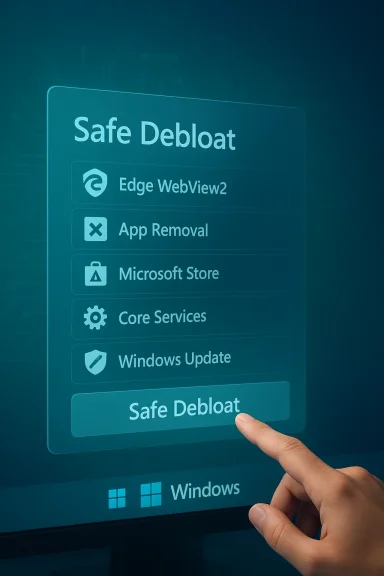 1) You can “brick” the browser plumbing: Edge, WebView2, and native apps
What goes wrong
Many debloat scripts treat anything with "Edge" in the name as expendable. But the modern Microsoft Edge (Chromium) runtime — and the related WebView2 runtime — are used as rendering and hosting engines inside many native Windows apps, system UI surfaces, and OEM utilities. Removing or breaking those runtimes can cause apps to fail to render content, prompt for a runtime that no longer exists, or prevent other installers from running correctly. Microsoft’s WebView2 documentation makes it clear that developers embed the WebView2 runtime into native apps to host web content inside non‑browser applications.Microsoft Edge itself is also the default browser on Windows 11 and is used by some Microsoft troubleshooting and recovery flows. Community reports and Microsoft forum guidance repeatedly caution that removing Edge is not recommended because it can produce unexpected side effects and complicate repairs.
Why this is dangerous
- Many third‑party apps (installer UIs, settings panes, the Xbox app, Office add‑ins) use WebView2 or expect Edge components; uninstalling WebView2 breaks those experiences.
- Some recovery instructions, official installers, and store flows assume Edge’s presence for OOBE and in‑OS download helpers; losing it makes reinstalls and fixes more awkward.
- Aggressive removal scripts sometimes remove all packages containing the word “Edge,” unintentionally deleting WebView2 or parts of the component store that other apps rely upon.
How to avoid it
- Prefer disabling visible UI elements (taskbar Copilot button, Start menu suggestions, in‑shell promotions) instead of uninstalling underlying runtimes.
- If a tool offers to remove Edge, inspect the manifest and make sure it does not remove the WebView2 runtime or system provisioned packages.
- If you must remove Edge, use a surgical, documented approach and have a recovery plan (offline Edge installer or a recovery USB). Microsoft documents how to reinstall/repair Edge and suggests reinstall steps if the browser is malfunctioning.
How to recover if it breaks
- Reinstall the WebView2 runtime from Microsoft’s distribution channels (developers often ship Evergreen or Fixed version runtimes with their apps). The WebView2 developer docs describe distribution and runtime options.
- If Edge is missing or corrupt, use Microsoft’s official repair or reinstall guidance before attempting more invasive fixes.
- If system servicing fails after removal, prepare to restore from an image or use a recovery USB; some removals that touch the servicing store are brittle and not fully reversible without a reinstall.
2) You accidentally delete apps you’ll want later — and reinstallation isn’t always trivial
What goes wrong
A one‑click debloat that indiscriminately removes “inbox” apps can take away seemingly minor utilities like Paint, Notepad, or the Photos app — things you might not need at the moment but will miss later. Worse, some tools remove apps by tampering with provisioning so Windows won’t automatically reinstall them during updates — and reversing provisioning edits is nontrivial for many users. Community posts consistently warn about “debloat regret,” where an overzealous clean leaves users missing expected app functionality.Why this is dangerous
- Reinstalling some inbox apps requires the Microsoft Store or specific app packages that aren’t always straightforward to restore in an offline or corporate build environment.
- Provisioning edits (blocker packages, servicing store changes) are used by some tools to make removals persistent. Those edits can persist across feature updates and complicate in‑place repairs.
How to avoid it
- Read removal lists before you run anything. Prefer tools that present a clear manifest of changes and offer per‑item confirmation.
- Use a staged approach: start with cosmetic/low‑risk removals (games, trialware) and defer major component/service edits to a second pass once you’ve validated behavior.
- Create an image backup or system restore point before applying sweeping changes so you can roll back without reinstallation.
Recovery options
- If you removed an app you need, first check the Microsoft Store or use WinGet to reinstall. WinGet can install many packages from community and Microsoft sources but it has limitations (store packaging, user vs system contexts). Microsoft’s WinGet docs explain install scopes and usage.
- If provisioning edits prevent app reinstallation, you may need to revert the specific registry or provisioning changes the tool made, or restore from backup. Some community‑authored revert scripts work for popular debloat utilities, but they aren’t guaranteed.
3) The Microsoft Store gets broken — and that makes restoring apps harder
What goes wrong
Removing or corrupting Microsoft Store components removes the easiest path to reinstalling certain Microsoft‑delivered apps (.appx/.msix). Many system apps and services are delivered from or tied to the Store. If a debloat utility removes Store items or the App Installer components, users can be forced to use command‑line tooling (WinGet) or offline MSIX bundles to restore functionality. Microsoft provides policy‑based options for removing default Store apps in managed environments, but ad‑hoc removal on consumer machines can break expected flows.Why this is dangerous
- The Store is the path for official reinstalls and bulk updates; losing it removes that convenient fallback.
- Some installers and provisioning logic expect the Store infrastructure and will error when it’s missing.
- WinGet is powerful, but it has a learning curve and doesn’t always replace Store‑specific workflows (signed MSIX, licensing, Store‑exclusive apps).
Safer alternatives
- If your issue is “I hate app recommendations and store promos,” remove the UI hints and ads but keep the Store and App Installer.
- In managed environments, use Group Policy or Enterprise controls to suppress the Store or prevent automatic app installations rather than deleting the Store itself. Microsoft documents Group Policy options for removing default Microsoft Store apps.
If the Store is broken, how to repair
- Try the built‑in Store repair options in Settings, or re‑register the Store package with PowerShell (for advanced users). If that fails, repairing the OS image or restoring from a backup may be necessary.
- Use WinGet to restore missing apps when possible, following Microsoft’s WinGet guidance for install scopes and troubleshooting.
4) Core apps, drivers, and services can be disabled or removed — and the consequences range from annoying to catastrophic
What goes wrong
Debloat tools sometimes disable services (print spooler, telemetry, certain security components) or remove components that appear optional. But even low‑visibility services can be required for printing, device support, installer frameworks, or enterprise management. Tools that give blanket “disable service X” toggles rarely present the downstream dependency tree — and users end up with missing functionality like “I can’t print” or “this setup fails.” NTLite and other ISO‑level customizers show these dependencies in their UI because removing the wrong service at image build time can render an installation nonfunctional.Why this is dangerous
- Removing or disabling the print spooler prevents printing and may impact apps that enumerate print devices.
- Disabling diagnostic/troubleshooting services reduces observability and can hamper both automated and human troubleshooting.
- Some changes can interfere with OEM recovery or in‑place repair tools, leaving you with fewer recovery options.
How to avoid it
- Use conservative defaults. If a service is marked “red” or “dangerous” by a reputable tool (e.g., NTLite or similar), heed that warning and research the specific service before disabling it.
- For services you don’t understand: Google the service name, scan official documentation, and test changes on a nonproduction machine first.
- Keep lists and manifests of what you change. Good debloat tools export a manifest so you can reverse changes manually if needed.
Recovery
- If you disabled a service and the system misbehaves, re‑enable the service and set it to its previous startup type. Use services.msc or sc.exe to restore startup behavior.
- For destructive removals at the image level, your simplest recovery is often to restore a full image backup or perform an in‑place repair/repair install.
5) You may unintentionally break Windows Update, servicing, or future feature updates
What goes wrong
Some debloat scripts promise permanence by editing the provisioning store or installing blocker packages so removed components are not re‑provisioned. That persistence technique makes removals survive updates, but it’s also the primary way debloat tools create servicing fragility: feature updates or cumulative updates may expect certain components to be present in the servicing store and can fail or roll back if they’re missing or replaced with dummy blockers. Community analysis and tool reviews repeatedly flag servicing edits as the most brittle, high‑impact change a debloater can make.Perhaps even more importantly: some scripts disable Windows Update entirely. While temporarily blocking updates to avoid a problematic patch may seem tempting, disabling Windows Update removes the primary channel Microsoft uses to deliver security patches — a decision that greatly increases exposure to vulnerabilities. Microsoft’s documentation on Windows Update security describes how updates are secured and why the update pipeline matters for system integrity.
Why this is dangerous
- Servicing‑aware edits can cause future feature updates to fail, break in‑place repair flows, and complicate OEM recovery.
- Disabling Windows Update leaves the PC unpatched and vulnerable to known exploited vulnerabilities.
- Undoing servicing edits is sometimes straightforward, but in the worst cases you’ll need to restore an image or reinstall Windows.
How to avoid it
- Never accept an option that says “break Windows Update to prevent reinstallation” or “disable Windows Update permanently.” That is a red flag that a tool is crossing a safety boundary.
- If you need to postpone updates, use supported controls (defer feature updates via Settings/Group Policy, or pause updates temporarily) instead of disabling updates entirely.
- Prefer tools that avoid provisioning edits or at least require an explicit confirmation and explain the long‑term servicing implications.
If you discover. Check Windows Update logs and run the Windows Update Troubleshooter.
- Revert recent debloat actions if possible; check the debloater’s rollback feature or manifest.
- Repair the component store with DISM and SFC if updates fail consistently:
- DISM /Online /Cleanup-Image /RestoreHealth
- sfc /scannow
These commands are commonly recommended first steps for servicing and file integrity problems (but always run them from a supported recovery or with backups available). - If the servicing store is corrupted or key components were removed, an in‑place repair install or a restore from image backup is often the least time‑consuming fix.
Practical, safe debloat playbook: step‑by‑step
- Back up before you change anything. Create a full disk image (recommended) or at minimum a system restore point. No exception.
- Audit, don’t assume. Run a tool in “dry run” or manifest preview mode. If the tool doesn’t show exactly what it will change, don’t run it.
- Start small. Remove trialware and obvious junk first. Avoid services, runtime, provisioning, or Edge/WebView2 edits on the first pass.
- Prefer disabling UI surfaces to uninstalling runtimes. Hiding the Copilot button or removing Start menu suggestions is reversible and far safer than uninstalling the hosting runtime.
- Keep recovery media and offline installers. If you decide to remove Edge or WebView2, have an Edge offline installer and WebView2 redistributable available offline. Microsoft provides developer docs and runtime distribution options for WebView2.
- Use trusted, transparent tools. Tools that publish manifests, warn about servicing edits, and provide rollback options are preferable. Community guides note Winslop, Winpilot, and similar utilities — but also call out supply‑chain and tampering risks; always verify checksums and official releases.
- If managing many machines, do image‑level customike NTLite while carefully reviewing service and feature warnings. NTLite’s documentation includes compatibility checks and marks risky removals so you can avoid destructive choices.
What trustworthy tools and workflows look like
- Use Windows Settings and the official “Apps & features” UI for simple uninstall tasks.
- Use WinGet for scripted reinstallation and bulk app management where the package is available; Microsoft’s WinGet docs explain how to install and manage packages.
- For image customization at scale, use NTLite or similar tools but follow the compatibility guidance and pay attention to service warnings.
- Use debloat utilities that export a complete manifest and provide rollback; avoid one‑liner scripts from unknown sources that silently edit provisioning or servicing metadata. Community investigations show that some tools intentionally block update re‑provisioning — a functionality that increases long‑term fragility.
Final verdict: be surgical, not scorched‑earth
Debloating Windows 11 is a legitimate and useful activity — it reduces clutter, can improve boot times, and removes objectionable in‑OS promotions. But the most common and impactful failures come from doing too much too fast, or using tools that change the servicing and provisioning layer of the OS. The five failure modes described here — broken Edge/WebView2 plumbing, accidental app deletion, a crippled Microsoft Store, removed or disabled core services, and broken Windows Update/servicing — account for the majority of recoveries we see in community reports.If you value stability, follow these nonnegotiable rules:
- Always back up first.
- Prefer toggles and cosmetic hides over uninstalling shared runtimes.
- Inspect manifests and avoid anything that claims to “permanently” break Windows Update or the Microsoft Store.
- Test on a secondary machine or VM before applying to your primary PC.
Quick checklist: Before you run any debloat tool
- Did you make a full image backup or system restore point? If not, stop.
- Does the tool show a full manifest of package/service edits? If not, stop.
- Does it target WebView2, Edge, Microsoft Store, Windows Update, or the servicing store? If yes, review each such change carefully and prefer a more conservative approach.
Source: How-To Geek 5 things that can go wrong when "debloating" Windows 11
