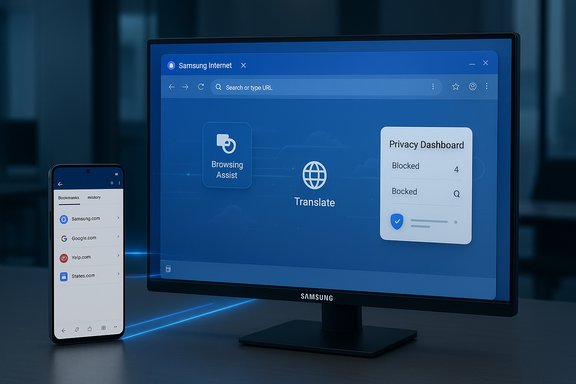
Samsung’s mobile browser is finally coming to Windows in a staged beta that promises Galaxy continuity, integrated Galaxy AI browsing tools, and a privacy‑forward desktop experience — but the launch carries clear caveats around password sync, enterprise readiness, and performance that every Windows user and IT pro should evaluate before switching.
Samsung Internet has been a staple on Android for more than a decade, known for strong privacy defaults, extension support, and deep ties to Samsung services. The company has now released a Windows beta of Samsung Internet for PC, opening the door for bookmarks, open tabs and browsing history to follow users between Galaxy phones and Windows desktops or laptops. Early availability is region‑gated to the United States and South Korea as Samsung scales the rollout. This relaunch follows a brief, pulled appearance in the Microsoft Store in late 2023. Samsung’s approach in 2025 is more deliberate: a phased beta that aims to address issues seen in earlier experiments while surfacing Galaxy AI features and a familiar privacy dashboard on Windows. The Windows builds are reported to support Windows 11 and Windows 10 (version 1809 or later) and include packages compatible with ARM‑based Windows devices.
A key technical point: much of the heavy inference for summarization and translation appears to run in the cloud rather than entirely on‑device. That hybrid model enables richer results but also means page content is transmitted to Samsung’s servers for processing in many cases — an important privacy and compliance consideration. Samsung’s final privacy architecture for Galaxy AI on desktop must be consulted before using these features with sensitive or regulated content.
For power users and enterprises, the release is a cautious “wait and verify.” Confirm Samsung Pass behavior, audit AI traffic and telemetry, and test extension compatibility before considering any migration away from established browsers used in your workflows. Administrators should pilot the beta in an isolated environment and require clear documentation from Samsung on data governance and management controls before broader deployment.
Samsung Internet’s return to Windows is strategically sensible and technically plausible — it aligns with Samsung’s ecosystem play and the broader trend of embedding AI into everyday productivity tools. The success of this relaunch will come down to execution: shipping fast, secure Chromium updates; delivering true password and extension parity; and being transparent about AI data handling. Until Samsung publishes fuller enterprise and privacy documentation, Windows users should test with curiosity and caution: the convenience is appealing, but the security and performance story must prove itself in the weeks and months after this beta rollout.
Source: Samsung Magazine Samsung announced Samsung Internet for PCs with Windows
 Background / Overview
Samsung Internet has been a staple on Android for more than a decade, known for strong privacy defaults, extension support, and deep ties to Samsung services. The company has now released a Windows beta of Samsung Internet for PC, opening the door for bookmarks, open tabs and browsing history to follow users between Galaxy phones and Windows desktops or laptops. Early availability is region‑gated to the United States and South Korea as Samsung scales the rollout. This relaunch follows a brief, pulled appearance in the Microsoft Store in late 2023. Samsung’s approach in 2025 is more deliberate: a phased beta that aims to address issues seen in earlier experiments while surfacing Galaxy AI features and a familiar privacy dashboard on Windows. The Windows builds are reported to support Windows 11 and Windows 10 (version 1809 or later) and include packages compatible with ARM‑based Windows devices. What Samsung is shipping in the beta
Core promises at launch
Samsung’s messaging for the PC beta emphasizes three headline capabilities:- Cross‑device sync: bookmarks, open tabs and (some) browsing data sync via a Samsung Account so your mobile and desktop sessions are continuous.
- Galaxy AI — Browsing Assist: on‑page summarization, translation and contextual helpers powered by Galaxy AI to speed reading and research tasks.
- Privacy toolkit: Smart Anti‑Tracking enabled by default and a Privacy Dashboard that shows blocked trackers and per‑site controls.
Important caveats (what’s likely staged)
Samsung lists Samsung Pass integration and password autofill as a target, but multiple early reports and testing notes indicate full password‑vault parity may not be available across all Windows hardware at beta launch. Historically, Samsung Pass relies on device‑specific security (Knox/secure element) on Galaxy hardware — transplanting that model to generic Windows machines raises both technical and security questions. Treat password sync as likely staged until Samsung publishes explicit compatibility and security details.Technical requirements and distribution
Supported platforms
Samsung states the beta supports:- Windows 11
- Windows 10 — build 1809 (October 2018 Update) or later
- x86/x64 and ARM Windows devices
How you’ll get it
Distribution is expected to rely primarily on the Microsoft Store where available, with Samsung also offering direct installers to registered beta testers in some markets. The Store route is the safest and most manageable path for average users; enterprises and power users may see signed installers for testing. Expect regional gating and staged rollouts rather than global availability on day one.Feature deep dive
Cross‑device sync: convenience and limits
The sync story is the single most compelling reason to try Samsung Internet on Windows if you already live inside the Galaxy ecosystem. The beta aims to synchronize:- Bookmarks
- Open tabs and session state
- Browsing history
- Potentially autofill data via Samsung Pass (staged)
Galaxy AI — Browsing Assist
Galaxy AI brings the browser features that have become prominent on Samsung phones: automatic summarization of long pages, inline translation and contextual suggestions. These tools are useful on larger screens for research, reading and multilingual browsing.A key technical point: much of the heavy inference for summarization and translation appears to run in the cloud rather than entirely on‑device. That hybrid model enables richer results but also means page content is transmitted to Samsung’s servers for processing in many cases — an important privacy and compliance consideration. Samsung’s final privacy architecture for Galaxy AI on desktop must be consulted before using these features with sensitive or regulated content.
Privacy dashboard and Smart Anti‑Tracking
Samsung is bringing its mobile privacy posture to desktop: Smart Anti‑Tracking is enabled by default and the Privacy Dashboard offers real‑time visibility into trackers the browser blocks. This transparency and default protection are consumer‑friendly differentiators against browsers that bury privacy controls behind settings. That said, auditors and enterprise teams will want to inspect outbound telemetry and cloud hooks tied to Galaxy AI.Extensions and Chromium compatibility
Samsung Internet for PC continues to be Chromium‑based. That improves compatibility with modern web standards and opens the door to Chrome/Edge extensions. But Chromium heritage alone does not ensure extension parity — earlier Windows previews showed inconsistent extension behavior and greyed‑out install options. Samsung must demonstrate robust extension management and a predictable update cadence to be a viable daily driver for power users.Performance, UX and desktop polish
Mobile‑first browsers often struggle initially on desktop with issues such as scrolling smoothness, GPU compositing, multi‑monitor scaling and high‑DPI support. Samsung’s 2023 Microsoft Store experiment surfaced precisely these problems. For the 2025 beta to succeed, Samsung needs to:- Ship Chromium updates promptly to avoid long security gaps.
- Ensure GPU acceleration and compositor integrations work across common Windows GPUs.
- Provide reliable extension behavior, including background processes and native messaging support where needed.
Security, privacy and enterprise implications
What to ask before deploying
Enterprises and security‑minded users should insist on explicit answers to these questions before approving Samsung Internet for PC for company use:- Does Samsung document the exact data flows for Galaxy AI features — what is sent to cloud, where it’s processed, retention terms and deletion options?
- How does Samsung Pass operate on non‑Samsung Windows machines? Are there hardware attestation or TPM requirements?
- What is Samsung’s patch cadence for Chromium security fixes and how will the browser be managed in enterprise update pipelines?
- Are management controls (Group Policy, MDM) and telemetry configuration available and documented?
Privacy trade‑offs
Galaxy AI’s cloud processing provides convenience but can introduce privacy exposure. For regulated industries — finance, healthcare, legal — routing page contents to cloud ML services without contractual guarantees is a non‑starter. Samsung should publish an auditable privacy guide describing what data is processed, for how long, and how customers can opt out or restrict AI processing. Until then, treat Browsing Assist as a convenience feature to avoid with sensitive content.Hands‑on beta checklist (for testers and power users)
- Confirm Windows build: upgrade to Windows 10 1809+ or Windows 11 before installing.
- Install from the Microsoft Store where possible; prefer signed Store packages over sideloaded installers.
- Sign in with your Samsung Account and test bookmark/tab sync first — verify fidelity with your phone.
- Check Samsung Pass behavior: attempt to access saved passwords; do not migrate critical credentials until you confirm full password sync works on your hardware.
- Evaluate extension compatibility: install your most‑used extensions and verify background tasks and native messaging if you rely on them.
- Monitor network flows: use firewall logs or a proxy to identify endpoints contacted when using Galaxy AI features. If you’re an admin, create rules to block AI traffic during initial tests.
Strengths — why the bet makes sense
- True continuity for Galaxy users: If Samsung delivers reliable sync, the convenience of seamless bookmarks/tabs/history between phone and PC is a real productivity win.
- Integrated AI features at scale: Summarization and translation become far more useful on desktop screens for research and reading workflows.
- Privacy by default narrative: The Privacy Dashboard and Smart Anti‑Tracking provide visible value to non‑technical users and differentiate Samsung from browsers that bury privacy settings.
Risks and immediate concerns
- Password sync uncertainty: Samsung Pass parity on arbitrary Windows hardware is unproven; many users report Samsung Pass has historically been constrained to Samsung devices or required special platform hooks. Do not assume password vault parity at beta launch.
- Cloud AI data flows: Browsing Assist likely involves server‑side processing for richer results — a privacy and compliance risk until Samsung documents retention and telemetry.
- Extension and update cadence: Without robust extension support and a tight Chromium security patch cadence, Samsung Internet will struggle to be a mainstream desktop choice. Early trials showed extension and performance gaps that need fixing.
Practical verdict for WindowsForum readers
For everyday Galaxy owners who value continuity and want to experiment with integrated Galaxy AI on desktop, the beta is worth trying on a non‑critical machine. The ability to pick up tabs and bookmarks across phone and PC is immediate, tangible value.For power users and enterprises, the release is a cautious “wait and verify.” Confirm Samsung Pass behavior, audit AI traffic and telemetry, and test extension compatibility before considering any migration away from established browsers used in your workflows. Administrators should pilot the beta in an isolated environment and require clear documentation from Samsung on data governance and management controls before broader deployment.
What to watch next
- Public documentation from Samsung describing exactly how Galaxy AI processes page content and what retention/telemetry rules apply.
- Explicit compatibility and security details for Samsung Pass on non‑Galaxy PCs, including whether Windows Hello/TPM attestation is required.
- Update cadence and Chromium patching promises from Samsung, plus evidence of improved extension parity and desktop performance.
- Expansion of beta availability beyond the US and South Korea into broader markets and the Microsoft Store presence for general consumers.
Samsung Internet’s return to Windows is strategically sensible and technically plausible — it aligns with Samsung’s ecosystem play and the broader trend of embedding AI into everyday productivity tools. The success of this relaunch will come down to execution: shipping fast, secure Chromium updates; delivering true password and extension parity; and being transparent about AI data handling. Until Samsung publishes fuller enterprise and privacy documentation, Windows users should test with curiosity and caution: the convenience is appealing, but the security and performance story must prove itself in the weeks and months after this beta rollout.
Source: Samsung Magazine Samsung announced Samsung Internet for PCs with Windows