

Changing the Microsoft Edge home page in 2026 requires choosing the correct setting: the Home button page, the startup page, and the new tab page are controlled separately. This guide covers the current Chromium-based Microsoft Edge on Windows 11 and Windows 10, including personal Microsoft accounts, local profiles, and organization-managed work or school profiles.
Match the result you want to the correct Edge setting:
If you want several sites to open, select Add a new page again for each address. Each site normally opens in its own tab.
Be aware that Open tabs from the previous session can reopen pages containing sensitive information. Sign out of websites before closing Edge when other people can access the same Windows account.
You can also test the configured home page by pressing:
The Home button normally opens the configured page in the current tab. Open a new tab first if you do not want to replace the page you are currently viewing.
The settings gear customizes Microsoft’s new tab page. It does not turn a website such as Google or Outlook into the new tab page.
Warning: A new-tab extension can see or change important browser behavior. Review its publisher, requested permissions, privacy information, update history, and user reports before installing it. Avoid extensions that request access unrelated to changing the new tab page.
Desktop Edge settings do not necessarily synchronize this mobile home-page selection, even when both browsers use the same Microsoft account.
To check the browser’s policy status:
Do not delete organization policy registry values to bypass workplace management. Contact the IT administrator and provide the policy names shown on
Use its Page settings gear to adjust the built-in page. Install a carefully vetted extension only if you require a custom new-tab URL.
Update the saved address to the final preferred URL if appropriate.
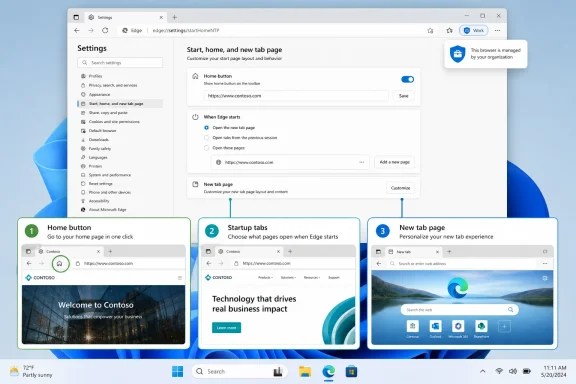 Choose which Edge page you want to change
Match the result you want to the correct Edge setting:- A website should open when Edge launches: Change When Edge starts.
- A website should open when you click the Home button: Change the Home button setting.
- You want to change the appearance of every new tab: Customize the built-in New tab page.
- You want every new tab to open an arbitrary website: Consumer Edge does not provide a built-in URL field for this. You need an extension, or an administrator must configure an Edge policy.
Make Edge open a specific website at startup
Use this procedure if you want Microsoft Edge to open Google, Outlook, a company portal, or another website whenever you start the browser.- Open Microsoft Edge.
- Select Settings and more—the three-dot button in the upper-right corner.
- Select Settings.
- In the left pane, select Start, home, and new tab page.
You can also enter the following internal address in the address bar:
edge://settings/startHomeNTP - Find the When Edge starts section.
- Select Open these pages.
- Select Add a new page.
- Enter the complete website address, including
https://. For example:
[Your request has been blocked. This could be due to several reasons.](https://www.microsoft.com) - Select Add.
- Close all open Edge windows, and then start Edge again.
If you want several sites to open, select Add a new page again for each address. Each site normally opens in its own tab.
Use your currently open tabs as the startup pages
If you already have all the required websites open:- Open each website in a separate Edge tab.
- Go to Settings and more > Settings > Start, home, and new tab page.
- Under When Edge starts, select Open these pages.
- Select Use all open tabs, if that button is available in your current Edge build.
- Review the resulting list and remove any tabs you do not want opened at startup.
Edit or remove a startup page
- Return to Settings > Start, home, and new tab page.
- Under When Edge starts, locate the saved address.
- Select the three-dot menu next to the address.
- Select Edit to change it or Delete to remove it.
- Close every Edge window and relaunch the browser to test the result.
Restore the new tab page or your previous session at startup
You do not have to open a fixed website. The same startup section provides other behaviors.- Open:
edge://settings/startHomeNTP - Under When Edge starts, choose the required option:
- Open the new tab page starts Edge with its built-in new tab experience.
- Open tabs from the previous session attempts to restore the tabs that were open when Edge closed.
- Open these pages opens a saved list of website addresses.
Be aware that Open tabs from the previous session can reopen pages containing sensitive information. Sign out of websites before closing Edge when other people can access the same Windows account.
Set the page opened by the Home button
The Home button setting controls only what happens when you click the house-shaped toolbar icon or press the Edge home-page keyboard shortcut. It does not control browser startup.- Open Microsoft Edge.
- Select Settings and more > Settings.
- Select Start, home, and new tab page.
- Under the Home button section, turn on Show home button on the toolbar.
- Choose one of the available actions:
- New tab page
- Enter URL
- To use a website, select Enter URL and type its complete address.
- Select Save if Edge displays a Save button.
You can also test the configured home page by pressing:
Alt+HomeThe Home button normally opens the configured page in the current tab. Open a new tab first if you do not want to replace the page you are currently viewing.
Hide the Home button again
- Open Settings > Start, home, and new tab page.
- Turn off Show home button on the toolbar.
Customize the built-in new tab page
Opening a new tab with the + button orCtrl+T normally displays Edge’s built-in new tab page. Personal versions of Edge let you customize that page, but they do not provide a standard setting for replacing it with any website.- Open a new tab.
- Select the Page settings gear in the upper-right area of the new tab page.
- Choose the available layout and content options.
- Page layout
- Background
- Quick links
- Weather or other information cards
- Microsoft Start or feed content
- Content visibility
The settings gear customizes Microsoft’s new tab page. It does not turn a website such as Google or Outlook into the new tab page.
Use an extension to open a website in every new tab
A new-tab extension is a workaround, not a built-in Edge home-page setting. Use one only if you specifically need every new tab to load an arbitrary URL.Warning: A new-tab extension can see or change important browser behavior. Review its publisher, requested permissions, privacy information, update history, and user reports before installing it. Avoid extensions that request access unrelated to changing the new tab page.
- Open Microsoft Edge.
- Select Extensions to the right of the address bar.
If the button is hidden, select Settings and more > Extensions. - Select Get Extensions for Microsoft Edge.
- Search for an extension designed to redirect or replace the new tab page.
- Open the extension’s details page.
- Select Get.
- Review the permissions shown by Edge.
- Select Add extension only if the permissions are acceptable.
- Follow the extension’s setup screen and enter the desired website address.
- Press
Ctrl+Tto test a new tab.
Roll back a new-tab extension
If new tabs stop working, show advertising, redirect unexpectedly, or become slow:- Select Extensions > Manage extensions.
- Find the new-tab extension.
- Turn off its switch.
- Open another new tab and test Edge.
- If disabling it resolves the problem, select Remove.
- Confirm Remove from Microsoft Edge.
Change the home page in Edge for Android or iPhone
The mobile Edge interface is separate from the Windows desktop settings. Microsoft’s current mobile instructions use the following path on Android and iOS:- Open Microsoft Edge on the phone or tablet.
- Tap the … menu.
- Tap Settings.
- Tap General.
- Tap Home page.
- Choose:
- New tab page, or
- A specific page
- If you select a specific page, use the current page or enter the required URL.
- Tap Save.
Desktop Edge settings do not necessarily synchronize this mobile home-page selection, even when both browsers use the same Microsoft account.
Check whether your organization controls the setting
Work and school administrators can enforce the Home button, startup behavior, startup URL list, and new tab page. An enforced setting may be unavailable, display a managed-browser indicator, or revert after Edge refreshes its policies.To check the browser’s policy status:
- Open Microsoft Edge.
- Enter this address:
edge://policy - Select Reload policies.
- Look for relevant policy names, including:
HomepageLocationHomepageIsNewTabPageShowHomeButtonRestoreOnStartupRestoreOnStartupURLsRestoreOnStartupUserURLsEnabledNewTabPageLocation
HomepageLocation controls the page associated with the Home button. RestoreOnStartup and RestoreOnStartupURLs control launch behavior. NewTabPageLocation can replace the new tab page on managed devices.Do not delete organization policy registry values to bypass workplace management. Contact the IT administrator and provide the policy names shown on
edge://policy. Mandatory policies cannot be overridden through the regular Edge Settings page.Fix Edge opening the wrong page
If Edge still opens an unexpected screen, use the fix that matches the symptom.Edge opens old tabs instead of the selected website
- Open
edge://settings/startHomeNTP. - Under When Edge starts, select Open these pages rather than Open tabs from the previous session.
- Confirm that the correct URL appears in the list.
- Close every Edge window.
- Open Task Manager and allow any remaining Edge processes to close normally, or wait several seconds.
- Start Edge again.
Clicking Home opens the correct page, but launching Edge does not
This means the Home button was configured correctly but startup was not.- Leave the Home button setting unchanged.
- Under When Edge starts, select Open these pages.
- Add the same URL to the startup list.
- Close and reopen Edge.
A new tab still shows Microsoft content
That is expected when only the startup or Home button page has been changed. The consumer new tab page is separate.Use its Page settings gear to adjust the built-in page. Install a carefully vetted extension only if you require a custom new-tab URL.
The website redirects to another page
Open the saved startup URL manually in the address bar. If it redirects there as well, the redirect is being performed by the website, authentication system, DNS service, or network—not by the Edge home-page setting.Update the saved address to the final preferred URL if appropriate.
An unwanted page returns after you remove it
- Check
edge://policyfor managed startup or home-page policies. - Open Extensions > Manage extensions and disable unfamiliar extensions.
- Recheck the startup list under
edge://settings/startHomeNTP. - Run Windows Security > Virus & threat protection > Scan options > Full scan if unauthorized browser changes continue.
- Remove any recently installed program that claims to manage search, coupons, browser tabs, or web browsing.
References
- Primary source: Technobezz
Published: 2026-07-14T17:46:13.233000+00:00
How to Change the Microsoft Edge Home Page in 2026 | Technobezz
Change Microsoft Edge home page settings for the Home button, startup page, new tabs, mobile, and managed devices.www.technobezz.com - Official source: learn.microsoft.com
Microsoft Edge Browser Policy Documentation HomepageLocation | Microsoft Learn
Windows and Mac documentation for supported Microsoft Edge Browser policy: Configure the home page URLlearn.microsoft.com - Official source: support.microsoft.com
Add, turn off, or remove extensions in Microsoft Edge | Microsoft Support
Learn how to add, turn off, or remove extensions in Microsoft Edge.support.microsoft.com
