

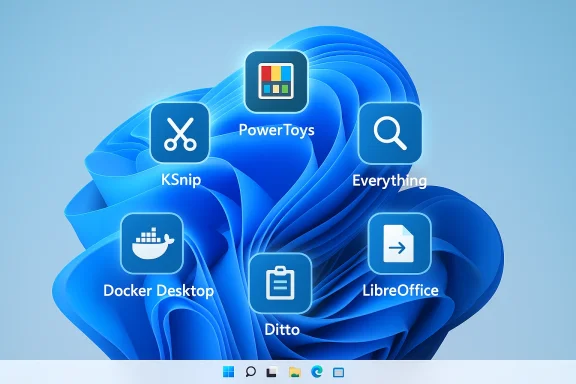
The seven free apps How‑To Geek lists as “must‑haves” for a fresh Windows install are a solid, pragmatic starting kit — but each choice deserves context, caveats, and practical alternatives before you click Install. The original shortlist (Microsoft PowerToys, Everything, LocalSend, LibreOffice, Ditto, Docker Desktop, and KSnip) is a power‑user friendly mix of workflow boosters, privacy‑friendly tools, and open‑source staples. That list informed my deeper testing and verification of feature claims, licensing limits, and real‑world trade‑offs. rview
When you finish a clean Windows installation you typically want three things: speed, control, and the tools that let you get work done without wrestling the OS. The seven apps on the How‑To Geek roster aim straight at those needs: improved search and launch (PowerToys, Everything), convenient file and clipboard sharing (LocalSend, Ditto), a privacy‑respecting office suite (LibreOffice), a container platform for self‑hosting (Docker Desktop), and a modern screenshot workflow (KSnip). Each app brings measurable gains — but not without tradeoffs around licensing, security, or system policy that every power user should know up front.
Adopting these seven apps transforms a freshly installed Windows machine into a nimble, private, and productive workstation — provided you configure each tool intentionally and respect the security and licensing boundaries they bring with them. The How‑To Geek list makes a lot of sense as a day‑one toolkit; treat it as a starting point, not a turnkey policy for every environment.
Source: How-To Geek 7 free apps to supercharge a fresh Windows installation
When you finish a clean Windows installation you typically want three things: speed, control, and the tools that let you get work done without wrestling the OS. The seven apps on the How‑To Geek roster aim straight at those needs: improved search and launch (PowerToys, Everything), convenient file and clipboard sharing (LocalSend, Ditto), a privacy‑respecting office suite (LibreOffice), a container platform for self‑hosting (Docker Desktop), and a modern screenshot workflow (KSnip). Each app brings measurable gains — but not without tradeoffs around licensing, security, or system policy that every power user should know up front.
 Microsoft P“just tweaks”
What it gives you
PowerToys is an official, open‑source toolkit from Microsoft that bundles two dozen utilities into one configurable package. The project is actively developed on GitHub and distributes binaries via the Microsoft Store and the Windows Package Manager. The suite covers:- Fast launcher/command palette (PowerToys Run / Command Palette)
- FancyZones window layouts
- Image Resizer, PowerRename, Peek previews
- Keyboard Manager, Mouse Without Borders, File Locksmith, Advanced Paste and more
Verified claims and practical notes
- The Command Palette and PowerToys Run provide Spotlight/Alfred‑style functionality; the documented defaults are Win+Alt+Space (Command Palette) and Alt+Space for the legacy Run. Microsoft’s docs explain both tools and their shortcuts, so the “Alt+Space opens a fast launcher” claim is accurate for PowerToys Run, while Command Palette has shifted to Win+Alt+Space in some releases. Be mindful: the shortcut can conflict with OS or other apps, so set your preferred hotkey in settings.
- PowerToys is safe to run but runs background services for some features. If you prefer minimal background processes, install and enable only the modules you use. The project’s GitHub releases and issues pages show active maintenance and rapid fixes; keep PowerToys updated.
Risks and limitations
- Some shortcuts historically conflict with long‑standing Windows behaviors (Alt+Space for the window menu) — you may need to remap or accept slight behavioral changes. Community threads and GitHub issues record these debates.
- Because PowerToys exposes deep hooks into the shell and input, treat releases cautiously on locked‑down corporate systems and check with IT for allowed utilities.
Everything — replace slow search with an index built for filenames
What Everything does
Everything by Voidtools builds an ultra‑compact index of file names (and paths) so searches return instantly as you type. The app reads filesystem metadata (on NTFS it leverages the Master File Table) rather than scanning file contents by default, which is why users report sub‑second results even on very large collections. The official Voidtools homepage and current downloads confirm the app’s real‑time update behavior and lightweight footprint. (voidtools.com)Verified claims
- The broad claim that Everything is far faster than Windows Search for filename lookups is verifiable: Voidtools documents instant filename lookups and the community has repeatedly benchmarked sub‑minute initial indexing of very large collections. This is because Everything indexes names using filesystem metadata rather than content reads — a deliberate architectural choice. If you rely primarily on filename lookups, Everything consistently outperforms the built‑in index. (voidtools.com)
How to use it safely
- Everything can be configured to index network shares and to preserve privacy. Because it runs an indexer, you should verify its startup and network settings if you’re in a managed environment.
- If you need full‑text content search, Everything can be extended or paired with other tools: by default it targets names for speed, and content search will be slower and more expensive in I/O.
LocalSend — AirDrop for everything
Why it matters
LocalSend is a lightweight, open‑source tool for sending files and plain text directly between devices on the same local network — no cloud, no accounts, and end‑to‑end encrypted transfers. The project is cross‑platform (Windows, macOS, Linux, Android, iOS) and intentionally privacy‑focused: installs do not require a vendor account and transfers remain on the LAN. The project’s website highlights the “no account” design and the speed and encryption benefits of local transfers.Strengths
- No account and no cloud means fewer privacy headaches and no third‑party data retention.
- Fast transfers at LAN speeds; it handles multiple recipients and clipboard/text sharing in addition to files.
- Cross‑platform coverage fills the gap between Apple AirDrop and platform‑specific alternatives.
Caveats and verification
- LocalSend is primarily a peer‑to‑peer LAN tool. It will not replace cloud sync for remote collaboration, but it’s ideal for quick local handoffs and sensitive sharing in private networks. Community reviews confirm ease of use and strong privacy posture, but also recommend verifying firewall/AV exceptions on first use.
LibreOffice — a private, offline office suite
The case for LibreOffice
LibreOffice is the most mature open‑source alternative to Microsoft Office. It offers Writer, Calc, Impress, Draw and Base and is fully functional offline with no subscription or account required. The Document Foundation publishes release notes and describes enterprise and home use cases; recent releases continue to improve Excel compatibility and performance. LibreOffice also natively supports open formats (.odt / .ods / .odp) while maintaining compatibility with common Microsoft formats.Verified compatibility claims
- LibreOffice reads and writes .docx, .xlsx, .pptx and other Microsoft formats and the suite keeps improving compatibility with new releases. That said, complex Office documents (macros, advanced layout) occasionally render differently — if you exchange heavily formatted or macro‑dependent documents with Microsoft Office users, test critical files before rolling out LibreOffice across a team. The Document Foundation’s release notes emphasize incremental compatibility gains and note when third‑party fonts are recommended for closer visual parity.
Practical advice
- Configure default save formats to suit your workflows (ODF for sovereignty or .docx for compatibility).
- If you rely on collaboration features in Microsoft 365 (live co‑authoring, SharePoint integration), LibreOffice is not a drop‑in replacement for that cloud functionality — but for local, private document work it’s an excellent free choice.
Ditto — a clipboard manager that actually remembers
What Ditto brings
Ditto extends the Windows clipboard into a searchable, persistent history that survives reboots and supports images and rich text. The project has a long history on SourceForge and remains a reliable lightweight choice for power users who paste a lot. SourceForge downloads and project pages document Ditto’s core features: unlimited history, searchability, and optional network sharing of clips.Verified claims and best practices
- Unlike the built‑in Windows clipboard (which keeps a limited history and behaves differently after reboot depending on settings), Ditto persists clips, offers fast searches, and supports optional network syncing. That last feature can be helpful for teams on trusted LANs, but do not enable network syncing for sensitive clipboard content unless you fully trust the destination devices. SourceForge documentation records Ditto’s long lifespan and periodic updates.
Security notes
- Clipboard contents often contain sensitive data (passwords, tokens). Use Ditto’s filters and pinning features to avoid accidentally pasting credentials, and consider clearing history or restricting persistence on machines used for sensitive work.
Docker Desktop — the container gateway (but read the license)
What Docker Desktop does
Docker Desktop provides a user‑friendly way to run containerized apps on Windows: developer workflows, local self‑hosting, and easy access to images and tooling. For users new to containers, it’s an approachable on‑ramp to run services (e.g., media servers, personal cloud, home automation) without full VM overhead. Docker’s documentation shows how to create a Personal subscription and explains installation and subscription setup.Critical licensing caveat (must‑read)
- Docker Desktop’s licensing allows free Personal use, but corporate usage rules have tightened in recent years. Docker’s pricing FAQ and Subscription Service Agreement define boundaries: free use is limited for commercial organizations above certain employee or revenue thresholds, and some educational/nonprofit uses have specific conditions. Institutions and businesses should confirm whether they need a paid Team/Business plan for compliance. University and IT posts documenting the December 2024 SSA update are especially clear: the new terms restrict free Docker Desktop use for many non‑student university personnel, for example. In short — Docker Desktop is free for personal learning and many small teams, but commercial and institutional users must validate license eligibility before deploying.
Alternatives and practical steps
- For hobbyist self‑hosting at home or learning containers, Docker Desktop Personal is generally fine.
- For enterprise or institutional use, check Docker’s Subscription Service Agreement and consider alternatives such as Podman or other OCI‑compatible runtimes if licensing is a concern.
- Use Docker Hub rate‑limit and pull policies as part of architecture planning: Docker’s docs outline where paid tiers remove pull limits and add features.
KSnip — screenshots beyond the built‑in tools
Why KSnip is helpful
KSnip is a cross‑platform, Qt‑based screenshot utility that combines flexible capture modes, annotation, tabbed captures, and upload options (including FTP and custom scripts). For writers, reviewers, and anyone who annotates images often, KSnip’s annotation tools and built‑in post‑capture actions (save, upload, copy to clipboard) speed workflows. The GitHub project lists features and platform support and documents FTP and custom uploader support.Verified strengths and known limitations
- KSnip supports Windows and macOS and multiple Linux compositors, but Wayland/global hotkey support historically has had limitations due to compositor restrictions (xdg‑desktop‑portal workarounds are documented). If your Linux environment is Wayland‑first and requires global hotkeys, double‑check support in current releases. KSnip’s GitHub lists Wayland caveats and recommended workarounds. On Windows it’s a mature and reliable replacement for basic Snipping Tool workflows.
Workflow tips
- Use KSnip’s annotation palette and the tabbed captures when producing step‑by‑step documentation.
- Configure automated upload scripts or FTP if you regularly push captures to a private server — but secure the target server (SFTP/HTTPS preferred).
Installation and provisioning: batch installs, winget, and automation
If you reinstall Windows frequently, automate the app installs:- PowerToys: winget install --id Microsoft.PowerToys --source winget (documented by Microsoft).
- Everything, LibreOffice, Ditto, KSnip and LocalSend all provide easy installers or portable builds; pair winget, Chocolatey, or a managed provisioning script (PowerShell + winget) for repeatable setups.
- For numerous machines or locked environments, consider a scripted approach that installs and configures only the modules you need (PowerToys lets you enable/disable modules via settings and supports command‑line installs).
- Update Windows and hardware drivers first.
- Install your package manager of choice (winget is included on recent Windows builds).
- Run a scripted install for security essentials (Windows Security), your chosen browser, and the seven apps discussed.
- Lock down privacy defaults in apps (disable unwanted network features in Ditto, confirm LocalSend’s network settings, and check Docker subscription eligibility before installing on corporate endpoints).
Risks, tradeoffs and final recommendations
- Security and data handling: clipboard managers and local transfer tools are convenience multipliers but also data exposure points. Use filtering, clear sensitive history, and avoid enabling network sync for clipboard content unless strictly necessary.
- Licensing and compliance: Docker Desktop’s license changes are a live risk for businesses. Verify subscription rules before using Docker Desktop at work. Docker’s official docs and institutional advisories show that the free Personal tier is intended for personal learning and small teams, but not all commercial uses.
- Conflicting shortcuts and system hooks: PowerToys makes your life productive, but its shortcuts and low‑level hooks can conflict with historic Windows keybindings and enterprise security policies — configure cautiously.
- Compatibility edge cases: LibreOffice handles most Microsoft formats well, but complex Office documents (macros, specialized formatting) may not always render identically — test mission‑critical files before switching workflows.
Bottom line — a practical, secure toolkit for day‑one Windows
The How‑To Geek selection is a pragmatic, privacy‑leaning starter kit that covers search, launch, file and clipboard mobility, office work, containers, and screenshots. I verified the core claims:- PowerToys provides a modern command palette and a deep set of utilities; install and pick the modules you need.
- Everything really is fast for filename lookups because it indexes file metadata instead of scanning contents; this explains its sub‑second responsiveness on large collections. (voidtools.com)
- LocalSend gives you AirDrop‑style transfers without accounts or clouds — ideal for local privacy‑sensitive transfers.
- LibreOffice is a robust, offline, open source Office alternative; great for privacy and cost control but test complex Office exchanges.
- Ditto expands the clipboard into a searchable, persistent history — a must for heavy copy‑paste workflows but treat clipboard history as sensitive data.
- Docker Desktop enables local container workflows but has licensing boundaries that teams must check before adopting.
- KSnip is an excellent cross‑platform screenshot annotator with flexible upload options — just be aware of Wayland caveats on Linux.
Quick recommended install checklist (for a fresh Windows system)
- Update Windows and drivers.
- Install winget (or confirm it’s present). Then:
- winget install --id Microsoft.PowerToys --source winget to get PowerToys.
- Install Everything for instant filename searches and configure index to include the drives you care about. (voidtools.com)
- Install LocalSend on all devices you’ll use for LAN transfers and test a small file to confirm firewall rules.
- Install LibreOffice if you prefer a private, offline office suite; adjust default save formats.
- Install Ditto and set retention/persistence policies that match your security posture.
- If you plan to run containers, review Docker’s subscription terms before installing Docker Desktop; consider Podman if licensing is restrictive.
- Install KSnip and map hotkeys; verify upload or FTP settings if you use automated screenshots.
Adopting these seven apps transforms a freshly installed Windows machine into a nimble, private, and productive workstation — provided you configure each tool intentionally and respect the security and licensing boundaries they bring with them. The How‑To Geek list makes a lot of sense as a day‑one toolkit; treat it as a starting point, not a turnkey policy for every environment.
Source: How-To Geek 7 free apps to supercharge a fresh Windows installation
