

Removing your Windows 11 sign-in password or PIN can feel like reclaiming precious seconds from each day’s routine — but the convenience comes with measurable security trade-offs that every user should understand before flipping the switch. The recent Vietnamese piece arguing that “removing the Windows 11 password is more convenient” captures the appeal, and community guides explain the common ways people do it; yet the underlying technical realities and risks mean this is a decision that should be matched to the device, threat model, and backup plans.
Windows 11 supports multiple sign‑in methods: traditional account passwords (local or Microsoft account), Windows Hello PIN, biometrics (face/fingerprint), security keys, and the evolving passkeys standard. Microsoft’s design pushes device‑bound authentication (PIN, biometrics, passkeys) as a safer and more convenient alternative to a password that travels across the network. Removing a password entirely typically means one of two things in practice:
Source: baonghean.vn https://baonghean.vn/en/xoa-mat-khau-windows-11-tien-loi-hon-nhung-co-an-toan-khong-10309005.html
 Background / Overview
Windows 11 supports multiple sign‑in methods: traditional account passwords (local or Microsoft account), Windows Hello PIN, biometrics (face/fingerprint), security keys, and the evolving passkeys standard. Microsoft’s design pushes device‑bound authentication (PIN, biometrics, passkeys) as a safer and more convenient alternative to a password that travels across the network. Removing a password entirely typically means one of two things in practice:- switching to passwordless sign‑in mechanisms such as Windows Hello or passkeys, or
- disabling interactive sign‑in protections and enabling automatic sign‑in (autologon), which stores credentials for automatic boot and is intentionally weaker security-wise.
How people actually “remove the password” in Windows 11
1) Remove a Windows Hello PIN (the first step)
- Path: Settings → Accounts → Sign‑in options → PIN (Windows Hello) → Remove.
- When you remove the PIN, Windows reverts to using the underlying account password (or another configured sign‑in method) for authentication unless you set up an alternative. This is the baseline change people take before enabling automatic sign‑in. Multiple community guides document this as the typical first step.
2) Enable automatic sign‑in (Autologon or netplwiz)
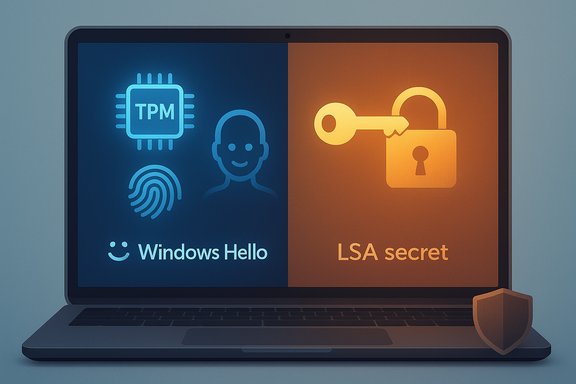
- Autologon (Sysinternals) — recommended over crude registry edits: it stores credentials in the Local Security Authority (LSA) secret area, not as plain text in the Winlogon keys, and offers a simple GUI or command‑line to enable/disable autologon. Microsoft documents the tool and warns about the reduced security posture.
- netplwiz / control userpasswords2 — older UI method that asks you to uncheck “Users must enter a user name and password.” It still works on many consumer devices but is less reliable on modern Windows builds and may store credentials in the registry in a less protected form. Microsoft’s official guidance warns that autologon mechanisms are convenient but risky.
3) Force removal of Windows Hello data (power‑user fallback)
If Settings refuses to remove a PIN (greyed out or blocked by policy), power users sometimes delete the local Windows Hello store (the NGC folder) to clear biometric and PIN configuration. This is intrusive and will remove Windows Hello data for all users on the machine — and it’s a last‑resort step with sharp side effects. Community troubleshooting threads document the exact commands and strong warnings.What Microsoft and security docs say (short technical reality check)
- Windows Hello PINs and biometrics are device‑bound and considered more secure than reusable passwords because they rely on hardware-backed protections (TPM) and do not leave the device. Microsoft recommends Windows Hello and passkeys to reduce exposure to remote phishing attacks.
- Autologon stores credentials (Autologon writes to an LSA secret, netplwiz/registry methods may leave them in Winlogon keys). Microsoft explicitly flags autologon as a convenience feature that is a security risk because anyone with physical access to the device can access the account. Administrators can retrieve these secrets if they have high privileges.
- Removing a PIN does not “harden” a system — it often reduces defense-in-depth by removing a local, device-bound factor and making the Microsoft password the dominant gatekeeper, which is reusable and phishable. Keep this in mind when electing to remove PINs or enable autologon.
Security analysis — benefits, practical risks, and mitigations
Benefits people seek when removing passwords
- Convenience: Faster boot, fewer prompts, better for dedicated kiosk machines or devices in locked rooms.
- Scripting/kiosk needs: Single-purpose appliances, digital signage, and test rigs often require autologon to operate unattended.
- Simplicity for low‑risk environments: A PC in a physically secure lab behind multiple doors may justify more relaxed sign‑in.
Concrete risks and the real‑world impact
- Physical access equals full access: If someone steals or borrows the device, autologon means they don’t need to bypass anything — they can boot straight into your account and access files, cached credentials, and connected networks. Even encrypted volumes unlocked at boot (BitLocker with TPM-only) can be vulnerable if autologon removes a pre‑boot PIN. This is the principal occupational risk.
- Stored credentials can be extracted: Autologon stores credentials in protected locations, but local administrators and certain tools can retrieve or decrypt those secrets. The “encrypted in registry” message is not an absolute safety guarantee — attackers with admin rights or certain classes of malware can escalate and expose secrets.
- Network or cloud effects: Removing a device PIN or enabling autologon does not remove the Microsoft account’s cloud protections — if your Microsoft password is weak or reused, the account can be compromised remotely. Autologon does not circumvent multi‑factor authentication (MFA) for online Microsoft services, but a brute force on the machine can still expose tokens, cached credentials, and local data.
- Organizational policy and legal exposure: On managed devices (work/school), autologon may be blocked by policy or create compliance violations. Intune and domain policies commonly block autologon for security reasons. Community reports describe Autologon failing on managed devices for precisely this reason.
Mitigations if you want convenience without throwing security out the window
- Use Windows Hello biometrics instead of removing sign‑in entirely — it provides both speed and strong local security (TPM‑backed). Microsoft explicitly recommends Windows Hello and passkeys for this reason.
- Reserve autologon only for devices in physically secured locations, and document and monitor those endpoints. Limit network access for those devices (segmented VLANs, minimal permissions).
- If autologon is required, prefer Sysinternals Autologon over manual registry edits: it writes credentials to the LSA secrets store and offers an easy disable path. Still treat autologon as a risk and keep that device isolated.
- Keep BitLocker recovery keys offline and enforce remote wipe/management capabilities for portable devices; if a laptop is lost you must assume autologon is the least of the problem. Use TPM+PIN pre‑boot for BitLocker if you need both disk encryption and reduced risk at boot.
- Use strong Microsoft account passwords, enable MFA, and ensure recovery options (alternate email/phone) are current — these remain critical if you remove local protections.
Step‑by‑step: safe approach to remove the PIN and (optionally) enable autologon
The safest sequence if you decide to proceed (documented, non‑destructive, reversible):- Review your threat model — is the PC physically secure? Is it portable? If portable, don’t enable autologon.
- Keep a recovery plan: create a Windows recovery USB, note your Microsoft password, and export your BitLocker key to safe storage.
- Remove PIN (if you have one) via Settings → Accounts → Sign‑in options → PIN (Windows Hello) → Remove. Confirm with your Microsoft password. If the Remove option is greyed out, verify “For improved security, only allow Windows Hello sign‑in for Microsoft accounts on this device” is turned off or consult Group Policy.
- If you need automatic sign‑in and accept the risk, use Autologon:
- Download Autologon from Microsoft Sysinternals. Run Autologon.exe as Administrator. Enter username and password (leave domain blank for Microsoft accounts); click Enable. Autologon stores credentials in the LSA secret. Test with a reboot. To disable, run Autologon again and click Disable.
- If Autologon fails on managed devices (Intune, domain, Exchange ActiveSync restrictions), consult your IT team — do not attempt registry hacks on corporate machines. Community threads report Autologon being blocked in such scenarios.
- If you encounter a stubborn PIN that cannot be removed and you understand the implications, there is a documented NGC folder removal procedure that clears Windows Hello data — use only as a last resort and only with backups. Community guides provide the exact takeown/icacls/rd commands and the necessary warnings.
Alternatives that preserve both convenience and strong security
- Use biometrics (Windows Hello Face / Fingerprint) — faster than a password and still hardware‑bound to the device. Good for personal laptops in mixed environments.
- Adopt passkeys where supported — a cross‑platform, phishing‑resistant standard rapidly adopted by browsers and identity providers. Microsoft has been rolling passkey support into Windows and browser ecosystems; passkeys aim to provide passwordless convenience without sacrificing safety. Where available, passkeys are preferable to autologon as they are not equivalent to “no authentication” — they require user presence.
- Device guardrails: Use local group policy or Intune to configure when sign‑in prompts are stricter (for example requiring Windows Hello sign‑in for account changes), reducing nuisance prompts while retaining protection. Community tips and Microsoft docs show how these toggles affect the Remove button and netplwiz behavior.
Real‑world examples: when autologon is appropriate — and when it isn’t
- Appropriate:
- Digital signage / wallboards and kiosk devices sitting in locked display cabinets.
- Lab rigs used only behind multiple controlled physical doors and isolated networks.
- Home appliances (e.g., always‑on media centers) where local storage contains minimal sensitive data.
- Inappropriate:
- Laptops and tablets that move with the user.
- Machines that access corporate networks or cloud services with sensitive data.
- Shared family computers where other household members or guests might misuse the device.
Practical checklist before you remove password/PIN
- Back up the device and create recovery media.
- Export BitLocker recovery keys to a secure offline location.
- Confirm you know your Microsoft account password and recovery options (email/phone).
- Decide whether to use Autologon (Sysinternals) or netplwiz; prefer Autologon where possible.
- If this is a managed device, check policy or consult IT — autologon may be blocked or create compliance risk.
Final verdict — convenience vs. control
Removing the Windows 11 password or PIN can produce genuine convenience gains, but it is not a neutral change: it reduces the layers of protection that protect you from theft, theft‑of‑access, and local compromise. Microsoft and security guidance favor device‑bound factors (PIN, biometrics) and passkeys precisely because they reduce risky attack surfaces like phishing and reuse. If convenience is your only goal and the device is low‑risk and physically secured, autologon is a defensible choice — but treat it as a calculated exception, not a new baseline. For most users, the best compromise is to embrace Windows Hello or passkeys: they give speed with strong, hardware-backed security.Conclusion
The question is less “can I remove the Windows 11 password?” and more “should I?” Technically, yes — multiple supported and community‑documented ways exist to remove the PIN and enable autologon — but each comes with a tradeoff. The safest long‑term path is to keep authentication strong and device‑bound (Windows Hello, passkeys) and reserve autologon only for physically isolated, low‑risk scenarios. If you choose to proceed, follow the documented, reversible steps (remove PIN via Settings, prefer Sysinternals Autologon over raw registry edits) and maintain offline recovery keys and robust account protections like MFA. The convenience is real — but security is not optional, and the consequences of a lost or stolen device are immediate and unavoidable unless you plan for them.Source: baonghean.vn https://baonghean.vn/en/xoa-mat-khau-windows-11-tien-loi-hon-nhung-co-an-toan-khong-10309005.html
