

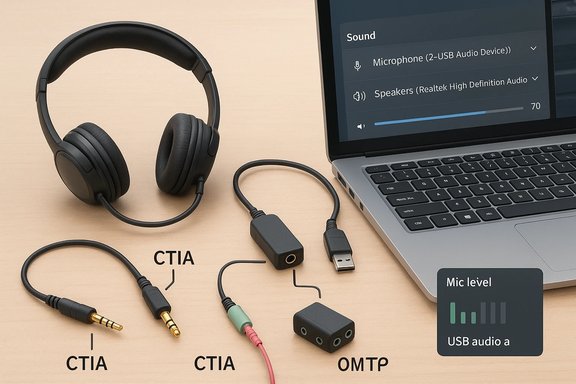
If your headset has a single 3.5 mm plug with a microphone built in (a single‑jack headset), you’re not alone: the mix of laptop combo jacks, desktop dual jacks, Bluetooth headsets, and legacy PC wiring creates a lot of confusion. This practical, long‑form guide shows how to identify the connector on your headset and your PC, the reliable ways to get both sound and mic working in Windows 10, and what to shop for if you’re buying a clearance headset—plus troubleshooting steps and the risks you should weigh before spending time or money.
Background / Overview
Single‑plug headsets use a 3.5 mm connector that carries both headphone stereo output and microphone input in one cable. That connector type is commonly called TRRS (Tip‑Ring‑Ring‑Sleeve) or combo jack and is the standard on most modern smartphones and many laptops. Desktops and older PCs, however, often expose two separate 3.5 mm jacks: one for headphones (output) and one for microphone (input), which are TRS jacks (Tip‑Ring‑Sleeve) that carry only one function each.When you plug a TRRS single‑jack headset into a PC that expects separate headphone/mic jacks, the mic usually won’t work unless you use an adapter or your PC has a combo port. Conversely, some headsets with a single plug are actually designed for Bluetooth-only microphone use and only provide analog audio over the wire—so they look wired but the mic only functions over Bluetooth. That mismatch is a common pitfall when buying discounted or clearance stock. Practical buyer and setup advice can avoid wasted returns and hours of troubleshooting.
Understanding the connectors: TRS vs TRRS (quick primer)
- 3.5 mm TRS (Tip‑Ring‑Sleeve) — three conductor plug, used for stereo headphones (left/right). Desktop green jack for headphones is usually TRS.
- 3.5 mm TRRS (Tip‑Ring‑Ring‑Sleeve) — four conductor plug, used on headsets with inline mic and on smartphones. Carries left, right, mic, and ground on one plug.
- Combo jack / CTIA standard — most modern laptops and many smartphones use the CTIA wiring for TRRS (mic on second ring, ground on sleeve). A small minority use the older OMTP wiring layout, which swaps mic and ground; OMTP mismatches cause mic failure or noisy audio until corrected.
Does your PC have a combo port or separate jacks?
Check two things on your PC:- Look for jack icons or color coding:
- A single port with a headset icon (headphone + mic) usually means a combo jack and will accept a single TRRS plug directly.
- Two jacks (green for headphones, pink or with a mic icon for microphone) indicate separate TRS ports—you’ll need an adapter to split the single plug into two.
- On desktops, prefer the rear motherboard panel headphone/mic jacks (they’re usually more reliable). Front panel jacks depend on the case wiring and front‑panel header settings; sometimes the front jack is disabled in Realtek/Audio Manager or via the motherboard BIOS.
Four reliable ways to get your single‑jack headset mic working on a Windows 10 PC
- Use a TRRS → dual TRS splitter (the most common and cheapest fix).
- Use a USB sound adapter (USB A or USB‑C) that exposes a combined headset jack or separate headphone/mic inputs.
- Plug into a PC combo jack (if your motherboard/front panel supports it) — no adapter needed.
- Replace with or use a Bluetooth/USB headset (if wired mic is not required).
1) TRRS to dual TRS splitter — what to buy and how to use it
- What it does: converts a single TRRS plug into two TRS plugs (one for headphones, one for microphone). Splitters are often labeled “headset splitter” or “mic + headphone splitter”.
- What to look for:
- CTIA‑compatible splitter (most modern headsets use CTIA). If you suspect OMTP wiring you may need an OMTP/CTIA swap adapter.
- Solid‑state molded plugs (avoid flakey cheap splitters).
- Clear labeling: green plug = headphones / pink plug = mic (match colors to your PC).
- How to connect (step‑by‑step):
- Plug the TRRS end of your headset into the TRRS female port of the splitter.
- Plug the green headphone plug into the PC’s headphone (green) jack.
- Plug the pink microphone plug into the PC’s microphone jack.
- Open Windows 10 Settings → System → Sound and confirm the input device is the headset mic (see the Input dropdown).
- Test the mic in Sound Settings or in a voice app (Voice Recorder, Teams, Discord). If you don’t see input, check the Recording tab in Control Panel → Sound.
- Why this works: splitters simply map the dedicated mic conductor on TRRS to the mic TRS plug expected by the PC. Community posts regularly recommend splitters as the cheapest practical solution to bridge single‑plug headsets to desktops with separate jacks.
- If audio plays but the mic doesn’t register, try the headset on a phone to confirm the mic works there—if it doesn’t, the headset may be wired for Bluetooth microphone only (some models behave that way).
- If the mic registers but is quiet or noisy, check Windows Levels and microphone boost in the classic Sound Control Panel (Recording tab → Properties → Levels).
- OMTP vs CTIA mismatch (uncommon) will cause the microphone and ground to be swapped—if suspected, try a CTIA/OMTP swap adapter.
2) USB audio adapter — the simplest plug‑and‑play fix (recommended if you don’t want to tinker)
- What it is: a compact USB dongle that provides either a combined headset jack (TRRS) or separate headphone and mic jacks via USB audio. Some are USB‑A, some USB‑C.
- Why use it:
- Works regardless of front/rear jack wiring.
- Bypasses potentially flaky onboard audio hardware or driver problems.
- Often recognized by Windows 10 as a sound device automatically—no driver hunting needed.
- How to use:
- Plug the USB adapter into a free USB port (if you have a USB 3.0 port try that for stable power).
- Insert the headset’s single TRRS plug into the adapter’s jack.
- In Windows 10 Settings → System → Sound, set the USB device as Output and Input as needed.
- When to prefer USB adapter:
- If you’ve had driver issues with onboard audio.
- If you frequently move the headset between machines.
- If you want a guaranteed combo port without altering case wiring or using splitters.
- Downsides: cheap adapters may give lower mic quality or slightly higher input latency; buy a reputable model if you need reliable voice quality.
3) Use a combo port on your PC (no adapter required)
- Many modern laptops and some newer motherboards provide a single combo headset jack that accepts TRRS plugs directly.
- Plug the headset straight in and then verify Windows recognizes the mic: Settings → System → Sound → Input.
- If Windows does not show the mic input, check the OEM audio utility (Realtek HD Audio Manager, vendor control center) and system BIOS/UEFI settings; front panel detection may be disabled. If your PC is managed (enterprise), group policies or privacy settings can block microphone access.
4) When the headset is Bluetooth-first or wired audio only
- Some headsets include a wired cable for audio only and route the microphone over Bluetooth only. If you plug the cable into a PC, you’ll get audio but no mic. This behavior is model‑dependent—check product specs or test on a phone before assuming the mic will work through the cable. If the mic is Bluetooth‑only, your options are:
- Use Bluetooth pairing on the PC and accept the usual Windows A2DP/HFP tradeoffs (quality vs mic).
- Use the headset’s Bluetooth on a phone for calls and a separate mic on PC.
- Replace the headset if wired mic is a hard requirement.
Configuring Windows 10: step‑by‑step after you connect a headset
- Open Settings → System → Sound.
- Under Output, select the headset (or USB audio adapter) as the default output device.
- Under Input, select the headset’s mic.
- Click “Device Properties” (Input) and test the microphone—watch the input meter to confirm signal.
- If an app cannot see the mic, open Settings → Privacy → Microphone and ensure “Allow apps to access your microphone” and “Allow desktop apps to access your microphone” are turned on.
- For advanced checks, open Control Panel → Sound → Recording tab, right‑click and Show Disabled Devices, then enable and set the headset mic as Default Device if needed.
Troubleshooting checklist (ordered from quick to more advanced)
- Quick checks (2–10 minutes)
- Test the headset on a phone to confirm wired mic works.
- Reboot PC and headset; retest.
- Try another port (front vs rear) or a different splitter/adapter.
- Confirm Output/Input device selection in Windows Sound settings.
- Run Windows’ Bluetooth or Playing Audio troubleshooters (Settings → Troubleshoot).
- Ensure microphone permissions are enabled (Settings → Privacy → Microphone).
- If you hear audio but mic is silent
- Check the Recording tab in Control Panel → Sound.
- Open the mic’s Properties → Levels and ensure microphone boost or gain is not zero.
- Try the USB adapter option (bypass the onboard jacks).
- Uninstall and reinstall audio or Bluetooth drivers from the OEM support site (prefer OEM drivers over generic Microsoft drivers).
- On managed machines, coordinate driver changes with IT—document changes and create a restore point first.
- If Bluetooth audio collapses when mic is used (A2DP vs HFP behavior)
- This is a long‑standing limitation of legacy Bluetooth audio on Windows: high‑quality playback (A2DP) and microphone telephony (HFP) are separate profiles and Windows may switch to a lower‑quality voice profile when the mic is active. The long‑term fix is LE Audio (in Windows 11 and newer stacks), but on Windows 10 you’ll likely need to accept the tradeoff or use a wired/USB solution.
Buying guide for clearance single‑jack headsets (Windows 10 buyers)
Clearance finds can be tempting, but apply a short checklist before hitting buy:- Confirm whether the headset mic works wired or only over Bluetooth. If the listing doesn’t explicitly state wired mic support, ask the seller or test in person. Several community reports show headsets that provide analog audio over cable but mic only when paired via Bluetooth—avoid surprises by confirming this now.
- Check return policy and warranty: clearance items may be final sale or have reduced return windows—make sure you can return if the mic doesn’t function as you expect.
- Verify accessories: does the headset come with the cable and adapters (if required)? Missing parts can make a clearance buy worthless for PC use.
- If buying for desktop PC with separate jacks, either budget for a TRRS splitter or prefer headsets that ship with a separate mic cable or USB adapter.
- If you want future‑proof Bluetooth: look for explicit LE Audio support (LC3 / Isochronous Channels) only if you plan to use Bluetooth on a Windows 11 host; Windows 10 won’t expose full LE Audio benefits. Treat Bluetooth version claims (e.g., “Bluetooth 5.x”) as insufficient alone—firmware and PC driver support matter.
Critical analysis — strengths, risks, and what can go wrong
Strengths of single‑jack headsets and common fixes- Convenience: a single cable simplifies switching between phone and laptop; a TRRS jack is sleeker and universal on modern mobile devices.
- Low cost to fix: most compatibility problems are solved cheaply with a $5–$15 TRRS splitter or a $10–$25 USB audio adapter.
- Portability: a TRRS cable reduces cable clutter and is ideal for mobile use.
- Hardware/firmware mismatches: some headsets only carry mic over Bluetooth or rely on vendor apps for mic control. Buying based on looks alone risks a nonfunctional mic on PC.
- OMTP/CTIA wiring mismatch: rare but can cause noisy or nonworking mic until corrected with the right adapter.
- Windows audio stack and drivers: driver or Windows configuration issues can make a working headset appear dead; fixing may require driver rollbacks, service restarts, or using a USB adapter to bypass the stack.
- Bluetooth profile limitations on Windows 10: if you plan to use Bluetooth for mic and playback, Windows 10’s A2DP/HFP tradeoff may reduce media quality while the mic is active. LE Audio promises a fix but requires OS, firmware, and driver alignment that Windows 10 setups usually do not provide.
- Clearance purchases: clearance units may be missing accessories or be final sale; firmware‑related issues on older stock are common—make sure you can test and return.
- For a desktop with separate jacks, the cheapest reliable approach is a quality TRRS→dual TRS splitter if your headset supports CTIA wiring. If you lack the patience to troubleshoot or need a guaranteed plug‑and‑play result, buy a reputable USB audio adapter instead. If you are buying a clearance wireless headset, verify the mic’s wired behavior and insist on a return window. Community reports and vendor guidance consistently validate this conservative, low‑risk path.
Example step‑by‑step: Fix the “mic not detected” problem using a splitter (10–15 minutes)
- Identify your headset plug: count rings on the plug (three rings = TRRS).
- Confirm your PC port configuration: single combo jack or separate pink/green jacks.
- If your PC has separate jacks:
- Buy a CTIA TRRS female to dual TRS male splitter (green + pink).
- Plug headset into splitter, then green into headphones, pink into mic.
- Open Windows Settings → System → Sound.
- Under Input, choose the mic that corresponds to the port (it may show as “Microphone” or the adapter name).
- Test with Windows Voice Recorder or the level meter in Sound → Recording.
- If not working, test headset on phone to isolate headset vs PC problem.
- If headset works on phone but not PC, try a USB audio adapter to bypass PC jacks and retest.
Final word: practical, low‑risk shopping and setup checklist
- Confirm whether the headset mic works wired (test on a smartphone).
- If your PC has separate jacks, budget for a TRRS splitter or USB audio adapter.
- For immediate plug‑and‑play: prefer a headset that includes a USB adapter or a clear statement that wired mic is supported.
- Keep Windows privacy and sound settings in mind and test the microphone in Windows Sound settings after connecting.
- For clearance buys, insist on returnability and check that any vendor dongles or cables are included.
End of guide.
Source: Born2Invest https://born2invest.com/?b=style-334466512/
