

Gaming PC optimization for YouTube content creation is the process of tuning one Windows gaming machine so it can play, record, stream, store, and upload footage reliably without frame pacing collapse or corrupted captures during demanding sessions. The core mistake is treating “gaming performance” and “creator performance” as the same benchmark. They overlap, but they are not identical. A PC that wins in average FPS can still fail as a production machine if encoding, storage, thermals, audio, and network stability are left to chance.
The old advice was simple: if you wanted clean gameplay and a clean stream, build two PCs. One rendered the game, the other captured and encoded the video. That advice made sense when CPU encoding was the practical gold standard and consumer GPUs did not have today’s dedicated media engines.
That world has changed. Modern NVIDIA, AMD, and Intel GPUs include fixed-function video encoders designed specifically to compress video without asking the CPU to do the entire job. For YouTube creators, especially those publishing 1080p or 1440p gameplay, that changes the economics of the setup.
A second PC still has a place in broadcast-style productions. It isolates the stream from game crashes, allows more complex scenes, and gives professional operators more room for audio routing, replay systems, and multi-camera work. But for most gaming channels, the real question is no longer “single PC or dual PC?” It is whether the single PC has been configured like a production workstation rather than merely benchmarked like a gaming toy.
Software encoding, usually x264 in OBS, leans heavily on the CPU. It can produce excellent results, and in controlled environments it remains deeply tunable. But modern games already compete aggressively for CPU time, especially open-world titles, simulation games, competitive shooters, and anything with heavy background asset streaming.
Hardware encoding moves that burden to a dedicated block on the GPU. NVIDIA’s NVENC, AMD’s AMF, and Intel’s Quick Sync or Arc media engines exist precisely because video compression is too common and too expensive to leave entirely to general-purpose CPU cores. That does not make hardware encoding free, but it makes it dramatically easier to run a polished single-PC setup.
The practical advice is blunt: if you are gaming and creating on the same Windows PC, start with hardware encoding. Use x264 only if you know why you need it and have enough CPU overhead to absorb the hit. A creator who spends the whole session chasing dropped frames is not making better video because the encoder was theoretically more elegant.
For local recording, constant-quality modes such as CQP or CRF-style controls are usually a better starting point than forcing a fixed bitrate. A CQP value around 18–22 is a common range for good-looking gameplay captures, with lower numbers producing larger, higher-quality files. The point is not to worship one number; the point is to stop treating local recording like a live stream.
Streaming is different because the upload pipe is finite. YouTube’s live ingestion recommendations vary by resolution, frame rate, codec, and HDR mode, but the broader lesson is stable delivery over inflated numbers. If your connection cannot hold the bitrate with headroom, the stream will punish you no matter how expensive the GPU is.
For 1080p60 streaming, many creators land somewhere in the 6,000–12,000 Kbps range depending on platform guidance, codec, and connection quality. YouTube can accept higher bitrates than some competing platforms, but that does not mean every stream benefits from brute force. A stable, properly keyed, correctly scaled stream usually beats a bloated stream that chokes every time the household network gets busy.
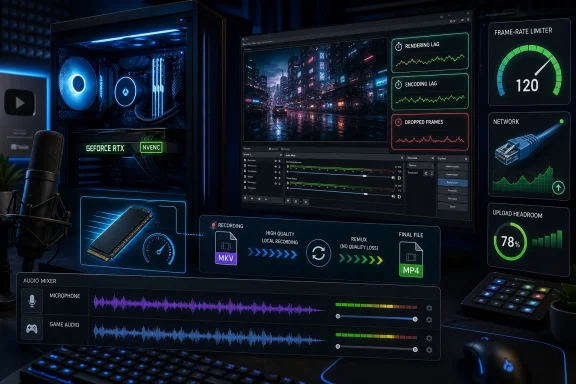
That is why OBS has long steered creators toward MKV for recording. MKV is not magic, but it is more forgiving when something goes wrong. If OBS crashes, the system locks up, or the power flickers, you are far more likely to keep the footage up to the failure point.
The workflow is simple. Record in MKV, then remux to MP4 after the session if your editor or platform prefers MP4. Remuxing is not re-encoding; it repackages the streams into another container, so it is fast and should not degrade quality.
There are also newer fragmented MP4 options that improve resilience, but the broader principle remains: do not risk an entire recording session for file-format convenience. Creators learn this lesson once, usually after losing the one match, raid, race, or boss fight they actually needed.
Windows Game Mode is worth enabling on modern systems, not because it turns a budget PC into a monster, but because it helps prioritize the active game and reduce avoidable background interference. Likewise, Do Not Disturb and notification controls matter more than many creators admit. A perfect recording can still be ruined by a notification banner, a focus-stealing app, or a mid-session restart prompt.
Hardware-accelerated GPU scheduling is more complicated. On some systems it can reduce latency and smooth scheduling between the game and capture stack. On others, the difference is marginal or workload-dependent. It is worth testing, but it should be treated as a switch to validate rather than a universal cure.
The sane workflow is empirical. Change one setting, run the same game, record the same kind of scene, and watch OBS statistics. If rendering lag drops, encoding lag disappears, or frametime spikes settle down, keep the change. If nothing improves, do not build a religion around the toggle.
OBS exposes the more useful truth. Its stats panel separates rendering lag, encoding lag, and dropped network frames. Those categories tell you whether the GPU cannot render the scene in time, the encoder cannot compress frames fast enough, or the connection cannot deliver the stream reliably.
That distinction matters because each failure has a different fix. Rendering lag often means the game is consuming too much GPU headroom, so a frame cap or lower graphics setting may help. Encoding lag points to encoder settings that are too heavy or hardware that cannot keep up. Network dropped frames require a bitrate, routing, or upload stability fix, not a new CPU cooler.
This is where many creators waste money. They upgrade storage for an encoder problem, replace a CPU for a network problem, or blame YouTube for a local frametime issue. The stats panel is not glamorous, but it is the difference between troubleshooting and guessing.
Capping the game a little below the system’s maximum can make the entire recording pipeline more stable. A game that runs between 130 and 180 FPS uncapped may record more smoothly when capped at 120 FPS. A demanding title that swings wildly above and below 100 FPS may produce better video at a locked 60 or 90 FPS.
This feels wrong if you think optimization means maximizing one number. But content creation is about consistency. You are not just playing the game; you are producing a viewable artifact from the game.
The same logic applies to graphics settings. Ultra shadows, excessive ray tracing, oversized texture packs, and exotic anti-aliasing can be worth it for screenshots, but they may not survive YouTube compression or livestream bitrates. If viewers cannot see the difference after encoding, the setting is not visual quality — it is overhead.
Creators should record to an SSD with enough free space and avoid filling it to the edge. Drives slow down as they run out of room, and Windows itself needs breathing space for caches, updates, and temporary files. A dedicated recording drive is not mandatory, but it is often one of the cleanest upgrades for a creator who captures long sessions.
NVMe is ideal, SATA SSD is usually fine, and hard drives are best reserved for archival storage once the session is done. If the recording bitrate is high and the file is being written to a drive that is also loading game assets, paging memory, syncing cloud folders, and indexing files, stutter should not be surprising.
The storage conversation also extends to organization. A creator who cannot find the correct take, loses the MKV before remuxing, or edits from a cluttered drive is still bottlenecked. Production speed is not only measured in megabytes per second.
A good single-PC setup should separate game audio, microphone input, voice chat, alerts, and music where possible. OBS audio monitoring and Windows app volume controls are useful, but they require discipline. If every source lands in one mixed track, fixing problems later becomes much harder.
Recording multiple audio tracks is one of the most valuable habits a creator can build. Put the microphone on one track, game audio on another, chat on another if needed, and a mixed track for quick review. This makes editing slower only at first; over time, it saves entire videos.
Noise suppression, compression, gates, and limiters can help, but they are not substitutes for gain staging. If the microphone is clipping before OBS sees it, no plugin can fully rescue the signal. The quiet professionalism of a channel often starts with a boring test recording and a five-minute listen before going live.
A modern 6-core, 12-thread CPU is a reasonable baseline for a single-PC creator rig. Eight cores or more gives additional headroom, especially for creators who multitask heavily or edit on the same machine. Clock speed still matters for gaming, but core count helps keep the rest of the production environment from crowding the game.
The key is balance. A creator with a high-end GPU and an aging quad-core CPU may find that NVENC cannot solve everything because the system is choking elsewhere. Conversely, a powerful CPU cannot fix a GPU pinned at maximum load while OBS tries to composite and encode.
The best creator PCs are not always the ones with the highest single benchmark score. They are the ones with enough headroom across CPU, GPU, memory, storage, and network to absorb the messiness of real sessions.
For a serious YouTube gaming workflow, 32GB is the practical comfort zone. It gives the system room for the game, recording stack, browser-based stream controls, editing prep, and occasional multitasking. Heavy creators working with 4K footage, large project files, or simultaneous editing and encoding may want more.
Memory speed and latency can matter in CPU-sensitive games, but capacity is the first-order concern for most creators. Running out of RAM is not subtle. It turns a powerful PC into a hesitant one, especially when paired with slow or crowded storage.
As with storage, the goal is not luxury for its own sake. It is reducing the number of ways a session can go sideways while you are trying to perform, narrate, moderate, and capture at the same time.
Ethernet remains the default recommendation for live streaming. Wi-Fi can work, especially on modern hardware in clean RF environments, but it adds variability. Live video hates variability. It wants a boring, stable path.
Upload speed should be measured under realistic conditions, not once on a perfect afternoon. If other people are watching 4K video, backing up photos, gaming, or using cloud storage, your stream competes with them. The safer rule is to leave headroom rather than running the bitrate at the edge of a speed test result.
YouTube creators should also distinguish between recording and streaming. Local recording can use high-quality settings without touching the network. Streaming must respect the upload pipe. Trying to make one setting serve both jobs is a common source of mediocre results.
Technical quality matters because bad quality drives people away. But beyond a reasonable threshold, schedule, pacing, packaging, voice, topic selection, and audience trust matter more. A creator who publishes reliably with clean 1080p footage and clear audio is in a better position than one who disappears for three weeks chasing a flawless 4K60 workflow.
That does not mean quality is irrelevant. It means the purpose of optimization is to make production repeatable. The best settings are the ones you can use every week without drama.
This is why single-PC optimization matters. A creator who can sit down, launch OBS, record cleanly, and edit from reliable files has removed friction from the creative process. The less time spent recovering broken captures, the more time available for scripting, thumbnails, pacing, and community.
If OBS shows encoding lag while using an older hardware encoder, a newer GPU with a better media engine may help. If the game and OBS are competing for CPU time, a CPU upgrade may be the answer. If local recordings stutter or fail at high bitrates, storage deserves scrutiny. If the stream collapses while recordings are clean, the network is the suspect.
GPU generation matters for creators in a way that simple rasterization benchmarks do not capture. Newer cards may bring better H.264 quality, improved HEVC support, AV1 encoding, more efficient media engines, or better handling of high-resolution workflows. For YouTube specifically, AV1 and HEVC support are increasingly relevant where the workflow and platform path support them.
Still, do not buy a feature you cannot use. If your editor, capture software, GPU, driver, and platform setup are all built around H.264, AV1 support may be a future-proofing advantage rather than an immediate transformation. Practical creators upgrade for the workflow they actually run, not the spec sheet they admire.
Before a recording session or livestream, launch the game, open OBS, verify the scene collection, check audio meters, confirm the recording path, inspect available disk space, and record a short test. Then watch the test. Not the whole thing, just enough to confirm motion, audio, levels, and sync.
This ritual feels unnecessary until it saves a session. The wrong microphone, muted desktop audio, a full drive, a stale scene, a broken browser source, or a forgotten bitrate setting can ruin an hour instantly. A two-minute preflight is cheaper than rebuilding a moment that only happened once.
Serious creators also keep profiles. One OBS profile for local recording, another for YouTube streaming, another for lower-bandwidth travel or backup use. Profiles reduce the temptation to constantly mutate one fragile configuration.
That kind of reliability comes from treating the PC as a system. Encoder, bitrate, container, storage, CPU, GPU, memory, Windows scheduling, audio, and network all contribute. None of them needs to be perfect, but one weak link can dominate the result.
This is the difference between an enthusiast build and a creator workstation. The former is designed to impress in bursts. The latter is designed to produce finished work repeatedly.
 The Single-PC Creator Rig Is No Longer a Compromise by Default
The old advice was simple: if you wanted clean gameplay and a clean stream, build two PCs. One rendered the game, the other captured and encoded the video. That advice made sense when CPU encoding was the practical gold standard and consumer GPUs did not have today’s dedicated media engines.That world has changed. Modern NVIDIA, AMD, and Intel GPUs include fixed-function video encoders designed specifically to compress video without asking the CPU to do the entire job. For YouTube creators, especially those publishing 1080p or 1440p gameplay, that changes the economics of the setup.
A second PC still has a place in broadcast-style productions. It isolates the stream from game crashes, allows more complex scenes, and gives professional operators more room for audio routing, replay systems, and multi-camera work. But for most gaming channels, the real question is no longer “single PC or dual PC?” It is whether the single PC has been configured like a production workstation rather than merely benchmarked like a gaming toy.
Your Encoder Choice Decides Where the Pain Goes
The encoder is the hinge of the whole workflow. It takes raw frames from the game and compresses them into something YouTube, OBS, your editor, or your hard drive can tolerate. Choose poorly, and the machine starts fighting itself.Software encoding, usually x264 in OBS, leans heavily on the CPU. It can produce excellent results, and in controlled environments it remains deeply tunable. But modern games already compete aggressively for CPU time, especially open-world titles, simulation games, competitive shooters, and anything with heavy background asset streaming.
Hardware encoding moves that burden to a dedicated block on the GPU. NVIDIA’s NVENC, AMD’s AMF, and Intel’s Quick Sync or Arc media engines exist precisely because video compression is too common and too expensive to leave entirely to general-purpose CPU cores. That does not make hardware encoding free, but it makes it dramatically easier to run a polished single-PC setup.
The practical advice is blunt: if you are gaming and creating on the same Windows PC, start with hardware encoding. Use x264 only if you know why you need it and have enough CPU overhead to absorb the hit. A creator who spends the whole session chasing dropped frames is not making better video because the encoder was theoretically more elegant.
OBS Is a Production Console, Not a Magic Button
OBS is popular because it is powerful, free, and flexible. It is also popular because people can make a mess of it quickly. The difference between a clean capture and a stuttery one is often not the GPU model but a handful of settings buried in plain sight.For local recording, constant-quality modes such as CQP or CRF-style controls are usually a better starting point than forcing a fixed bitrate. A CQP value around 18–22 is a common range for good-looking gameplay captures, with lower numbers producing larger, higher-quality files. The point is not to worship one number; the point is to stop treating local recording like a live stream.
Streaming is different because the upload pipe is finite. YouTube’s live ingestion recommendations vary by resolution, frame rate, codec, and HDR mode, but the broader lesson is stable delivery over inflated numbers. If your connection cannot hold the bitrate with headroom, the stream will punish you no matter how expensive the GPU is.
For 1080p60 streaming, many creators land somewhere in the 6,000–12,000 Kbps range depending on platform guidance, codec, and connection quality. YouTube can accept higher bitrates than some competing platforms, but that does not mean every stream benefits from brute force. A stable, properly keyed, correctly scaled stream usually beats a bloated stream that chokes every time the household network gets busy.
The Container Format Is the Insurance Policy Nobody Notices Until Disaster
MP4 is convenient because almost everything can open it. Editors like it, uploaders like it, and operating systems understand it. That convenience hides a nasty trap: traditional MP4 recording can become unusable if the recording process crashes before the file is finalized.That is why OBS has long steered creators toward MKV for recording. MKV is not magic, but it is more forgiving when something goes wrong. If OBS crashes, the system locks up, or the power flickers, you are far more likely to keep the footage up to the failure point.
The workflow is simple. Record in MKV, then remux to MP4 after the session if your editor or platform prefers MP4. Remuxing is not re-encoding; it repackages the streams into another container, so it is fast and should not degrade quality.
There are also newer fragmented MP4 options that improve resilience, but the broader principle remains: do not risk an entire recording session for file-format convenience. Creators learn this lesson once, usually after losing the one match, raid, race, or boss fight they actually needed.
Windows Performance Tuning Is Really Interruption Management
A gaming creator does not need a mystical registry script to make Windows usable. The bigger problem is interruption. Background launchers, browser tabs, RGB utilities, cloud sync clients, update prompts, capture overlays, chat tools, and audio plugins all want a slice of the machine at the same time.Windows Game Mode is worth enabling on modern systems, not because it turns a budget PC into a monster, but because it helps prioritize the active game and reduce avoidable background interference. Likewise, Do Not Disturb and notification controls matter more than many creators admit. A perfect recording can still be ruined by a notification banner, a focus-stealing app, or a mid-session restart prompt.
Hardware-accelerated GPU scheduling is more complicated. On some systems it can reduce latency and smooth scheduling between the game and capture stack. On others, the difference is marginal or workload-dependent. It is worth testing, but it should be treated as a switch to validate rather than a universal cure.
The sane workflow is empirical. Change one setting, run the same game, record the same kind of scene, and watch OBS statistics. If rendering lag drops, encoding lag disappears, or frametime spikes settle down, keep the change. If nothing improves, do not build a religion around the toggle.
The OBS Stats Window Is More Honest Than Your Average FPS Counter
Average FPS is a comforting number because it is simple. Unfortunately, viewers do not watch averages. They see stutters, audio desync, dropped frames, and sudden quality collapses.OBS exposes the more useful truth. Its stats panel separates rendering lag, encoding lag, and dropped network frames. Those categories tell you whether the GPU cannot render the scene in time, the encoder cannot compress frames fast enough, or the connection cannot deliver the stream reliably.
That distinction matters because each failure has a different fix. Rendering lag often means the game is consuming too much GPU headroom, so a frame cap or lower graphics setting may help. Encoding lag points to encoder settings that are too heavy or hardware that cannot keep up. Network dropped frames require a bitrate, routing, or upload stability fix, not a new CPU cooler.
This is where many creators waste money. They upgrade storage for an encoder problem, replace a CPU for a network problem, or blame YouTube for a local frametime issue. The stats panel is not glamorous, but it is the difference between troubleshooting and guessing.
Frame Caps Are the Creator’s Secret Weapon
Gamers love uncapped frame rates because the number goes up. Creators should be more skeptical. A GPU running at 98–100 percent utilization has little room left for OBS composition, browser sources, overlays, scaling, and encoding assistance.Capping the game a little below the system’s maximum can make the entire recording pipeline more stable. A game that runs between 130 and 180 FPS uncapped may record more smoothly when capped at 120 FPS. A demanding title that swings wildly above and below 100 FPS may produce better video at a locked 60 or 90 FPS.
This feels wrong if you think optimization means maximizing one number. But content creation is about consistency. You are not just playing the game; you are producing a viewable artifact from the game.
The same logic applies to graphics settings. Ultra shadows, excessive ray tracing, oversized texture packs, and exotic anti-aliasing can be worth it for screenshots, but they may not survive YouTube compression or livestream bitrates. If viewers cannot see the difference after encoding, the setting is not visual quality — it is overhead.
Storage Is the Boring Bottleneck That Ruins Great Footage
High-bitrate recording writes a lot of data quickly. A modern SSD usually handles this without drama. A slow hard drive, nearly full disk, external USB drive, or overloaded system volume may not.Creators should record to an SSD with enough free space and avoid filling it to the edge. Drives slow down as they run out of room, and Windows itself needs breathing space for caches, updates, and temporary files. A dedicated recording drive is not mandatory, but it is often one of the cleanest upgrades for a creator who captures long sessions.
NVMe is ideal, SATA SSD is usually fine, and hard drives are best reserved for archival storage once the session is done. If the recording bitrate is high and the file is being written to a drive that is also loading game assets, paging memory, syncing cloud folders, and indexing files, stutter should not be surprising.
The storage conversation also extends to organization. A creator who cannot find the correct take, loses the MKV before remuxing, or edits from a cluttered drive is still bottlenecked. Production speed is not only measured in megabytes per second.
Audio Quality Is the First Thing Viewers Notice After It Goes Wrong
Gaming optimization guides often obsess over video and treat audio as an accessory. YouTube audiences are less forgiving. Viewers will tolerate slightly compressed footage more easily than harsh, clipped, delayed, noisy, or unbalanced audio.A good single-PC setup should separate game audio, microphone input, voice chat, alerts, and music where possible. OBS audio monitoring and Windows app volume controls are useful, but they require discipline. If every source lands in one mixed track, fixing problems later becomes much harder.
Recording multiple audio tracks is one of the most valuable habits a creator can build. Put the microphone on one track, game audio on another, chat on another if needed, and a mixed track for quick review. This makes editing slower only at first; over time, it saves entire videos.
Noise suppression, compression, gates, and limiters can help, but they are not substitutes for gain staging. If the microphone is clipping before OBS sees it, no plugin can fully rescue the signal. The quiet professionalism of a channel often starts with a boring test recording and a five-minute listen before going live.
CPU Cores Still Matter, Just Not in the Way They Used To
Hardware encoders reduced the need for brute-force CPU encoding, but they did not make CPUs irrelevant. Games need CPU time. OBS needs CPU time. Browser sources, chat bots, virtual cameras, audio filters, capture cards, antivirus, launchers, and editing tools all need CPU time.A modern 6-core, 12-thread CPU is a reasonable baseline for a single-PC creator rig. Eight cores or more gives additional headroom, especially for creators who multitask heavily or edit on the same machine. Clock speed still matters for gaming, but core count helps keep the rest of the production environment from crowding the game.
The key is balance. A creator with a high-end GPU and an aging quad-core CPU may find that NVENC cannot solve everything because the system is choking elsewhere. Conversely, a powerful CPU cannot fix a GPU pinned at maximum load while OBS tries to composite and encode.
The best creator PCs are not always the ones with the highest single benchmark score. They are the ones with enough headroom across CPU, GPU, memory, storage, and network to absorb the messiness of real sessions.
Memory Is Cheap Until You Run Out Mid-Session
Sixteen gigabytes of RAM remains workable for some gaming systems, but it is increasingly tight for gaming plus creation. A game, OBS, browser dashboards, Discord, asset tools, launchers, and background services can consume memory quickly. Once Windows starts leaning heavily on the page file, consistency suffers.For a serious YouTube gaming workflow, 32GB is the practical comfort zone. It gives the system room for the game, recording stack, browser-based stream controls, editing prep, and occasional multitasking. Heavy creators working with 4K footage, large project files, or simultaneous editing and encoding may want more.
Memory speed and latency can matter in CPU-sensitive games, but capacity is the first-order concern for most creators. Running out of RAM is not subtle. It turns a powerful PC into a hesitant one, especially when paired with slow or crowded storage.
As with storage, the goal is not luxury for its own sake. It is reducing the number of ways a session can go sideways while you are trying to perform, narrate, moderate, and capture at the same time.
The Network Is Part of the Rig
A streaming PC does not end at the case. The router, modem, Ethernet cable, ISP upload path, and household traffic are all part of the production chain. A creator who ignores the network will eventually misdiagnose dropped frames as a PC performance problem.Ethernet remains the default recommendation for live streaming. Wi-Fi can work, especially on modern hardware in clean RF environments, but it adds variability. Live video hates variability. It wants a boring, stable path.
Upload speed should be measured under realistic conditions, not once on a perfect afternoon. If other people are watching 4K video, backing up photos, gaming, or using cloud storage, your stream competes with them. The safer rule is to leave headroom rather than running the bitrate at the edge of a speed test result.
YouTube creators should also distinguish between recording and streaming. Local recording can use high-quality settings without touching the network. Streaming must respect the upload pipe. Trying to make one setting serve both jobs is a common source of mediocre results.
YouTube Rewards Consistency Before Perfection
The platform side of this discussion is uncomfortable because it is not purely technical. Creators often imagine that the perfect encoder preset will make the channel grow. It will not.Technical quality matters because bad quality drives people away. But beyond a reasonable threshold, schedule, pacing, packaging, voice, topic selection, and audience trust matter more. A creator who publishes reliably with clean 1080p footage and clear audio is in a better position than one who disappears for three weeks chasing a flawless 4K60 workflow.
That does not mean quality is irrelevant. It means the purpose of optimization is to make production repeatable. The best settings are the ones you can use every week without drama.
This is why single-PC optimization matters. A creator who can sit down, launch OBS, record cleanly, and edit from reliable files has removed friction from the creative process. The less time spent recovering broken captures, the more time available for scripting, thumbnails, pacing, and community.
The Upgrade Path Should Follow the Bottleneck, Not the Marketing Cycle
When tuning stops helping, upgrades may be justified. But the correct upgrade depends on the failure mode. Buying a new GPU because the stream is dropping network frames is just expensive superstition.If OBS shows encoding lag while using an older hardware encoder, a newer GPU with a better media engine may help. If the game and OBS are competing for CPU time, a CPU upgrade may be the answer. If local recordings stutter or fail at high bitrates, storage deserves scrutiny. If the stream collapses while recordings are clean, the network is the suspect.
GPU generation matters for creators in a way that simple rasterization benchmarks do not capture. Newer cards may bring better H.264 quality, improved HEVC support, AV1 encoding, more efficient media engines, or better handling of high-resolution workflows. For YouTube specifically, AV1 and HEVC support are increasingly relevant where the workflow and platform path support them.
Still, do not buy a feature you cannot use. If your editor, capture software, GPU, driver, and platform setup are all built around H.264, AV1 support may be a future-proofing advantage rather than an immediate transformation. Practical creators upgrade for the workflow they actually run, not the spec sheet they admire.
The Real Optimization Is Building a Repeatable Preflight
The most professional habit is not a secret Windows tweak. It is a preflight routine. Pilots use checklists because memory fails under pressure; creators should borrow the idea.Before a recording session or livestream, launch the game, open OBS, verify the scene collection, check audio meters, confirm the recording path, inspect available disk space, and record a short test. Then watch the test. Not the whole thing, just enough to confirm motion, audio, levels, and sync.
This ritual feels unnecessary until it saves a session. The wrong microphone, muted desktop audio, a full drive, a stale scene, a broken browser source, or a forgotten bitrate setting can ruin an hour instantly. A two-minute preflight is cheaper than rebuilding a moment that only happened once.
Serious creators also keep profiles. One OBS profile for local recording, another for YouTube streaming, another for lower-bandwidth travel or backup use. Profiles reduce the temptation to constantly mutate one fragile configuration.
The Creator Rig Wins When It Stops Demanding Attention
The best gaming creator setup disappears during use. It does not make the player choose between smooth input and clean footage. It does not require a ritual sacrifice of background processes before every match. It does not produce files that might vanish if OBS crashes.That kind of reliability comes from treating the PC as a system. Encoder, bitrate, container, storage, CPU, GPU, memory, Windows scheduling, audio, and network all contribute. None of them needs to be perfect, but one weak link can dominate the result.
This is the difference between an enthusiast build and a creator workstation. The former is designed to impress in bursts. The latter is designed to produce finished work repeatedly.
The Settings That Matter After the Benchmark Ends
The practical lesson is not that every creator needs the same preset. It is that every creator needs the same discipline: identify the bottleneck, leave headroom, and protect the recording. A stable workflow beats a heroic one.- Use a hardware encoder first for single-PC gaming content unless you have a specific reason and enough CPU headroom to use software encoding.
- Record locally in a resilient format such as MKV or a fault-tolerant MP4 mode, then remux when MP4 compatibility is needed.
- Watch OBS statistics during test runs so you can separate rendering lag, encoding lag, and network dropped frames.
- Cap in-game frame rates when the GPU is maxed out, because consistent frametimes matter more to video than peak FPS.
- Record to an SSD with enough free space, and avoid writing high-bitrate captures to a slow or overloaded drive.
- Treat audio, upload stability, and preflight checks as core parts of optimization rather than finishing touches.
References
- Primary source: Hardware Secrets
Published: 2026-06-08T21:34:11.282648
Gaming PC Optimization for YouTube Content Creation - Hardware Secrets
You’ve spent countless hours and a significant budget building the perfect gaming rig, and it runs the latest titles at max settings with smooth frame rates. But the moment you hit the “Record” or “Go Live” button, everything changes. Stutters, frame drops, and input lag suddenly plague your...hardwaresecrets.com - Official source: support.google.com

Choose live encoder settings, bitrates and resolutions - YouTube Help
Choose a quality that will result in a reliable stream based on your Internet connection. Read this article to learn how.
support.google.com
- Related coverage: yostream.io
Best Multistream Bitrate Settings for YouTube Live
Best multistream bitrate settings for YouTube Live. Per-resolution tables, OBS configs, upload speed math, and fixes for the most common stream failures.yostream.io - Related coverage: support.restream.io
YouTube bitrate settings | Restream Help Center
Follow this guide to optimize your streaming experience with YouTube.support.restream.io - Related coverage: streamhub.world
Best YouTube Live Settings: Bitrate, Resolution and Encoding
In the dynamic realm of live streaming, delivering a pristine visual and auditory experience is paramount to capturing and retaining an audience on platforms like YouTube. The quality of your broadcast isn't just a matter of having good content; it's meticulously engineered through a... streamhub.world
- Related coverage: snoober.home.blog
