If you treat your PC’s SSD like an eternal, indestructible speed demon, you’re asking for trouble — albeit slowly. Recent coverage distilled into six practical Windows 11 tweaks can reduce needless writes, maintain performance, and meaningfully extend the life of a solid‑state drive. The recommendations are simple: verify TRIM is active, enable safe write‑caching, keep spare capacity available (or over‑provision), update firmware with vendor tools, and reconsider hibernation and pagefile settings — but each of those items deserves nuance. This feature walks you through why these tweaks matter, when to apply them (and when not to), and safe, step‑by‑step actions to help you extend SSD lifespan in Windows 11 without trading reliability for a few extra gigabytes of endurance.
SSDs are fast, quiet, and power‑efficient, but they wear out differently than spinning hard drives. Each NAND flash cell can be written a finite number of times. The two technical problems to understand are write amplification (more physical writes than host writes) and limited P/E cycles (program/erase cycles per cell). Drive manufacturers express endurance as TBW (Total Bytes Written) or DWPD (Drive Writes Per Day), which let you estimate how long a drive should last under a given workload.
Windows can influence how frequently your SSD is written to. Useful Windows behaviors — virtual memory (pagefile), hibernation, Fast Startup, and certain file‑system operations — all generate writes. The good news: a few targeted tweaks reduce unnecessary host writes and let the SSD controller do its job (garbage collection, wear leveling, and TRIM) efficiently, which keeps write amplification low and extends drive life.
Before you make changes, follow two rules: (1) back up critical data and (2) verify what your specific drive’s documentation and vendor tools recommend. SSD models, controllers, and firmware vary; one-size-fits-all advice can be harmful if blindly applied.
How to check (safe, one‑line command):
How to disable:
Safe guidance:
How to enable (Device Manager):
What to aim for:
How to proceed safely:
For most home users, modest, reversible changes (confirm TRIM, enable safe write caching, free up space) will deliver the best balance of extended SSD life and reliability. For power users and professionals with heavy write workloads, pair these tweaks with higher‑end SSDs rated for high TBW, deliberate over‑provisioning, and a regimented monitoring and backup strategy.
Do this right and you’ll keep that NVMe zippy for years without compromising the primary goal: your data must remain safe. Keep backups, monitor health, and make measured changes — not dramatic ones — and your Windows 11 SSD will reward you with steady performance and long service.
Source: PCWorld Stop killing your SSD: 6 must-do Windows 11 tweaks
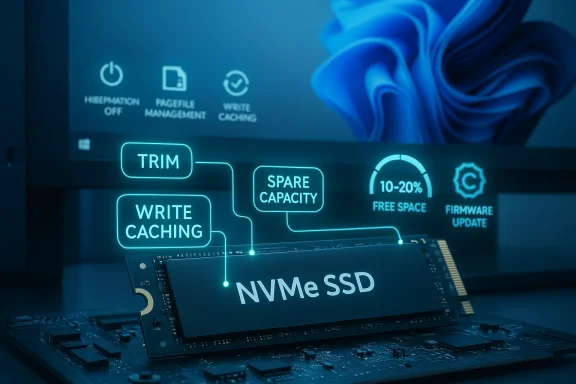 Overview: Why SSDs wear out and which Windows tweaks help most
SSDs are fast, quiet, and power‑efficient, but they wear out differently than spinning hard drives. Each NAND flash cell can be written a finite number of times. The two technical problems to understand are write amplification (more physical writes than host writes) and limited P/E cycles (program/erase cycles per cell). Drive manufacturers express endurance as TBW (Total Bytes Written) or DWPD (Drive Writes Per Day), which let you estimate how long a drive should last under a given workload.Windows can influence how frequently your SSD is written to. Useful Windows behaviors — virtual memory (pagefile), hibernation, Fast Startup, and certain file‑system operations — all generate writes. The good news: a few targeted tweaks reduce unnecessary host writes and let the SSD controller do its job (garbage collection, wear leveling, and TRIM) efficiently, which keeps write amplification low and extends drive life.
Before you make changes, follow two rules: (1) back up critical data and (2) verify what your specific drive’s documentation and vendor tools recommend. SSD models, controllers, and firmware vary; one-size-fits-all advice can be harmful if blindly applied.
Background: Key SSD concepts every Windows user should know
What wears an SSD
- Host writes: every file you save, pagefile write, or hibernate image increases the drive’s TBW.
- Write amplification (WA): internal SSD housekeeping may multiply the number of physical writes relative to host writes; reducing unnecessary host writes helps.
- Over‑provisioning & free space: spare, unused capacity gives the controller room to shuffle blocks and reduces WA.
- Firmware & garbage collection: drive firmware orchestrates wear leveling and free block reclamation; firmware bugs can cause unexpected failures.
What Windows already does well (and what to check)
- TRIM: modern Windows versions send TRIM/unmap to SSDs to tell the controller which blocks are free; TRIM significantly reduces internal writes. Windows generally enables TRIM automatically for NTFS/ReFS on supported storage, but it’s worth confirming.
- Automatic pagefile management: Windows will create and resize the pagefile as needed; disabling it outright can break crash dumps and stability for some apps.
- Fast Startup/Hibernation: Fast Startup uses a hibernation style kernel snapshot and writes it to disk (hiberfil.sys). Disabling hibernation removes that file and the related writes, but you lose functionality (hibernate and Fast Startup).
The six Windows 11 SSD tweaks explained (what to do, why it matters, and the risks)
1) Check and ensure TRIM is enabled
Why: TRIM tells the SSD which LBA ranges are no longer in use. That enables efficient garbage collection and reduces write amplification — a direct win for endurance and consistent performance.How to check (safe, one‑line command):
- Open an elevated Command Prompt (Run as Administrator).
- Run:
- fsutil behavior query DisableDeleteNotify
- DisableDeleteNotify = 0 → TRIM is enabled (good).
- DisableDeleteNotify = 1 → TRIM is disabled (you may want to enable it).
- In an elevated Command Prompt run:
- fsutil behavior set DisableDeleteNotify 0
- TRIM is only effective if the SSD and driver stack support it. Hardware RAID or certain storage drivers may not pass TRIM through; some RAID modes do not support TRIM.
- If you use special recovery or forensic workflows (recovering deleted files), temporarily disabling TRIM can help recover data — but re‑enable it after you finish.
- On ReFS there are version differences in default behavior; check your file system specifics.
2) Disable hibernation (if you don’t use it) — free up space and cut large writes
Why: The hiberfil.sys file equals roughly the size of system RAM and is rewritten when you hibernate or when Fast Startup saves a kernel snapshot. Disabling hibernation deletes that file and stops hibernation‑related writes.How to disable:
- Open an elevated Command Prompt.
- Run:
- powercfg /hibernate off
- Frees a chunk of drive space proportional to RAM (e.g., 16 GB RAM → ~16 GB file).
- Stops the large, full‑RAM writes to the SSD made by hibernation and Fast Startup.
- You lose hibernate and Fast Startup (Fast Startup speeds shutdown/boot by using the hibernation file).
- Fast Startup sometimes interferes with dual‑boot setups, firmware updates, and full system upgrades — for such systems, disabling Fast Startup can actually increase reliability.
- Laptops benefit from hibernation for battery conservation and session restore; don’t disable it on a laptop you depend on for longer unplugged sessions.
3) Don’t blindly disable the pagefile — size and location matter
Why: The pagefile is used for virtual memory, commit backing, and crash dumps. Some guides say “turn it off to save SSD writes,” but that’s risky.Safe guidance:
- For most users: leave Windows to manage the pagefile automatically. Windows dynamically sizes it and ensures the system commit limit is sufficient.
- If you have very large RAM and specific needs, consider a manual but conservative approach: keep a small pagefile on the boot drive for crash dumps and move most paging to a secondary drive only if you understand the consequences.
- Don’t disable the pagefile entirely unless you have strong reasons and full backups.
- If you move or reduce it, ensure the boot volume retains a pagefile large enough for kernel/automatic dumps. Microsoft documents minimums for different dump types; a kernel or automatic dump requires a pagefile sized to support the dump on the boot volume.
- Some legacy or poorly written apps expect a pagefile and may fail even with lots of RAM.
- Windows writes crash dump data to pagefile space; without sufficient pagefile size you may lose full diagnostic dumps and hamper troubleshooting.
- Heavy workloads that exceed physical RAM will suffer performance or stability issues.
4) Enable write‑caching prudently — but only with protection
Why: Enabling device write caching can reduce immediate physical writes and increase throughput by buffering writes, which can reduce overall write amplification in some workloads. However, cached writes not yet flushed to nonvolatile media are at risk on power loss.How to enable (Device Manager):
- Open Device Manager → Disk Drives → double‑click your SSD → Policies tab.
- Check Enable write caching on the device.
- Do not check “Turn off Windows write‑cache buffer flushing on the device” unless you have a reliable UPS and understand the data‑loss risk.
- Turning off buffer flushing can improve throughput further, but it raises the risk of data loss and corruption in a power failure. Only advanced users with UPS protection and full backups should enable the “turn off flushing” option.
- Certain drives, controllers, or vendor drivers manage their own write caches and flushing; consult the SSD vendor documentation first.
5) Keep at least 10–20% free (or use vendor over‑provisioning)
Why: Free space gives the SSD controller room for wear leveling and background garbage collection. Most drives already reserve ~7% in the factory, but additional spare capacity helps under heavy or random write workloads.What to aim for:
- General desktop use: keep 10–15% free for consistent performance.
- Heavy write workloads (video editing, VM servers, database): consider 20% or explicit over‑provisioning as recommended by vendor tools.
- Use the SSD vendor utility (Samsung Magician, Crucial Storage Executive, WD Dashboard, Intel Toolkit) to set over‑provisioning or resize partitions and leave unallocated space.
- Alternatively, leave an unpartitioned slice of the drive (but ensure it’s never filled once used; unallocated space yields the benefit only if it was never written to or has been TRIMmed).
- The “optimal” free space depends on the drive model, controller, and workload. Consumer NVMe drives typically perform well with 10%+, while enterprise drives expect larger reserves.
- Over‑provisioning reduces reported capacity; balance your storage needs against longevity requirements.
6) Keep SSD firmware and monitoring tools up to date — but update carefully
Why: Firmware updates fix bugs, improve garbage collection, and sometimes patch security issues. Monitoring helps track TBW, temperature, and critical SMART attributes so you can replace a drive before failure.How to proceed safely:
- Use the drive maker’s official tool: Samsung Magician, Crucial Storage Executive, Western Digital Dashboard, Intel Toolbox, etc.
- Back up your data before any firmware update.
- Follow vendor instructions: some updates require an iso/boot update or reboot and may not work via external USB enclosures.
- If a manufacturer announces a critical security or reliability fix, apply it but follow any vendor advisories (e.g., known update failure modes).
- Firmware updates occasionally fail or introduce regressions. That’s why backups are essential.
- Also note: third‑party vendor tools have had security advisories in the past; always use the latest official utility and read vendor advisories before installing (for example, high‑severity advisories have been published for some SSD utilities in recent years).
Practical checklist: how to apply these tweaks in Windows 11 (safe, step‑by‑step)
- Back up your data (the single most important step).
- Verify TRIM:
- Open Admin Command Prompt.
- Run: fsutil behavior query DisableDeleteNotify
- If TRIM is off, run: fsutil behavior set DisableDeleteNotify 0
- Check pagefile usage before changing:
- Open Task Manager → Performance → Memory to view commit charge.
- If you’re below commit limits and have lots of RAM, you can consider a small pagefile but do not disable it completely unless you’re confident.
- If you need crash dumps, ensure the boot drive retains a pagefile sized for the dump type you want.
- Disable hibernation only if you don’t use it:
- In an elevated prompt run: powercfg /hibernate off
- Confirm freed space by checking free capacity in This PC.
- Configure write caching:
- Device Manager → Disk drives → Properties → Policies.
- Check Enable write caching on the device (recommended).
- Leave flushing enabled unless you have UPS protection and a clear reason to disable it.
- Reserve free space:
- Decide on a target (10–20% recommended depending on workload).
- Use Disk Management to shrink the partition and leave unallocated space, or use vendor tools to set over‑provisioning.
- Update firmware with vendor tools:
- Install the official SSD utility from the drive maker.
- Check for firmware and health indicators (Total Host Writes, available spare).
- Back up, then follow vendor instructions for firmware updates.
- Install a monitoring tool:
- Use CrystalDiskInfo or the vendor utility to track Total Host Writes, Available Spare, Reallocated Sector Count, and Uncorrectable Error Count.
- Schedule backups and periodic checks:
- Once a month check SMART and lifetime writes; if health drops into caution, schedule replacement.
Critical analysis: strengths of the six‑tweak approach and the real risks
Strengths- These tweaks address the primary drivers of SSD wear: excessive writes and poor controller housekeeping room. TRIM and over‑provisioning directly reduce write amplification. Firmware updates restore controller stability and performance. Write caching improves throughput and, when used properly, reduces immediate write bursts. Together they tackle both what Windows writes and how the SSD handles those writes.
- Most recommendations are reversible. You can restore hibernation, reset TRIM, or move the pagefile back, so experimentation is low‑risk when backups are in place.
- Vendor utilities centralize drive health, firmware, and OP configuration, giving you a single source of truth for a particular SSD model.
- Disabling the pagefile: the biggest single risk. Dozens of Microsoft guidance pages and field reports show disabling or severely shrinking the pagefile can cause app errors, instability, and loss of crash dumps. The cost of avoiding pagefile writes is potentially catastrophic data or uptime loss. If you need to restrict writes, prefer moving large, write‑heavy workloads to a secondary drive or upgrading RAM before disabling the pagefile.
- Write‑cache buffer flushing: turning off flushes can corrupt files on power loss. For desktop PCs with an unreliable power source, this is a dangerous optimization. Only risk it behind a good UPS and with full backups.
- Firmware updates: although usually beneficial, firmware updates can fail or introduce regressions. Always back up, read vendor release notes, and prefer stable general‑release firmwares over beta versions.
- Over‑provisioning and free space: reserving large amounts of capacity reduces your usable drive space. Some users will feel the pinch. Over‑provisioning also matters less for modern drives that ship with ample internal spare capacity; for those, keep a modest free space target rather than reserving a third of the disk.
- RAID and certain drivers: TRIM may not be available in some RAID configurations or with older controller drivers. If you run RAID, verify your RAID solution’s TRIM support before relying on Windows’ group settings.
- If you’re a laptop user who depends on hibernate and battery life, disabling hibernation is a poor trade. If you run virtual machines or video editing, prioritize capacity and performance over tiny gains in lifespan: replacing a modern consumer SSD is often cheaper than losing time on complex workarounds.
- Many “SSD prolonging” tweaks are motivated more by anxiety than actual practical necessity. Modern SSDs have much higher TBW ratings and longer lives. For typical consumer workloads, the difference between applying all tweaks and doing none is often measured in years, not weeks. That said, in professional or server settings where TBW matters (heavy daily writes), conservative measures like over‑provisioning and enterprise drives are warranted.
Monitoring and replacement: when to give up and replace the drive
No matter how many tweaks you do, SSDs wear out. Monitor:- Total Host Writes (THW) against the drive’s TBW spec.
- SMART alerts: Reallocated counts, Uncorrectable Error Count, Available Spare.
- Performance: sustained write performance drops that don’t recover after idle or TRIM behavior abnormalities.
A balanced, practical SSD‑care playbook for Windows 11 users
- Keep TRIM enabled and verify it occasionally.
- Enable write caching, but keep write‑cache flushing on unless you have UPS protection.
- Don’t disable the pagefile entirely. If you tune it, leave a boot‑drive pagefile sized for crash dumps.
- Consider disabling hibernation on desktops where you don’t use it, but keep it on laptops that need it.
- Keep 10–20% free space or use vendor over‑provisioning for heavy workloads.
- Use vendor utilities for firmware and health checks; back up before firmware updates.
- Monitor SMART attributes and Total Host Writes monthly; replace the drive when health indicators drop.
Conclusion: SSD stewardship in Windows 11 — sensible tweaks, sensible risk
The headline “Stop killing your SSD” sells urgency, and the core advice — verify TRIM, reduce oversized writes, leave spare capacity, update firmware, and use write caching wisely — is sound. But every change brings tradeoffs. The most common user mistakes are doing something irreversible (or risky) without a backup, or disabling the pagefile or cache flushing without understanding the stability and data‑loss implications.For most home users, modest, reversible changes (confirm TRIM, enable safe write caching, free up space) will deliver the best balance of extended SSD life and reliability. For power users and professionals with heavy write workloads, pair these tweaks with higher‑end SSDs rated for high TBW, deliberate over‑provisioning, and a regimented monitoring and backup strategy.
Do this right and you’ll keep that NVMe zippy for years without compromising the primary goal: your data must remain safe. Keep backups, monitor health, and make measured changes — not dramatic ones — and your Windows 11 SSD will reward you with steady performance and long service.
Source: PCWorld Stop killing your SSD: 6 must-do Windows 11 tweaks