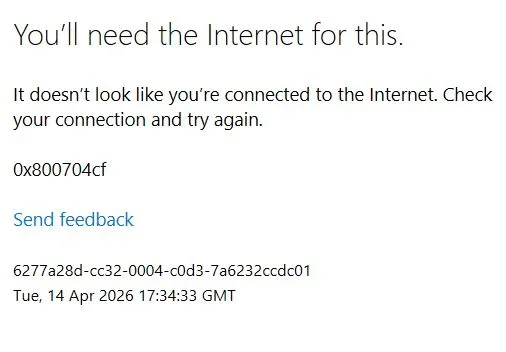
Thanks, John — the screenshot shows
error 0x800704cf.
That code usually means
Windows’ Microsoft sign-in component cannot reach the network/auth service, even though your internet itself is working.
Since:
- webmail works
- Outlook fails even with
outlook.exe /safe
outlook.exe /resetnavpane gives the same result
this is
probably not an Outlook mailbox problem. It is more likely a
Windows sign-in / cached credentials / proxy / profile issue.
1) First check the easy items
A. Make sure Proxy is OFF
- Open Settings
- Go to Network & Internet
- Open Proxy
- Make sure Use a proxy server is Off
- If Automatically detect settings is On, leave it on
B. Check date/time sync
- Open Settings
- Go to Time & language
- Open Date & time
- Turn Set time automatically On
- Click Sync now
A bad clock can break Microsoft sign-in.
C. Temporarily disable VPN / web shield / 3rd-party firewall
If you use:
- VPN
- Avast/AVG/Norton web shield
- firewall suite
turn it off briefly and test Outlook again.
2) Clear stored Microsoft/Office sign-in credentials
- Open Control Panel
- Open Credential Manager
- Open Windows Credentials
- Remove anything related to:
OutlookOfficeMicrosoftOfficeADALOneAuthlogin.live.comlogin.microsoftonline.com- Reboot
- Test Outlook again
3) Create a new Outlook profile
Because webmail works, a damaged Outlook profile is very possible.
- Close Outlook
- Open Control Panel
- Open Mail (Microsoft Outlook)
- Click Show Profiles
- Click Add
- Create a new profile
- Add your email account
- Set the new profile as default for testing
- Open Outlook
If the new profile works, the old one was corrupted.
4) Reset the Microsoft sign-in cache
If the profile does not help, reset the Windows Microsoft-auth cache.
Safer part first
- Open Settings
- Go to Accounts
- Open Email & accounts
- Under Accounts used by other apps, remove your Microsoft account if listed
- Reboot
Then test Outlook again
5) If still broken, reset the auth cache folders
This signs you out of Microsoft apps, but it is often the fix.
- Close Outlook and all Office apps
- Press Win + R
- Open each path below and rename the folder by adding
.old
%LOCALAPPDATA%\Microsoft\OneAuth
%LOCALAPPDATA%\Microsoft\IdentityCache
- Reboot
- Open Outlook and sign in again
6) One browser test
Before reopening Outlook, confirm these open normally in your browser:
[url unfurl="true"]https://login.live.com[/url]
[url unfurl="true"]https://account.microsoft.com[/url]
If those open fine, your internet is okay and the problem is almost certainly
local Outlook/Windows auth cache.
What I would do first
In this order:
- Proxy off + time sync
- Credential Manager cleanup
- New Outlook profile
- Rename
OneAuth and IdentityCache
Since you already proved the mailbox itself works in webmail, I think
new Outlook profile or
auth cache reset is the most likely fix.
If you want, I can give you the
shortest exact click-by-click steps for creating the new Outlook profile next.