

Speccy puts a clear, no-nonsense snapshot of your PC in front of you within seconds — and on Windows 11 that simplicity can save time when you’re diagnosing temperature spikes, planning an upgrade, or preparing a support ticket.
Speccy is a lightweight system-information utility originally developed by Piriform that collects and displays hardware and operating‑system details in a compact, readable interface. It reports everything from CPU model and per‑core temperatures to RAM slot usage, motherboard firmware, storage type and S.M.A.R.T. data, and more. The tool is distributed in a free version (with a paid Pro tier historically available) and continues to be hosted under the Piriform/CCleaner family of tools. For Windows 11 users, Speccy’s primary appeal is fast, local access to telemetry that otherwise requires multiple built‑in utilities (msinfo32, dxdiag, Task Manager) or specialist tools. Community support threads show Speccy is frequently used to produce shareable snapshots for troubleshooting and to check component temperatures before pursuing hardware fixes.
This feature walks through how to download, install, and use Speccy on Windows 11, how to read and interpret the data it provides, what the temperature numbers really mean, and when to reach for more advanced monitoring tools.
Source: Windows Report How to Use Speccy on Windows 11 to Check Your PC Specs
 Background / Overview
Speccy is a lightweight system-information utility originally developed by Piriform that collects and displays hardware and operating‑system details in a compact, readable interface. It reports everything from CPU model and per‑core temperatures to RAM slot usage, motherboard firmware, storage type and S.M.A.R.T. data, and more. The tool is distributed in a free version (with a paid Pro tier historically available) and continues to be hosted under the Piriform/CCleaner family of tools. For Windows 11 users, Speccy’s primary appeal is fast, local access to telemetry that otherwise requires multiple built‑in utilities (msinfo32, dxdiag, Task Manager) or specialist tools. Community support threads show Speccy is frequently used to produce shareable snapshots for troubleshooting and to check component temperatures before pursuing hardware fixes.This feature walks through how to download, install, and use Speccy on Windows 11, how to read and interpret the data it provides, what the temperature numbers really mean, and when to reach for more advanced monitoring tools.
Why use Speccy on Windows 11?
Speccy occupies the sweet spot between “one‑click simplicity” and “enough detail for support.” The benefits are straightforward:- Quick inventory of CPU, GPU, RAM, storage and motherboard without opening the case.
- Real‑time temperature monitoring for CPU, GPU and some drive sensors — useful during benchmarking, gaming, or troubleshooting thermal throttling.
- S.M.A.R.T. and health indicators for storage drives so you can spot failing disks early.
- Snapshot export that creates a portable report you can send to tech support or paste into a forum.
- Low system overhead: it’s lightweight and designed for a single machine view rather than enterprise inventory.
What Speccy shows (at a glance)
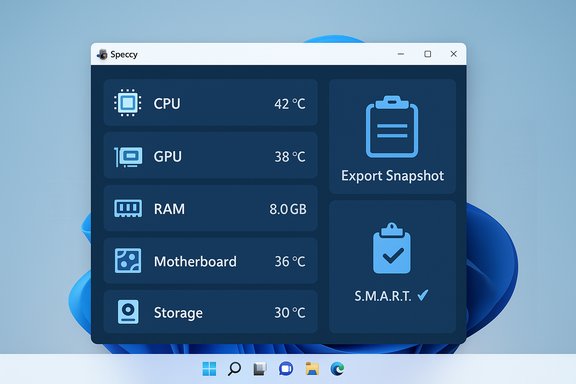
Speccy organizes information into clearly labeled sections; here’s what to expect in each and why it matters:- Summary — a quick top‑level view: OS version, CPU family, installed RAM, and key temperatures.
- CPU — model, base and current speeds, core count, and temperature(s). Useful for confirming model and spotting overheating under load.
- RAM — total capacity, per‑slot population, and frequency; critical when planning memory upgrades or diagnosing single‑stick failures.
- Motherboard — vendor, chipset, BIOS/UEFI version and health of on‑board sensors.
- Graphics — GPU model(s), driver versions and VRAM.
- Storage — drive type (SSD/HDD), size, interface and S.M.A.R.T. attributes when available.
- Operating system & software — Windows build, install date and basic environment details.
How to download and install Speccy on Windows 11
- Open your browser and go to Speccy’s official download builds page on the CCleaner/Piriform site. Using the official builds page avoids ambiguous third‑party installers.
- Download the standard Installer or the Portable build if you prefer not to install software on the system. Portable builds are handy for quick troubleshooting from USB sticks.
- If you chose the Installer, run the downloaded spsetup.exe and follow the prompts. Decline any unrelated offers if any bundled items are presented during installation (historically some CCleaner family installers displayed optional offers; read each step).
- Launch Speccy from the Start menu or the desktop shortcut.
- Several community reports show occasional problems with the download buttons on the public pages; if the main download link fails, use the builds page or official CCleaner builds mirror to fetch the installer. If you’re unsure which file to trust, download from the builds page rather than mirror sites.
- Always verify the file you download matches the publisher (Piriform / CCleaner) and be cautious about third‑party download portals that package adware.
Using Speccy: step‑by‑step on Windows 11
- Launch Speccy; the program scans your system automatically on start and populates the left sidebar with categories.
- Wait a few seconds for the initial scan; Speccy reads many hardware IDs and temperatures from sensors that can take a moment to enumerate.
- Click any category (CPU, RAM, Motherboard, Storage, etc. to expand detailed fields and values.
- To monitor temperatures, watch the Temperatures column beside each device. Speccy shows real‑time readings for CPU package and per‑device temps when supported by sensors.
- To save a record: File → Save Snapshot creates a .speccy file (portable snapshot). Use File → Publish Snapshot to upload a read‑only view that can be shared online, or File → Save as Text/XML to produce a plain text report.
How to read Speccy’s data (and what to look for)
CPU readings
- Check the model string to confirm the exact SKU (this helps when verifying TDP and thermal limits).
- Look at clock rates and core counts to ensure the CPU is running at expected speeds; large drops under load indicate throttling.
- Review temperature values. A short discussion about what counts as “high” appears below, because raw numbers mean little without context.
RAM and slots
- Confirm total capacity and check which slots are populated; this is essential before buying an upgrade.
- Note the frequency (e.g., DDR4-3200) and the actual speed shown in Speccy, which helps identify whether XMP/DOCP profiles are active.
Motherboard and BIOS
- BIOS/UEFI version matters for stability and CPU support; use Speccy to confirm the current firmware string before performing updates.
- Some sensor readings can be “unknown” if OEM firmware doesn’t expose them — that’s normal on some older or proprietary laptops. Update chipset drivers or firmware if fields are missing.
Storage
- Speccy shows drive type and S.M.A.R.T. summary; for deeper analysis (detailed S.M.A.R.T. attributes or advanced failure prediction) use dedicated S.M.A.R.T. utilities or HWiNFO. Speccy’s drive health readout is a quick check rather than a full forensic tool.
What those temperature numbers really mean
Temperature readings are the most actionable but most often misinterpreted part of any hardware report. Key facts to keep in mind:- CPU max specs vary by model. Processors report a maximum junction temperature (Tjunction or TjMax) that typically ranges between roughly 90°C and 110°C depending on model and vendor. Exceeding this triggers throttling or shutdown to protect the silicon. Intel documents that Tjunction values are product‑specific and recommends checking the processor’s specification page for the precise limit.
- AMD Ryzen chips commonly list TjMax ~95°C for many mainstream models. Modern Ryzen CPUs are designed to operate close to this threshold under heavy load, so seeing peaks in the low‑to‑mid 90s during stress testing is not necessarily a failure. However, sustained high temperatures under light load are a sign of cooling issues.
- General practical thresholds: many guides and reviewers use conservative operational thresholds:
- Idle temps: typically 30°C–50°C on desktops with decent airflow.
- Load/gaming: 60°C–85°C is common and generally acceptable for modern CPUs.
- Above ~90°C (sustained) often indicates that throttling is imminent; check model‑specific docs for exact TjMax.
What to do if Speccy shows high temps
- Clean dust and check airflow: cramped airflow or clogged fans is the most common cause of elevated temps.
- Re-seat or replace thermal paste for desktop CPUs with aftermarket coolers if temps are unusually high.
- Confirm fan curves / BIOS settings: many laptops and prebuilt systems use conservative fan profiles; a firmware or vendor utility update can improve thermal behavior.
- Use a dedicated monitoring tool (HWiNFO, Core Temp, or manufacturer utilities) to log temps and correlate with workload; logging helps identify whether spikes are momentary (expected under turbo) or sustained (problematic).
Reading “Unknown” fields in Speccy (drivers and sensors)
If Speccy reports an entry as Unknown, common causes include:- Missing or outdated chipset drivers that prevent Windows from exposing sensor data.
- Locked-down OEM firmware, especially in laptops, which hides some SMBIOS strings.
- Older hardware where some sensors are not implemented or are inaccessible via standard interfaces.
Exporting and sharing Speccy reports safely
Speccy snapshots are convenient but can include identifying info: BIOS serial numbers, MAC addresses, and device identifiers. Before sharing publicly:- Sanitize your snapshot. Open the exported text and remove serials, MACs, or other fields you’d rather not publish.
- Use Publish Snapshot for quick, read‑only sharing with tech support, or save to a scratch folder and compress for a ticket.
- Prefer secure channels (support portals, vendor tickets) over public forums when sharing sensitive hardware identifiers.
Alternatives and complementary tools
Speccy is a fast, simple inspector — but it’s only one tool in a diagnostics toolkit. Consider these complementary programs:- HWiNFO64 — the go‑to for professionals: exhaustive sensor coverage, extensive logging, and CSV exports. Use its “Sensors only” mode for minimal footprint monitoring.
- Core Temp — lightweight per‑core temperature readout and a simple tray indicator for quick checks. Good for laptops where simplicity matters.
- HWMonitor — quick snapshot of voltages, fan speeds and temps; portable versions make it handy for support visits.
- Vendor utilities — Intel XTU, AMD Ryzen Master, and OEM fan control apps when you need tuning, undervolting or fan curve control.
- MSINFO32 / dxdiag / PowerShell — built‑in Windows tools for inventory and driver checks when you need more formal exports for enterprise support.
Security and trust: is Speccy safe?
Speccy has been widely used for years and is part of the Piriform/CCleaner family (now under the Gen Digital corporate umbrella through Avast acquisition history). The software itself is freemium, and reputable download sources include the official CCleaner/Piriform builds page. That said, historical incidents involving the CCleaner family (not Speccy itself) — notably the 2017 supply‑chain compromise affecting CCleaner — are a reminder to download installers only from official pages and to keep software updated. If you are downloading system utilities, prefer official builds pages, verify publisher signatures when possible, and avoid third‑party repacks. Community threads indicate occasional issues with the public download buttons and with the legacy distinction between Free/Pro product pages; if you encounter a broken link, use the official builds section rather than mirrors.Troubleshooting common Speccy problems
- Speccy won’t start or crashes: try running as Administrator and temporarily disable real‑time antivirus to rule out false positives. If instability persists, reinstall the latest Speccy build from the official builds page.
- Sensors missing or “unknown”: update chipset drivers and vendor sensor drivers, update BIOS/UEFI, and then re‑scan in Speccy.
- Snapshot publishing failing: use Save Snapshot to produce a local file instead, then attach it to your support ticket or upload via a trusted cloud storage solution (remember to scrub sensitive fields).
Practical checklist: diagnose a thermal or component issue in under 10 minutes
- Launch Speccy and wait for the initial scan.
- Open CPU and Storage sections and note temperatures and S.M.A.R.T. health.
- Save a Snapshot (File → Save Snapshot).
- Run HWiNFO (Sensors only) and start logging for 2–5 minutes while reproducing the workload that causes the problem.
- Compare Speccy’s quick snapshot against HWiNFO logs to isolate whether spikes are short turbo bursts or sustained heating.
- If temps are consistently above manufacturer guidance under light load, clean the system, check cooling, and reapply thermal compound if appropriate.
- Send sanitized snapshot and HWiNFO logs to vendor support or your hardware forum thread.
Strengths, limitations and practical risks
Strengths- Speed and readability: Speccy gives a usable view with minimal clicks.
- Exportable snapshots: ideal for support workflows.
- Low overhead: quick to run on older systems.
- Not a logging tool: Speccy is not a replacement for continuous logging utilities.
- Sensor coverage varies: some modern or vendor‑locked sensors may not be visible; Speccy depends on Windows and SMBIOS exposure. If sensors are missing, use HWiNFO or vendor tools.
- Download vetting: historical supply‑chain concerns tied to the CCleaner family underline the importance of downloading from official pages and keeping downloads current.
Final thoughts and practical advice
Speccy remains a valuable, low‑friction tool for Windows 11 users who need a quick, readable inventory of hardware and temperature data. It’s ideal for support tickets, quick checks before upgrades, and a first stop when a PC is overheating. For persistent or advanced issues, complement Speccy with logging and tuning tools (HWiNFO, Core Temp, vendor utilities) and always check CPU‑specific thermal documentation (Intel or AMD) to interpret the raw numbers correctly. When using Speccy, follow these best practices:- Download from the official builds page and verify the publisher.
- Sanitize snapshots before sharing publicly.
- Use HWiNFO for logging and troubleshooting if you need per‑sensor history.
Source: Windows Report How to Use Speccy on Windows 11 to Check Your PC Specs
