

Windows 11 users can disable transparency effects and interface animations today through Settings, either by turning off “Transparency effects” under Personalization or Accessibility and disabling “Animation effects” under Accessibility’s Visual effects page. The useful part is not the trick itself, but what it reveals: Microsoft’s modern Windows experience still spends real attention on visual polish that many users experience as drag. The fastest Windows 11 desktop may be the one that looks slightly less like Microsoft’s marketing screenshots. That is a small settings change with a larger argument behind it.
Windows 11 was designed to look calmer than Windows 10. Rounded corners, softened menus, translucent surfaces, animated transitions, and the Mica material system all work together to make the operating system feel less mechanical and more composed. In the abstract, this is good design: a desktop OS used for hours at a time should not feel like a spreadsheet wearing a gray suit.
But polish has a habit of becoming policy. Once an operating system decides that motion and translucency are part of its identity, every click becomes an opportunity to remind the user that the interface has a choreographed personality. Menus do not simply appear; they fade. Windows do not merely open; they glide. Virtual desktops do not switch so much as perform a stage transition.
That performance is not free, even when the cost is small. It consumes GPU and CPU work, adds latency by design, and can reduce visual clarity for users who would rather see a crisp interface than a frosted-glass suggestion of one. The point is not that Windows 11’s visual effects are disastrous. The point is more damning: for many people, they are unnecessary.
The How-To Geek argument lands because it is based on a familiar user experience rather than a benchmark chart. Disable the effects, and Windows can feel more direct. The machine may not be dramatically faster in a measurable sense, but the interface stops inserting tiny theatrical pauses between intent and result.
Designers use animation for good reasons. Motion can show where an object went, signal hierarchy, soften abrupt changes, and make complex interfaces easier to follow. A window minimizing into the taskbar tells a new user that the app has not vanished. A desktop transition helps communicate that the user has moved to a different workspace rather than accidentally losing focus.
The trouble is that those benefits fade as users become fluent. A person switching virtual desktops hundreds of times a week does not need a full-screen gesture to explain what just happened. A sysadmin moving between terminals, browser tabs, remote sessions, and documentation does not need the Start menu to ease into existence. At some point, animation stops being guidance and becomes toll collection.
This is why the “few milliseconds” framing matters. A single delay feels trivial. Thousands of small delays become a texture. They turn the desktop into something that feels cushioned, and not everyone wants cushioning when they are trying to work.
Windows 11 is especially vulnerable here because it arrived with a deliberate aesthetic reset. Microsoft wanted the OS to feel friendlier, more modern, less abrupt, and more competitive with macOS and mobile design language. That visual repositioning made sense for a consumer-facing launch, but it also created a desktop where the default experience is not necessarily the most efficient one.
In practice, the effect can be barely noticeable, inconsistent, or distracting depending on wallpaper, app, theme, display quality, and personal vision. The user who turns transparency off may not feel that Windows becomes ugly. They may simply notice that the interface becomes less visually busy.
That is an uncomfortable reality for modern UI design. Transparency often photographs well. It makes screenshots look premium. It gives product pages a sense of depth that flat blocks of color cannot. But a desktop OS is not primarily a screenshot generator; it is a work surface.
There is also a subtle accessibility argument here. Some users find translucency harder to parse, particularly when background colors bleed through panels or reduce contrast. Microsoft knows this, which is why Windows exposes transparency controls in accessibility-adjacent settings as well as personalization areas. Aesthetic flexibility is not just taste management; it is part of making the interface usable for more people.
Disabling transparency will not transform a sluggish PC by itself. But it removes one more compositing effect from the stack, and on older integrated graphics, remote desktops, virtual machines, low-power laptops, and battery-constrained systems, small simplifications can matter.
Animations are handled just as directly if the goal is a clean sweep. Settings, Accessibility, Visual effects, and then “Animation effects” is the modern Windows 11 route. Toggle it off, and the OS cuts out a broad class of interface motion.
The deeper control panel path still exists, and it is revealing that it does. Search for Advanced system settings, open the Performance settings, and Windows presents the older Visual Effects list: animate windows, fade menus, show shadows, smooth edges of screen fonts, and so on. This is the Windows beneath Windows 11 — the older machinery still present under the softened shell.
That older dialog matters because not everyone wants the nuclear option. A user might hate window animations but like pointer shadows. Another might want smooth fonts and thumbnails but no fades. Microsoft’s modern Settings app encourages broad toggles; the legacy performance dialog still offers a more granular bargain.
This split also says something about Windows as a product. Windows 11 is not a freshly built operating system wearing a unified design system from kernel to Settings pane. It is decades of compatibility and UI frameworks wrapped in a newer visual language. Sometimes that is a strength. Sometimes it means the most useful setting is still hiding behind a dialog box that looks like it wandered in from another era.
That distinction matters because it explains why users with powerful machines still report that Windows feels better after turning animations off. Their computers were not struggling to render the effect. Their computers were being asked to wait in a way the user no longer valued.
This is the same reason some power users disable animations on phones, browsers, IDEs, and Linux desktop environments. It is not always about rescuing weak hardware. It is about removing interstitial ceremony from a workflow. A fast system should feel immediate, not merely capable of rendering delay smoothly.
Virtual desktops are a perfect example. Windows 11’s desktop switching animation is elegant when demonstrated once. It can become irritating when repeated constantly. The more a feature is used, the less tolerance users have for visual explanation. Efficiency and elegance diverge most sharply in the repetitive parts of computing.
Microsoft is not wrong to default to a polished experience. Defaults must serve new users, mainstream buyers, reviewers, retail demos, and hardware partners. But the existence of these toggles is an implicit admission that polish is not universally desirable. Sometimes the premium experience is the one with fewer effects.
Transparency and animation can stress exactly the parts of a low-end machine that are already shared and constrained. Integrated graphics borrow system memory. Thin-and-light laptops juggle thermal limits. Older SSDs and modest RAM pools turn background activity into visible stutter. In that environment, UI effects become part of a broader responsiveness problem.
There is also the remote and virtualized desktop angle. Many IT pros spend their days inside RDP sessions, VDI environments, cloud PCs, nested consoles, and management tools that do not benefit from visual flourish. Animation over a remote link is often just latency wearing a nicer coat. Transparency inside a compressed remote session can be visual noise with no real payoff.
For these users, disabling effects is not an anti-design stance. It is a practical tuning step, like turning off startup apps or choosing a simpler power mode. The desktop becomes a tool again, not a showroom.
The irony is that Microsoft has spent years trying to make Windows look more refined while many of its most committed users keep looking for ways to make it more direct. That tension is not going away. As Windows becomes more cloud-connected and AI-infused, local responsiveness will become even more important, not less.
Captions help people in noisy rooms. Keyboard shortcuts help power users. Reduced motion helps people who are sensitive to animation and people who simply want less delay. High-contrast or simplified visuals can assist low-vision users and anyone working on a poor display in bad lighting.
The accessibility menu has quietly become one of the most important control surfaces in Windows. It is where Microsoft puts options that challenge the default sensory experience of the OS. If Personalization is where Windows asks what style you like, Accessibility is where Windows admits that style can get in the way.
That framing should matter to administrators. In managed environments, visual effects are not merely user preference. They can affect training, support, remote performance, battery life, and usability across mixed hardware fleets. A setting that looks cosmetic on one machine can be operationally useful across thousands.
Microsoft’s challenge is that these options are still presented as individual preferences rather than as part of a coherent “make Windows feel faster” mode. The old Performance Options dialog comes close, but it feels legacy. The modern Settings app exposes the toggles, but not the argument. Users must discover for themselves that less motion can mean more control.
That is what makes the experiment so low-risk. Turning off transparency does not revert the desktop to Windows 95. Turning off animations does not make File Explorer look like a server console. The OS becomes more static and less glossy, but the underlying Windows 11 design language remains visible.
This matters because many users conflate motion with modernity. Software companies have encouraged that association for years. Smooth transitions and translucent panels suggest quality in the same way heavy doors and soft-close drawers suggest quality in hardware. But responsiveness has its own premium feel.
A desktop that reacts immediately can feel more expensive than one that animates beautifully. The best high-refresh gaming monitors, mechanical keyboards, low-latency mice, and fast SSDs all sell the same promise: the gap between intention and result should shrink. An operating system animation that deliberately widens that gap has to justify itself.
For some users, it does. Plenty of people enjoy Windows 11’s softer presentation, and on good hardware the effects can look fluid and unobtrusive. But the mere fact that disabling them can make a modern PC feel newly sharp should make Microsoft cautious about piling on more ambient UI behavior in future releases.
This tweak is different because it does not pretend to be magic. It changes visible behavior directly. If you dislike the result, you can reverse it in seconds. It does not require registry edits, third-party utilities, unsupported system modifications, or scripts copied from a forum post of uncertain age.
That makes it the right kind of Windows customization. It is reversible, understandable, and grounded in a real preference tradeoff. The user gives up some polish and gets a more immediate interface. There is no need to claim that every machine will suddenly gain measurable performance. The subjective improvement is the point.
For IT pros, the lesson is similar. Standardizing every machine into a stripped-down visual mode may be unnecessary, especially for users who like the default look. But knowing where these controls live is useful for troubleshooting complaints about lag, motion discomfort, remote desktop sluggishness, or older hardware that feels overmatched.
For enthusiasts, it is a reminder that the best Windows setup is rarely the one Microsoft ships on day one. Windows has always been a negotiated environment. The defaults are a starting position, not a verdict.
Windows 11 does not need to be ugly to be fast, and it does not need to be animated to be modern. The smarter default for Microsoft may still be the glossy one, because mainstream users expect a contemporary OS to move and shimmer. But the best version of Windows for many enthusiasts and administrators is the quieter one: fewer effects, less waiting, sharper edges between action and result, and a desktop that remembers its highest calling is not to impress the user, but to respond.
Source: How-To Geek Windows 11 looks and runs better without transparency or animations—here's how to disable both
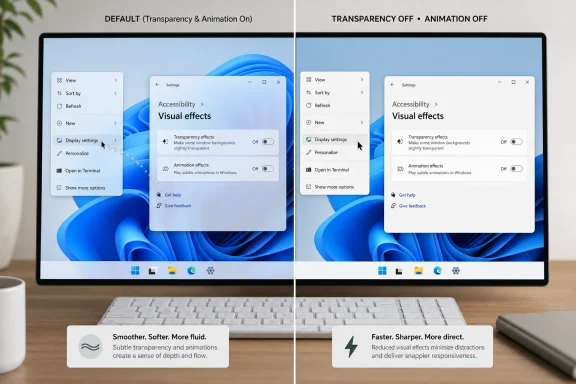 Microsoft’s prettiest desktop is not always its most usable one
Windows 11 was designed to look calmer than Windows 10. Rounded corners, softened menus, translucent surfaces, animated transitions, and the Mica material system all work together to make the operating system feel less mechanical and more composed. In the abstract, this is good design: a desktop OS used for hours at a time should not feel like a spreadsheet wearing a gray suit.But polish has a habit of becoming policy. Once an operating system decides that motion and translucency are part of its identity, every click becomes an opportunity to remind the user that the interface has a choreographed personality. Menus do not simply appear; they fade. Windows do not merely open; they glide. Virtual desktops do not switch so much as perform a stage transition.
That performance is not free, even when the cost is small. It consumes GPU and CPU work, adds latency by design, and can reduce visual clarity for users who would rather see a crisp interface than a frosted-glass suggestion of one. The point is not that Windows 11’s visual effects are disastrous. The point is more damning: for many people, they are unnecessary.
The How-To Geek argument lands because it is based on a familiar user experience rather than a benchmark chart. Disable the effects, and Windows can feel more direct. The machine may not be dramatically faster in a measurable sense, but the interface stops inserting tiny theatrical pauses between intent and result.
The delay is the feature, and that is the problem
Animations in an operating system are not decorative in the same way wallpaper is decorative. They are temporal. They occupy time between one state and another, and that means they shape how fast the system feels even when the underlying operation is already complete.Designers use animation for good reasons. Motion can show where an object went, signal hierarchy, soften abrupt changes, and make complex interfaces easier to follow. A window minimizing into the taskbar tells a new user that the app has not vanished. A desktop transition helps communicate that the user has moved to a different workspace rather than accidentally losing focus.
The trouble is that those benefits fade as users become fluent. A person switching virtual desktops hundreds of times a week does not need a full-screen gesture to explain what just happened. A sysadmin moving between terminals, browser tabs, remote sessions, and documentation does not need the Start menu to ease into existence. At some point, animation stops being guidance and becomes toll collection.
This is why the “few milliseconds” framing matters. A single delay feels trivial. Thousands of small delays become a texture. They turn the desktop into something that feels cushioned, and not everyone wants cushioning when they are trying to work.
Windows 11 is especially vulnerable here because it arrived with a deliberate aesthetic reset. Microsoft wanted the OS to feel friendlier, more modern, less abrupt, and more competitive with macOS and mobile design language. That visual repositioning made sense for a consumer-facing launch, but it also created a desktop where the default experience is not necessarily the most efficient one.
Transparency is a luxury feature masquerading as atmosphere
Transparency is less about time and more about legibility. Windows 11’s translucent surfaces are meant to create depth and continuity, helping parts of the interface feel connected to the desktop beneath them. In Microsoft’s design vocabulary, materials like Mica and Acrylic exist to give apps a sense of layering without turning the UI into a chaotic stack of glass panes.In practice, the effect can be barely noticeable, inconsistent, or distracting depending on wallpaper, app, theme, display quality, and personal vision. The user who turns transparency off may not feel that Windows becomes ugly. They may simply notice that the interface becomes less visually busy.
That is an uncomfortable reality for modern UI design. Transparency often photographs well. It makes screenshots look premium. It gives product pages a sense of depth that flat blocks of color cannot. But a desktop OS is not primarily a screenshot generator; it is a work surface.
There is also a subtle accessibility argument here. Some users find translucency harder to parse, particularly when background colors bleed through panels or reduce contrast. Microsoft knows this, which is why Windows exposes transparency controls in accessibility-adjacent settings as well as personalization areas. Aesthetic flexibility is not just taste management; it is part of making the interface usable for more people.
Disabling transparency will not transform a sluggish PC by itself. But it removes one more compositing effect from the stack, and on older integrated graphics, remote desktops, virtual machines, low-power laptops, and battery-constrained systems, small simplifications can matter.
The best performance setting is hidden in plain sight
The simplest path is the one most users should try first. Open Settings, go to Personalization, then Colors, and turn off Transparency effects. Alternatively, the same broad visual preference can be found through Accessibility, under Visual effects, where Windows groups transparency and animation controls together.Animations are handled just as directly if the goal is a clean sweep. Settings, Accessibility, Visual effects, and then “Animation effects” is the modern Windows 11 route. Toggle it off, and the OS cuts out a broad class of interface motion.
The deeper control panel path still exists, and it is revealing that it does. Search for Advanced system settings, open the Performance settings, and Windows presents the older Visual Effects list: animate windows, fade menus, show shadows, smooth edges of screen fonts, and so on. This is the Windows beneath Windows 11 — the older machinery still present under the softened shell.
That older dialog matters because not everyone wants the nuclear option. A user might hate window animations but like pointer shadows. Another might want smooth fonts and thumbnails but no fades. Microsoft’s modern Settings app encourages broad toggles; the legacy performance dialog still offers a more granular bargain.
This split also says something about Windows as a product. Windows 11 is not a freshly built operating system wearing a unified design system from kernel to Settings pane. It is decades of compatibility and UI frameworks wrapped in a newer visual language. Sometimes that is a strength. Sometimes it means the most useful setting is still hiding behind a dialog box that looks like it wandered in from another era.
Snappiness is not the same thing as benchmark speed
The case for disabling animations often gets framed as a performance hack, but that undersells the more interesting point. On a modern desktop with a fast CPU, discrete GPU, and high-refresh display, the computational cost of a menu fade is probably not the bottleneck. The delay is often perceptual and intentional.That distinction matters because it explains why users with powerful machines still report that Windows feels better after turning animations off. Their computers were not struggling to render the effect. Their computers were being asked to wait in a way the user no longer valued.
This is the same reason some power users disable animations on phones, browsers, IDEs, and Linux desktop environments. It is not always about rescuing weak hardware. It is about removing interstitial ceremony from a workflow. A fast system should feel immediate, not merely capable of rendering delay smoothly.
Virtual desktops are a perfect example. Windows 11’s desktop switching animation is elegant when demonstrated once. It can become irritating when repeated constantly. The more a feature is used, the less tolerance users have for visual explanation. Efficiency and elegance diverge most sharply in the repetitive parts of computing.
Microsoft is not wrong to default to a polished experience. Defaults must serve new users, mainstream buyers, reviewers, retail demos, and hardware partners. But the existence of these toggles is an implicit admission that polish is not universally desirable. Sometimes the premium experience is the one with fewer effects.
Older PCs are where the aesthetic bargain becomes obvious
On underpowered machines, the argument becomes less philosophical. Windows 11 is already more demanding than many users would like, particularly on systems that only barely meet its supported hardware requirements or have been upgraded from Windows 10-era installations. Visual effects are not the whole story, but they are among the few things users can change without replacing hardware or reinstalling the OS.Transparency and animation can stress exactly the parts of a low-end machine that are already shared and constrained. Integrated graphics borrow system memory. Thin-and-light laptops juggle thermal limits. Older SSDs and modest RAM pools turn background activity into visible stutter. In that environment, UI effects become part of a broader responsiveness problem.
There is also the remote and virtualized desktop angle. Many IT pros spend their days inside RDP sessions, VDI environments, cloud PCs, nested consoles, and management tools that do not benefit from visual flourish. Animation over a remote link is often just latency wearing a nicer coat. Transparency inside a compressed remote session can be visual noise with no real payoff.
For these users, disabling effects is not an anti-design stance. It is a practical tuning step, like turning off startup apps or choosing a simpler power mode. The desktop becomes a tool again, not a showroom.
The irony is that Microsoft has spent years trying to make Windows look more refined while many of its most committed users keep looking for ways to make it more direct. That tension is not going away. As Windows becomes more cloud-connected and AI-infused, local responsiveness will become even more important, not less.
Accessibility settings are becoming power-user settings
It is notable that the easiest route to animation control sits under Accessibility. That placement is correct, because motion sensitivity, focus, contrast, and visual clarity are accessibility concerns. But it also shows how accessibility work often benefits everyone.Captions help people in noisy rooms. Keyboard shortcuts help power users. Reduced motion helps people who are sensitive to animation and people who simply want less delay. High-contrast or simplified visuals can assist low-vision users and anyone working on a poor display in bad lighting.
The accessibility menu has quietly become one of the most important control surfaces in Windows. It is where Microsoft puts options that challenge the default sensory experience of the OS. If Personalization is where Windows asks what style you like, Accessibility is where Windows admits that style can get in the way.
That framing should matter to administrators. In managed environments, visual effects are not merely user preference. They can affect training, support, remote performance, battery life, and usability across mixed hardware fleets. A setting that looks cosmetic on one machine can be operationally useful across thousands.
Microsoft’s challenge is that these options are still presented as individual preferences rather than as part of a coherent “make Windows feel faster” mode. The old Performance Options dialog comes close, but it feels legacy. The modern Settings app exposes the toggles, but not the argument. Users must discover for themselves that less motion can mean more control.
Windows 11 still looks modern when it stops showing off
One fear about disabling visual effects is that Windows will suddenly look ancient. In reality, Windows 11’s design is not dependent on transparency and animation alone. Rounded corners, spacing, typography, iconography, themes, and the redesigned Settings app still carry the modern look.That is what makes the experiment so low-risk. Turning off transparency does not revert the desktop to Windows 95. Turning off animations does not make File Explorer look like a server console. The OS becomes more static and less glossy, but the underlying Windows 11 design language remains visible.
This matters because many users conflate motion with modernity. Software companies have encouraged that association for years. Smooth transitions and translucent panels suggest quality in the same way heavy doors and soft-close drawers suggest quality in hardware. But responsiveness has its own premium feel.
A desktop that reacts immediately can feel more expensive than one that animates beautifully. The best high-refresh gaming monitors, mechanical keyboards, low-latency mice, and fast SSDs all sell the same promise: the gap between intention and result should shrink. An operating system animation that deliberately widens that gap has to justify itself.
For some users, it does. Plenty of people enjoy Windows 11’s softer presentation, and on good hardware the effects can look fluid and unobtrusive. But the mere fact that disabling them can make a modern PC feel newly sharp should make Microsoft cautious about piling on more ambient UI behavior in future releases.
The real Windows tweak is learning when not to tweak
There is a long tradition of Windows performance advice that ranges from sensible to superstitious. Disable services. Clean the registry. Empty mysterious caches. Run optimizer utilities. Turn off everything that looks unfamiliar. Much of that advice has aged badly, and some of it was never good.This tweak is different because it does not pretend to be magic. It changes visible behavior directly. If you dislike the result, you can reverse it in seconds. It does not require registry edits, third-party utilities, unsupported system modifications, or scripts copied from a forum post of uncertain age.
That makes it the right kind of Windows customization. It is reversible, understandable, and grounded in a real preference tradeoff. The user gives up some polish and gets a more immediate interface. There is no need to claim that every machine will suddenly gain measurable performance. The subjective improvement is the point.
For IT pros, the lesson is similar. Standardizing every machine into a stripped-down visual mode may be unnecessary, especially for users who like the default look. But knowing where these controls live is useful for troubleshooting complaints about lag, motion discomfort, remote desktop sluggishness, or older hardware that feels overmatched.
For enthusiasts, it is a reminder that the best Windows setup is rarely the one Microsoft ships on day one. Windows has always been a negotiated environment. The defaults are a starting position, not a verdict.
The two toggles that reveal Windows 11’s tradeoff
The practical advice is simple enough to test during a coffee break, and the risk is close to zero. Try transparency first, because the visual loss is usually minor. Then try disabling animations for a day, especially if you use virtual desktops, multitask heavily, or run Windows on older hardware.- You can disable transparency through Settings by opening Personalization, choosing Colors, and turning off Transparency effects.
- You can disable both transparency and animations through Settings by opening Accessibility, then Visual effects, and changing the relevant toggles.
- You can fine-tune individual effects by opening Advanced system settings and using the Performance options under the Visual Effects tab.
- You should expect Windows to feel more immediate, though not every system will show a dramatic benchmark improvement.
- You can reverse the changes quickly if you decide the default Windows 11 look is worth the added motion and translucency.
Windows 11 does not need to be ugly to be fast, and it does not need to be animated to be modern. The smarter default for Microsoft may still be the glossy one, because mainstream users expect a contemporary OS to move and shimmer. But the best version of Windows for many enthusiasts and administrators is the quieter one: fewer effects, less waiting, sharper edges between action and result, and a desktop that remembers its highest calling is not to impress the user, but to respond.
Source: How-To Geek Windows 11 looks and runs better without transparency or animations—here's how to disable both
