

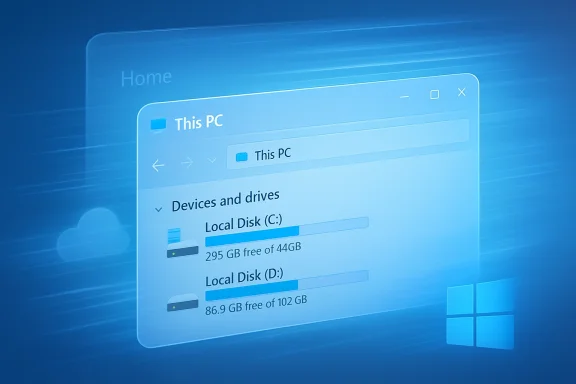
Microsoft’s recent tweaks to File Explorer in Windows 11 offer a quick fix for the sluggish “cold start” many users still complain about — and there’s a one‑minute setting change that, in practice, delivers the fastest and safest improvement for most people: make File Explorer open to This PC instead of Home. This small adjustment avoids cloud queries and heavy UI composition on launch, and when paired with Microsoft’s experimental window preloading it can restore the snappy feel many remember from Windows 10.
Windows 11 rebuilt much of the shell experience using modern UI components layered on top of legacy Win32 mechanics. That hybrid architecture introduced extra initialization work during a “cold” File Explorer launch: XAML composition, thumbnail/preview handlers, shell extensions and — critically — Home’s cloud‑backed recent/recommended file queries. The combination made the first open after sign‑in noticeably slower on many machines. Microsoft has begun addressing this by experimenting with a background preload and by giving users options to control behavior. The Windows Insider Blog lists the new preloading experiment as part of Insider Preview Build 26220.7271, published November 21, 2025.
Two concurrent realities emerged from that work:
How to change it (one clear set of steps):
Why this helps (technical summary):
What users and admins should expect going forward:
If you want a one‑line checklist to follow now:
Source: ProPakistani You Can Speed Up Windows 11's File Explorer With This Easy Change
 Background / Overview
Windows 11 rebuilt much of the shell experience using modern UI components layered on top of legacy Win32 mechanics. That hybrid architecture introduced extra initialization work during a “cold” File Explorer launch: XAML composition, thumbnail/preview handlers, shell extensions and — critically — Home’s cloud‑backed recent/recommended file queries. The combination made the first open after sign‑in noticeably slower on many machines. Microsoft has begun addressing this by experimenting with a background preload and by giving users options to control behavior. The Windows Insider Blog lists the new preloading experiment as part of Insider Preview Build 26220.7271, published November 21, 2025. Two concurrent realities emerged from that work:
- Microsoft provided a pragmatic optimization (preloading) that warms Explorer’s UI in idle teel instantaneous.
- The simplest user‑level performance win often isn’t a new feature at all but a default setting: opening to This PC avoids Home’s cloud/aggregation cost and therefore yields a faster visible paint on many systems.
Why File Explorer feels slower in Windows 11
The Home view: convenience that costs time
File Explorer’s Home view aggregates recent files, pinned/favored items and cloud recommendationsmes at runtime cost: when Explorer opens to Home it often triggers network lookups to OneDrive and Microsoft 365, resolves cloud placeholders, initializes preview/thumbnail handlers for recent items, and asks registered shell extensions to prepare UI overlays. Any slow response from these subsystems can stall the initial usable state and display the familiar “Working on it…” or a delayed file list. Multiple hands‑on tests and community reports confirm Home is frequently the main bottleneck on consumer devices.WinUI + Win32: modern visuals, legacy costs
Microsoft modernized Explorer with WinUI surfaces sitting on a Win32 core. That brings cleaner visuals and new features, but each added element increases the initialization footprint on a cold start: additional UI rendering, composition work, and XAML initialization. Preloading masks this cost by doing some work ahead of time, but the underlying architectural complexity remains and affects day‑to‑day interactions (context menus, thumbnail generation) beyond the first paint.Third‑party shell extensions and preview handlers
Even on fast hardware, third‑party shell extensions (cloud sync clients, backup tools, antivirus) and heavy preview handlers can inject delays into Explorer’s startup sequence. These are not fixed by preloading, because many providers initialize when specific views are requested or when certain file types are enumerated. If you rely on many such extensions, the perceived slowdowns may persist unless those extensions are updated or trimmed.The easy, one‑minute fix: open File Explorer to This PC
If you want the fastest, lowest‑risk way to speed File Explorer right now, change its default landing page to This PC. This avoids Home’s cloud-driven workload and reduces the number of preview/handler calls at launch.How to change it (one clear set of steps):
- Open File Explorer (press Windowe three‑dot menu (•••) on the toolbar and choose Options.
- In the Gen File Explorer to: and change the dropdown from Home to This PC.
- Click Apply, then OK.
Why this helps (technical summary):
- Fewer network calls (no OneDrive/Microsoft 365 enumeration).
- Reduced number of thumbnail/preview handler activations on first paint.
- Simpler UI composition required for the initial visible state, so the window becomes interactive sooner.
Microsoft’s preloading experiment: what it does and when to use it
What Microsoft introduced
In Windows Insider Preview Build 26220.7271 (Dev/Beta channels), Microsoft began an experiment that preloads a lightweight portion of File Explorer in the background so the first click produces a near‑instant window. The preload is exposed as a user toggle labeled “Enable window preloading for faster launch times” in Folder Options → View. Microsoft describes the change as an exploration intended to reduce perceived launch latency while keeping it optional and reversible.)How preloading helps
Preloading trades a modest amount of idle memory and a little background CPU work for a major improvement in first‑open responsiveness:- It warms a UI skeleton and common caches so the click‑to‑interactive time is much shorter.
- For many users — especially on low‑end hardware or devices with HDDs — the perceived “snappiness” is dramatically improved right away.
The costs and limits
Preloading is pragmatic, but not a cure‑all:- Memory footprint: tests show the warmed Explorer instance consumes additional RAM (commonly tens of megabytes). That’s minor on modern systems but matters on low‑RAM devices. Community measurements reported increases on the order of ~30–40MB in some tests. This is a real trade‑off that matters for constrained systems.
- Battery/power: keeping additional processes resident can increase background power draw, relevant for laptops and tablets.
- It doesn’t fix runtime stutters caused by slow folder enumeration, network file shares, or heavy preview handlers — those require different mitigation.
Who should enable preloading?
- Enable it if you frequently suffer long cold starts and have sufficient RAM (8GB+ is a practical baseline).
- Disable it on memory‑constrained devices, VDI images with strict resource budgets, or when battery life matters more than an instant first open.
- Enterprises should pilot the option before wide deployment and prefer a managed setting once Microsoft supplies Group Policy/MDM controls.
Evidence and independent testing
Multiple outlets and community testers have corroborated the two‑part guidance: preloading speeds the first open at a modest memory cost, and switching to This PC eliminates a major source of delay without background memory use.- Windows Central and The Verge covered Microsoft’s preload experiment and the associated context‑menu cleanup in Insider builds, confirming the presence of a user toggle and the trade‑off between responsiveness and background resource use.
- How‑To‑Geek and other step‑by‑step guides document the folder‑options location for both the default startup page and the preload checkbox, so users can reproduce the behavior on their devices.
- Community measuremeum and tech writeups) show that switching to This PC frequently matches or exceeds the perceived benefit of preloading — without consuming extra RAM — because it avoids the cloud query work Home performs. Those community reports also quemory impact in the tens of megabytes.
Practical checklist: how to test and deploy safely
If you want to optimize Explorer on one machine or roll the change out across a fleet, use this measured approach:- Personal machines (quick test)
- Record baseline behavior: open File Explorer 5–10 times after a fresh sign‑in and note active and any “Working on it…” messages.
- Switch File Explorer default to This PC (steps above) and repeat the test. Measure change.
- If you’re on an Insider build with the preload toggle and you want a faster first open, enable the preload checkbox and repeat measurements. Observe memory usage in Task Manager.
- If results are worse (higher RAM pressure, battery impact) revert the preload setting and keep This PC as the default.
- IT admins / mass rollout
- Pilot on a representative set of devices (low, mid, high spec). Monitor RAM, boot behaviour and useks.
- If preload reaches GA with Group Policy controls, prefer managed enforcement for predictable behavior. Until then, consider forcing the default landing page to This PC via user settings or configuration scripts where permitted.
3.ns and preview handlers in images used for VDI or kiosks. Remove or update heavy handlers that affect runtime performance.
Deeper troubleshooting: when the simple fixes don’t help
If Explorer remains slow even after switching to This PC and trying preload, investirits:- Thumbnail and preview handlers: temporarily disable thumbnail previews to see if that reduces delay.
- Third‑party shell extensions: use tools like ShellExView to list and selectively disable non‑Microsoft shell extensions for testing.
- Indexing: large indexed folders and a strained Windows Search index can cause background spikes. Adjust Indexing Options to exclude large, seldom‑used folders.
- Automatic folder type discovery: power users sometimes force a universal folder template in the registry (FolderType = NotSpecified) to stop heavy “folder sniffing” on directories with thousands of files — but treat registry edits as last‑resort and back up before changes.
Benefits, risks, and the trade‑offs you should weigh
- Benefits of switching to This PC:
- Immediate, no‑risk speedup f
- No extra background memory or battery cost.
- Benefits of enabling preloading:
- Instant first‑open experience on systems with spare RAM.
- Risks and trade‑offs:
- Preloading increases resident memory by a modest amount and can affect battery life on portable devices.
- Some UI integrations for cloud functionality are less visible if you avoid Home; that’s a conscious trade between discoverability and responsiveness. s and disabling services should be used sparingly and only with backups in place.
Where Microsoft can and should go from here
Microsoft’s preload experiment is a pragmatic, low‑risk response to a common usability complaint. It improves the first‑open perception without touching Explorer’s public APIs or risking large compatibility regressions. That said, preloading is a band‑aid on an architectural tension: the hybrid WinUI/Win32 design and deep cloud integrations still introduce real runtime costs.What users and admins should expect going forward:
- Wider rollout of the preload option with clearer enterprise controls (Group Policy / MDM).
- Continued code‑level optimizations in subsequent updates to reduce Home’s fetch latency and to speed archive extraction and folder painting. Microsoft has already tuned parts of the experience in later updates.
- Better observability for admins: telemetry and documentation should clarify memory and power budgets for preloading once the feature ships broadly.
Final verdict and recommendation
For most Windows 11 users — especially those on older laptops, HDDs, or machines with limited RAM — the fastest, safest way to speed up File Explorer is to set Open File Explorer to: This PC in Folder Options. It’s reversible, immediate, and requires no extra RAM or power trade‑offs. If you’re on an Insider build or a device with ample memory and you want the absolute fastest first open, consider enabling Microsoft’s Enable window preloading for faster launch times toggle and measure the result for your workload. For enterprise deployments, pilot before broad rollout and wait for Microsoft’s management controls before making preload the default across fleets.If you want a one‑line checklist to follow now:
- Change File Explorer’s default to This PC.
- If available and you have spare RAM, try the preload toggle and measure memory impact.
- If Explorer still lags, audit shell extensions, thumbnail handlers and indexing, and apply surgical fixes rather than broad registry hacks.
Source: ProPakistani You Can Speed Up Windows 11's File Explorer With This Easy Change
